

Sportarr is a free, open-source automated media management tool designed specifically for sports events, functioning as a personal video recorder (PVR) for Usenet and BitTorrent users. Often described as “Sonarr or Radarr, but for sports,” it allows users to build and maintain an organized library of recorded sports content from hundreds of leagues worldwide, including combat sports (UFC, MMA, boxing), American football (NFL), basketball (NBA), soccer (Premier League), hockey (NHL), motorsports (Formula 1), tennis, golf, and many more. In this step by step guide I will show you how to install Sportarr on your Synology NAS using Docker & Portainer.
STEP 1
Please Support My work by Making a Donation.
STEP 2
Install Portainer using my step by step guide. If you already have Portainer installed on your Synology NAS, skip this STEP. Attention: Make sure you have installed the latest Portainer version.
STEP 3
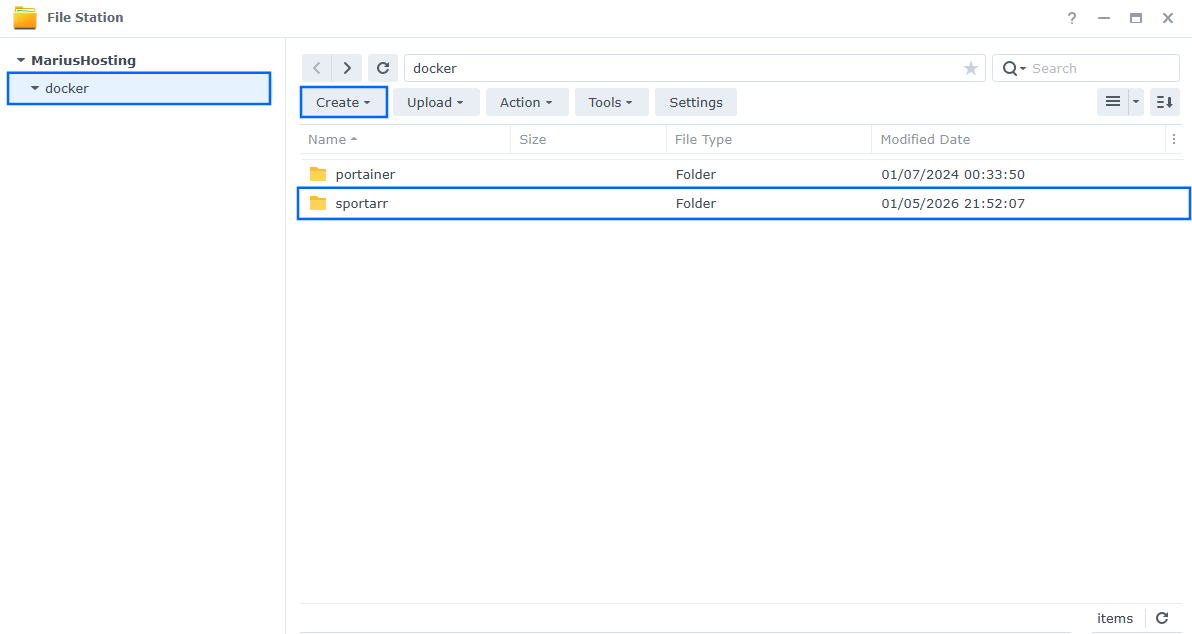
Go to File Station and open the docker folder. Inside the docker folder, create one new folder and name it sportarr. Follow the instructions in the image below.
Note: Be careful to enter only lowercase, not uppercase letters.
STEP 4
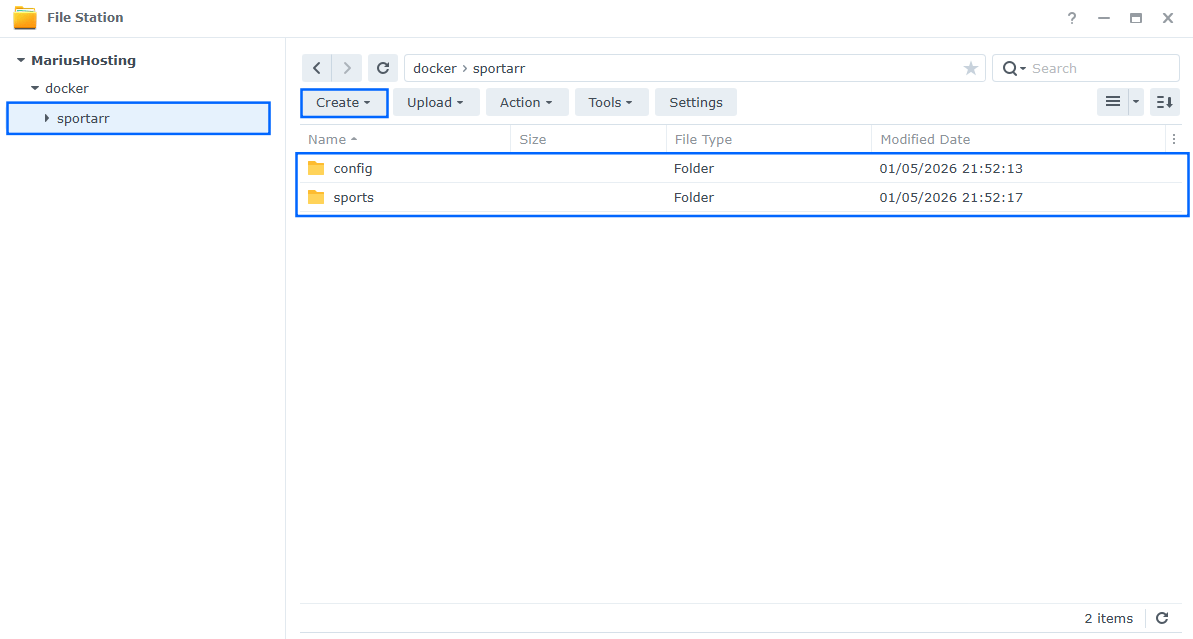
Now create two new folders inside the sportarr folder that you have previously created at STEP 3 and name them config and sports. Follow the instructions in the image below.
Note: Be careful to enter only lowercase, not uppercase letters.
STEP 5
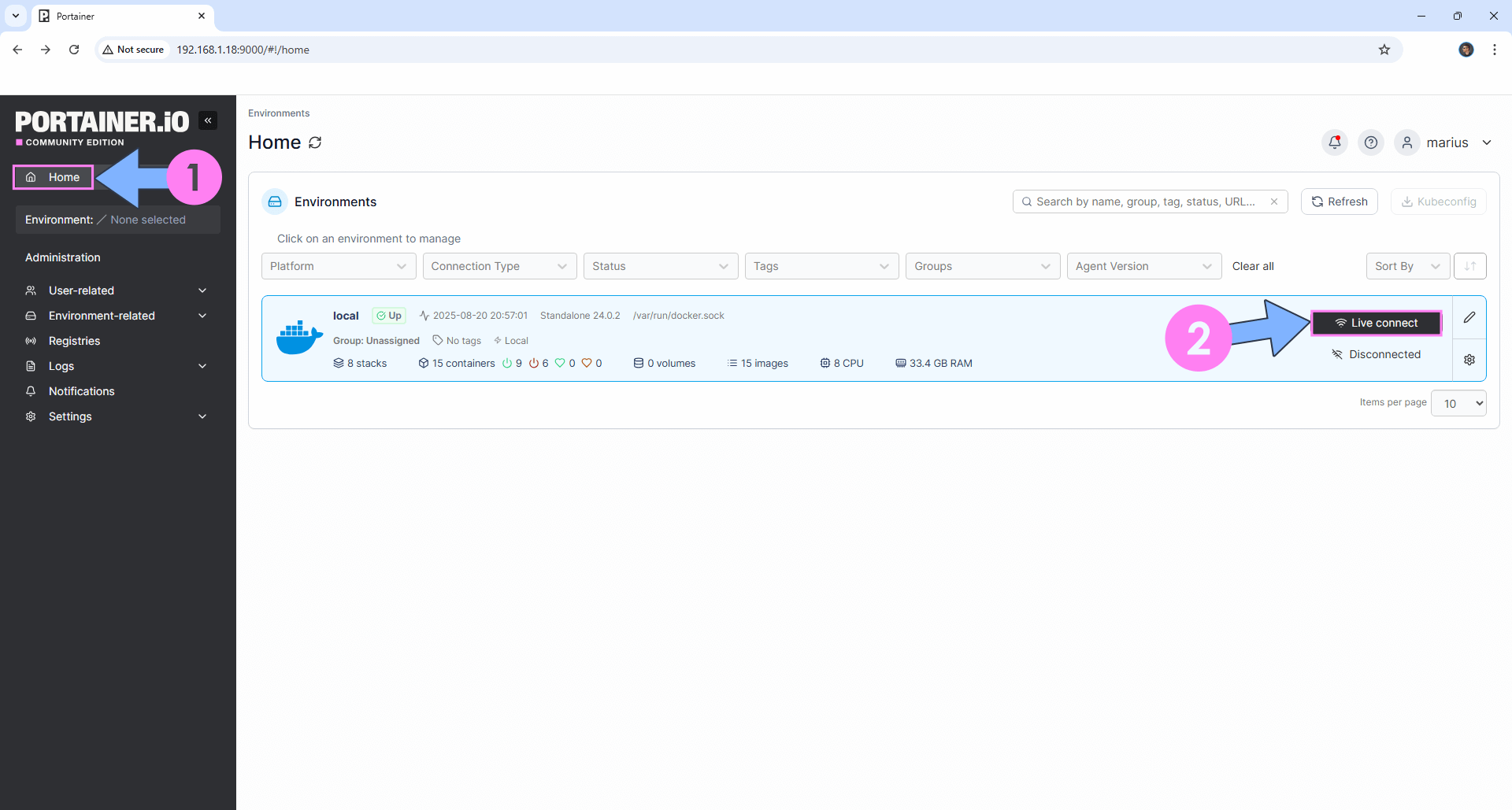
Log into Portainer using your username and password. On the left sidebar in Portainer, click on Home then Live connect. Follow the instructions in the image below.
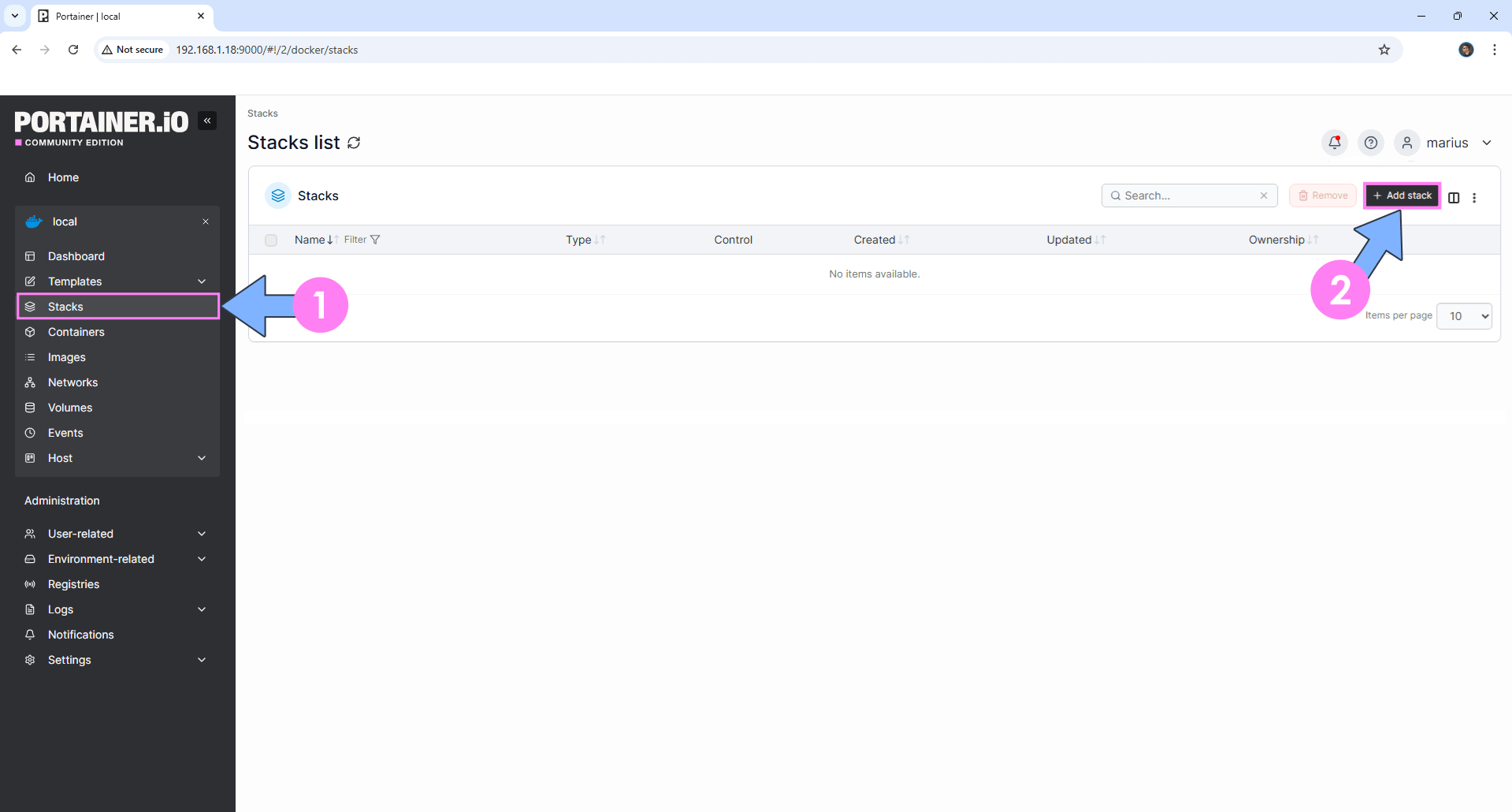
On the left sidebar in Portainer, click on Stacks then + Add stack. Follow the instructions in the image below.
STEP 6
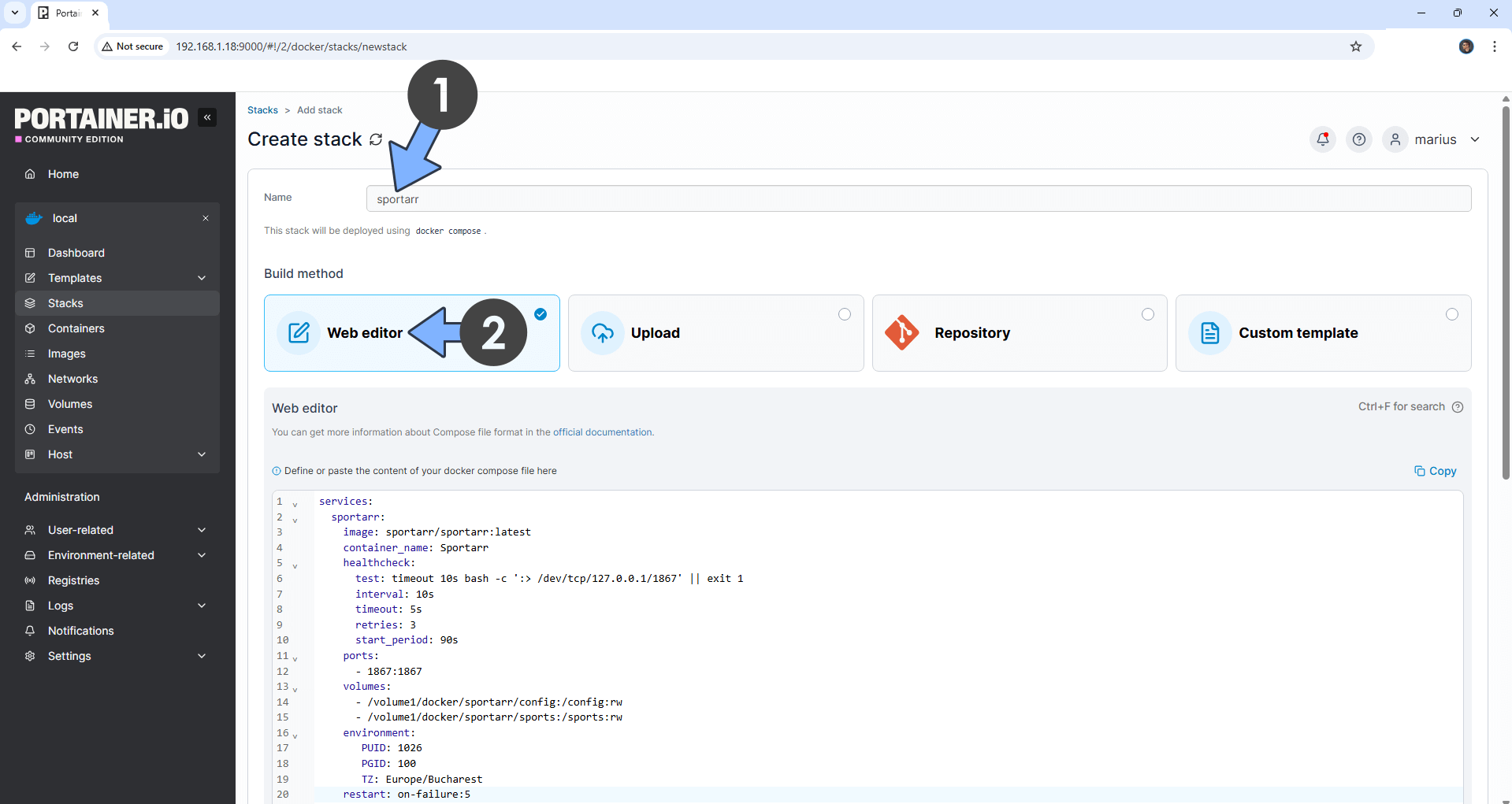
In the Name field type in sportarr. Follow the instructions in the image below.
services:
  sportarr:
    image: sportarr/sportarr:latest
    container_name: Sportarr
    healthcheck:
      test: timeout 10s bash -c ':> /dev/tcp/127.0.0.1/1867' || exit 1
      interval: 10s
      timeout: 5s
      retries: 3
      start_period: 90s
    ports:
      - 1867:1867
    volumes:
      - /volume1/docker/sportarr/config:/config:rw
      - /volume1/docker/sportarr/sports:/sports:rw
    environment:
       PUID: 1026
       PGID: 100
       TZ: Europe/Bucharest
    restart: on-failure:5
Note: Before you paste the code above in the Web editor area below, change the value numbers for PUID and PGID with your own values. (Follow my step by step guide on how to do this.)
Note: Before you paste the code above in the Web editor area below, change the value for TZ. (Select your current Time Zone from this list.)
STEP 7
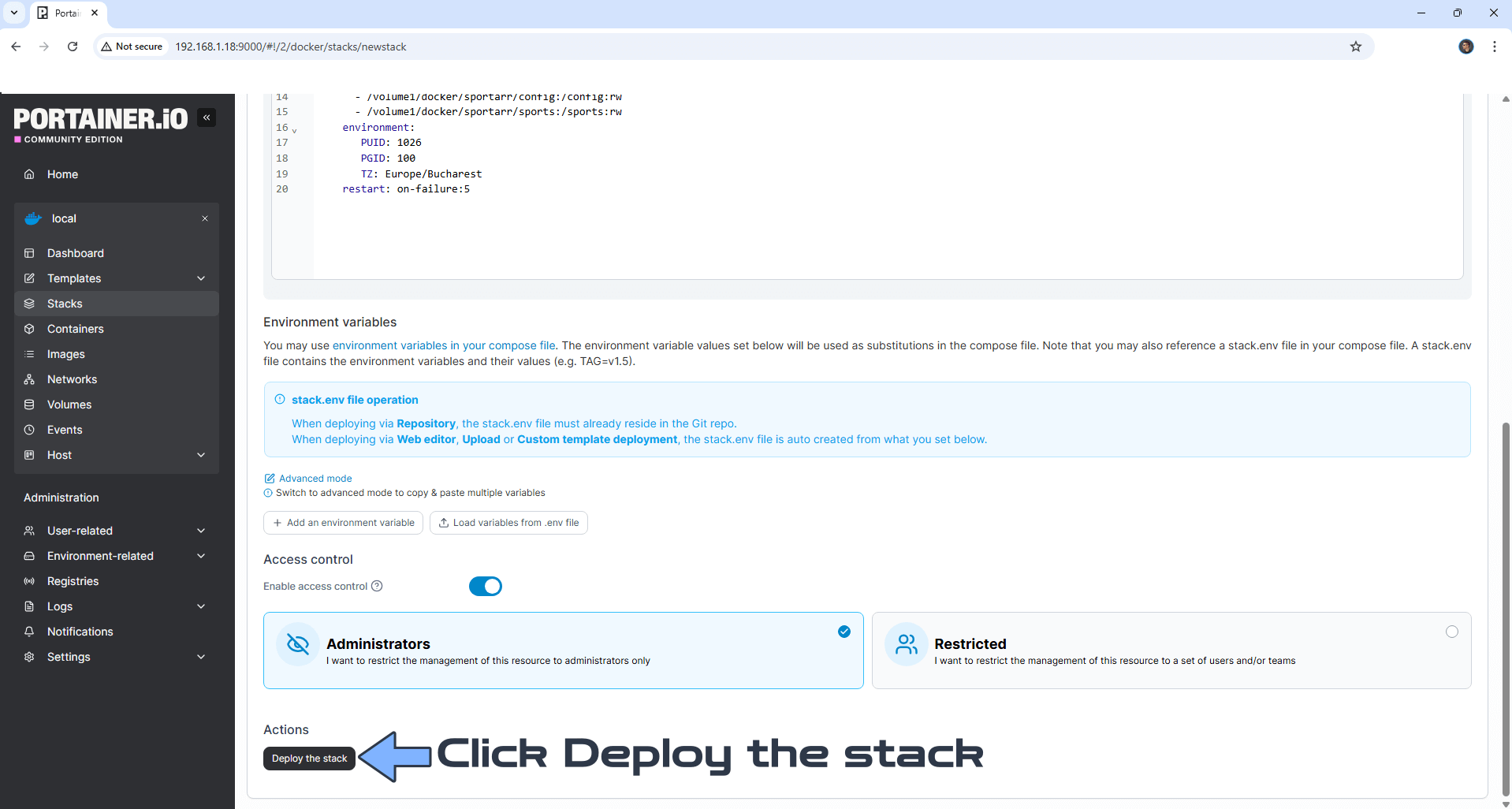
Scroll down on the page until you see a button named Deploy the stack. Click on it. Follow the instructions in the image below. The installation process can take up to a few minutes. It will depend on your Internet speed connection.
STEP 8
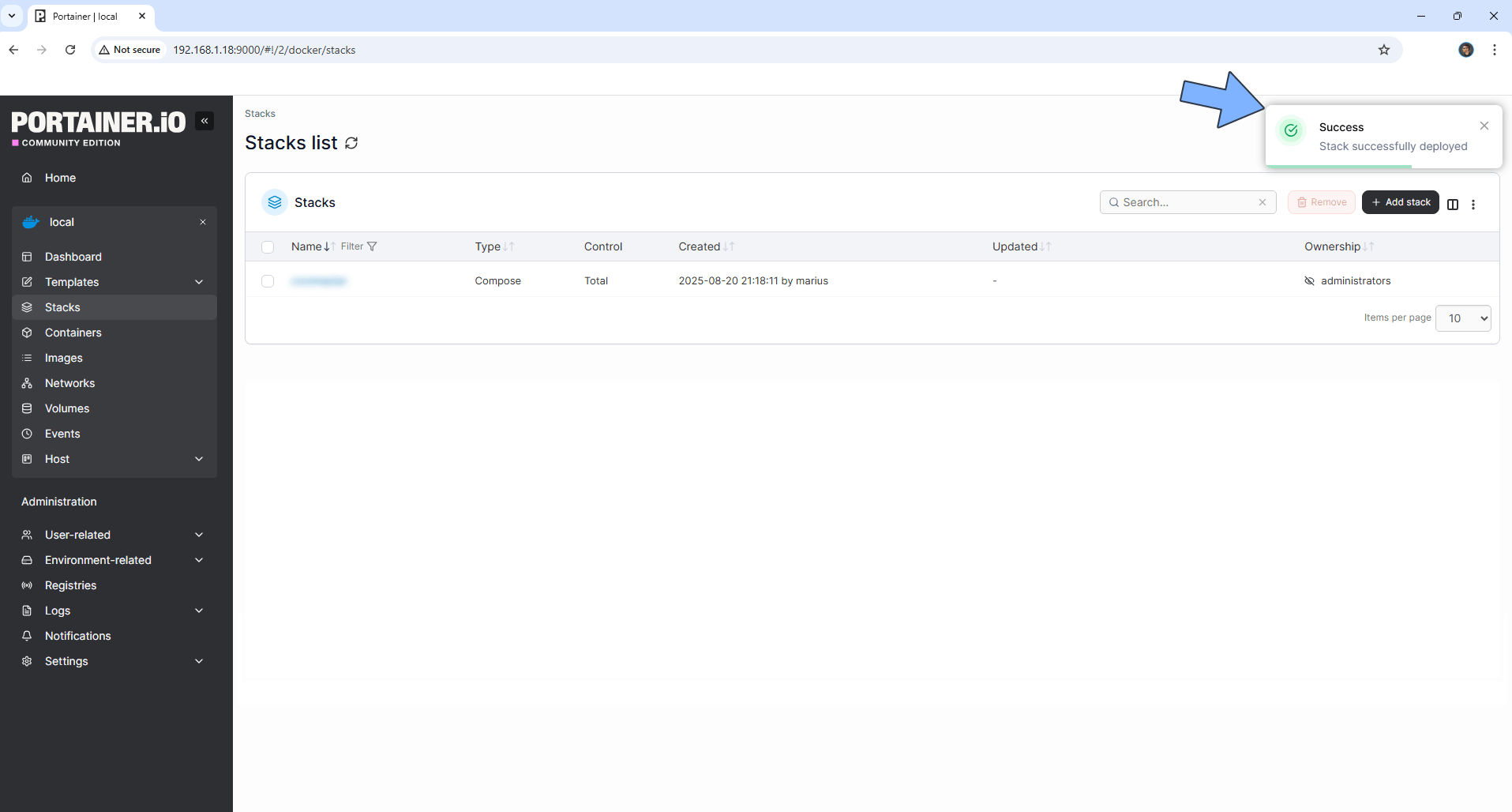
If everything goes right, you will see the following message at the top right of your screen: “Success Stack successfully deployed“.
STEP 9
🟢Please Support My work by Making a Donation. Almost 99,9% of the people that install something using my guides forget to support my work, or just ignore STEP 1. I’ve been very honest about this aspect of my work since the beginning: I don’t run any ADS, I don’t require subscriptions, paid or otherwise, I don’t collect IPs, emails, and I don’t have any referral links from Amazon or other merchants. I also don’t have any POP-UPs or COOKIES. I have repeatedly been told over the years how much I have contributed to the community. It’s something I love doing and have been honest about my passion since the beginning. But I also Need The Community to Support me Back to be able to continue doing this work.
STEP 10
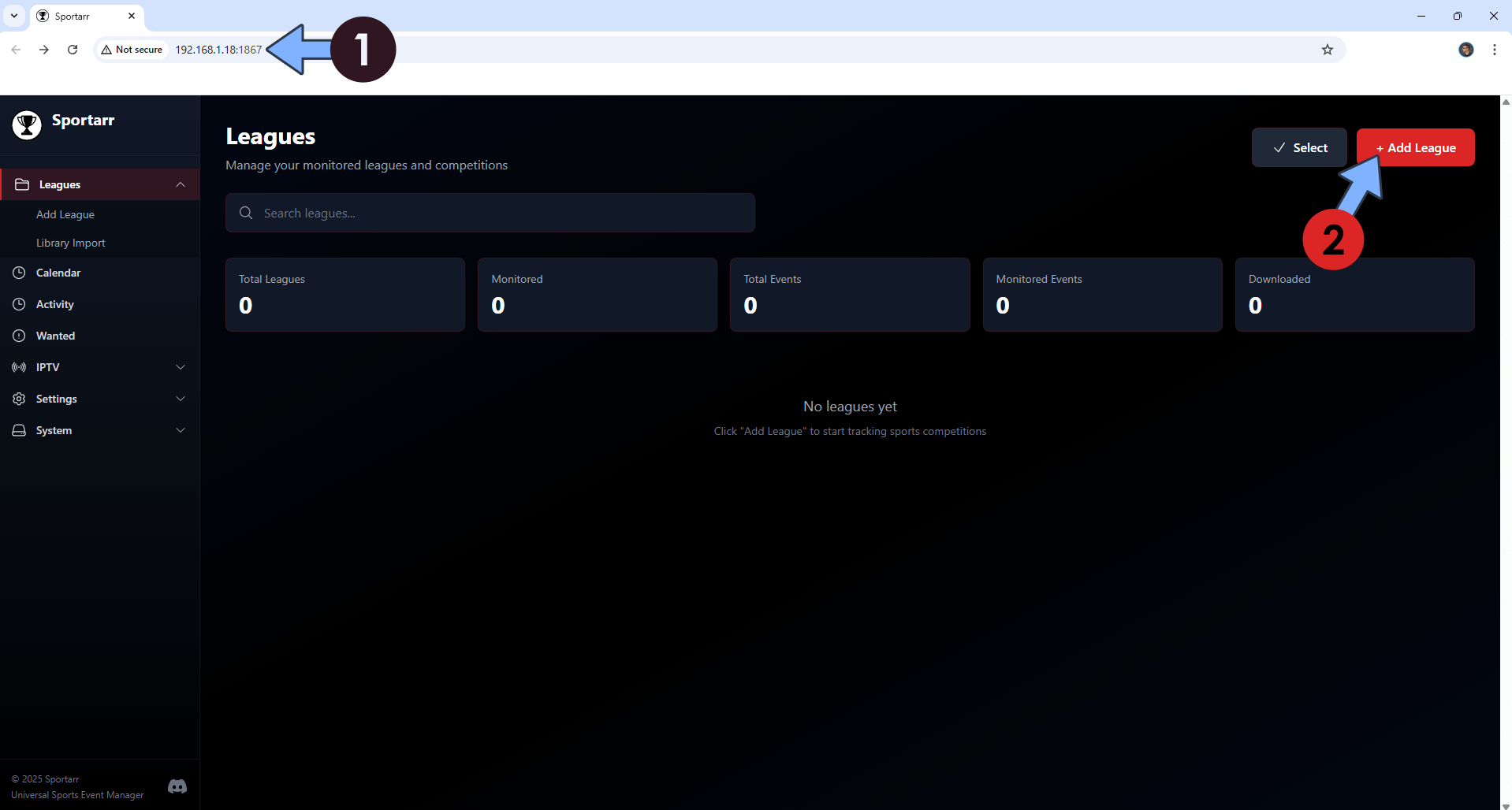
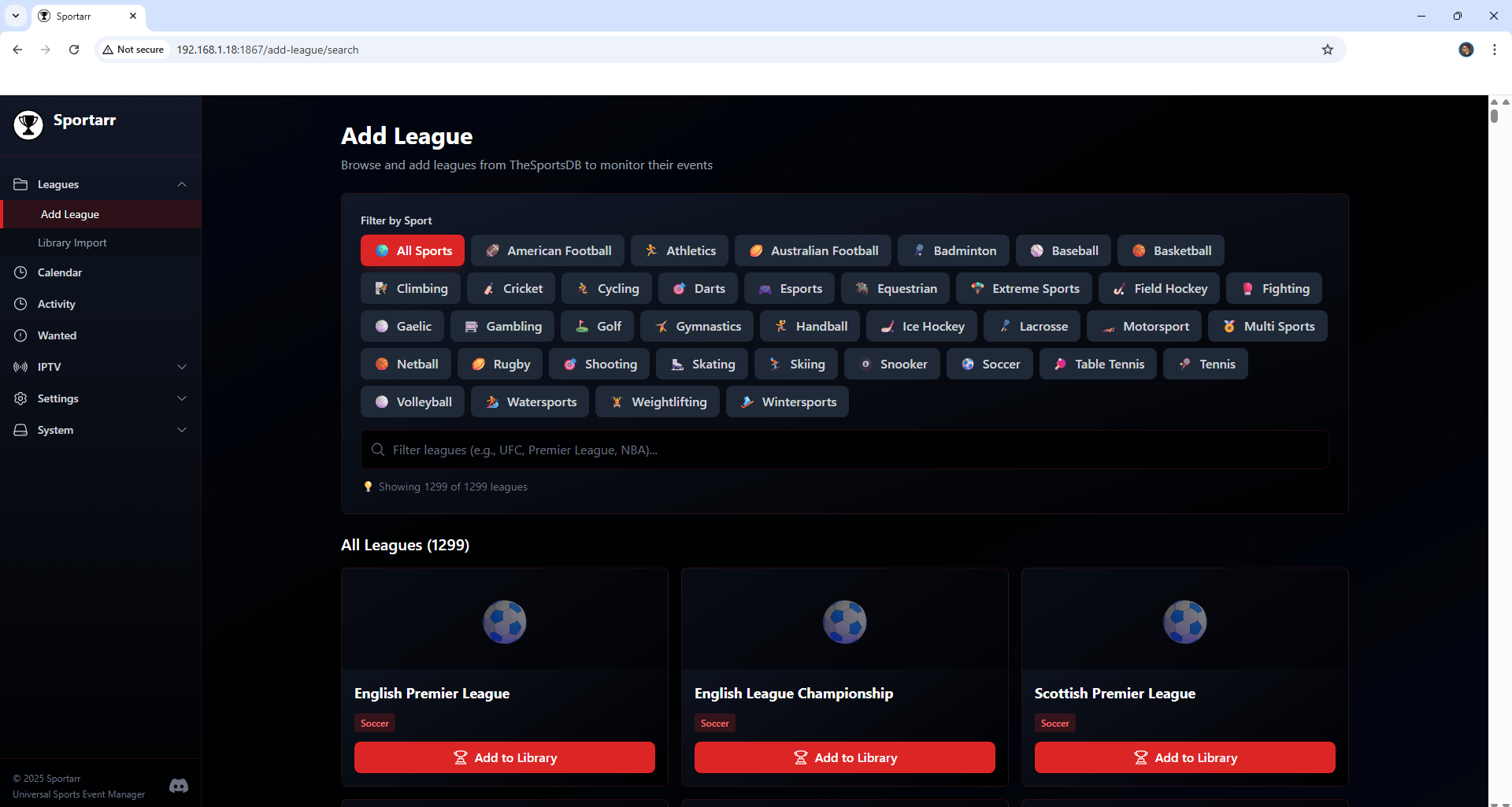
The installation process can take up to a few seconds/minutes. It will depend on your Internet speed connection. Now open your browser and type in http://Synology-ip-address:1867 If everything goes right, you will see the Sportarr dashboard. Click + Add League. Follow the instructions in the image below.
STEP 11
Browse and add the leagues whose events you want to monitor.
Enjoy Sportarr!
If you encounter issues by using this container, make sure to check out the Common Docker issues article.
Check out the Full Documentation on how to properly use Sportarr.
Note: If you want to run the Sportarr container over HTTPS, check How to Run Docker Containers Over HTTPS. In order to make Sportarr work via HTTPS, it’s mandatory to activate WebSocket.
Note: Can I run Docker on my Synology NAS? See the supported models.
Note: How to Back Up Docker Containers on your Synology NAS.
Note: Find out how to update the Sportarr container with the latest image.
Note: How to Free Disk Space on Your NAS if You Run Docker.
Note: How to Schedule Start & Stop For Docker Containers.
Note: How to Activate Email Notifications.
Note: How to Add Access Control Profile on Your NAS.
Note: How to Change Docker Containers Restart Policy.
Note: How to Use Docker Containers With VPN.
Note: Convert Docker Run Into Docker Compose.
Note: How to Clean Docker.
Note: How to Clean Docker Automatically.
Note: Best Practices When Using Docker and DDNS.
Note: Some Docker Containers Need WebSocket.
Note: Find out the Best NAS Models For Docker.
Note: Activate Gmail SMTP For Docker Containers.
This post was updated on Sunday / March 22nd, 2026 at 5:33 PM