
Reactive Resume version 5 is a free, open-source resume builder that prioritizes privacy and simplicity. It allows you to create, customize, and share professional resumes with real-time previews, modern templates, drag-and-drop sections, rich text editing, custom CSS support, and export options in a PDF or JSON format. The app ensures no tracking or data selling, gives you full ownership of your data, and offers self-hosting via Docker. No account is required for basic use, it supports multiple languages, and newer versions include AI-assisted features. It’s built with React, TypeScript, Tailwind, and other modern technologies. In this step by step guide I will show you how to install Reactive Resume V5 on your Synology NAS using Docker and Portainer.
This guide works perfectly with the latest Reactive Resume v5.0.11 release.
STEP 1
Please Support My work by Making a Donation.
STEP 2
Install Portainer using my step by step guide. If you already have Portainer installed on your Synology NAS, skip this STEP. Attention: Make sure you have installed the latest Portainer version.
STEP 3
Make sure you have a synology.me Wildcard Certificate. Follow my guide to get a Wildcard Certificate. If you already have a synology.me Wildcard certificate, skip this STEP.
STEP 4
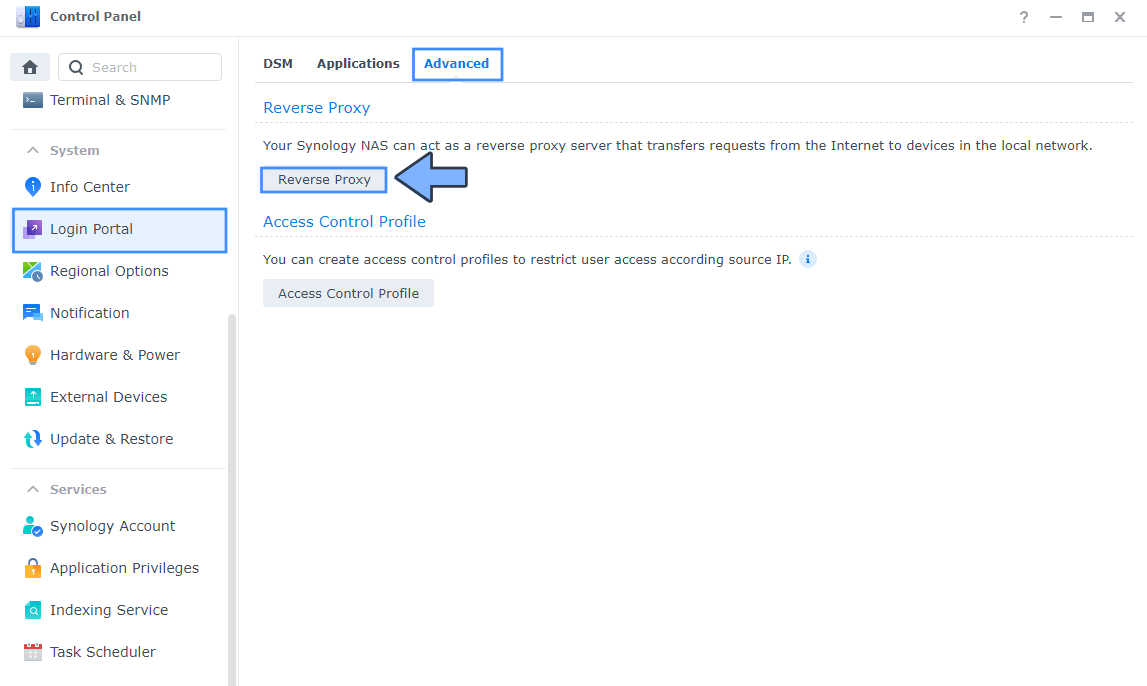
Go to Control Panel / Login Portal / Advanced Tab / click Reverse Proxy. Follow the instructions in the image below.
STEP 5
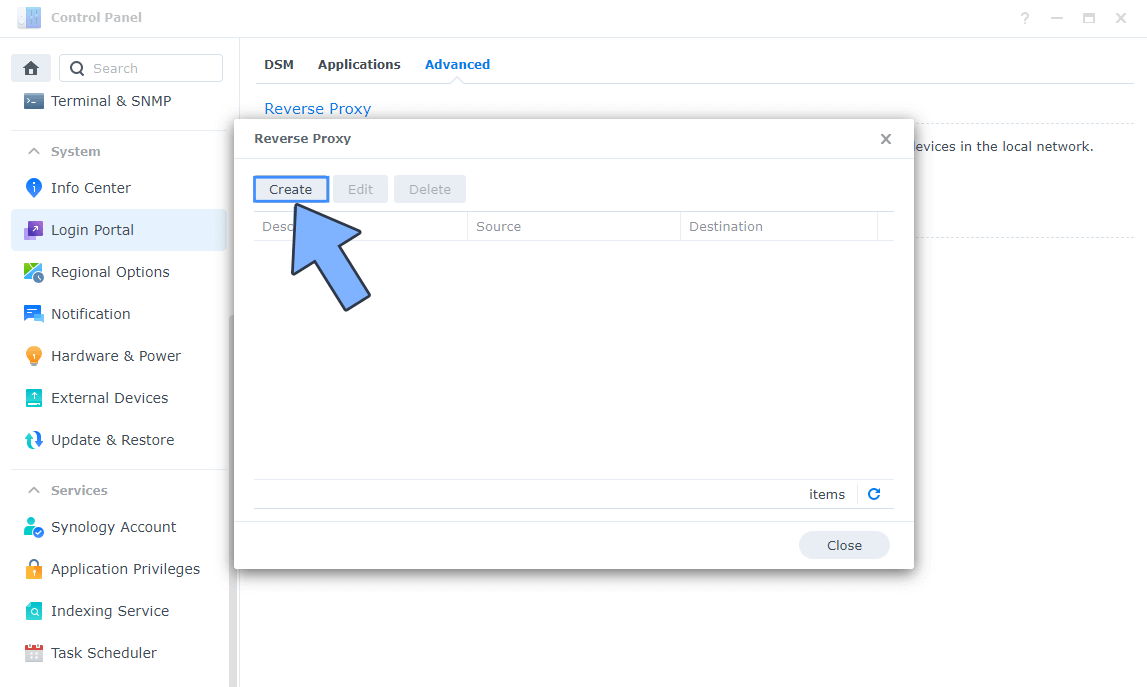
Now click the “Create” button. Follow the instructions in the image below.
STEP 6
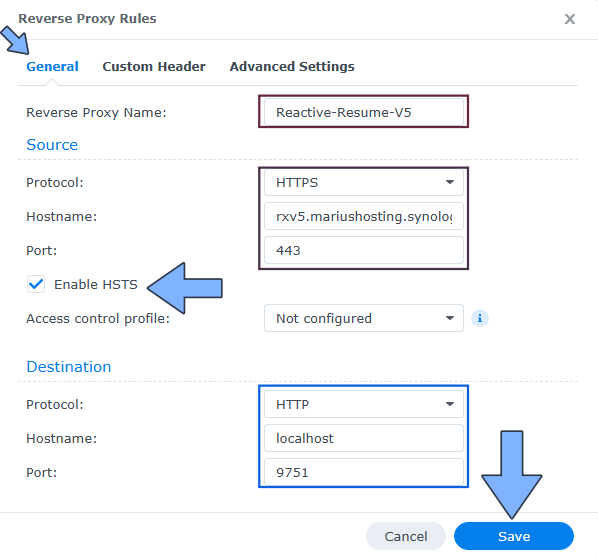
After you click the Create button, the window below will open. Follow the instructions in the image below.
On the General area, set the Reverse Proxy Name description: type in Reactive-Resume-V5. After that, add the following instructions:
Source:
Protocol: HTTPS
Hostname: rxv5.yourname.synology.me
Port: 443
Check Enable HSTS
Destination:
Protocol: HTTP
Hostname: localhost
Port: 9751
STEP 7
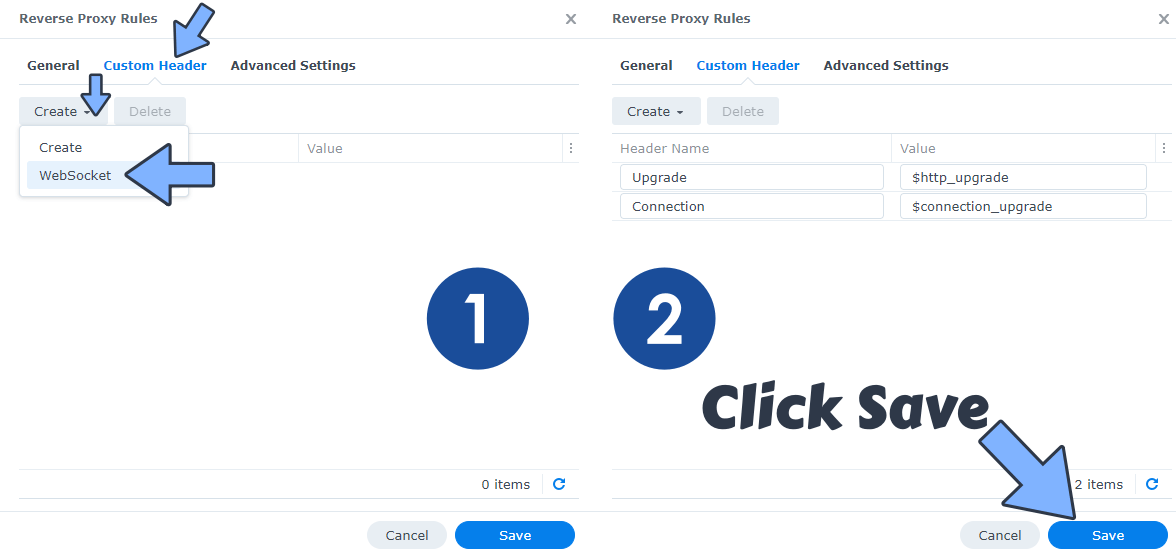
On the Reverse Proxy Rules, click the Custom Header tab. Click Create and then, from the drop-down menu, click WebSocket. After you click on WebSocket, two Header Names and two Values will be automatically added. Click Save. Follow the instructions in the image below.
STEP 8
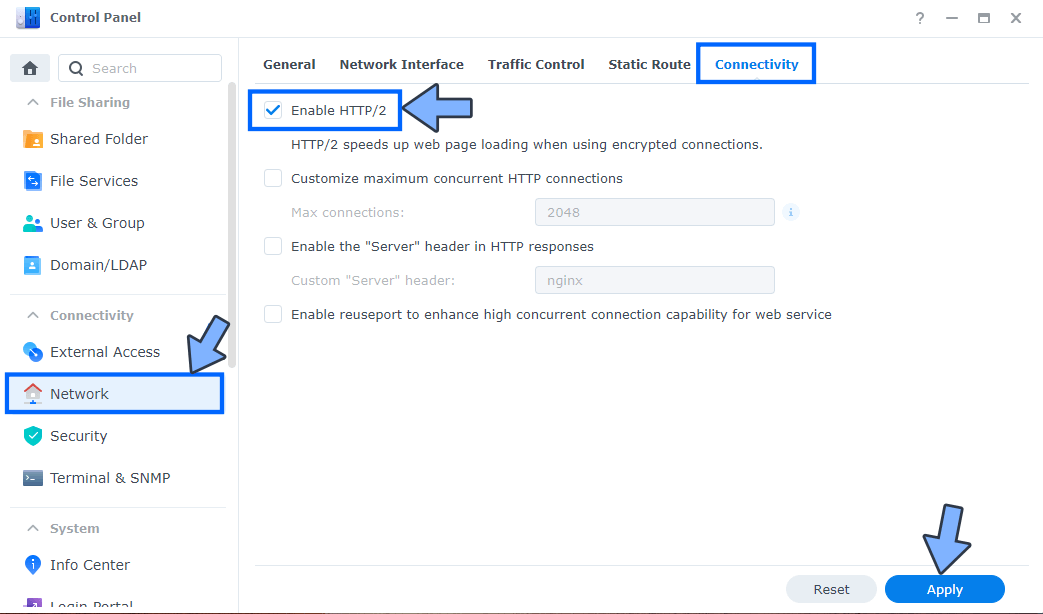
Go to Control Panel / Network / Connectivity tab/ Check Enable HTTP/2 then click Apply. Follow the instructions in the image below.
STEP 9
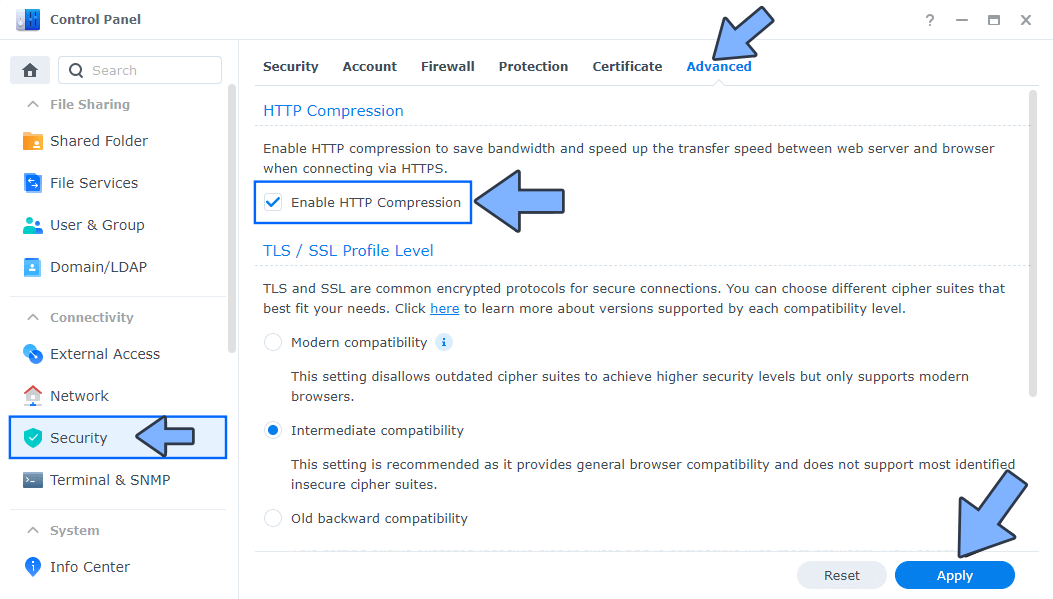
Go to Control Panel / Security / Advanced tab/ Check Enable HTTP Compression then click Apply. Follow the instructions in the image below.
STEP 10
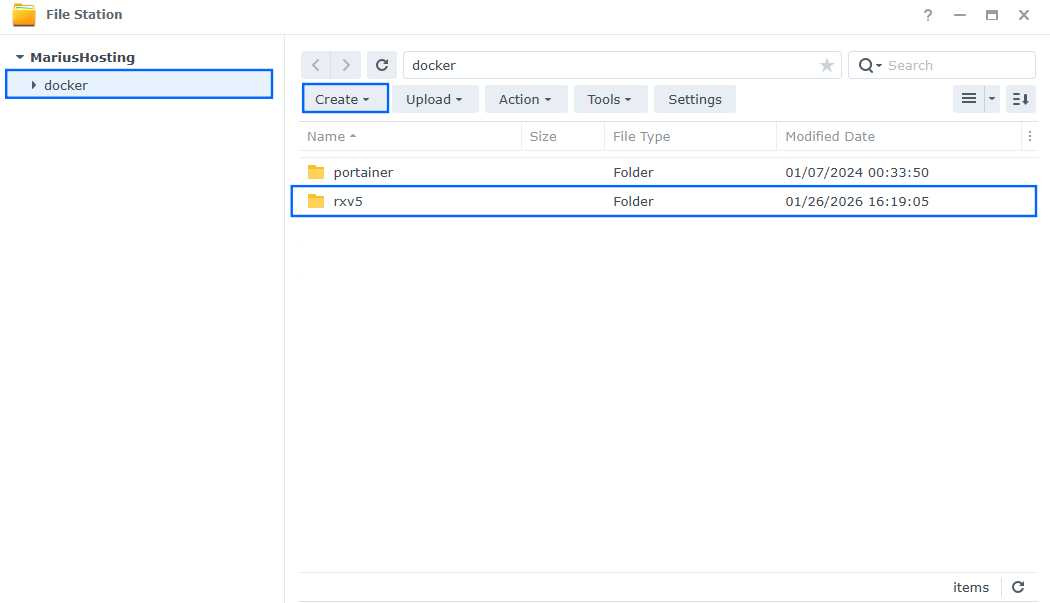
Go to File Station and open the docker folder. Inside the docker folder, create one new folder and name it rxv5. Follow the instructions in the image below.
Note: Be careful to enter only lowercase, not uppercase letters.
STEP 11
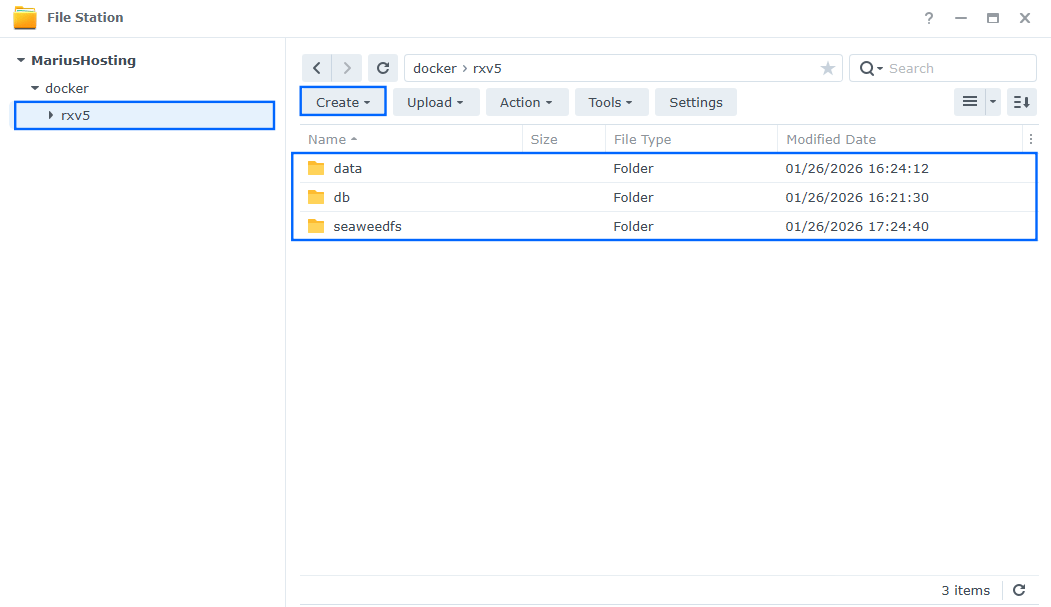
Now create three new folders inside the rxv5 folder that you have previously created at STEP 10 and name them data, db, seaweedfs. Follow the instructions in the image below.
Note: Be careful to enter only lowercase, not uppercase letters.
STEP 12
Follow my step by step guide on how to activate SMTP for your Gmail account. This step is mandatory. Note: If you don’t want to use the easiest way for SMTP with Google and you already have SMTP details from your own Mail Server, you can just skip this STEP and use your personalized email SMTP details instead.
STEP 13
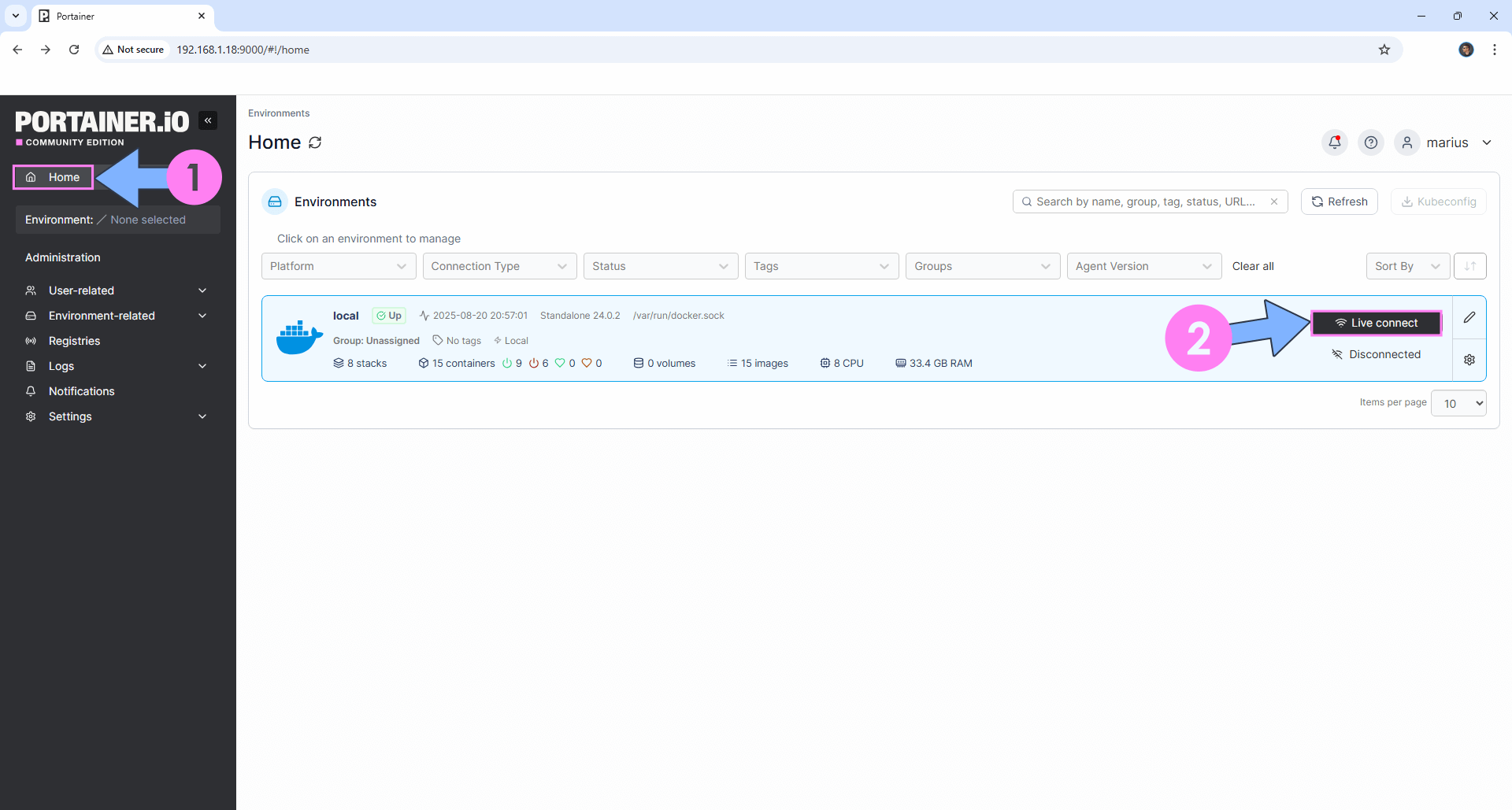
Log into Portainer using your username and password. On the left sidebar in Portainer, click on Home then Live connect. Follow the instructions in the image below.
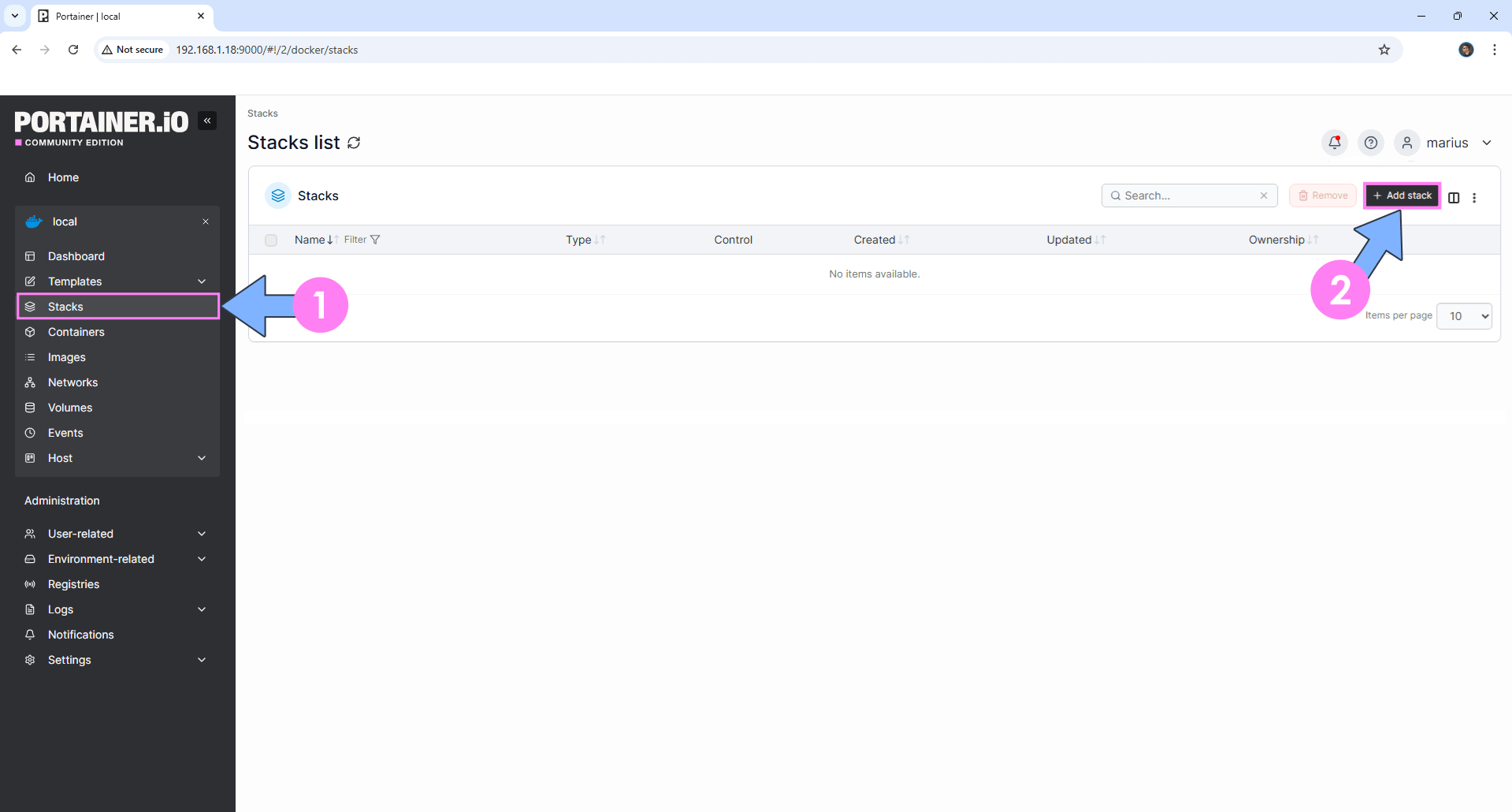
On the left sidebar in Portainer, click on Stacks then + Add stack. Follow the instructions in the image below.
STEP 14
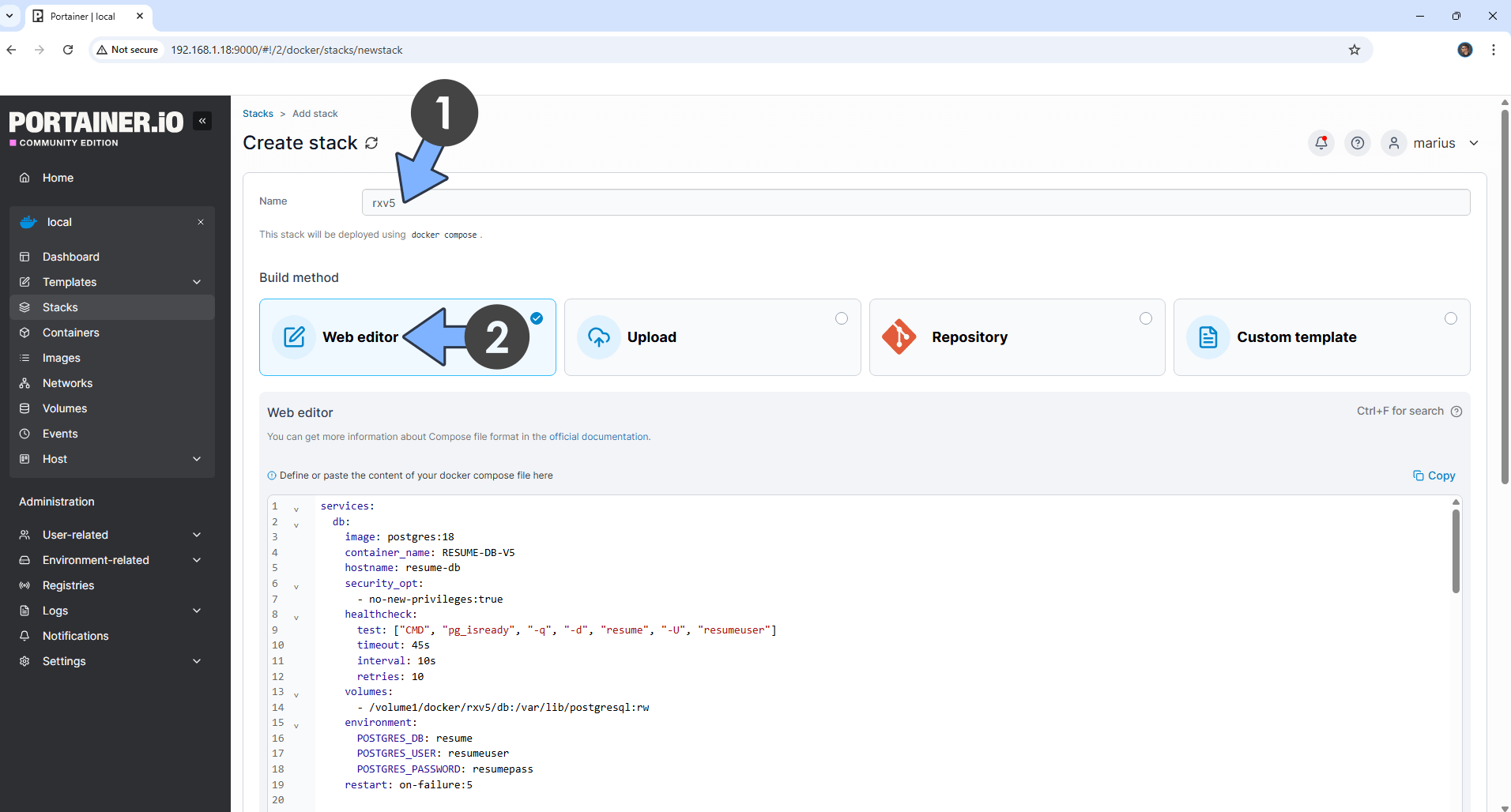
In the Name field type in rxv5. Follow the instructions in the image below.
services:
  db:
    image: postgres:18
    container_name: RESUME-DB-V5
    hostname: resume-db
    security_opt:
      - no-new-privileges:true
    healthcheck:
      test: ["CMD", "pg_isready", "-q", "-d", "resume", "-U", "resumeuser"]
      timeout: 45s
      interval: 10s
      retries: 10
    volumes:
      - /volume1/docker/rxv5/db:/var/lib/postgresql:rw
    environment:
      POSTGRES_DB: resume
      POSTGRES_USER: resumeuser
      POSTGRES_PASSWORD: resumepass
    restart: on-failure:5


  browserless:
    image: ghcr.io/browserless/chromium:latest
    container_name: RESUME-BROWSERLESS-V5
    ports:
      - 4000:3000
    healthcheck:
      test:
       ["CMD", "curl", "-f", "http://localhost:3000/pressure?token=1234567890"]
      interval: 10s
      timeout: 5s
      retries: 10
    environment:
       QUEUED: 30
       HEALTH: true
       CONCURRENT: 20
       TOKEN: 1234567890
    restart: on-failure:5

  seaweedfs:
    image: chrislusf/seaweedfs:latest
    container_name: RESUME-SEAWEEDFS-V5
    healthcheck:
      test: ["CMD", "wget", "-q", "-O", "/dev/null", "http://localhost:8888"]
      start_period: 10s
      interval: 30s
      timeout: 10s
      retries: 3
    command: server -s3 -filer -dir=/data -ip=0.0.0.0
    environment:
       AWS_ACCESS_KEY_ID: seaweedfs
       AWS_SECRET_ACCESS_KEY: seaweedfs
    volumes:
      - /volume1/docker/rxv5/seaweedfs:/data:rw
    restart: on-failure:5

  seaweedfs-create-bucket:
    image: quay.io/minio/mc:latest
    container_name: RESUME-BUCKET-V5
    entrypoint: >
      /bin/sh -c "
        sleep 5;
        mc alias set seaweedfs http://seaweedfs:8333 seaweedfs seaweedfs;
        mc mb seaweedfs/reactive-resume;
        exit 0;
      "
    depends_on:
      seaweedfs:
        condition: service_healthy
    restart: on-failure:5

  resume:
    image: amruthpillai/reactive-resume:v5
    container_name: RESUME-ACCESS-V5
    hostname: resume
    security_opt:
      - no-new-privileges:true
    ports:
      - 9751:3000
    environment:
      PORT: 3000
      FLAG_DISABLE_SIGNUPS: false
      NODE_ENV: production
      PRINTER_APP_URL: http://resume:3000
      APP_URL: https://rxv5.yourname.synology.me
      DATABASE_URL: postgresql://resumeuser:resumepass@resume-db:5432/resume
      AUTH_SECRET: dOxZYTTZgXKMHkqLBIQVImayQXAVWdzGBPuFJKggzcgvgPJPXpWzqzKaUOIOGGIr
      PRINTER_ENDPOINT: ws://browserless:3000?token=1234567890
      S3_ACCESS_KEY_ID: seaweedfs
      S3_SECRET_ACCESS_KEY: seaweedfs
      S3_ENDPOINT: http://seaweedfs:8333
      S3_BUCKET: reactive-resume
      S3_FORCE_PATH_STYLE: true
      STORAGE_USE_SSL: false
      SMTP_HOST: smtp.gmail.com
      SMTP_PORT: 465
      SMTP_USER: Your-own-gmail-address
      SMTP_PASS: Your-own-app-password
      SMTP_FROM: Your-own-gmail-address
      SMTP_SECURE: true
      FLAG_DISABLE_EMAIL_AUTH: false
    volumes:
      - /volume1/docker/rxv5/data:/app/data:rw
    depends_on:
      db:
        condition: service_healthy
      seaweedfs:
        condition: service_healthy
      seaweedfs-create-bucket:
        condition: service_started
    restart: on-failure:5
Note: Before you paste the code above in the Web editor area below, change the value for APP_URL and type in your own synology.me DDNS with https:// at the beginning that you have previously created at STEP 6.
Note: Before you paste the code above in the Web editor area below, change the value for AUTH_SECRET. (Generate your own Random 64 length AUTH_SECRET.)
Note: On the SMTP_USER area, type in your own Gmail address. STEP 12.
Note: On the SMTP_PASS area, type in your own Gmail App Password. STEP 12. ⚠️Warning: Do NOT confuse with your own Gmail password. This is the Gmail APP password.
Note: On the SMTP_FROM area, type in your own Gmail address. STEP 12.
STEP 15
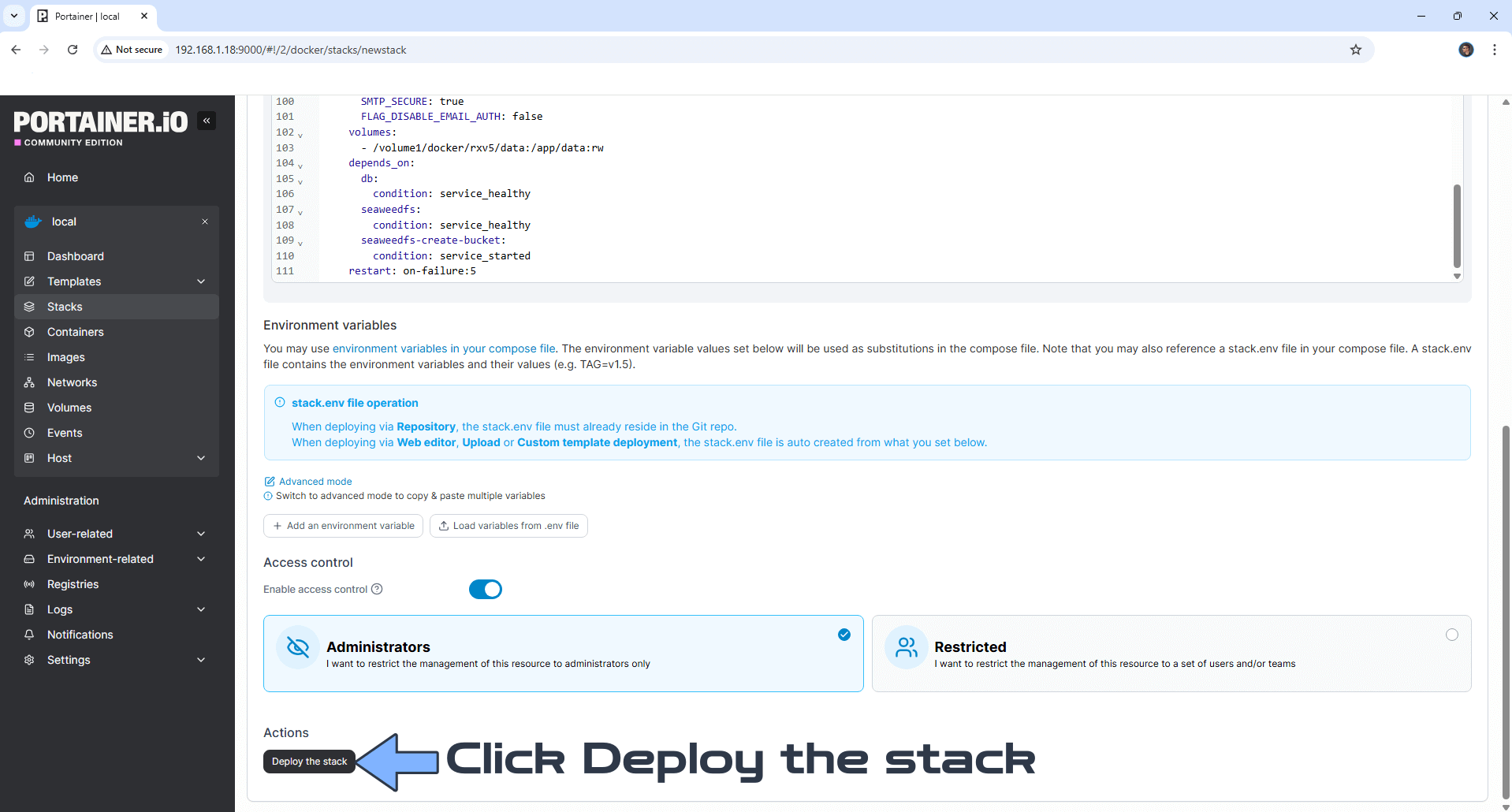
Scroll down on the page until you see a button named Deploy the stack. Click on it. Follow the instructions in the image below. The installation process can take up to a few minutes. It will depend on your Internet speed connection.
STEP 16
If everything goes right, you will see the following message at the top right of your screen: “Success Stack successfully deployed“.
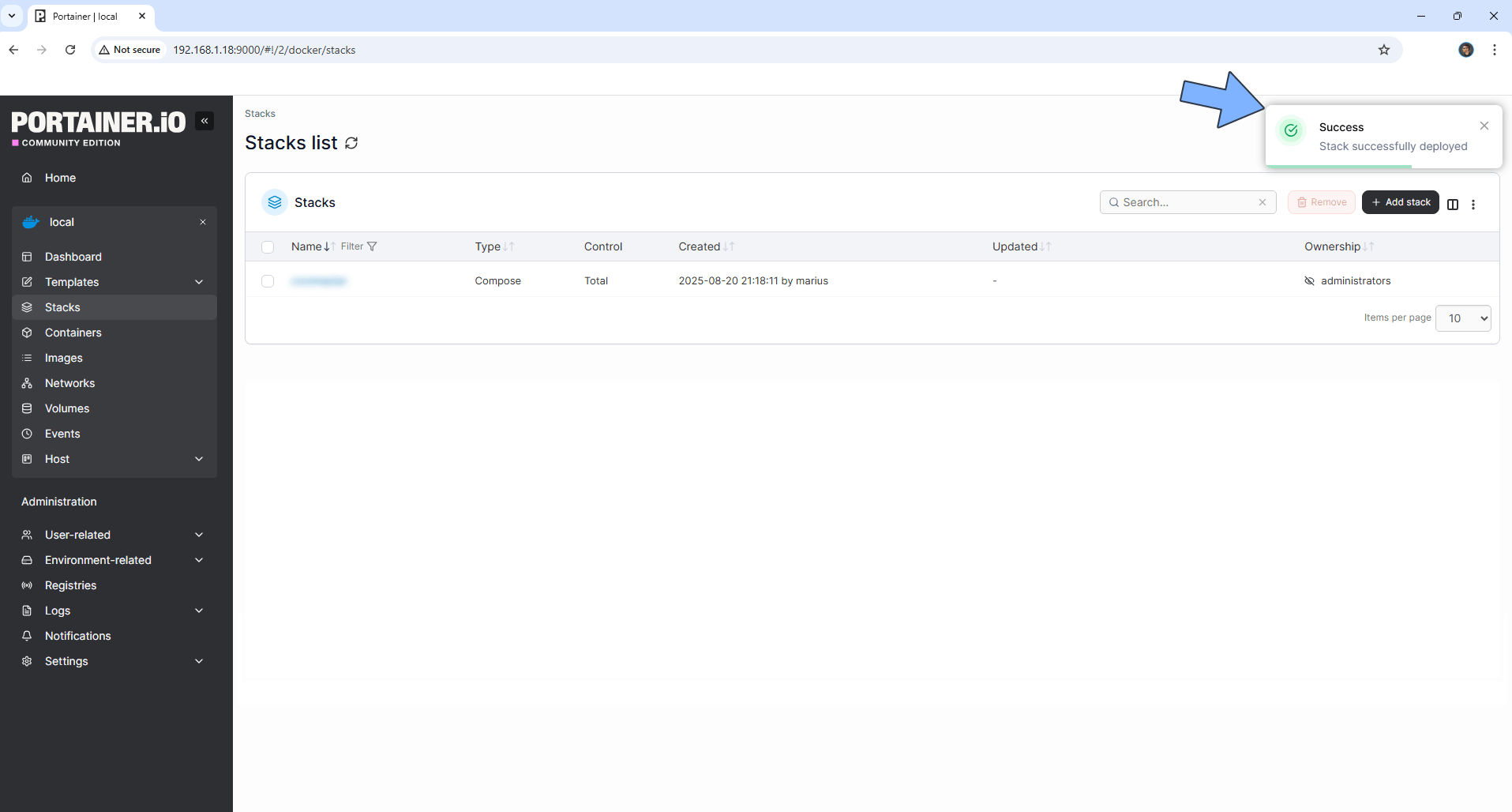
⚠️Warning: The seaweedfs-create-bucket container will be marked as Exited – o. This is a normal behavior. Go straight to the next STEP.
STEP 17
🟢Please Support My work by Making a Donation. Almost 99,9% of the people that install something using my guides forget to support my work, or just ignore STEP 1. I’ve been very honest about this aspect of my work since the beginning: I don’t run any ADS, I don’t require subscriptions, paid or otherwise, I don’t collect IPs, emails, and I don’t have any referral links from Amazon or other merchants. I also don’t have any POP-UPs or COOKIES. I have repeatedly been told over the years how much I have contributed to the community. It’s something I love doing and have been honest about my passion since the beginning. But I also Need The Community to Support me Back to be able to continue doing this work.
STEP 18
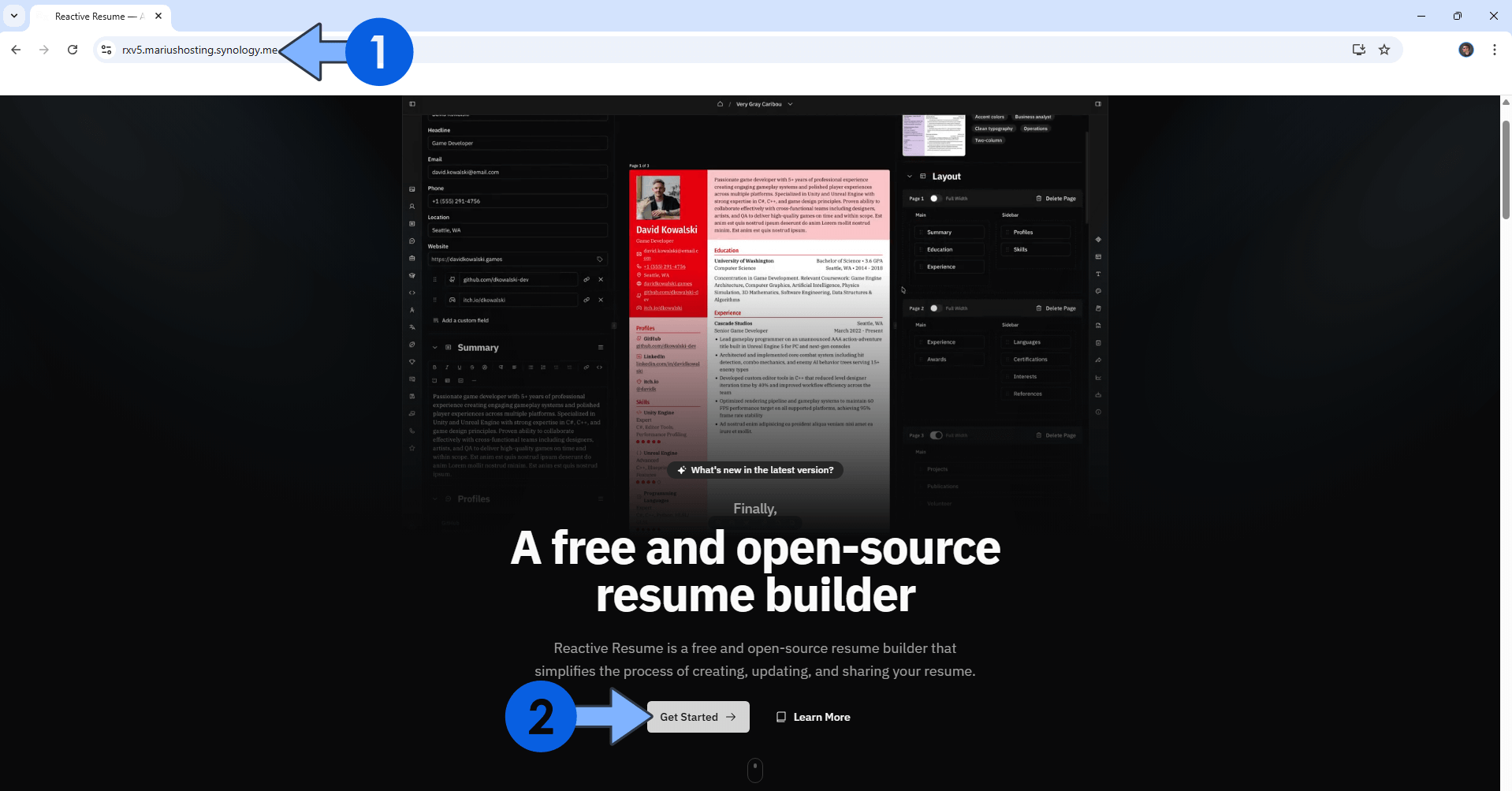
Now open your browser and type in your HTTPS/SSL certificate like this https://rxv5.yourname.synology.me that you have previously created at STEP 6. In my case it’s https://rxv5.mariushosting.synology.me If everything goes right, you will see the Reactive Resume V5 main page. Click Get Started. Follow the instructions in the image below.
STEP 19
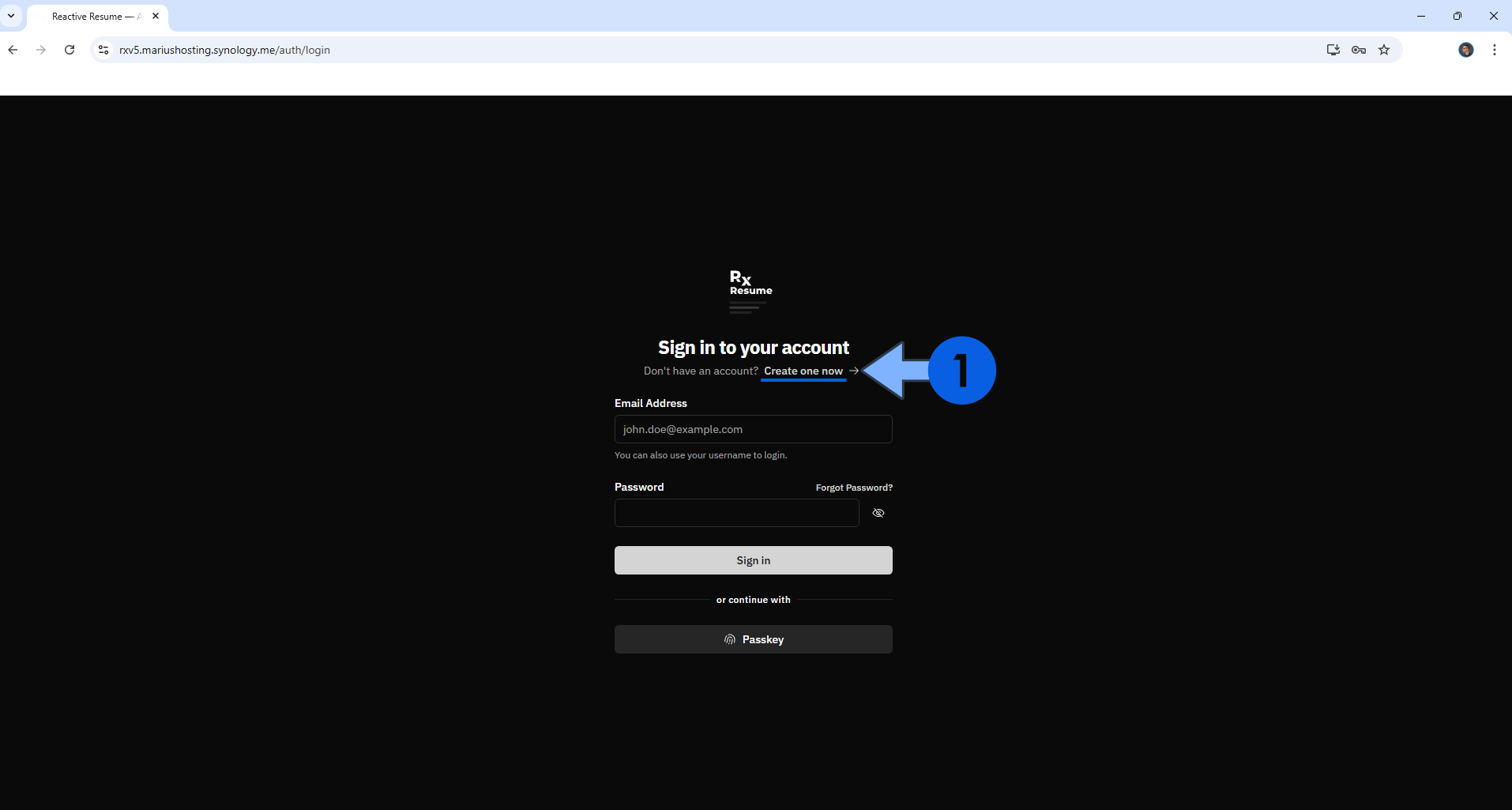
Click Create one now to create a new account. Follow the instructions in the image below.
STEP 20
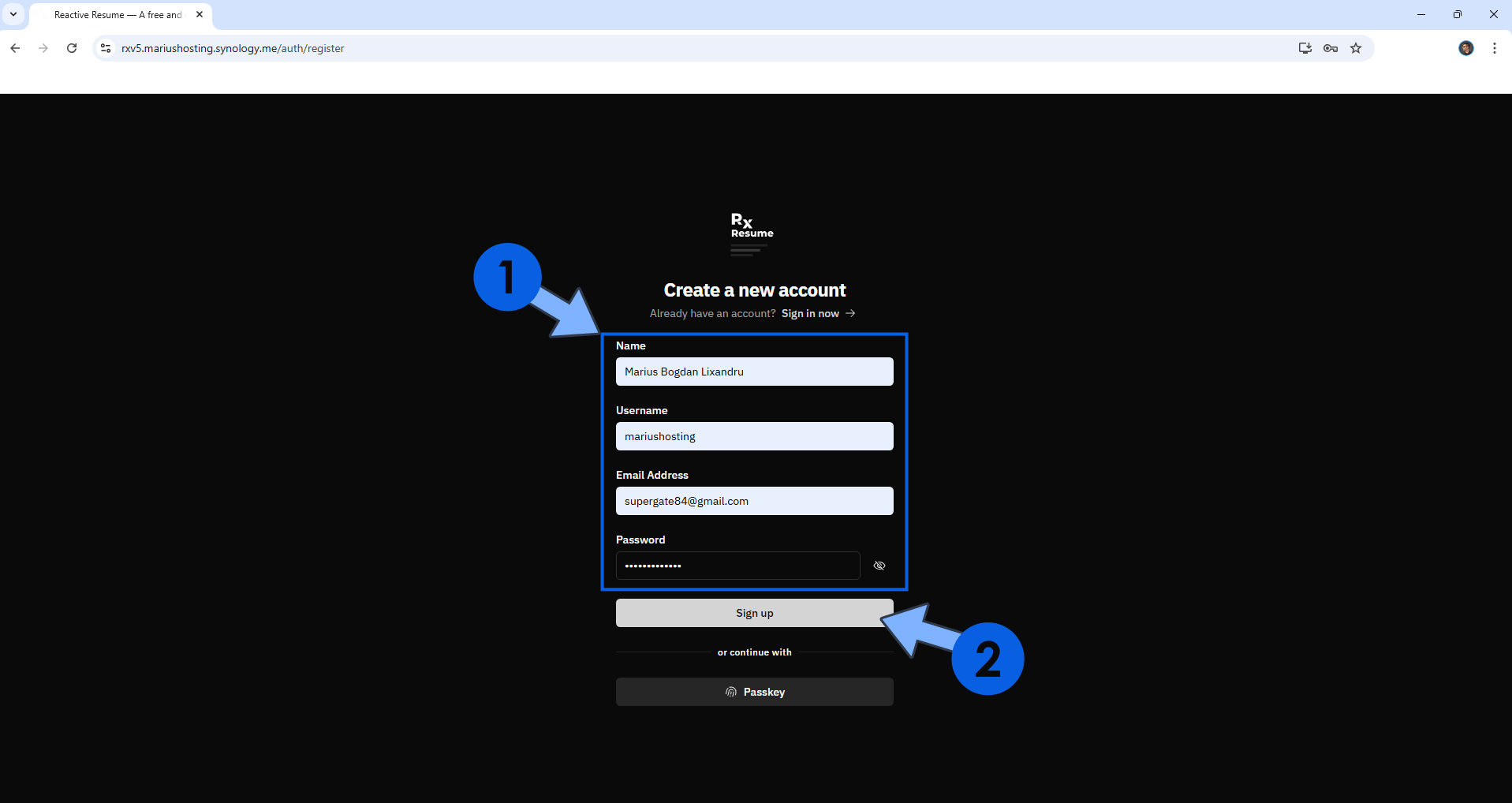
Add your Own Credentials then click Sign up. Follow the instructions in the image below.
STEP 21
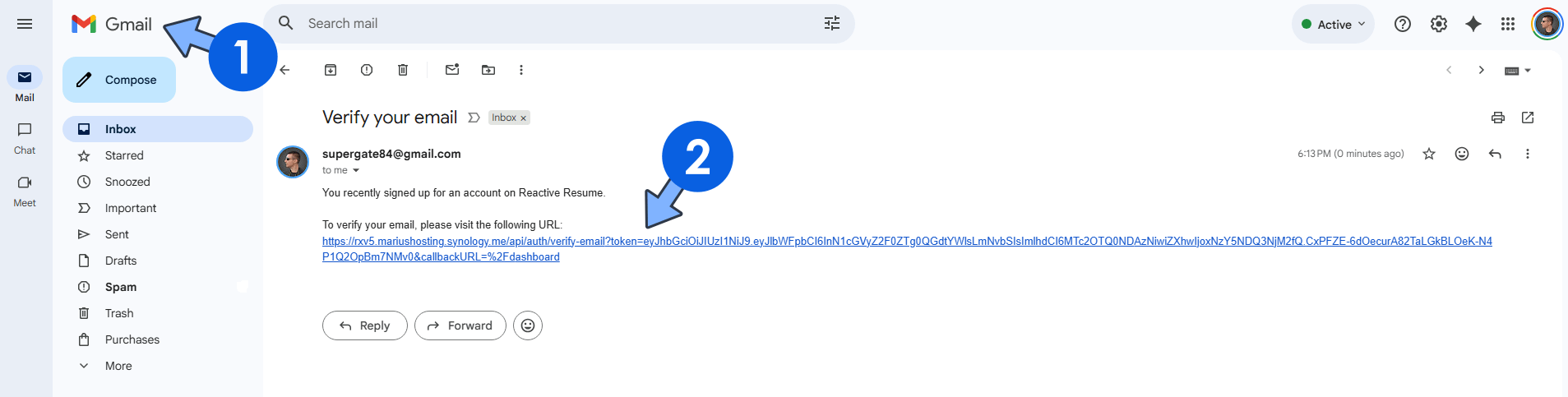
Check your email, then click the link to verify your email address. Follow the instructions in the image below.
STEP 22
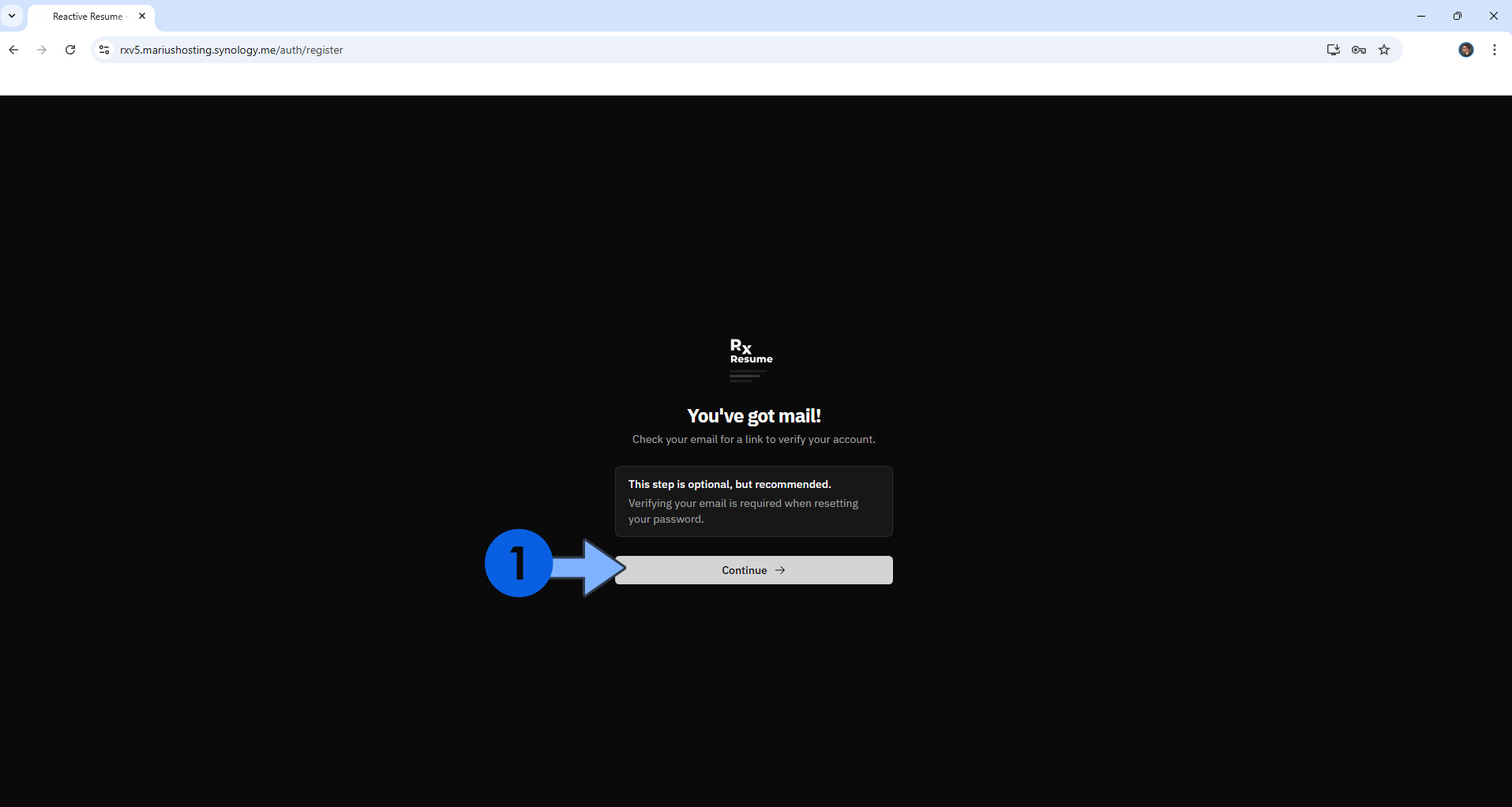
Click Continue. Follow the instructions in the image below.
STEP 23
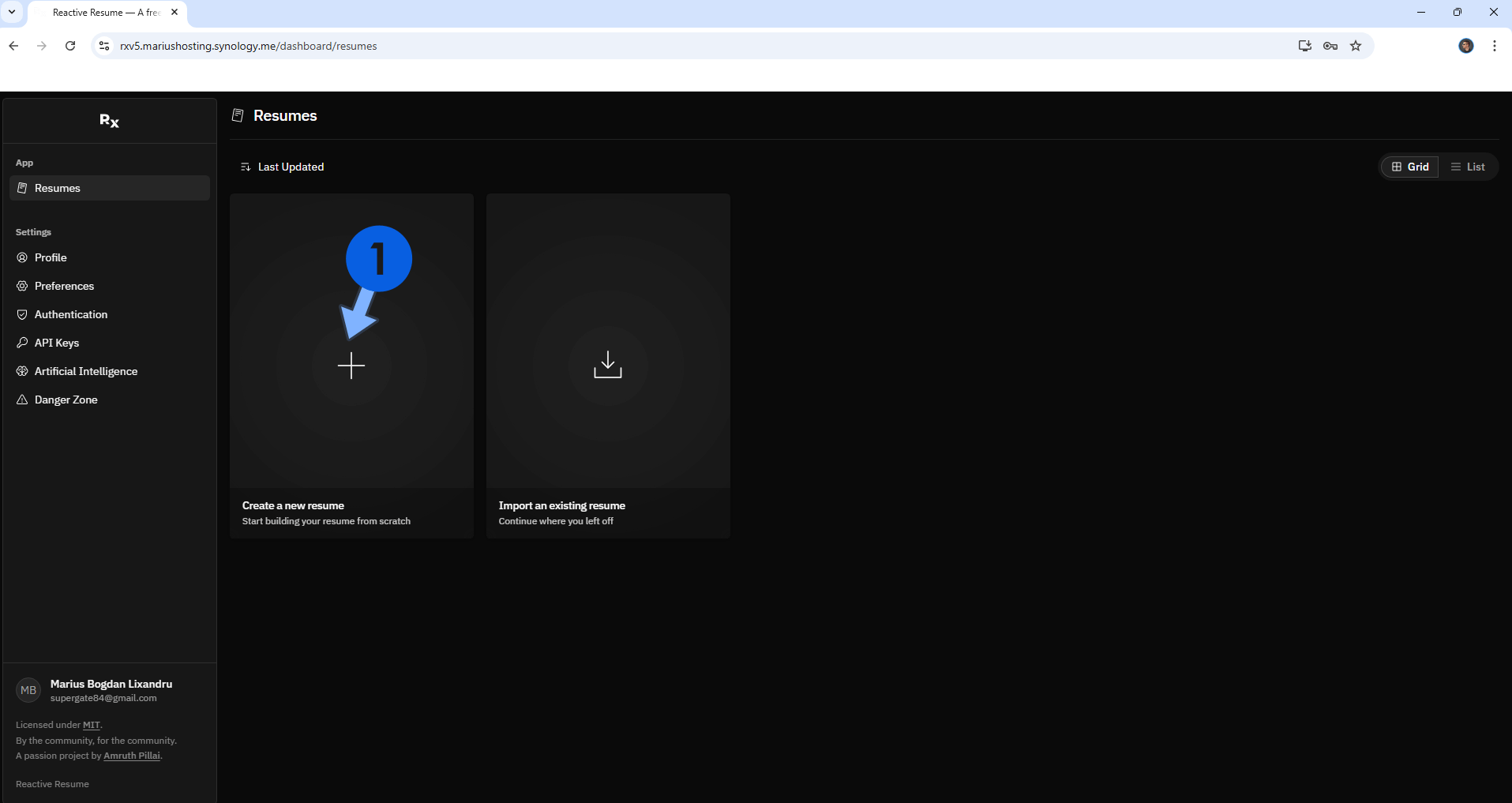
Click + to create a new Resume. Follow the instructions in the image below.
STEP 24
Give a name to your Resume. Click Create. Follow the instructions in the image below.
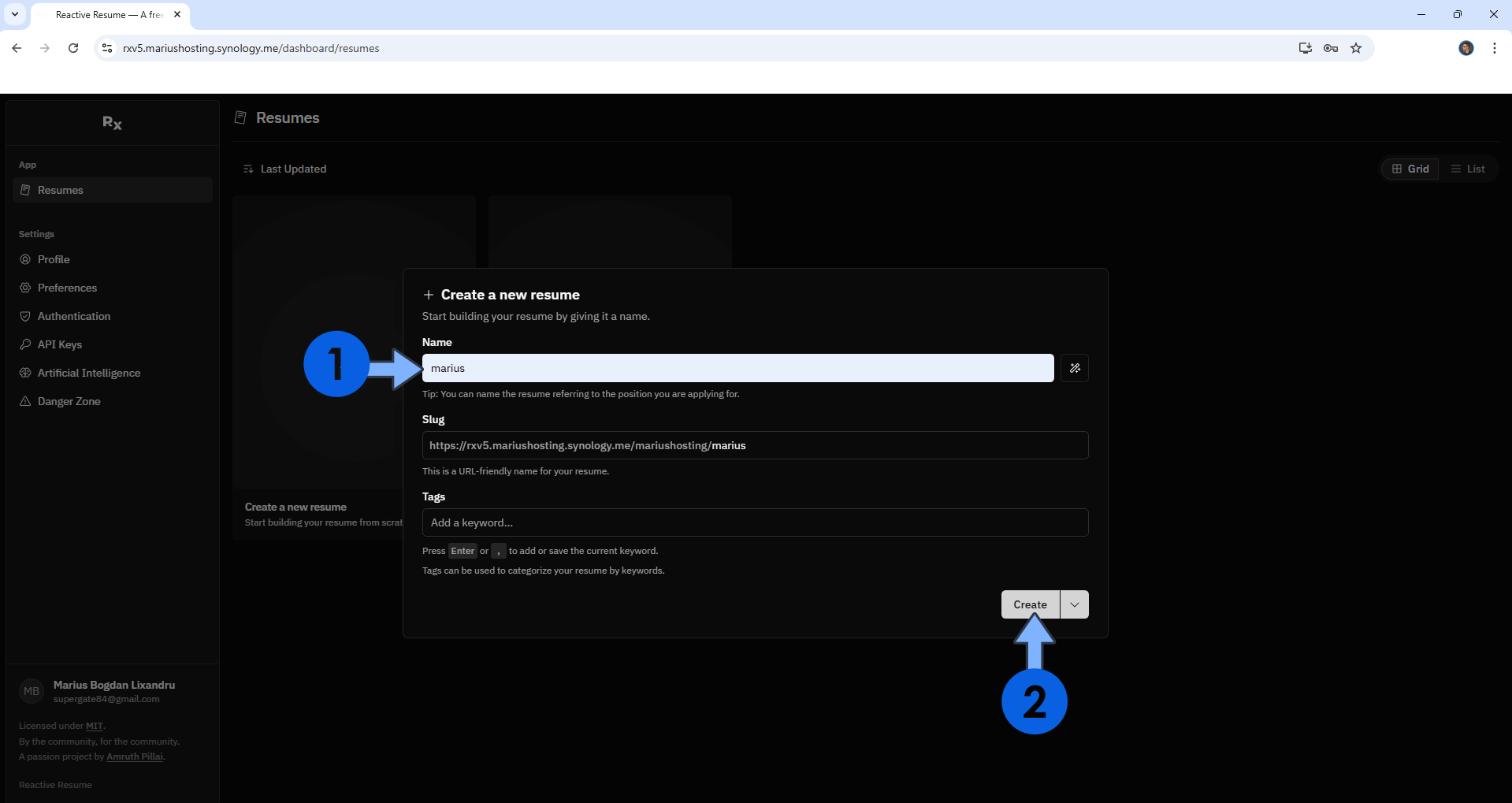
STEP 25
Click to open your Resume that you have previously created at STEP 24. Follow the instructions in the image below.
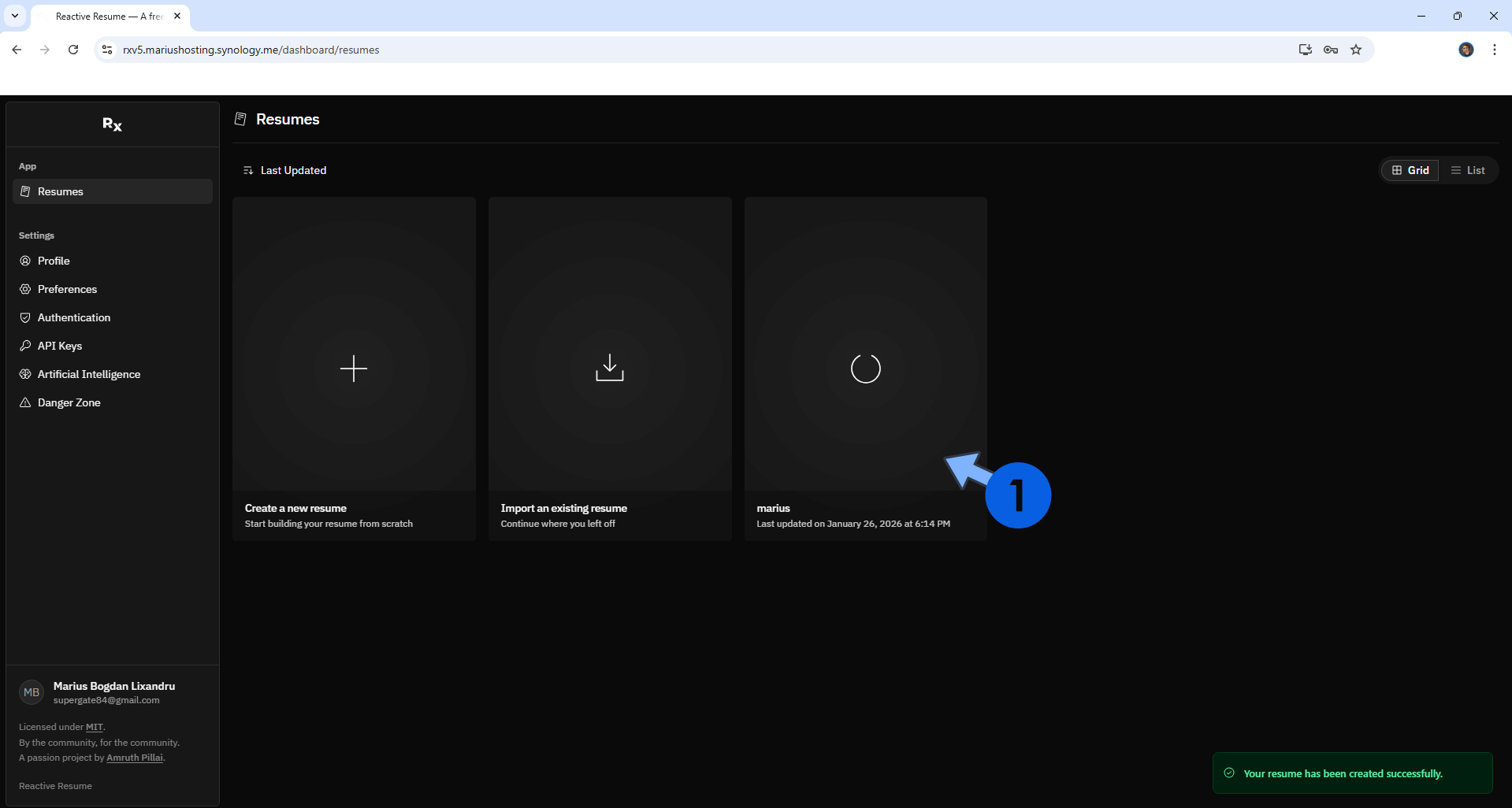
STEP 26
At the top right of the page, click on the template sheet. Follow the instructions in the image below.
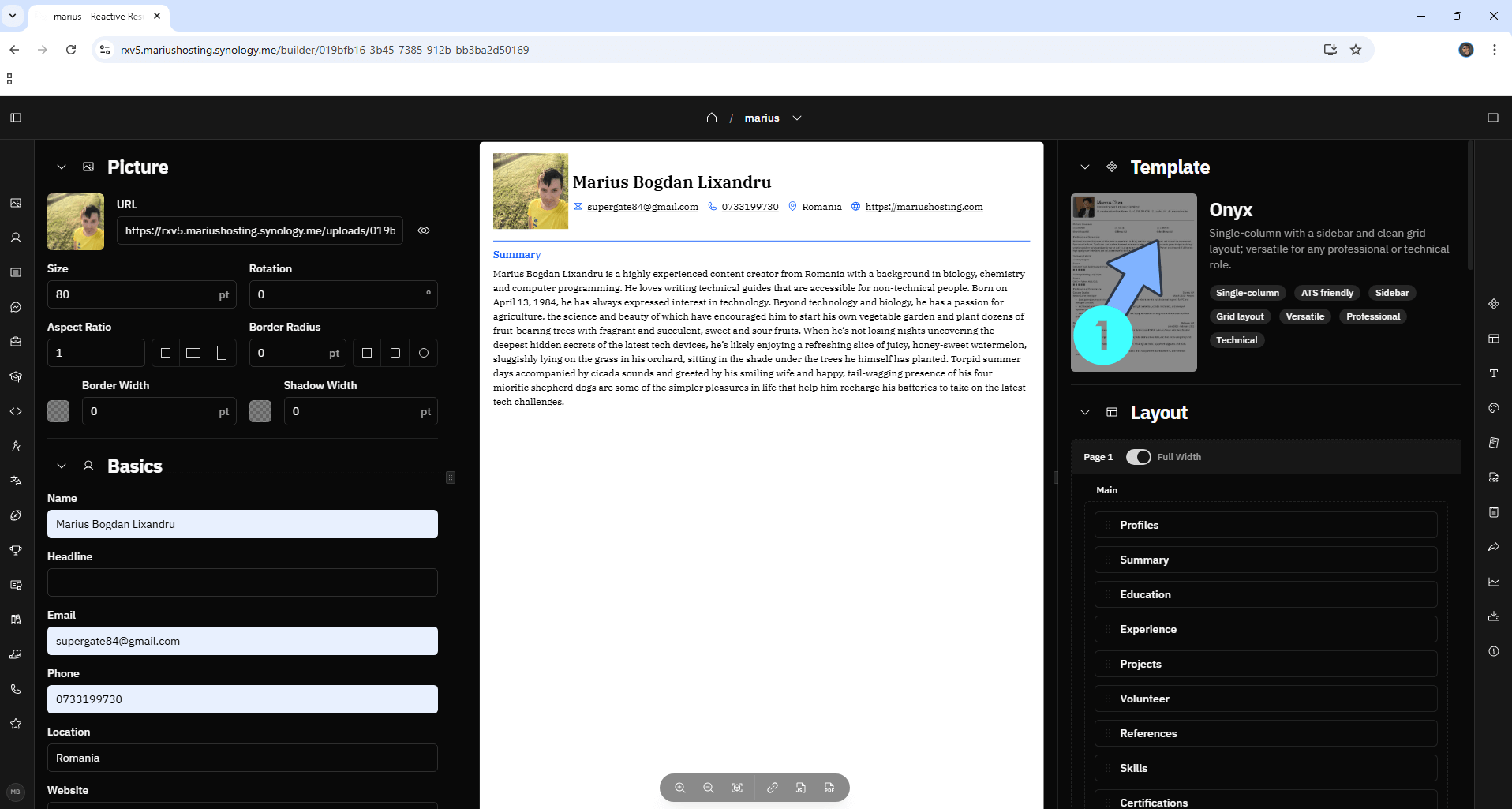
STEP 27
Choose your favorite template by clicking on one. Follow the instructions in the image below.
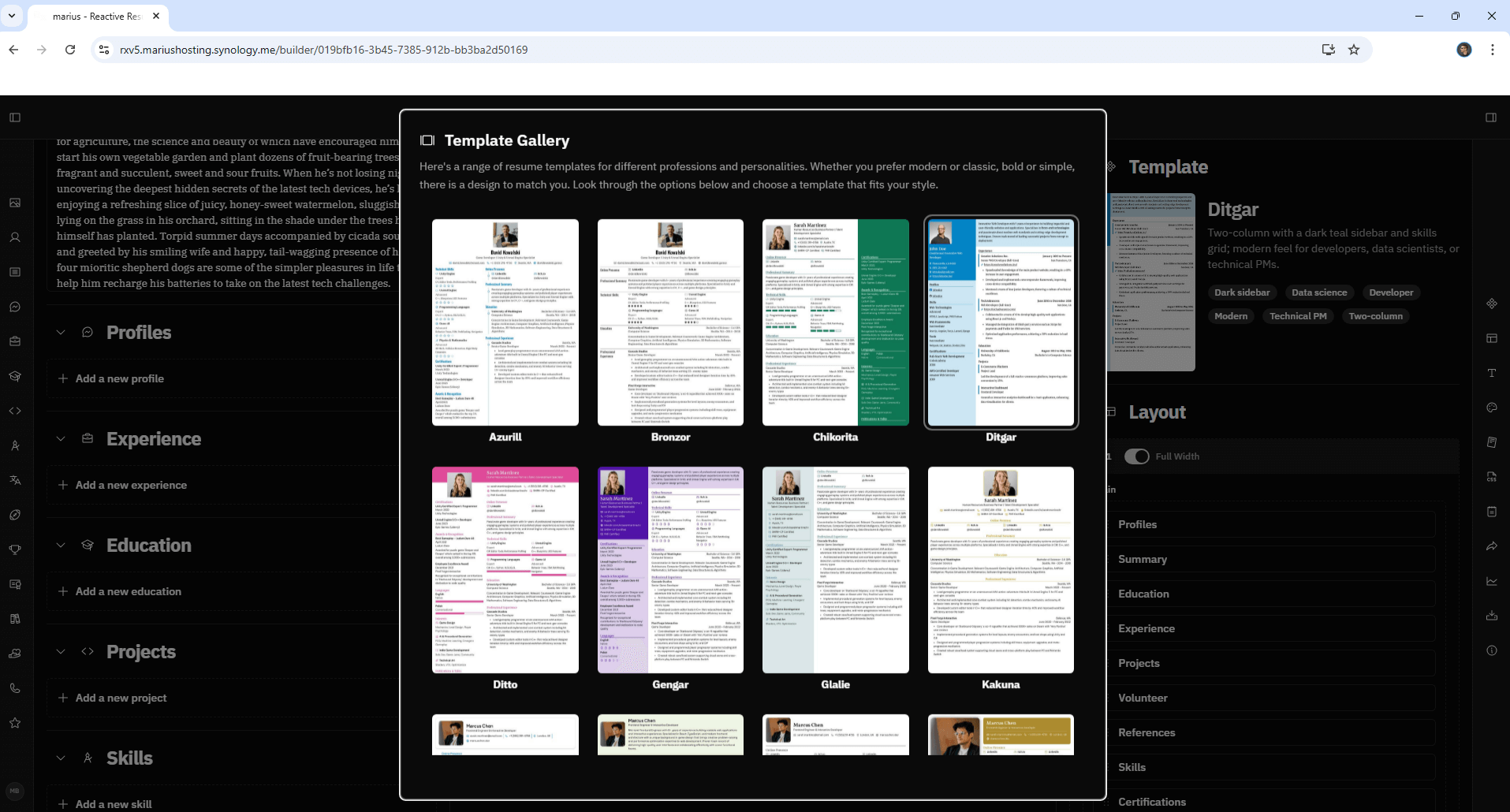
STEP 28
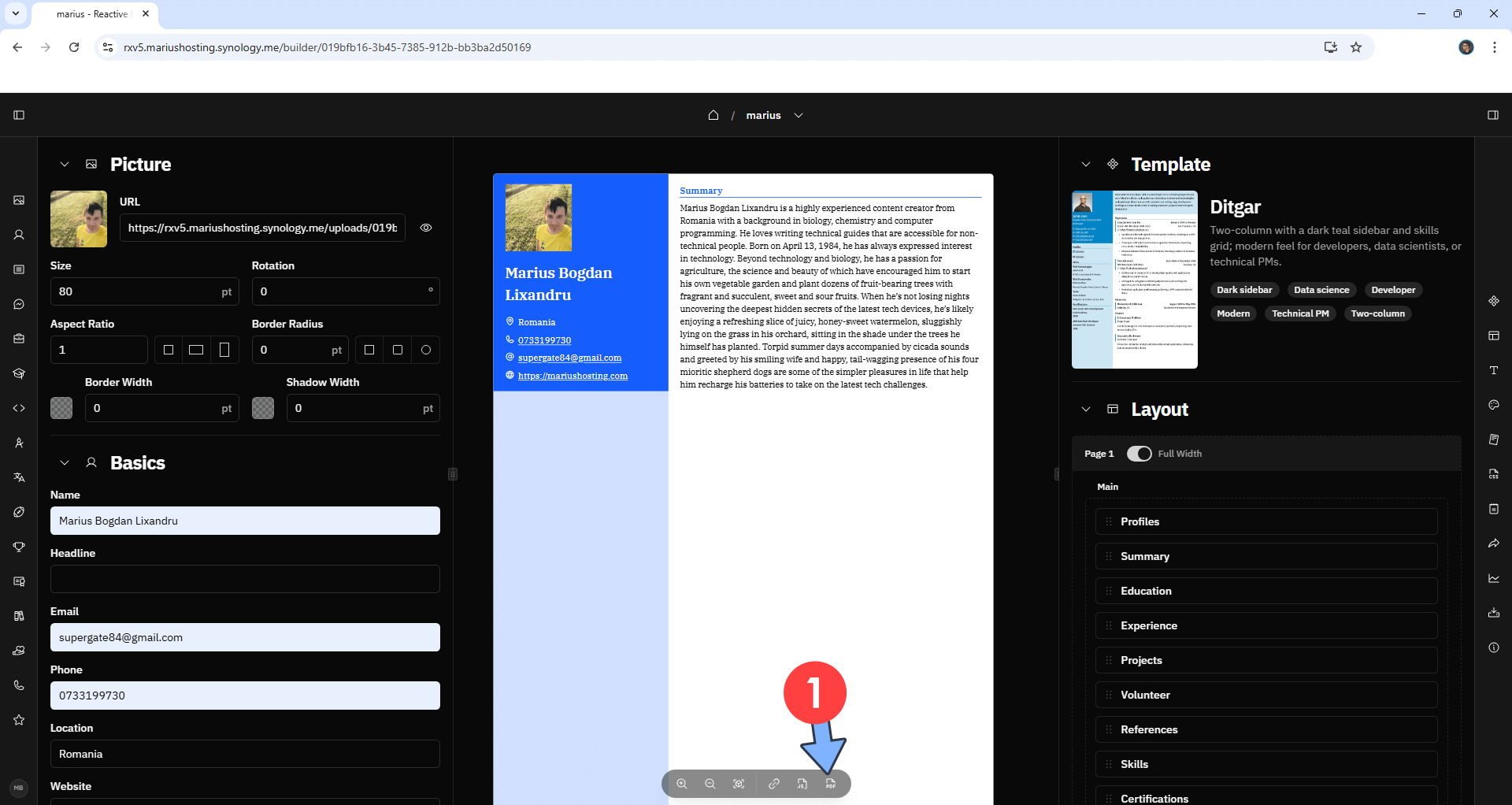
After you have completed your Resume, you can download it. Click the PDF icon to download your resume on your computer in a .pdf format. Follow the instructions in the image below.
STEP 29
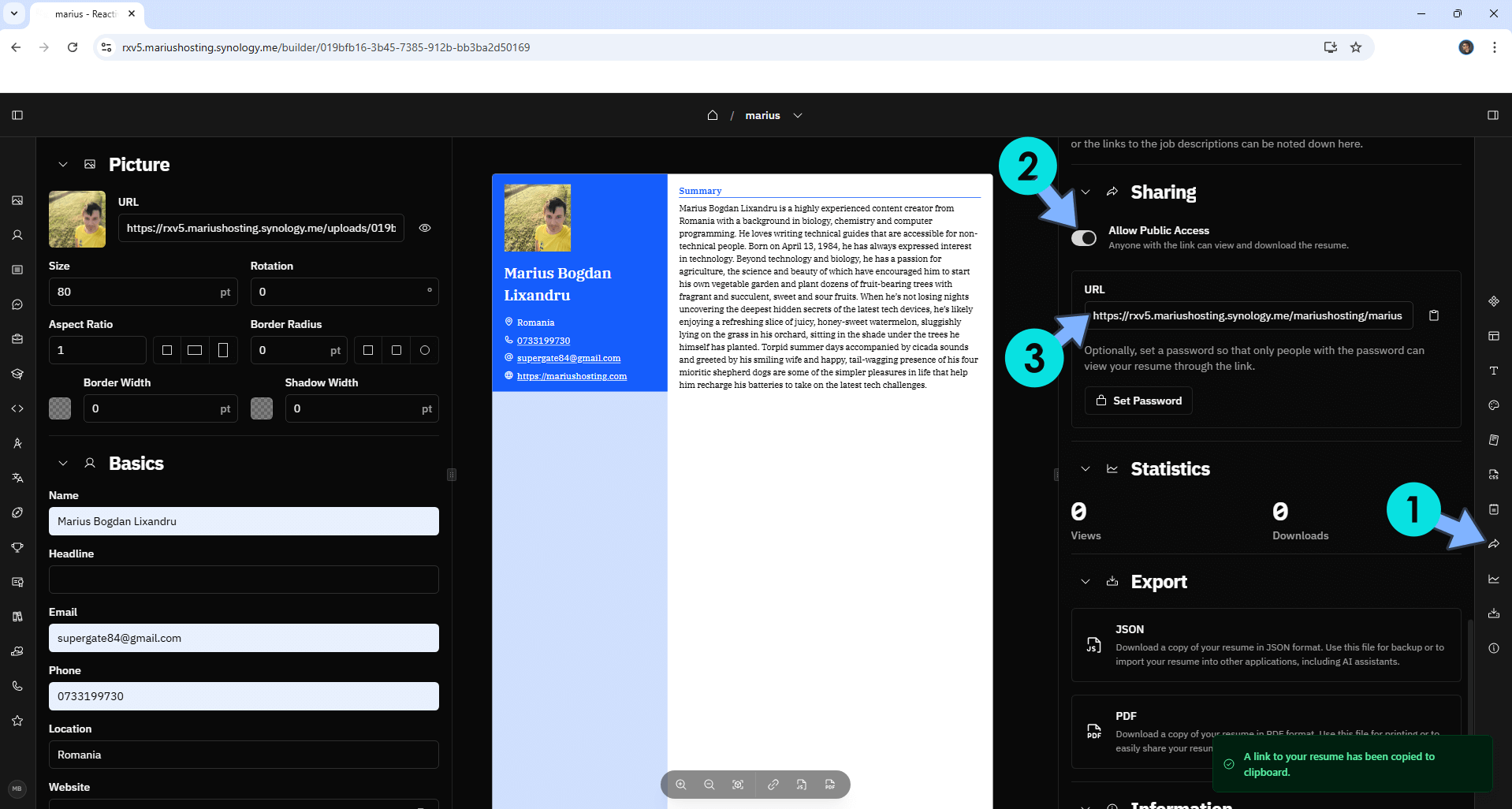
You can easily share your Resume. On the right sidebar, click on the share icon, then turn on “Allow Public Access” and copy the URL link. Share your public URL link with your friends or potential employers. Follow the instructions in the image below.
STEP 30
If you want to disable user registration in Reactive Resume V5 after registering the first user, just change the following line in the compose at STEP 14:
FLAG_DISABLE_SIGNUPS: falsewith the following one:
FLAG_DISABLE_SIGNUPS: trueClick update the stack to update the settings. From this point on, any user that will try to register a new account in Reactive Resume V5 will be rejected.
Enjoy Reactive Resume V5!
If you encounter issues by using this container, make sure to check out the Common Docker issues article.
Note: Find out how to update the Reactive Resume V5 container with the latest image.
Note: How to Back Up Docker Containers on your Synology NAS.
Note: Can I run Docker on my Synology NAS? See the supported models.
Note: How to Free Disk Space on Your NAS if You Run Docker.
Note: How to Schedule Start & Stop For Docker Containers.
Note: How to Activate Email Notifications.
Note: How to Add Access Control Profile on Your NAS.
Note: How to Change Docker Containers Restart Policy.
Note: How to Use Docker Containers With VPN.
Note: Convert Docker Run Into Docker Compose.
Note: How to Clean Docker.
Note: How to Clean Docker Automatically.
Note: Best Practices When Using Docker and DDNS.
Note: Some Docker Containers Need WebSocket.
Note: Find out the Best NAS Models For Docker.
Note: Activate Gmail SMTP For Docker Containers.
This post was updated on Thursday / March 12th, 2026 at 10:56 AM