

Flare is a modern, self-hostable file sharing platform designed to work seamlessly with popular screenshot and sharing tools like ShareX and Flameshot. Built with Next.js and designed with simplicity in mind, it offers a complete solution for all your file sharing needs, with a strong focus on performance, customizability, and user experience. I’ve been using Flare for a few months now as my daily file-sharing tool on my Synology NAS, and it has completely replaced the clunky solutions I relied on before. The seamless integration with ShareX and Flameshot makes uploading screenshots effortless, the interface feels clean and modern, and the performance has been rock-solid even with larger files. In this step by step guide I will show you how to install Flare on your Synology NAS using Docker & Portainer.
💡Note: This guide works perfectly with the latest version of Flare v2.1.0
STEP 1
Please Support My work by Making a Donation.
STEP 2
Install Portainer using my step by step guide. If you already have Portainer installed on your Synology NAS, skip this STEP. Attention: Make sure you have installed the latest Portainer version.
STEP 3
Make sure you have a synology.me Wildcard Certificate. Follow my guide to get a Wildcard Certificate. If you already have a synology.me Wildcard certificate, skip this STEP.
STEP 4
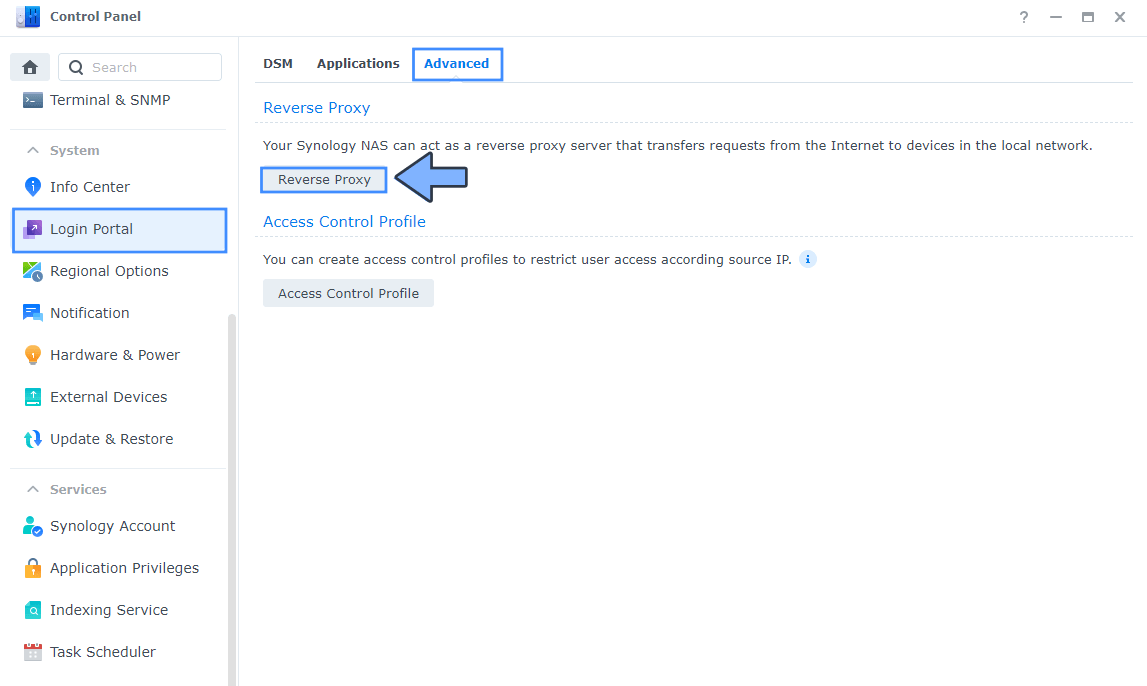
Go to Control Panel / Login Portal / Advanced Tab / click Reverse Proxy. Follow the instructions in the image below.
STEP 5
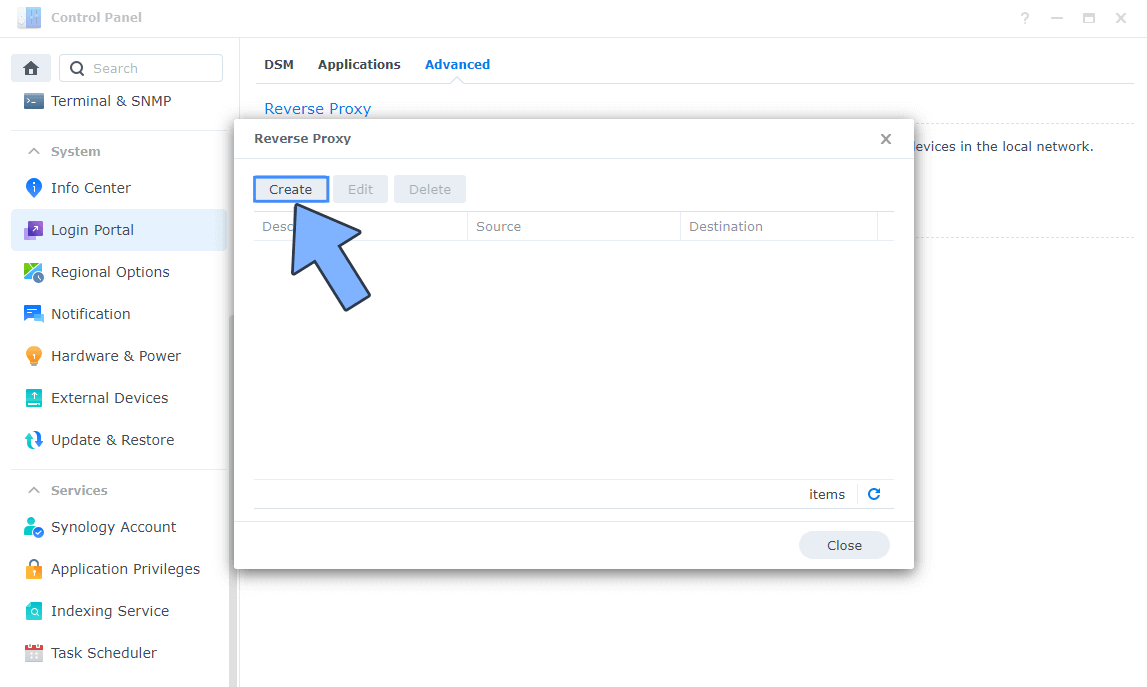
Now click the “Create” button. Follow the instructions in the image below.
STEP 6
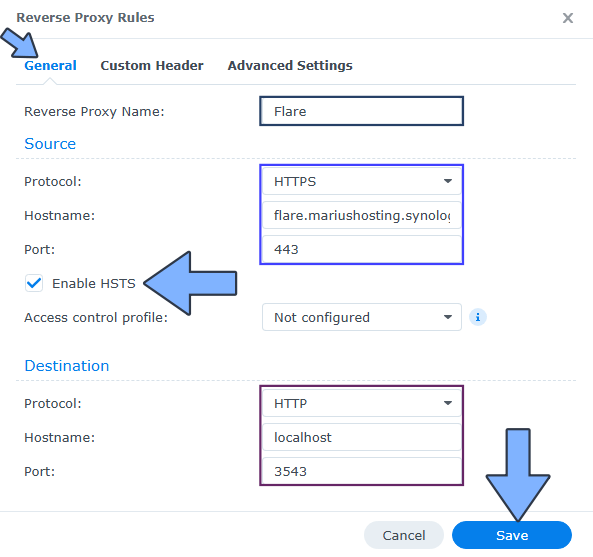
After you click the Create button, the window below will open. Follow the instructions in the image below.
On the General area, set the Reverse Proxy Name description: type in Flare. After that, add the following instructions:
Source:
Protocol: HTTPS
Hostname: flare.yourname.synology.me
Port: 443
Check Enable HSTS
Destination:
Protocol: HTTP
Hostname: localhost
Port: 3543
STEP 7
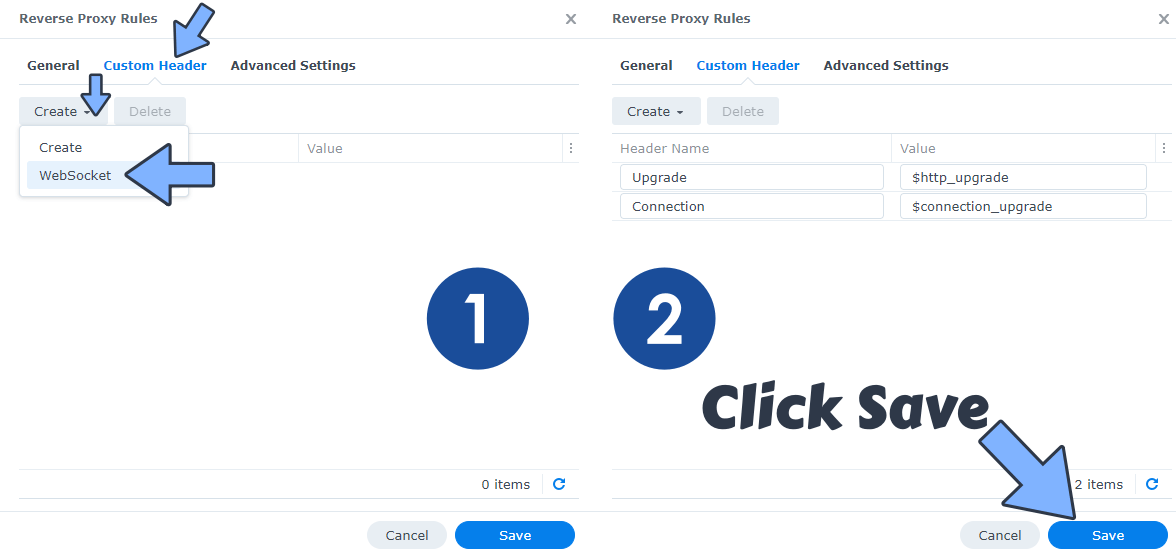
On the Reverse Proxy Rules, click the Custom Header tab. Click Create and then, from the drop-down menu, click WebSocket. After you click on WebSocket, two Header Names and two Values will be automatically added. Click Save. Follow the instructions in the image below.
STEP 8
Go to Control Panel / Network / Connectivity tab/ Check Enable HTTP/2 then click Apply. Follow the instructions in the image below.
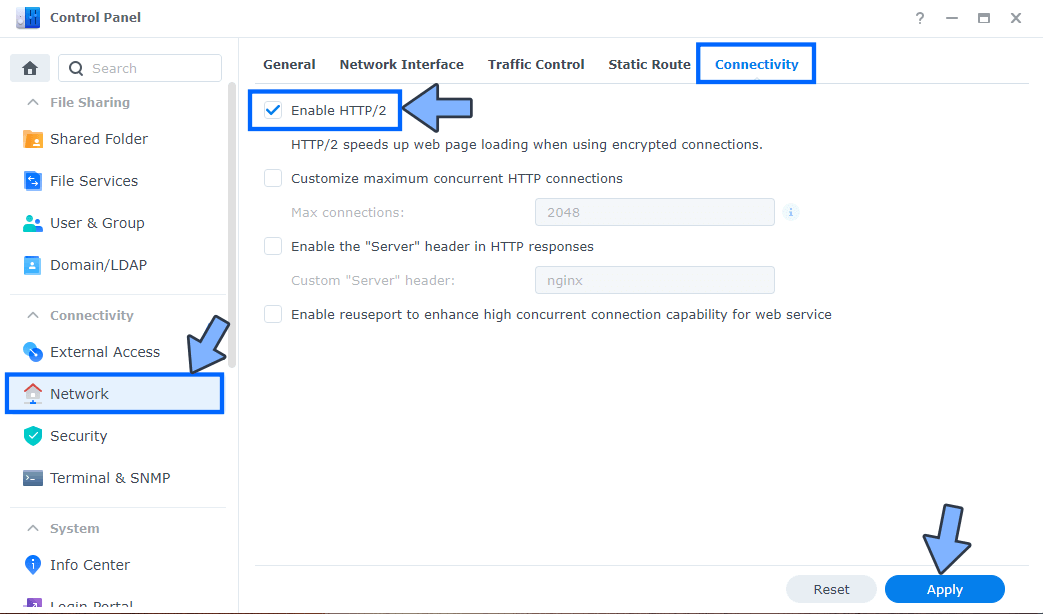
STEP 9
Go to Control Panel / Security / Advanced tab/ Check Enable HTTP Compression then click Apply. Follow the instructions in the image below.
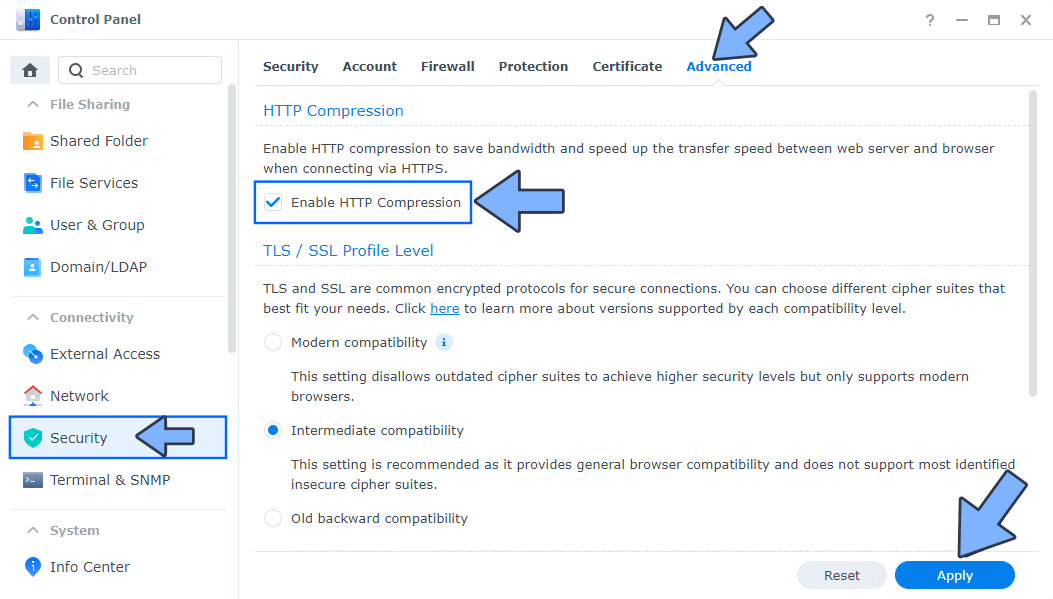
STEP 10
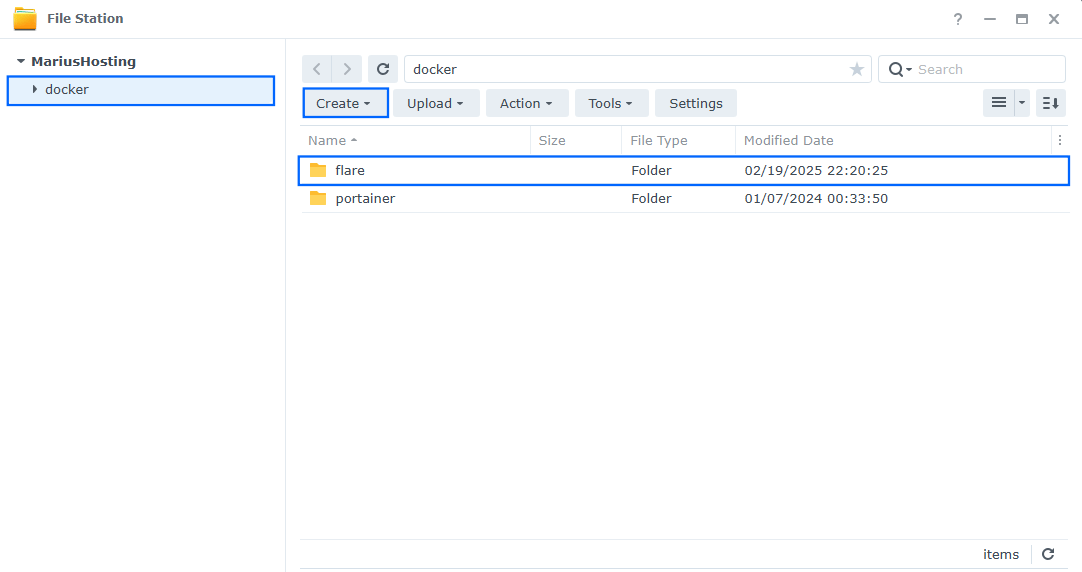
Go to File Station and open the docker folder. Inside the docker folder, create one new folder and name it flare. Follow the instructions in the image below.
Note: Be careful to enter only lowercase, not uppercase letters.
STEP 11
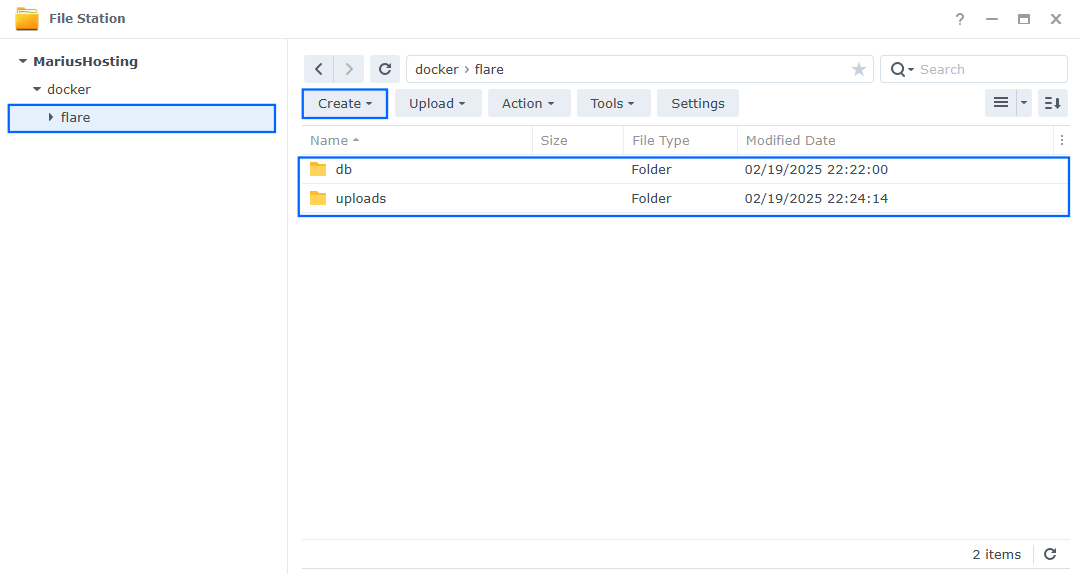
Now create two new folders inside the flare folder that you created at STEP 10 and name them db, uploads. Follow the instructions in the image below.
Note: Be careful to enter only lowercase, not uppercase letters.
STEP 12
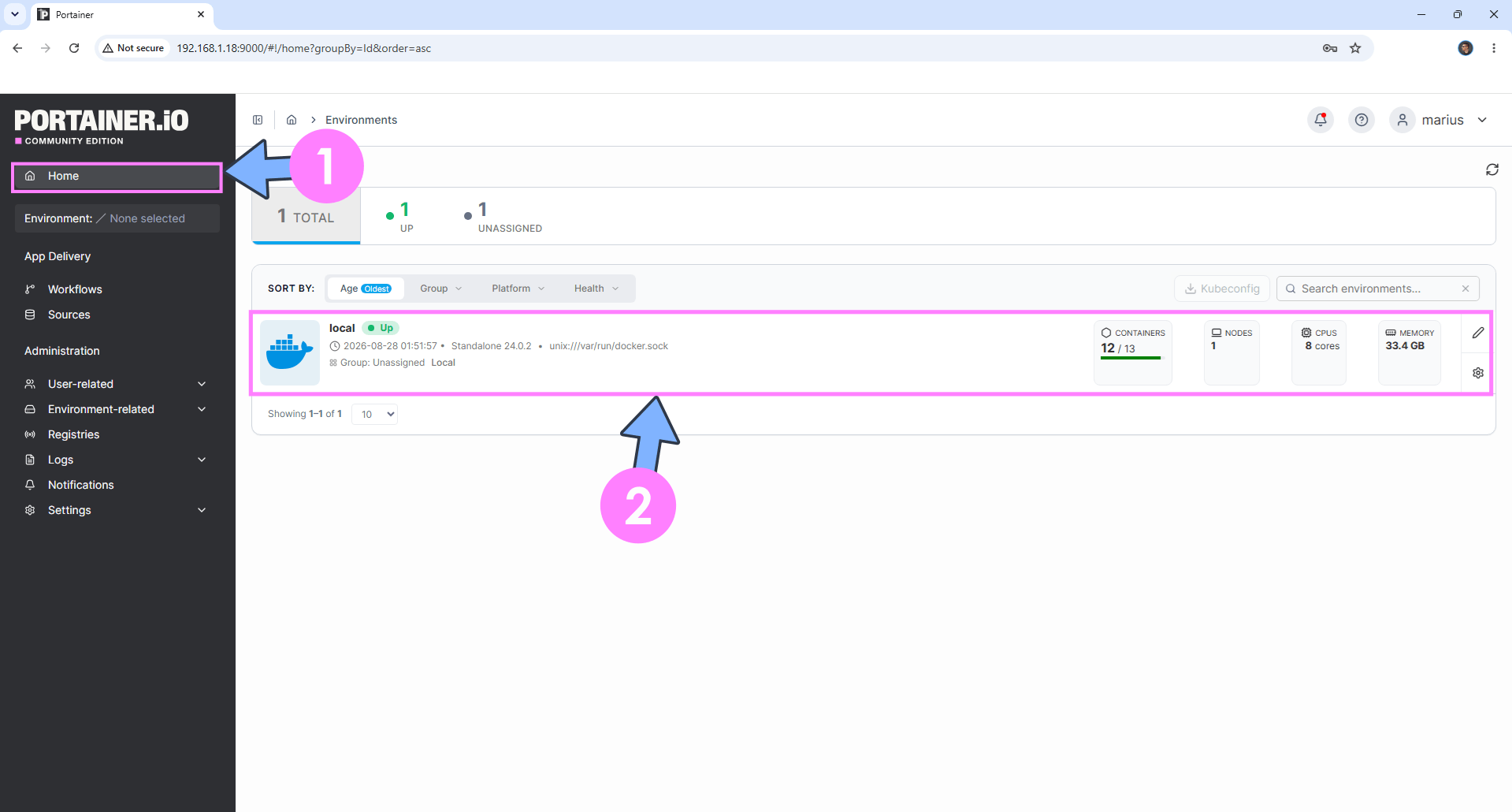
Log into Portainer using your username and password. On the left sidebar in Portainer, click on Home then click inside the local rectangle. Follow the instructions in the image below.
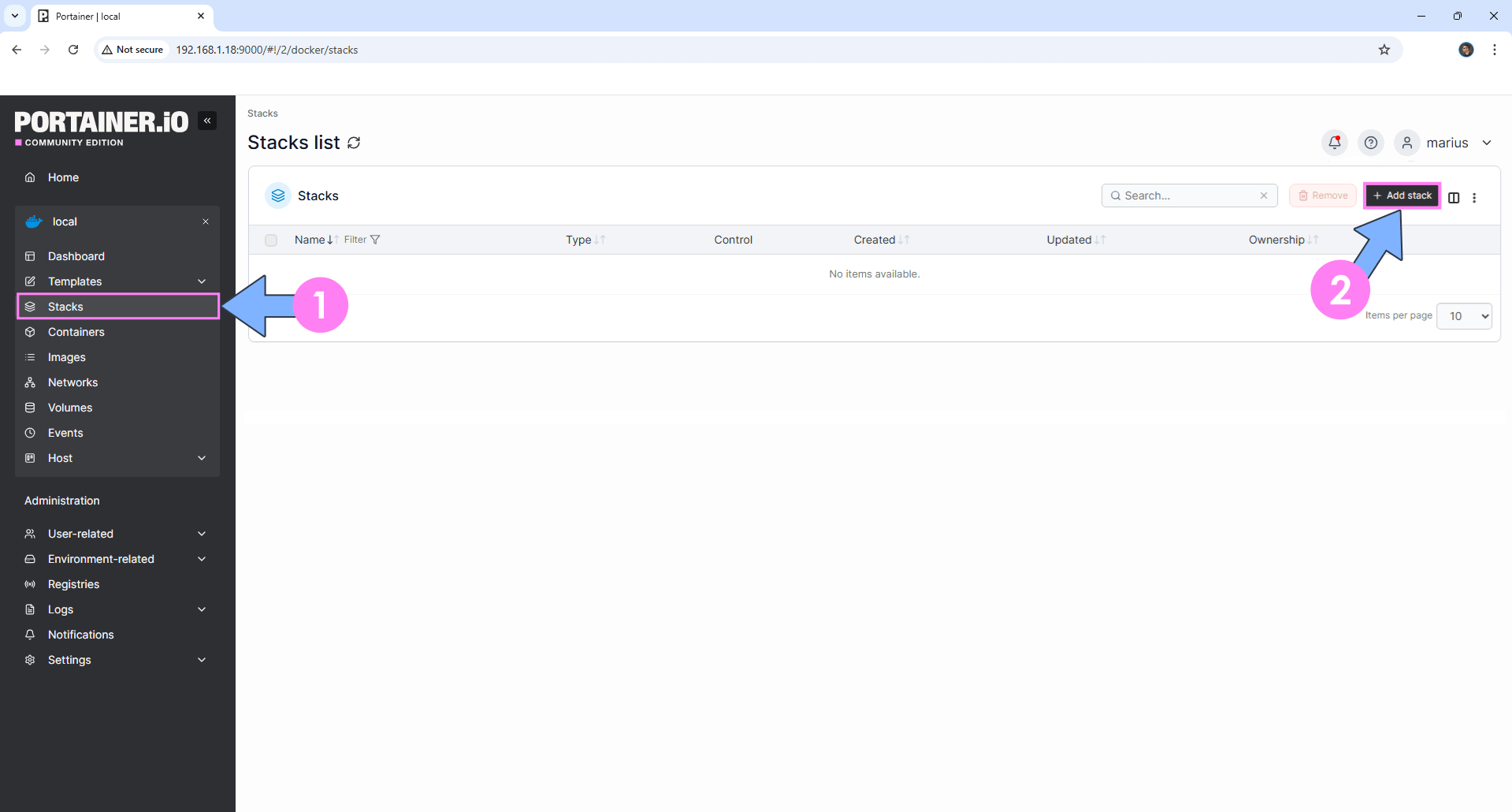
On the left sidebar in Portainer, click on Stacks then + Add stack. Follow the instructions in the image below.
STEP 13
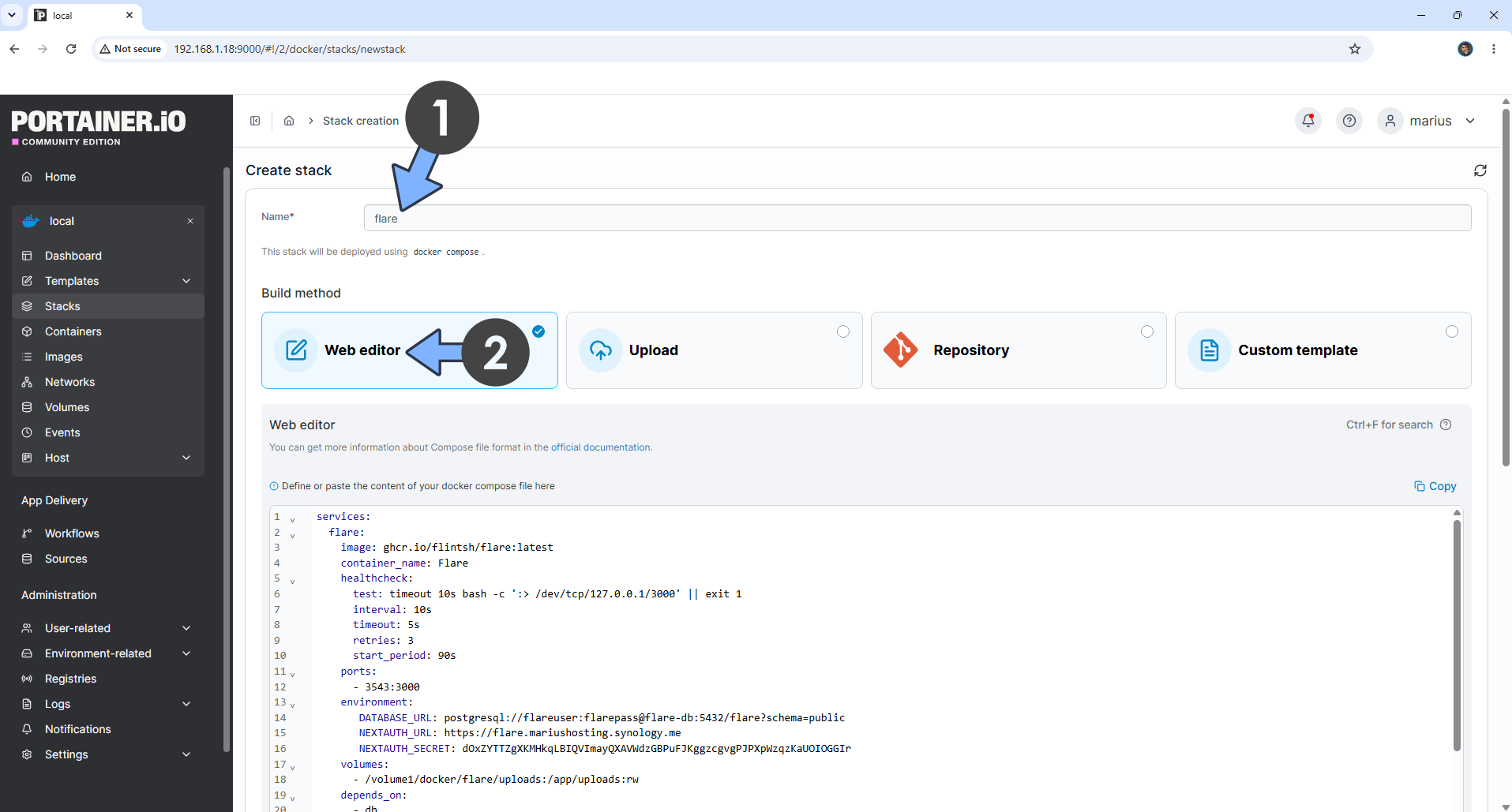
In the Name field, type in flare. Follow the instructions in the image below.
Note: Copy Paste the code below in the Portainer Stacks Web editor.
services:
  flare:
    image: ghcr.io/flintsh/flare:latest
    container_name: Flare
    healthcheck:
      test: timeout 10s bash -c ':> /dev/tcp/127.0.0.1/3000' || exit 1
      interval: 10s
      timeout: 5s
      retries: 3
      start_period: 90s
    ports:
      - 3543:3000
    environment:
       DATABASE_URL: postgresql://flareuser:flarepass@flare-db:5432/flare?schema=public
       NEXTAUTH_URL: https://flare.yourname.synology.me
       NEXTAUTH_SECRET: dOxZYTTZgXKMHkqLBIQVImayQXAVWdzGBPuFJKggzcgvgPJPXpWzqzKaUOIOGGIr
    volumes:
      - /volume1/docker/flare/uploads:/app/uploads:rw
    depends_on:
      - db
    restart: on-failure:5

  db:
    image: postgres:18
    container_name: Flare-DB
    hostname: flare-db
    security_opt:
      - no-new-privileges:true
    healthcheck:
      test: ["CMD", "pg_isready", "-q", "-d", "flare", "-U", "flareuser"]
      timeout: 45s
      interval: 10s
      retries: 10
    volumes:
      - /volume1/docker/flare/db:/var/lib/postgresql:rw
    environment:
      POSTGRES_DB: flare
      POSTGRES_USER: flareuser
      POSTGRES_PASSWORD: flarepass
    restart: on-failure:5
Note: Before you paste the code above in the Web editor area below, change the value for NEXTAUTH_URL and type in your own your own synology.me DDNS with https:// at the beginning that you have previously created at STEP 6.
Note: Before you paste the code above in the Web editor area below, change the value for NEXTAUTH_SECRET. (Generate your own Random 64 length NEXTAUTH_SECRET.)
STEP 14
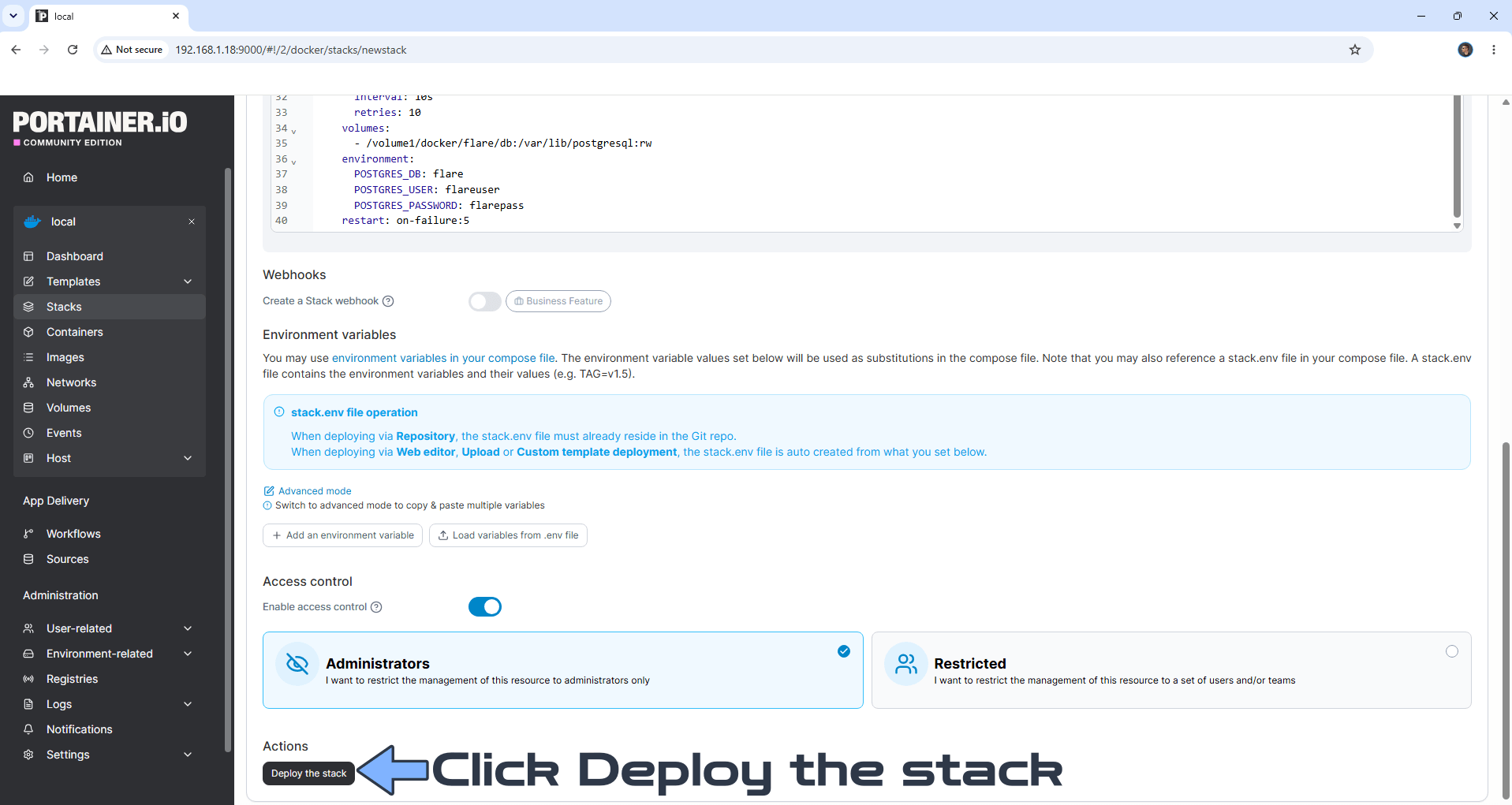
Scroll down on the page until you see a button named Deploy the stack. Click on it. Follow the instructions in the image below. The installation process can take up to a few minutes. It will depend on your Internet speed connection.
STEP 15
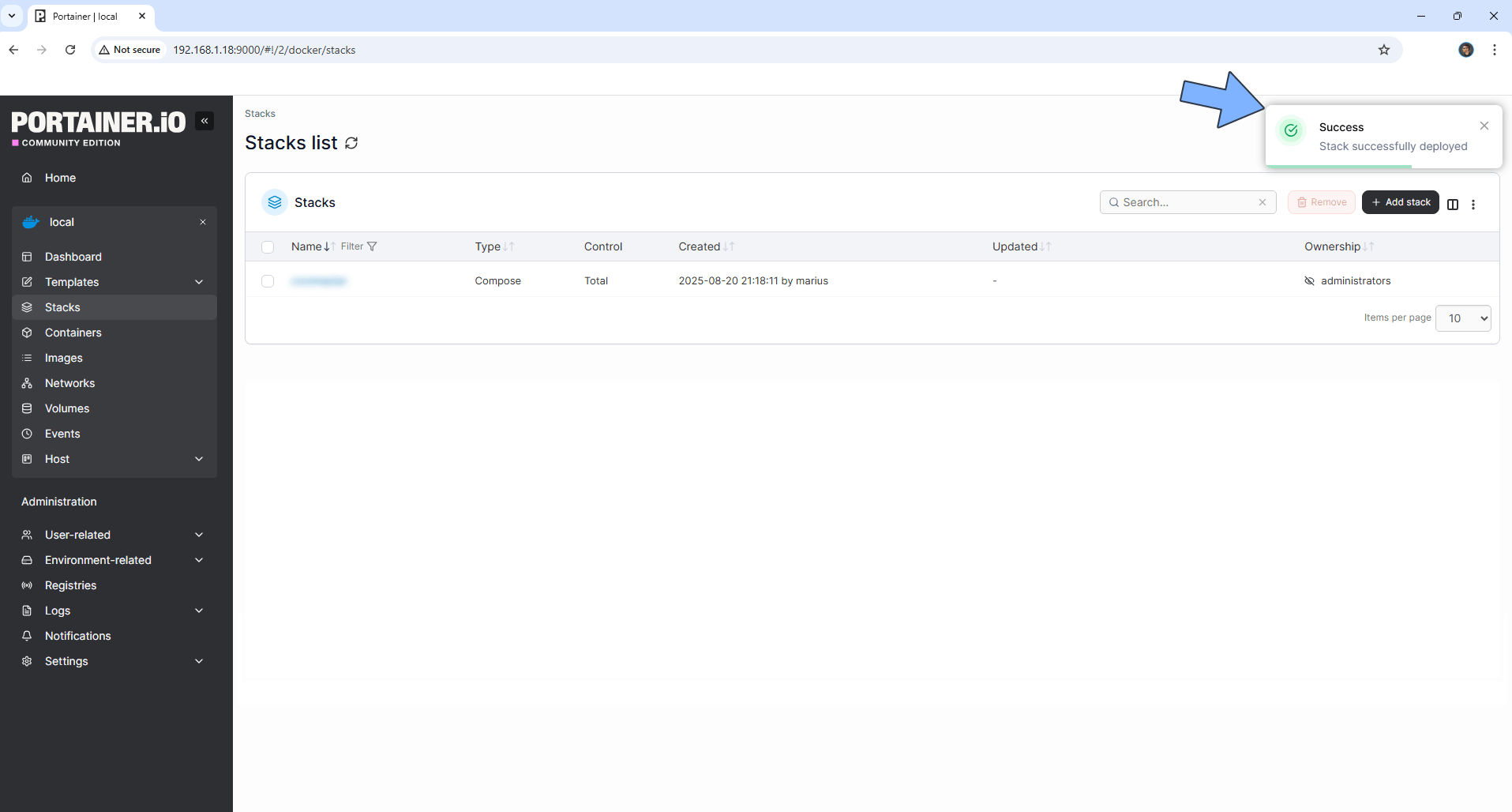
If everything goes right, you will see the following message at the top right of your screen: “Success Stack successfully deployed“.
STEP 16
🟢Please Support My work by Making a Donation. Almost 99,9% of the people that install something using my guides forget to support my work, or just ignore STEP 1. I’ve been very honest about this aspect of my work since the beginning: I don’t run any ADS, I don’t require subscriptions, paid or otherwise, I don’t collect IPs, emails, and I don’t have any referral links from Amazon or other merchants. I also don’t have any POP-UPs or COOKIES. I have repeatedly been told over the years how much I have contributed to the community. It’s something I love doing and have been honest about my passion since the beginning. But I also Need The Community to Support me Back to be able to continue doing this work.
STEP 17
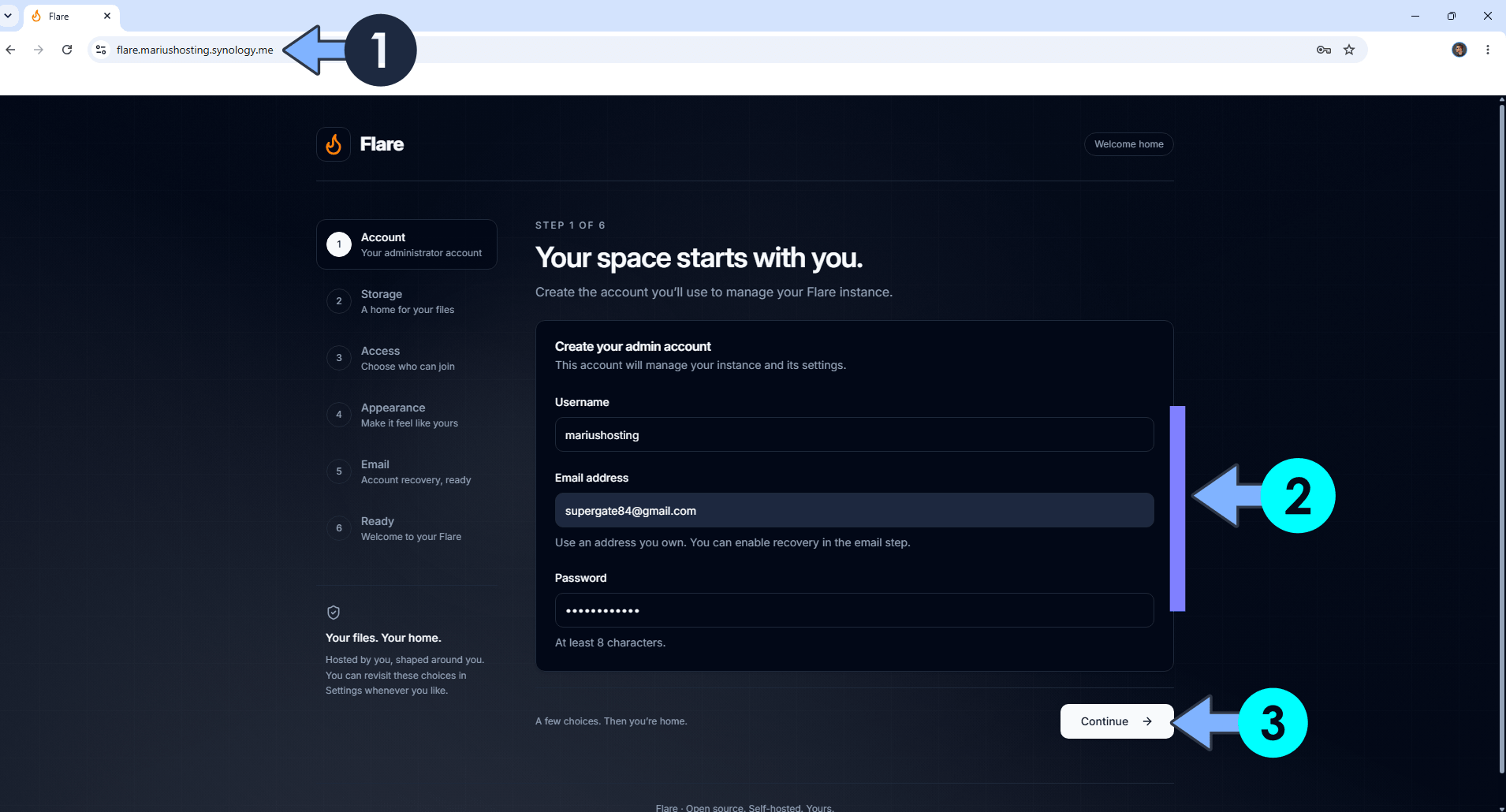
Now open your browser and type in your HTTPS/SSL certificate like this https://flare.yourname.synology.me In my case it’s https://flare.mariushosting.synology.me If everything goes right, you will see the Flare registration page. Type in your own Username, Email Address and Password. Click Continue. Follow the instructions in the image below.
STEP 18
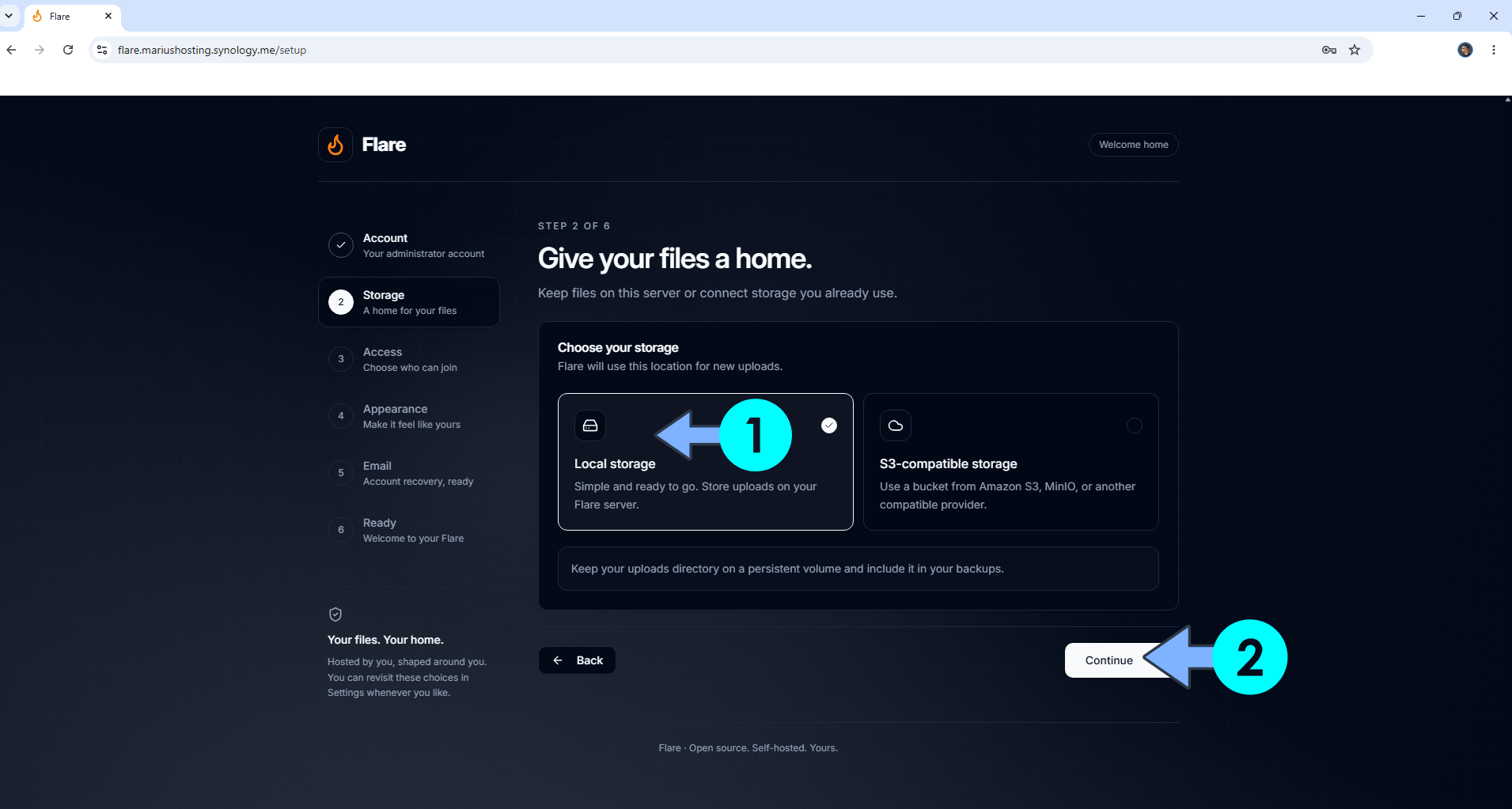
Select Local Storage, then click Continue. Follow the instructions in the image below.
STEP 19
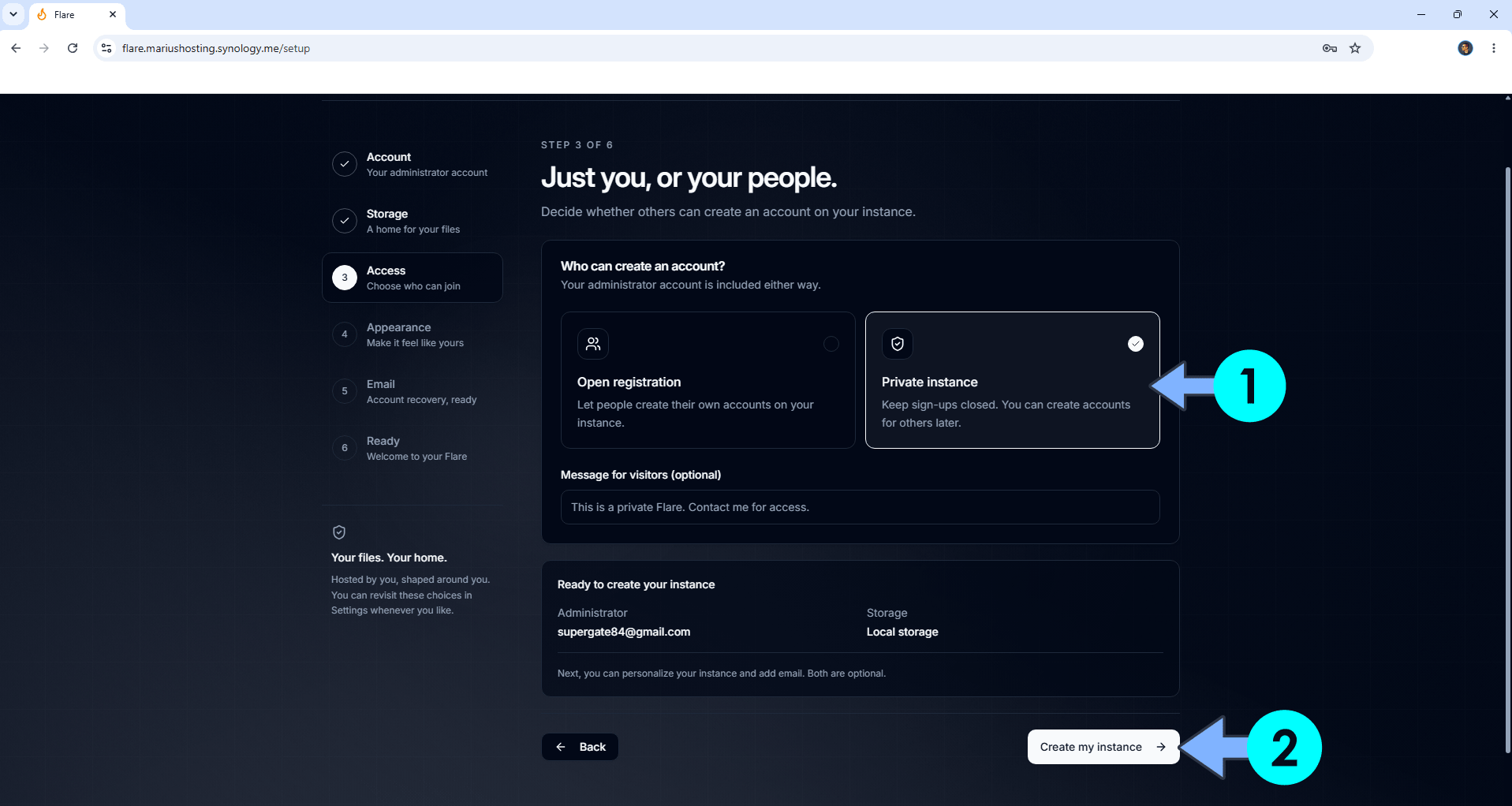
Select Private instance. With this option enabled, new users can’t create an account. Click Create my instance. Follow the instructions in the image below.
STEP 20
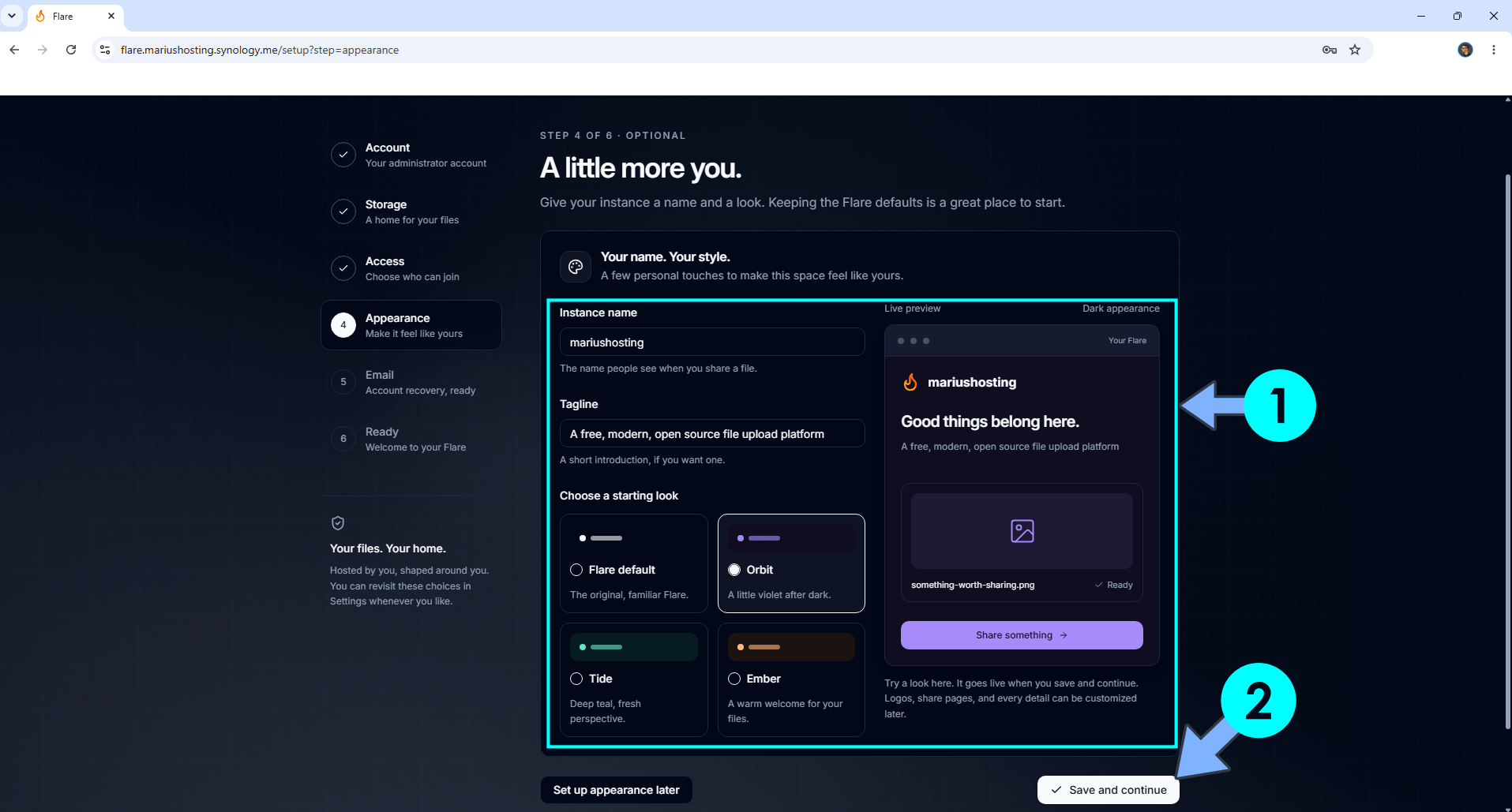
Select your favorite Flare appearance. Click Save and continue.
STEP 21
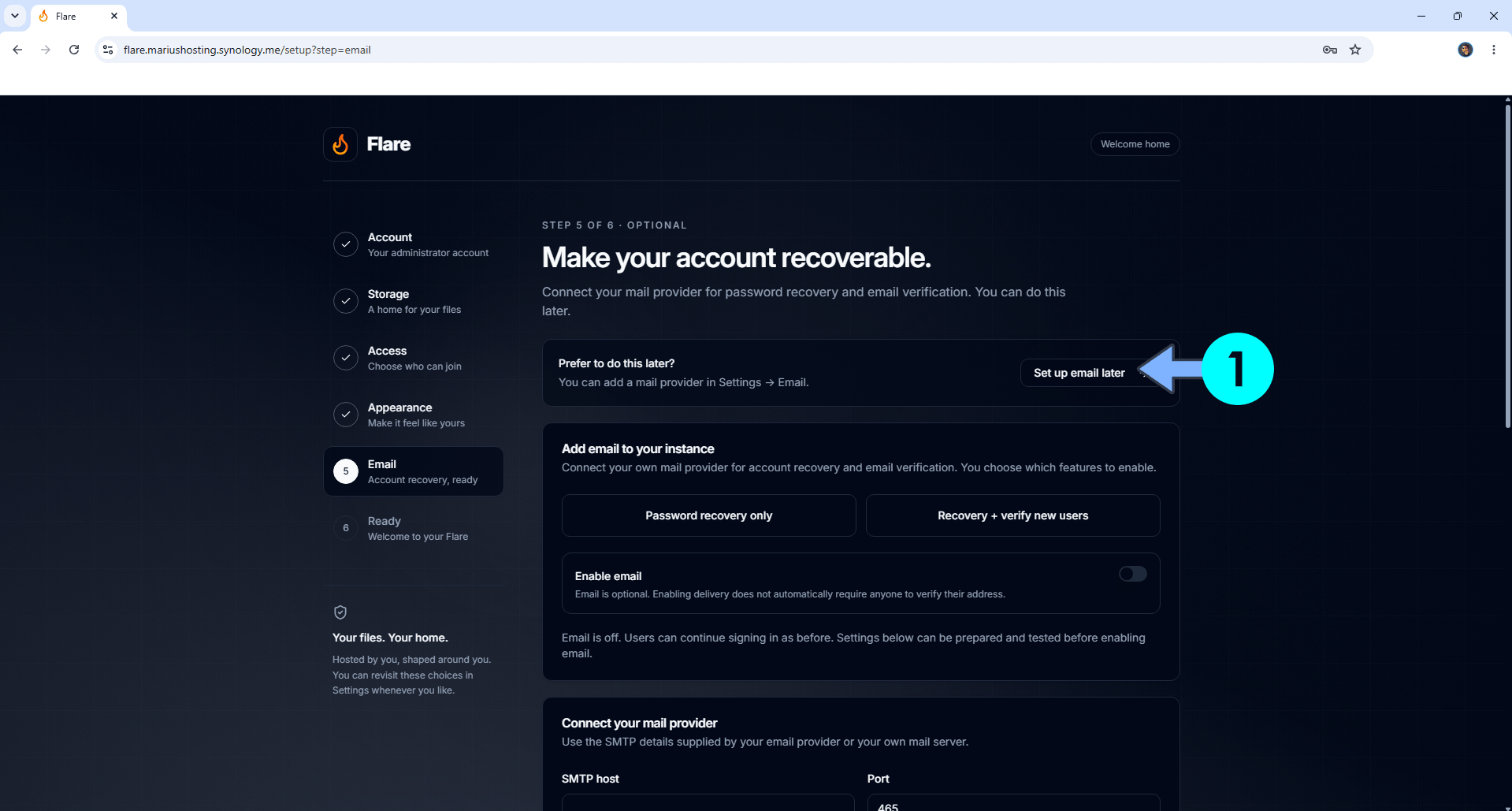
Click Set up email later. Follow the instructions in the image below.
STEP 22
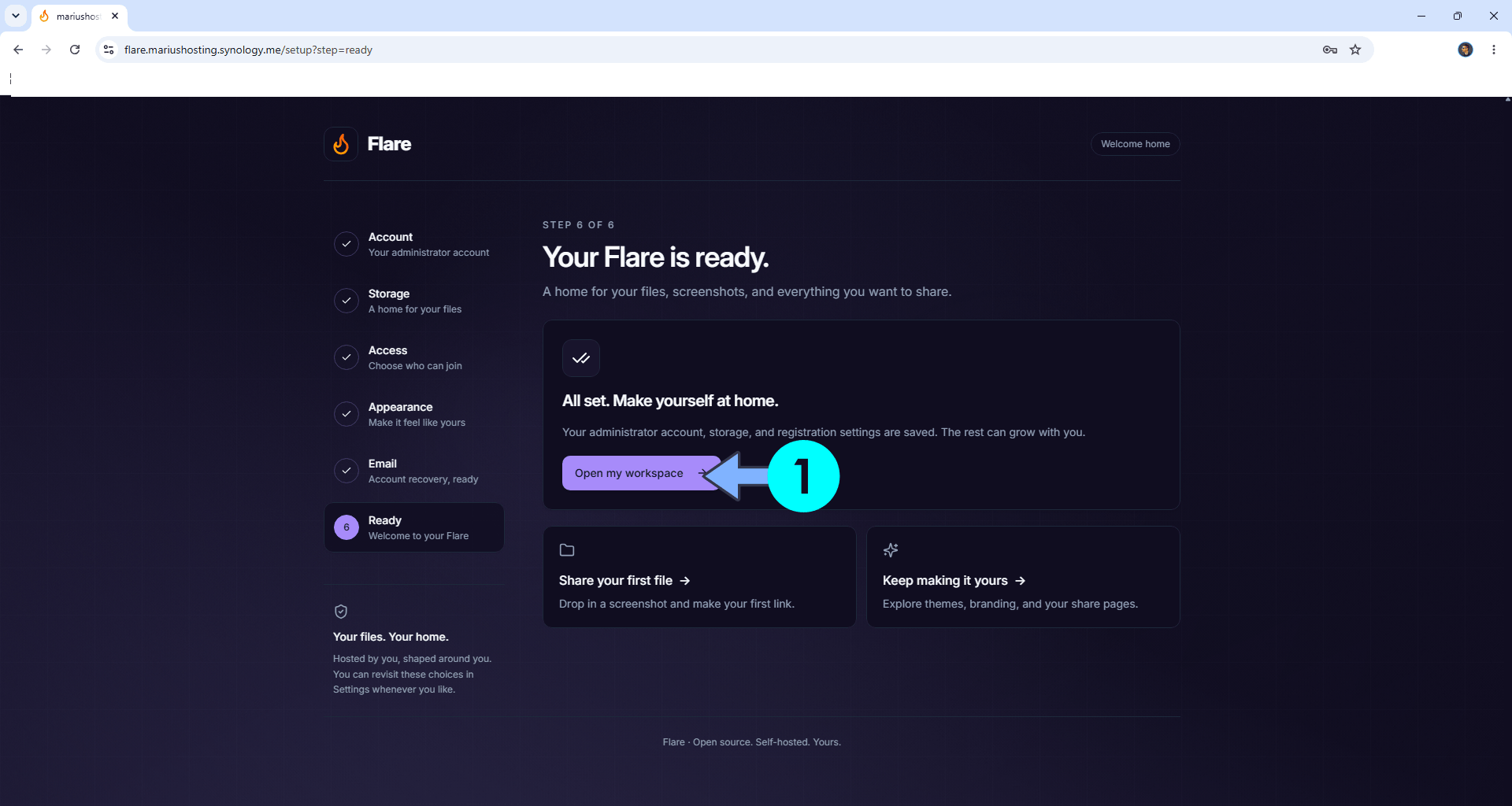
Click Open my workspace. Follow the instructions in the image below.
STEP 23
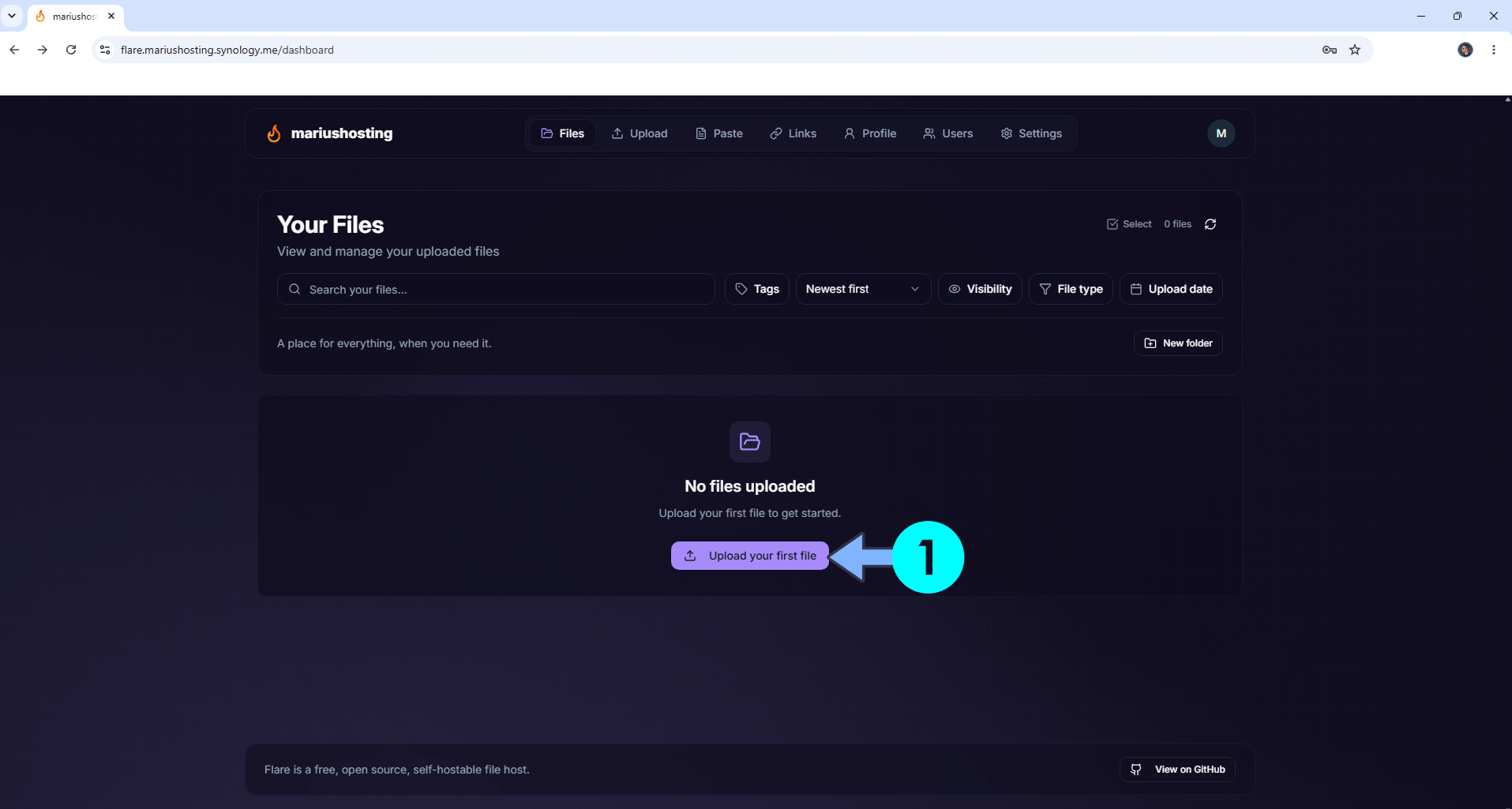
Click Upload your first file. Follow the instructions in the image below.
STEP 24
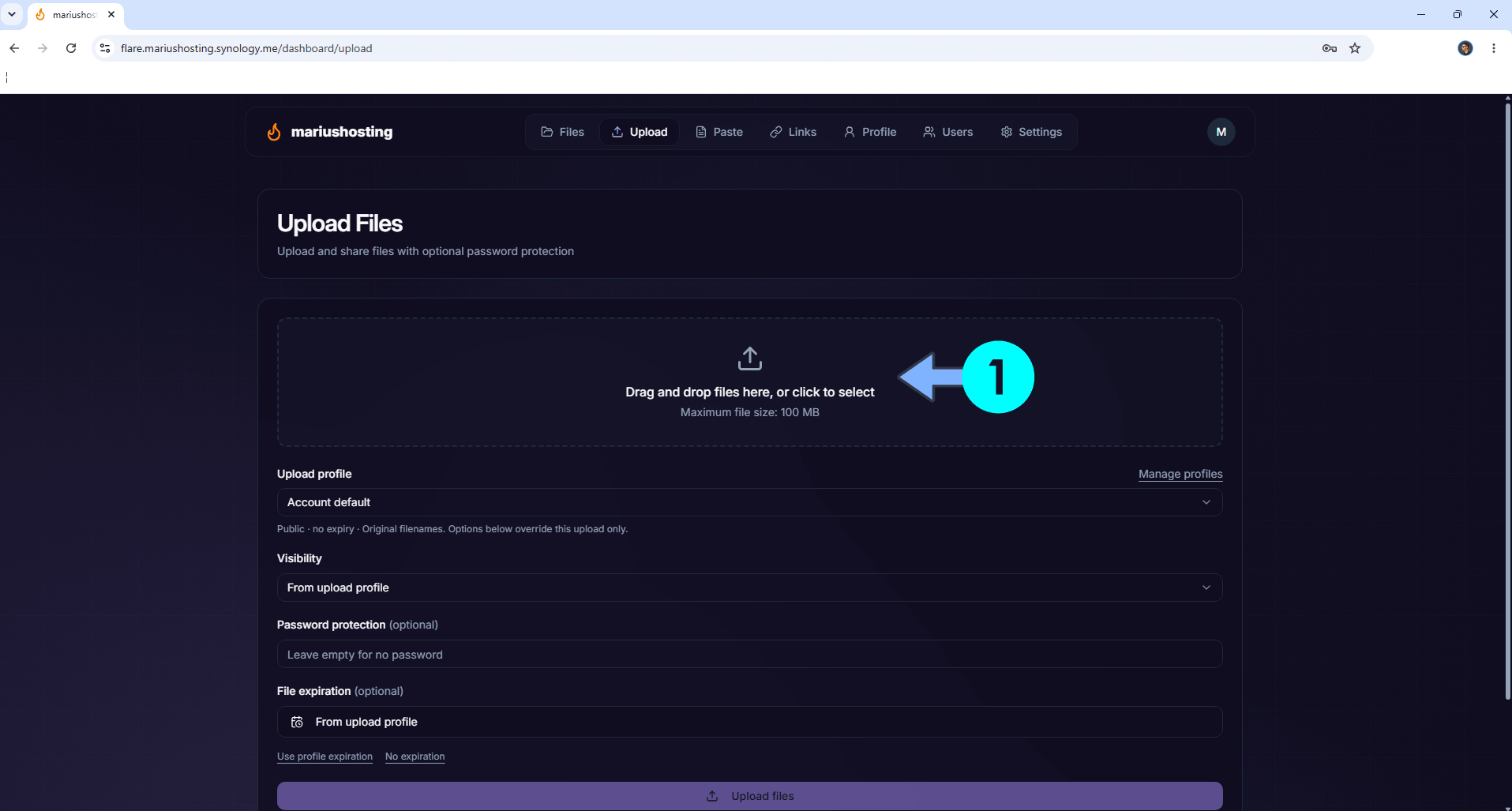
Click the Upload tab, then Drag and drop the file that you want to share. After that, click Upload Files. Follow the instructions in the image below.
STEP 25
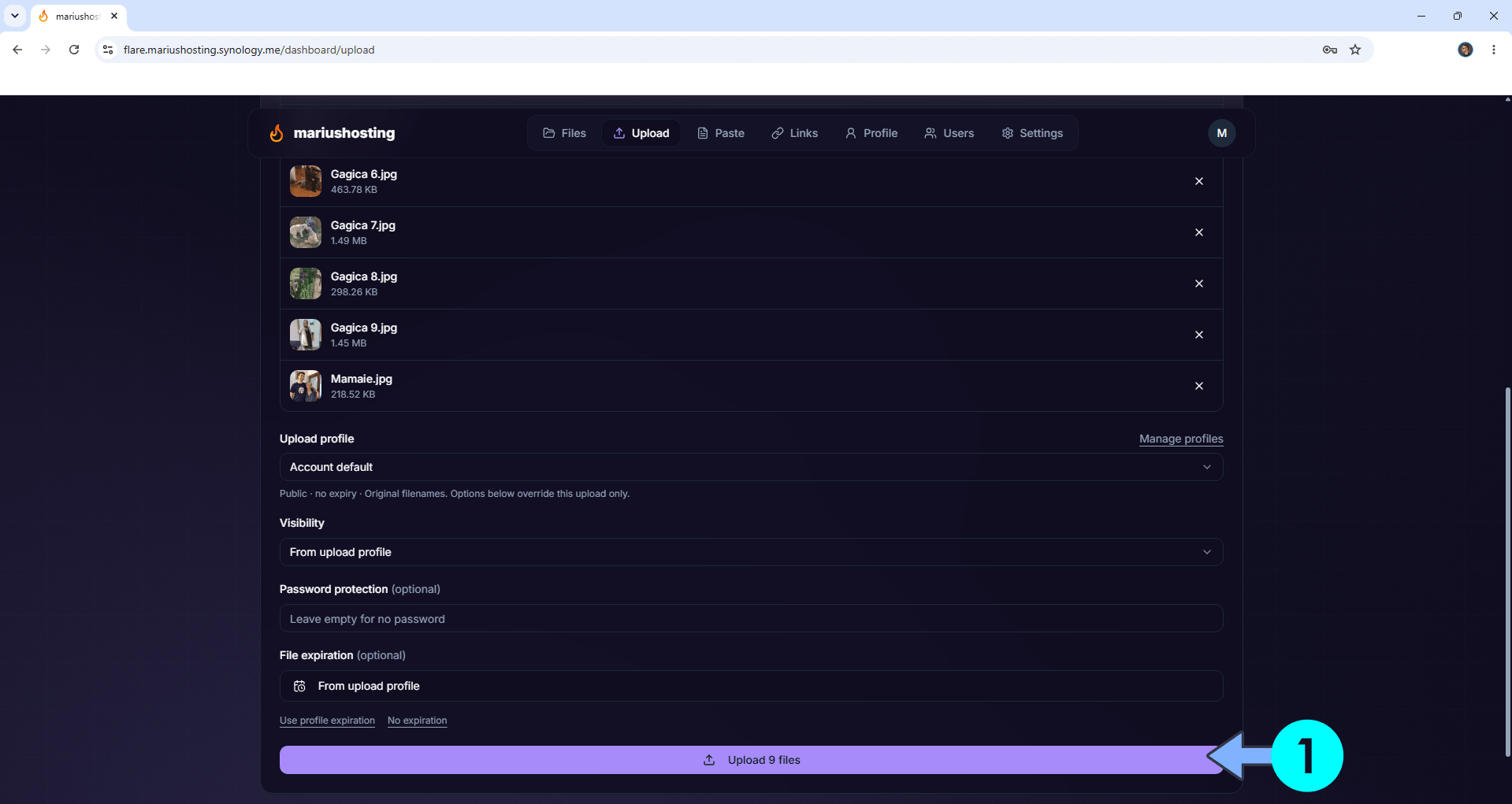
Click Upload files. Follow the instructions in the image below.
STEP 26
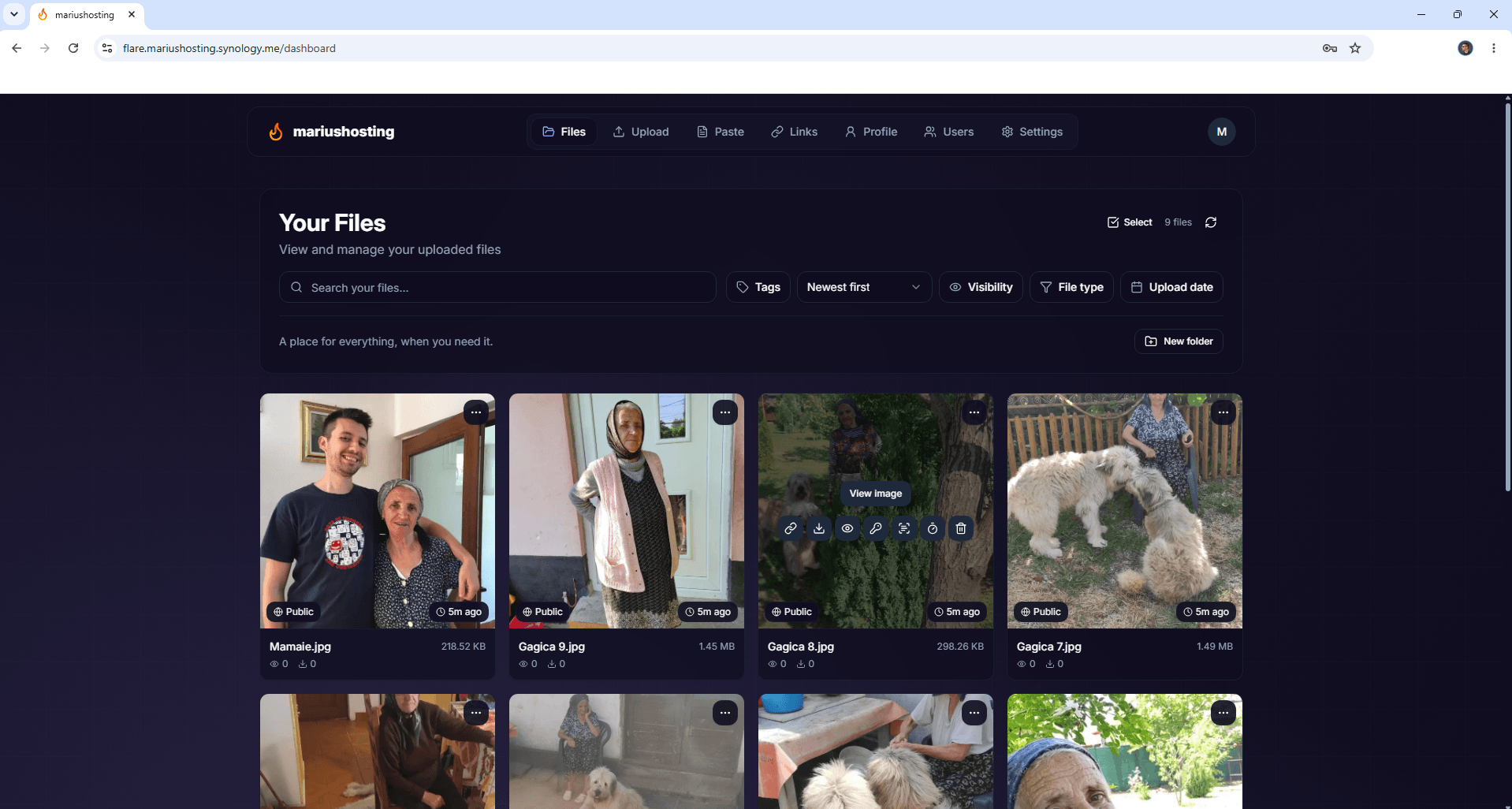
Your files at a glance!
STEP 28
Follow my step by step guide on how to activate SMTP for your Gmail account. This step is mandatory. Note: If you don’t want to use the easiest way for SMTP with Google and you already have SMTP details from your own Mail Server, you can just skip this STEP and use your personalized email SMTP details instead.
STEP 27
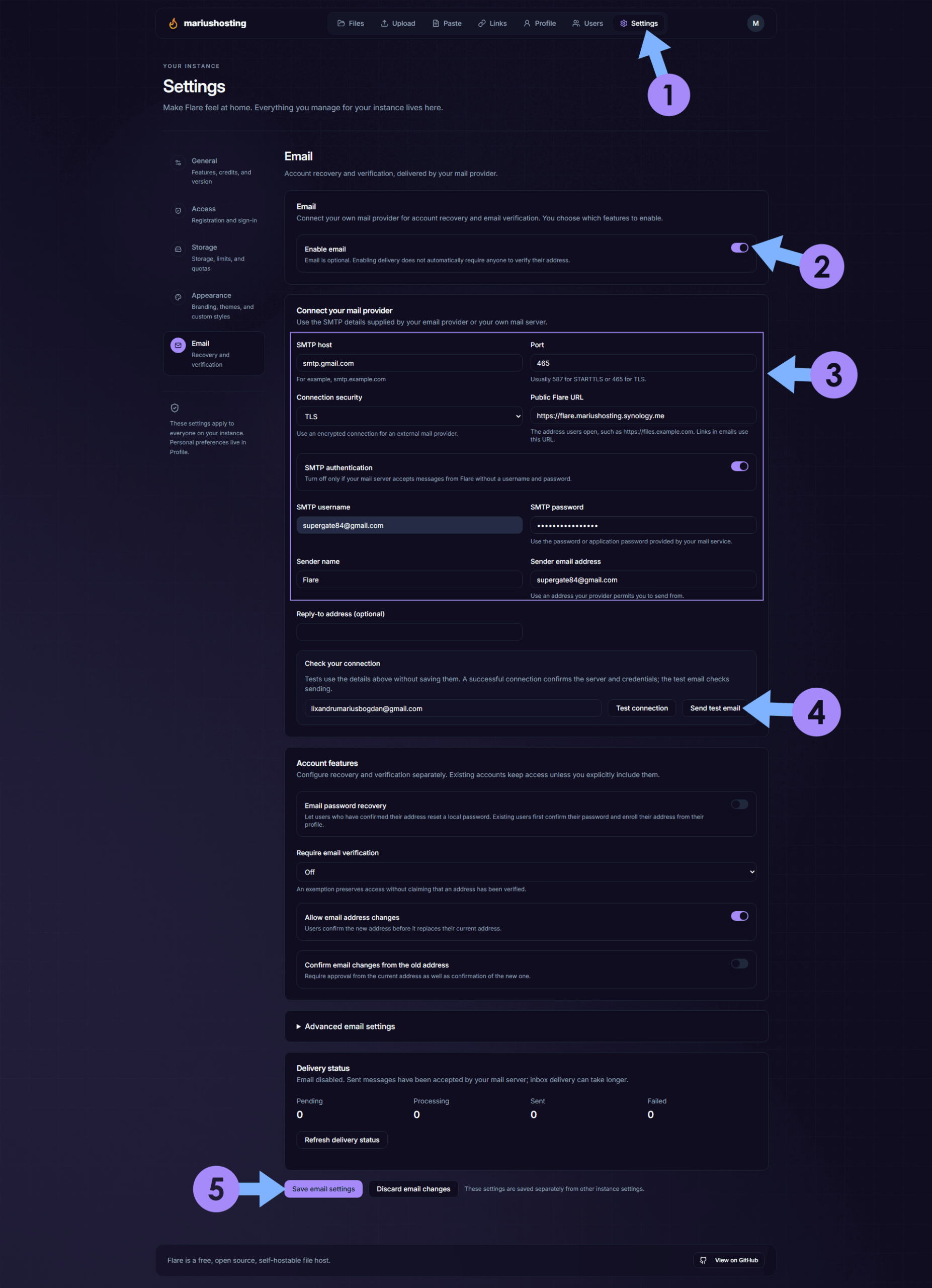
At the top right of the page, click Settings. Click Enable email.
In the connect your mail provider area, add the details below:
SMTP host: smtp.gmail.com
Port: 465
Connection security: TLS
SMTP Authentication: switch to ON.
SMTP Username: Type in your own Gmail address / STEP 28.
SMTP Password: Type in your own Gmail App Password / STEP 28. ⚠️Warning: Do NOT confuse with your own Gmail password. This is the Gmail APP password.
Sender Email Address: Type in your own Gmail address. / STEP 28.
Click Send test email. Click Save Email Settings. Follow the instructions in the image below.
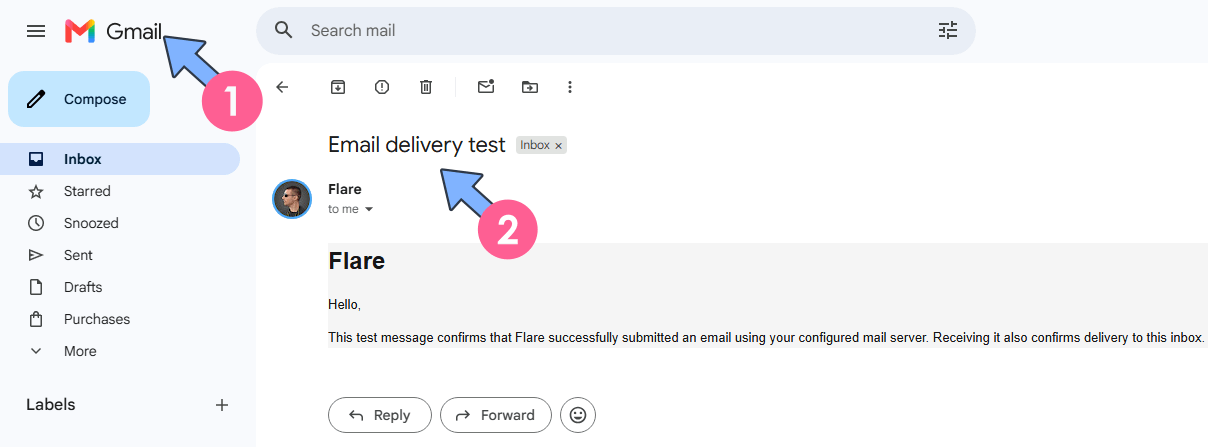
STEP 28
Your delivery test email is successfully completed.
Enjoy Flare!
🆘TROUBLESHOOTING
If you encounter issues by using this container, make sure to check out the Common Docker issues article.
Note: Can I run Docker on my Synology NAS? See the supported models.
Note: How to Back Up Docker Containers on your Synology NAS.
Note: Find out how to update the Flare container with the latest image.
Note: How to Free Disk Space on Your NAS if You Run Docker.
Note: How to Schedule Start & Stop For Docker Containers.
Note: How to Activate Email Notifications.
Note: How to Add Access Control Profile on Your NAS.
Note: How to Change Docker Containers Restart Policy.
Note: How to Use Docker Containers With VPN.
Note: Convert Docker Run Into Docker Compose.
Note: How to Clean Docker.
Note: How to Clean Docker Automatically.
Note: Best Practices When Using Docker and DDNS.
Note: Some Docker Containers Need WebSocket.
Note: Find out the Best NAS Models For Docker.
Note: Activate Gmail SMTP For Docker Containers.
This post was updated on Sunday / October 11th, 2026 at 12:25 AM