
Dockhand is a modern, self-hosted Docker management platform with an intuitive web interface for homelabs, small businesses, and enterprises. It simplifies container operations, stack deployments, and observability through real-time management (start/stop/restart containers, web terminals, file transfers), a visual Compose editor, GitOps auto-sync, metrics, logs, OIDC/SSO, MFA, vulnerability scans, and multi-host support via the open-source Hawser agent. You can deploy it quickly as a Docker container with no cloud dependencies or telemetry. It’s forever free for personal use. In this step by step guide I will show you how to install Dockhand on your Synology NAS using Docker.
STEP 1
Please Support My work by Making a Donation.
STEP 2
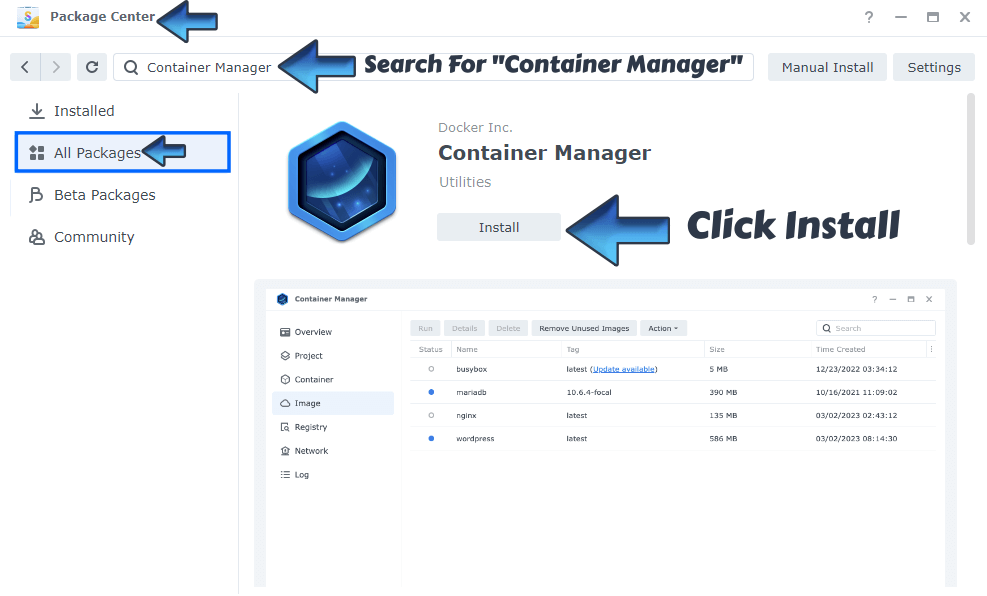
Install Container Manager via Synology “Package Center”. If you run an older DSM version (under 7.2), search for Docker instead of Container Manager.
STEP 3
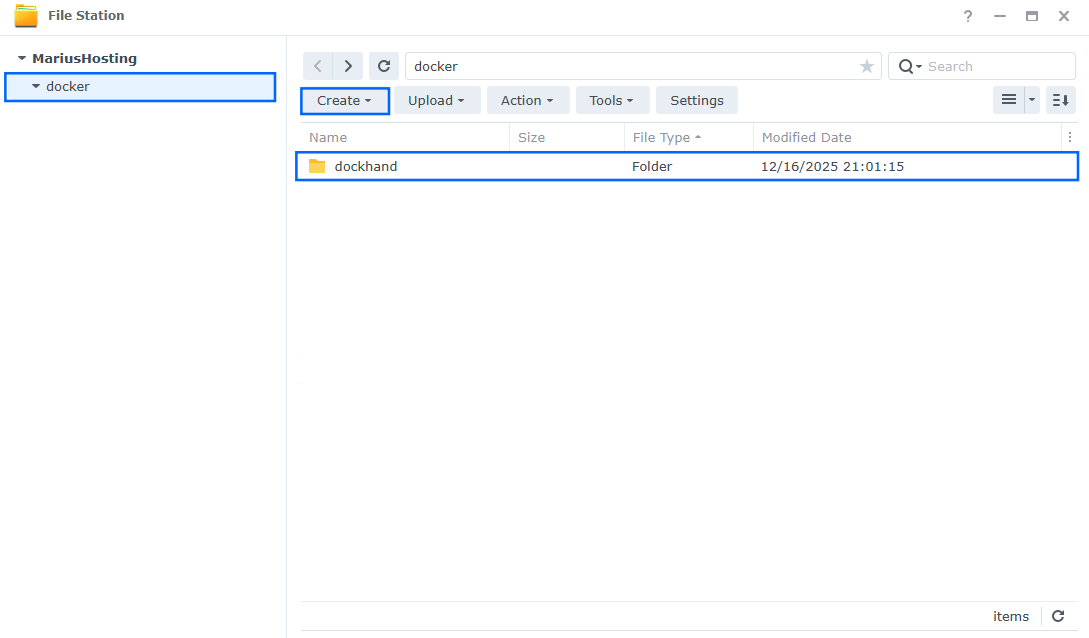
Go to File Station and open the docker folder. Inside the docker folder, create a new folder and name it dockhand. Follow the instructions in the image below.
Note: Be careful to use only lowercase, not uppercase letters.
STEP 4
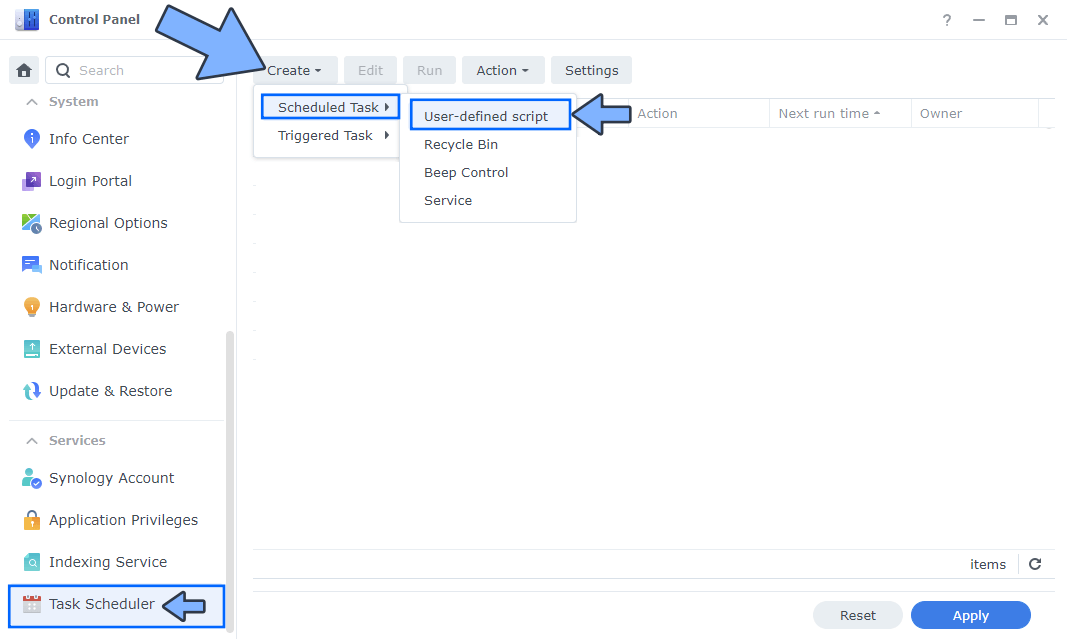
Go to Control Panel / Task Scheduler / Create / Scheduled Task / User-defined script. Follow the instructions in the image below.
STEP 5
Once you click on User-defined script, a new window will open. Follow the instructions below:
- General: In the Task field type in “Install Dockhand“. Uncheck the “Enabled” option. Select root User.
- Schedule: Select Run on the following date then select “Do not repeat“.
- Task Settings: Check “Send run details by email“, add your email, then copy paste the code below in the Run command area. After that, click OK.
docker run -d --name=Dockhand \
-p 3866:3000 \
-v /var/run/docker.sock:/var/run/docker.sock \
-v /volume1/docker/dockhand:/app/data:rw \
--restart=always \
fnsys/dockhand:latest

STEP 6
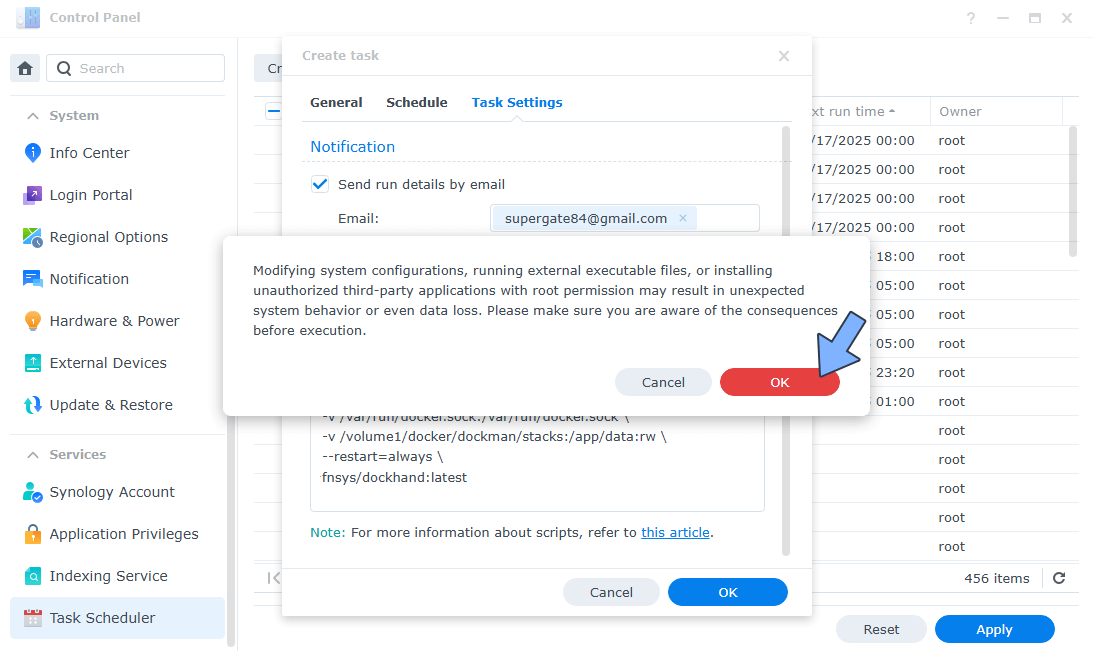
After you click OK on STEP 5, a new warning pop up window will open. Click OK.
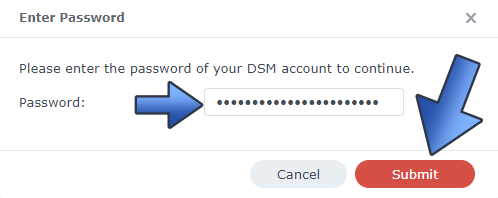
After you click OK, type in your DSM Password then click Submit. Follow the instructions in the image below.
STEP 7
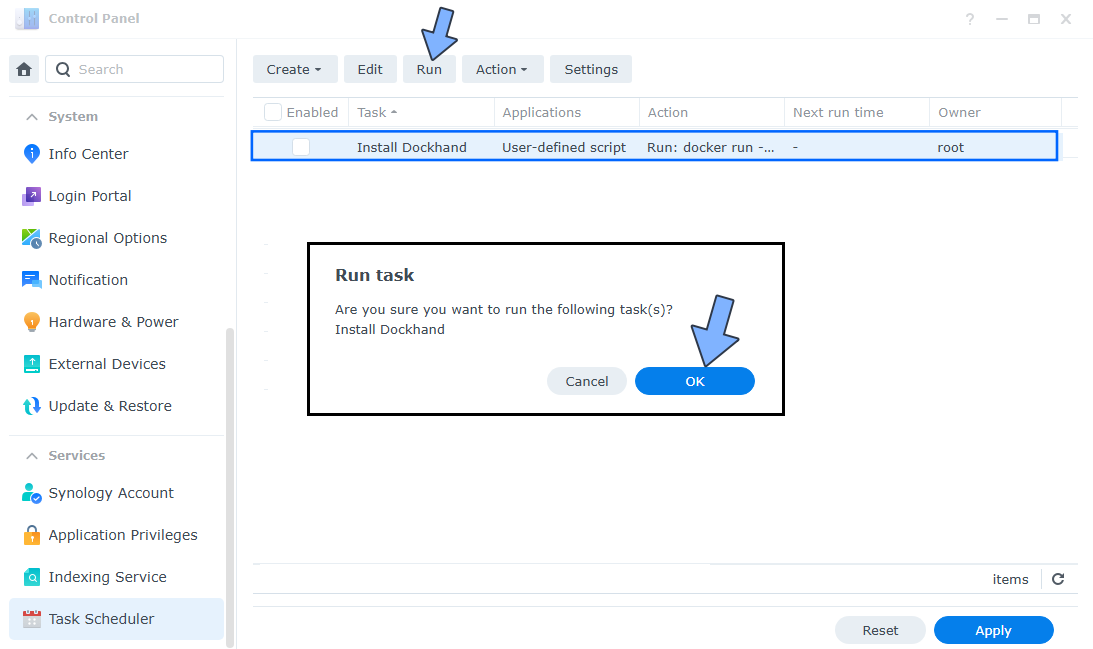
After you click Submit at STEP 6, select your “Install Dockhand” Task, then click the “Run” tab. You will be asked to run Install Dockman – click OK. Follow the instructions in the image below.
STEP 8
🟢Please Support My work by Making a Donation. Almost 99,9% of the people that install something using my guides forget to support my work, or just ignore STEP 1. I’ve been very honest about this aspect of my work since the beginning: I don’t run any ADS, I don’t require subscriptions, paid or otherwise, I don’t collect IPs, emails, and I don’t have any referral links from Amazon or other merchants. I also don’t have any POP-UPs or COOKIES. I have repeatedly been told over the years how much I have contributed to the community. It’s something I love doing and have been honest about my passion since the beginning. But I also Need The Community to Support me Back to be able to continue doing this work.
STEP 9
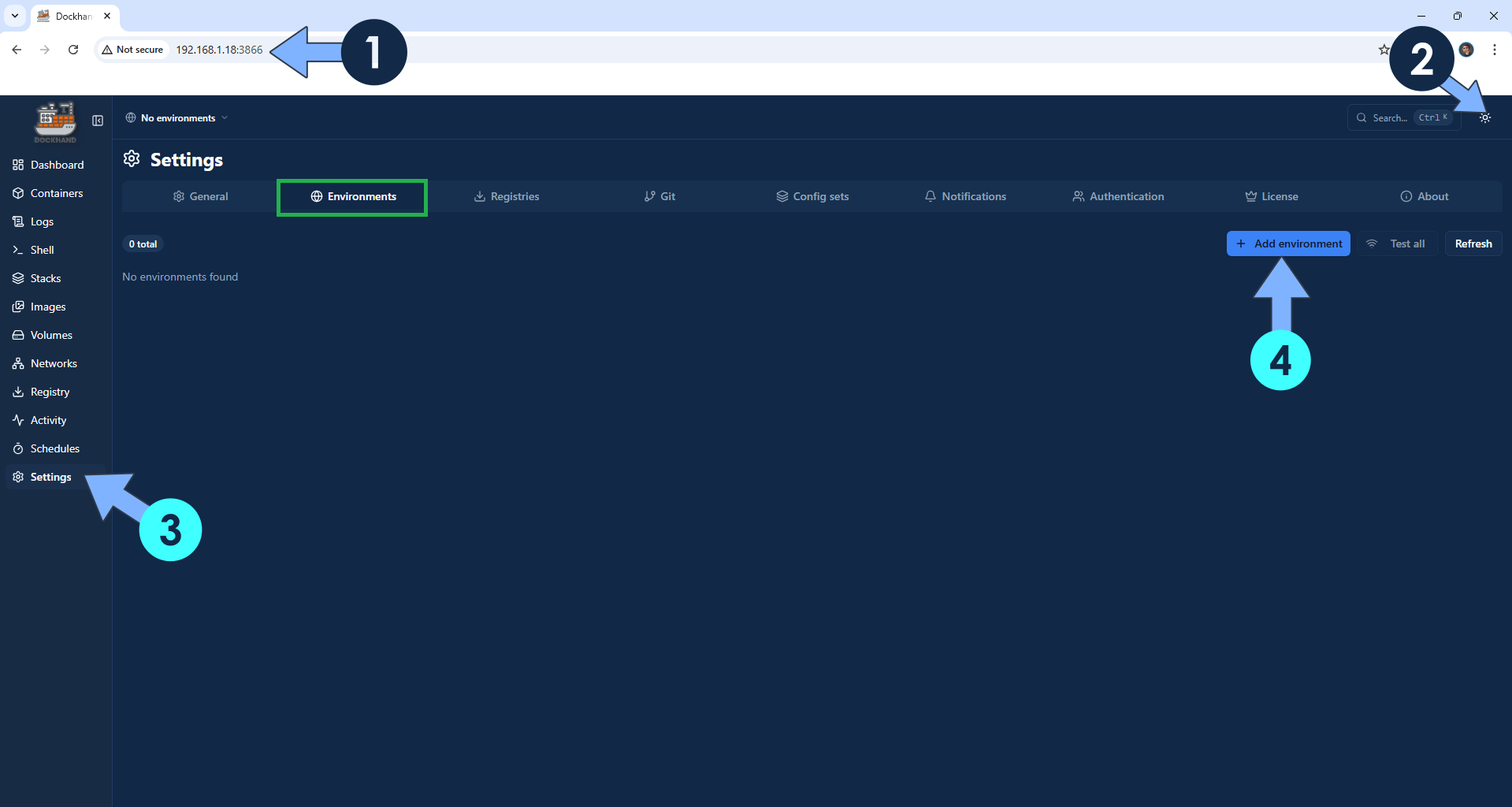
The installation process can take up to a few seconds/minutes. It will depend on your Internet speed connection. Open your browser and type in http://Synology-ip-address:3866 At the top right of the page, switch the theme to Dark. On the left sidebar, click Settings. Select the Environments tab, then click +Add environment. Follow the instructions in the image below.
STEP 10
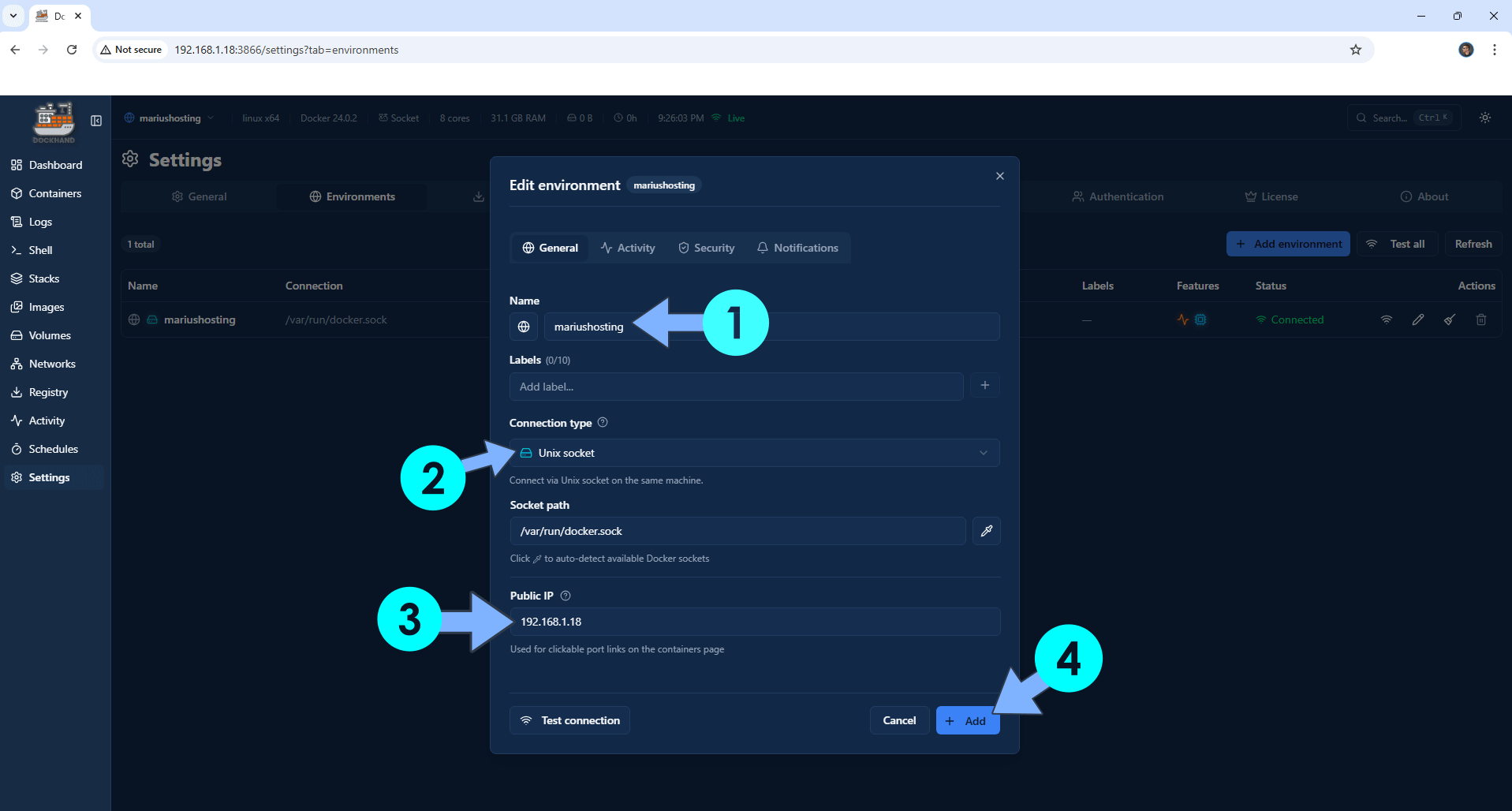
A new pop up window will open. Type in the name of your server. From the dropdown menu, select Unix socket. Type in your local NAS IP in the Public IP field. Click + Add. Follow the instructions in the image below.
STEP 11 A
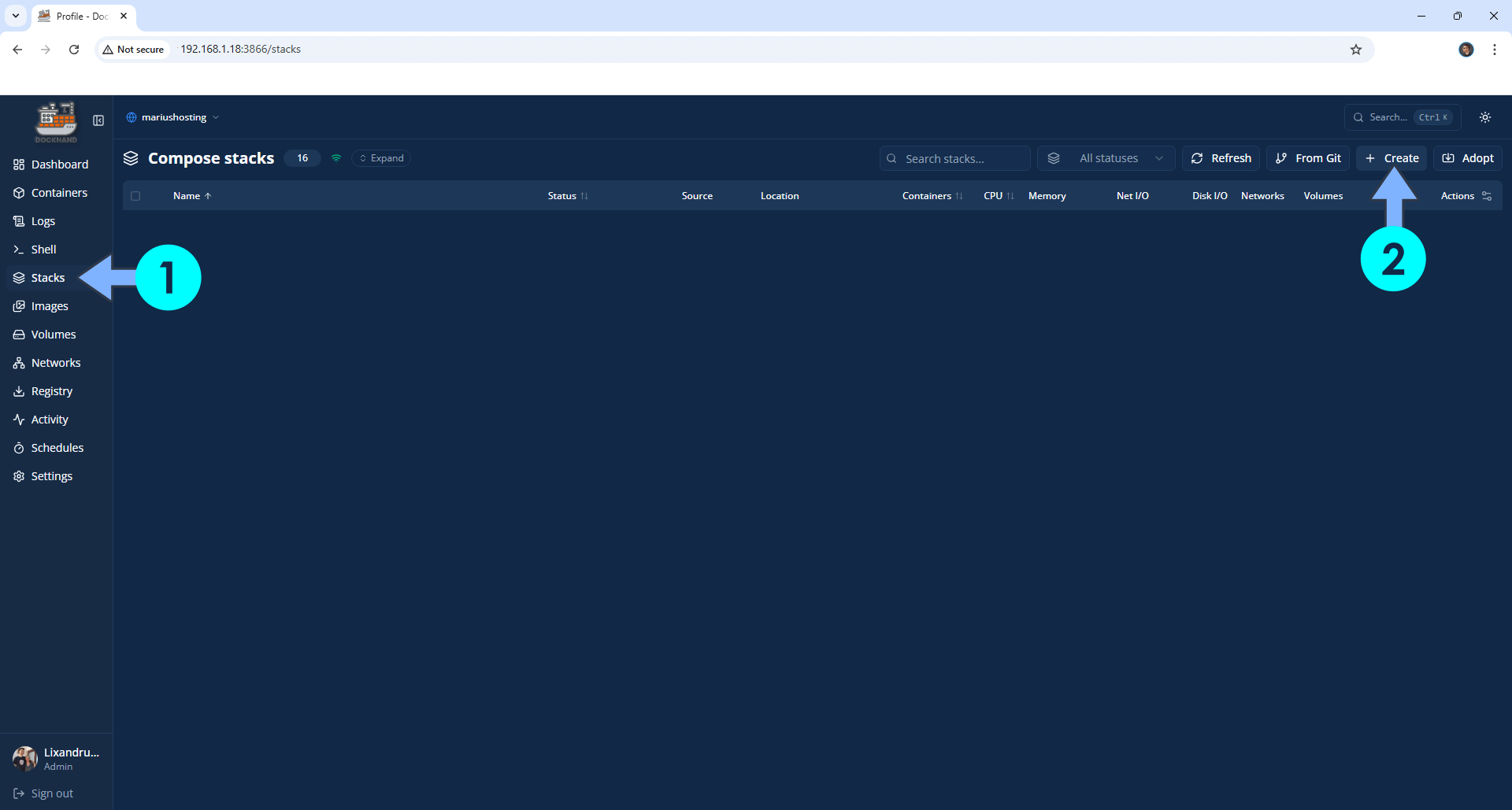
On the left sidebar, click Stacks then + Create. Follow the instructions in the image below.
STEP 11 B
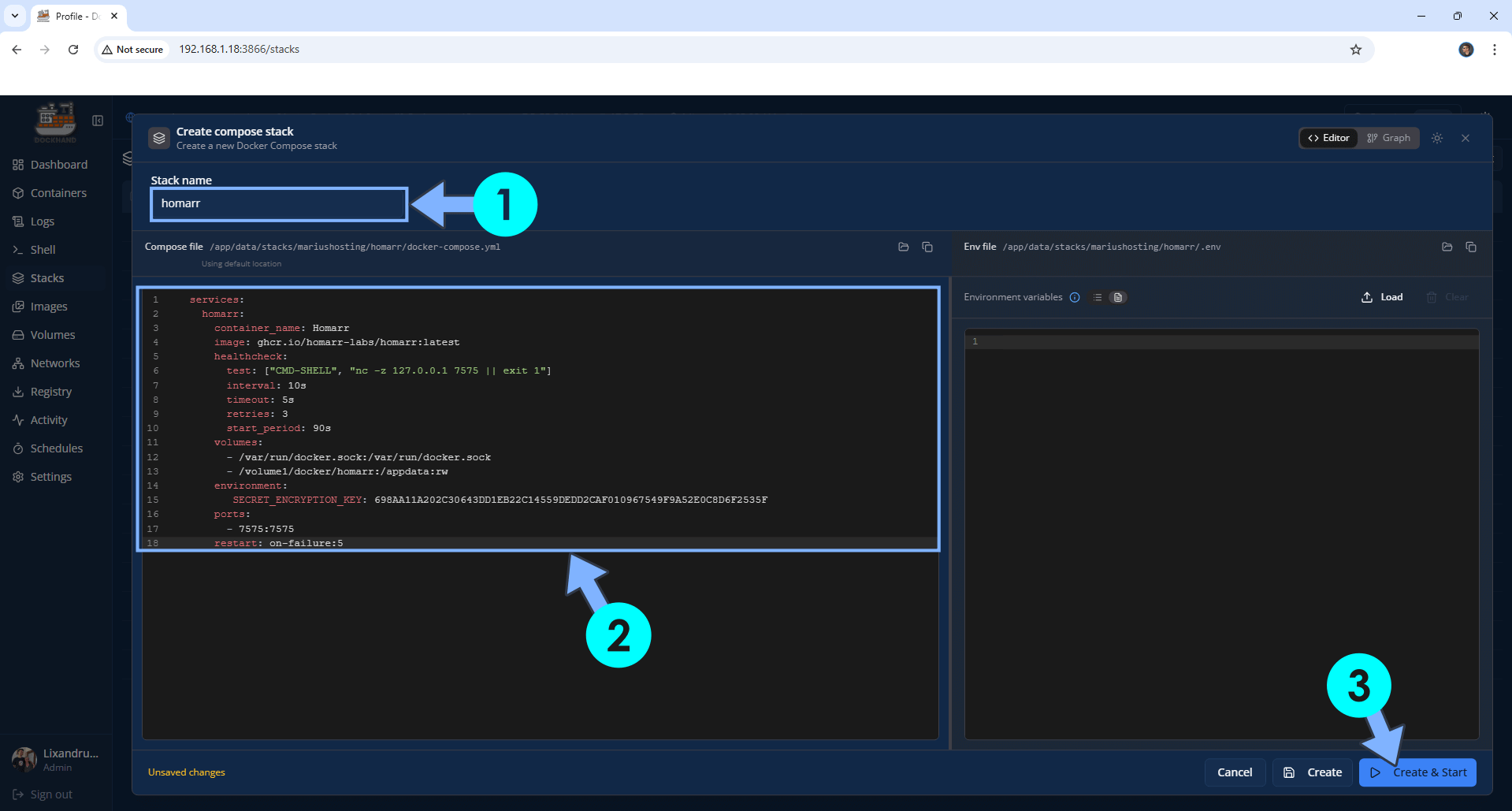
For example, I will copy and paste my docker compose stack from homarr in the Compose file area. Follow the instructions in the image below. After creating the respective folder (STEP 11 C) for your own Docker compose Stack, click the Create & Start button. Follow the instructions in the image below.
STEP 11 C
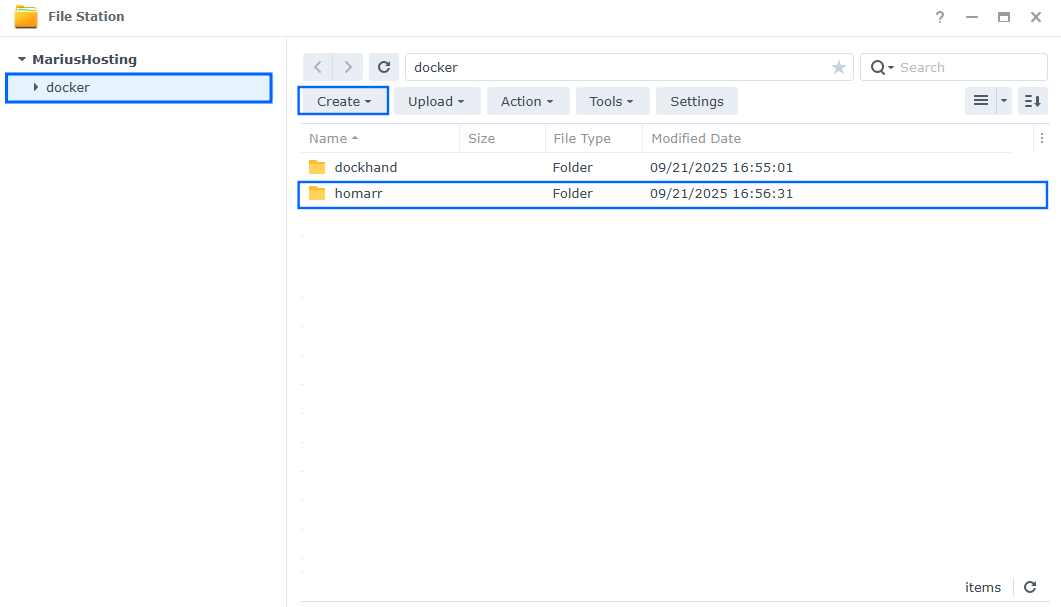
In my example, I create my homarr folder name in File Station. Follow the instructions in the image below.
STEP 12
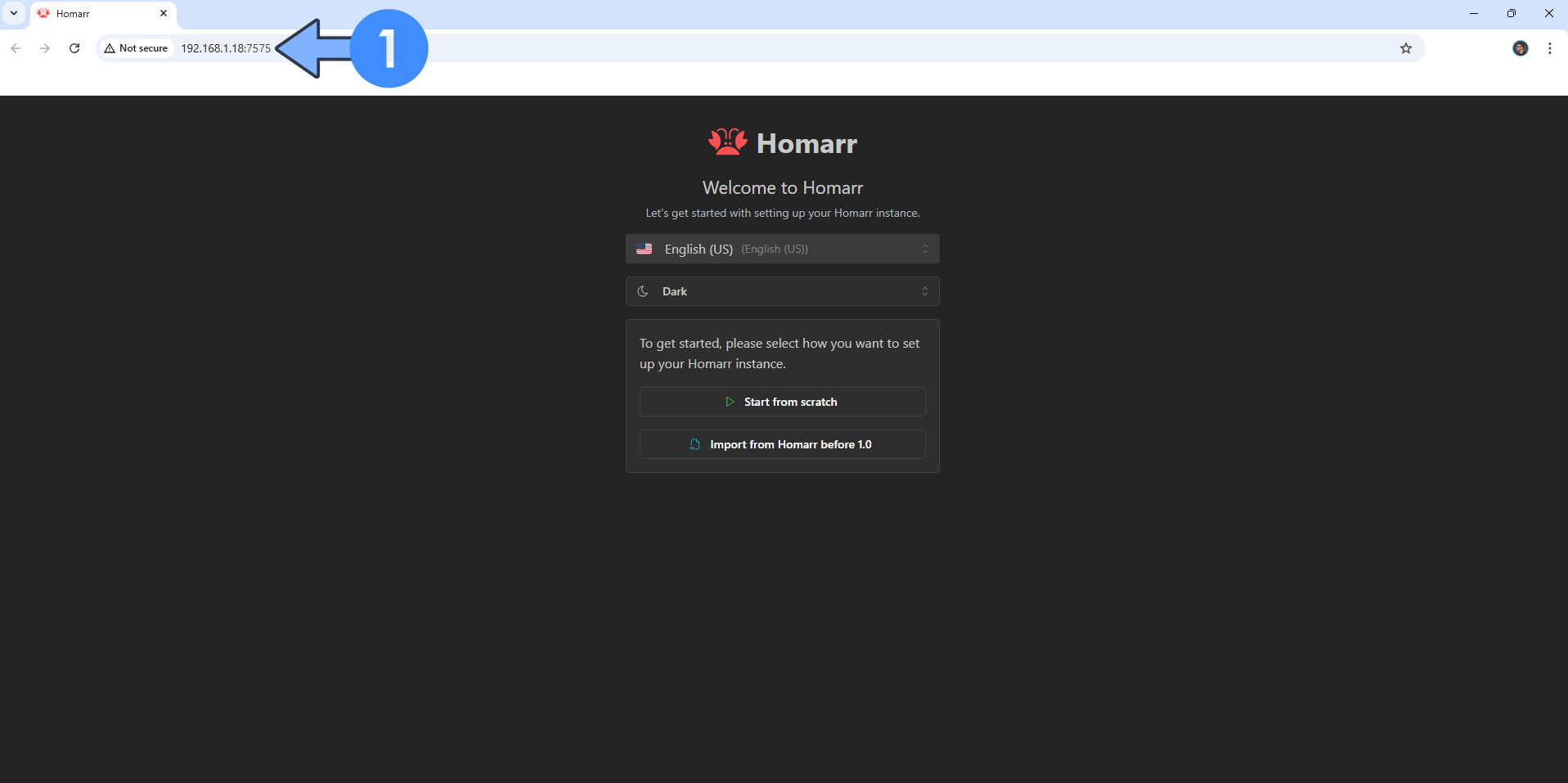
On the left sidebar, click Containers to see your installed container. In this area, you can see the Homarr container that has been successfully installed.
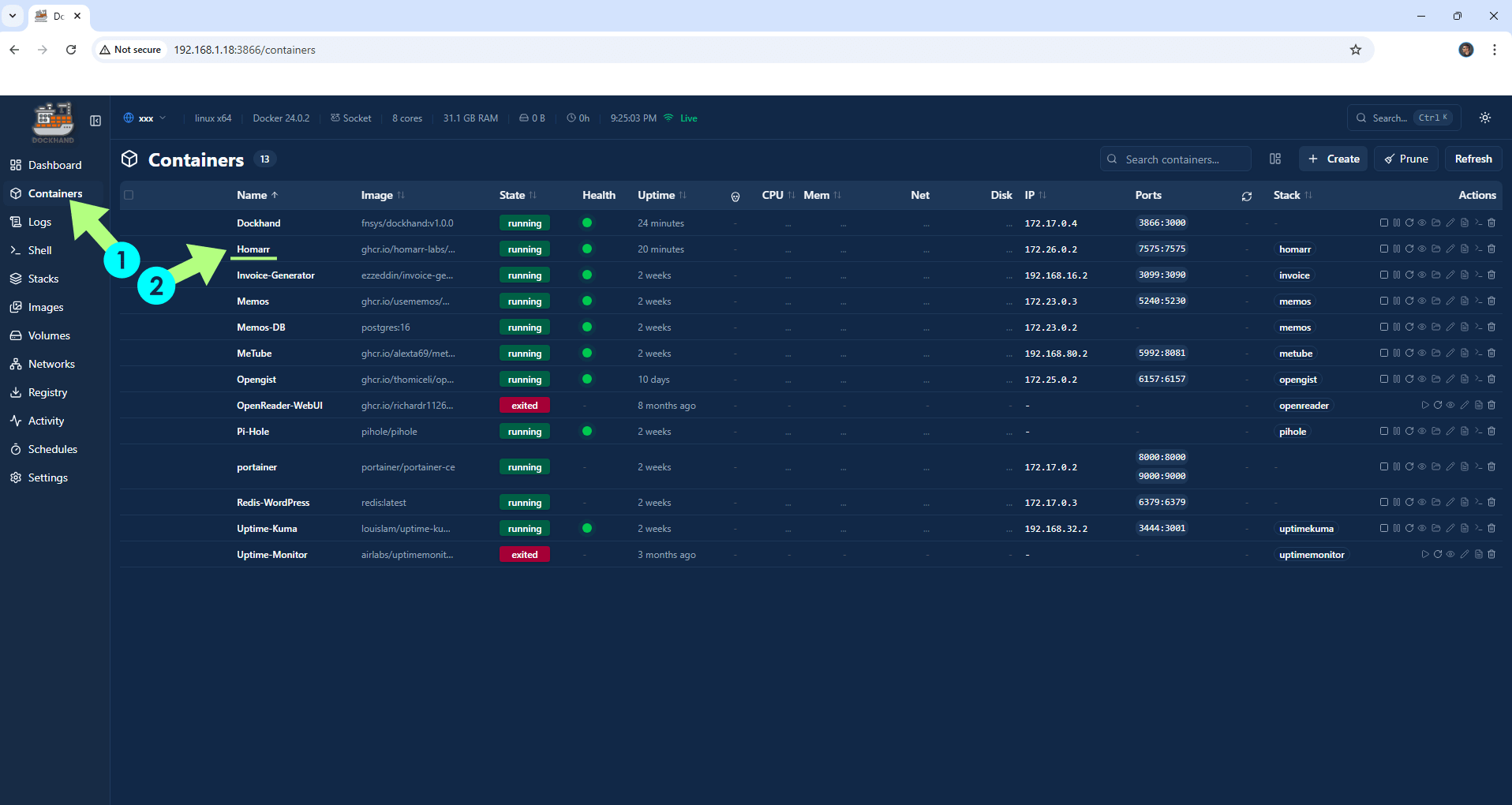
In my case, my Homarr container was successfully installed.
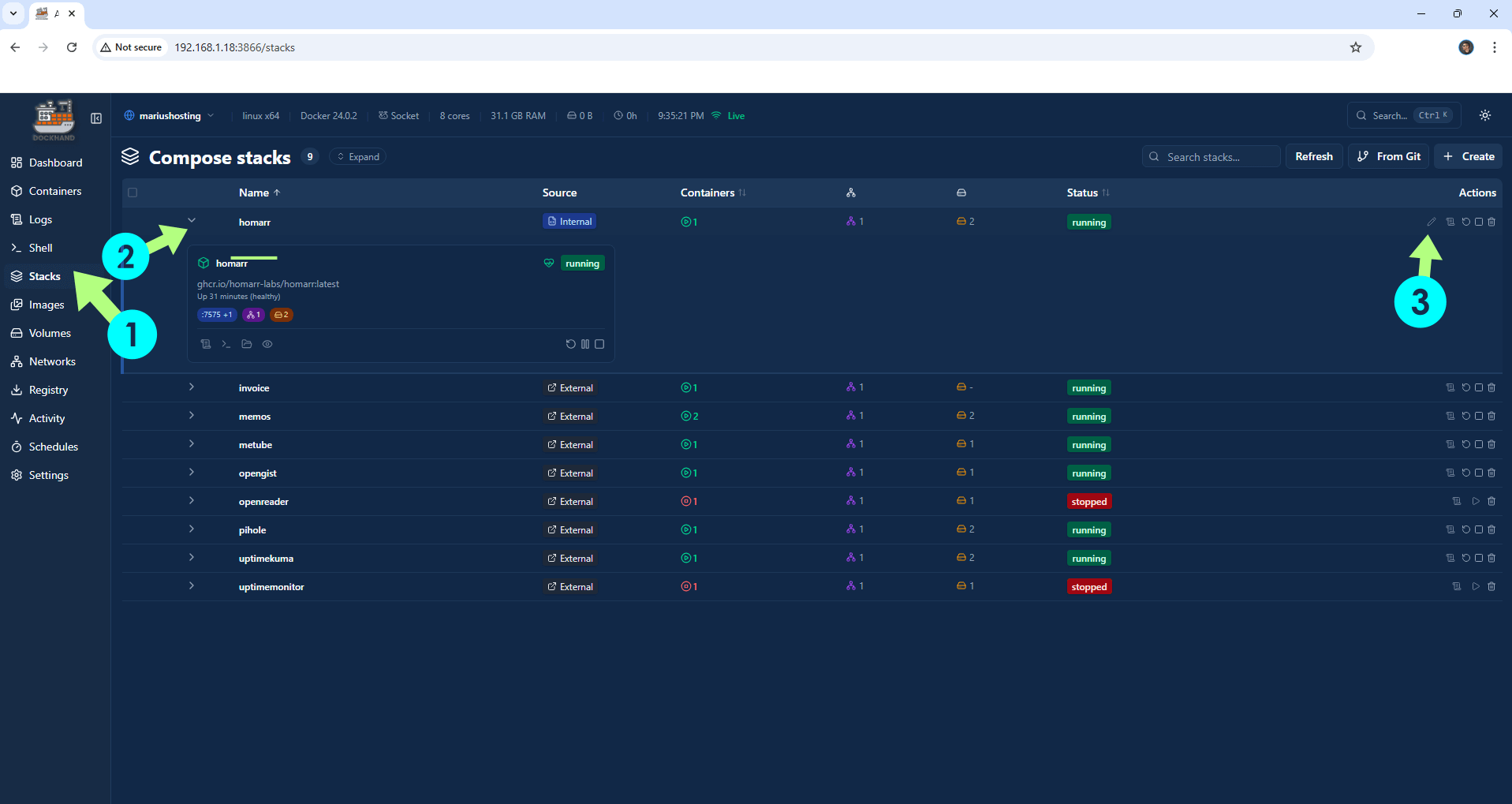
STEP 13
If you want to modify your current compose stack, click Stacks in the left sidebar. Expand your current stack, in my example “Homarr”, then click the little pencil icon. Follow the instructions in the image below.
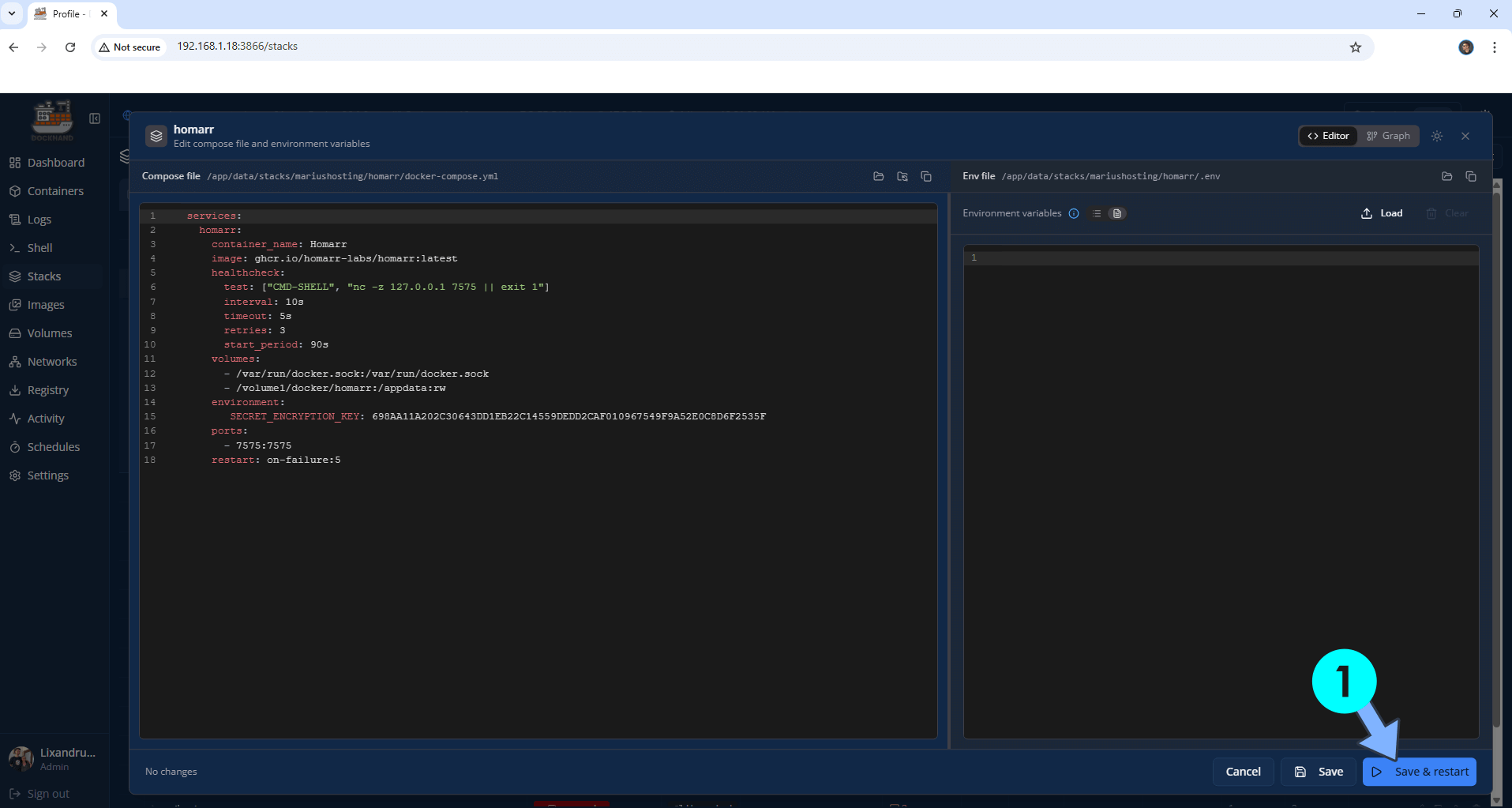
STEP 14
In this editor, you can easily modify your current compose stack. After you edit it, click Save & restart. Follow the instructions in the image below.
STEP 15
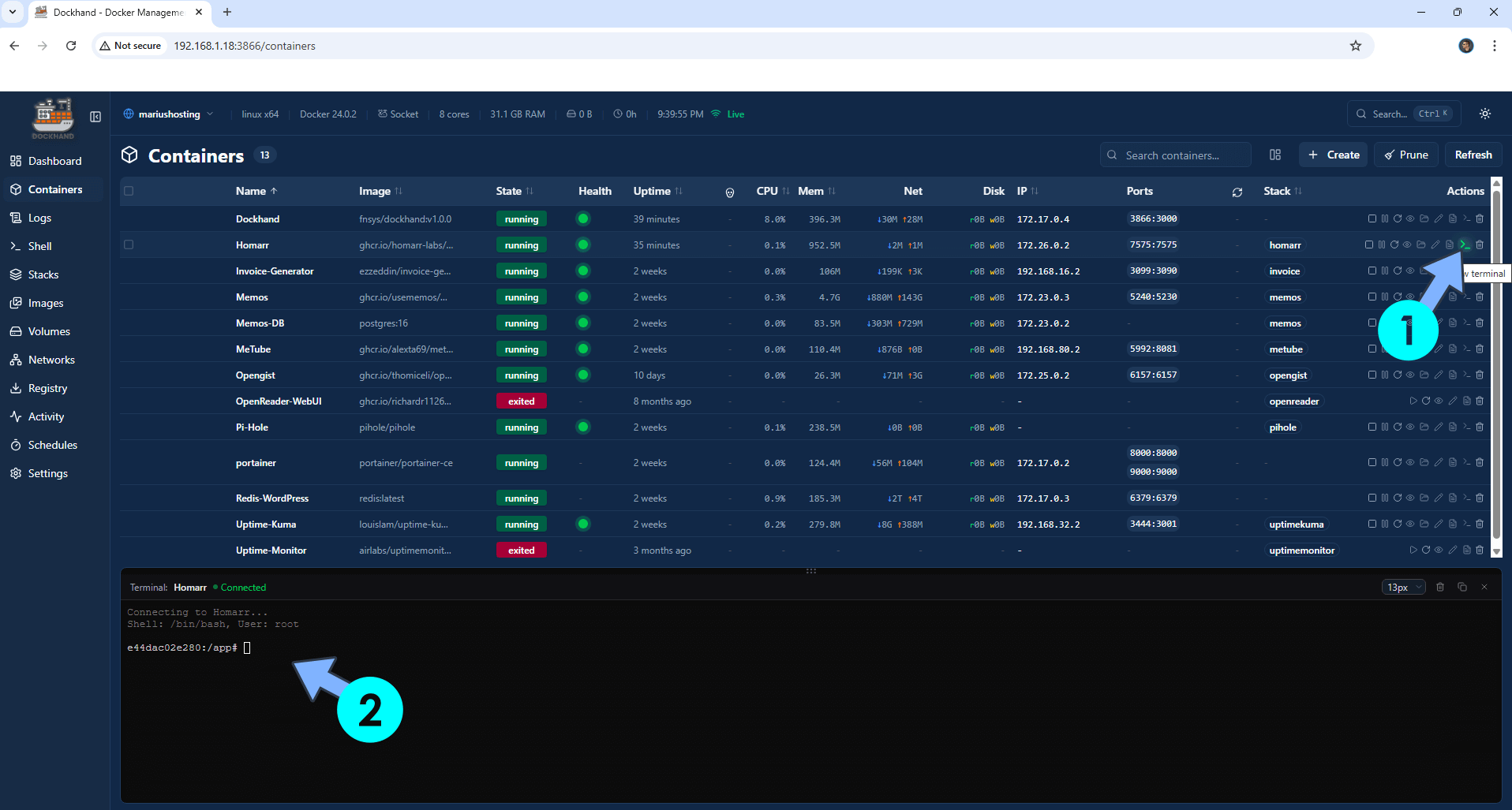
If you want, you can also access the container terminal. On the left sidebar, click Containers then select the container that you want to run the terminal. Click the little terminal icon and the terminal will automatically show up. Follow the instructions in the image below.
STEP 16
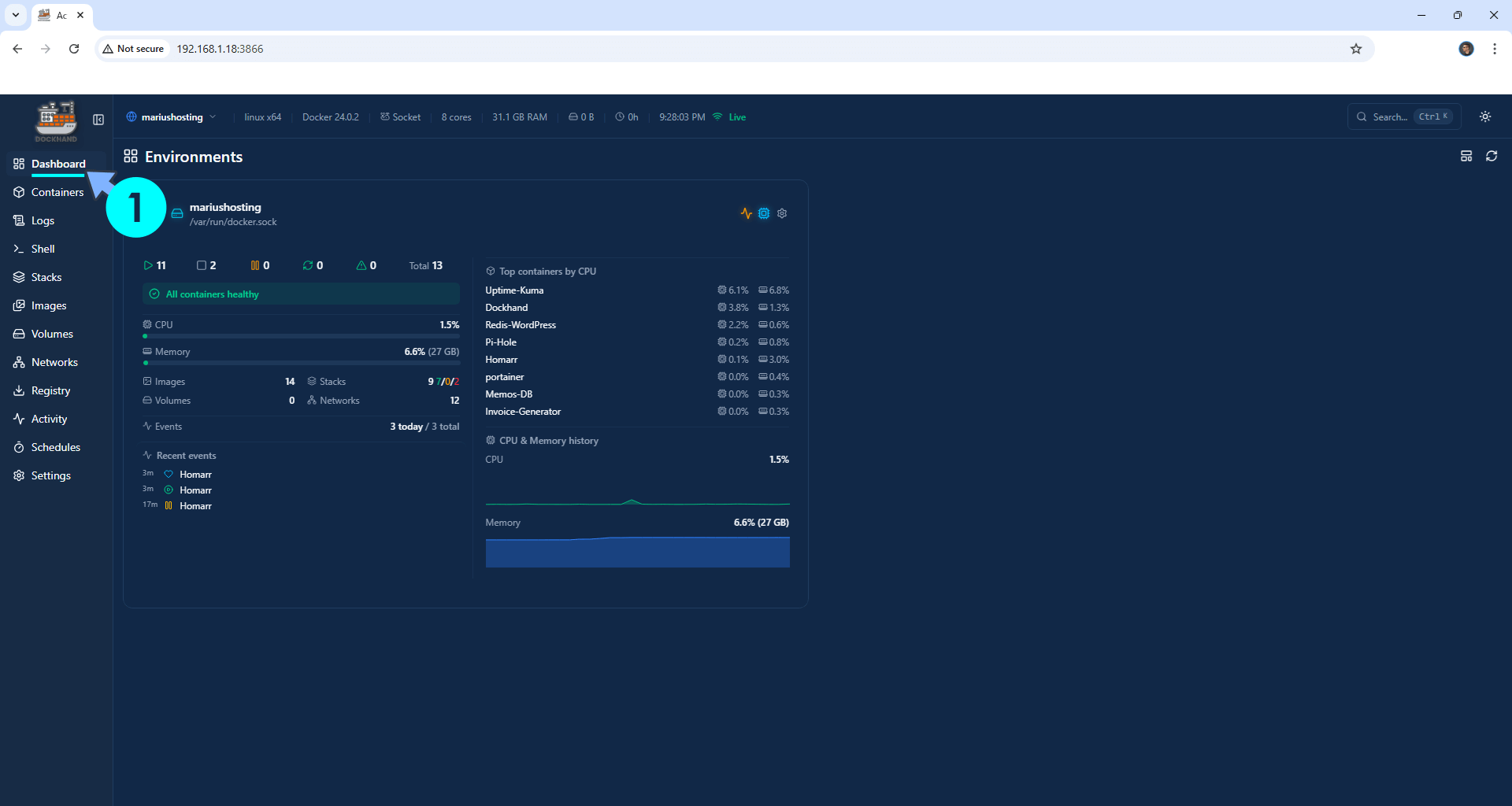
On the left sidebar, click Dashboard to check out your real-time server stats. Follow the instructions in the image below.
STEP 17
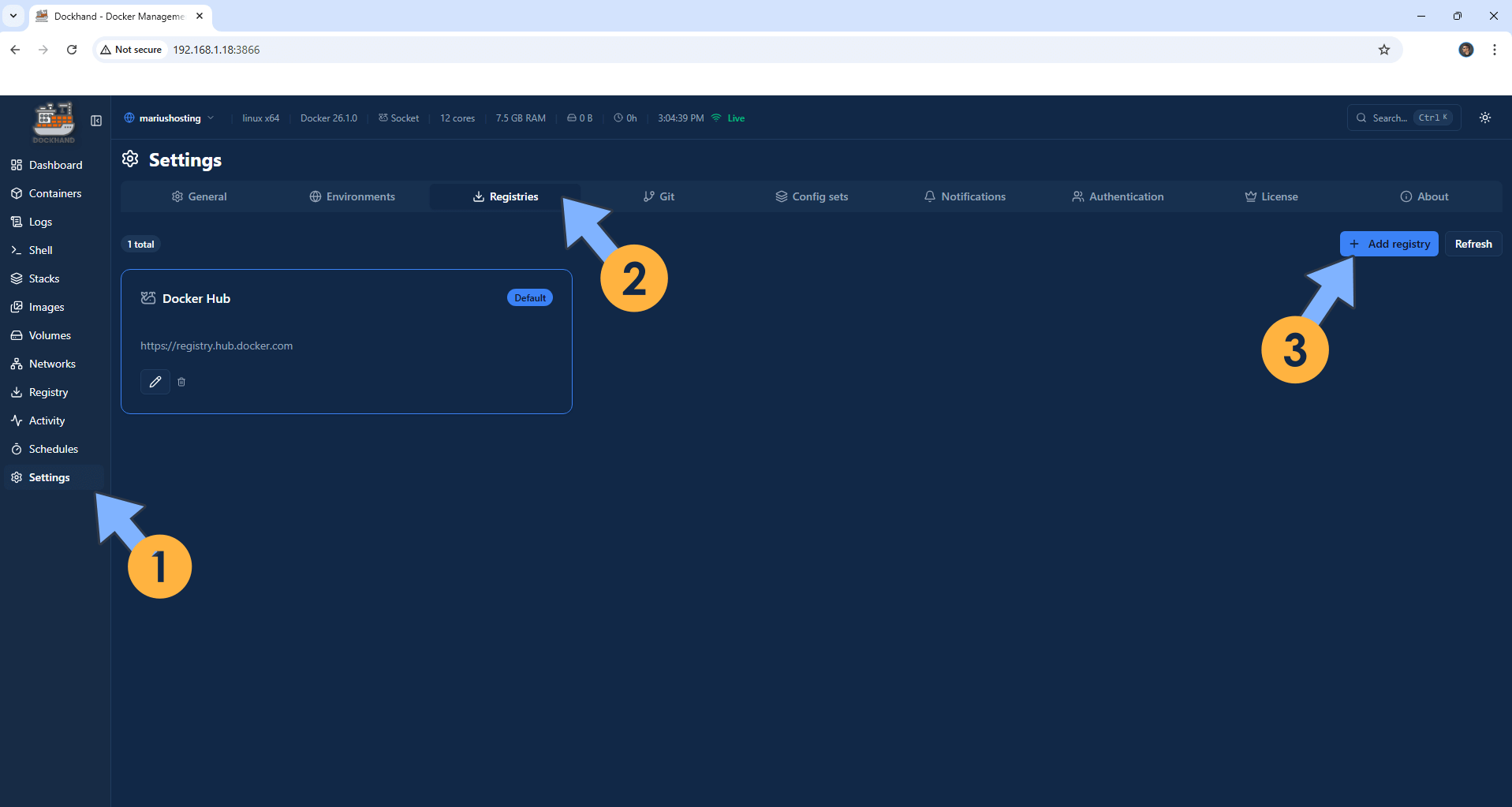
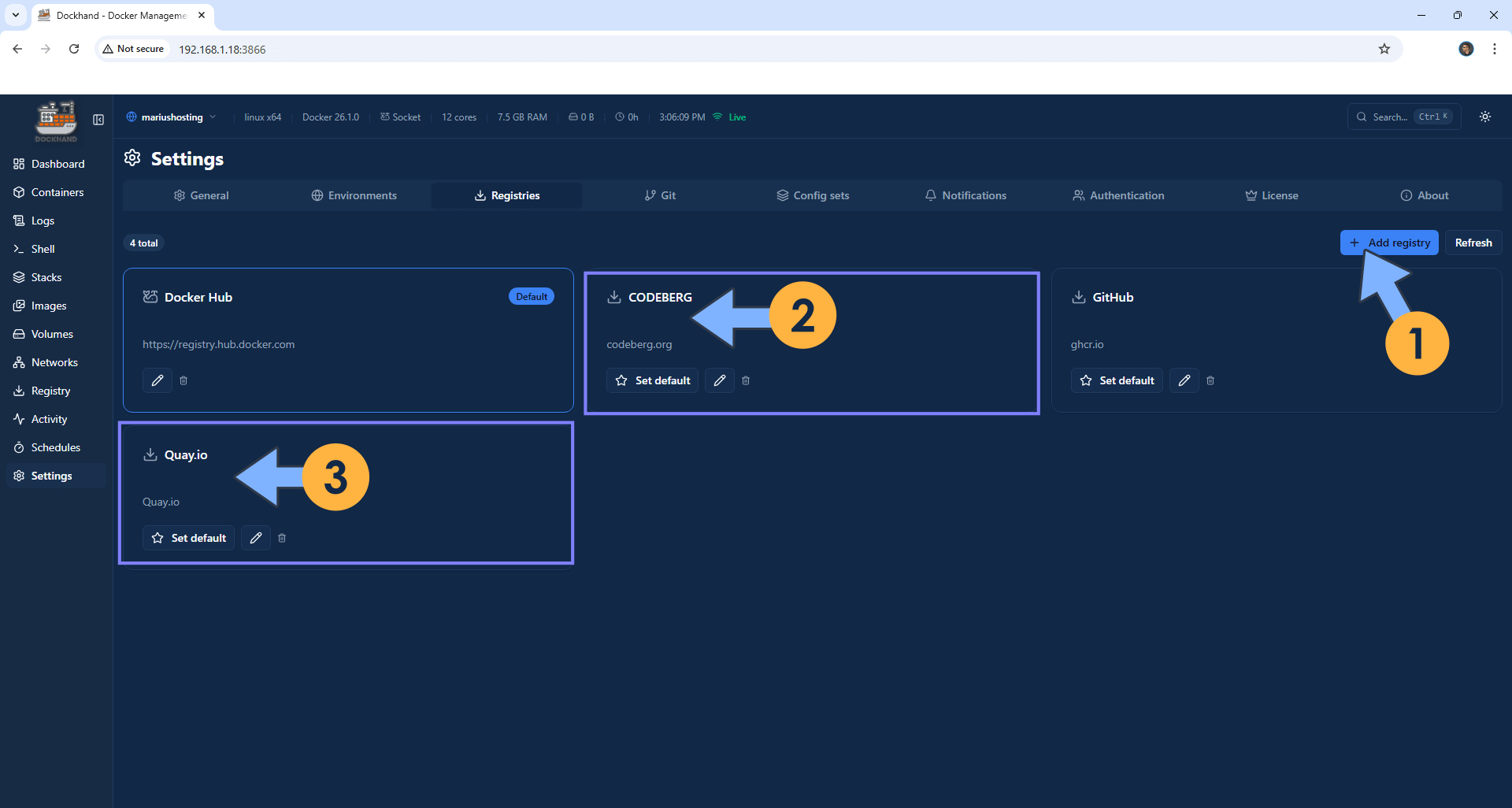
On the left sidebar, click Settings then the Registries tab. Click + Add registry. Follow the instructions in the image below.
STEP 18
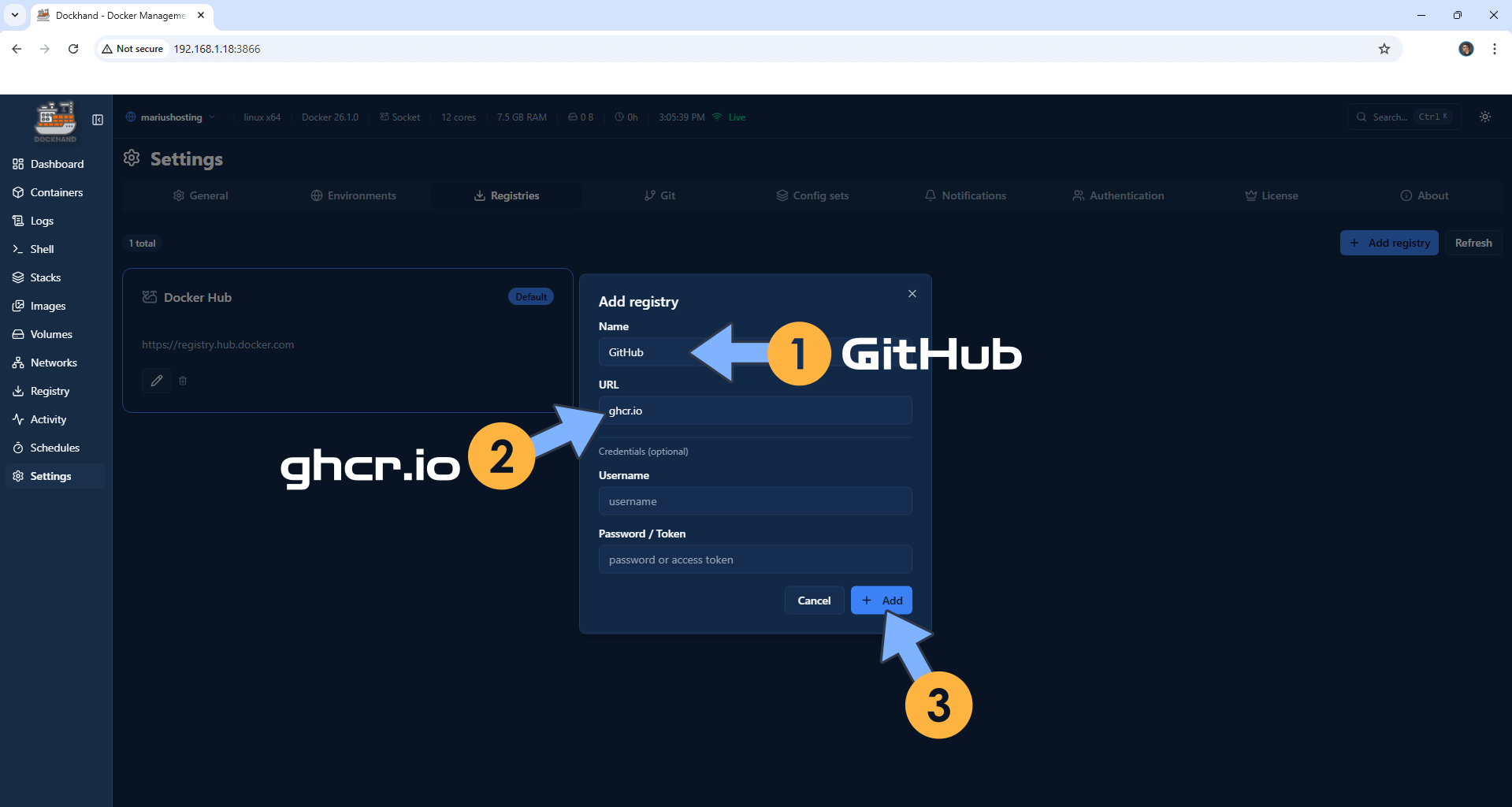
Add the GitHub registry. In the Name field area, type in GitHub and, in the URL area, type in ghcr.io
Click + Add to save the settings. Follow the instructions in the image below.
Note: The ghcr.io registry is mandatory if you want to update Docker containers via Dockhand that are served via the GitHub registry.
STEP 19
Do the same operation as per the instructions at STEP 18 for the CODEBERG and Quay.io registry.
Add the CODEBERG registry. In the Name field area, type in CODEBERG and, in the URL area, type in codeberg.org
Click + Add to save the settings. Follow the instructions in the image below.
Note: The codeberg.org registry is mandatory if you want to update Docker containers via Dockhand that are served via the codeberg registry.
Add the Quay.io registry. In the Name field area, type in Quay.io and, in the URL area, type in quay.io
Click + Add to save the settings. Follow the instructions in the image below.
Note: The Quay.io registry is mandatory if you want to update Docker containers via Dockhand that are served via the Quay.io registry.
STEP 20
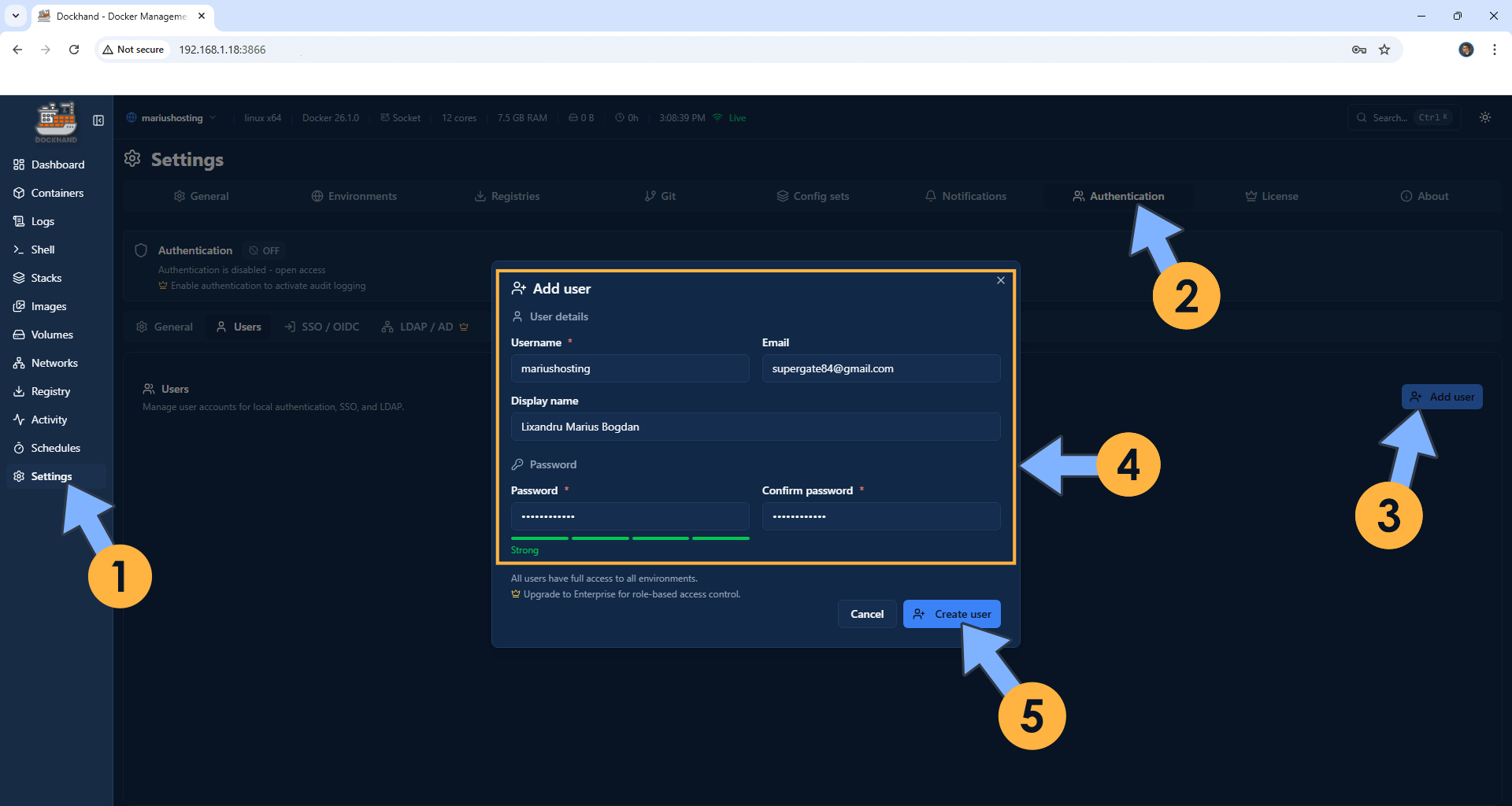
Add Authentication to your Dockhand container. On the left sidebar, click Settings. Click the Authentication tab. Click the Add user button. Type in your own details which include Username and Password. Click Create user. Follow the instructions in the image below.
STEP 21
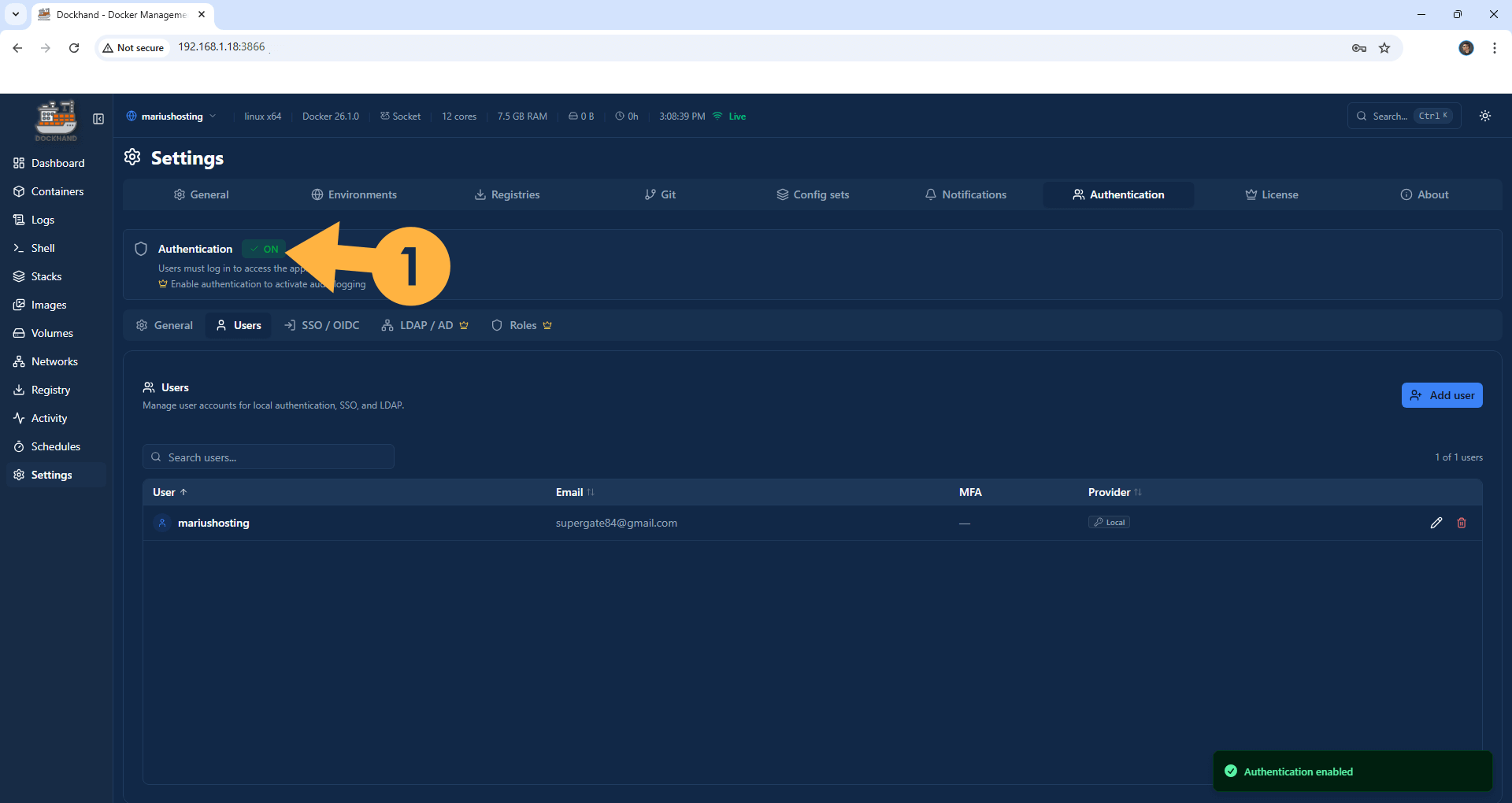
Switch the Authentication button from OFF to ON. Follow the instructions in the image below.
STEP 22
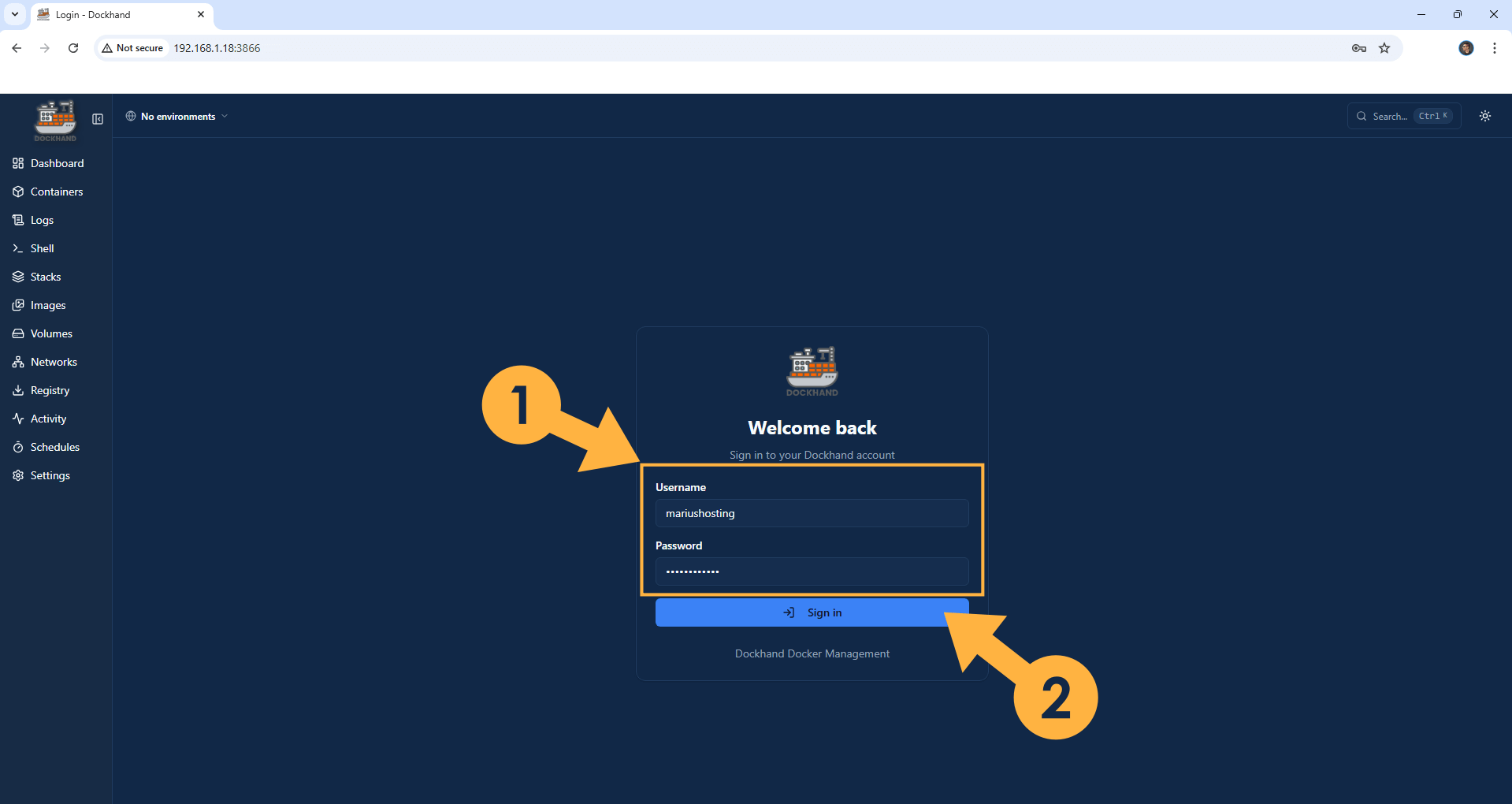
Type in your own Username and Password to access your Dockhand instance that you have previously created at STEP 20. Click Sign in. Follow the instructions in the image below.
STEP 23
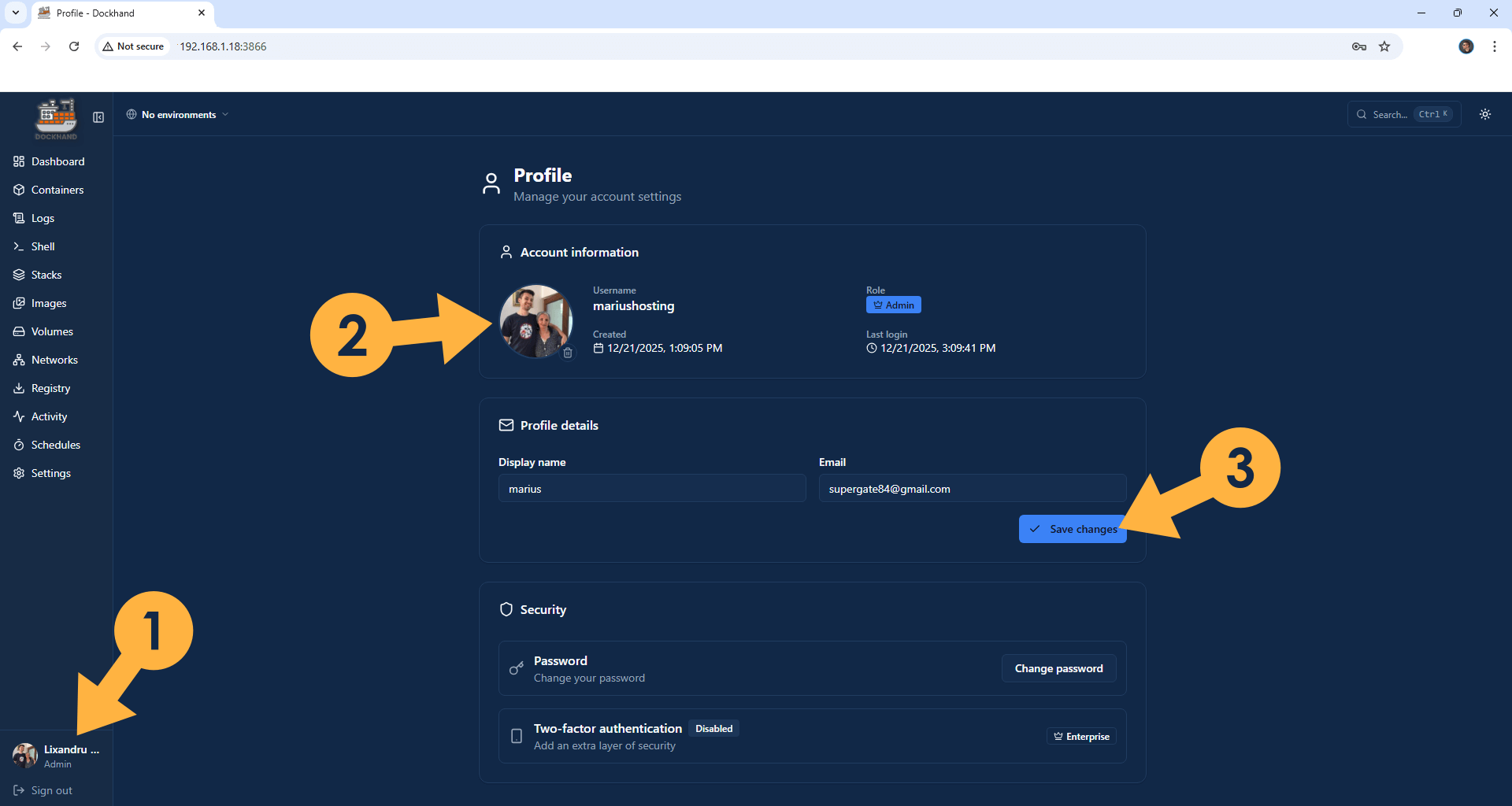
From now on, you can also upload your own Administrator avatar. Follow the instructions in the image below.
STEP 24
Step by step guide on how to Set up Email Notifications on Dockhand.
STEP 25
Follow the instructions on how to update your Dockhand instance to the latest version.
STEP 26
Follow the instructions on how to schedule automatic container updates in Dockhand.
Enjoy Dockhand!
If you encounter issues by using this container, make sure to check out the Common Docker issues article.
Note: If you want to run Dockhand over HTTPS, check out my article How to Run Docker Containers Over HTTPS. In order to make Dockhand work via HTTPS, it’s mandatory to activate WebSocket.
Add SKIP_DF_COLLECTION env var to disable slow disk usage collection on NAS devices. If Dockhand’s dashboard loads slowly or times out on old NAS devices from the Synology or QNAP vendors, this is likely caused by Docker’s /system/df API call which can be extremely slow on certain storage backends. To disable disk usage collection entirely, set the SKIP_DF_COLLECTION environment variable like the example below. If you don’t experience any loading issues of the Dockhand dashboard, you don’t have to change anything.
docker run -d --name=Dockhand \
-p 3866:3000 \
-v /var/run/docker.sock:/var/run/docker.sock \
-v /volume1/docker/dockhand:/app/data:rw \
-e SKIP_DF_COLLECTION=true \
--restart=always \
fnsys/dockhand:latest
Note: If you use a different volume than volume1, for example volume2, you need to change the following line at STEP 6
docker run -d --name=Dockhand \
-p 3866:3000 \
-v /var/run/docker.sock:/var/run/docker.sock \
-v /volume1/docker/dockhand:/app/data:rw \
--restart=always \
fnsys/dockhand:latest
with
docker run -d --name=Dockhand \
-p 3866:3000 \
-v /var/run/docker.sock:/var/run/docker.sock \
-v /volume2/docker/dockhand:/app/data:rw \
--restart=always \
fnsys/dockhand:latest
Note: Follow the instructions below to update your Dockhand instance to the latest version:
- Open Container Manager.
- On the left sidebar in Container Manager, click Container.
- Select the dockhand container, then click the Action tab and Stop it.
- Select the dockhand container, then click the Action tab, then Delete.
- On the left sidebar in Container Manager, click Image.
- Select the fnsys/dockhand:latest image, then click the delete tab to delete it.
- Go to Control Panel. Click Task Scheduler. Select and Run the “Install Dockhand” task.
- Enjoy the latest Dockhand!
- Warning: Do NOT delete the dockhand folder in File Station.
Note: Can I run Docker on my Synology NAS? See the supported models.
Note: How to Back Up Docker Containers on your Synology NAS.
Note: How to Free Disk Space on Your NAS if You Run Docker.
Note: How to Schedule Start & Stop For Docker Containers.
Note: How to Activate Email Notifications.
Note: How to Add Access Control Profile on Your NAS.
Note: How to Change Docker Containers Restart Policy.
Note: How to Use Docker Containers With VPN.
Note: Convert Docker Run Into Docker Compose.
Note: How to Clean Docker.
Note: How to Clean Docker Automatically.
Note: Best Practices When Using Docker and DDNS.
Note: Some Docker Containers Need WebSocket.
Note: Find out the Best NAS Models For Docker.
Note: Activate Gmail SMTP For Docker Containers.
This post was updated on Saturday / March 21st, 2026 at 4:51 PM