

Bibliotheca is a self-hosted web application designed for book enthusiasts to manage and track their reading habits. Built with Flask, it offers a private, user-friendly platform to log books, organize personal libraries, and visualize reading progress. The app supports Docker for easy deployment, ensuring a secure and customizable experience for users who want to maintain their reading data in their own space. Ideal for those seeking a personalized, privacy-focused reading tracker. In this step by step guide I will show you how to install Bibliotheca on your Synology NAS using Docker & Portainer.
💡Note:
This guide works perfectly with the latest Bibliotheca v2.1.0 release.
STEP 1
Please Support My work by Making a Donation.
STEP 2
Install Portainer using my step by step guide. If you already have Portainer installed on your Synology NAS, skip this STEP. Attention: Make sure you have installed the latest Portainer version.
STEP 3
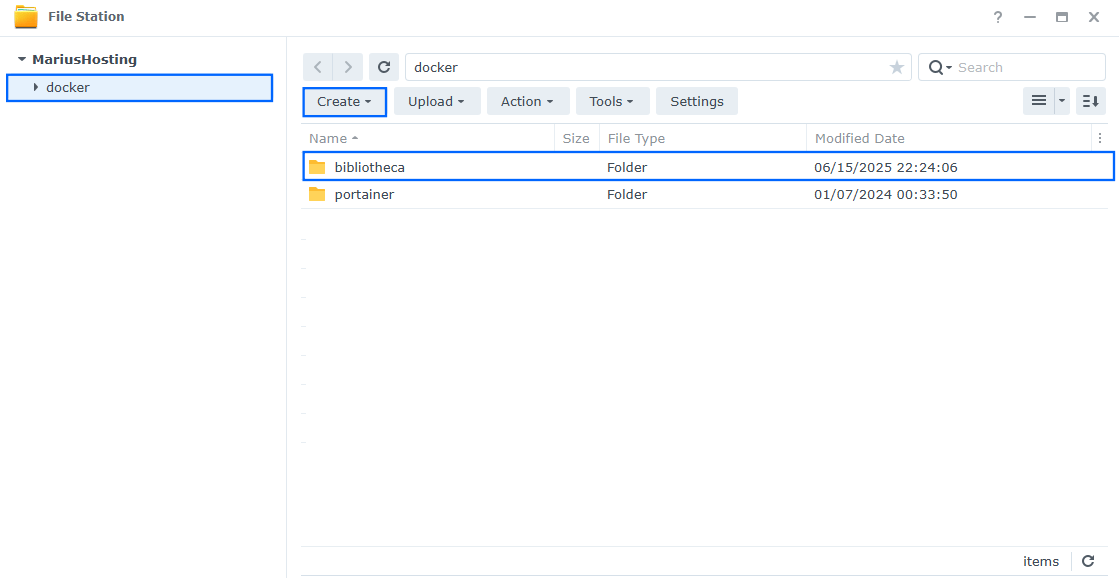
Go to File Station and open the docker folder. Inside the docker folder, create one new folder and name it bibliotheca. Follow the instructions in the image below.
Note: Be careful to enter only lowercase, not uppercase letters.
STEP 4
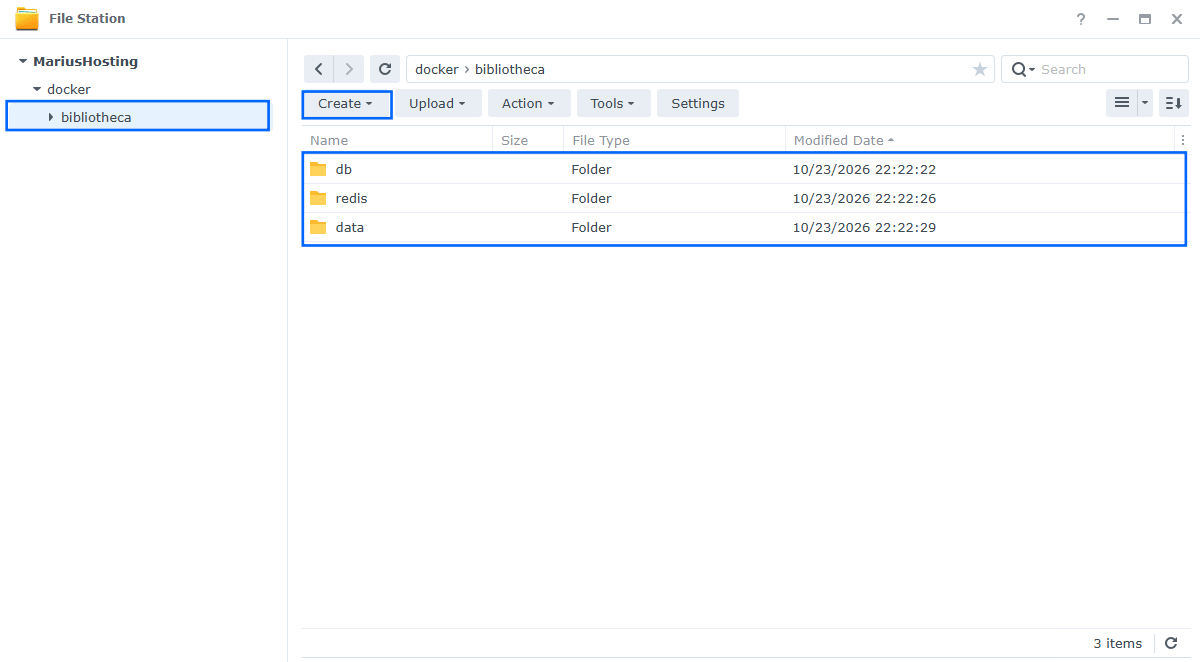
Now create three new folders inside the bibliotheca folder that you have previously created at STEP 3 and name them db, redis, data. Follow the instructions in the image below.
Note: Be careful to enter only lowercase, not uppercase letters.
STEP 5
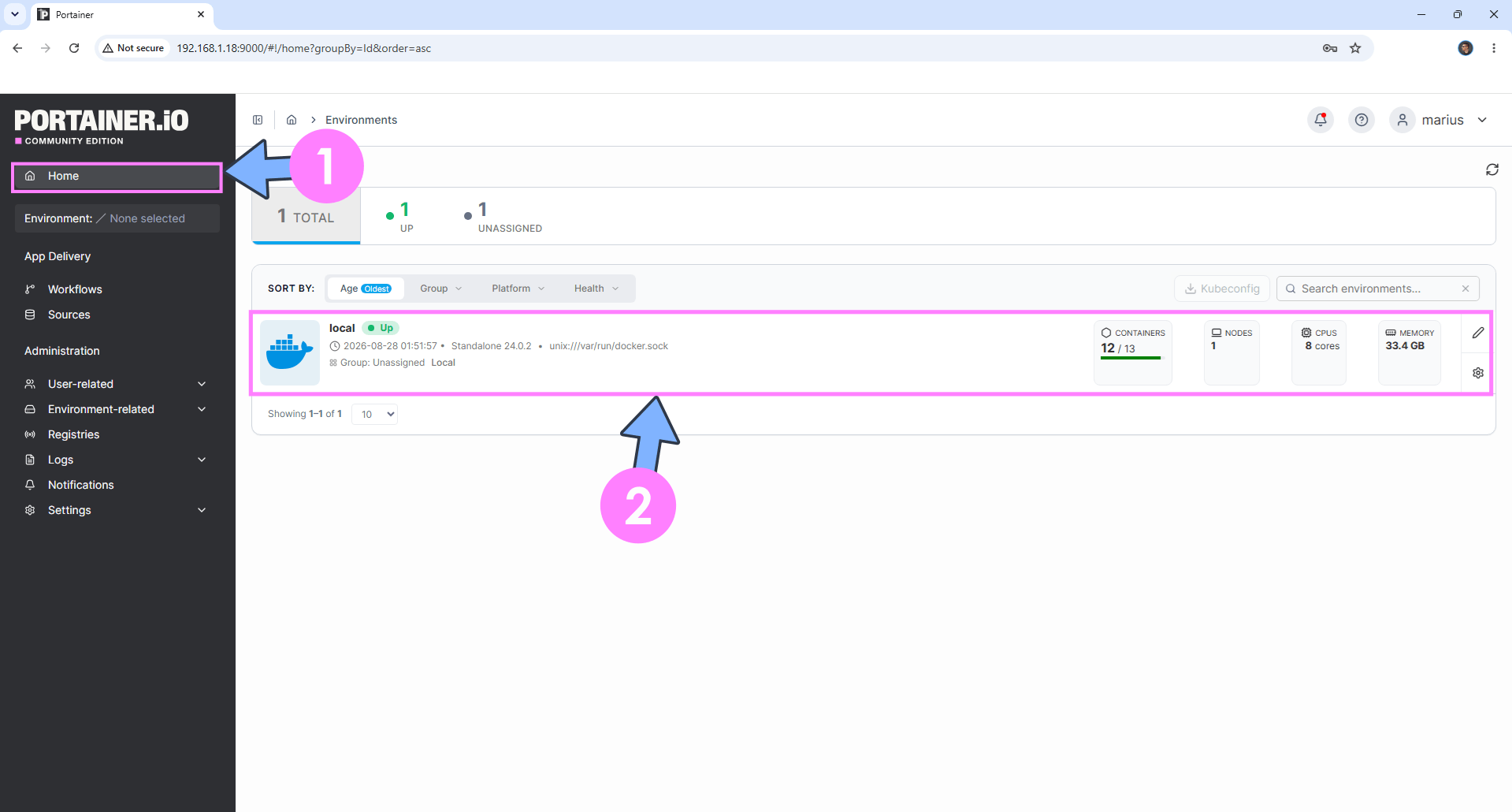
Log into Portainer using your username and password. On the left sidebar in Portainer, click on Home then click inside the local rectangle. Follow the instructions in the image below.
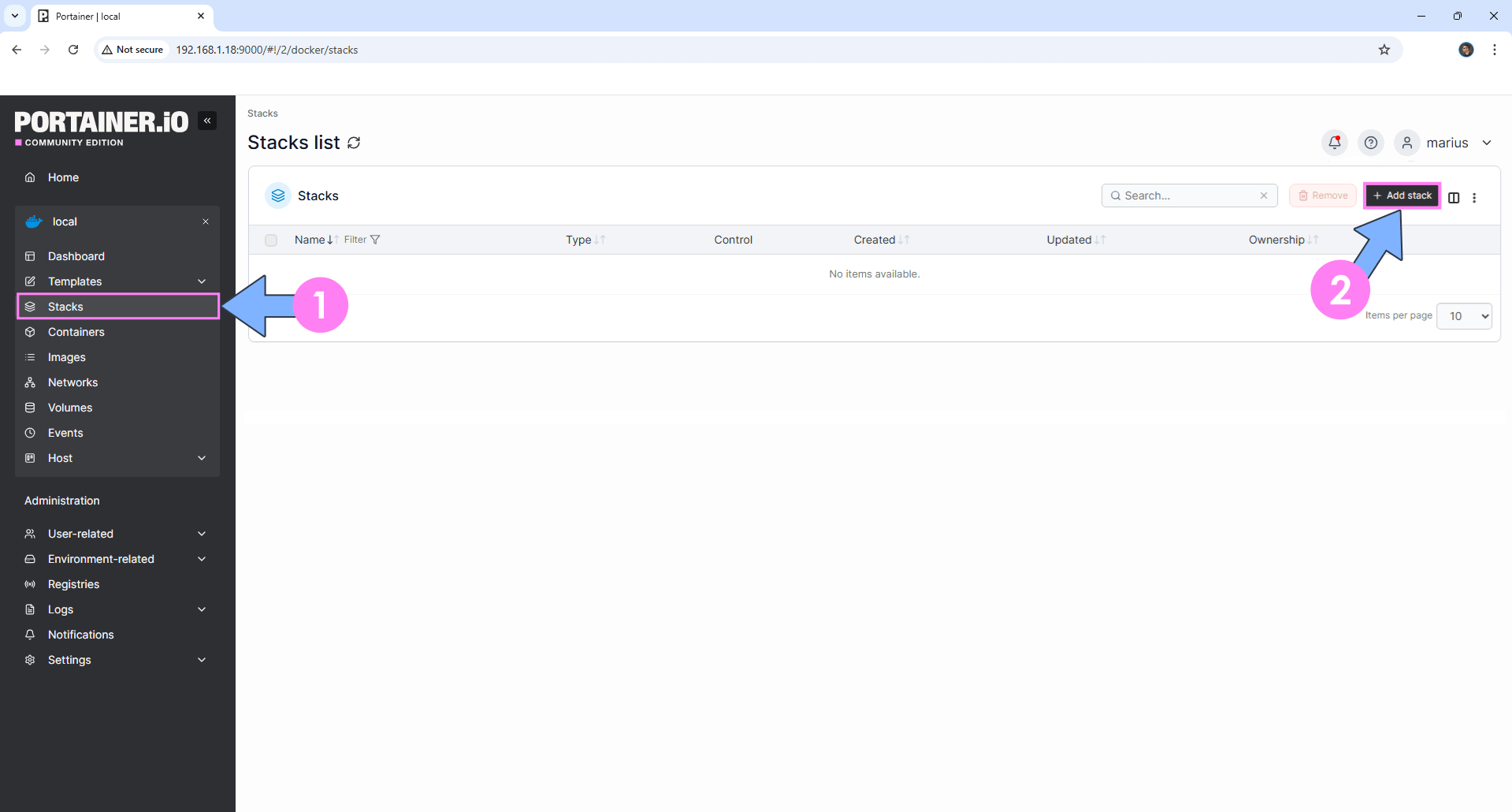
On the left sidebar in Portainer, click on Stacks then + Add stack. Follow the instructions in the image below.
STEP 6
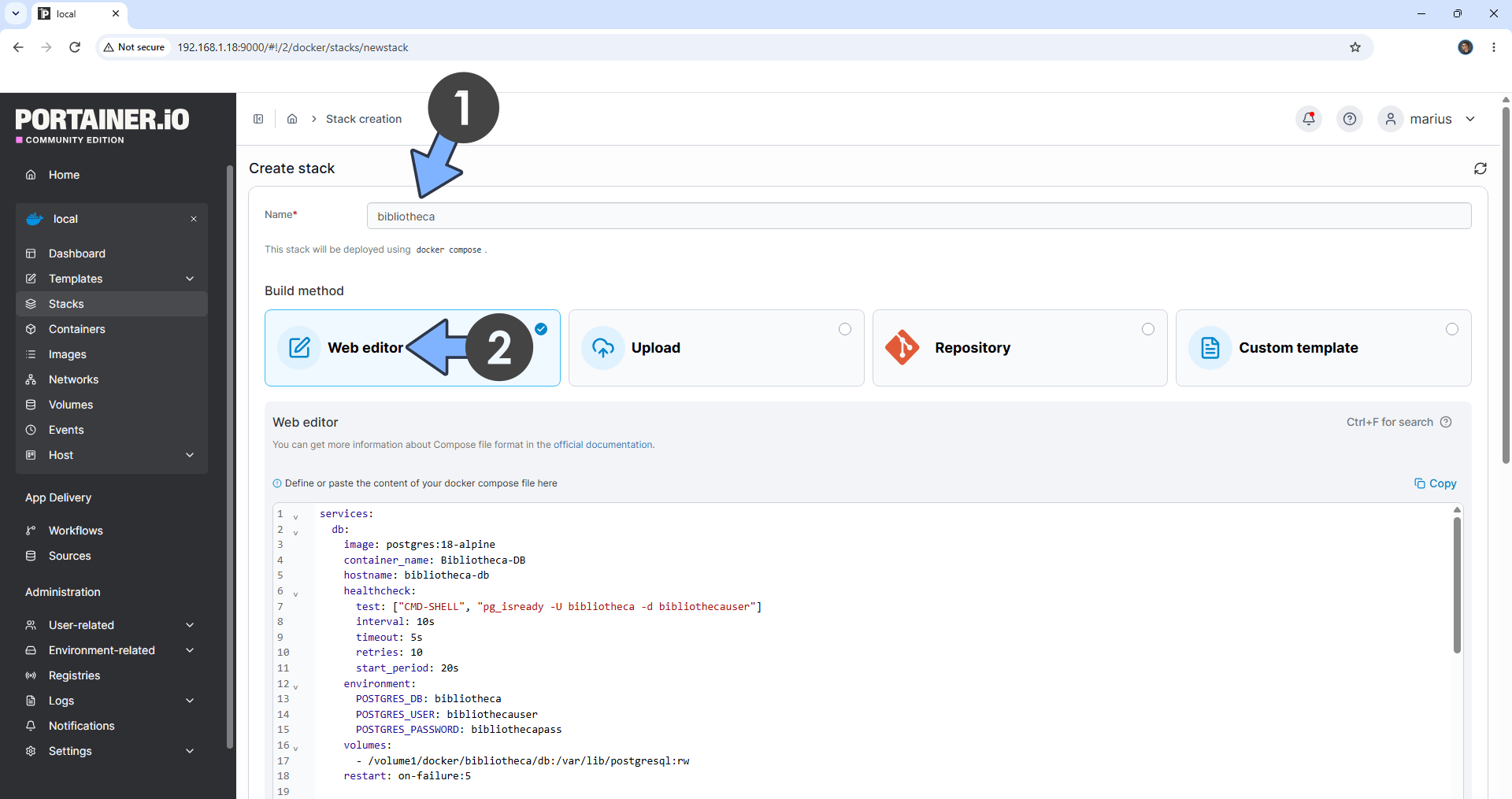
In the Name field, type in bibliotheca. Follow the instructions in the image below.
Note: Copy Paste the code below in the Portainer Stacks Web editor.
services:
  db:
    image: postgres:18-alpine
    container_name: Bibliotheca-DB
    hostname: bibliotheca-db
    healthcheck:
      test: ["CMD-SHELL", "pg_isready -U bibliotheca -d bibliothecauser"]
      interval: 10s
      timeout: 5s
      retries: 10
      start_period: 20s
    environment:
      POSTGRES_DB: bibliotheca
      POSTGRES_USER: bibliothecauser
      POSTGRES_PASSWORD: bibliothecapass
    volumes:
      - /volume1/docker/bibliotheca/db:/var/lib/postgresql:rw
    restart: on-failure:5

  redis:
    image: redis:7.4-alpine
    container_name: Bibliotheca-REDIS
    command: ["redis-server", "--save", "", "--appendonly", "no", "--maxmemory", "256mb", "--maxmemory-policy", "allkeys-lru"]
    healthcheck:
      test: ["CMD", "redis-cli", "ping"]
      interval: 10s
      timeout: 3s
      retries: 5
    volumes:
      - /volume1/docker/bibliotheca/redis:/data:rw
    restart: on-failure:5

  bibliotheca:
    image: pickles4evaaaa/mybibliotheca:3.0.0
    container_name: Bibliotheca
    healthcheck:
      test: timeout 10s bash -c ':> /dev/tcp/127.0.0.1/5054' || exit 1
      interval: 10s
      timeout: 5s
      retries: 3
      start_period: 90s
    ports:
      - 5243:5054
    depends_on:
      db:
        condition: service_healthy
      redis:
        condition: service_healthy
    volumes:
      - /volume1/docker/bibliotheca/data:/app/data:rw
    environment:
      SECRET_KEY: XaREzQeXWQnXLmrPcWOQgeSneydBubogPixefbhSHOjoGEdyTVWtvFcOBMOVnSEp
      SECURITY_PASSWORD_SALT: PZbQuLshEXAWXJuaZKmTumLmRgClCsInvYrtXFQWZFIcnVhtLJyhoIudwMvutKcx
      POSTGRES_HOST: bibliotheca-db
      POSTGRES_PORT: 5432
      POSTGRES_DB: bibliotheca
      POSTGRES_USER: bibliothecauser
      POSTGRES_PASSWORD: bibliothecapass
      TIMEZONE: Europe/Bucharest
      SITE_NAME: MyBibliotheca
      WORKERS: 6
      LOG_LEVEL: INFO
      CACHE_REDIS_URL: redis://redis:6379/1
      CACHE_REDIS_PREFIX: mybibliotheca
      KUZU_REDIS_CACHE_ENABLED: "true"
      KUZU_DB_PATH: /app/data/kuzu
      GRAPH_DATABASE_ENABLED: "true"
    restart: on-failure:5
Note: Before you paste the code above in the Web editor area below, change the value for SECRET_KEY. (Generate your own Random 64 length SECRET_KEY.)
Note: Before you paste the code above in the Web editor area below, change the value for SECURITY_PASSWORD_SALT. (Generate your own Random 64 length SECURITY_PASSWORD_SALT.)
Note: Before you paste the code above in the Web editor area below, change the value for TIMEZONE. (Select your current Time Zone from this list.)
STEP 7
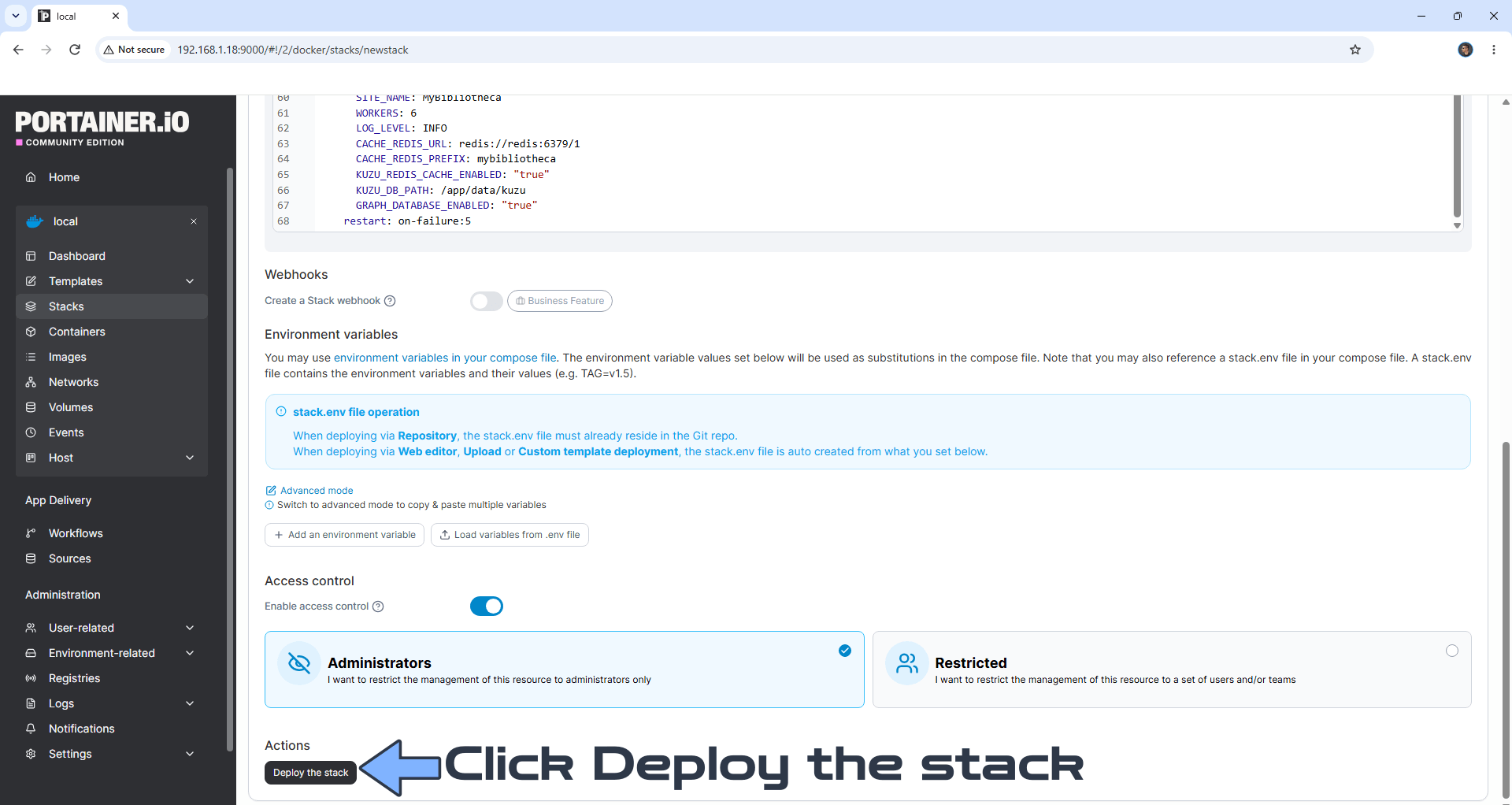
Scroll down on the page until you see a button named Deploy the stack. Click on it. Follow the instructions in the image below. The installation process can take up to a few minutes. It will depend on your Internet speed connection.
STEP 8
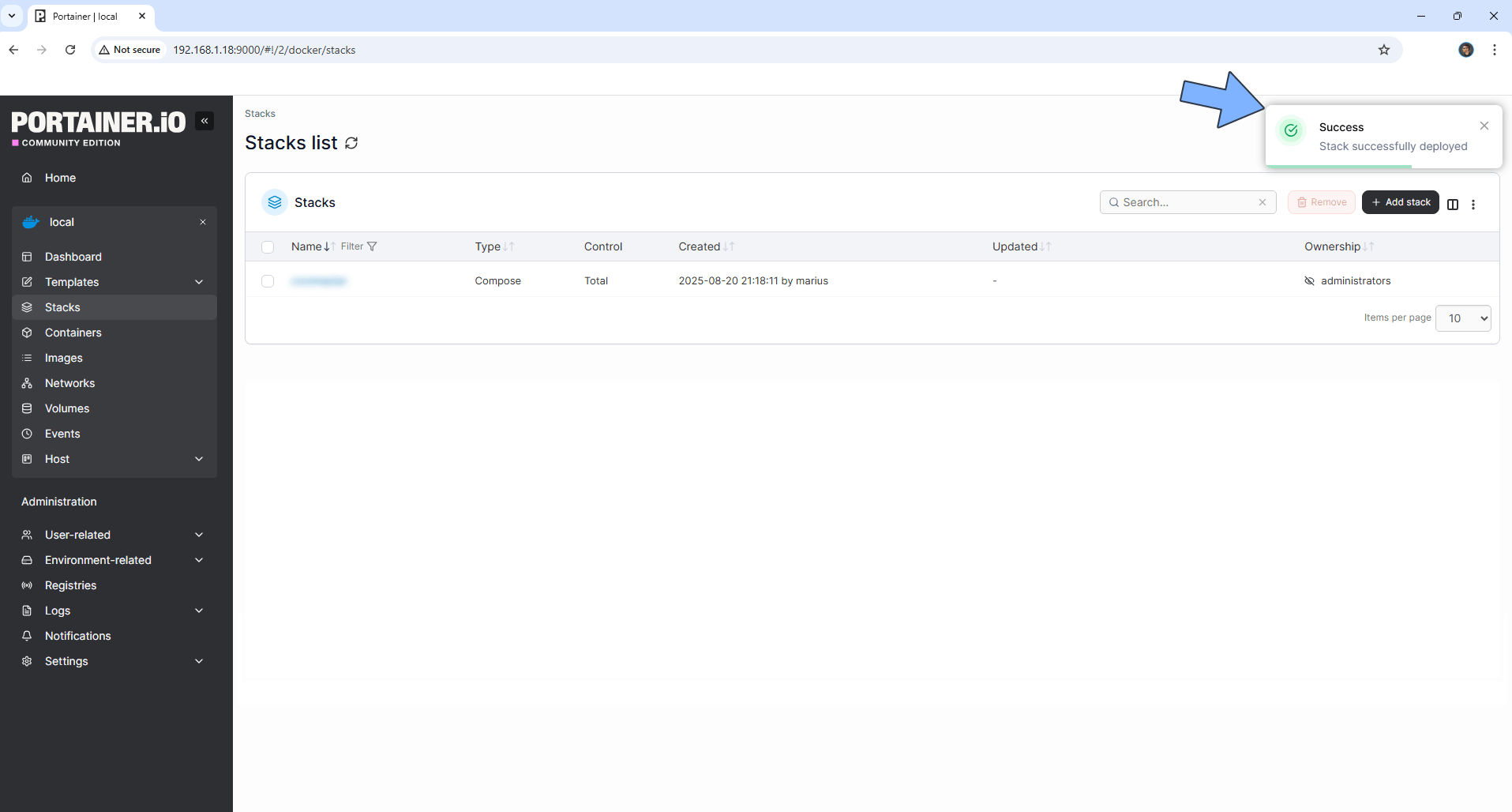
If everything goes right, you will see the following message at the top right of your screen: “Success Stack successfully deployed“.
STEP 9
Please Support My work by Making a Donation. Almost 99,9% of the people that install something using my guides forget to support my work, or just ignore STEP 1. I’ve been very honest about this aspect of my work since the beginning: I don’t run any ADS, I don’t require subscriptions, paid or otherwise, I don’t collect IPs, emails, and I don’t have any referral links from Amazon or other merchants. I also don’t have any POP-UPs or COOKIES. I have repeatedly been told over the years how much I have contributed to the community. It’s something I love doing and have been honest about my passion since the beginning. But I also Need The Community to Support me Back to be able to continue doing this work.
STEP 10
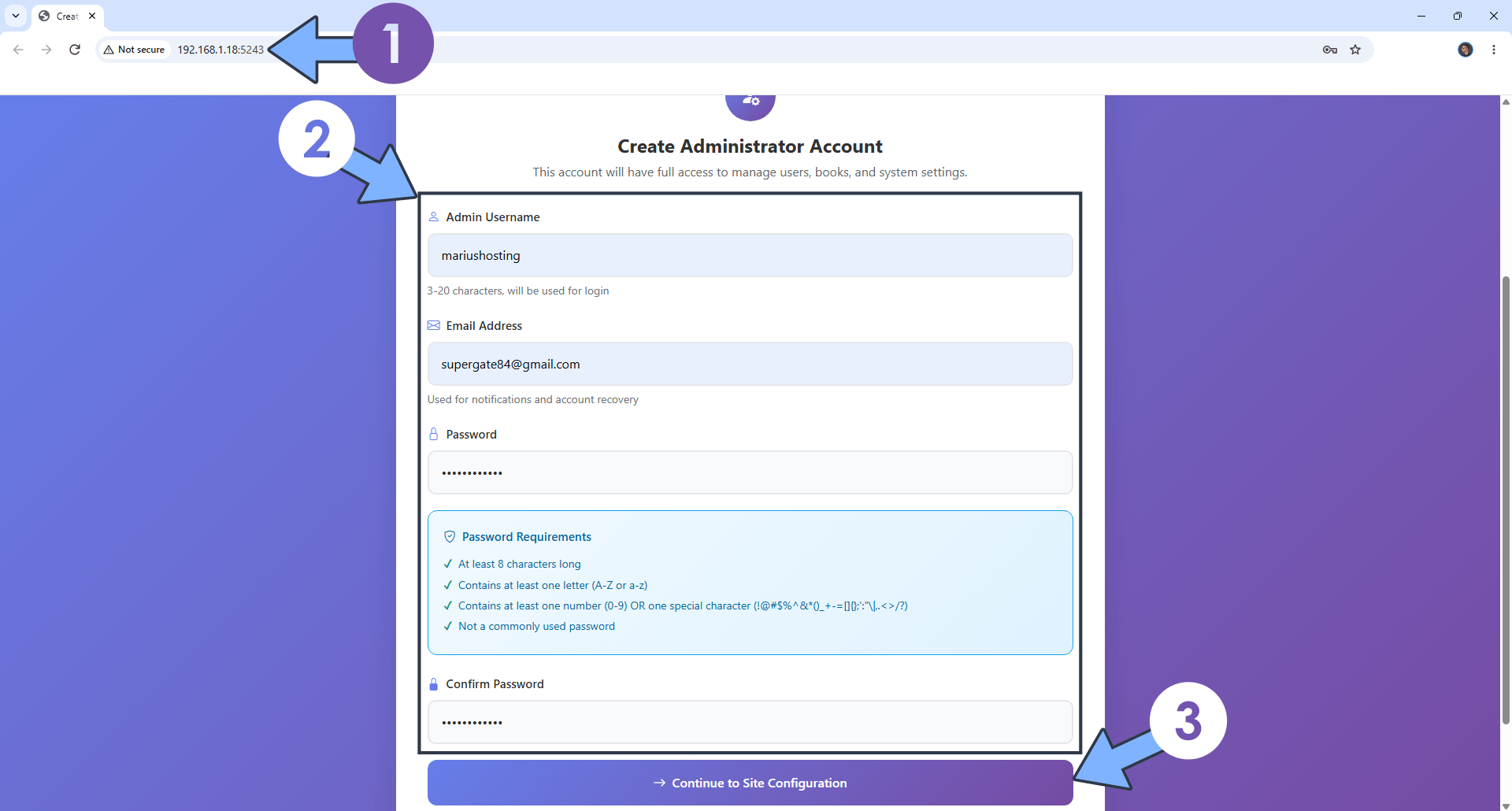
The installation process can take up to a few seconds/minutes. It will depend on your Internet speed connection. Now open your browser and type in http://Synology-ip-address:5243 Create you administrator account. Click Continue to Site Configuration. Follow the instructions in the image below.
STEP 11
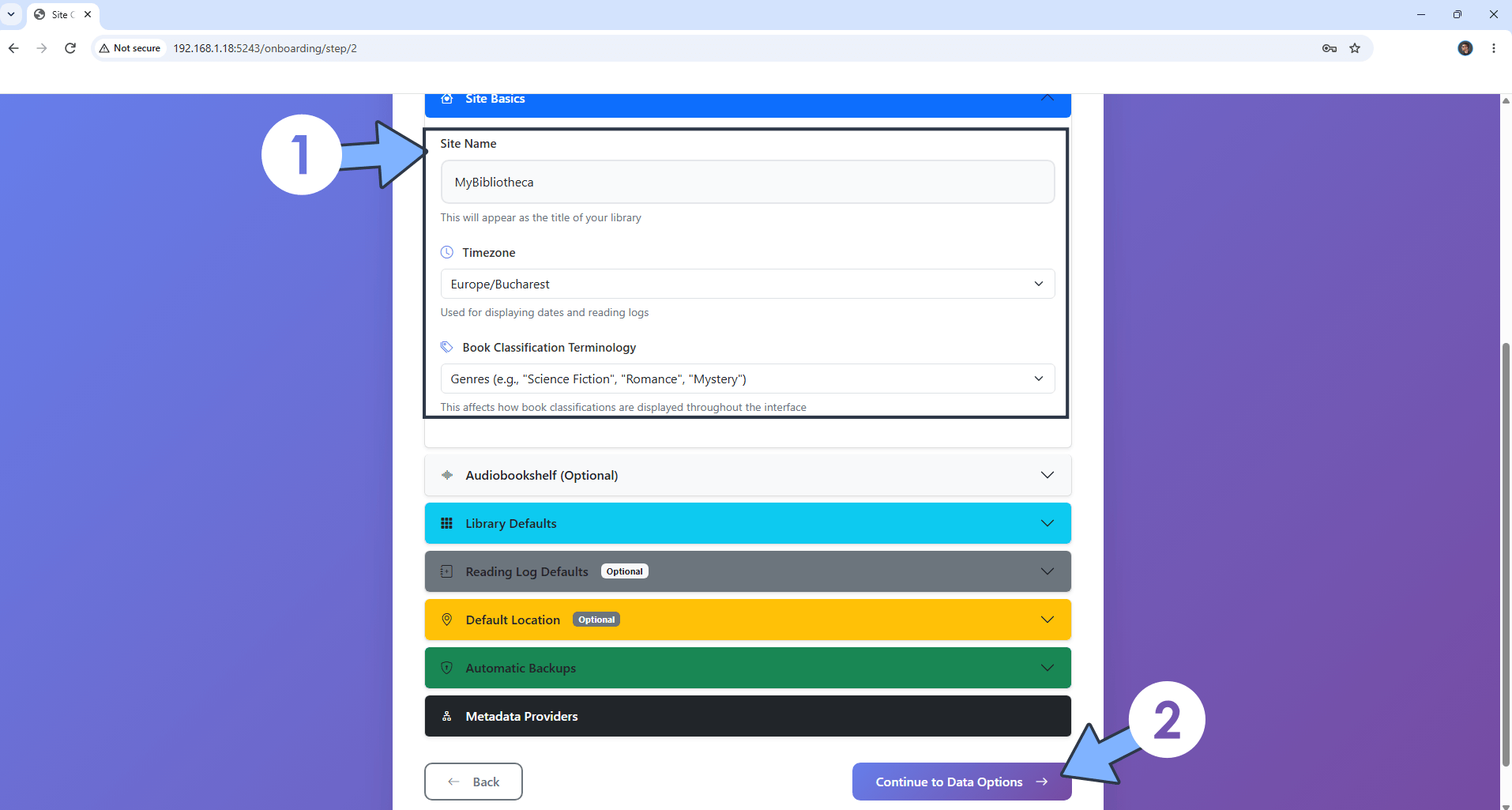
Add your Site Name, Timezone and Book Classification Terminology. Click Continue to Data Options. Follow the instructions in the image below.
STEP 12
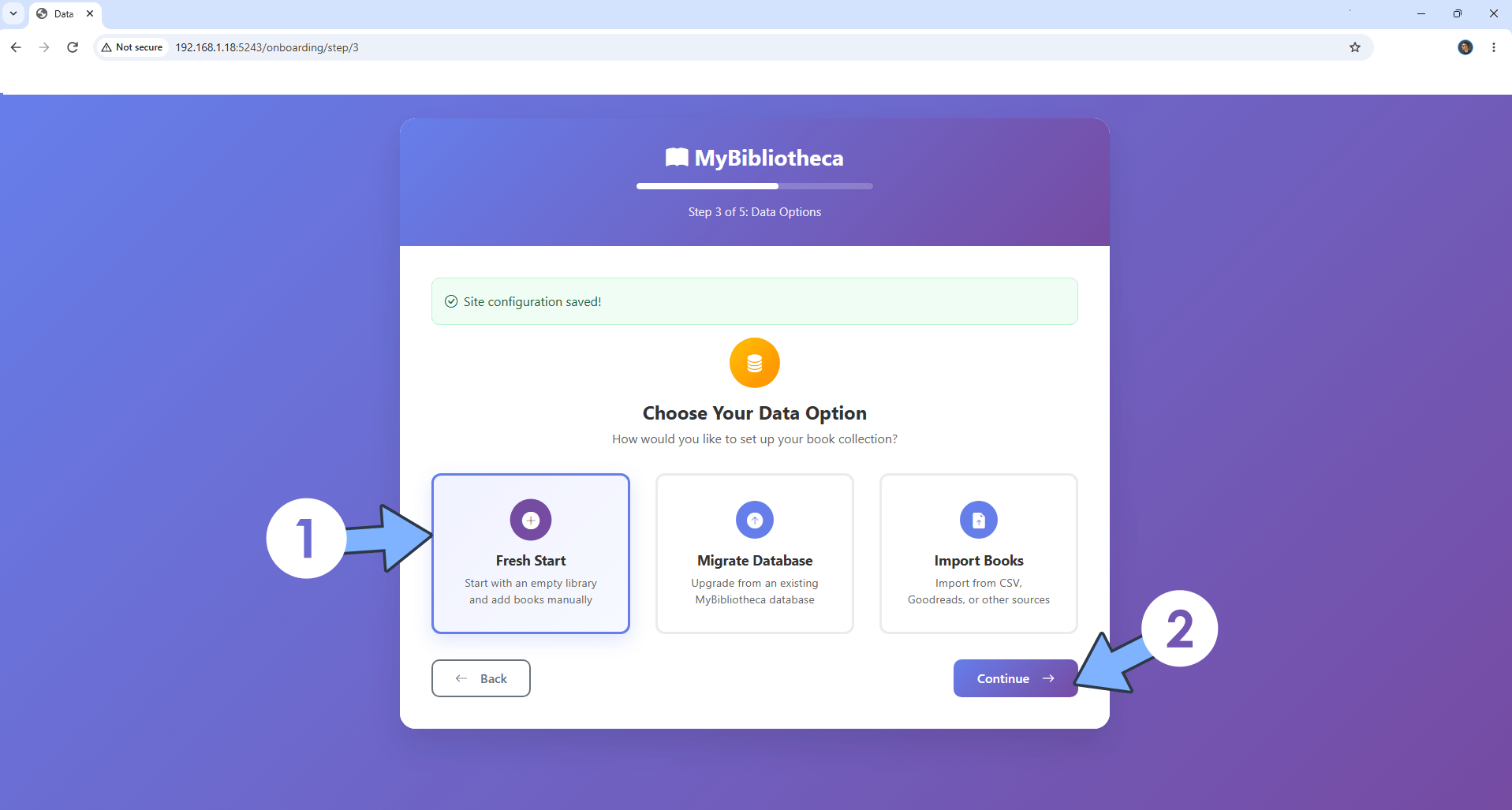
Select Fresh Start. Click Continue. Follow the instructions in the image below.
STEP 13
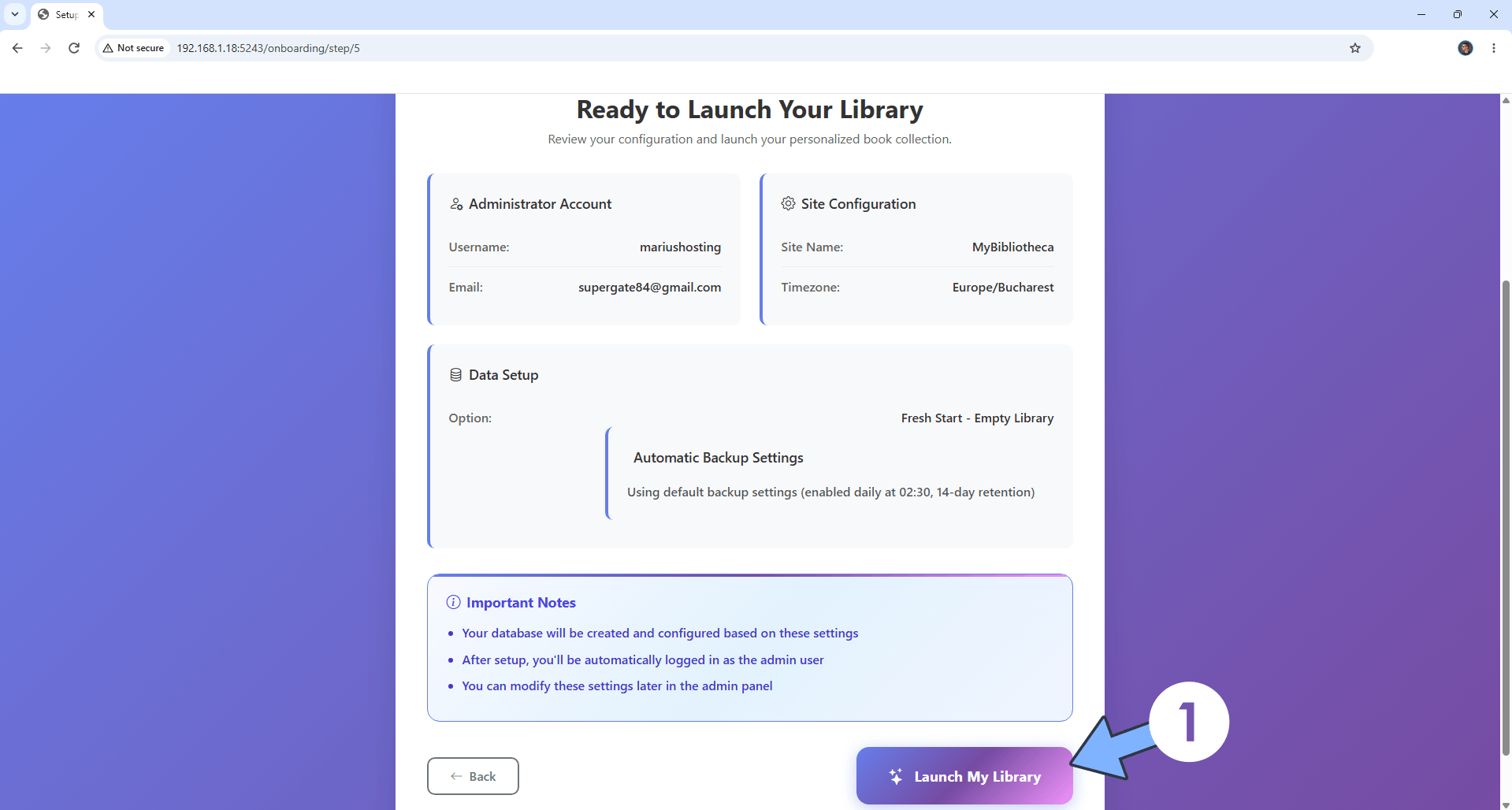
Click Launch My Library. Follow the instructions in the image below.
STEP 14
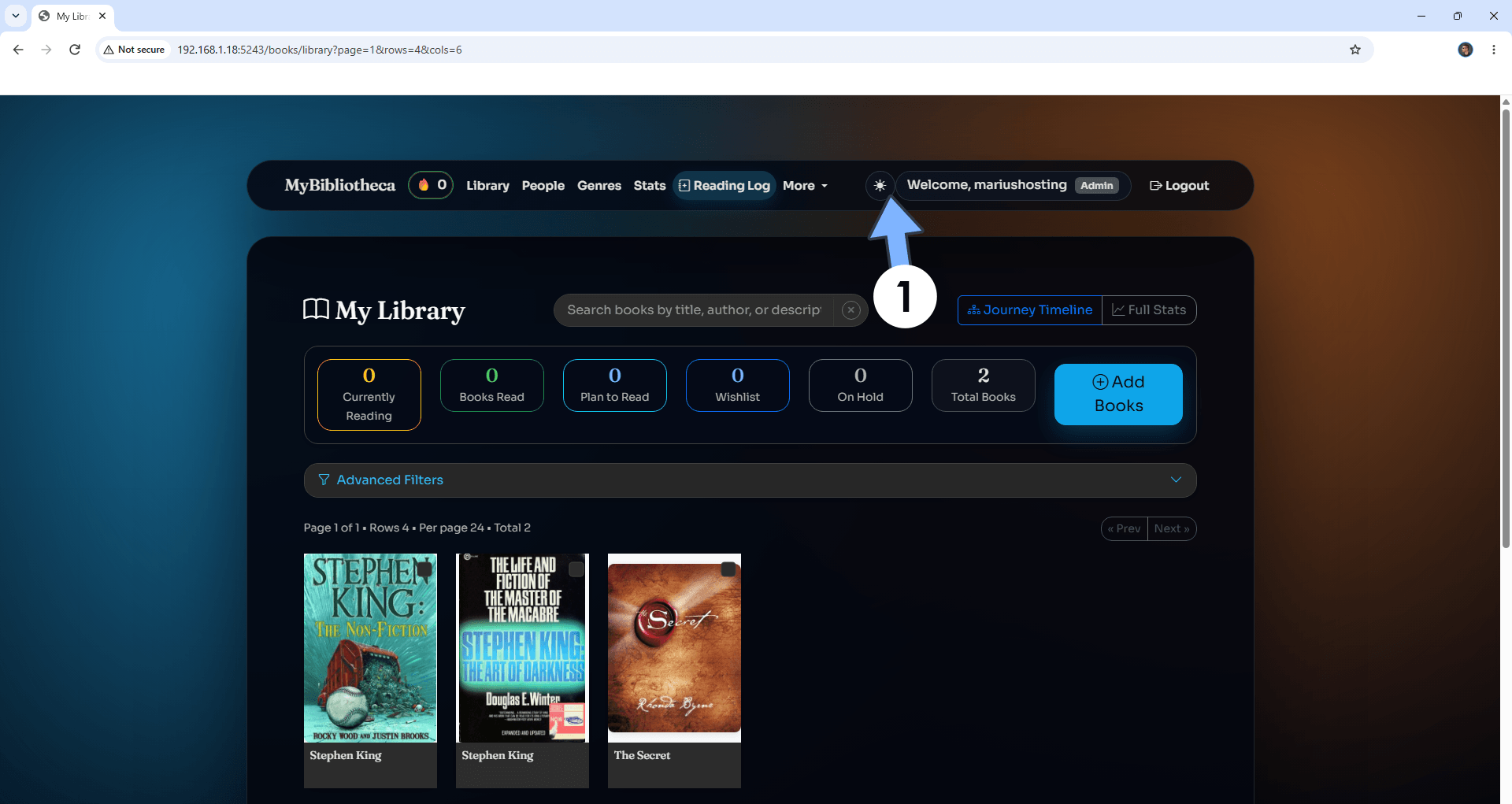
Switch the theme to Dark and search for a book. Your Bibliotheca dashboard at a glance!
Enjoy Bibliotheca!
🆘TROUBLESHOOTING
If you encounter issues by using this container, make sure to check out the Common Docker issues article.
Note: If you want to run the Bibliotheca container over HTTPS, check How to Run Docker Containers Over HTTPS. In order to make Bibliotheca work via HTTPS, it’s mandatory to activate WebSocket.
Note: Can I run Docker on my Synology NAS? See the supported models.
Note: How to Back Up Docker Containers on your Synology NAS.
Note: Find out how to update the Bibliotheca container with the latest image.
Note: How to Free Disk Space on Your NAS if You Run Docker.
Note: How to Schedule Start & Stop For Docker Containers.
Note: How to Activate Email Notifications.
Note: How to Add Access Control Profile on Your NAS.
Note: How to Change Docker Containers Restart Policy.
Note: How to Use Docker Containers With VPN.
Note: Convert Docker Run Into Docker Compose.
Note: How to Clean Docker.
Note: How to Clean Docker Automatically.
Note: Best Practices When Using Docker and DDNS.
Note: Some Docker Containers Need WebSocket.
Note: Find out the Best NAS Models For Docker.
Note: Activate Gmail SMTP For Docker Containers.
This post was updated on Friday / October 23rd, 2026 at 11:06 PM