
Lidarr is a music collection manager for Usenet and BitTorrent users. It can monitor multiple RSS feeds for new albums from your favorite artists and will interface with clients and indexers to grab, sort, and rename them. It can also be configured to automatically upgrade the quality of existing files in the library when a better quality format becomes available. In this step by step guide I will show you how to install Lidarr on your Synology NAS using Docker.
💡Note:
This guide works perfectly with the latest Lidarr v3.1.0 release.
💡Note: Check out my new guide on how to Install Lidarr Using Portainer.
💡Note: Check out my guide on how to Install Lidarr on Your UGREEN NAS.
STEP 1
Please Support My work by Making a Donation.
STEP 2
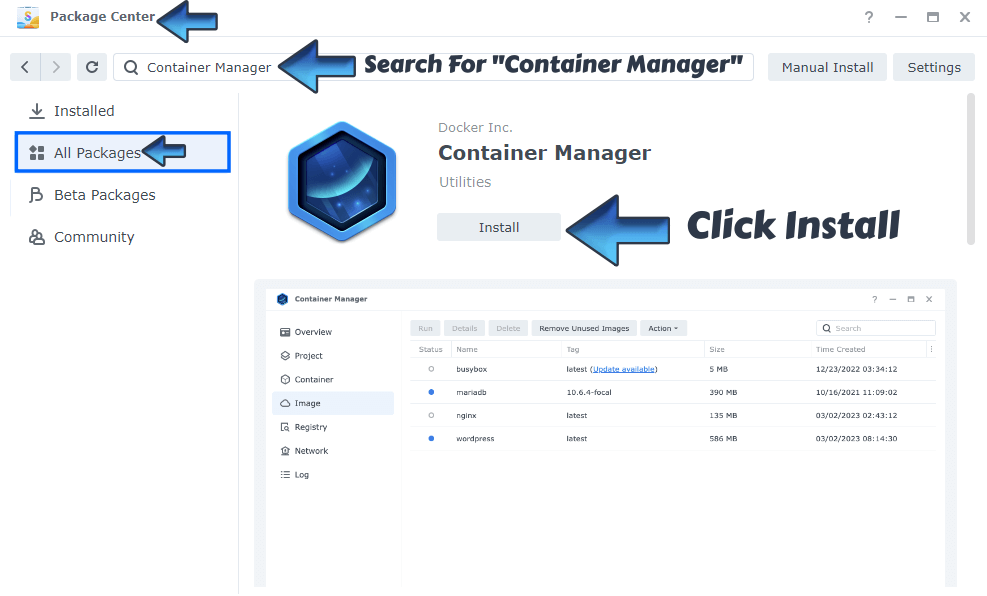
Install Container Manager via Synology “Package Center”. If you run an older DSM version (under 7.2), search for Docker instead of Container Manager.
STEP 3
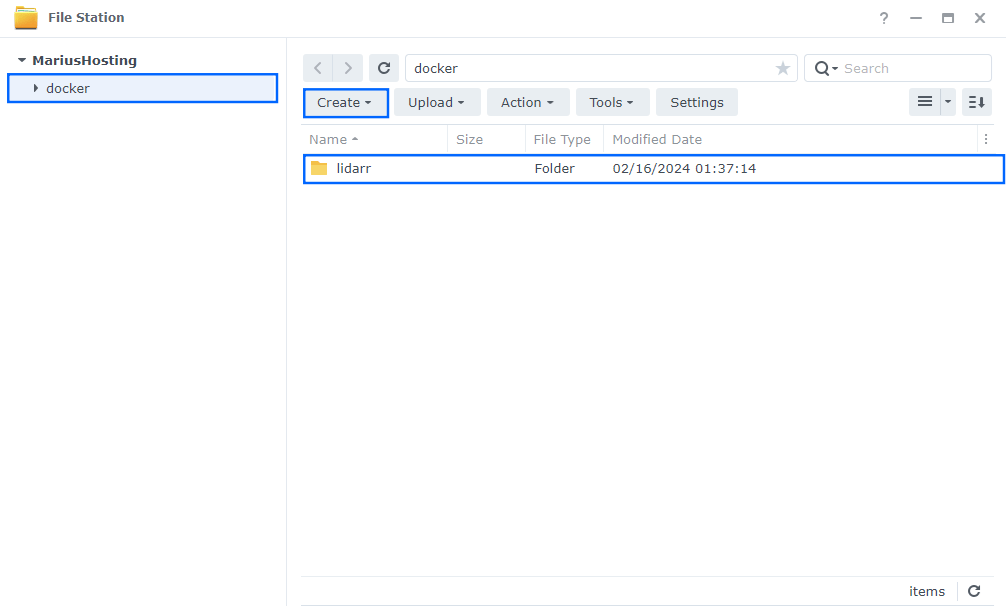
Go to File Station and open the docker folder. Inside the docker folder, create one new folder and name it lidarr. Follow the instructions in the image below.
Note: Be careful to enter only lowercase, not uppercase letters.
STEP 4
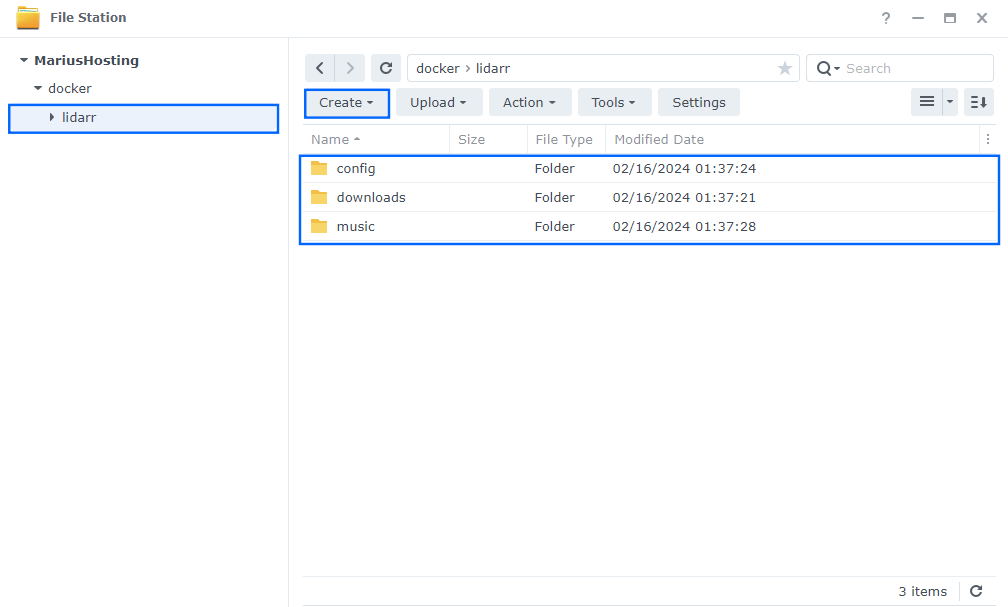
Now create three new folders inside the lidarr folder that you have previously created at STEP 3 and name them config, downloads, music. Follow the instructions in the image below.
Note: Be careful to enter only lowercase, not uppercase letters.
STEP 5
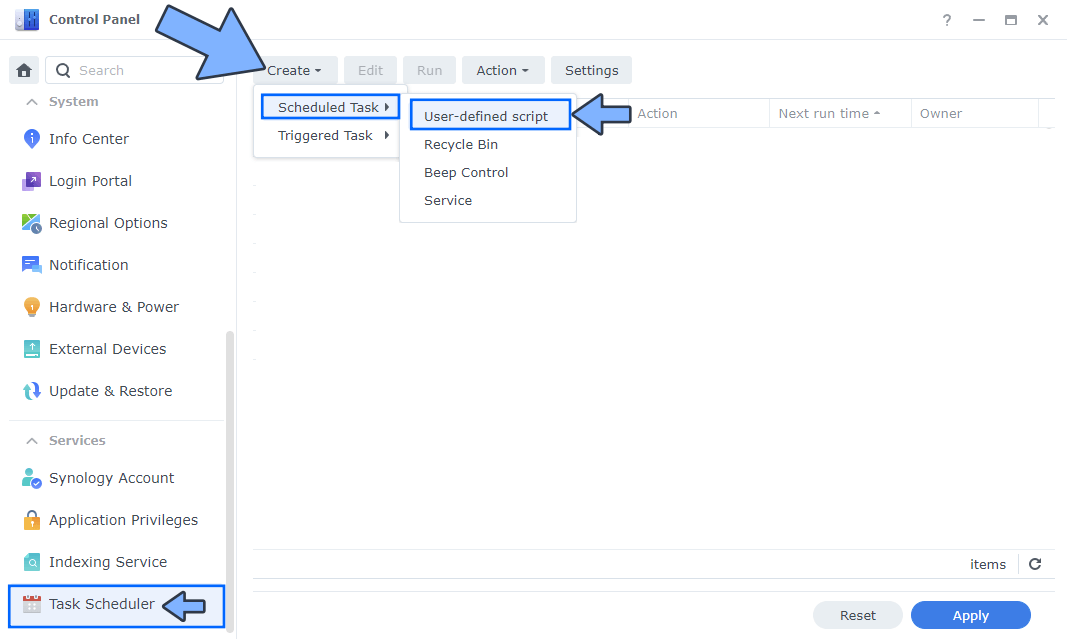
Go to Control Panel / Task Scheduler / Create / Scheduled Task / User-defined script. Follow the instructions in the image below.
STEP 6
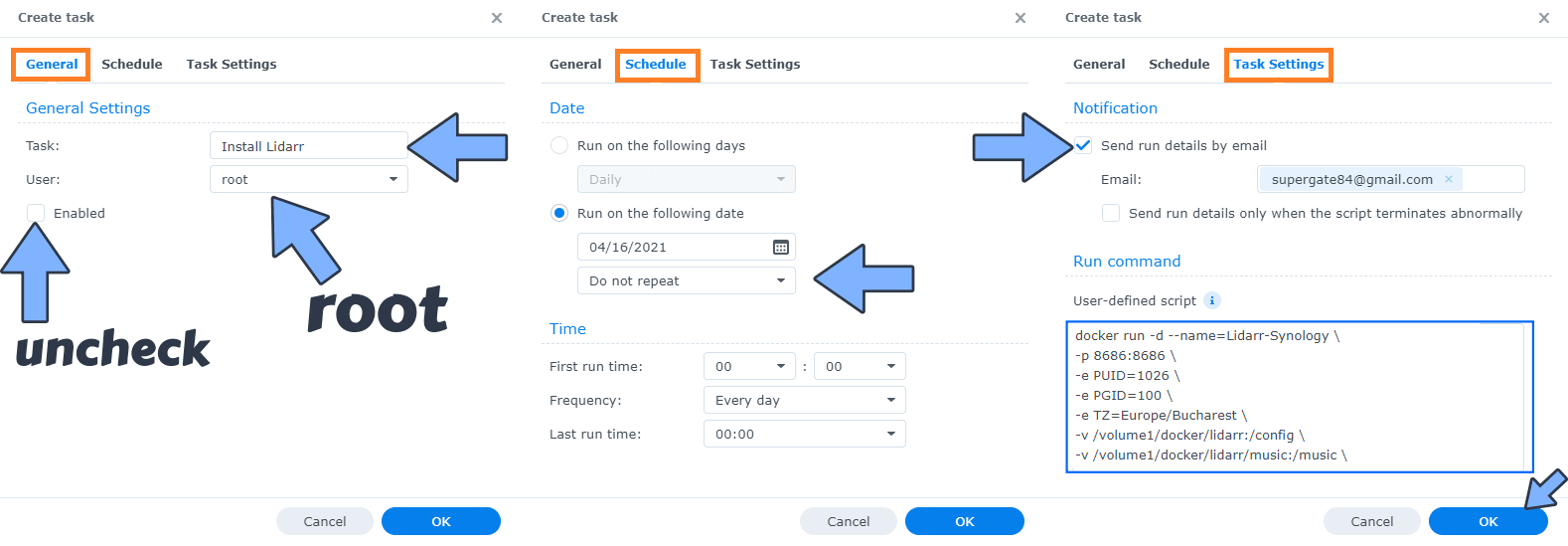
Once you click on User-defined script, a new window will open. Follow the instructions below:
- General: In the Task field type in “Install Lidarr“. Uncheck “Enabled” option. Select root User.
- Schedule: Select Run on the following date then select “Do not repeat“.
- Task Settings: Check “Send run details by email“, add your email then copy paste the code below in the Run command area. After that click OK.
docker run -d --name=lidarr \
-p 8686:8686 \
-e PUID=1026 \
-e PGID=100 \
-e TZ=Europe/Bucharest \
-v /volume1/docker/lidarr:/config \
-v /volume1/docker/lidarr/music:/music \
-v /volume1/docker/lidarr/downloads:/downloads \
--restart always \
ghcr.io/linuxserver/lidarr
Note: Before you paste the code above in the Run command area, change the value numbers for PUID and PGID with your own values. (Follow my step by step guide on how to do this.)
Note: Before you paste the code above in the Run command area, change the value for TZ (Select your current Time Zone from this list).
Note: If you want, you can change the following line /volume1/docker/lidarr/music with the path Location of your own Music library that is available on your NAS.
Note: If you want, you can change the following line /volume1/docker/lidarr/downloads with the path Location of your Download folder on your NAS.
STEP 7
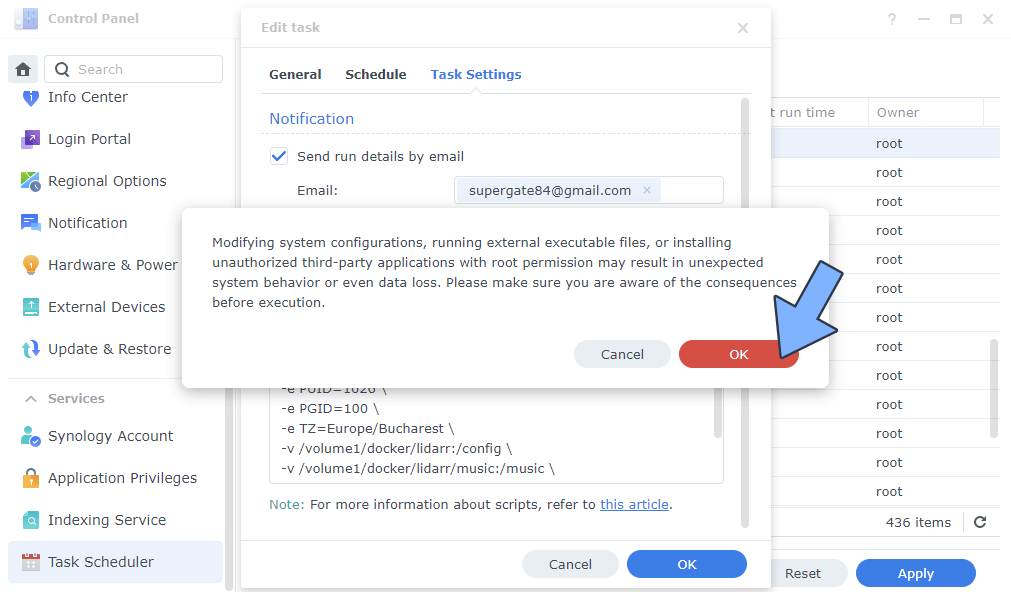
After you click OK on STEP 7 a new warning pop up window will open. Click OK.
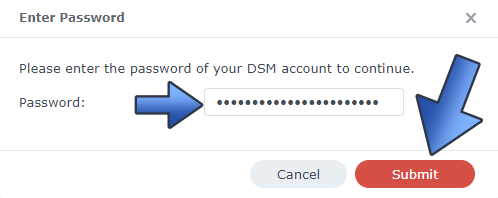
After you click OK, type in your DSM Password then click Submit. Follow the instructions in the image below.
STEP 8
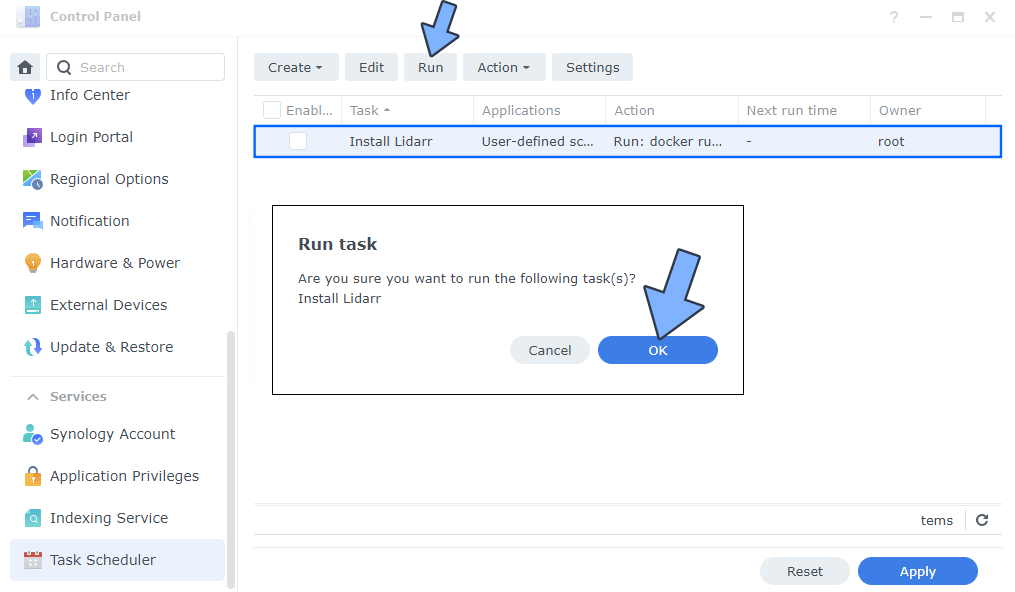
After you click Submit on STEP 8, select your “Install Lidarr” Task then click the “Run” tab. You will be asked to run Install Lidarr – click OK. Follow the instructions in the image below.
STEP 9
🟢Please Support My work by Making a Donation. Almost 99,9% of the people that install something using my guides forget to support my work, or just ignore STEP 1. I’ve been very honest about this aspect of my work since the beginning: I don’t run any ADS, I don’t require subscriptions, paid or otherwise, I don’t collect IPs, emails, and I don’t have any referral links from Amazon or other merchants. I also don’t have any POP-UPs or COOKIES. I have repeatedly been told over the years how much I have contributed to the community. It’s something I love doing and have been honest about my passion since the beginning. But I also Need The Community to Support me Back to be able to continue doing this work.
STEP 10
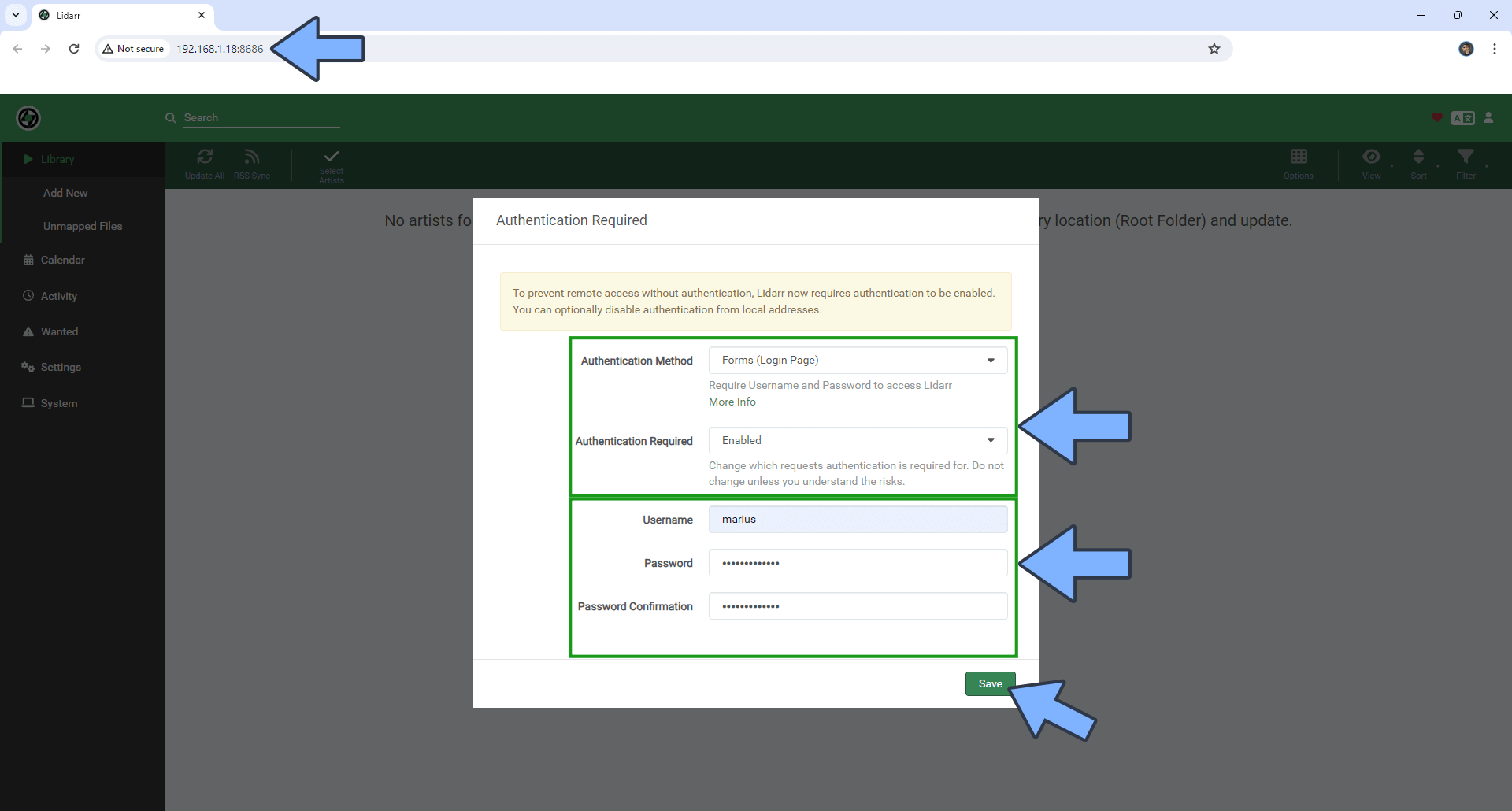
The installation process can take up to a few seconds/minutes. It will depend on your Internet speed connection. Now open your browser and type in http://Synology-ip-address:8686 Set up the Authentication Method: Forms (Login Page) and Authentication Required: (Enabled). Type in your own Username and Password then click Save. Follow the instructions in the image below.
STEP 11
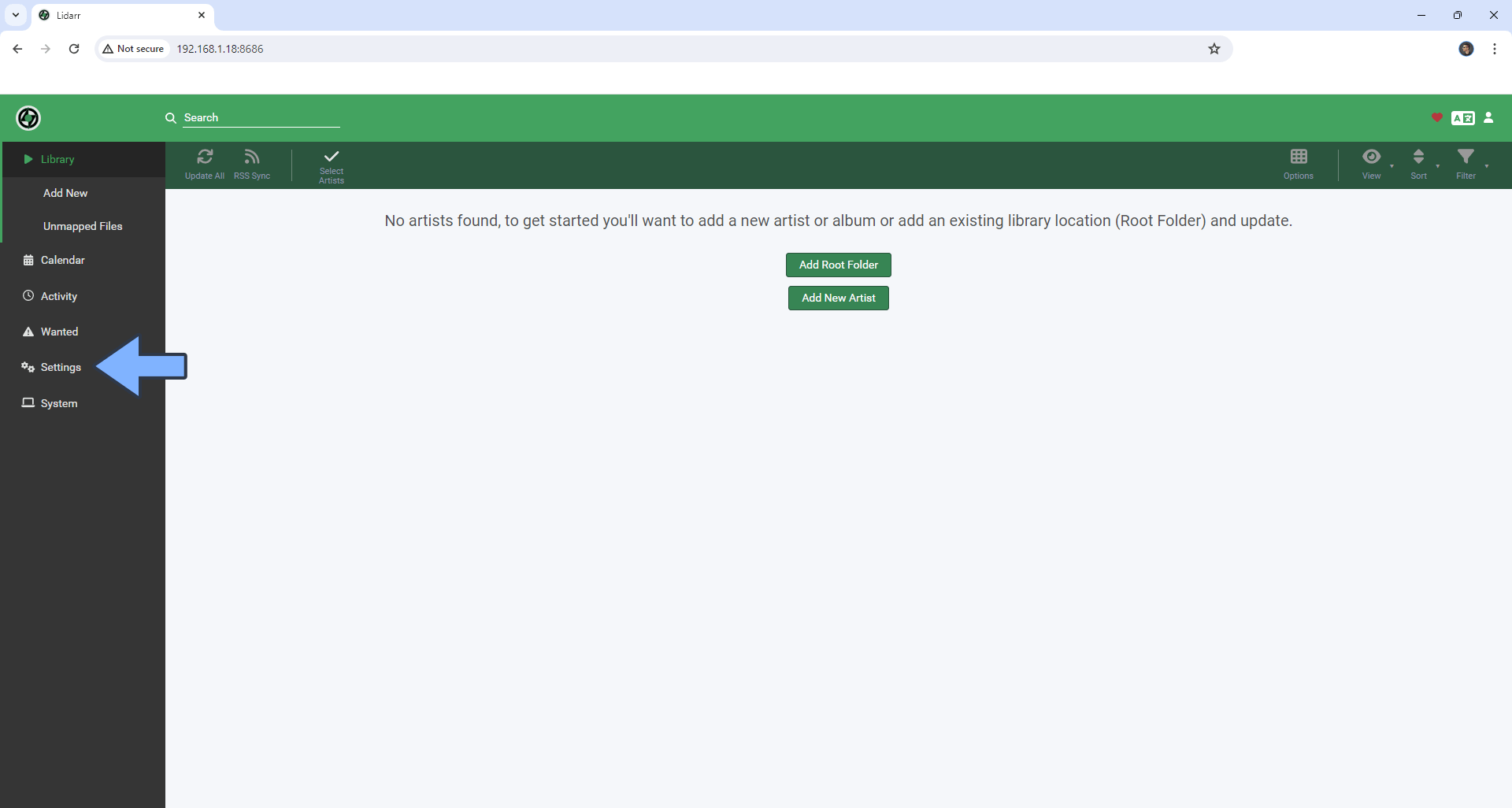
On the left sidebar, click Settings. Follow the instructions in the image below.
STEP 12
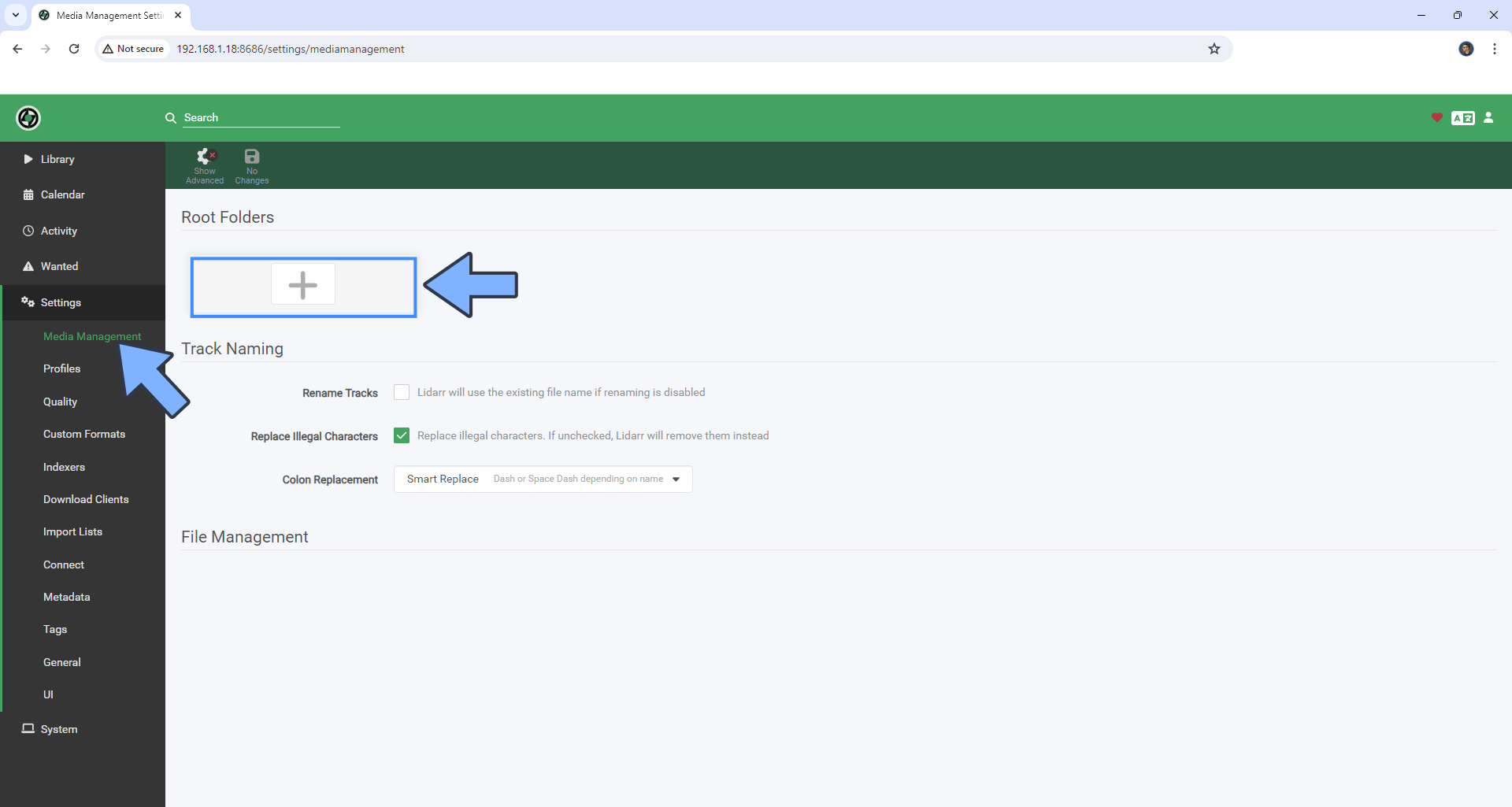
Under Settings, click Media Management. Under Root Folders, click +. Follow the instructions in the image below.
STEP 13
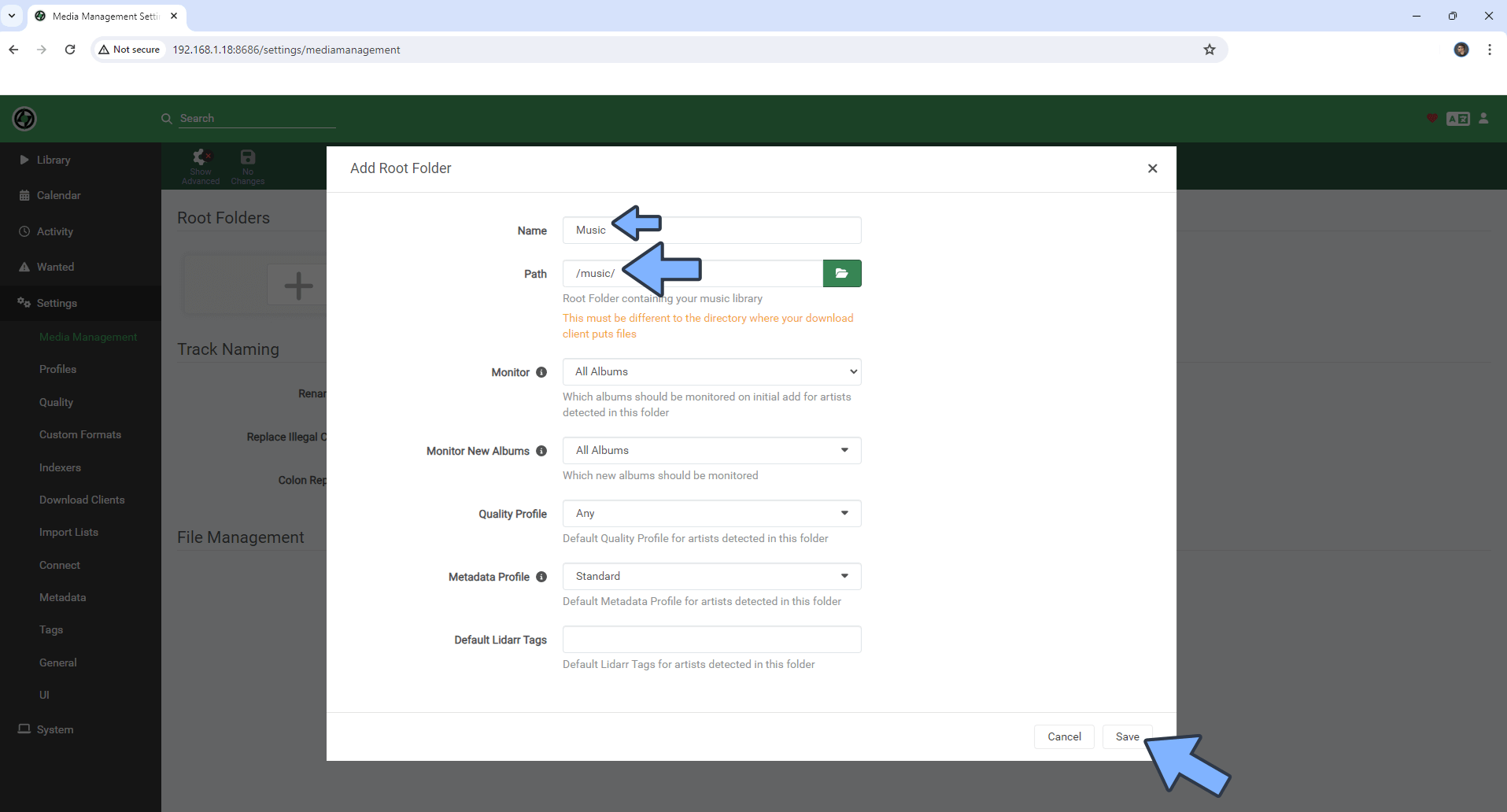
In the Name field area, type in Music and, in the Path field area, type in /music/ then click Save. Follow the instructions in the image below.
Enjoy Lidarr!
🆘TROUBLESHOOTING
If you encounter issues by using this container, make sure to check out the Common Docker issues article.
Note: If you want to run the Lidarr container over HTTPS, check How to Run Docker Containers Over HTTPS. In order to make Lidarr work via HTTPS, it’s mandatory to activate WebSocket.
Note: Can I run Docker on my Synology NAS? See the supported models.
Note: How to Back Up Docker Containers on your Synology NAS.
Note: Find out how to update the Lidarr container with the latest image.
Note: How to Free Disk Space on Your NAS if You Run Docker.
Note: How to Schedule Start & Stop For Docker Containers.
Note: How to Activate Email Notifications.
Note: How to Add Access Control Profile on Your NAS.
Note: How to Change Docker Containers Restart Policy.
Note: How to Use Docker Containers With VPN.
Note: Convert Docker Run Into Docker Compose.
Note: How to Clean Docker.
Note: How to Clean Docker Automatically.
Note: Best Practices When Using Docker and DDNS.
Note: Some Docker Containers Need WebSocket.
Note: Find out the Best NAS Models For Docker.
Note: Activate Gmail SMTP For Docker Containers.
This post was updated on Thursday / October 8th, 2026 at 9:45 PM