
ArtCraft’s Crafting Apps bring a full suite of free, open-source creative and productivity tools to your Synology NAS. The project currently includes 13 native apps like PhotoCraft, VectorCraft, FilmCraft, LightCraft, PdfCraft, EffectCraft, DesignCraft, FigCraft, WordCraft, SoundCraft, DeckCraft, CADCraft, and GridCraft. Each of them is written from scratch in Rust as a clean-room alternative to familiar desktop software. You can run them on a Synology NAS through Docker. Community-built stream the apps to your browser so you can edit photos, cut video, design layouts, or work with documents directly from any device on your network without installing software on your computer. I’ve been running several of them on my own Synology for a few weeks now, and they’ve already replaced a lot of the subscription tools I used to rely on. Being able to open PhotoCraft or LightCraft straight from the browser on any device in the house, while keeping all my files on the NAS, has made quick edits and photo organization much easier without needing a powerful workstation or paying for Adobe. In this step by step guide I will show you how to install ArtCraft Apps on your Synology NAS using Docker & Dockhand.
💡Note:
This guide works perfectly with the latest ArtCraft Apps release.
💡Note: Check out my guide on how to Install ArtCraft Apps on Your UGREEN NAS.
STEP 1
Please Support My work by Making a Donation.
STEP 2
Install Dockhand using my step by step guide. If you already have Dockhand installed on your Synology NAS, skip this STEP. ⚠️Attention: Make sure you have installed the latest Dockhand version.
STEP 3
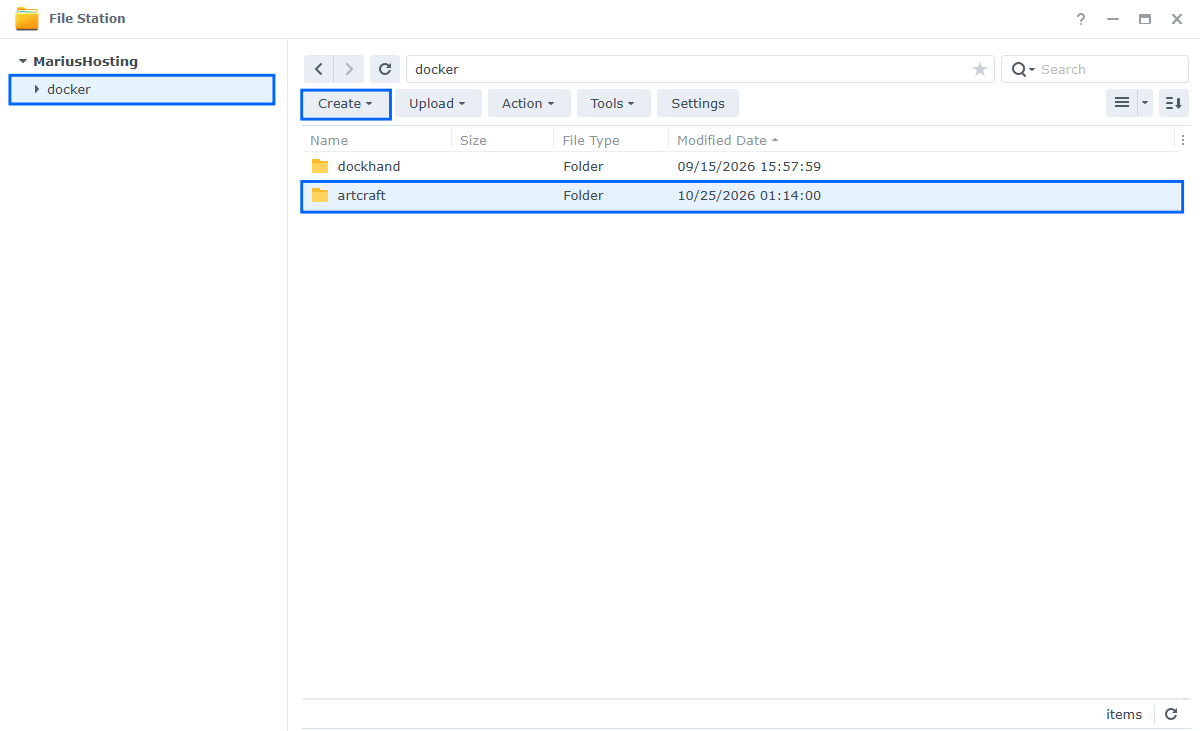
Go to File Station and open the docker folder. Inside the docker folder, create one new folder and name it artcraft. Follow the instructions in the image below.
Note: Be careful to enter only lowercase, not uppercase letters.
STEP 4
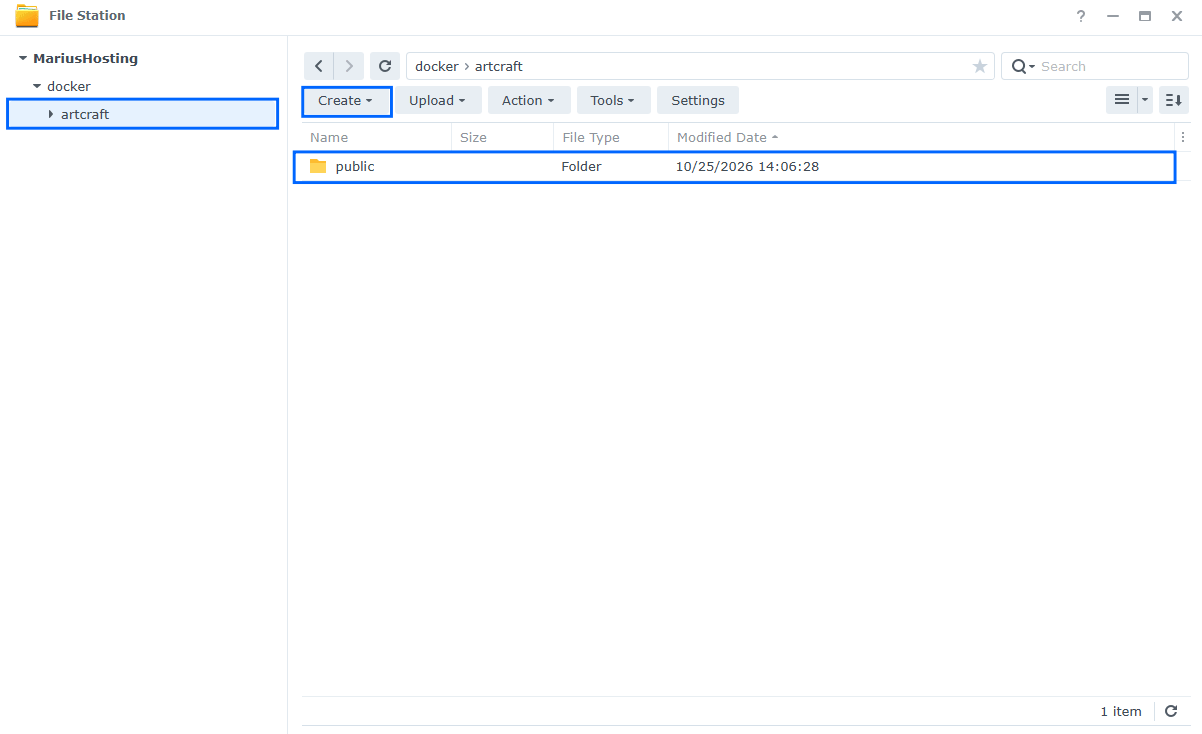
Now create one new folder inside the artcraft folder that you have previously created at STEP 3 and name it public. Follow the instructions in the image below.
Note: Be careful to enter only lowercase, not uppercase letters.
STEP 5
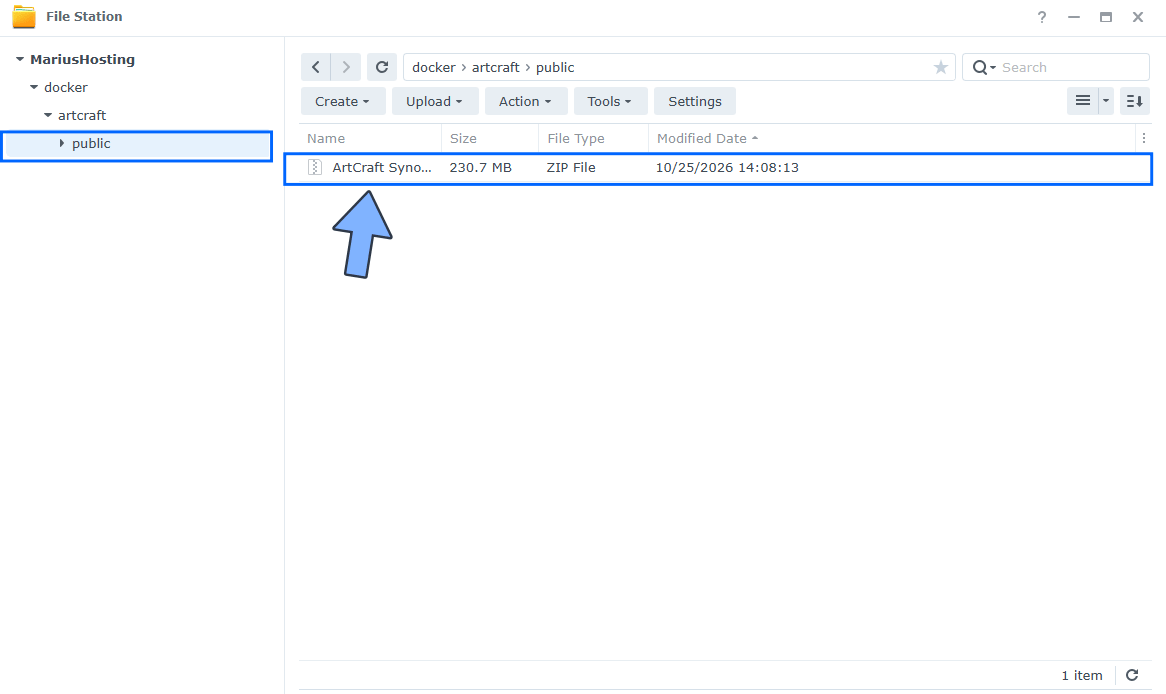
Download (click on the blue link below) and upload the ArtCraft Synology NAS.zip file below in the public folder that you have previously created at STEP 4. Follow the instructions in the image below. 🔒Note: Support my work to unlock the password. You can use this password to download any file on mariushosting forever!
STEP 6
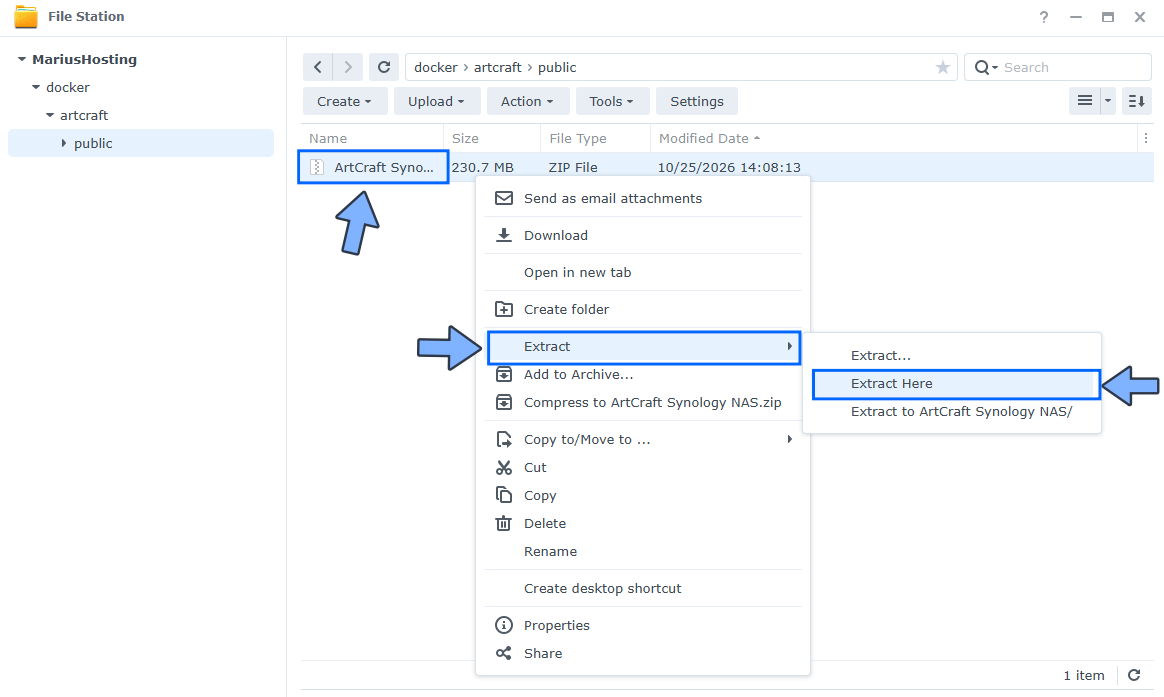
Right click on the zip file / Extract / Extract Here. Follow the instructions in the image below.
STEP 7
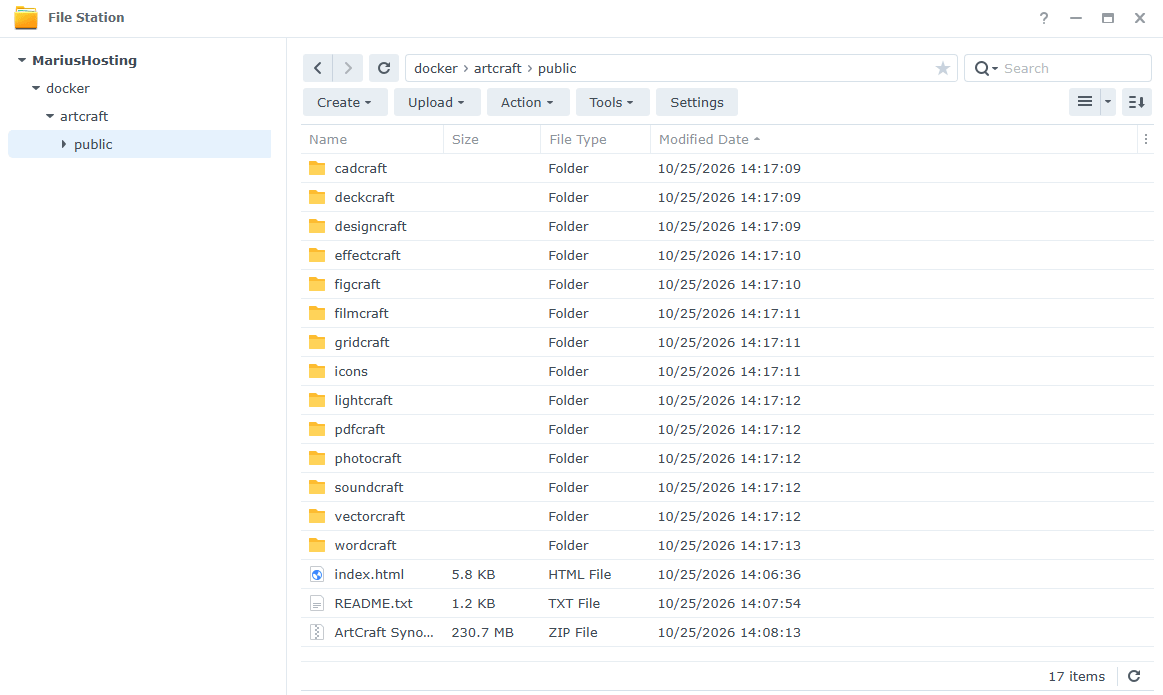
Your public folder will look like this. Go straight to the next STEP.
STEP 8
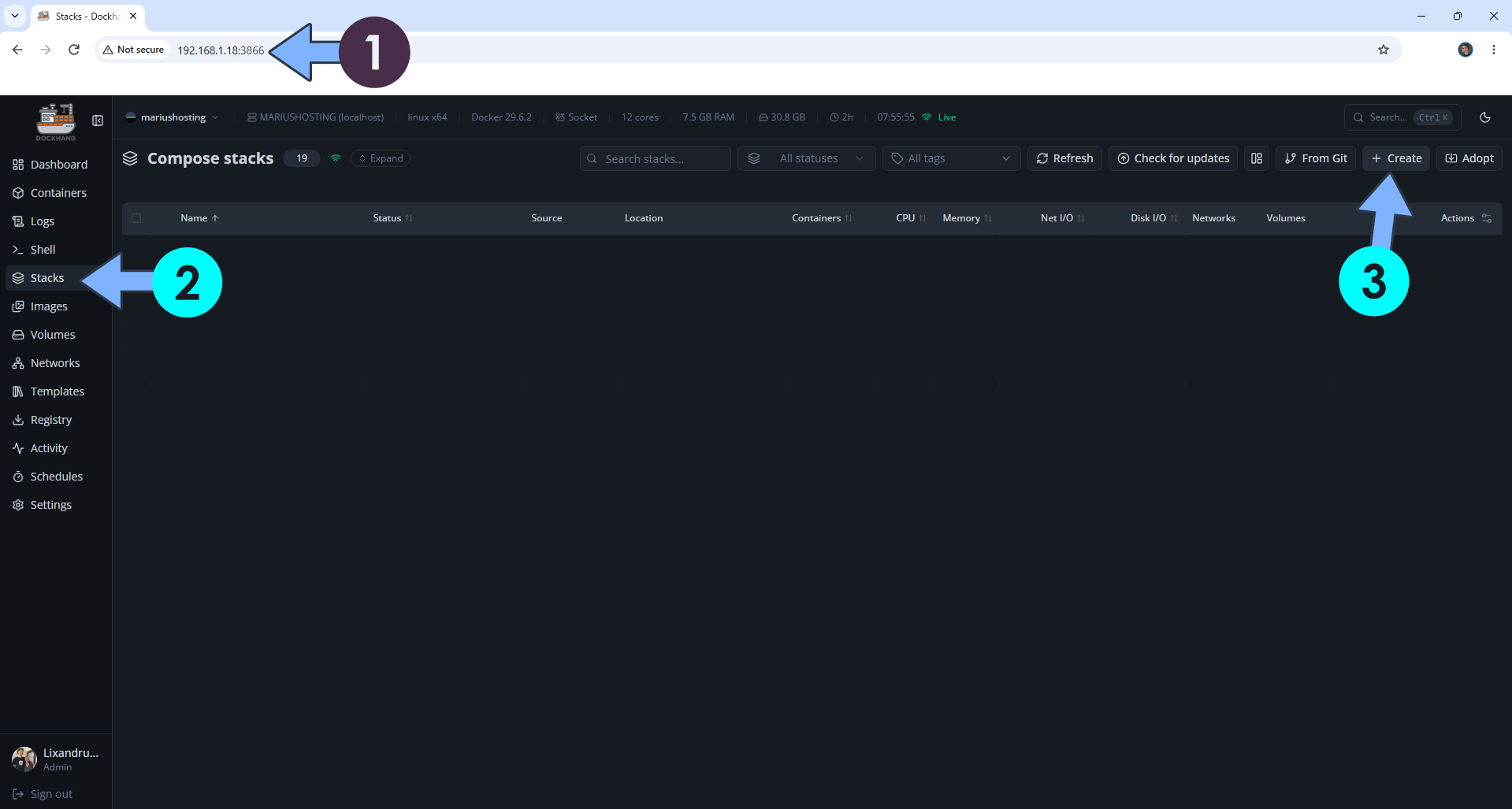
Open your browser and type in http://synology-ip-address:3866 to connect to your Dockhand container. On the left sidebar, click Stacks then + Create. Follow the instructions in the image below.
STEP 9
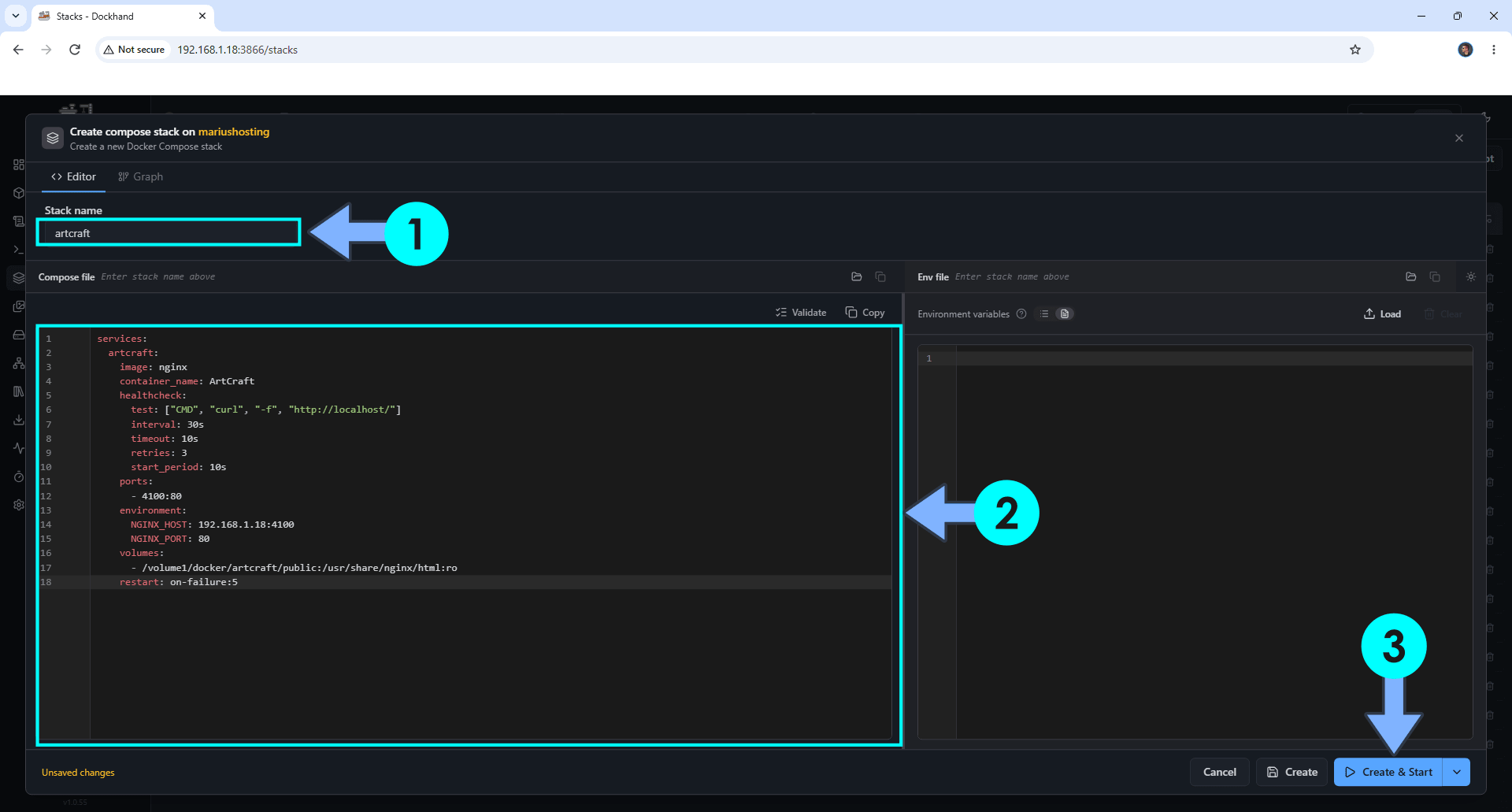
In the Stack name field, type in artcraft. ⚠️Warning: Type in the name in lowercase letters. The installation process can take up to a few seconds/minutes. It will depend on your Internet speed connection. Follow the instructions in the image below.
Note: Copy Paste the code below in the Dockhand Compose Stack then click Create & Start.
services:
  artcraft:
    image: nginx
    container_name: ArtCraft
    healthcheck:
      test: ["CMD", "curl", "-f", "http://localhost/"]
      interval: 30s
      timeout: 10s
      retries: 3
      start_period: 10s
    ports:
      - 4100:80
    environment:
      NGINX_HOST: 192.168.1.18:4100
      NGINX_PORT: 80
    volumes:
      - /volume1/docker/artcraft/public:/usr/share/nginx/html:ro
    restart: on-failure:5
Note: Before you paste the code above in the Stack editor area below, change the value for NGINX_HOST with your own Local NAS IP followed by :4100
STEP 10
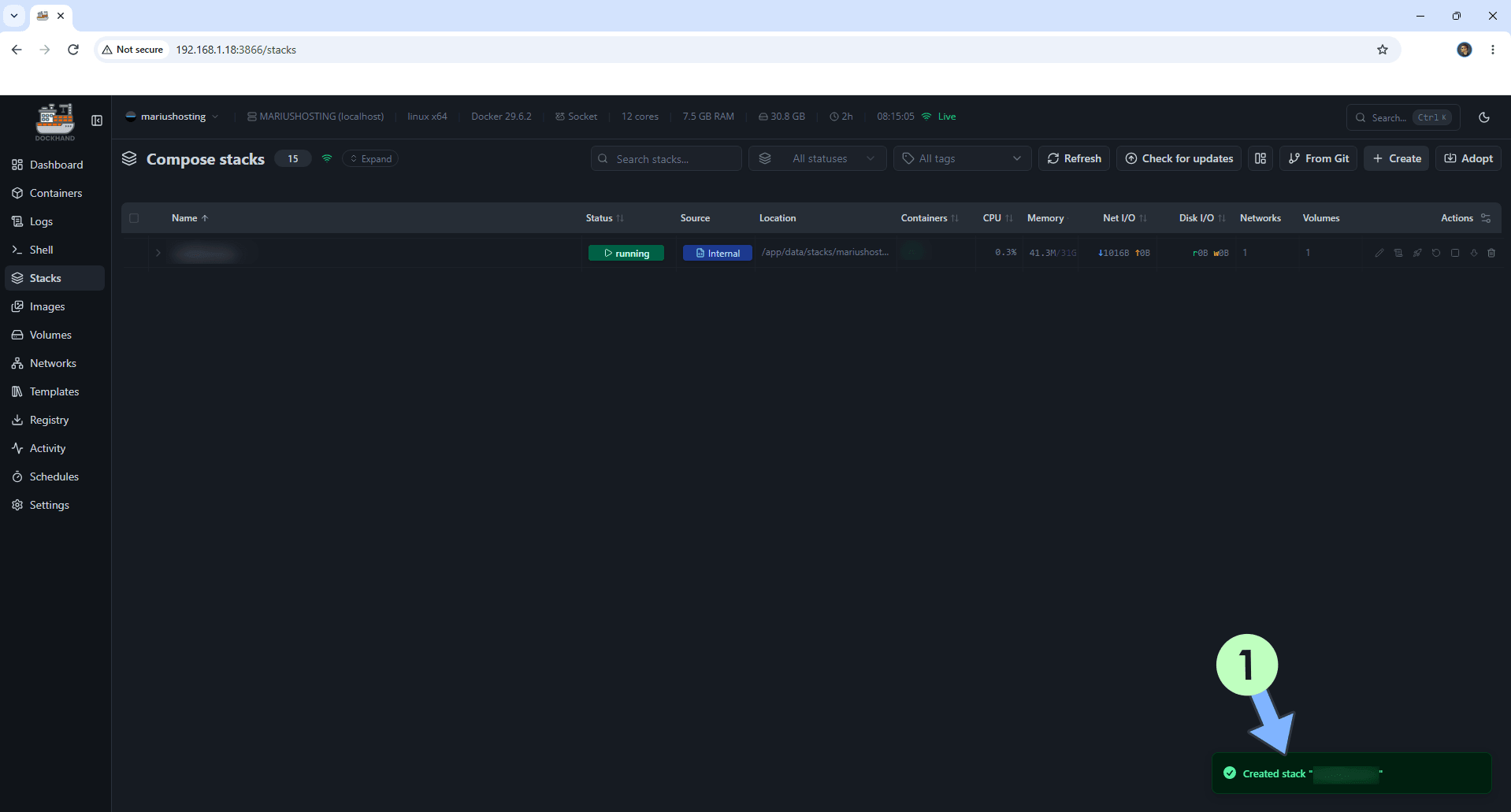
If everything goes right, you will see the following message at the bottom right of your screen: “Created stack “artcraft”“.
STEP 11
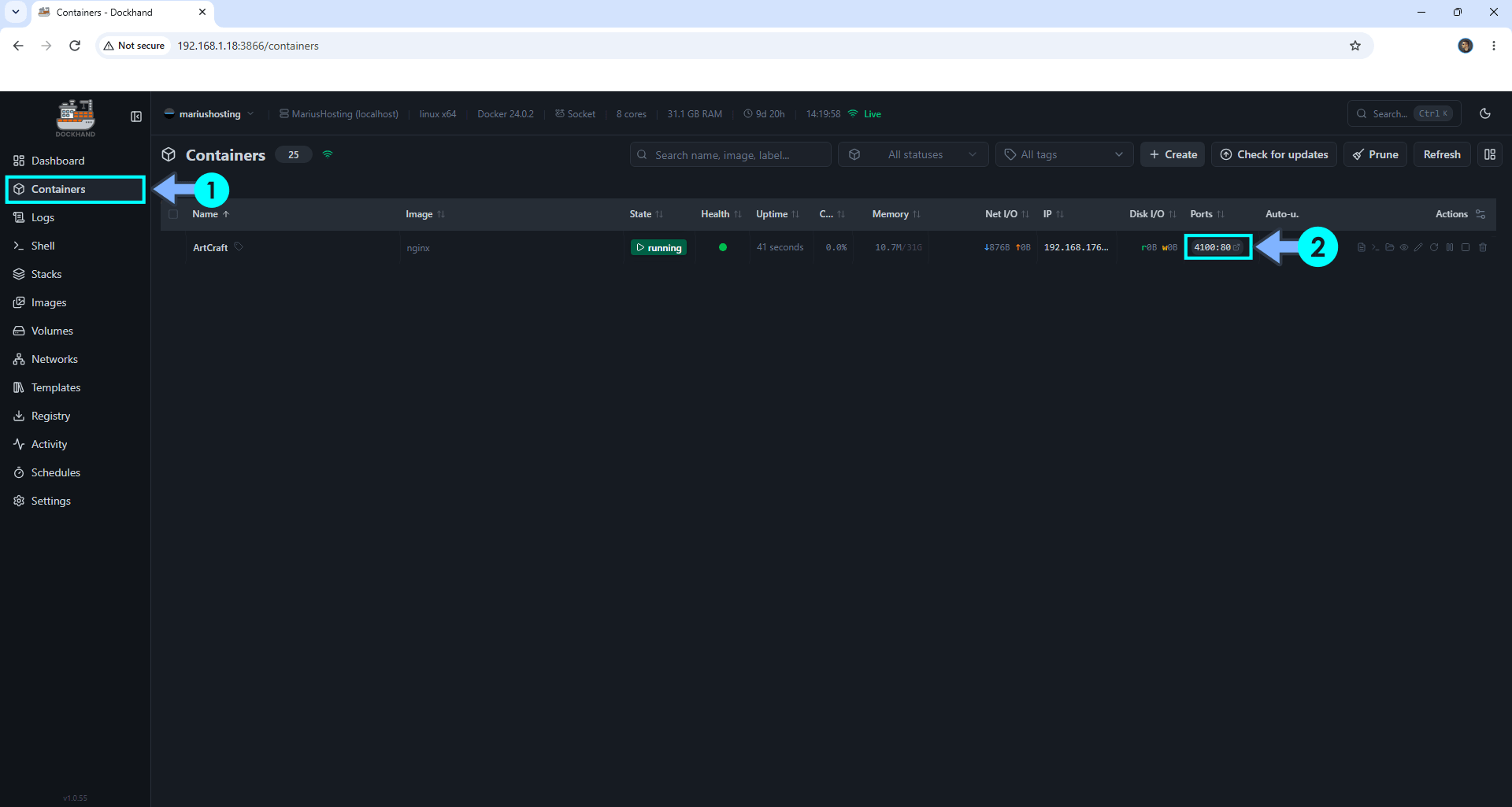
On the left sidebar, click Containers. Identify your ArtCraft container then click on ports 4100:80. Follow the instructions in the image below.
STEP 12
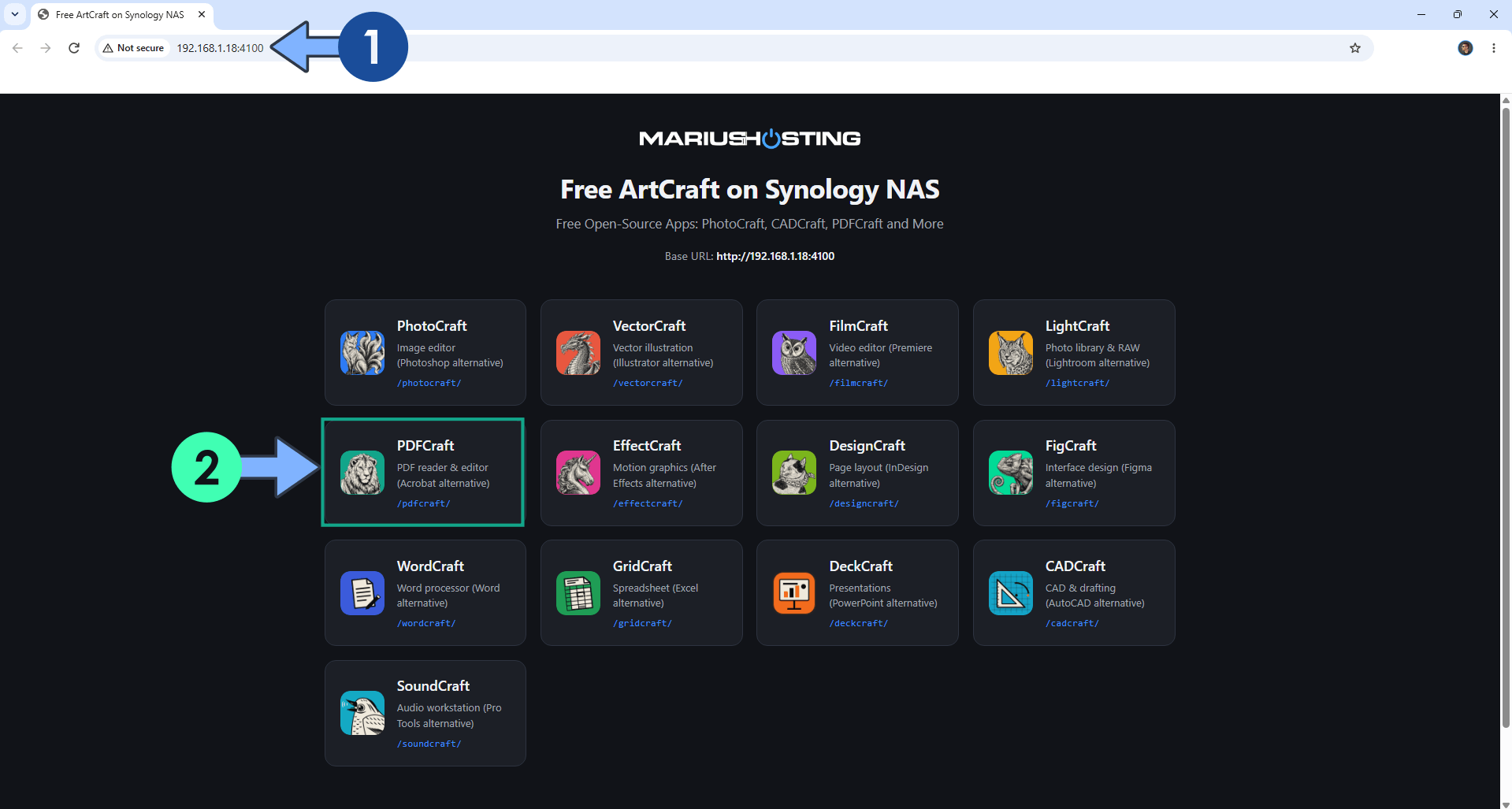
The installation process can take up to a few seconds/minutes. It will depend on your Internet speed connection. Now open your browser and type in http://synology-ip-address:4100 Your ArtCraft Apps at a glance. Click on the App that you want to open. In my example, I opened PDFCraft. Follow the instructions in the image below.
STEP 13
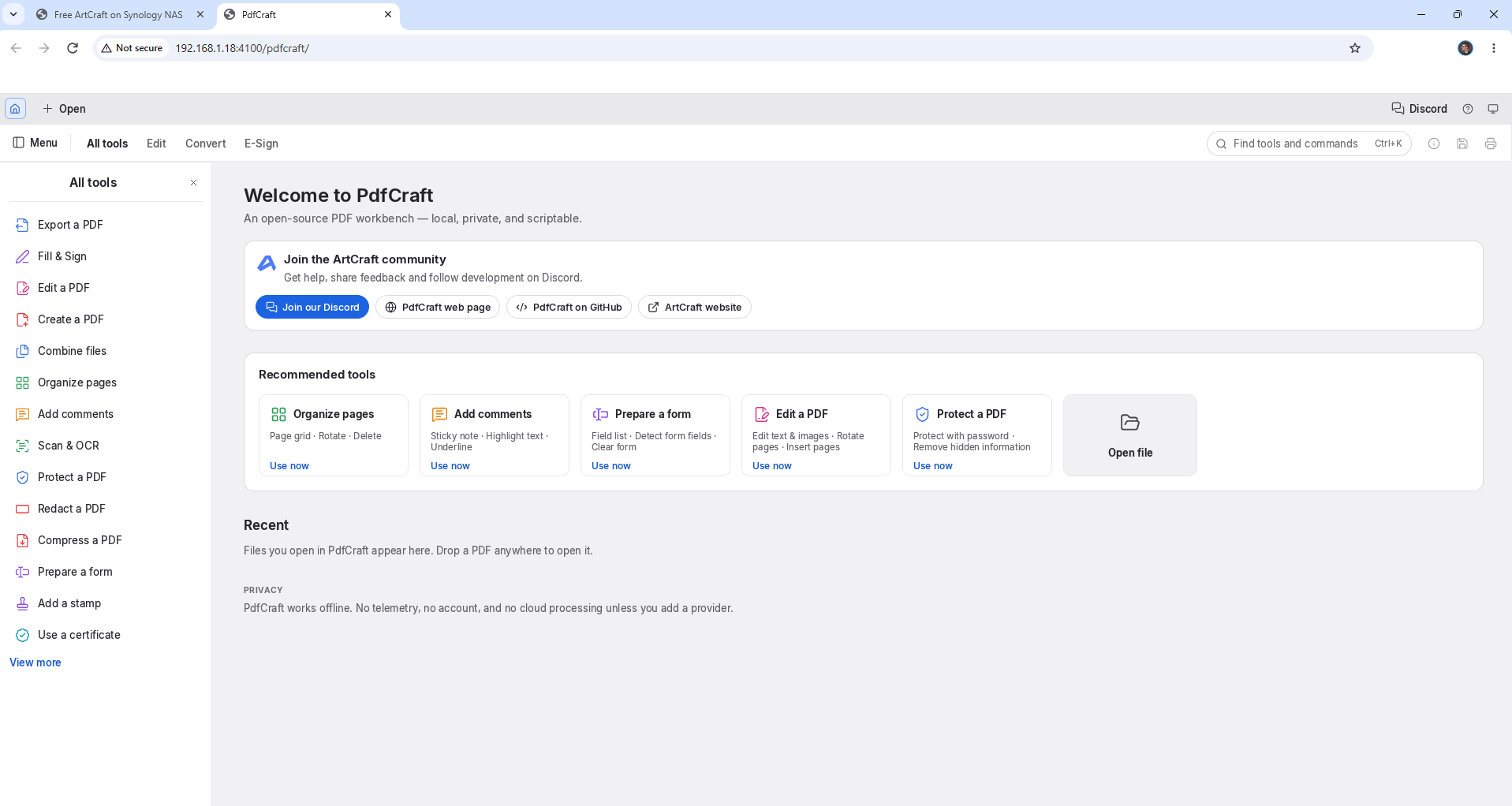
Your PDFCraft app at a glance!
Enjoy ArtCraft!
🆘TROUBLESHOOTING
If you encounter issues by using this container, make sure to check out the Common Docker issues article.
Note: If you want to run the ArtCraft container over HTTPS, check How to Run Docker Containers Over HTTPS. In order to make ArtCraft work via HTTPS, it’s mandatory to activate WebSocket.
Note: Can I run Docker on my Synology NAS? See the supported models.
Note: How to Back Up Docker Containers on your Synology NAS.
Note: Find out how to update the ArtCraft container with the latest image.
Note: How to Free Disk Space on Your NAS if You Run Docker & Dockhand.
Note: How to Schedule Start & Stop For Docker Containers.
Note: How to Activate Email Notifications.
Note: How to Add Access Control Profile on Your NAS.
Note: How to Change Docker Containers Restart Policy.
Note: How to Use Docker Containers With VPN.
Note: Convert Docker Run Into Docker Compose.
Note: How to Clean Docker.
Note: How to Clean Docker Automatically.
Note: Best Practices When Using Docker and DDNS.
Note: Some Docker Containers Need WebSocket.
Note: Find out the Best NAS Models For Docker.
Note: Activate Gmail SMTP For Docker Containers.
This post was updated on Monday / October 26th, 2026 at 12:02 AM