
May is a modern, self-hosted web dashboard application for vehicle management. It provides a clean interface to log fuel fill-ups, automatically calculate consumption (such as MPG or L/100km), track expenses, schedule maintenance, set reminders, and store related documents across multiple vehicles per user. The app supports full multi-user access, features interactive analytics charts, customizable notifications through email, Pushover, ntfy or webhooks, dark mode, PWA capabilities, and integrations like calendar subscriptions or UK DVLA lookups. Built with Python/Flask, SQLite, Tailwind CSS, and HTMX, it runs easily via Docker and includes a REST API plus PDF report generation for comprehensive fleet tracking. It’s named after James May as part of a fun Top Gear-inspired naming theme. In this step by step guide I will show you how to install May on your Synology NAS using Docker and Portainer.
STEP 1
Please Support My work by Making a Donation.
STEP 2
Install Portainer using my step by step guide. If you already have Portainer installed on your Synology NAS, skip this STEP. Attention: Make sure you have installed the latest Portainer version.
STEP 3
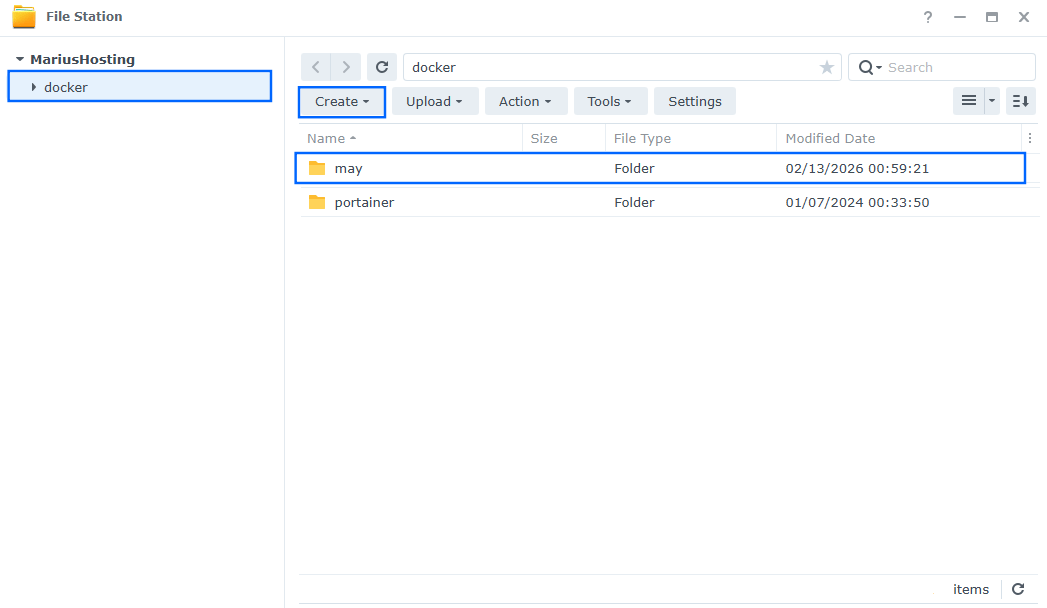
Go to File Station and open the docker folder. Inside the docker folder, create one new folder and name it may. Follow the instructions in the image below.
Note: Be careful to enter only lowercase, not uppercase letters.
STEP 4
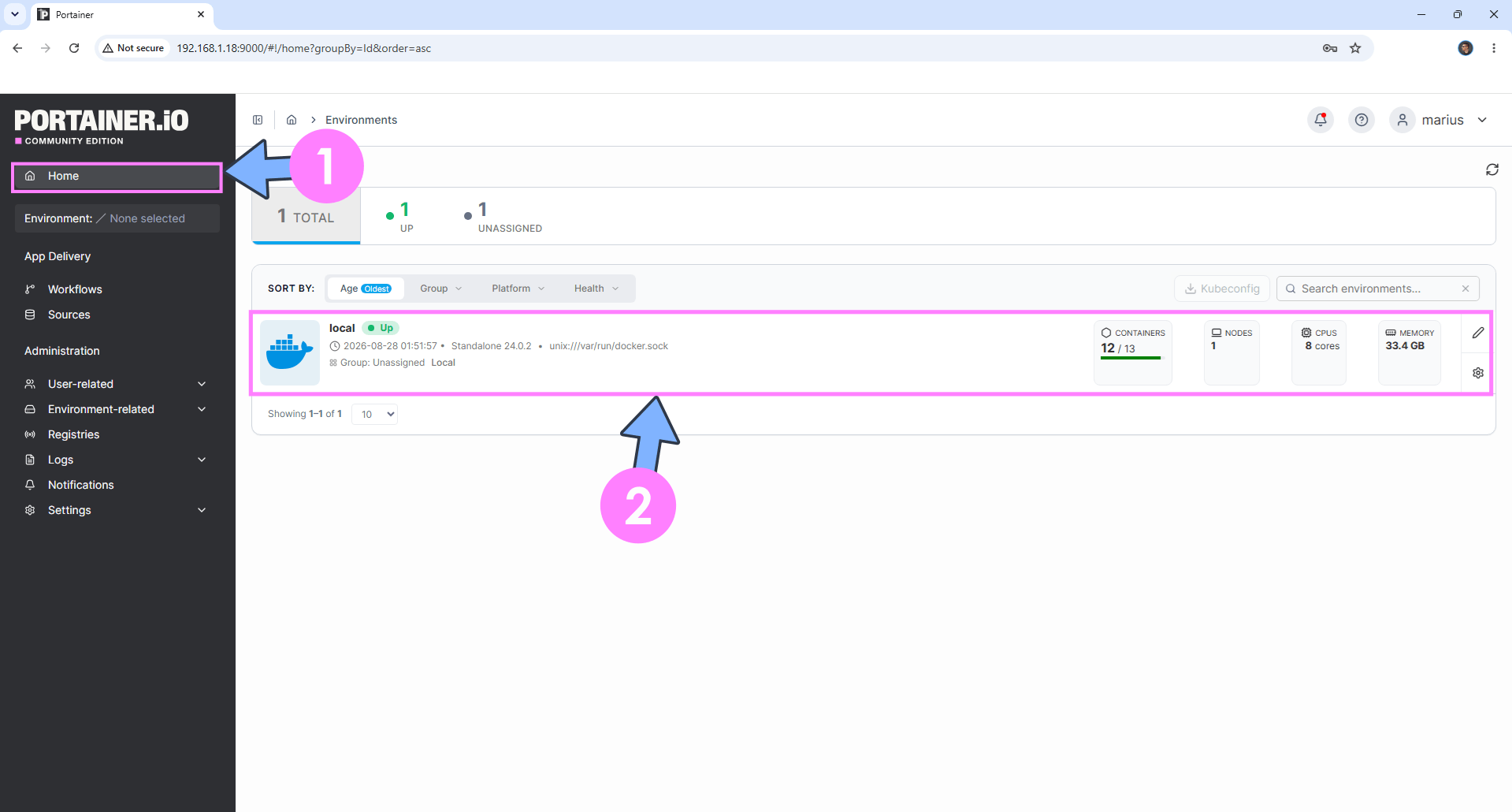
Log into Portainer using your username and password. On the left sidebar in Portainer, click on Home then click inside the local rectangle. Follow the instructions in the image below.
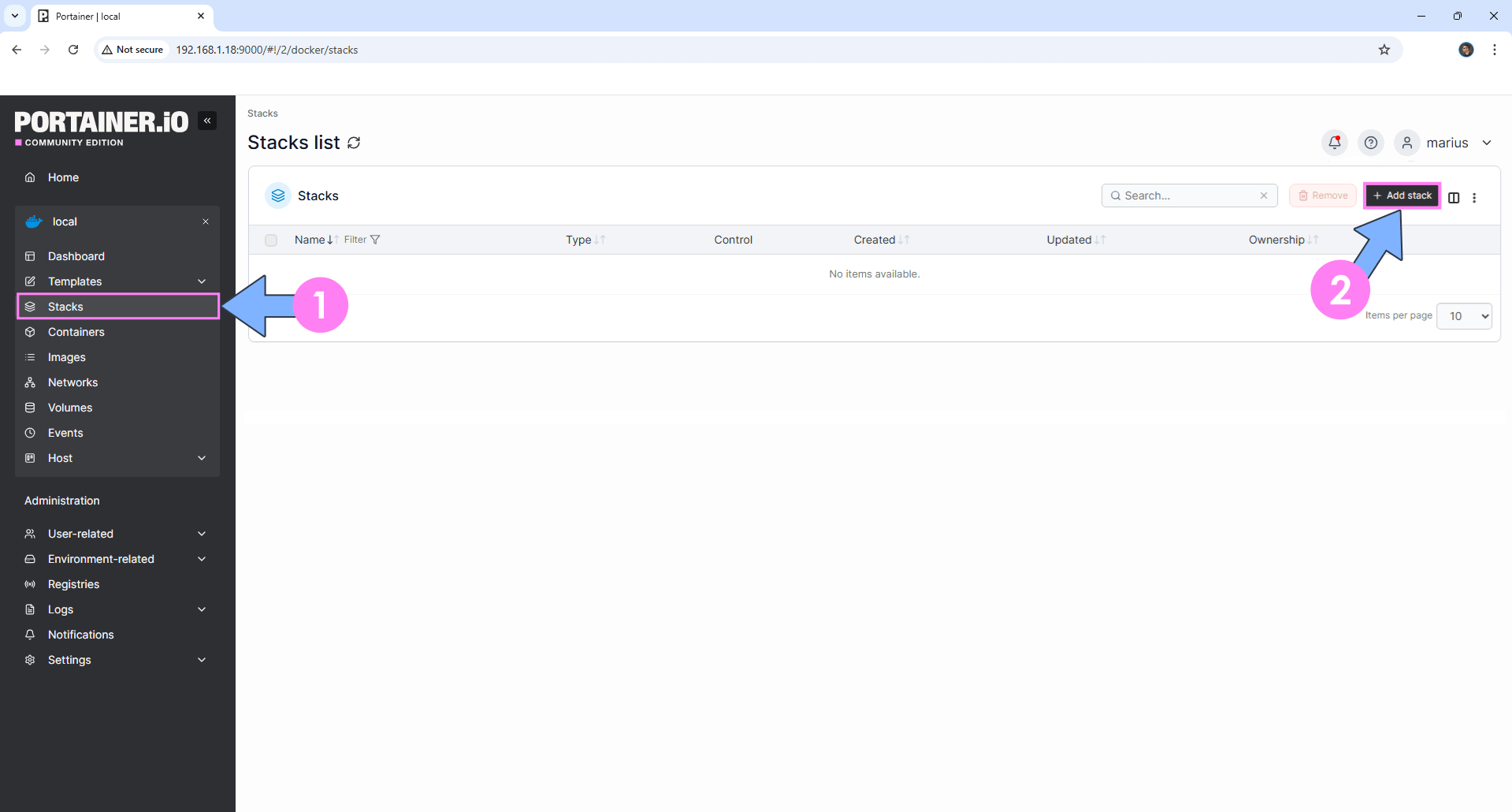
On the left sidebar in Portainer, click on Stacks then + Add stack. Follow the instructions in the image below.
STEP 5
In the Name field, type in may. Follow the instructions in the image below.
services:
  may:
    image: ghcr.io/dannymcc/may:latest
    container_name: May
    ports:
      - 5050:5050
    volumes:
      - /volume1/docker/may:/app/data:rw
    environment:
       SECRET_KEY: dOxZYTTZgXKMHkqLBIQVImayQXAVWdzGBPuFJKggzcgvgPJPXpWzqzKaUOIOGGIr
       ADMIN_PASSWORD: Mariushosting1984@
       DATABASE_URL: sqlite:////app/data/may.db
       UPLOAD_FOLDER: /app/data/uploads
    restart: on-failure:5
Note: Before you paste the code above in the Web editor area below, change the value for SECRET_KEY. Generate your own 64 SECRET_KEY for free.
Note: Before you paste the code above in the Web editor area below, change the value for ADMIN_PASSWORD. Mariushosting1984@ is an example for a password. You should use your own password. You will need this password later at STEP 9.
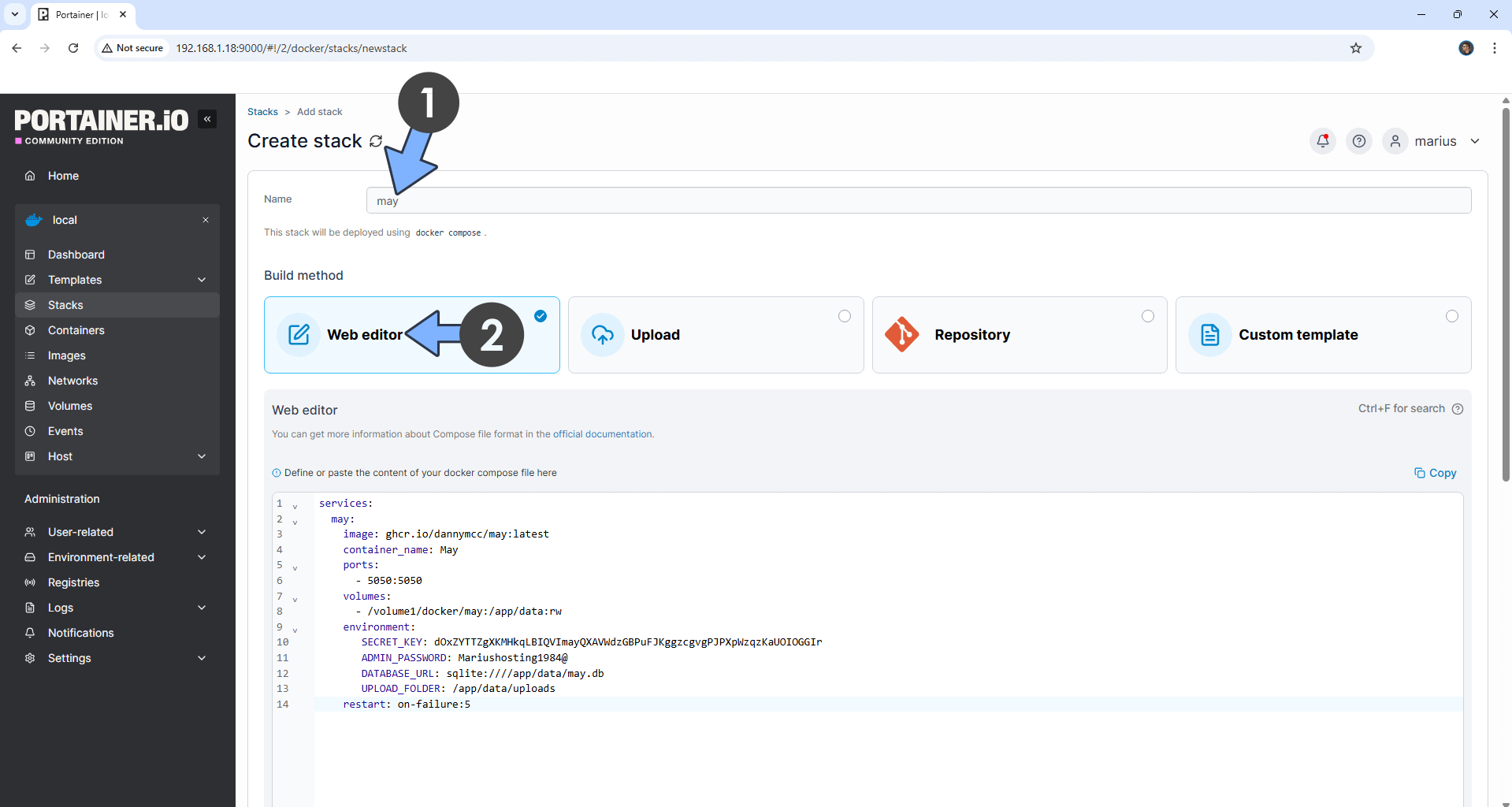
STEP 6
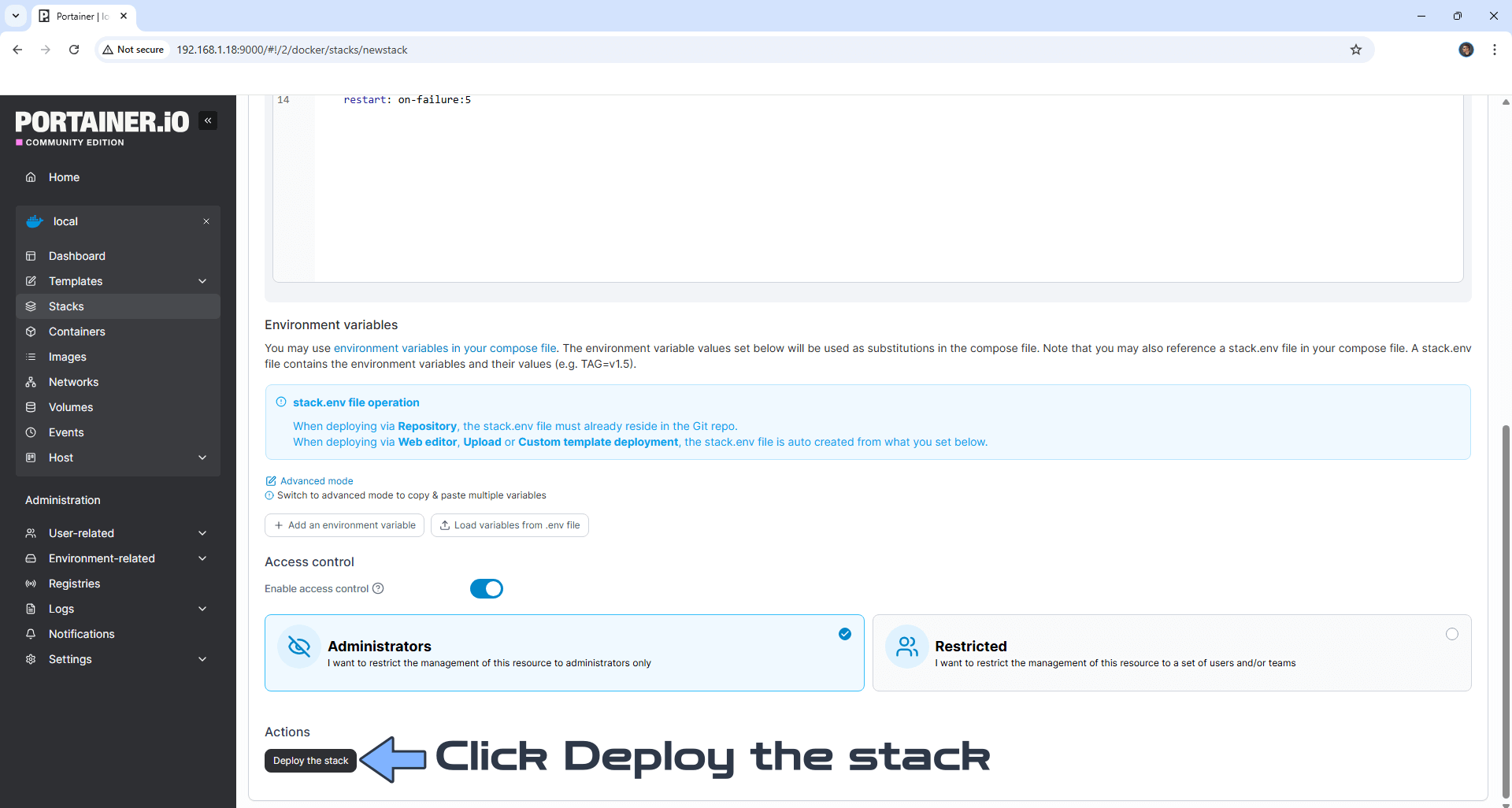
Scroll down on the page until you see a button named Deploy the stack. Click on it. Follow the instructions in the image below. The installation process can take up to a few minutes. It will depend on your Internet speed connection.
STEP 7
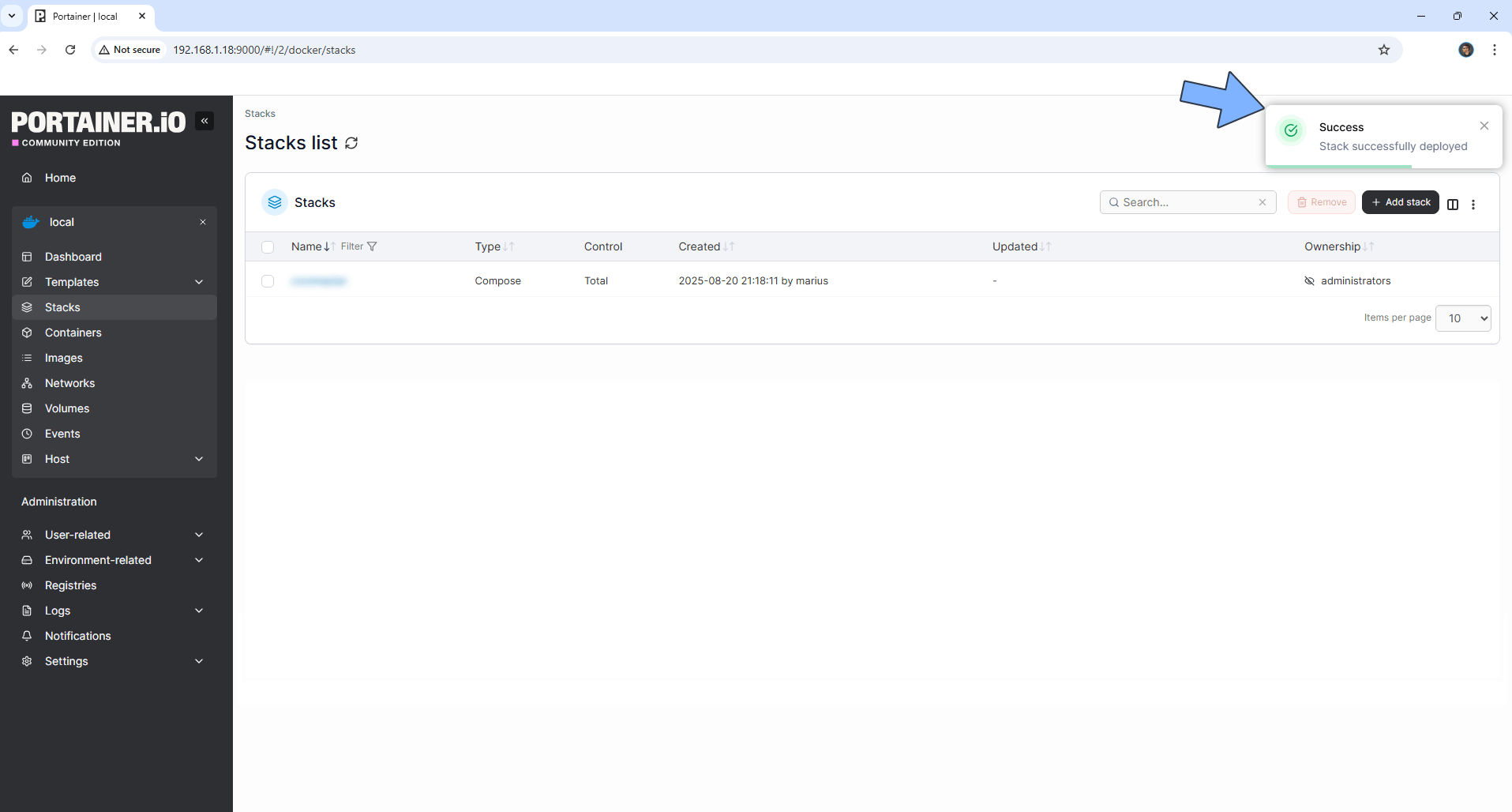
If everything goes right, you will see the following message at the top right of your screen: “Success Stack successfully deployed“.
STEP 8
🟢Please Support My work by Making a Donation. Almost 99,9% of the people that install something using my guides forget to support my work, or just ignore STEP 1. I’ve been very honest about this aspect of my work since the beginning: I don’t run any ADS, I don’t require subscriptions, paid or otherwise, I don’t collect IPs, emails, and I don’t have any referral links from Amazon or other merchants. I also don’t have any POP-UPs or COOKIES. I have repeatedly been told over the years how much I have contributed to the community. It’s something I love doing and have been honest about my passion since the beginning. But I also Need The Community to Support me Back to be able to continue doing this work.
STEP 9
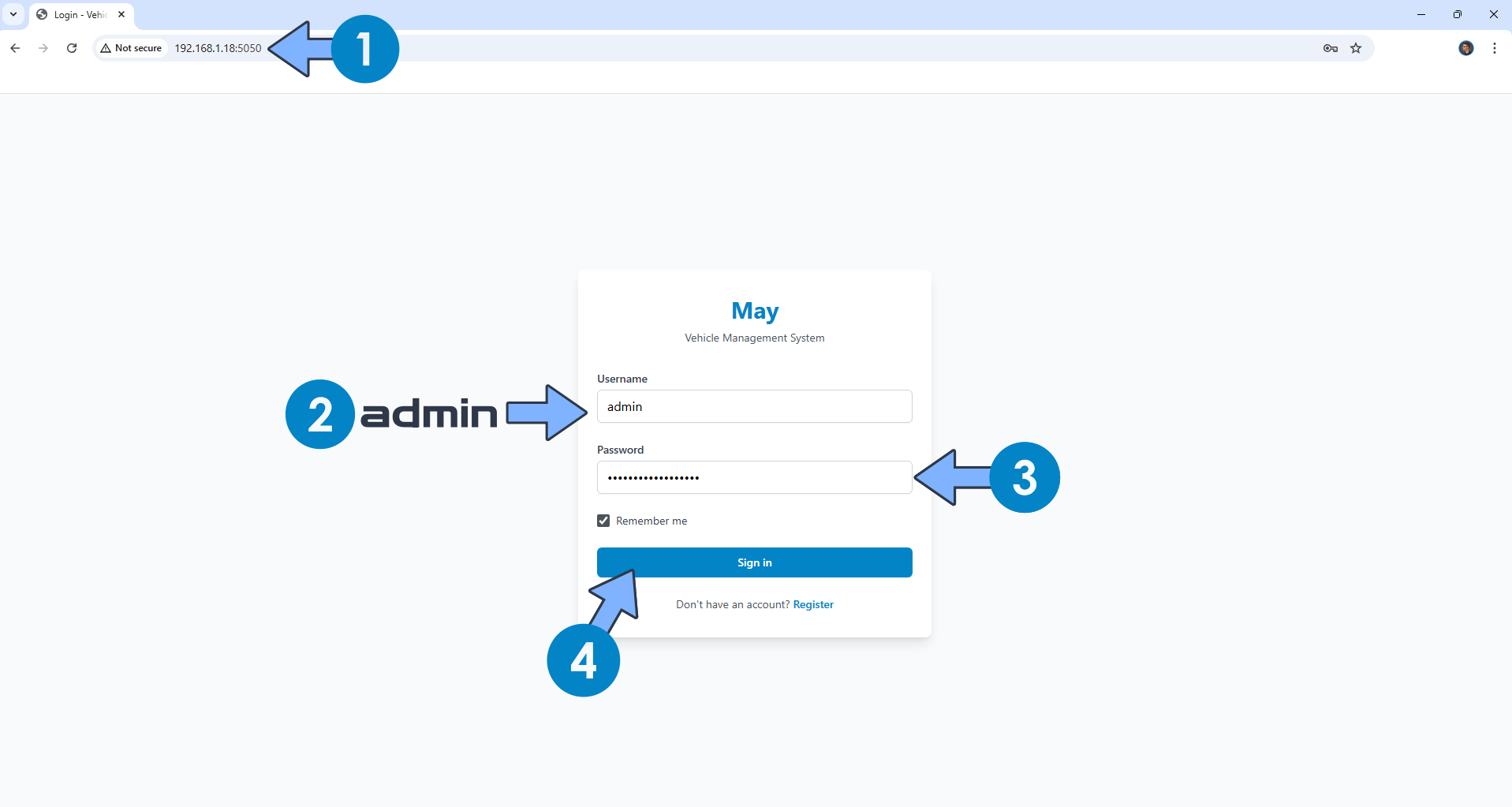
The installation process can take up to a few seconds/minutes. It will depend on your Internet speed connection. Now open your browser and type in http://Synology-ip-address:5050 Type in the default Username which is admin and the Password (ADMIN_PASSWORD) that you have previously added at STEP 5. Click Sign in. Follow the instructions in the image below.
STEP 10
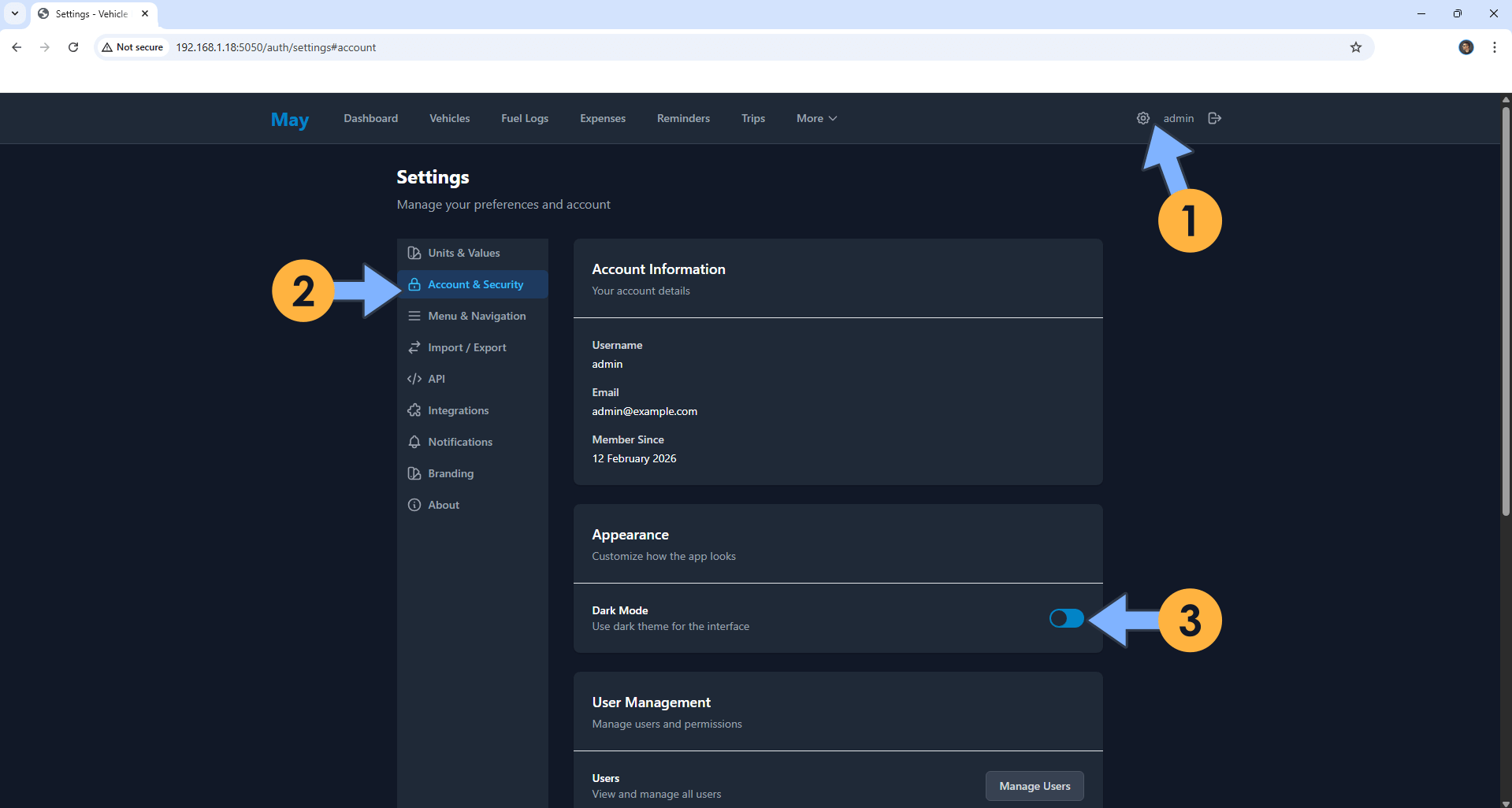
At the top right of the page, click the Settings icon. On the left sidebar, select Account & Security. Switch your theme from Light to Dark. Follow the instructions in the image below.
STEP 11
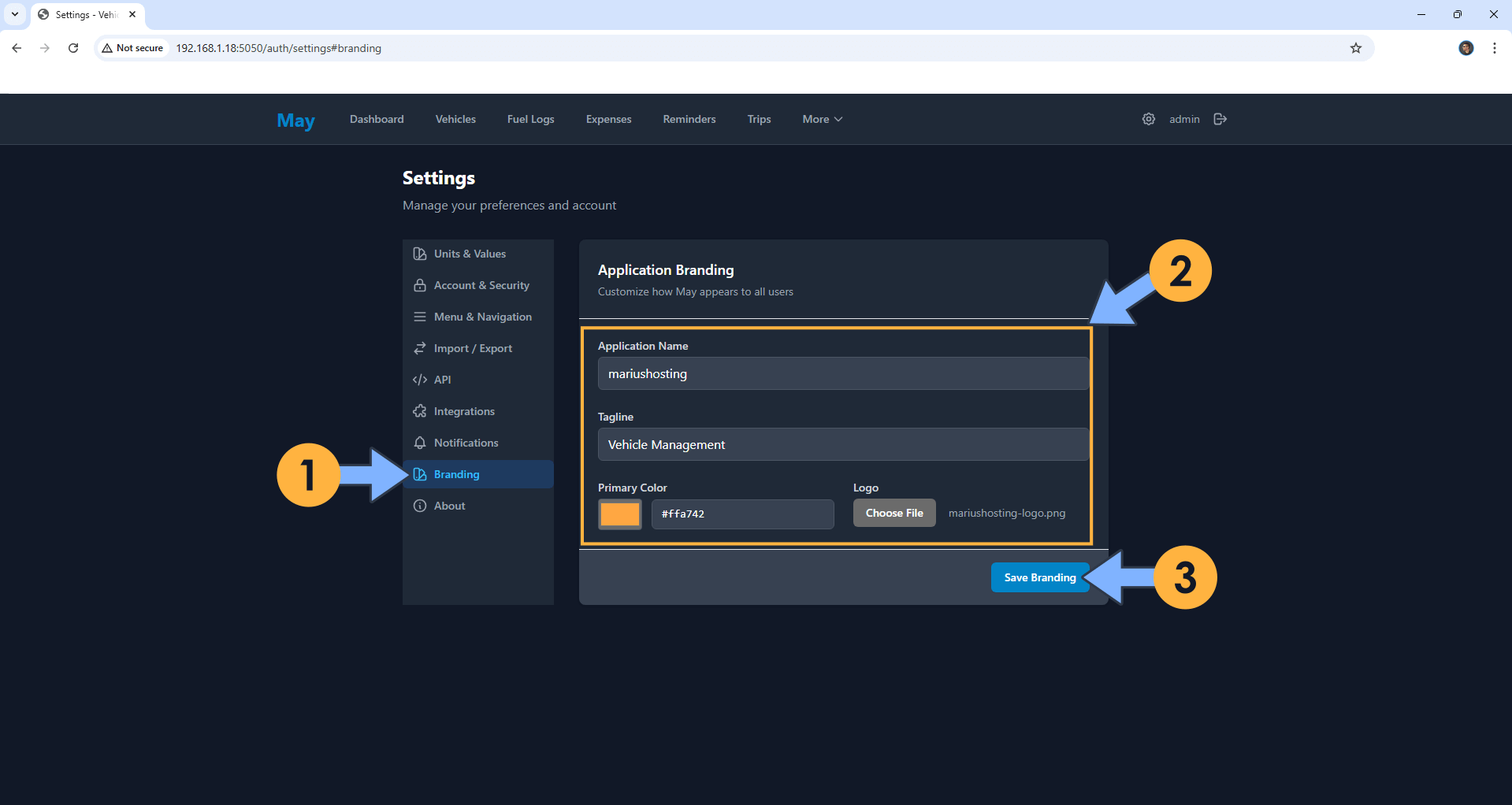
On the left sidebar, click Branding. Customize how May appears to all users. Click Save Branding. Follow the instructions in the image below.
STEP 12
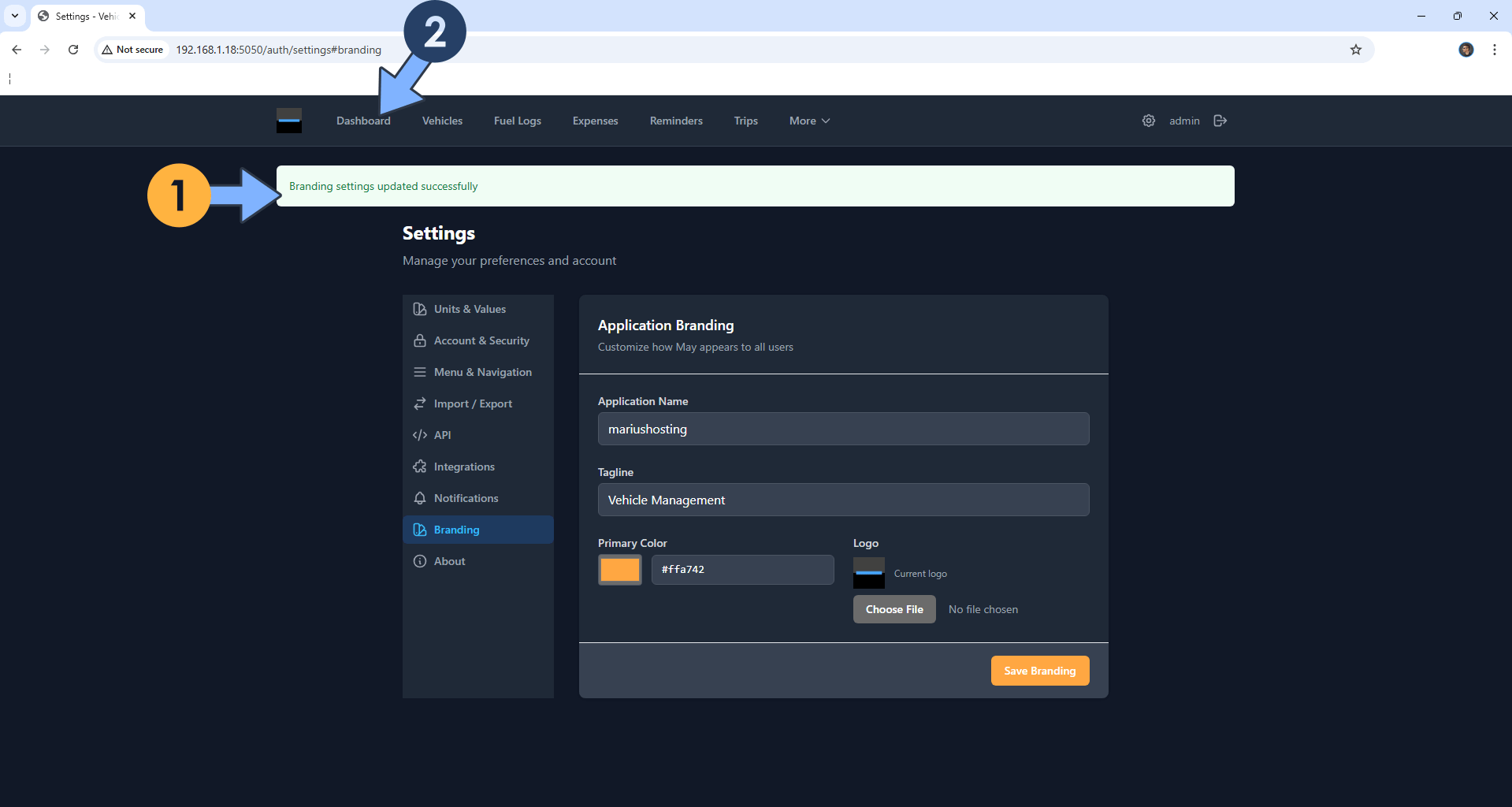
Click the Dashboard tab. Follow the instructions in the image below.
STEP 13
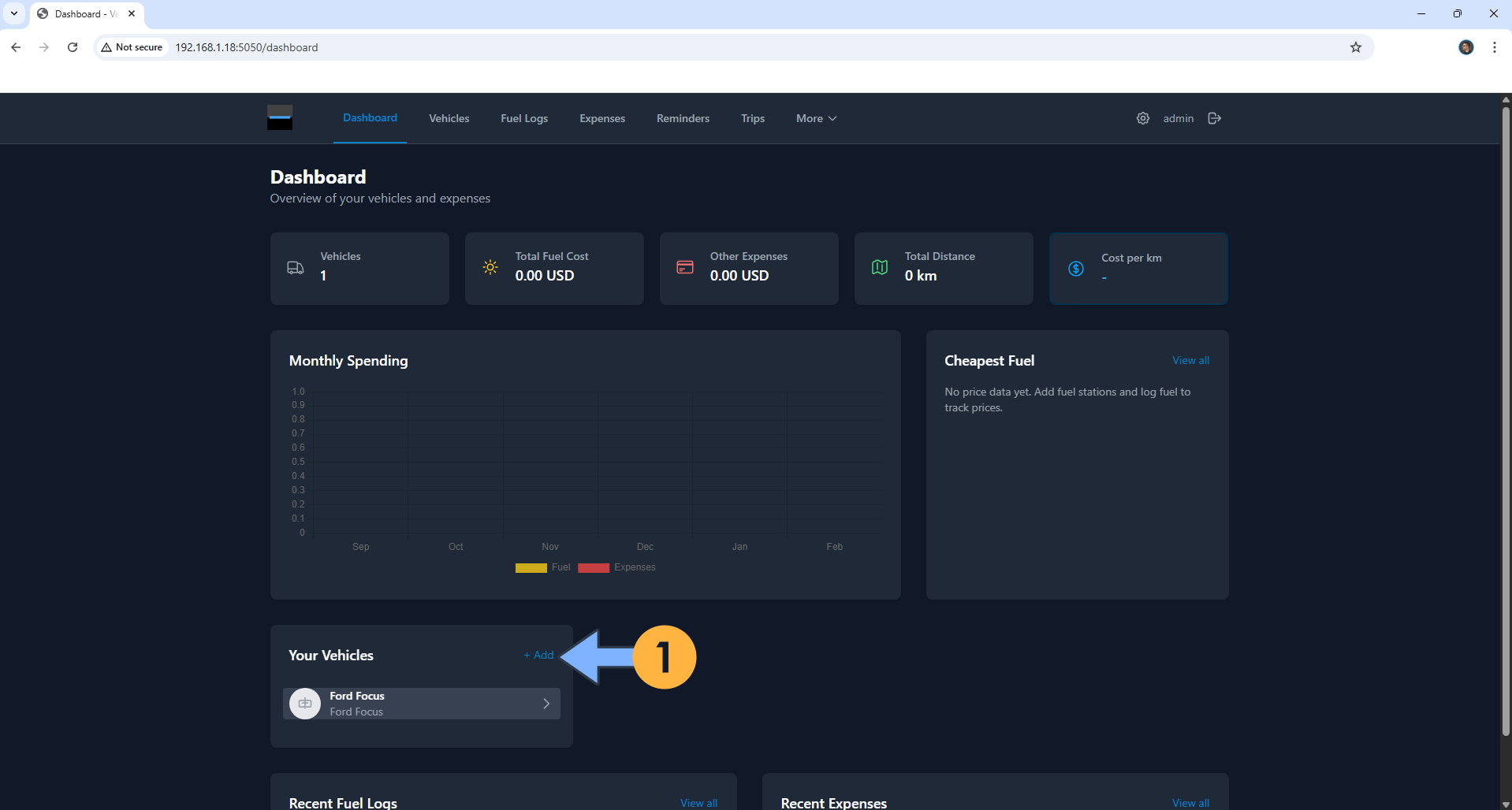
Click + Add to add your first vehicle. Follow the instructions in the image below.
STEP 14
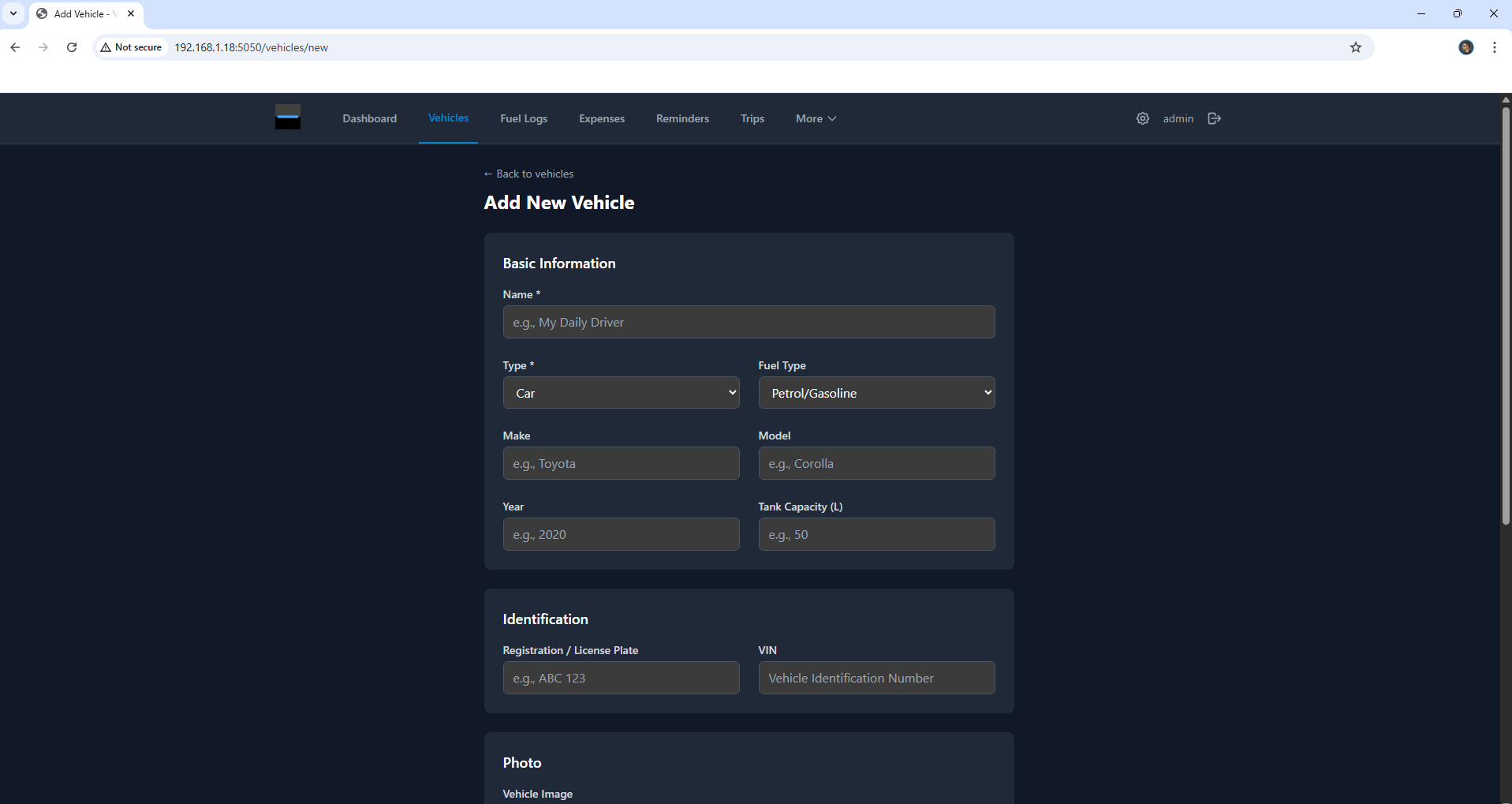
Add your vehicle information, then save it. Follow the instructions in the image below.
STEP 15
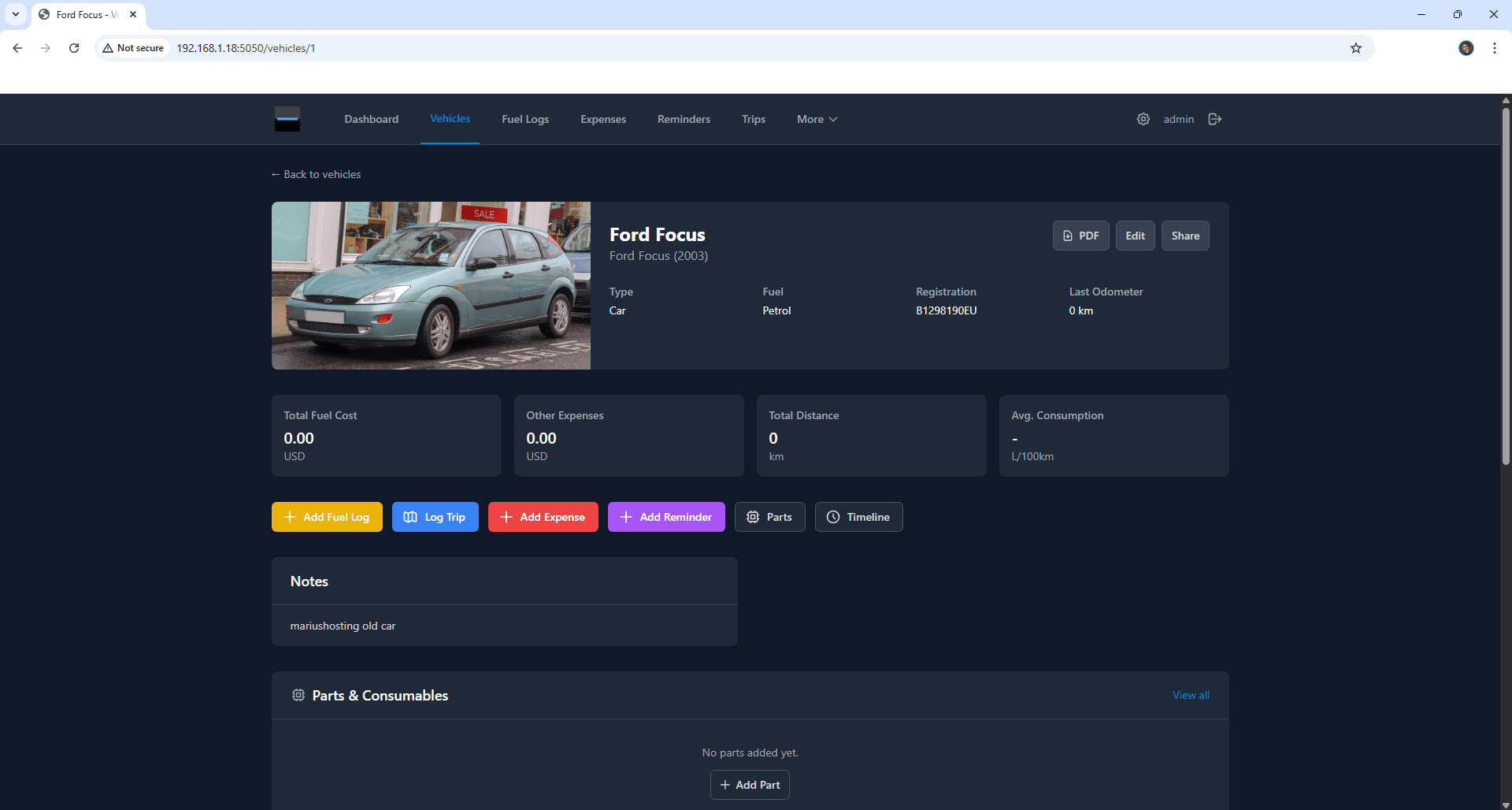
Your first vehicle at a glance!
Enjoy May!
Note: If you want to run the May container over HTTPS, check How to Run Docker Containers Over HTTPS. In order to make May work via HTTPS, it’s mandatory to activate WebSocket.
Note: Can I run Docker on my Synology NAS? See the supported models.
Note: How to Back Up Docker Containers on your Synology NAS.
Note: Find out how to update the May container with the latest image.
Note: How to Add USB Support on DSM 7.2.
Note: How to Free Disk Space on Your NAS if You Run Docker.
Note: How to Schedule Start & Stop For Docker Containers.
Note: How to Activate Email Notifications.
Note: How to Add Access Control Profile on Your NAS.
Note: How to Change Docker Containers Restart Policy.
Note: How to Use Docker Containers With VPN.
Note: Convert Docker Run Into Docker Compose.
Note: How to Clean Docker.
Note: How to Clean Docker Automatically.
Note: Best Practices When Using Docker and DDNS.
Note: Some Docker Containers Need WebSocket.
Note: Find out the Best NAS Models For Docker.
Note: Activate Gmail SMTP For Docker Containers.
This post was updated on Friday / October 2nd, 2026 at 4:15 PM