
Bitwarden Lite is an official self-hosted deployment option for the Bitwarden password manager, released to general availability in December 2025 (previously known as the “Unified” deployment during its beta phase). It is designed as a lightweight and flexible alternative to Bitwarden’s standard self-hosted setup, making it ideal for personal use, homelabs, and small-scale deployments rather than large organizations or businesses. Bitwarden Lite has a lower CPU and memory usage and is optimized for running on modest hardware like NAS servers. It’s fully compatible with official Bitwarden clients (mobile apps, desktop, browser extensions, web vault). In this step by step guide I will show you how to install Bitwarden Lite on your Synology NAS using Docker & Portainer.
This guide works perfectly with the latest Bitwarden Lite v2026.9.2 release.
STEP 1
Please Support My work by Making a Donation.
STEP 2
Install Portainer using my step by step guide. If you already have Portainer installed on your Synology NAS, skip this STEP. Attention: Make sure you have installed the latest Portainer version.
STEP 3
Make sure you have a synology.me Wildcard Certificate. Follow my guide to get a Wildcard Certificate. If you already have a synology.me Wildcard certificate, skip this STEP.
STEP 4
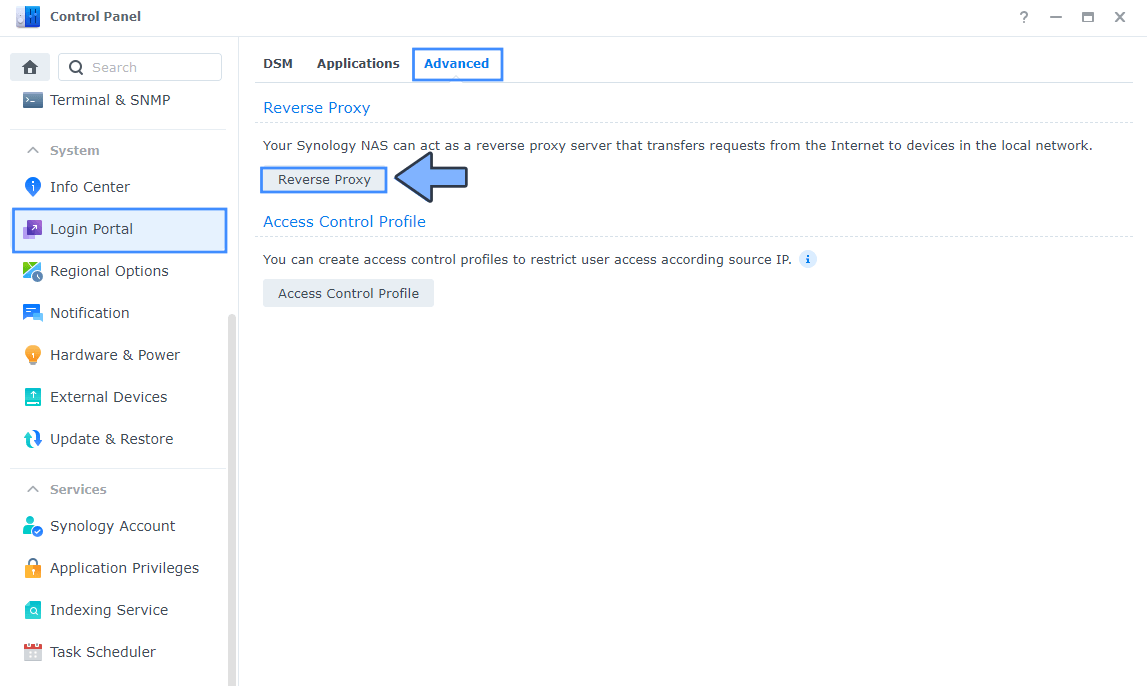
Go to Control Panel / Login Portal / Advanced Tab / click Reverse Proxy. Follow the instructions in the image below.
STEP 5
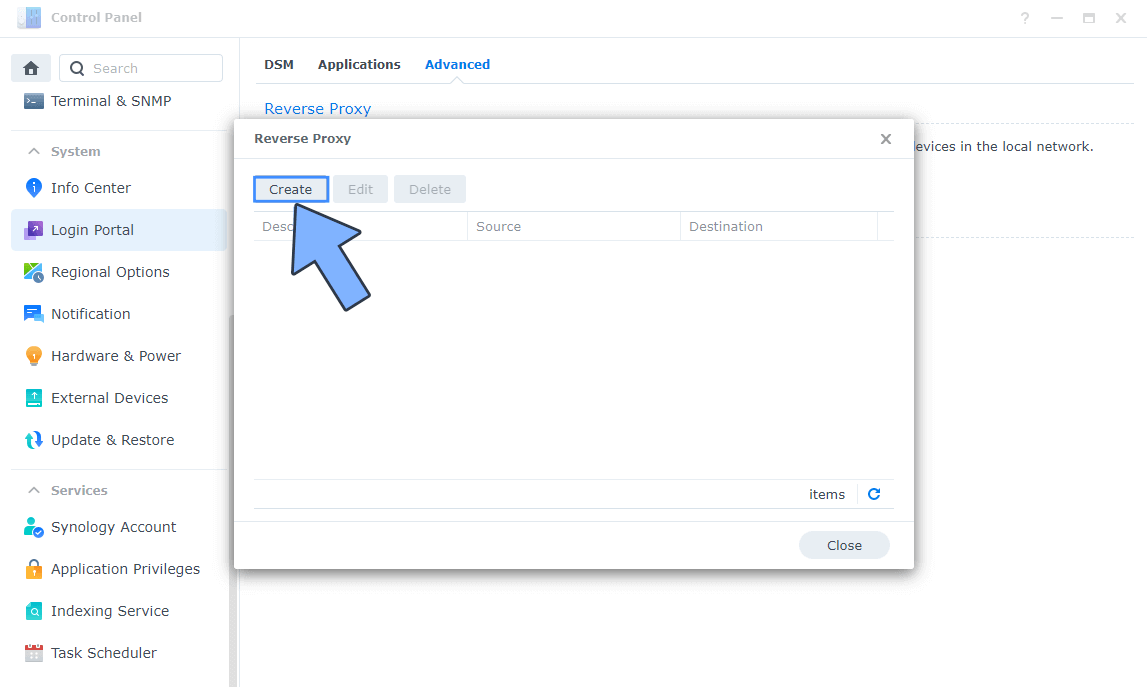
Now click the “Create” button. Follow the instructions in the image below.
STEP 6
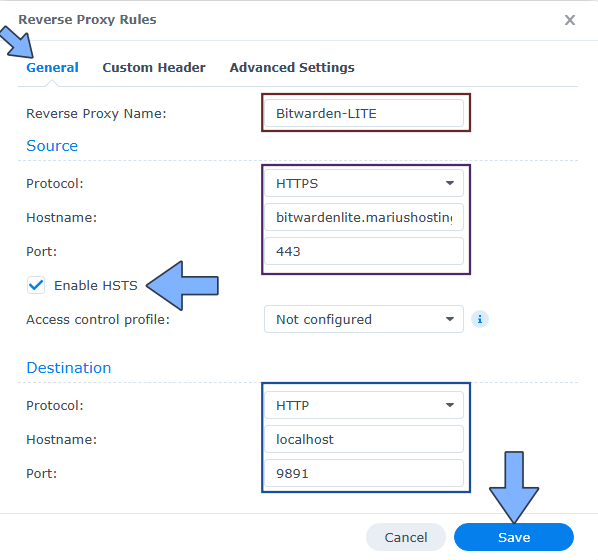
After you click the Create button, the window below will open. Follow the instructions in the image below.
On the General area, set the Reverse Proxy Name description: type in Bitwarden-LITE. After that, add the following instructions:
Source:
Protocol: HTTPS
Hostname: bitwardenlite.yourname.synology.me
Port: 443
Check Enable HSTS
Destination:
Protocol: HTTP
Hostname: localhost
Port: 9891
STEP 7
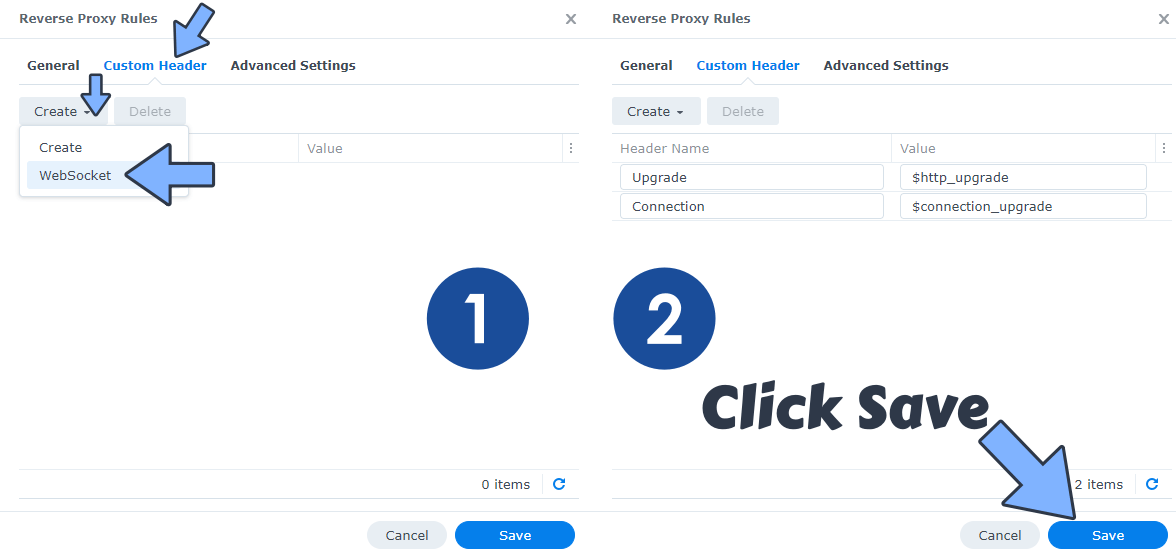
On the Reverse Proxy Rules, click the Custom Header tab. Click Create and then, from the drop-down menu, click WebSocket. After you click on WebSocket, two Header Names and two Values will be automatically added. Click Save. Follow the instructions in the image below.
STEP 8
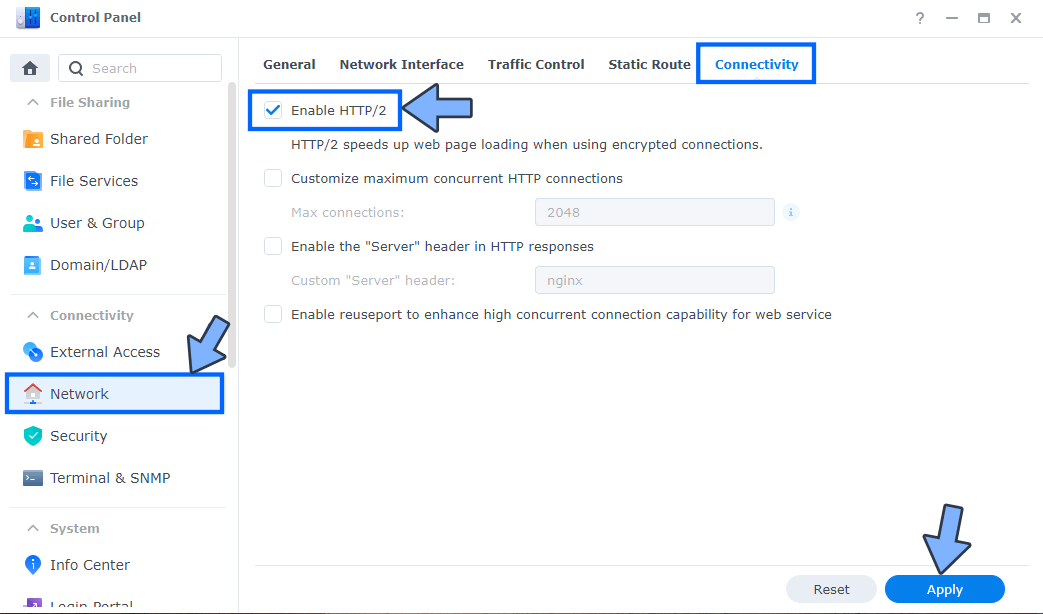
Go to Control Panel / Network / Connectivity tab/ Check Enable HTTP/2 then click Apply. Follow the instructions in the image below.
STEP 9
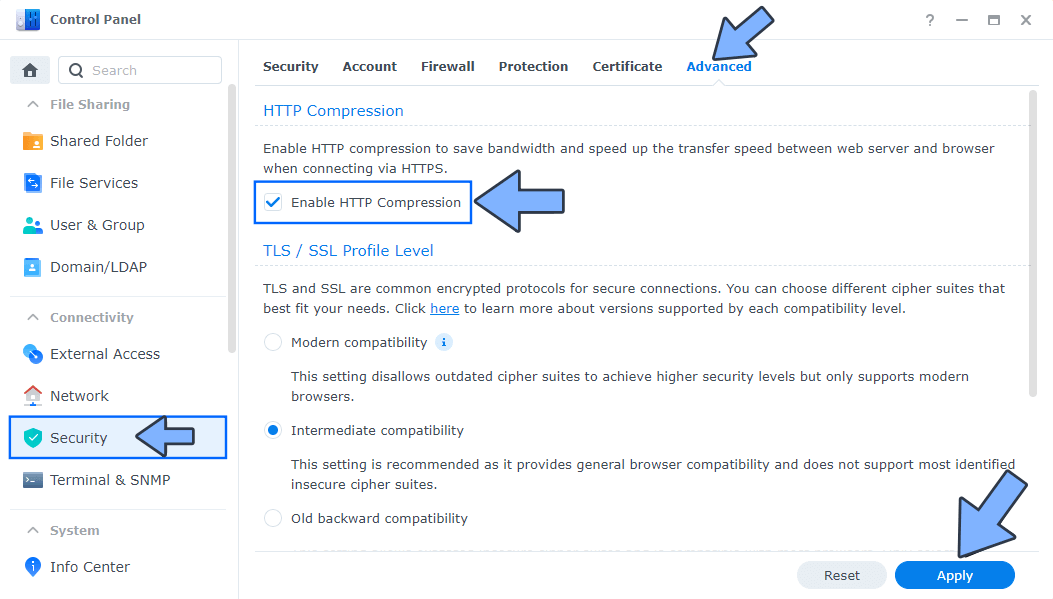
Go to Control Panel / Security / Advanced tab/ Check Enable HTTP Compression then click Apply. Follow the instructions in the image below.
STEP 10
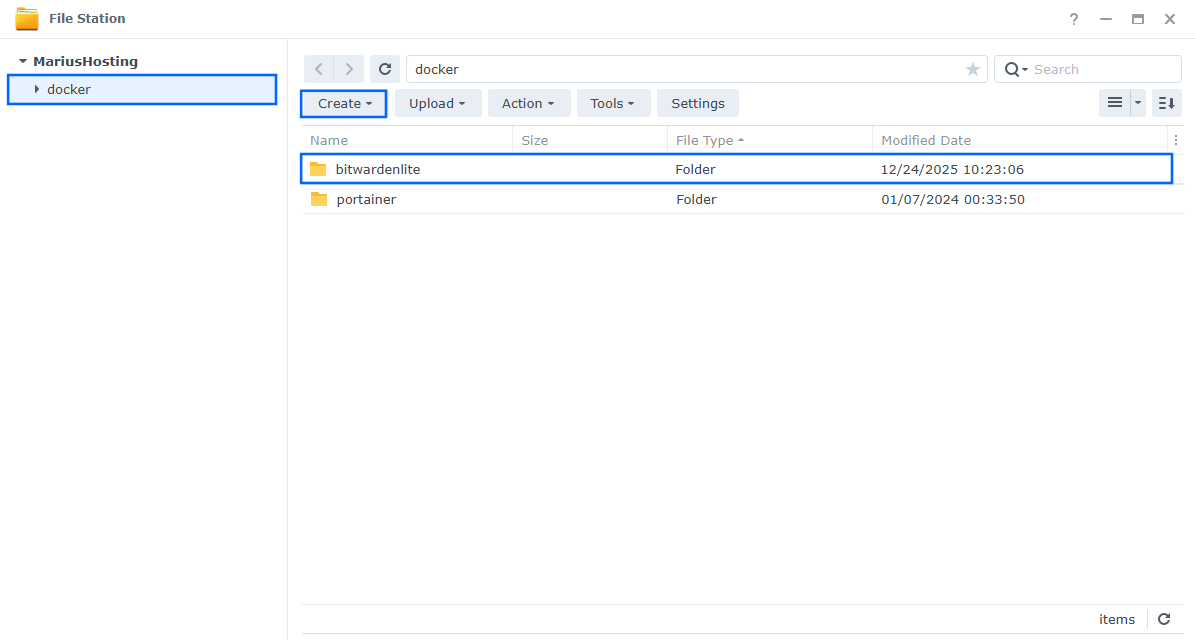
Go to File Station and open the docker folder. Inside the docker folder, create one new folder and name it bitwardenlite. Follow the instructions in the image below.
Note: Be careful to enter only lowercase, not uppercase letters.
STEP 11
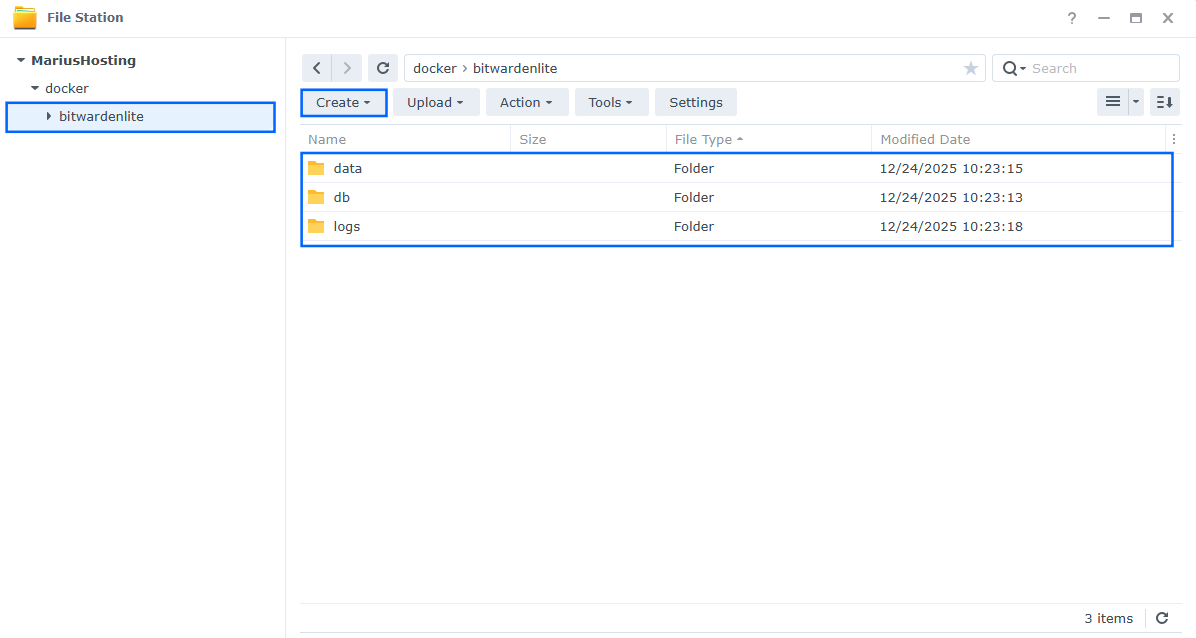
Now create three new folders inside the bitwardenlite folder that you created at STEP 10 and name them data, db, logs. Follow the instructions in the image below.
Note: Be careful to enter only lowercase, not uppercase letters.
STEP 12
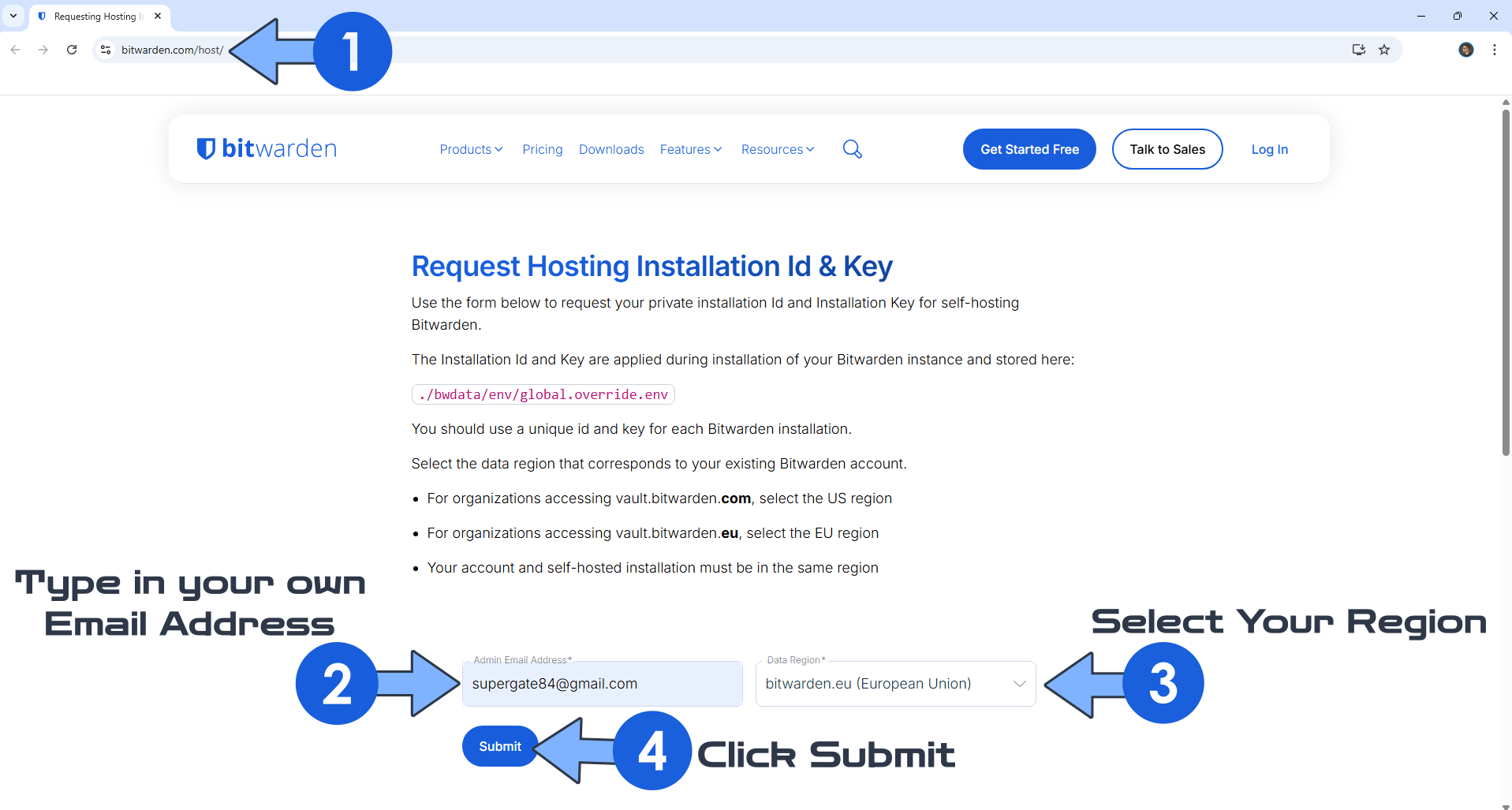
Launch your browser, then go to the official Bitwarden website by clicking on the blue link below.
On the Admin Email Address field, type in your own email. I recommend you use a Gmail account. Select your Data Region, then click Submit. Follow the instructions in the image below.
STEP 13
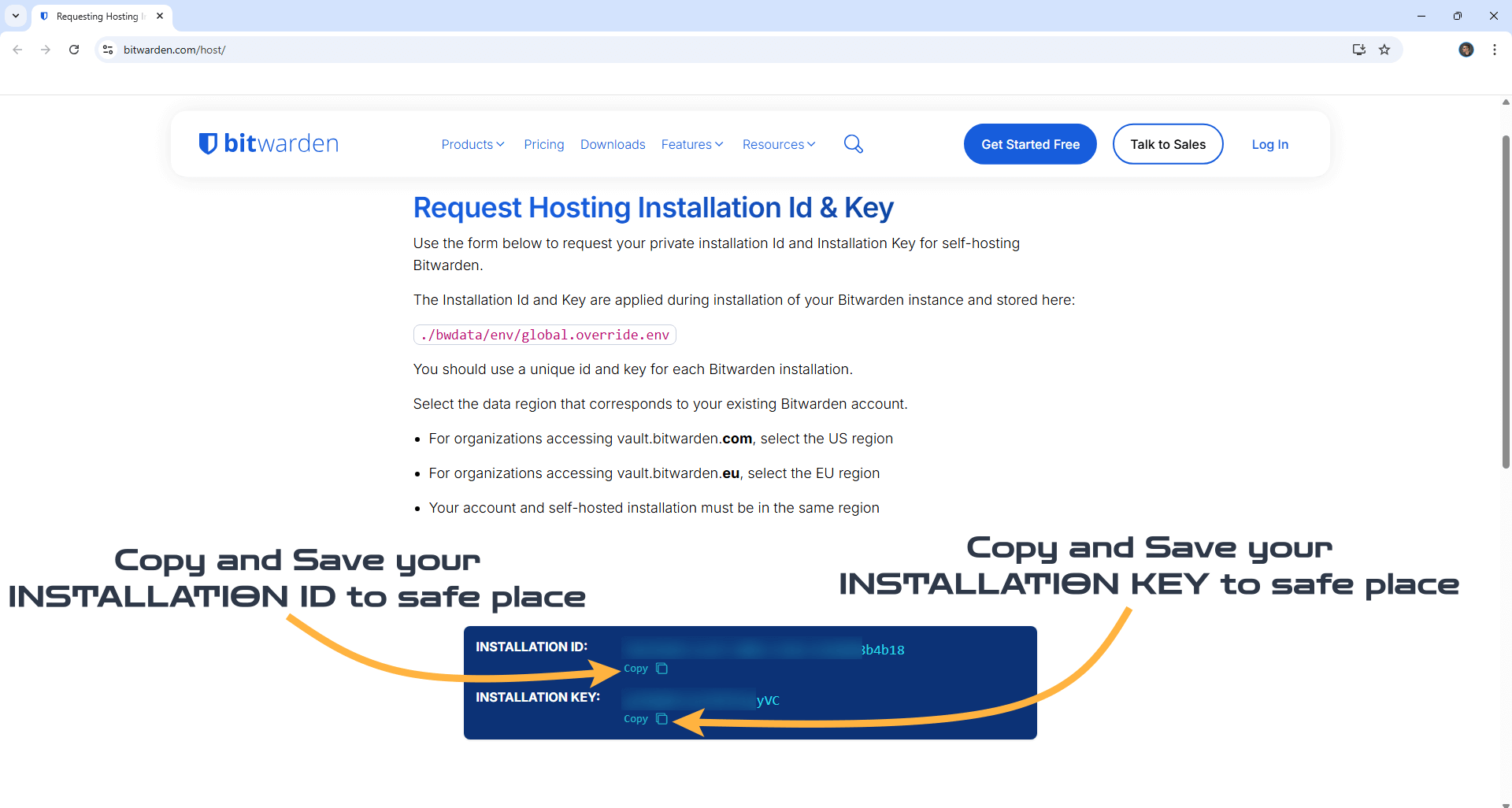
After you click Submit at STEP 12, you will automatically get an INSTALLATION ID and an INSTALLATION KEY. Copy and save them to a safe place because you will need them at STEP 16.
STEP 14
Follow my step by step guide on how to activate SMTP for your Gmail account. This step is mandatory. Note: If you don’t want to use the easiest way for SMTP with Google and you already have SMTP details from your own Mail Server, you can just skip this STEP and use your personalized email SMTP details instead.
STEP 15
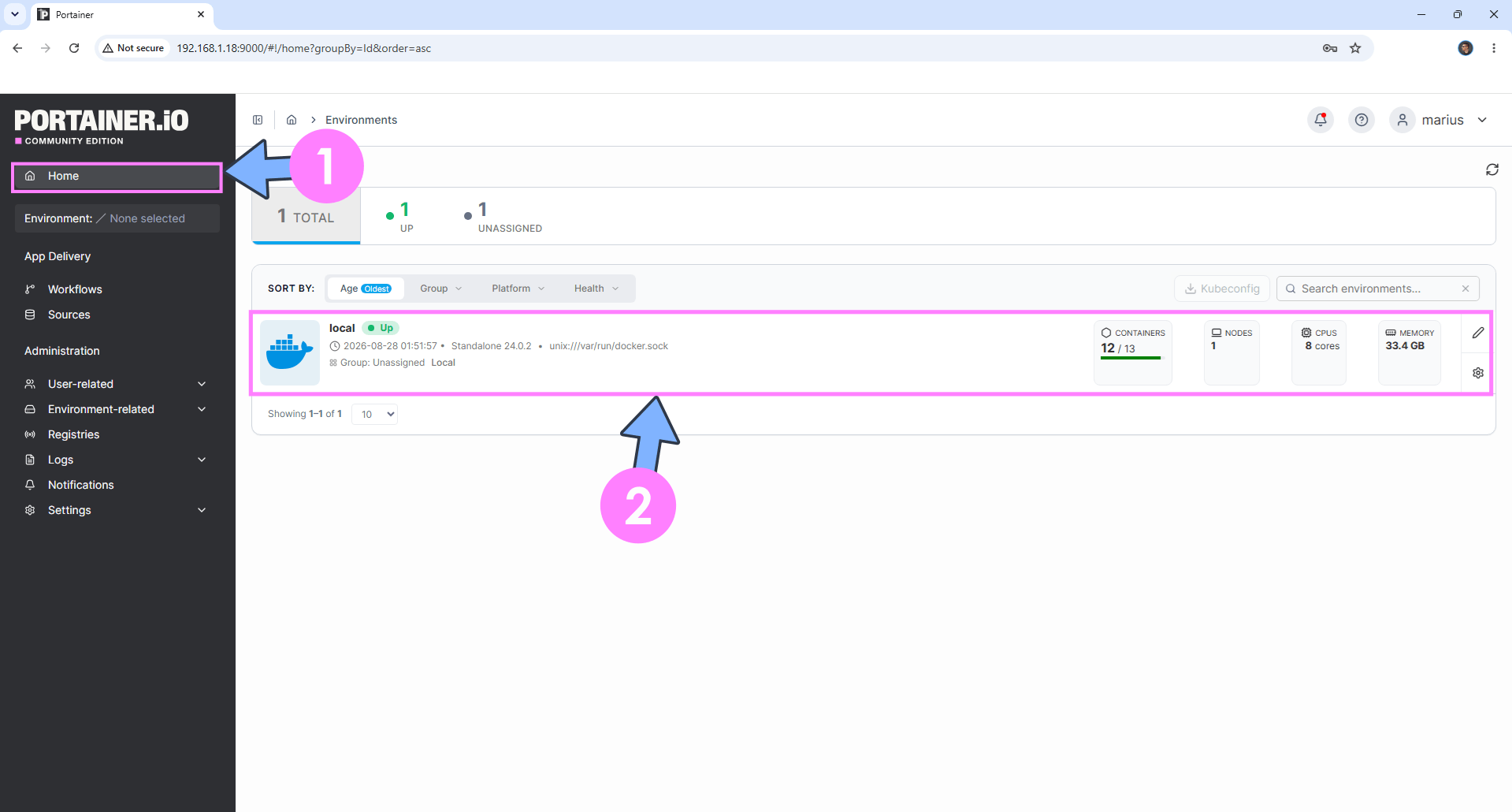
Log into Portainer using your username and password. On the left sidebar in Portainer, click on Home then click inside the local rectangle. Follow the instructions in the image below.
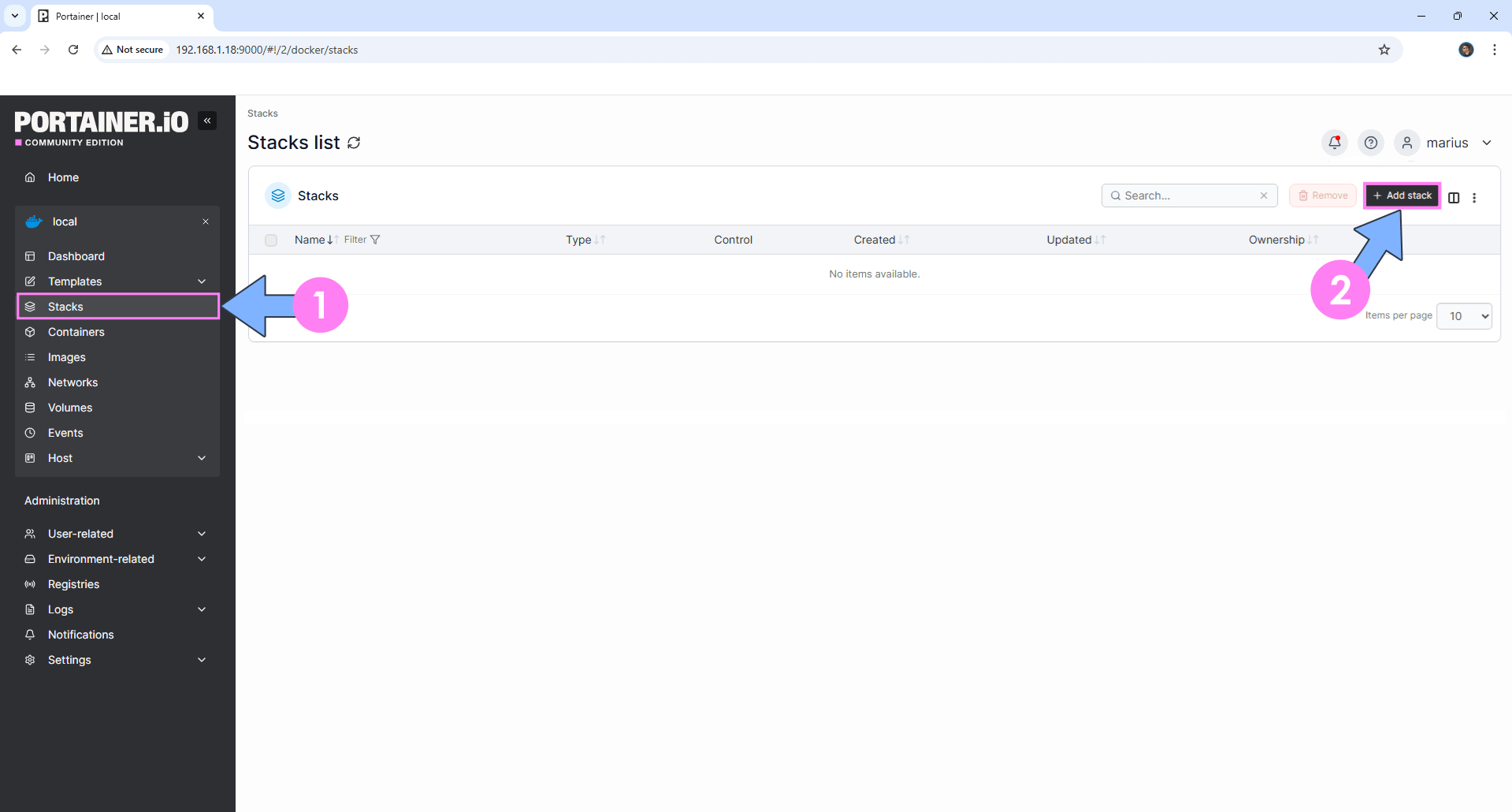
On the left sidebar in Portainer, click on Stacks then + Add stack. Follow the instructions in the image below.
STEP 16
In the Name field type in bitwardenlite. Follow the instructions in the image below.
services:
  db:
    image: postgres:18
    container_name: Bitwarden-LITE-DB
    hostname: bitwarden-db
    healthcheck:
      test: ["CMD", "pg_isready", "-q", "-d", "bitwarden_vault", "-U", "bitwardenuser"]
      timeout: 45s
      interval: 10s
      retries: 10
    volumes:
      - /volume1/docker/bitwardenlite/db:/var/lib/postgresql:rw
    environment:
      POSTGRES_DB: bitwarden_vault
      POSTGRES_USER: bitwardenuser
      POSTGRES_PASSWORD: bitwardenpass
    restart: on-failure:5

  bitwarden:
    image: ghcr.io/bitwarden/lite
    container_name: Bitwarden-LITE
    hostname: bitwarden
    security_opt:
      - no-new-privileges:true
    healthcheck:
      test: curl -fsSo - http://localhost:8080
    environment:
      - BW_DOMAIN=bitwardenlite.yourname.synology.me
      - BW_DB_PROVIDER=postgresql
      - BW_DB_SERVER=bitwarden-db
      - BW_DB_DATABASE=bitwarden_vault
      - BW_DB_USERNAME=bitwardenuser
      - BW_DB_PASSWORD=bitwardenpass
      - BW_INSTALLATION_ID=Your-Own-Bitwarden-Installation-ID
      - BW_INSTALLATION_KEY=Your-Own-Bitwarden-Installation-KEY
      - UID=1026
      - GID=100
      - BW_ENABLE_ADMIN=true
      - globalSettings__logDirectory=/etc/bitwarden/logs
      - adminSettings__admins=Your-own-gmail-address
      - globalSettings__disableUserRegistration=false
      - globalSettings__mail__replyToEmail=Your-own-gmail-address
      - globalSettings__mail__smtp__host=smtp.gmail.com
      - globalSettings__mail__smtp__ssl=false
      - globalSettings__mail__smtp__port=587
      - globalSettings__mail__smtp__username=Your-own-gmail-address
      - globalSettings__mail__smtp__password=Your-own-app-password
    ports:
      - 9891:8080
    volumes:
      - /volume1/docker/bitwardenlite/data:/etc/bitwarden:rw
      - /volume1/docker/bitwardenlite/logs:/var/log/bitwarden:rw
    restart: on-failure:5
    depends_on:
      db:
        condition: service_started
Note: Before you paste the code above in the Web editor area below, change the value for BW_DOMAIN and type in your own synology.me DDNS without https:// at the beginning that you have previously created at STEP 6.
Note: Before you paste the code above in the Web editor area below, change the value for BW_INSTALLATION_ID and type in your own Bitwarden INSTALLATION ID that you have previously copied and saved at STEP 13.
Note: Before you paste the code above in the Web editor area below, change the value for BW_INSTALLATION_KEY and type in your own Bitwarden INSTALLATION KEY that you have previously copied and saved at STEP 13.
Note: Before you paste the code above in the Web editor area below, change the value numbers for UID and GID with your own values. (Follow my step by step guide on how to do this.) 1026 is my personal UID value and 100 is my personal GID value. You have to type in your own values.
Note: Before you paste the code above in the Web editor area below, change the value for adminSettings__admins and type in your own Gmail address. STEP 14.
Note: Before you paste the code above in the Web editor area below, change the value for globalSettings__mail__replyToEmail and type in your own Gmail address. STEP 14.
Note: Before you paste the code above in the Web editor area below, change the value for globalSettings__mail__smtp__username and type in your own Gmail address. STEP 14.
Note: Before you paste the code above in the Web editor area below, change the value for globalSettings__mail__smtp__password and type in your own Gmail app password. STEP 14.

STEP 17
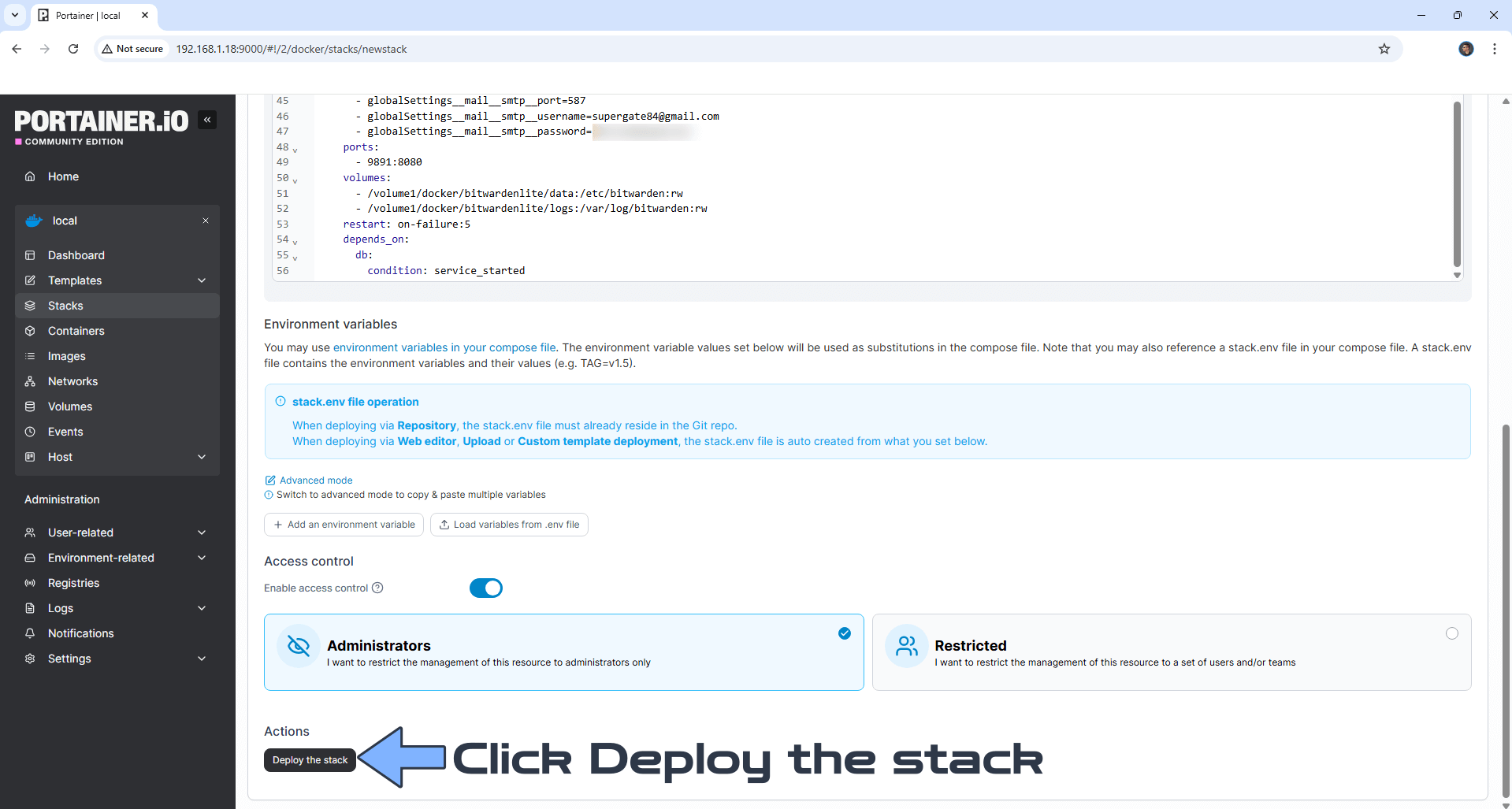
Scroll down on the page until you see a button named Deploy the stack. Click on it. Follow the instructions in the image below. The installation process can take up to a few minutes. It will depend on your Internet speed connection.
STEP 18
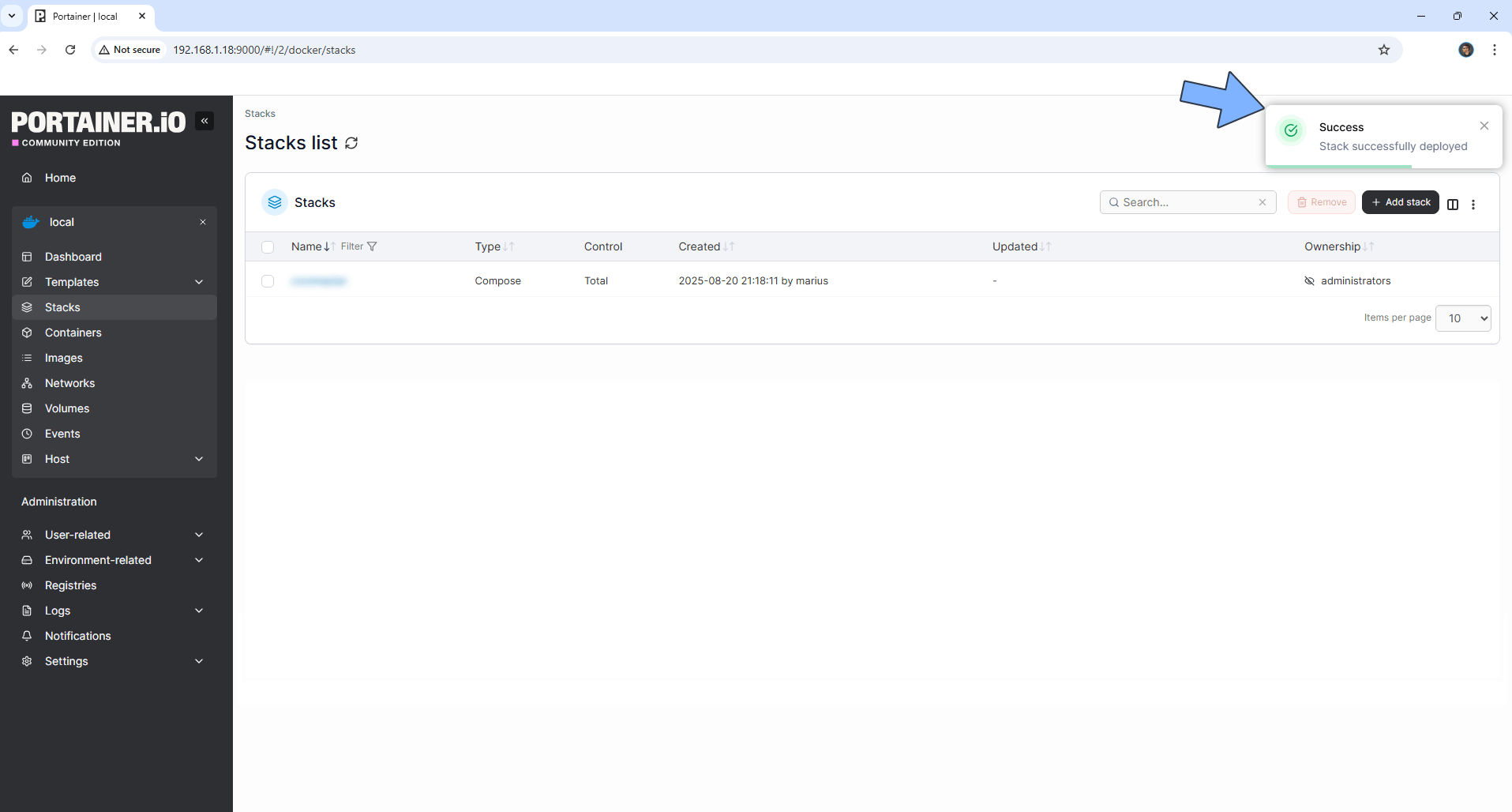
If everything goes right, you will see the following message at the top right of your screen: “Success Stack successfully deployed“.
STEP 19
🟢Please Support My work by Making a Donation. You’ve just followed a detailed, ad-free guide that took real time and testing to create. I don’t run ads, I don’t sell subscriptions, I don’t track you, and I don’t use affiliate links. I simply create these guides because I love helping the community. But this work only continues if the community supports it back. If this guide saved you time, frustration or money, please take 30 seconds and make a donation.
STEP 20
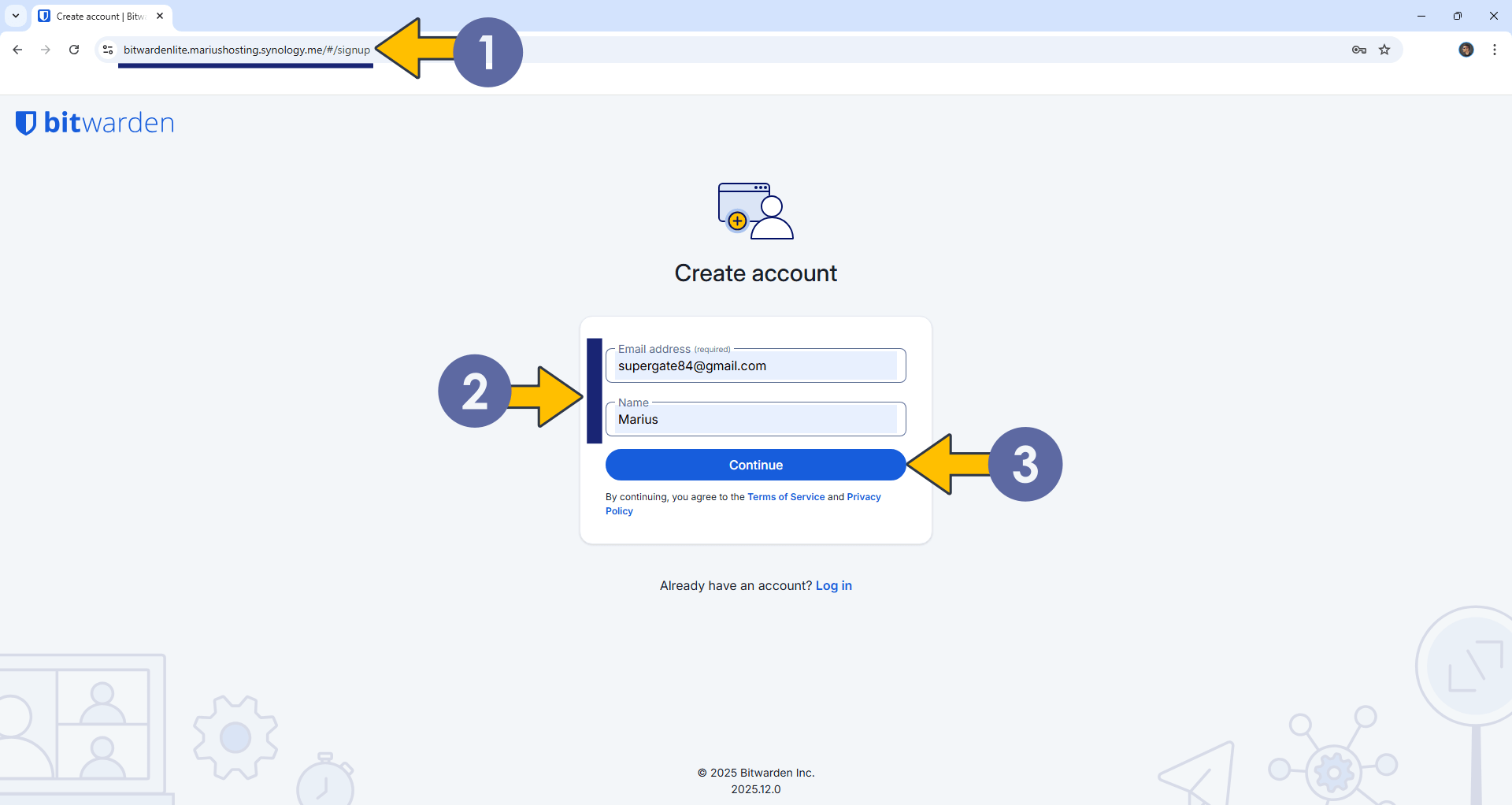
Now open your browser and type in your HTTPS/SSL certificate like this https://bitwardenlite.yourname.synology.me/#/signup In my case it’s https://bitwardenlite.mariushosting.synology.me/#/signup If everything goes right, you will see the Bitwarden Lite Register account page. Type in your own Email address (adminSettings__admins) that you have previously added at STEP 16, and Name. Click Continue. Follow the instructions in the image below. Note: If you forget to add /#/signup after your synology.me DDNS, you will not be able to register an account.
STEP 21
If you get an error message when registering that says: unhandled server error, just wait for a few seconds/minutes, then click the Continue button again. If the error message pops up again, make sure the BW_DOMAIN at STEP 16 is correctly added. Also check if your email credentials at STEP 16 are correct. If you notice there was a typo somewhere in your compose stack at STEP 16, you will need to start the Bitwarden Lite installation from scratch. Remember to follow the Docker Clean guide to the letter before your start the installation again. And make sure there are no typos next time.
STEP 22
Type in your Master Password, confirm it, then click Create Account. Wait a few seconds until your account is created. Follow the instructions in the image below.

STEP 23
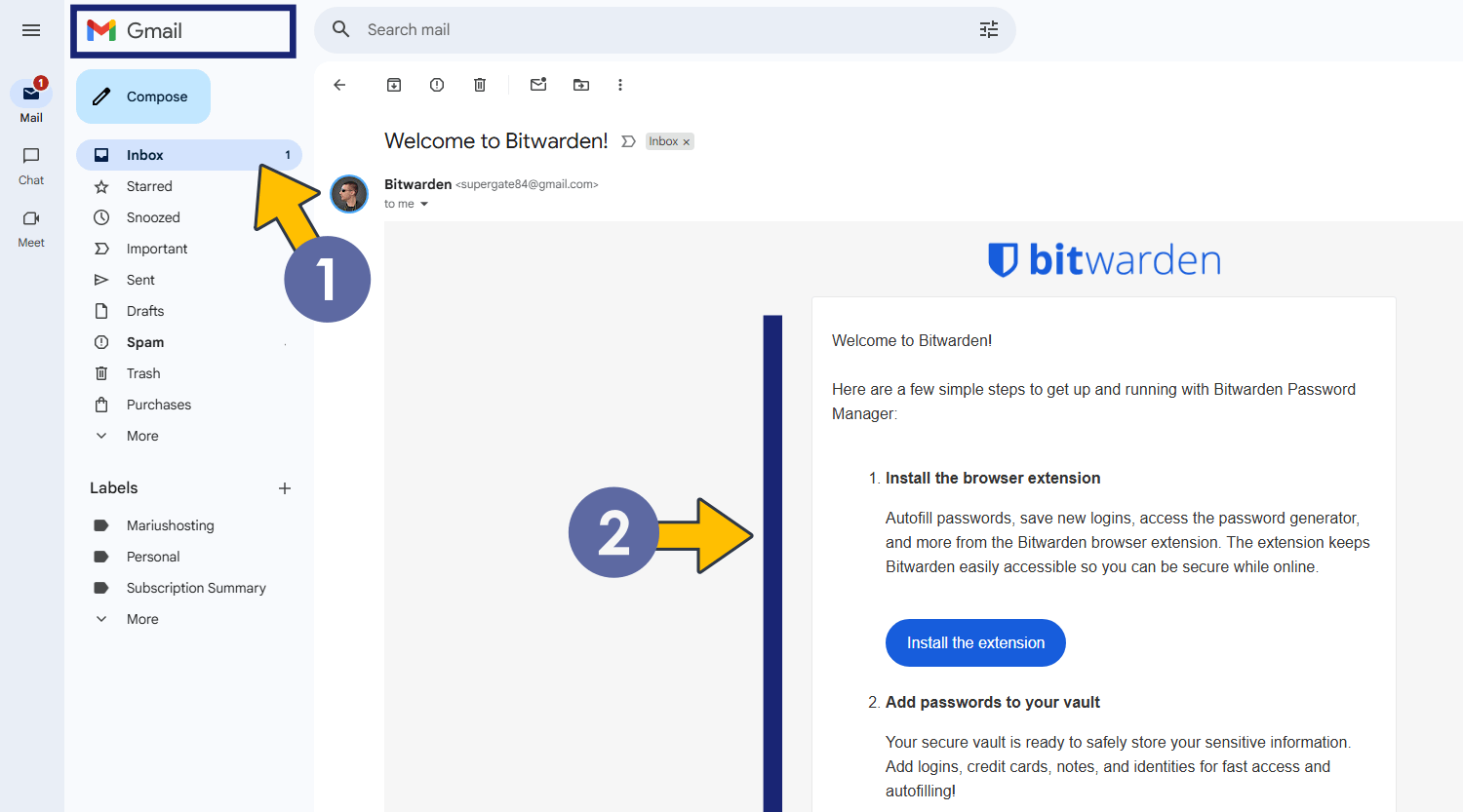
After the account is created, you will also receive a Welcome email. Go to the next STEP.
STEP 24
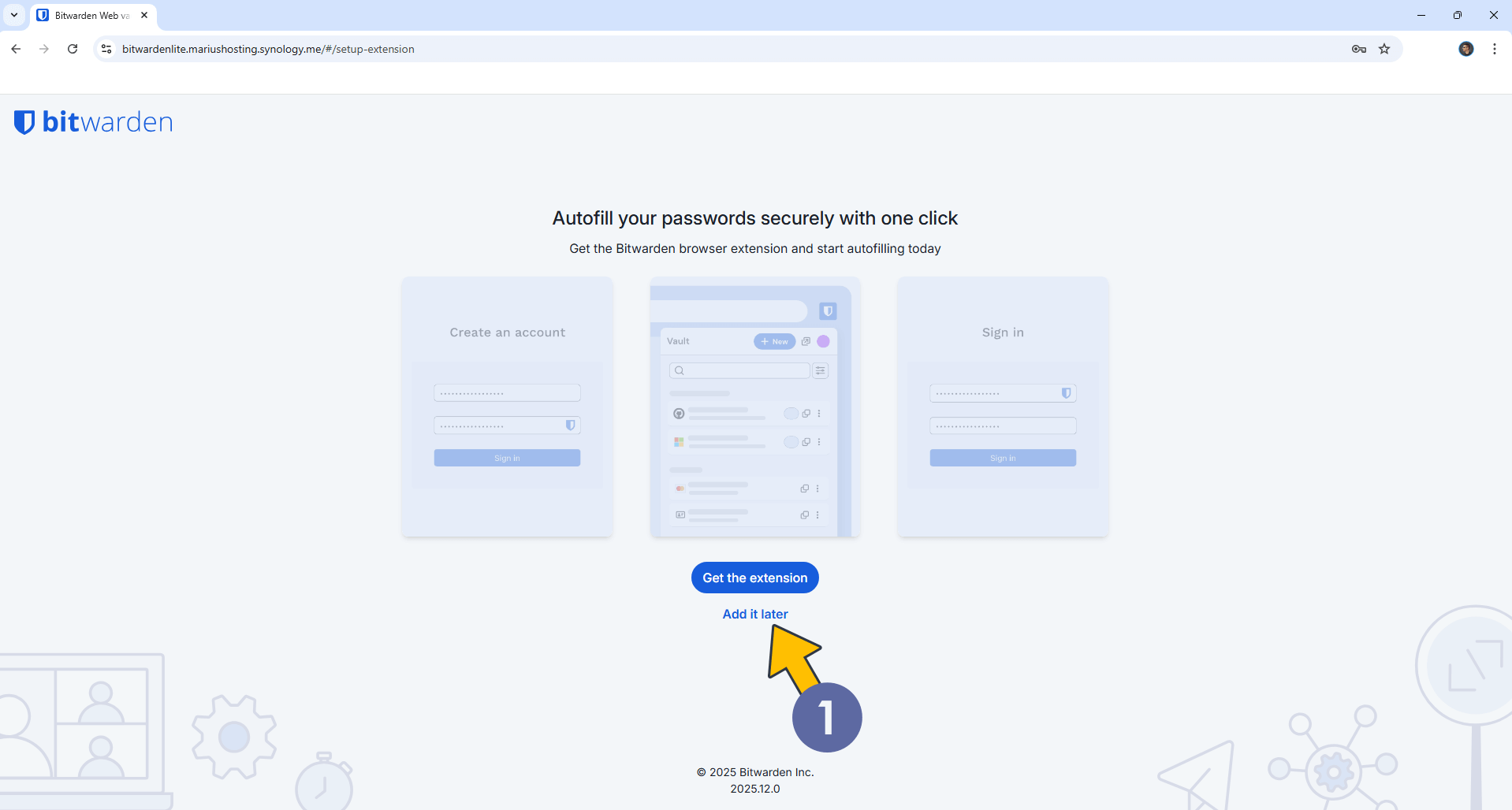
Get the extension or click Add it later to add it later. Follow the instructions in the image below.
STEP 25
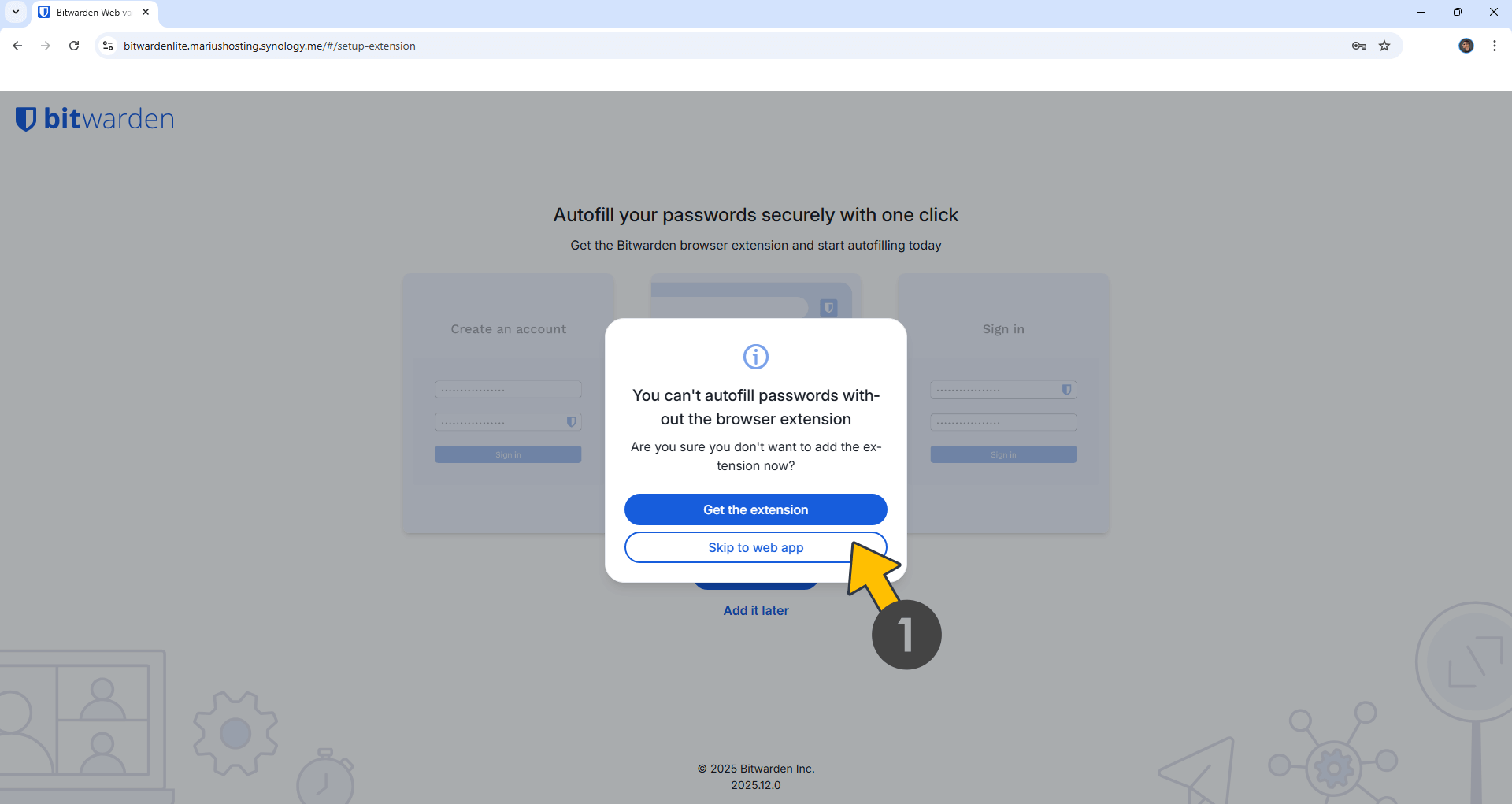
Skip to web app if you decided to add the extension later. Follow the instructions in the image below.
STEP 26
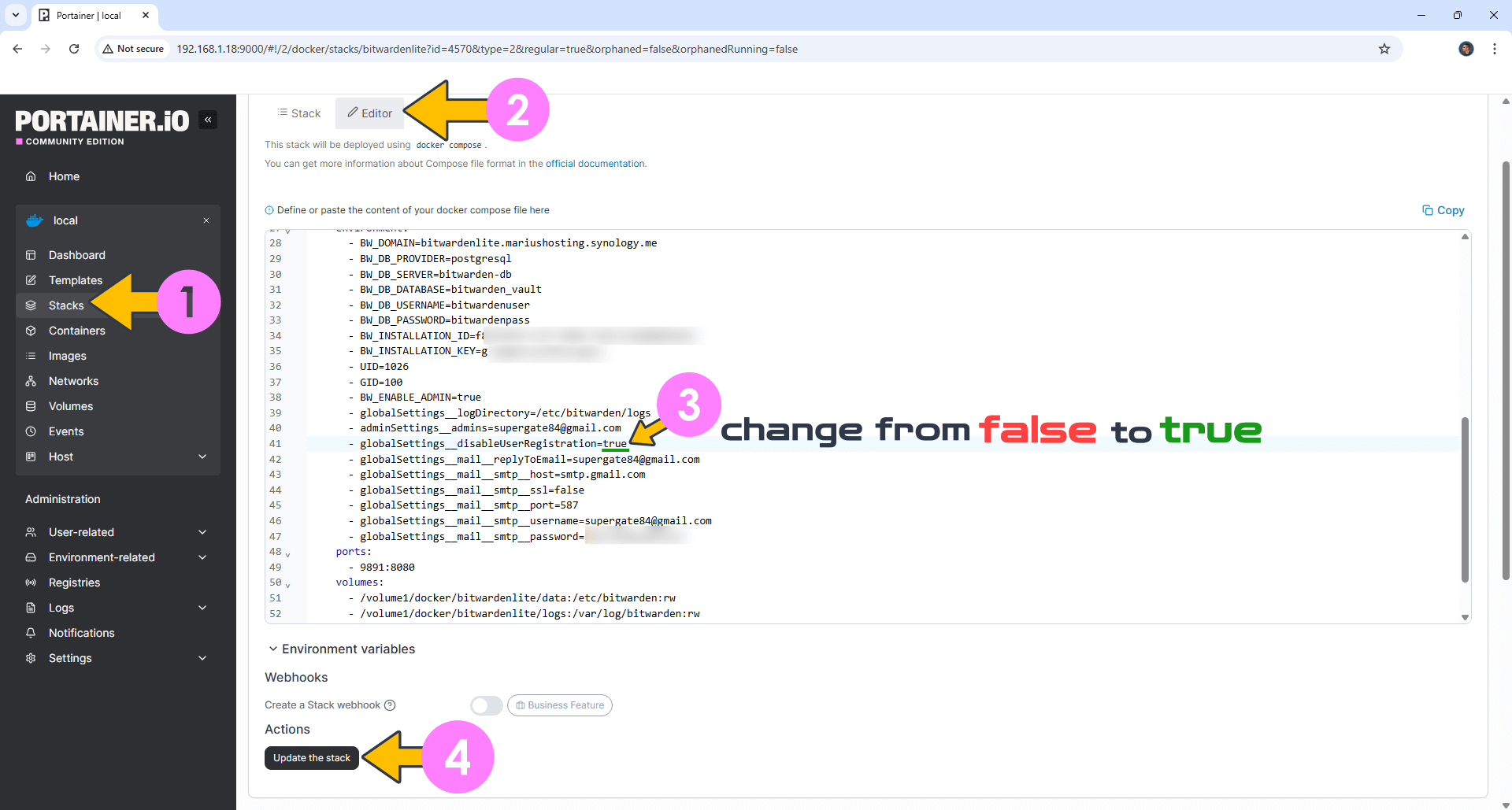
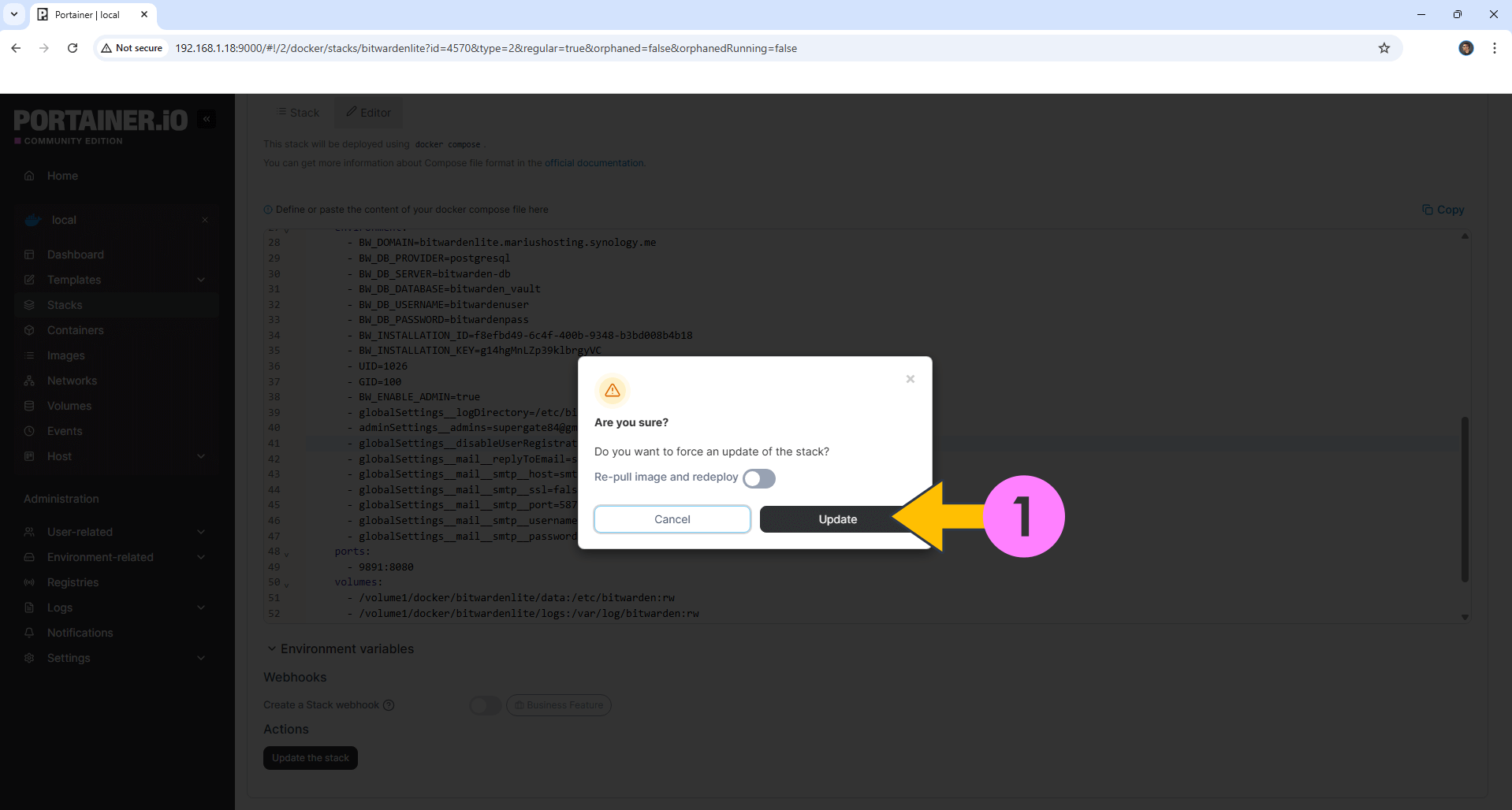
One of the most important things you need to know about Bitwarden is that anyone who can access your HTTPS Bitwarden link can register for a new account by default. Follow my step by step guide below to disable registration of new users in Bitwarden. Open Portainer then go to Stacks. Localize then click on your bitwardenlite stack that you have previously created at STEP 16. Click the EDITOR tab then change the value on line globalsettings__disableUserRegistration from:
– globalsettings__disableUserRegistration=false to – globalsettings__disableUserRegistration=true
Click Update the stack. Follow the instructions in the image below.
A new pop up window will open. Click Update.
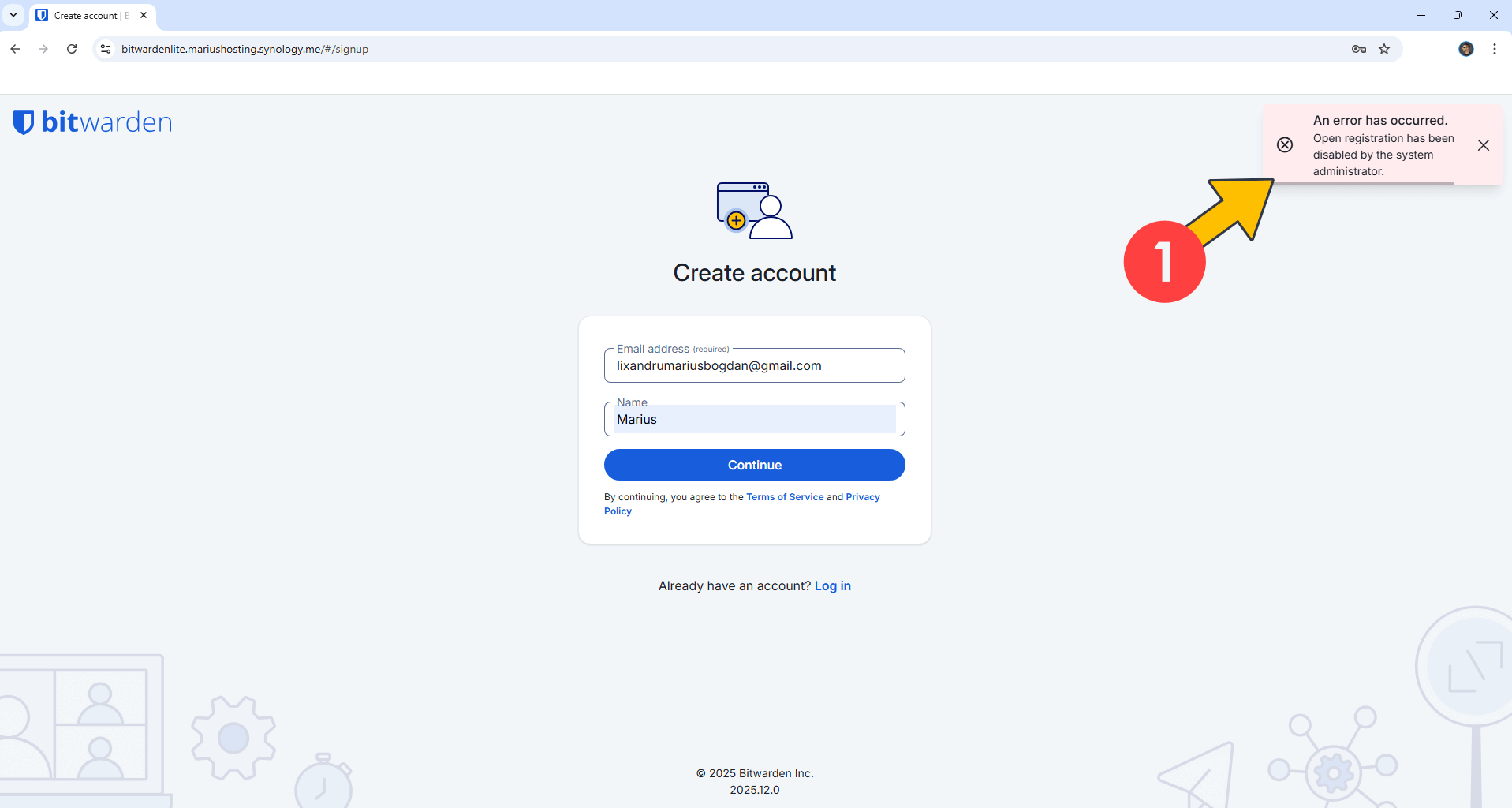
When new users try to register, they will receive the following error message: “An error has occurred. Open Registration has been disabled by the system administrator”. To reactivate user registration, change the value from true to false.
STEP 27
If you want, you can also access your Bitwarden admin dashboard at https://bitwardenlite.yourname.synology.me/admin In my case it’s https://bitwardenlite.mariushosting.synology.me/admin
STEP 28
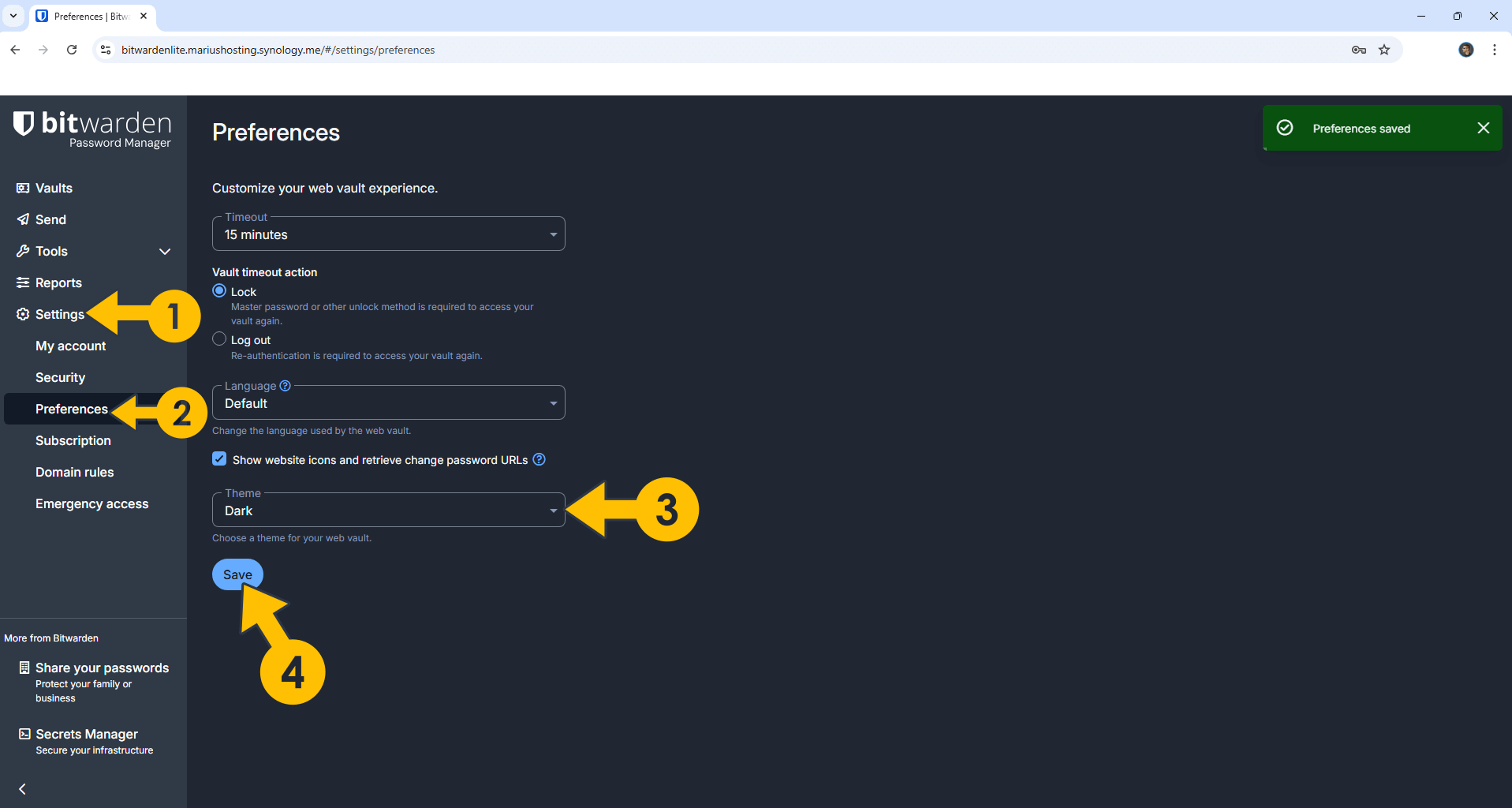
You can also change the theme from Light to Dark. On the left sidebar in Bitwarden Lite, click Settings, then Preferences. Select the Dark theme, then click Save. Follow the instructions in the image below.
STEP 29
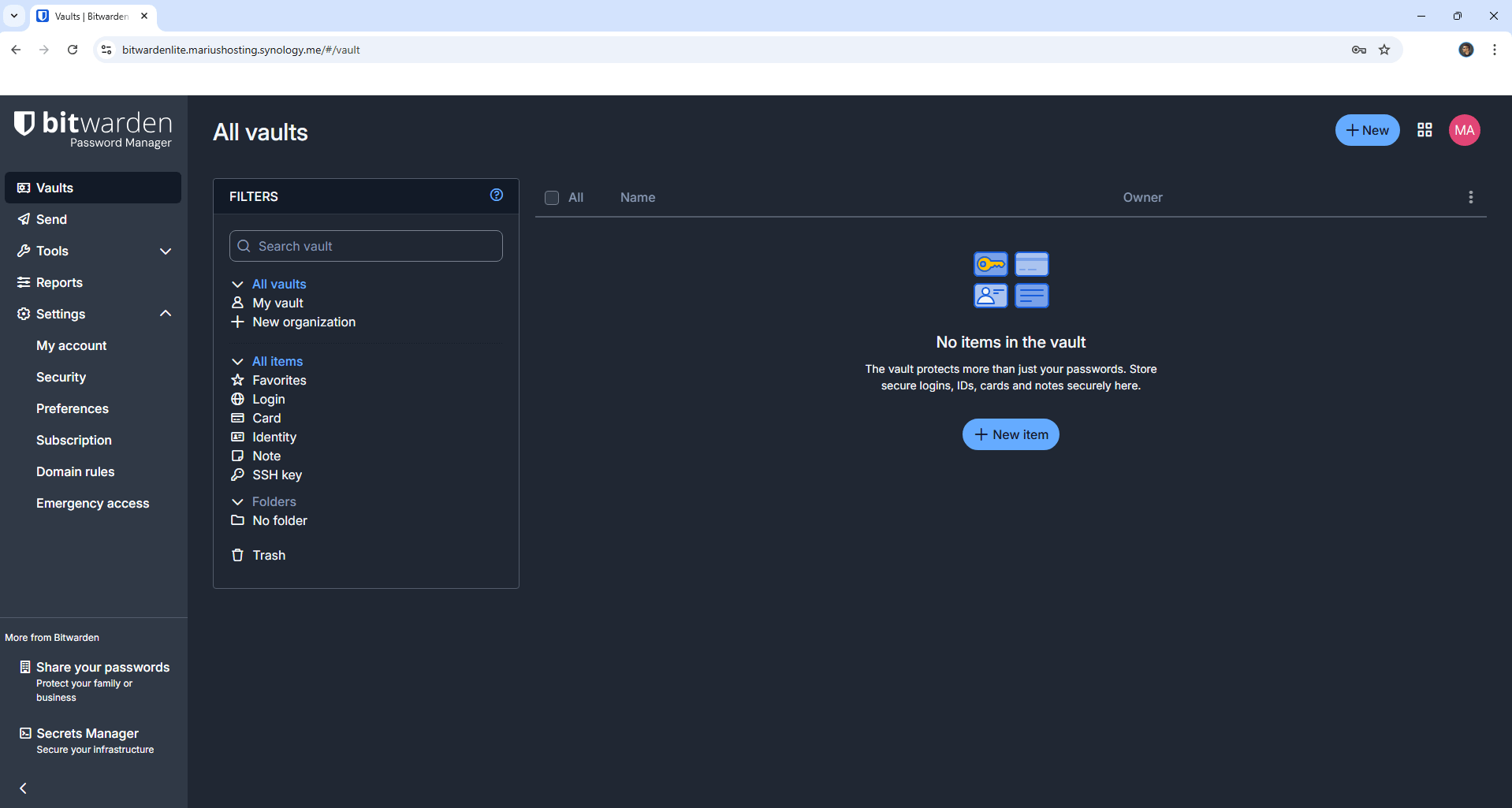
Your Bitwarden Lite dashboard at a glance!
Enjoy Bitwarden Lite!
If you encounter issues by using this container, make sure to check out the Common Docker issues article.
Note: Can I run Docker on my Synology NAS? See the supported models.
Note: How to Back Up Docker Containers on your Synology NAS.
Note: Find out how to update the Bitwarden Lite container with the latest image.
Note: How to Free Disk Space on Your NAS if You Run Docker.
Note: How to Schedule Start & Stop For Docker Containers.
Note: How to Activate Email Notifications.
Note: How to Add Access Control Profile on Your NAS.
Note: How to Change Docker Containers Restart Policy.
Note: How to Use Docker Containers With VPN.
Note: Convert Docker Run Into Docker Compose.
Note: How to Clean Docker.
Note: How to Clean Docker Automatically.
Note: Best Practices When Using Docker and DDNS.
Note: Some Docker Containers Need WebSocket.
Note: Find out the Best NAS Models For Docker.
Note: Activate Gmail SMTP For Docker Container
This post was updated on Monday / October 5th, 2026 at 4:10 PM