
Kokoro is an open-weight TTS model with 82 million parameters. Despite its lightweight architecture, it delivers comparable quality to larger models while being significantly faster and more cost-efficient. With Apache-licensed weights, Kokoro can be deployed anywhere from production environments to personal projects. In this step by step guide I will show you how to install Kokoro on your Synology NAS using Docker and Dockhand.
STEP 1
Please Support My work by Making a Donation.
STEP 2
Install Dockhand using my step by step guide. If you already have Dockhand installed on your Synology NAS, skip this STEP. ⚠️Attention: Make sure you have installed the latest Dockhand version.
STEP 3
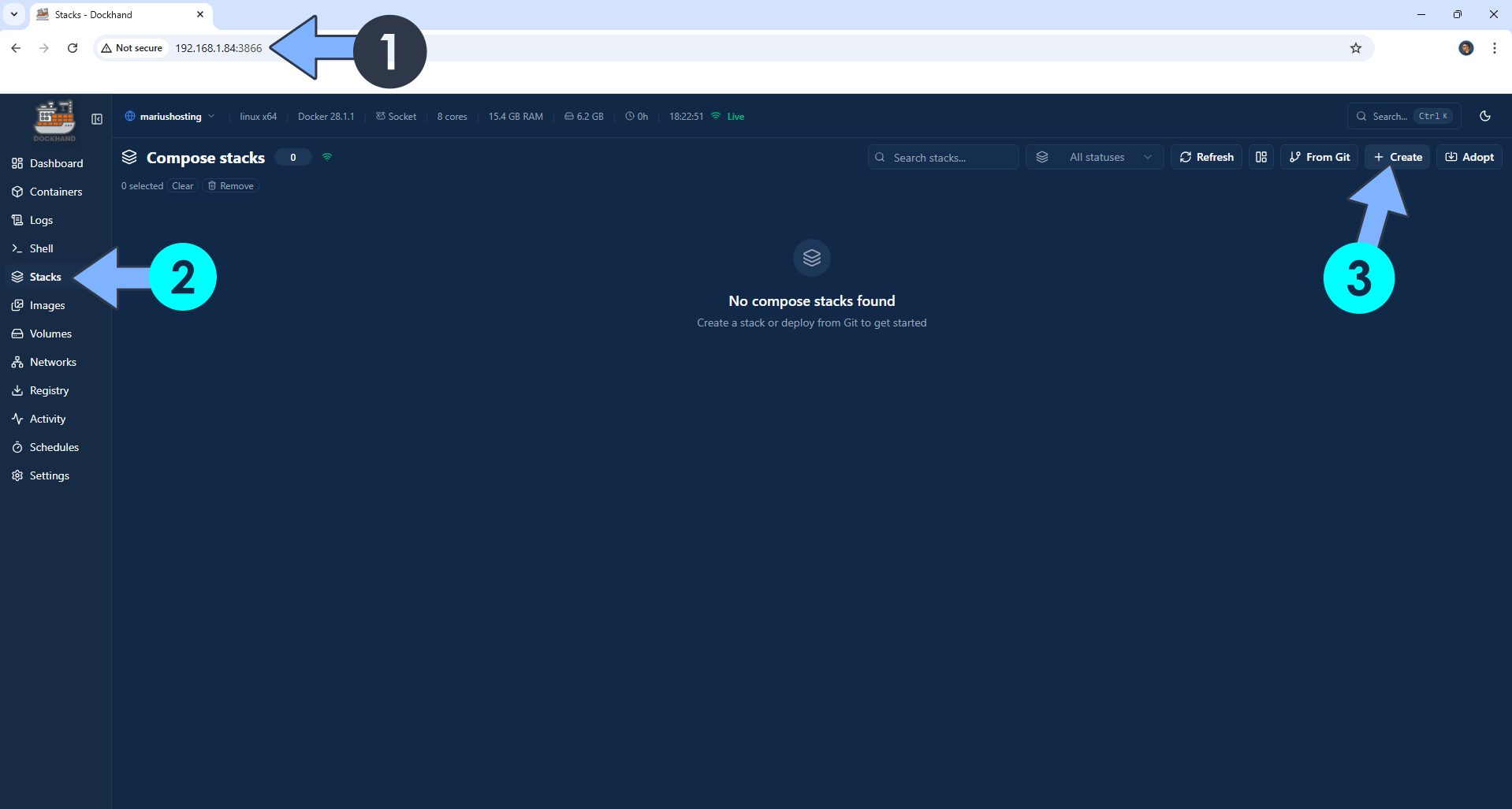
Open your browser and type in http://synology-ip-address:3866 to connect to your Dockhand container. On the left sidebar, click Stacks then + Create. Follow the instructions in the image below.
STEP 4
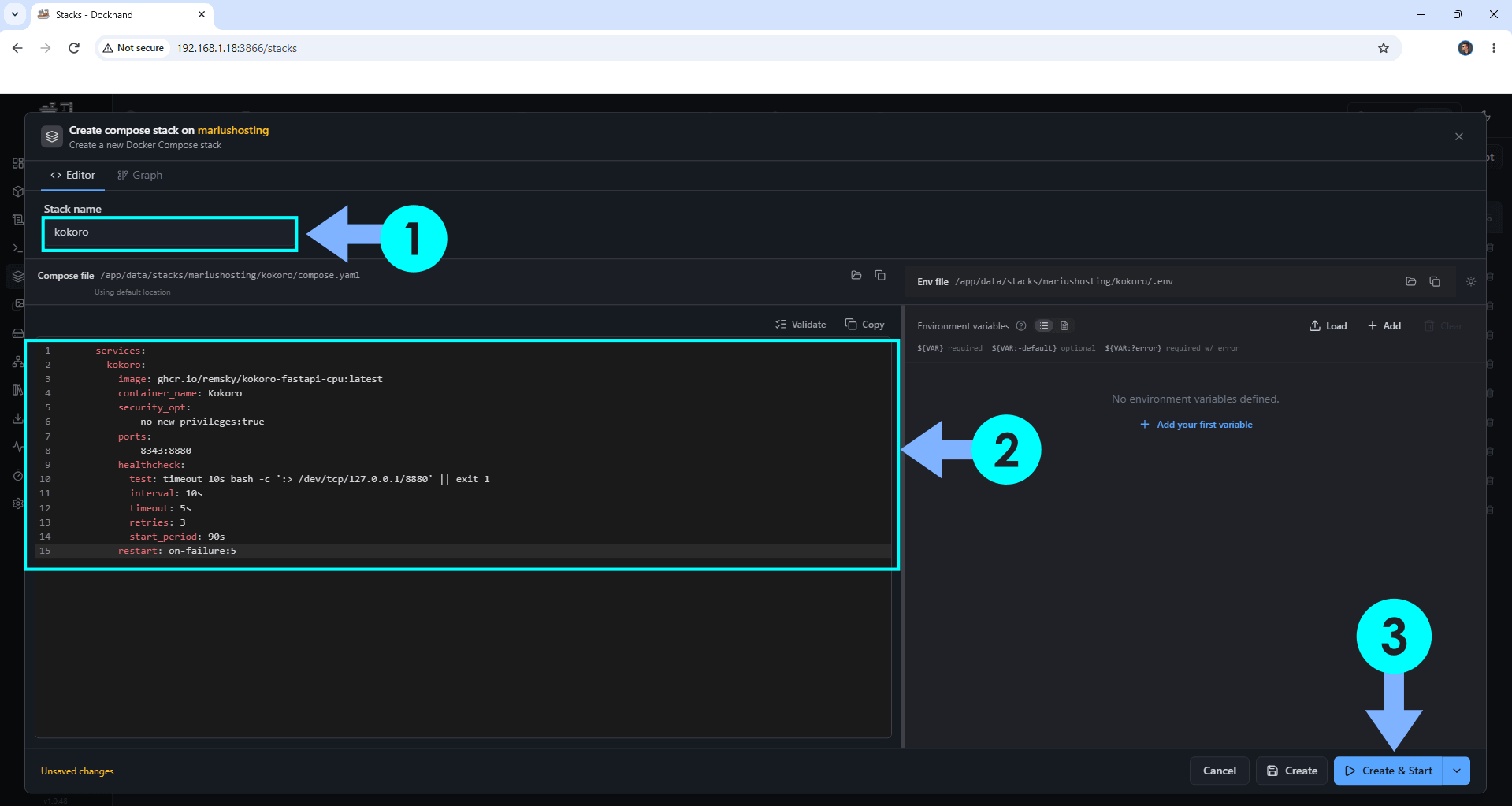
In the Stack name field, type in kokoro. ⚠️Warning: Type in the name in lowercase letters. The installation process can take up to a few seconds/minutes. It will depend on your Internet speed connection. Follow the instructions in the image below.
services:
  kokoro:
    image: ghcr.io/remsky/kokoro-fastapi-cpu:latest
    container_name: Kokoro
    security_opt:
      - no-new-privileges:true
    ports:
      - 8343:8880
    healthcheck:
      test: timeout 10s bash -c ':> /dev/tcp/127.0.0.1/8880' || exit 1
      interval: 10s
      timeout: 5s
      retries: 3
      start_period: 90s
    restart: on-failure:5
STEP 6
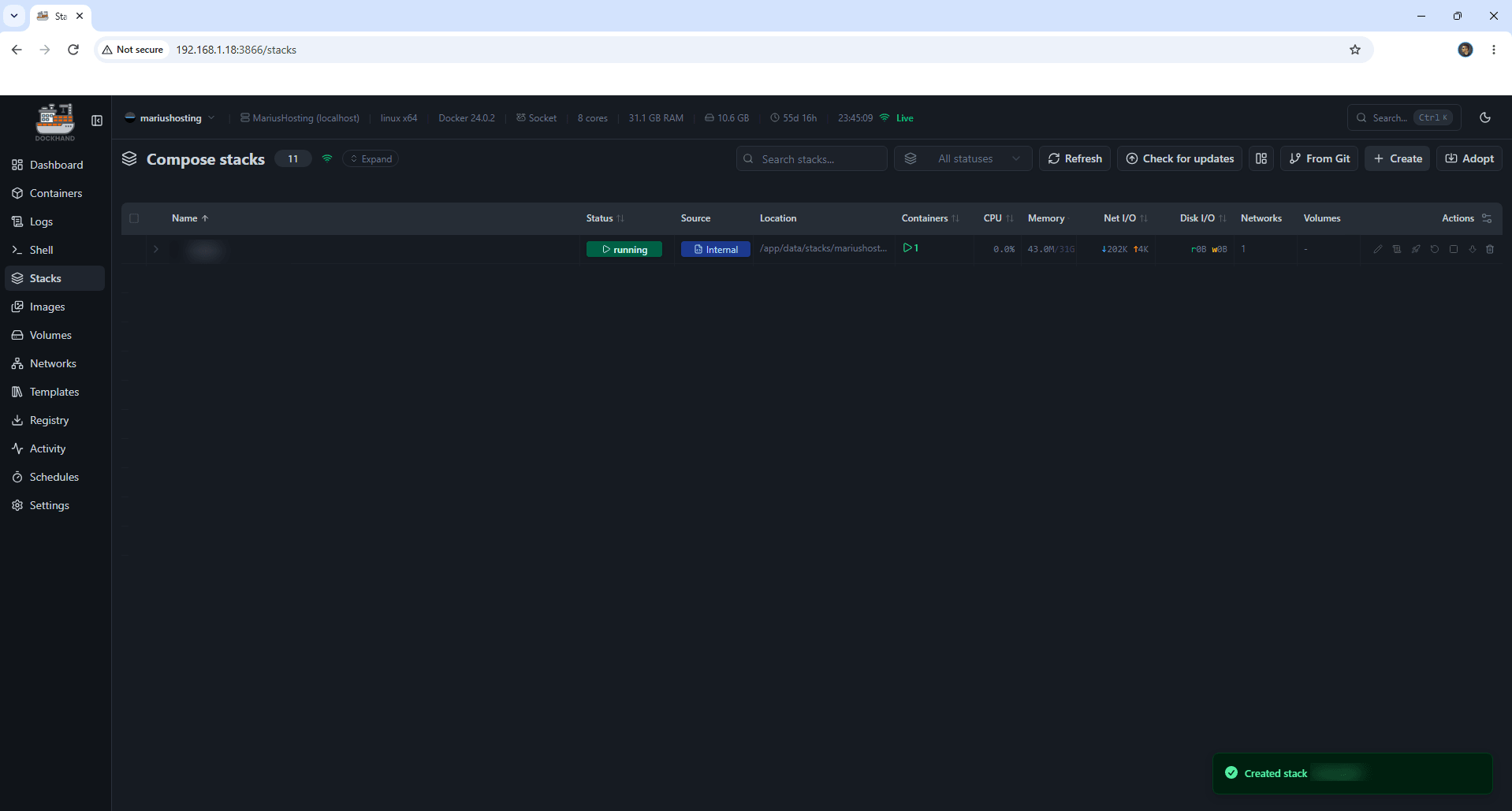
If everything goes right, you will see the following message at the bottom right of your screen: “Created stack “kokoro”“.
STEP 7
Please Support My work by Making a Donation. Almost 99,9% of the people that install something using my guides forget to support my work, or just ignore STEP 1. I’ve been very honest about this aspect of my work since the beginning: I don’t run any ADS, I don’t require subscriptions, paid or otherwise, I don’t collect IPs, emails, and I don’t have any referral links from Amazon or other merchants. I also don’t have any POP-UPs or COOKIES. I have repeatedly been told over the years how much I have contributed to the community. It’s something I love doing and have been honest about my passion since the beginning. But I also Need The Community to Support me Back to be able to continue doing this work.
STEP 8
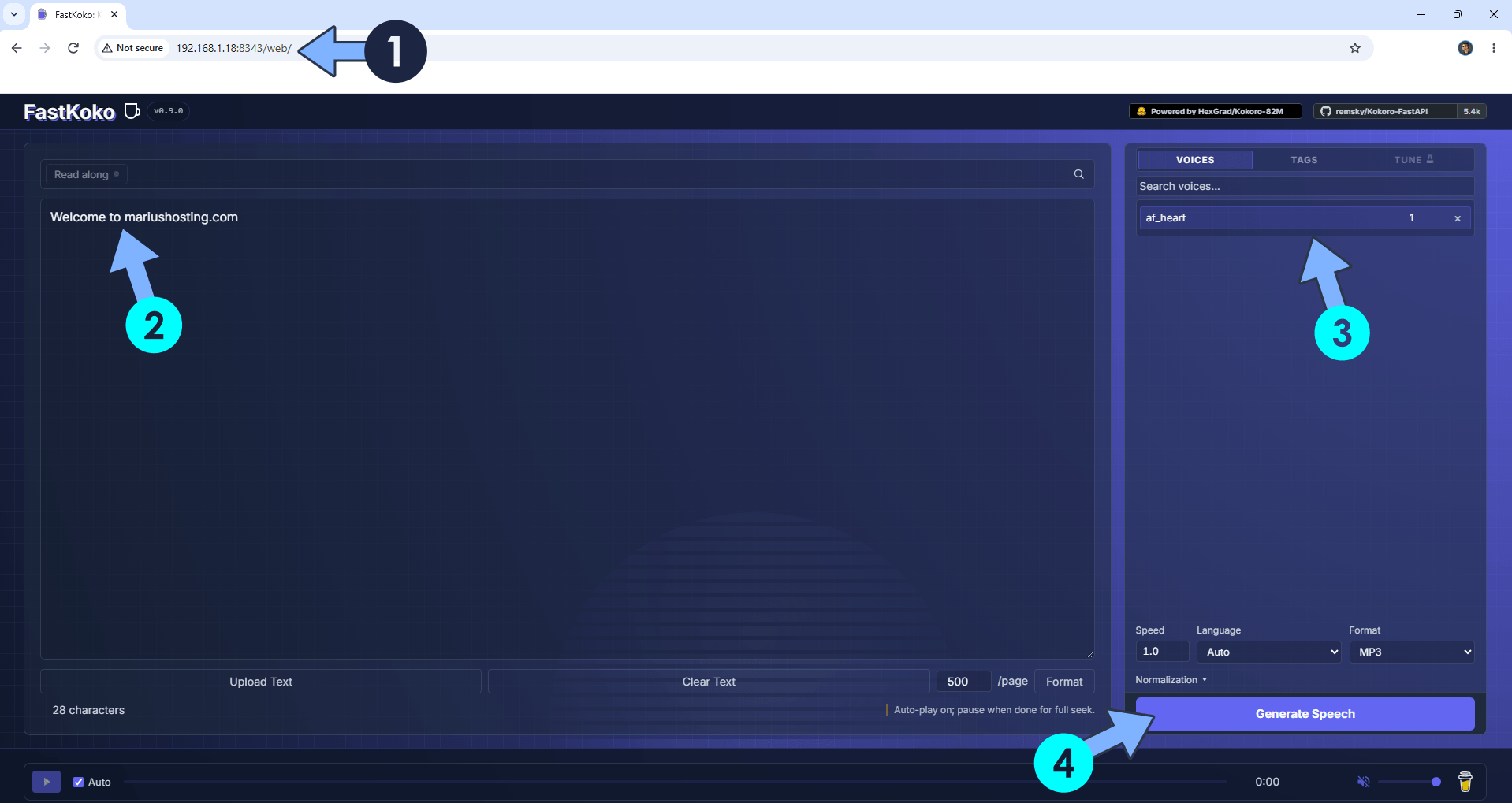
The installation process can take up to a few seconds/minutes. It will depend on your Internet speed connection. Now open your browser and type in http://Synology-ip-address:8343/web/ Type in your own text, select your favorite AI voice, choose the speed and language, then click Generate Speech. Click Play to listen. Click the download icon to download your auto-generated MP3 file. Follow the instructions in the image below.
Enjoy Kokoro!
If you encounter issues by using this container, make sure to check out the Common Docker issues article.
Note: If you want to run the Kokoro container over HTTPS, check How to Run Docker Containers Over HTTPS. In order to make Kokoro work via HTTPS, it’s mandatory to activate WebSocket. ⚠️Warning: I do not recommend running Kokoro via Reverse Proxy. This product should be used only on localhost. Why don’t I recommend running it via Reverse Proxy? Because if someone were to know your HTTPS address, then they can use your instance and slow down your NAS due to CPU consumption.
🆙Note/Update/Container: How to Update Your Docker Containers on Synology NAS Using Dockhand.
🆕Note: How to Update Dockhand to the latest version.
Note: Can I run Docker on my Synology NAS? See the supported models.
Note: How to Back Up Docker Containers on your Synology NAS.
Note: How to Free Disk Space on Your NAS if You Run Docker.
Note: How to Schedule Start & Stop For Docker Containers.
Note: How to Activate Email Notifications.
Note: How to Add Access Control Profile on Your NAS.
Note: How to Change Docker Containers Restart Policy.
Note: How to Use Docker Containers With VPN.
Note: Convert Docker Run Into Docker Compose.
Note: How to Clean Docker.
Note: How to Clean Docker Automatically.
Note: Best Practices When Using Docker and DDNS.
Note: Some Docker Containers Need WebSocket.
Note: Find out the Best NAS Models For Docker.
Note: Activate Gmail SMTP For Docker Containers.
This post was updated on Friday / September 18th, 2026 at 3:28 AM