
ArchiveBox is a powerful, self-hosted internet archiving solution to collect, save, and view sites you want to preserve offline. You can feed it URLs one at a time, or schedule regular imports from browser bookmarks or history, feeds like RSS, bookmark services like Pocket/Pinboard, and more. It saves snapshots of the URLs you feed it in several formats: HTML, PDF, PNG screenshots, WARC, and more out-of-the-box, with a wide variety of content extracted and preserved automatically (article text, audio/video, git repos, etc.). The goal of ArchiveBox is to sleep soundly knowing the part of the internet you care about will be automatically preserved in durable, easily accessible formats for decades after it goes down. I first discovered ArchiveBox when I started losing access to research articles and blog posts I relied on for work links. Setting it up on my Synology NAS changed everything: I now feed it URLs from my browser history and RSS feeds, and it quietly captures full HTML, PDFs, screenshots, and WARC files. Knowing those pages are safely archived offline in multiple durable formats finally lets me sleep soundly. In this step by step guide I will show you how to install ArchiveBox on your Synology NAS using Docker & Dockhand.
💡Note: This guide works perfectly with the latest version of ArchiveBox v0.9.73
STEP 1
Please Support My work by Making a Donation.
STEP 2
Install Dockhand using my step by step guide. If you already have Dockhand installed on your Synology NAS, skip this STEP. ⚠️Attention: Make sure you have installed the latest Dockhand version.
STEP 3
Make sure you have a synology.me Wildcard Certificate. Follow my guide to get a Wildcard Certificate. If you already have a synology.me Wildcard certificate, skip this STEP.
STEP 4
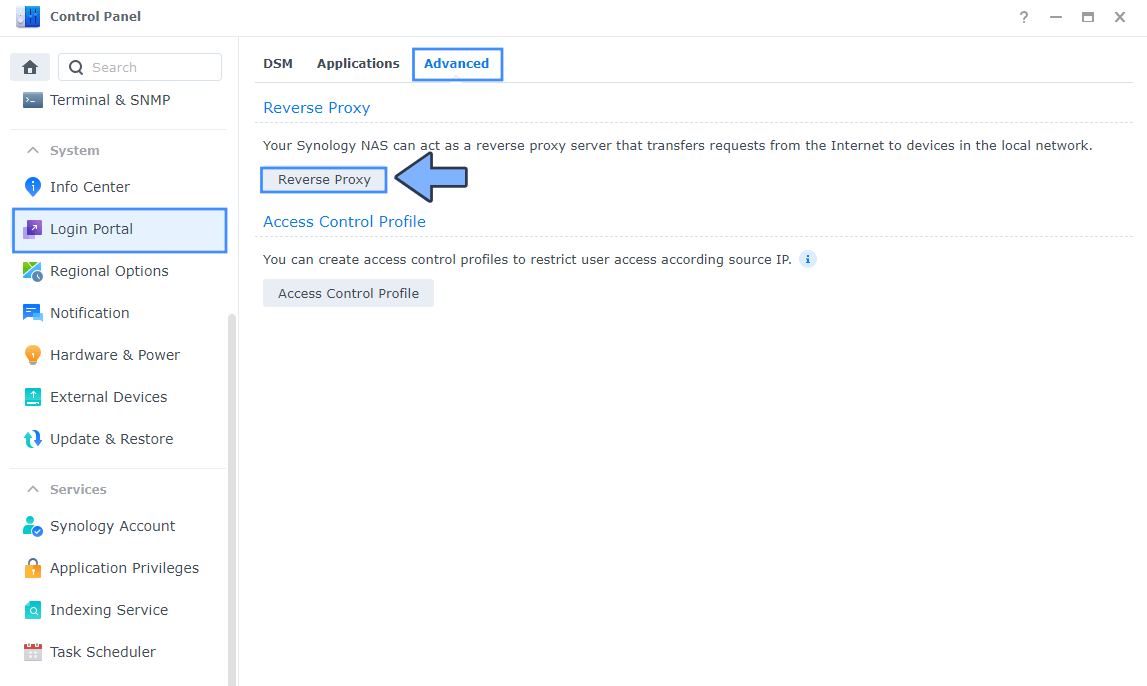
Go to Control Panel / Login Portal / Advanced Tab / click Reverse Proxy. Follow the instructions in the image below.
STEP 5
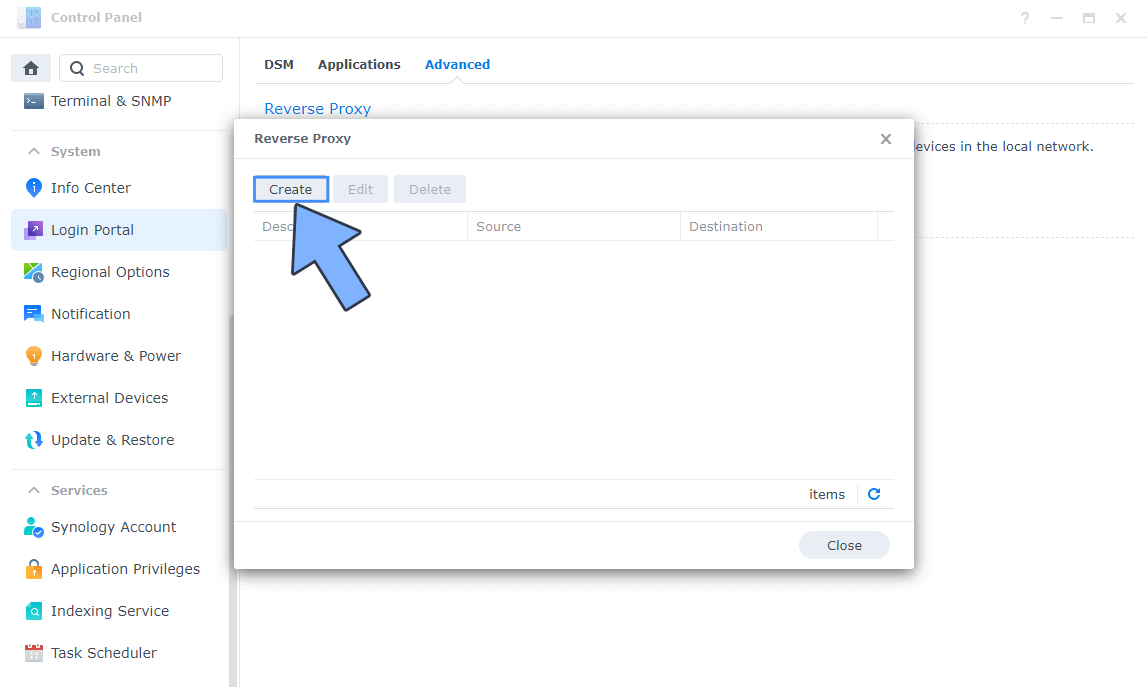
Now click the “Create” button. Follow the instructions in the image below.
STEP 6
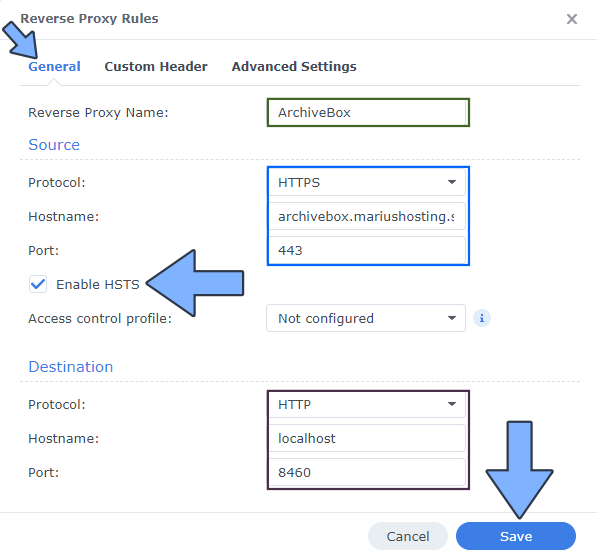
After you click the Create button, the window below will open. Follow the instructions in the image below.
On the General area, set the Reverse Proxy Name description: type in ArchiveBox. After that, add the following instructions:
Source:
Protocol: HTTPS
Hostname: archivebox.yourname.synology.me
Port: 443
Check Enable HSTS
Destination:
Protocol: HTTP
Hostname: localhost
Port: 8460
STEP 7
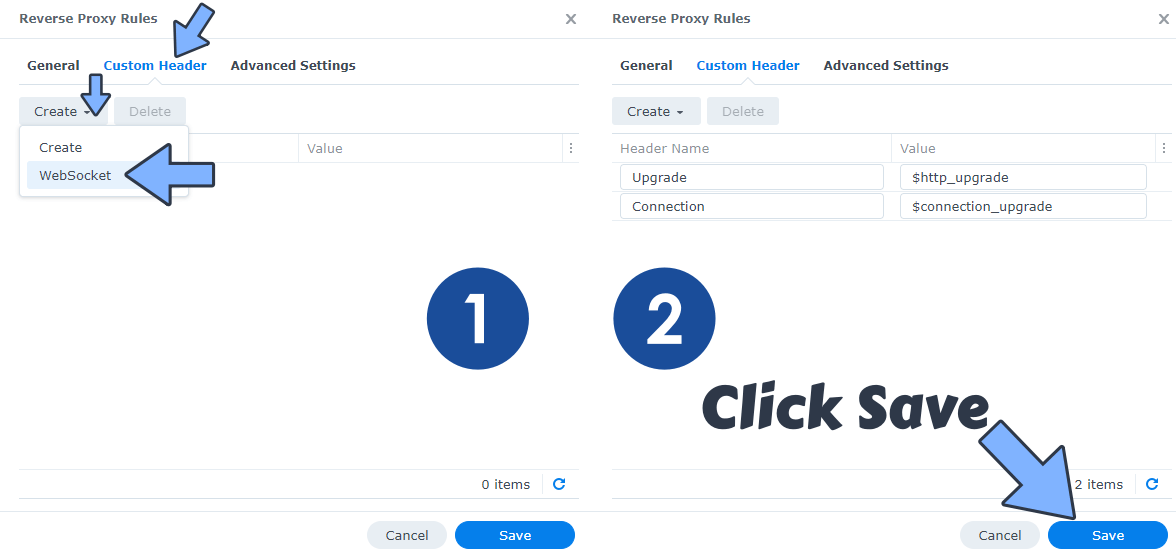
On the Reverse Proxy Rules click the Custom Header tab. Click Create and then, from the drop-down menu, click WebSocket. After you click on WebSocket, two Header Names and two Values will be automatically added. Click Save. Follow the instructions in the image below.
STEP 8
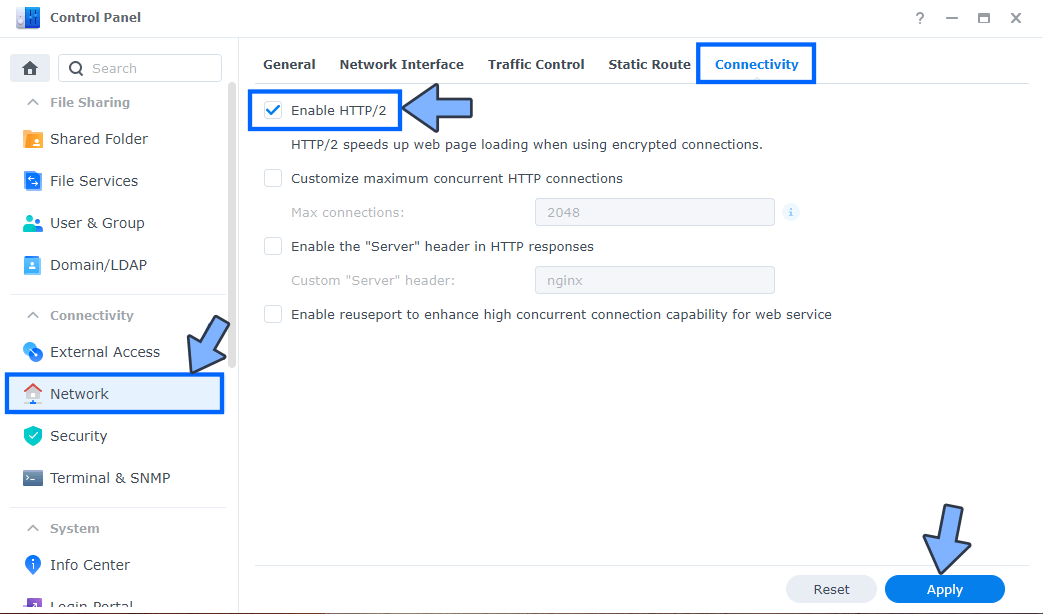
Go to Control Panel / Network / Connectivity tab/ Check Enable HTTP/2 then click Apply. Follow the instructions in the image below.
STEP 9
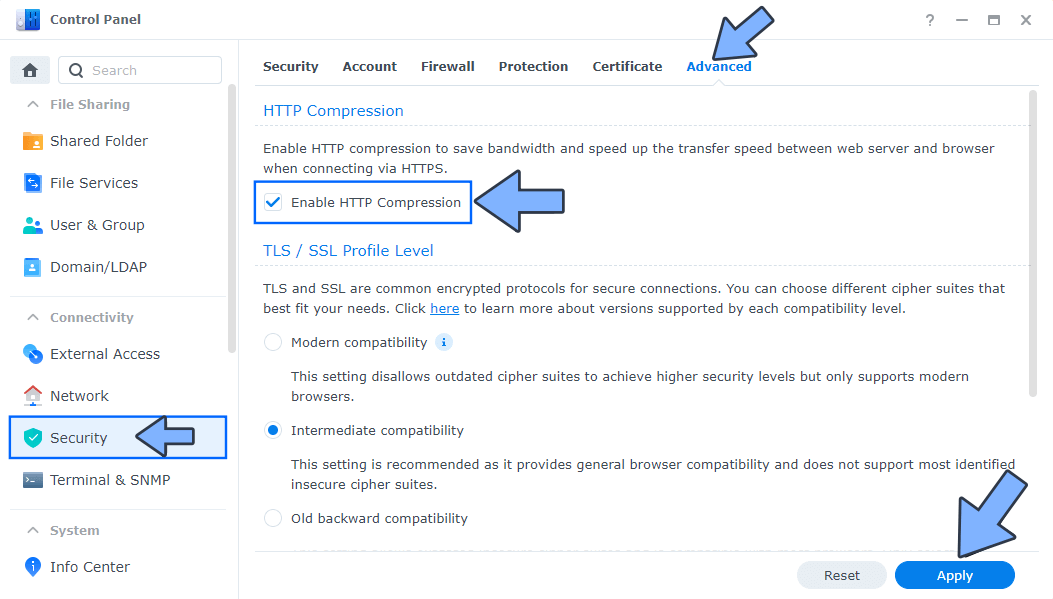
Go to Control Panel / Security / Advanced tab/ Check Enable HTTP Compression then click Apply. Follow the instructions in the image below.
STEP 10
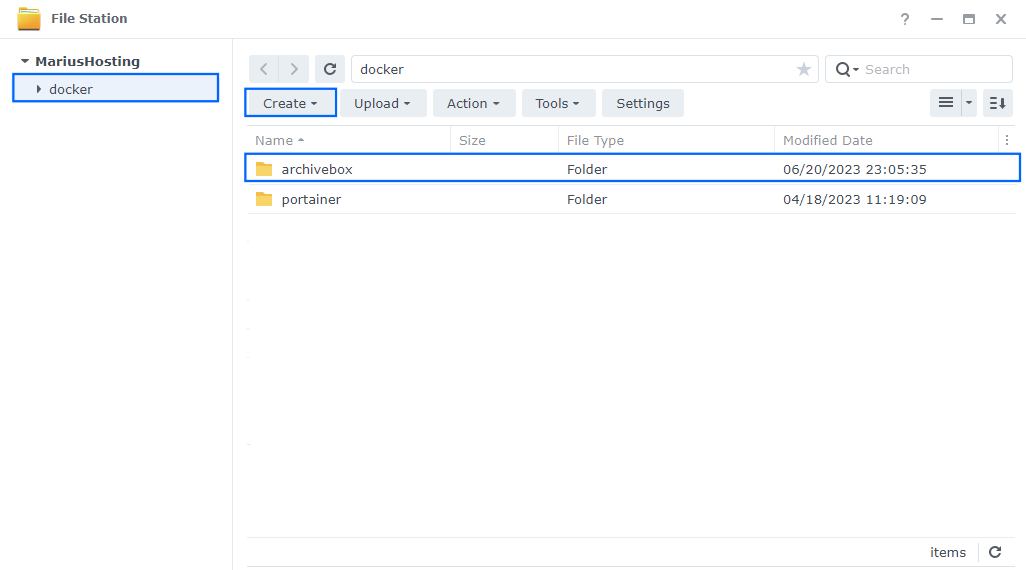
Go to File Station and open the docker folder. Inside the docker folder, create one new folder and name it archivebox. Follow the instructions in the image below.
Note: Be careful to enter only lowercase, not uppercase letters.
STEP 11
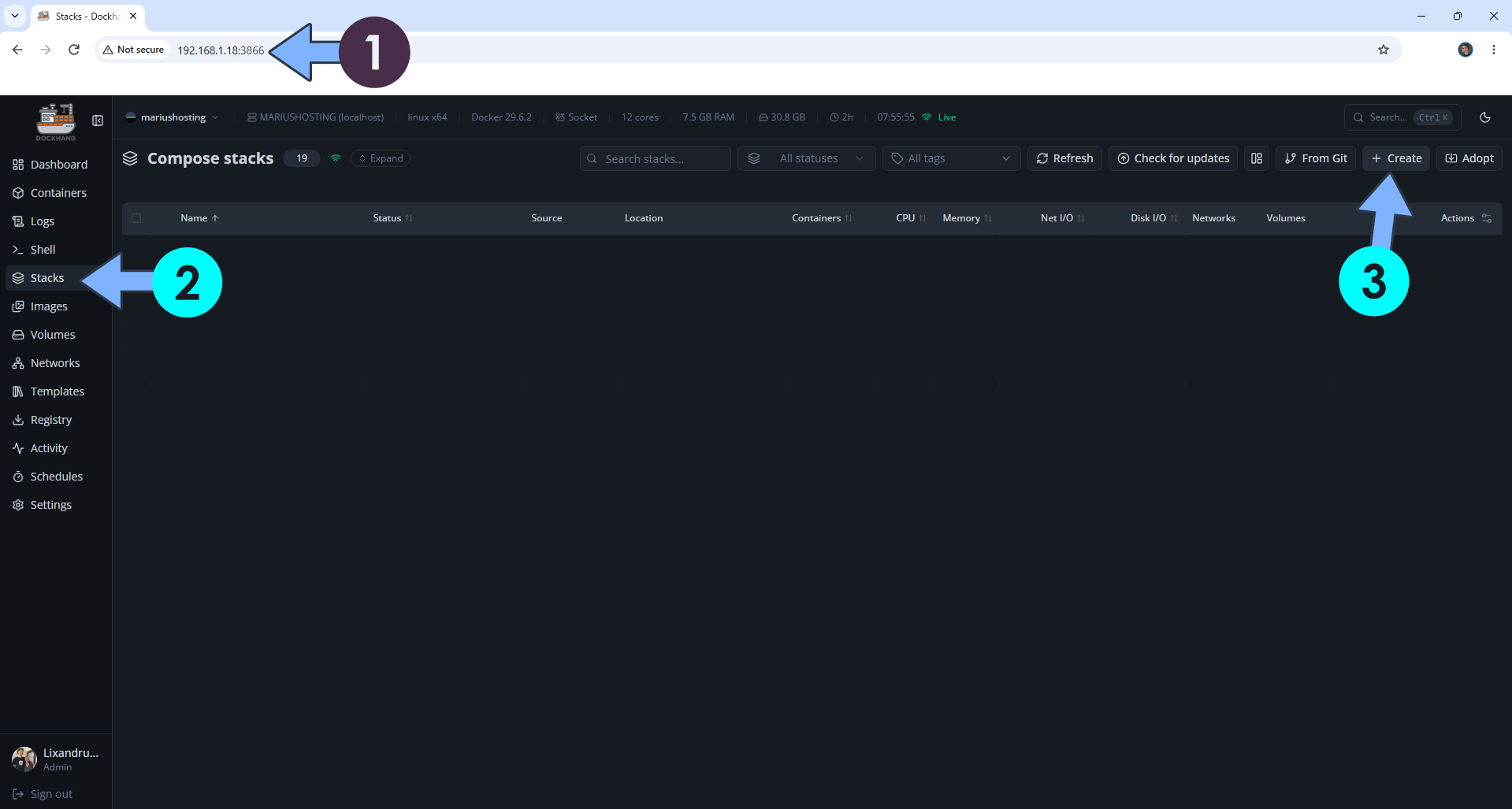
Open your browser and type in http://synology-ip-address:3866 to connect to your Dockhand container. On the left sidebar, click Stacks then + Create. Follow the instructions in the image below.
STEP 12
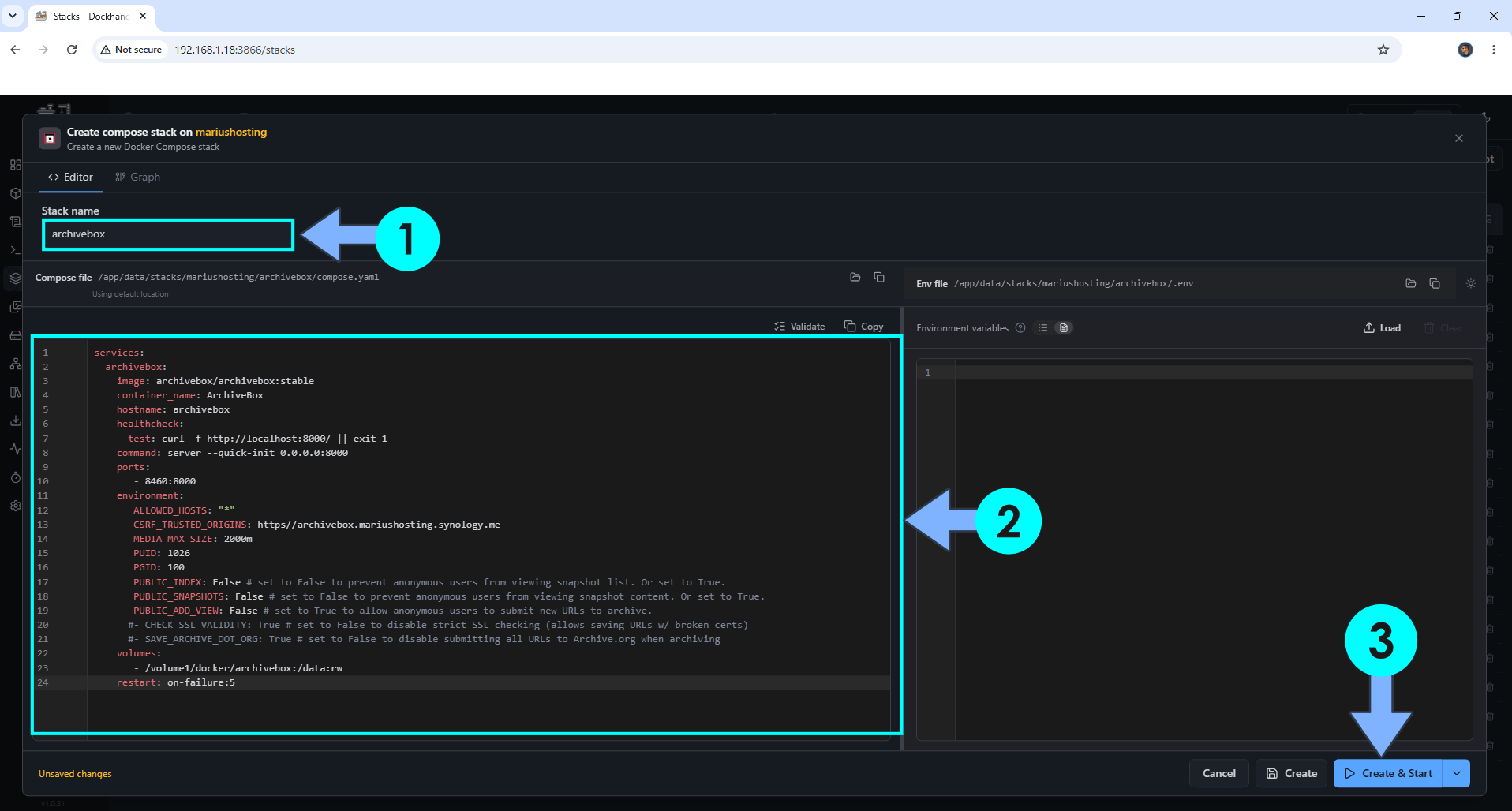
In the Stack name field, type in archivebox. ⚠️Warning: Type in the name in lowercase letters. The installation process can take up to a few seconds/minutes. It will depend on your Internet speed connection. Follow the instructions in the image below.
Note: Copy Paste the code below in the Dockhand Compose Stack then click Create & Start.
services:
  archivebox:
    image: archivebox/archivebox:stable
    container_name: ArchiveBox
    hostname: archivebox
    healthcheck:
      test: curl -f http://localhost:8000/ || exit 1
    command: server --quick-init 0.0.0.0:8000
    ports:
       - 8460:8000
    environment:
       ALLOWED_HOSTS: "*"
       CSRF_TRUSTED_ORIGINS: https//archivebox.yourname.synology.me
       MEDIA_MAX_SIZE: 2000m
       PUID: 1026
       PGID: 100
       PUBLIC_INDEX: False # set to False to prevent anonymous users from viewing snapshot list. Or set to True.
       PUBLIC_SNAPSHOTS: False # set to False to prevent anonymous users from viewing snapshot content. Or set to True.
       PUBLIC_ADD_VIEW: False # set to True to allow anonymous users to submit new URLs to archive.
      #- CHECK_SSL_VALIDITY: True # set to False to disable strict SSL checking (allows saving URLs w/ broken certs)
      #- SAVE_ARCHIVE_DOT_ORG: True # set to False to disable submitting all URLs to Archive.org when archiving
    volumes:
       - /volume1/docker/archivebox:/data:rw
    restart: on-failure:5
Note: Before you paste the code above in the Stack editor area below, change the value for CSRF_TRUSTED_ORIGINS and type in your own synology.me DDNS with https:// at the beginning that you have previously created at STEP 6.
Note: Before you paste the code above in the Stack editor area below, change the value numbers for PUID and PGID with your own PUID and PGID values. (Follow my step by step guide on how to do this.) 1026 is my personal PUID value and 100 is my personal PGID value. You have to type in your own values.
STEP 13
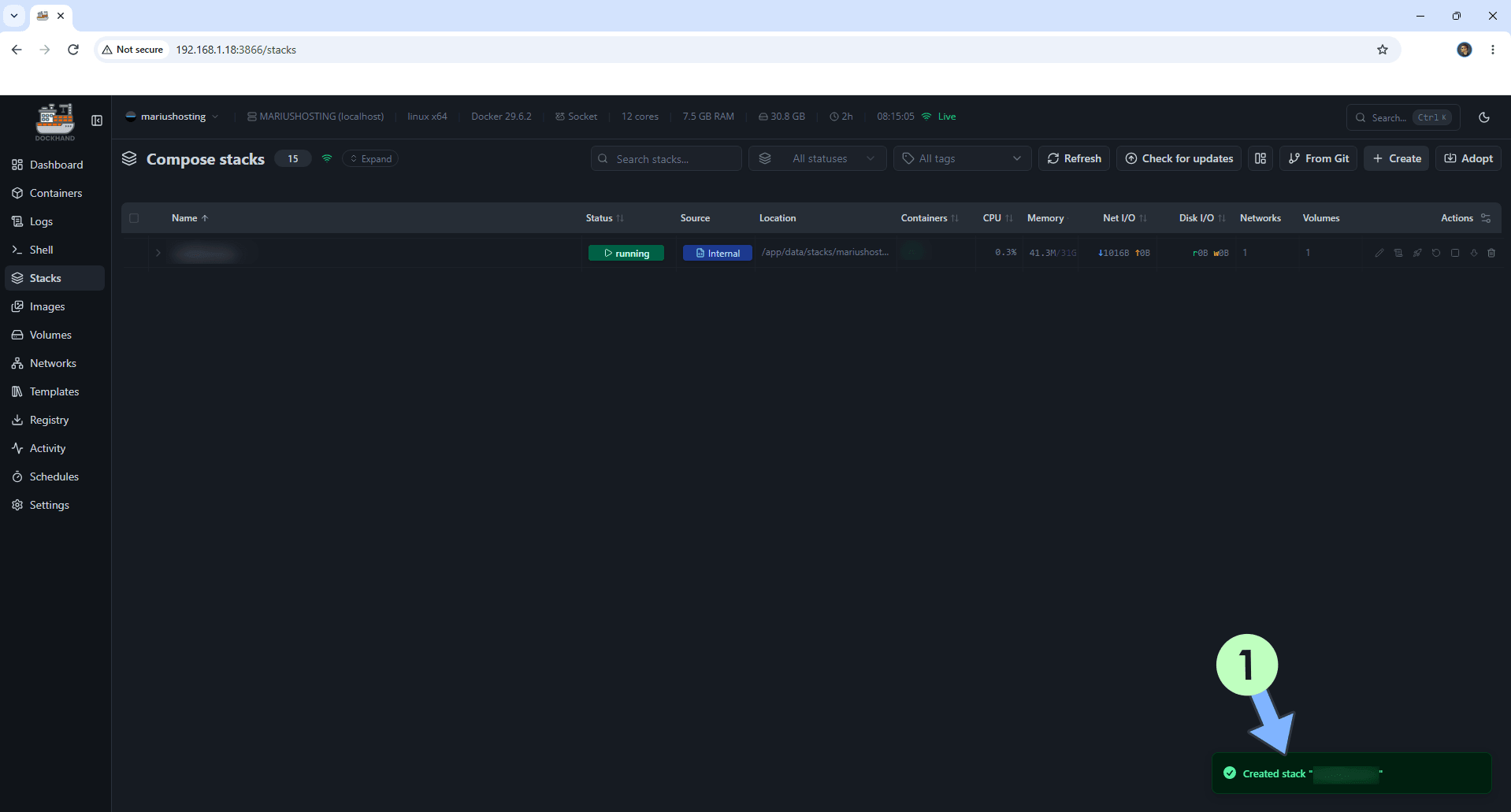
If everything goes right, you will see the following message at the bottom right of your screen: “Created stack “archivebox”“.
STEP 14
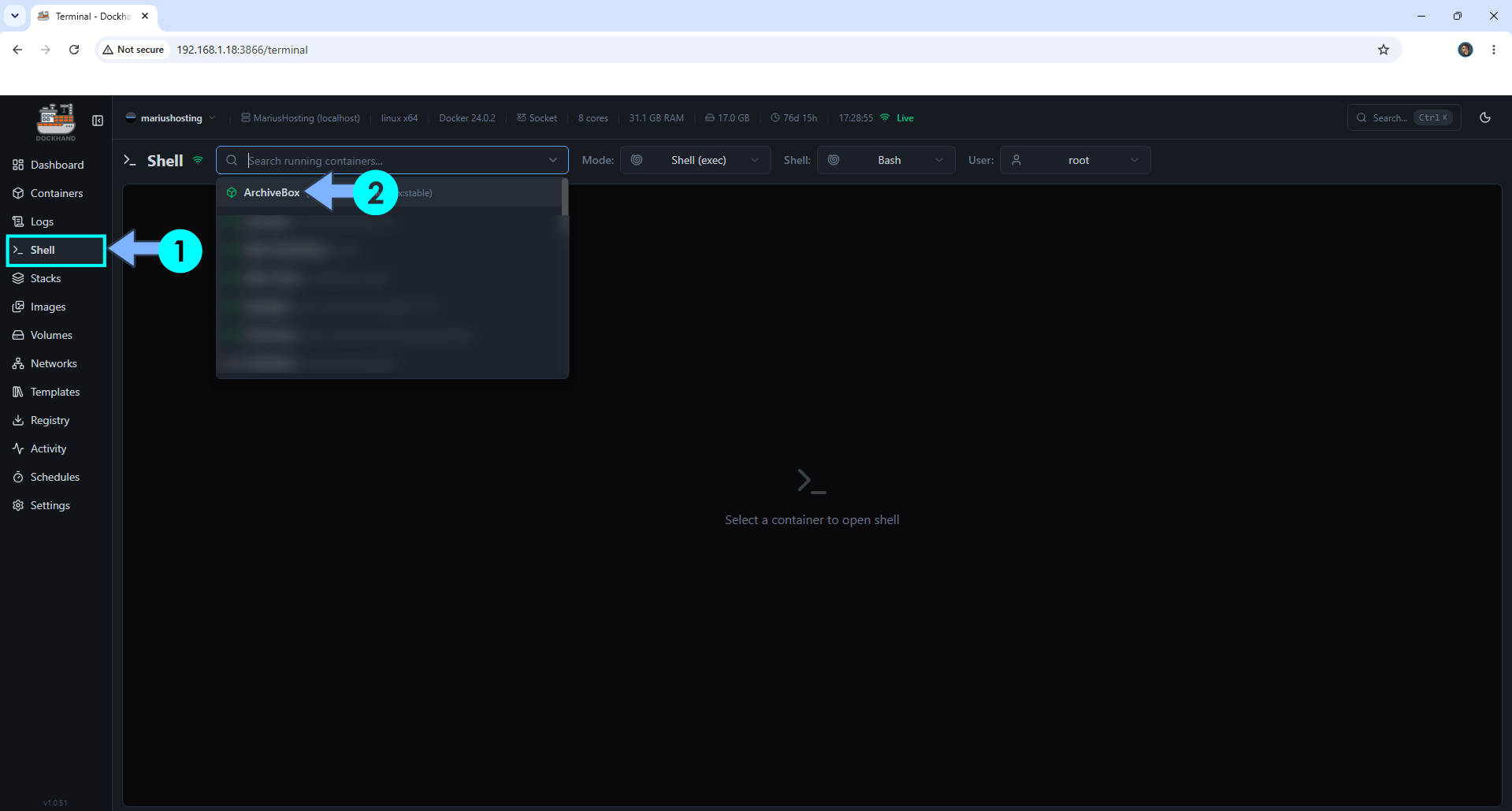
On the left sidebar, click Shell then search for your ArchiveBox instance. Click ArchiveBox. Follow the instructions in the image below.
STEP 15
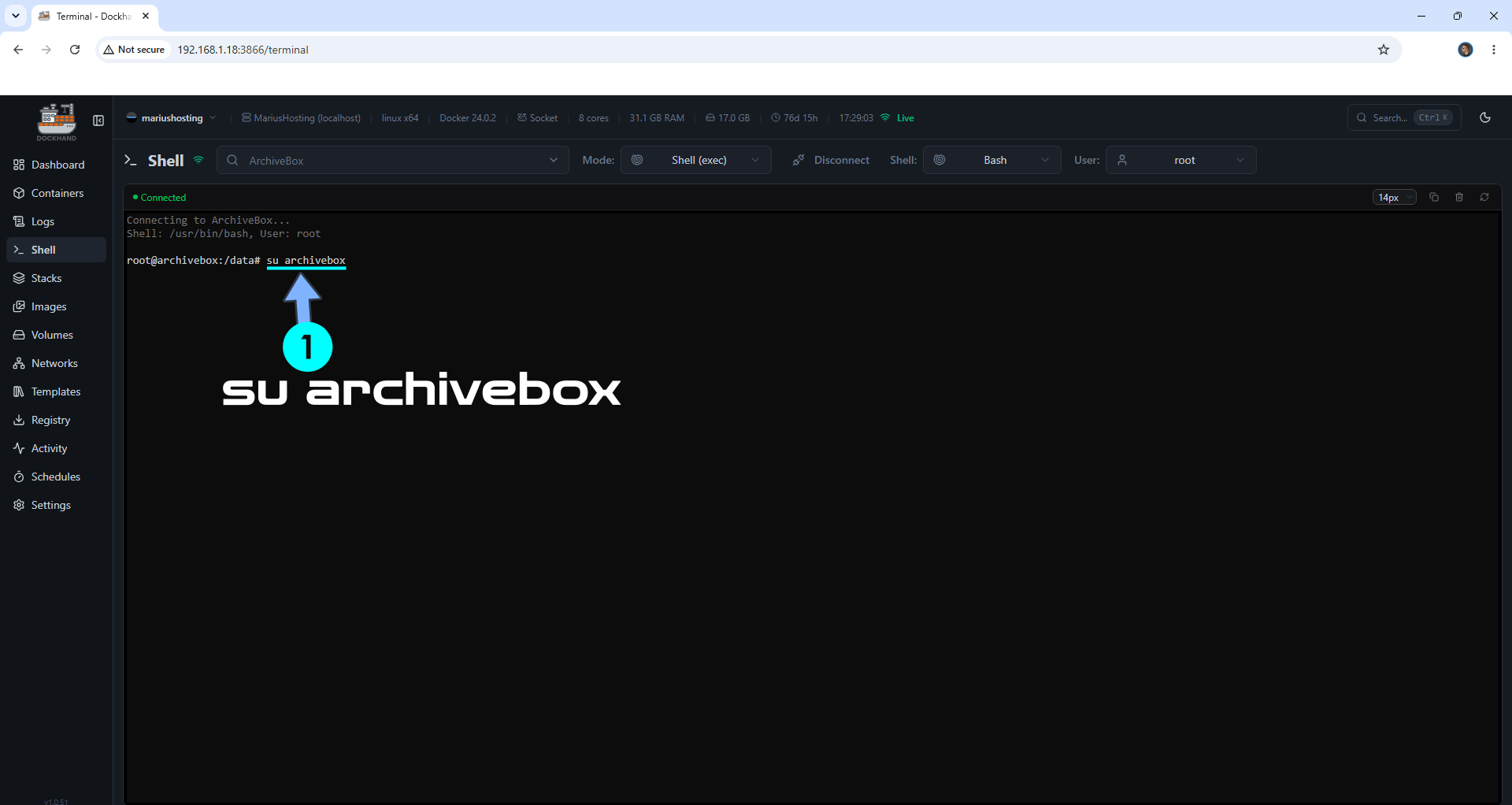
You will be connected to your internal ArchiveBox Docker terminal. In the terminal area, copy paste the code below then hit enter on your Keyboard.
su archivebox
STEP 16
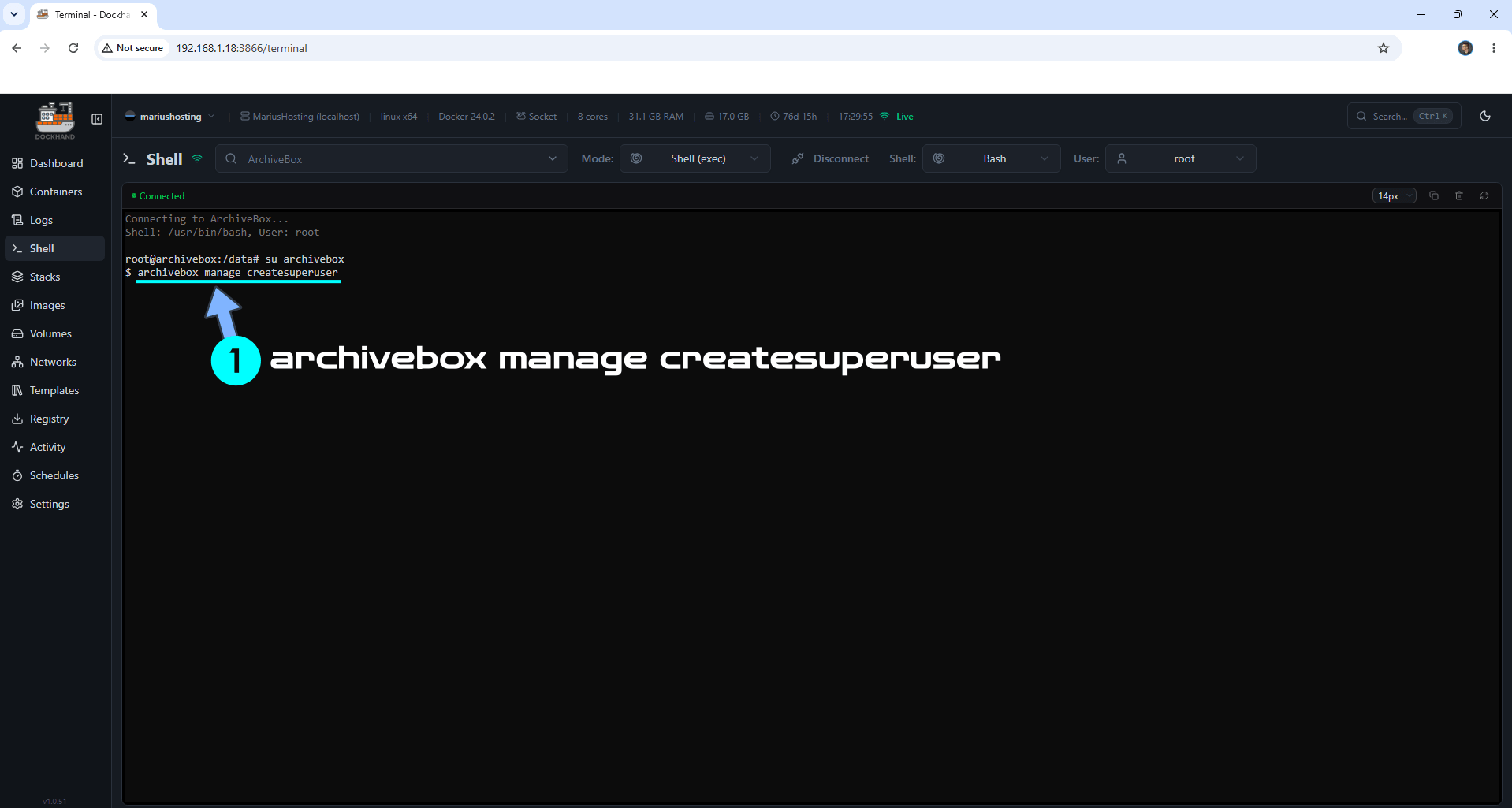
After you press Enter on your Keyboard at STEP 15, copy paste the code below and confirm by pressing Enter on your keyboard. Follow the instructions in the image below.
archivebox manage createsuperuser
STEP 17
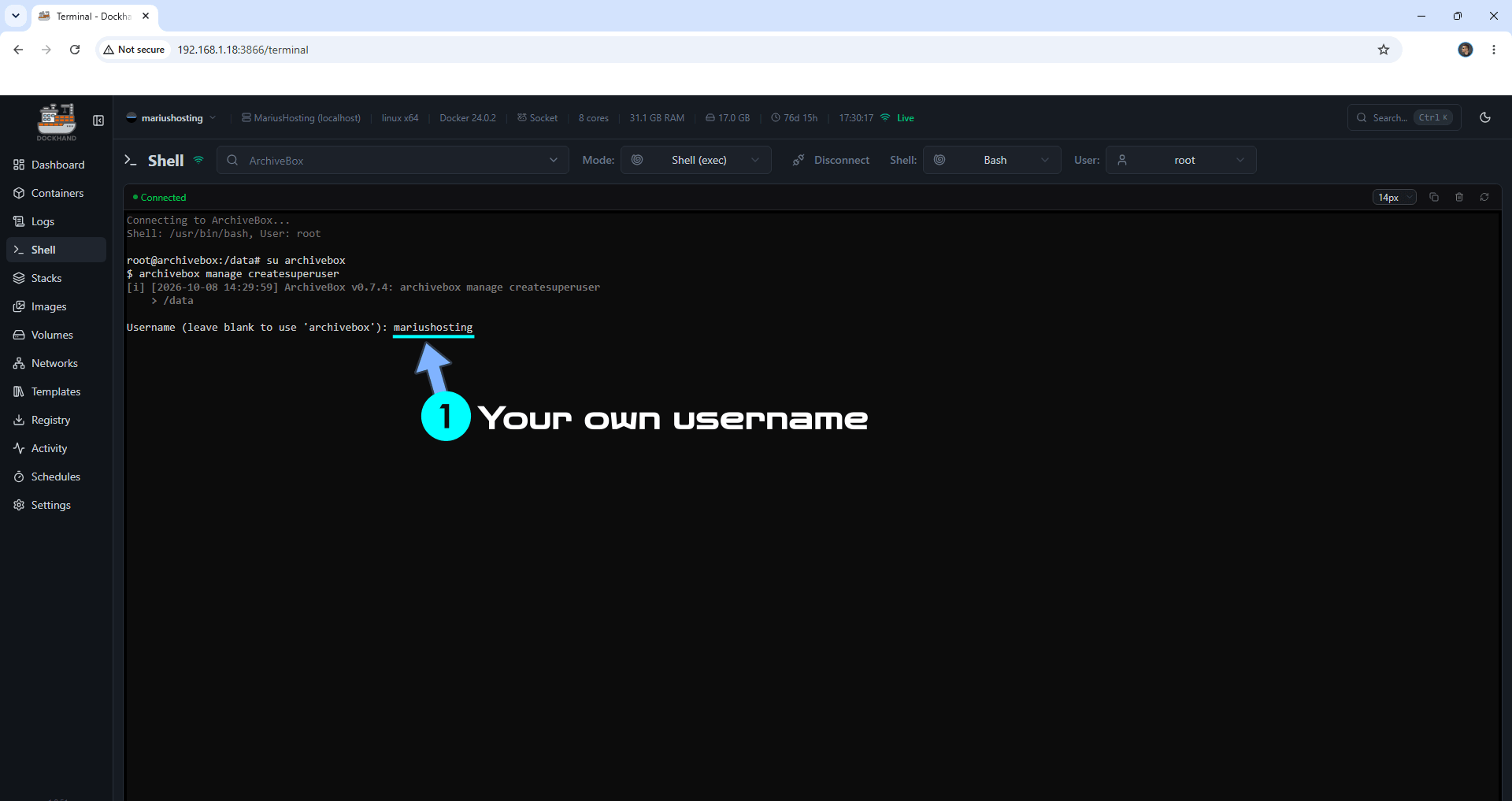
After you press Enter on your Keyboard at STEP 16, you will be asked to type in your own Username. Type in your own username and confirm by pressing Enter on your keyboard. Follow the instructions in the image below.
STEP 18
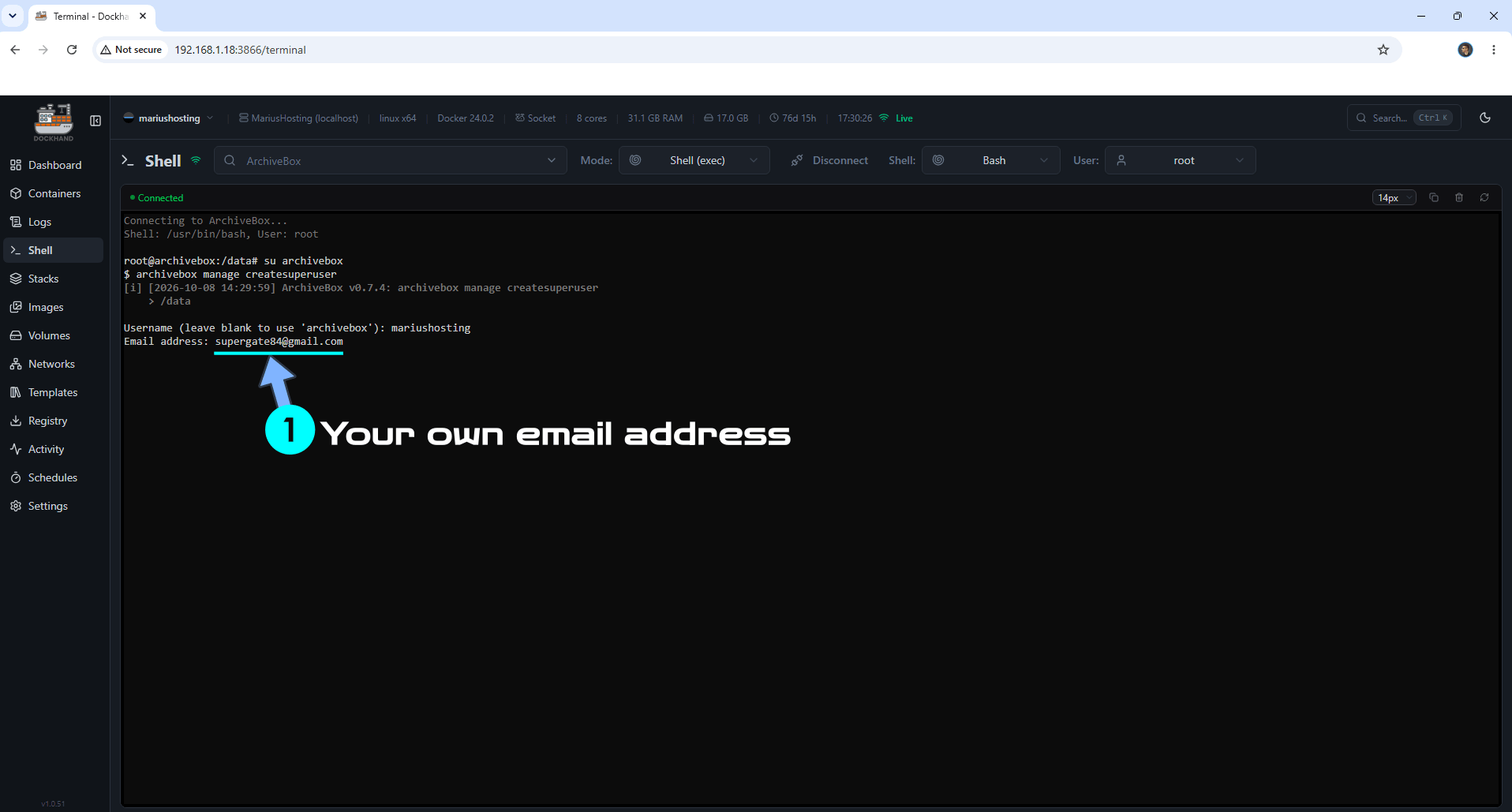
After you press Enter on your Keyboard at STEP 17, you will be asked to type in your own Email Address. Type in your own Email Address and confirm by pressing Enter on your keyboard. Follow the instructions in the image below.
STEP 19
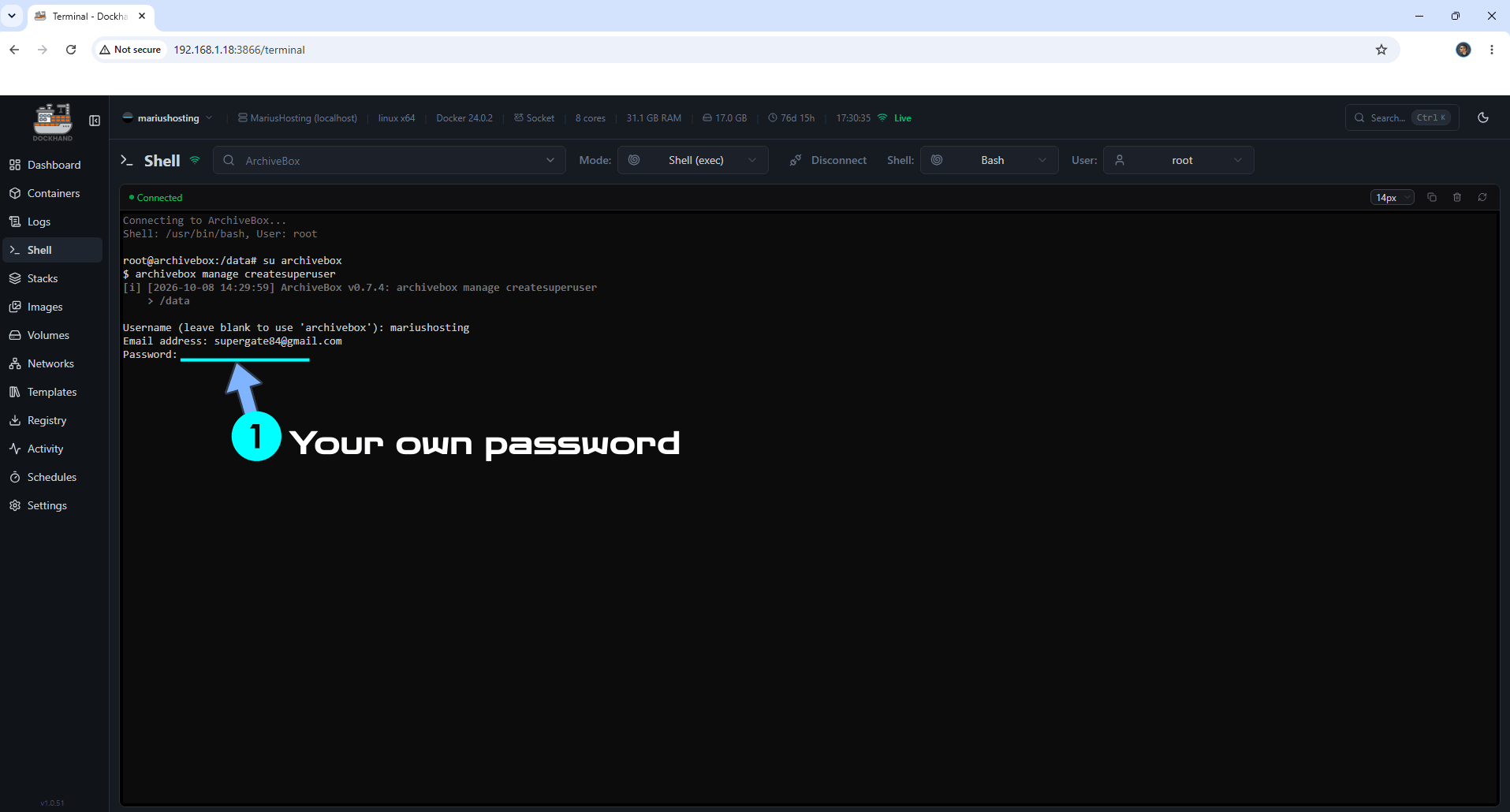
After you press Enter on your Keyboard at STEP 18, you will be asked to type in your own Password. Type in your own Password and confirm by pressing Enter on your keyboard. Follow the instructions in the image below. ⚠️Warning: When you type the password in the terminal, it is not echoed / nothing is shown.
STEP 20
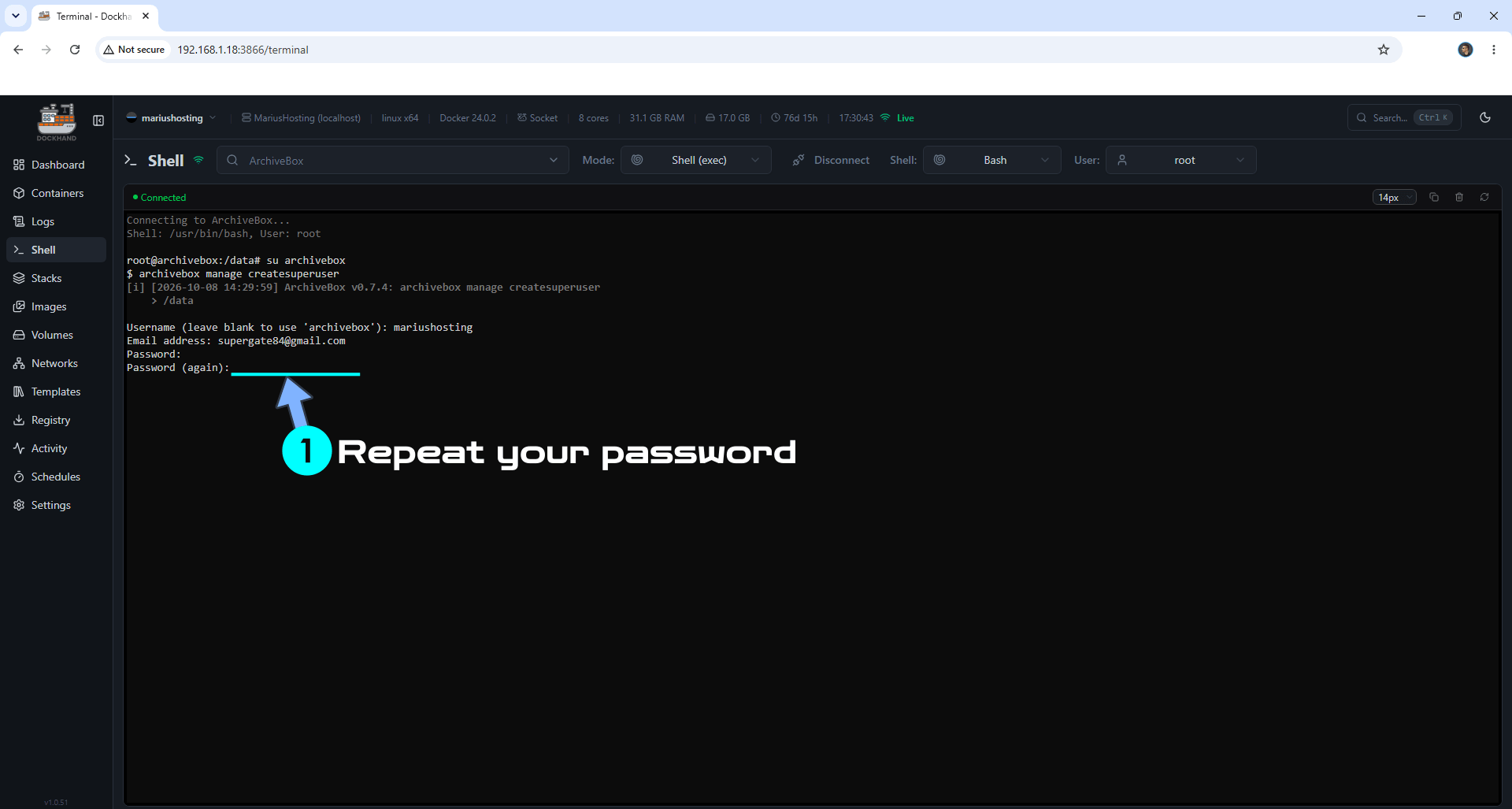
After you press Enter on your Keyboard at STEP 19, you will be asked to type in your Password again. Type in your Password again and confirm by pressing Enter on your keyboard. Follow the instructions in the image below. ⚠️Warning: When you type the password in the terminal, it is not echoed / nothing is shown.
STEP 21
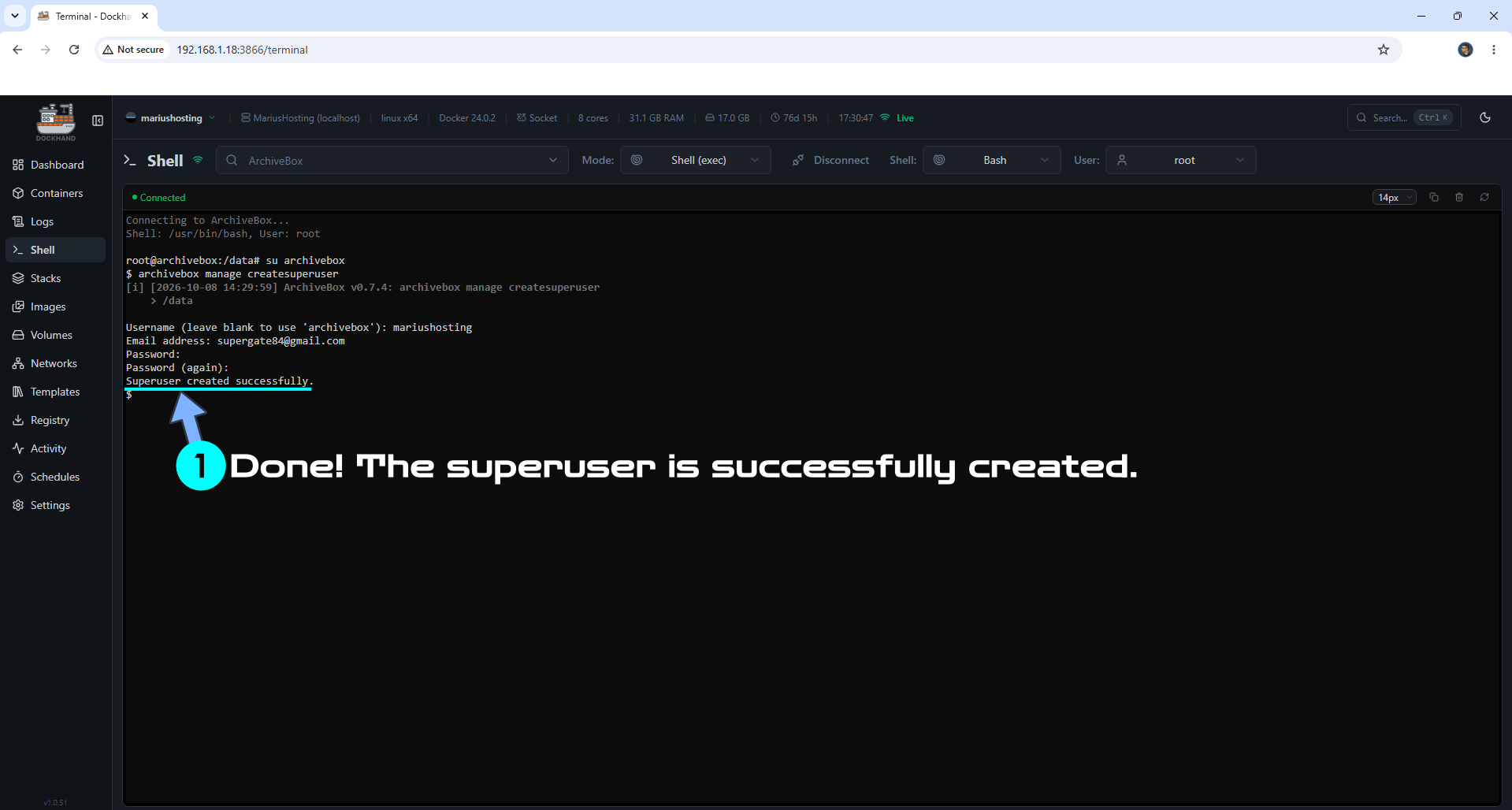
After a few seconds you will get a message in the terminal that says: “Superuser created successfully.“. Follow the instructions in the image below. Go straight to the next STEP.
STEP 22
🟢Please Support My work by Making a Donation. Almost 99,9% of the people that install something using my guides forget to support my work, or just ignore STEP 1. I’ve been very honest about this aspect of my work since the beginning: I don’t run any ADS, I don’t require subscriptions, paid or otherwise, I don’t collect IPs, emails, and I don’t have any referral links from Amazon or other merchants. I also don’t have any POP-UPs or COOKIES. I have repeatedly been told over the years how much I have contributed to the community. It’s something I love doing and have been honest about my passion since the beginning. But I also Need The Community to Support me Back to be able to continue doing this work.
STEP 23
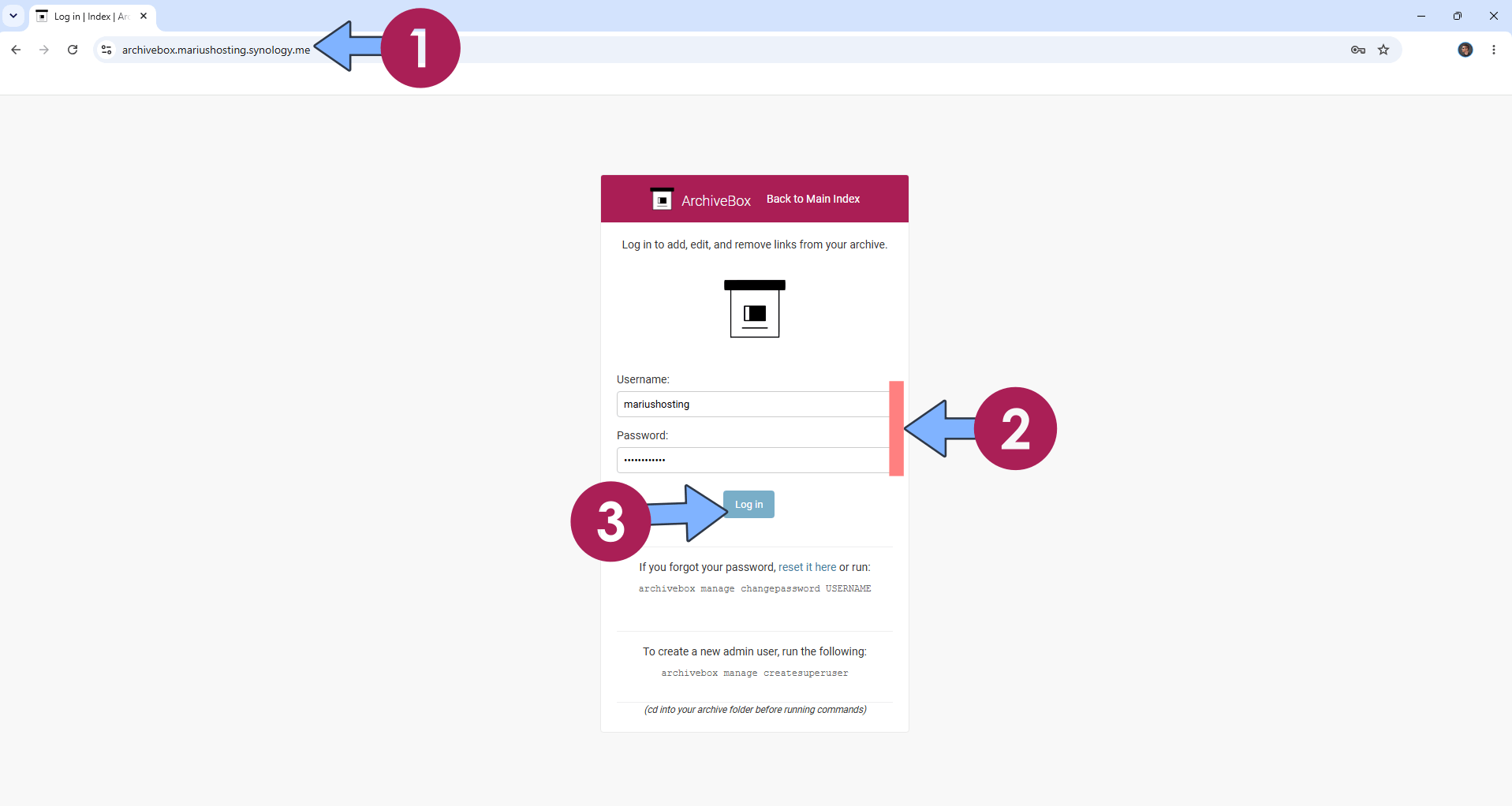
Now open your browser and type in your HTTPS/SSL certificate like this https://archivebox.yourname.synology.me that you have previously created at STEP 6. In my case it’s https://archivebox.mariushosting.synology.me If everything goes right, you will see the ArchiveBox Login page. Type in your own Username and Password that you have previously created at STEP 17 and STEP 19, respectively. Click Log in. Follow the instructions in the image below.
STEP 24
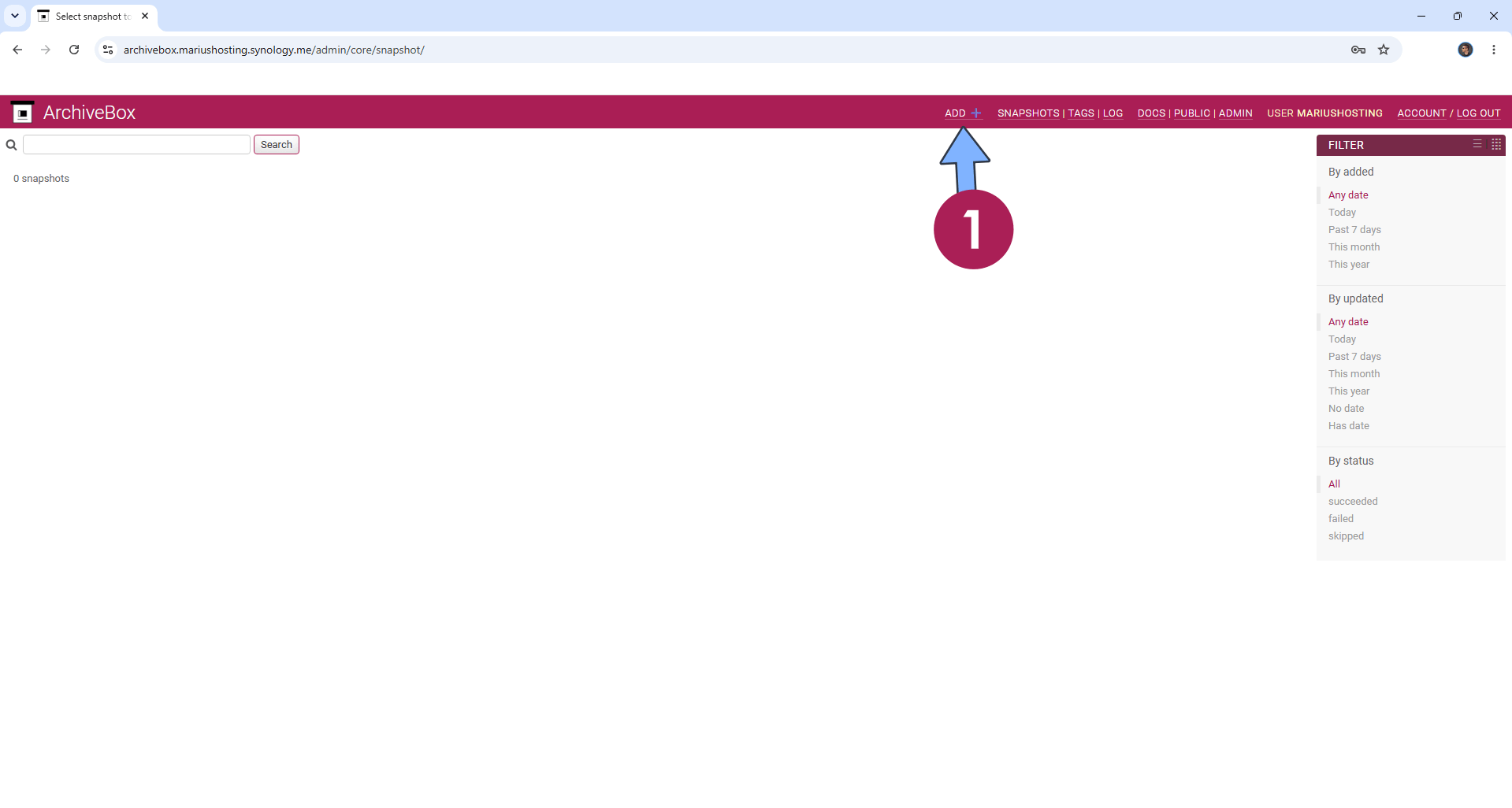
Click ADD+ to add your first website. Follow the instructions in the image below.
STEP 25
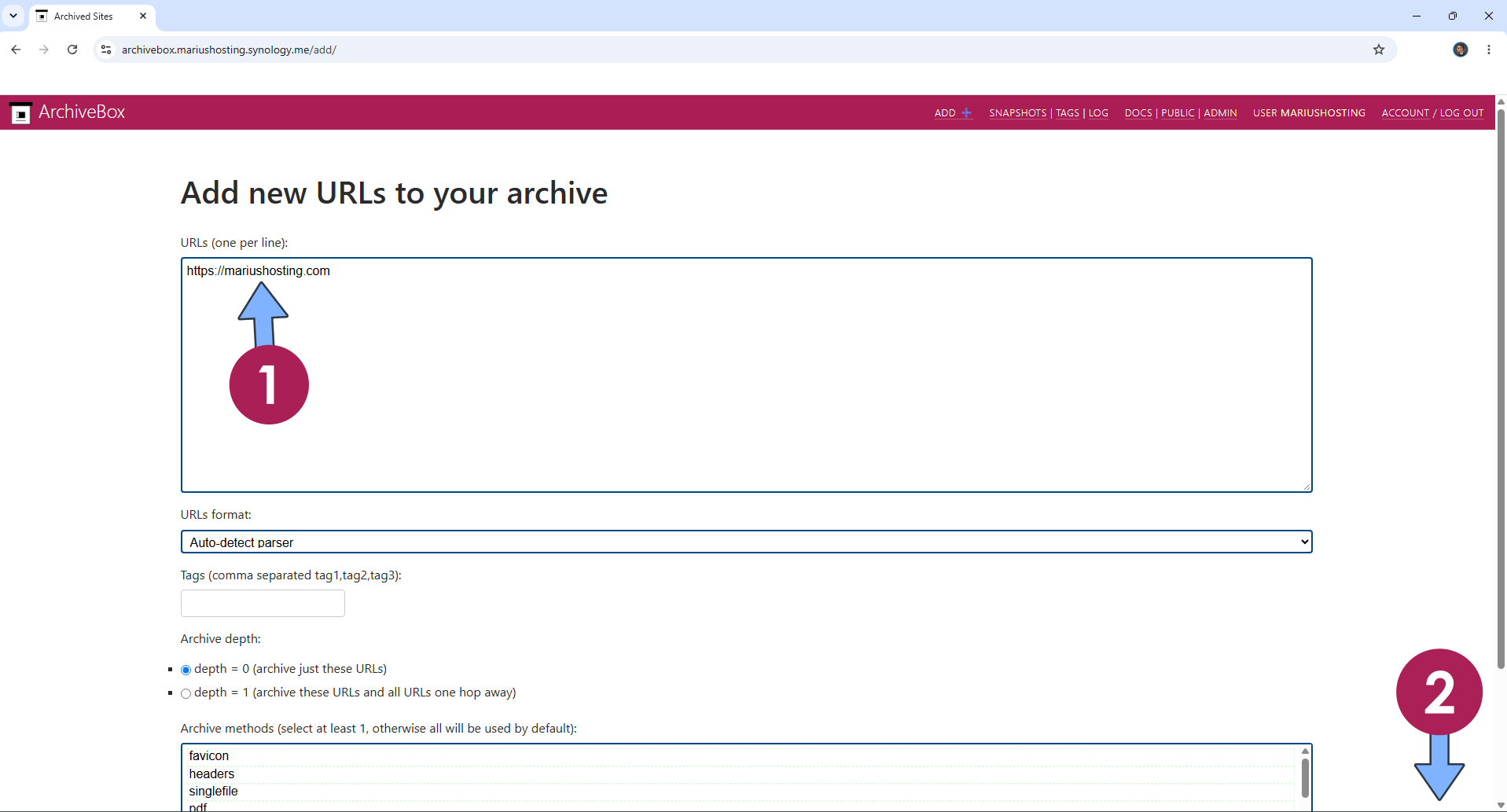
Add new URLs to your archive. Follow the instructions in the image below.
STEP 26
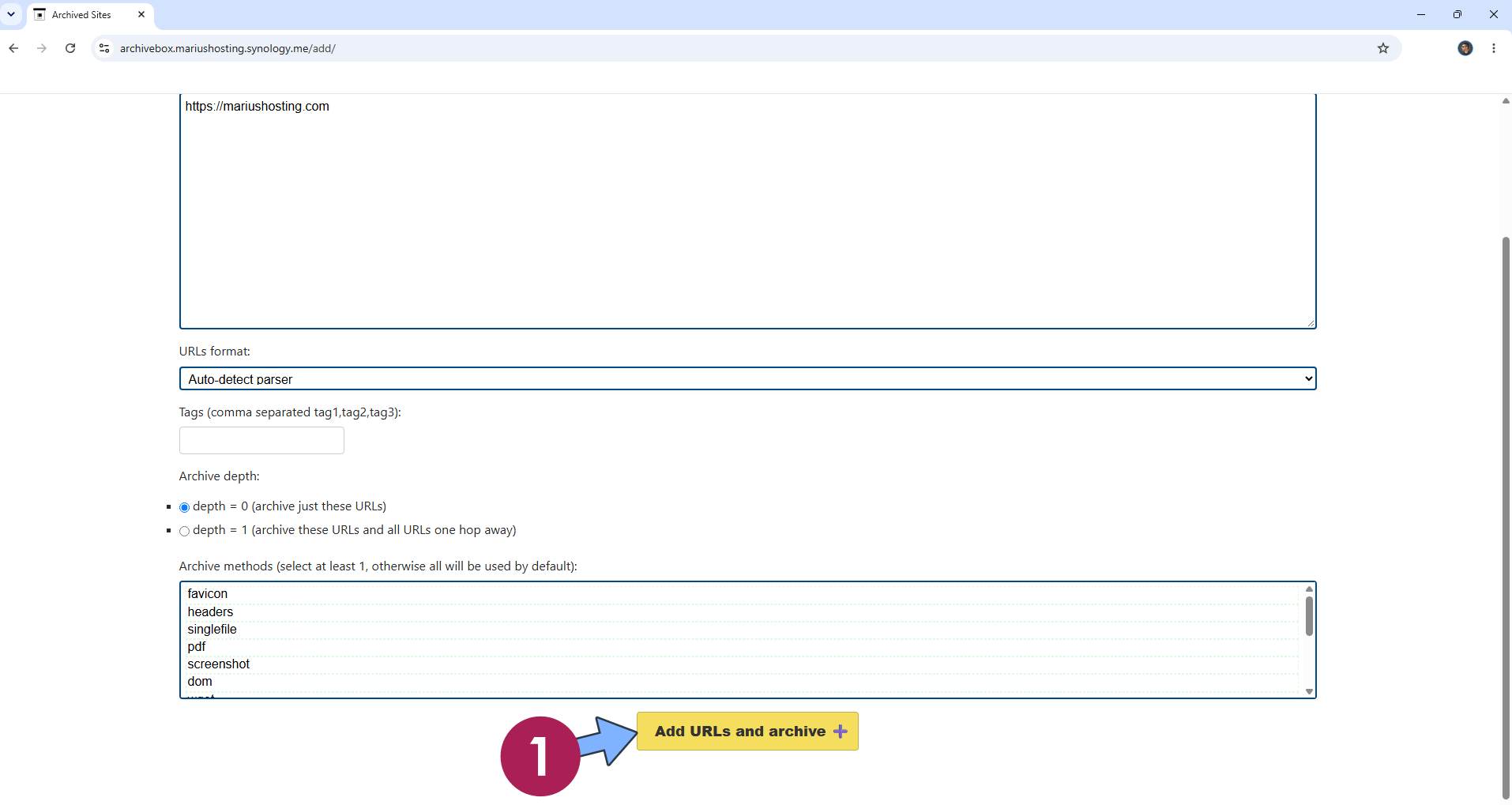
Scroll down the page then click Add URLs and archive +. Follow the instructions in the image below.
STEP 27
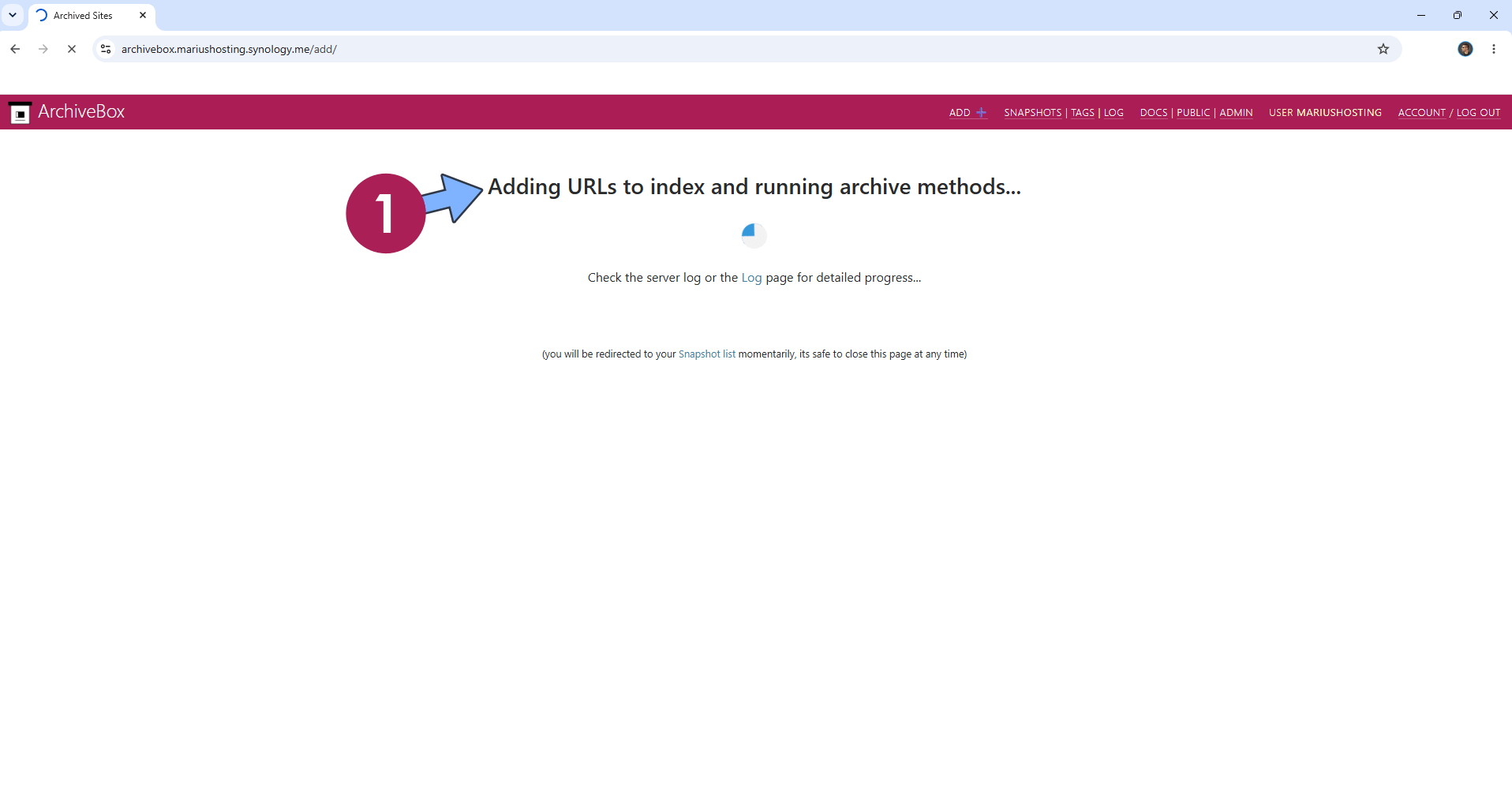
Wait a few minutes. Follow the instructions in the image below. After that, go straight to the next STEP.
STEP 28
Check your link. Click on it. Follow the instructions in the image below.
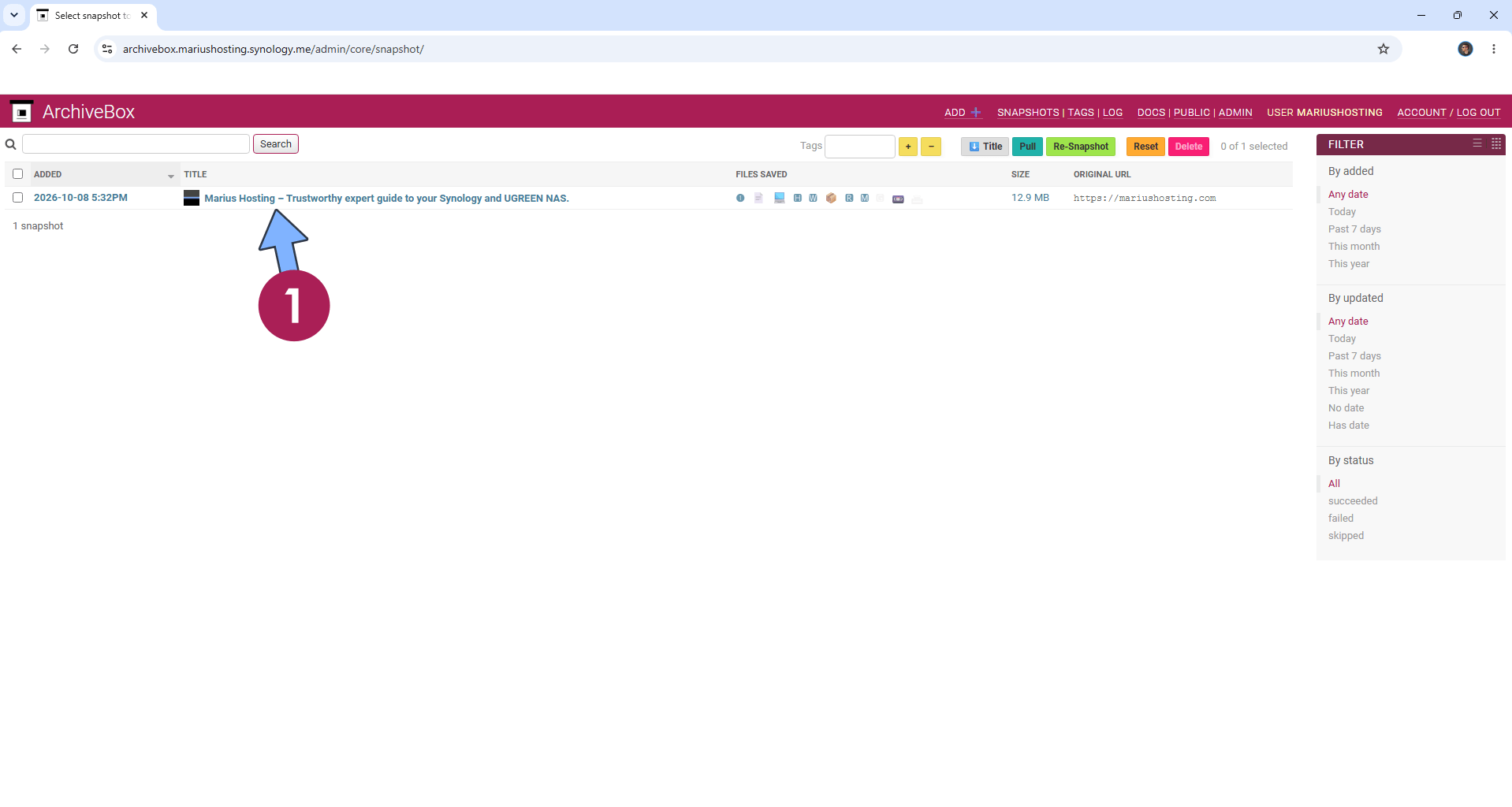
STEP 29
Your ArchiveBox at a glance!
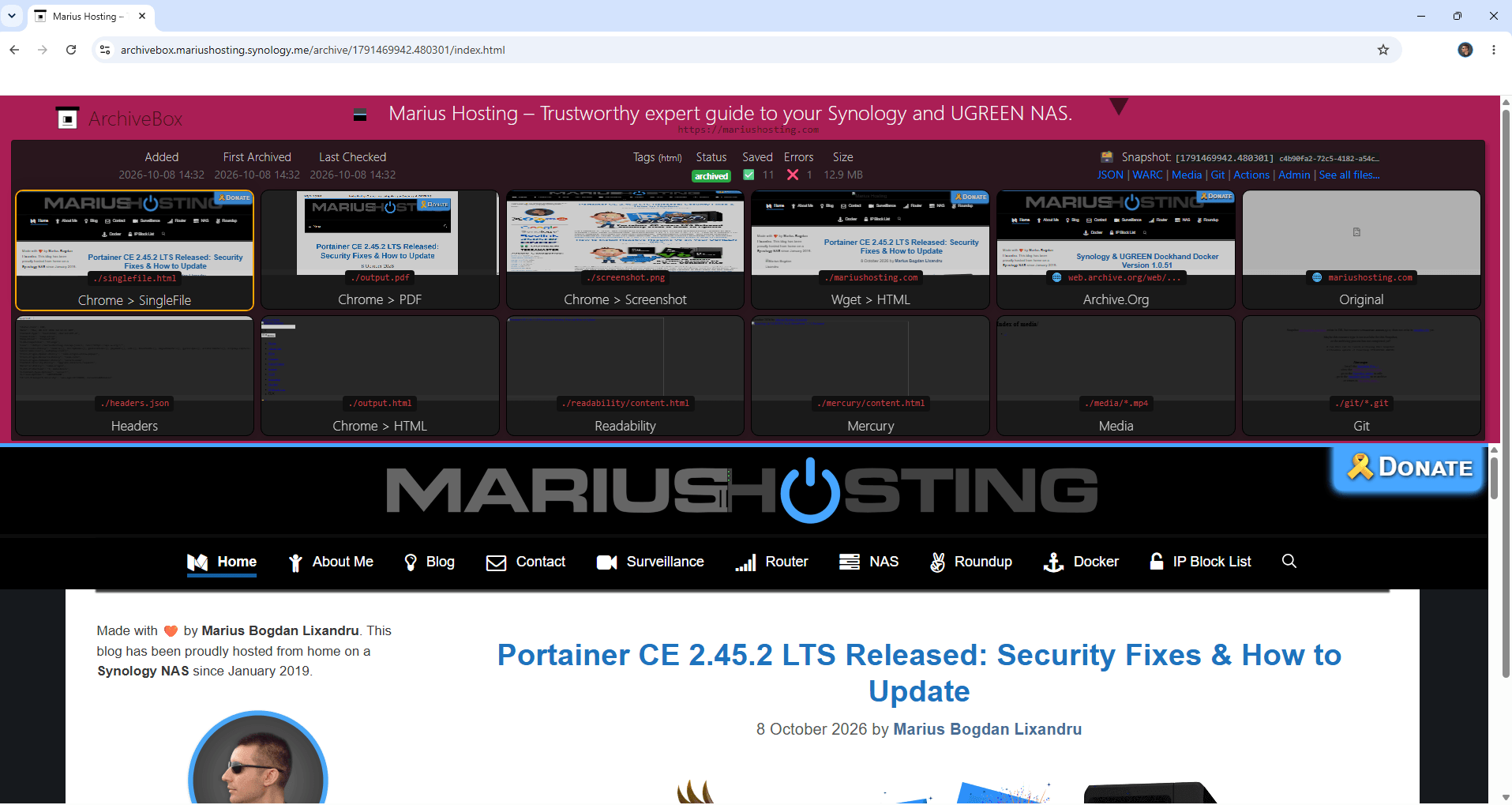
Enjoy ArchiveBox!
🆘TROUBLESHOOTING
If you encounter issues by using this container, make sure to check out the Common Docker issues article.
Note: Can I run Docker on my Synology NAS? See the supported models.
Note: Find out how to update the ArchiveBox container with the latest image.
Note: How to Back Up Docker Containers on your Synology NAS.
Note: How to Free Disk Space on Your NAS if You Run Docker and Dockhand.
Note: How to Schedule Start & Stop For Docker Containers.
Note: How to Activate Email Notifications.
Note: How to Add Access Control Profile on Your NAS.
Note: How to Change Docker Containers Restart Policy.
Note: How to Use Docker Containers With VPN.
Note: Convert Docker Run Into Docker Compose.
Note: How to Clean Docker.
Note: How to Clean Docker Automatically.
Note: Best Practices When Using Docker and DDNS.
Note: Some Docker Containers Need WebSocket.
Note: Find out the Best NAS Models For Docker.
Note: Activate Gmail SMTP For Docker Containers.
This post was updated on Saturday / October 10th, 2026 at 3:30 AM