
PDF Manager is a simple, self-hosted web application for organizing, viewing, and annotating PDF documents. It supports multi-user libraries with nested collections, tags, favorites, full-text search (including annotations), highlights, comments, sharing with permissions, and SSO via OIDC. In this step by step guide I will show you how to install PDF Manager on your Synology NAS using Docker and Portainer.
💡Note:
This guide works perfectly with the latest PDF Manager v0.5.0 release.
💡Note: Check out my guide on how to Install PDF Manager on Your UGREEN NAS.
STEP 1
Please Support My work by Making a Donation.
STEP 2
Install Portainer using my step by step guide. If you already have Portainer installed on your Synology NAS, skip this STEP. Attention: Make sure you have installed the latest Portainer version.
STEP 3
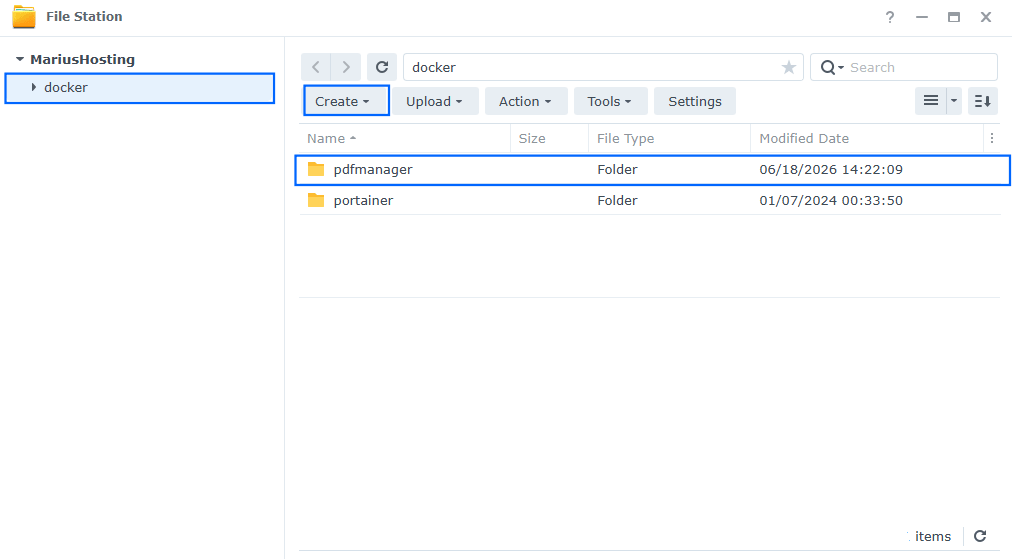
Go to File Station and open the docker folder. Inside the docker folder, create one new folder and name it pdfmanager. Follow the instructions in the image below.
Note: Be careful to enter only lowercase, not uppercase letters.
STEP 4
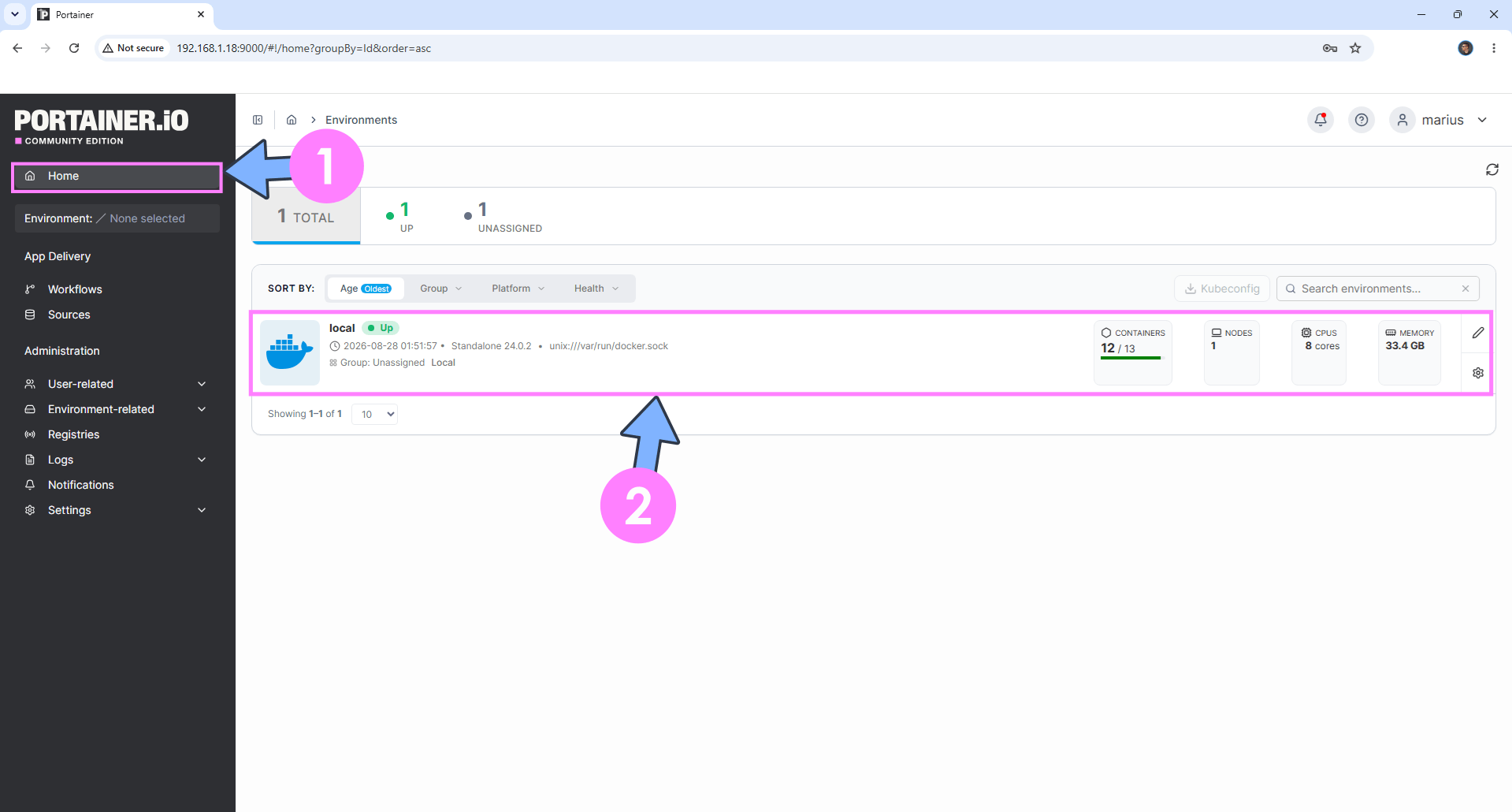
Log into Portainer using your username and password. On the left sidebar in Portainer, click on Home then click inside the local rectangle. Follow the instructions in the image below.
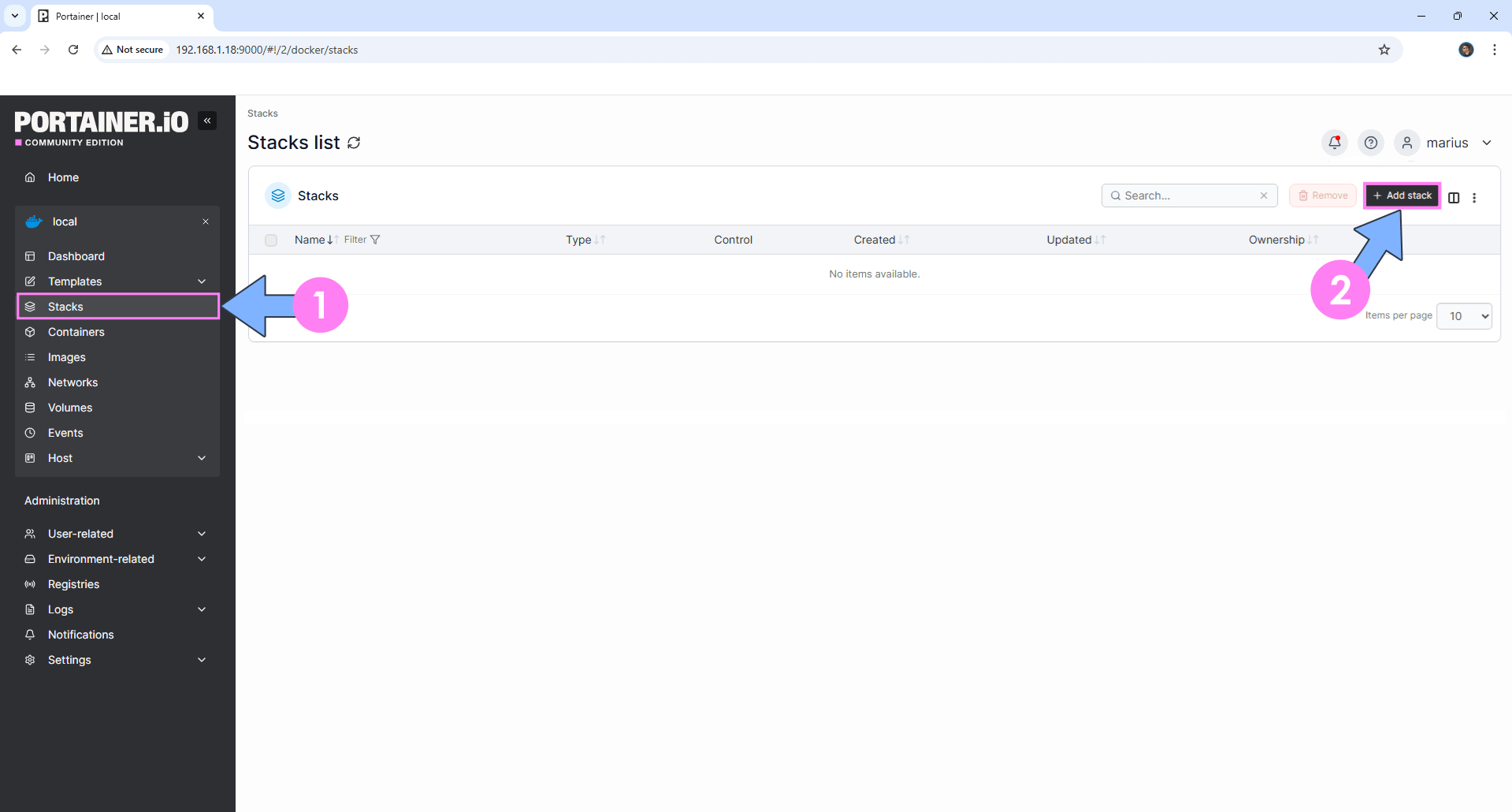
On the left sidebar in Portainer, click on Stacks then + Add stack. Follow the instructions in the image below.
STEP 5
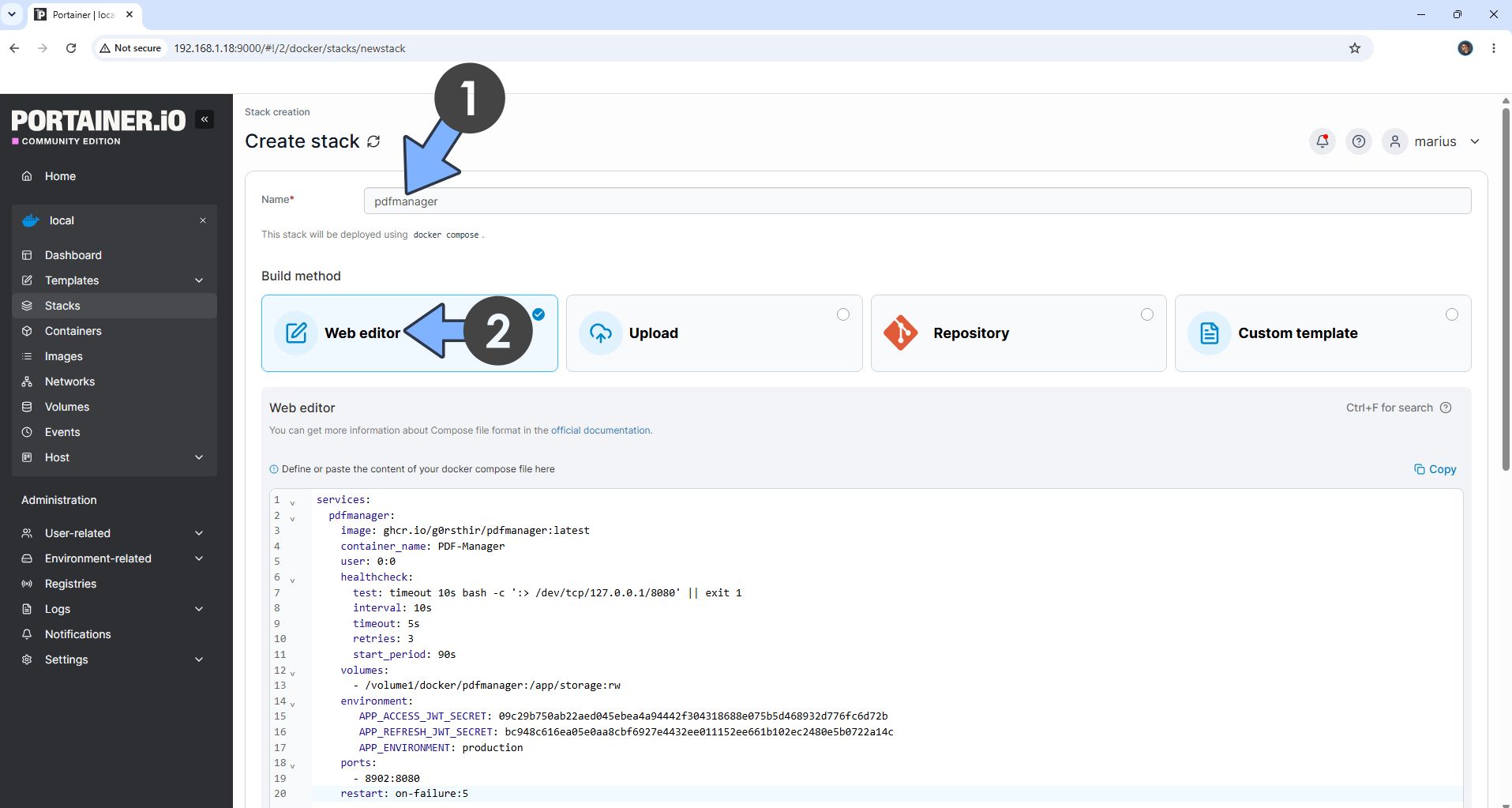
In the Name field type in pdfmanager. Follow the instructions in the image below.
Note: Copy Paste the code below in the Portainer Stacks Web editor.
services:
  pdfmanager:
    image: ghcr.io/g0rsthir/pdfmanager:latest
    container_name: PDF-Manager
    user: 0:0
    healthcheck:
      test: timeout 10s bash -c ':> /dev/tcp/127.0.0.1/8080' || exit 1
      interval: 10s
      timeout: 5s
      retries: 3
      start_period: 90s
    volumes:
      - /volume1/docker/pdfmanager:/app/storage:rw
    environment:
       APP_ACCESS_JWT_SECRET: 09c29b750ab22aed045ebea4a94442f304318688e075b5d468932d776fc6d72b
       APP_REFRESH_JWT_SECRET: bc948c616ea05e0aa8cbf6927e4432ee011152ee661b102ec2480e5b0722a14c
       APP_ENVIRONMENT: production
    ports:
      - 8902:8080
    restart: on-failure:5
Note: Before you paste the code above in the Web editor area below, change the value for APP_ACCESS_JWT_SECRET. (Generate Your Own Free 🏅openssl rand -hex 32 APP_ACCESS_JWT_SECRET.)
Note: Before you paste the code above in the Web editor area below, change the value for APP_REFRESH_JWT_SECRET. (Generate Your Own Free 🏅openssl rand -hex 32 APP_REFRESH_JWT_SECRET.)
STEP 6
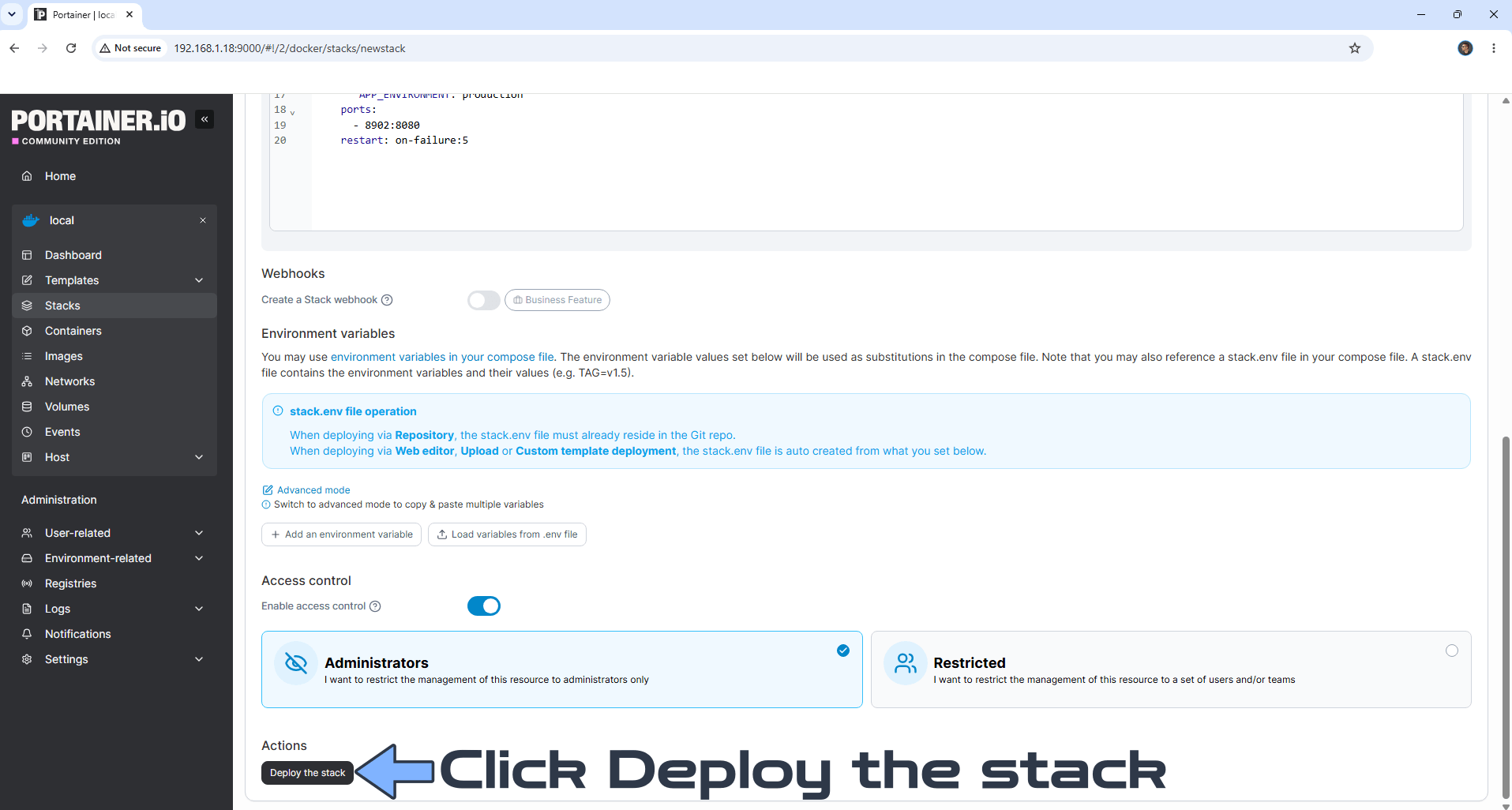
Scroll down on the page until you see a button named Deploy the stack. Click on it. Follow the instructions in the image below. The installation process can take up to a few minutes. It will depend on your Internet speed connection.
STEP 7
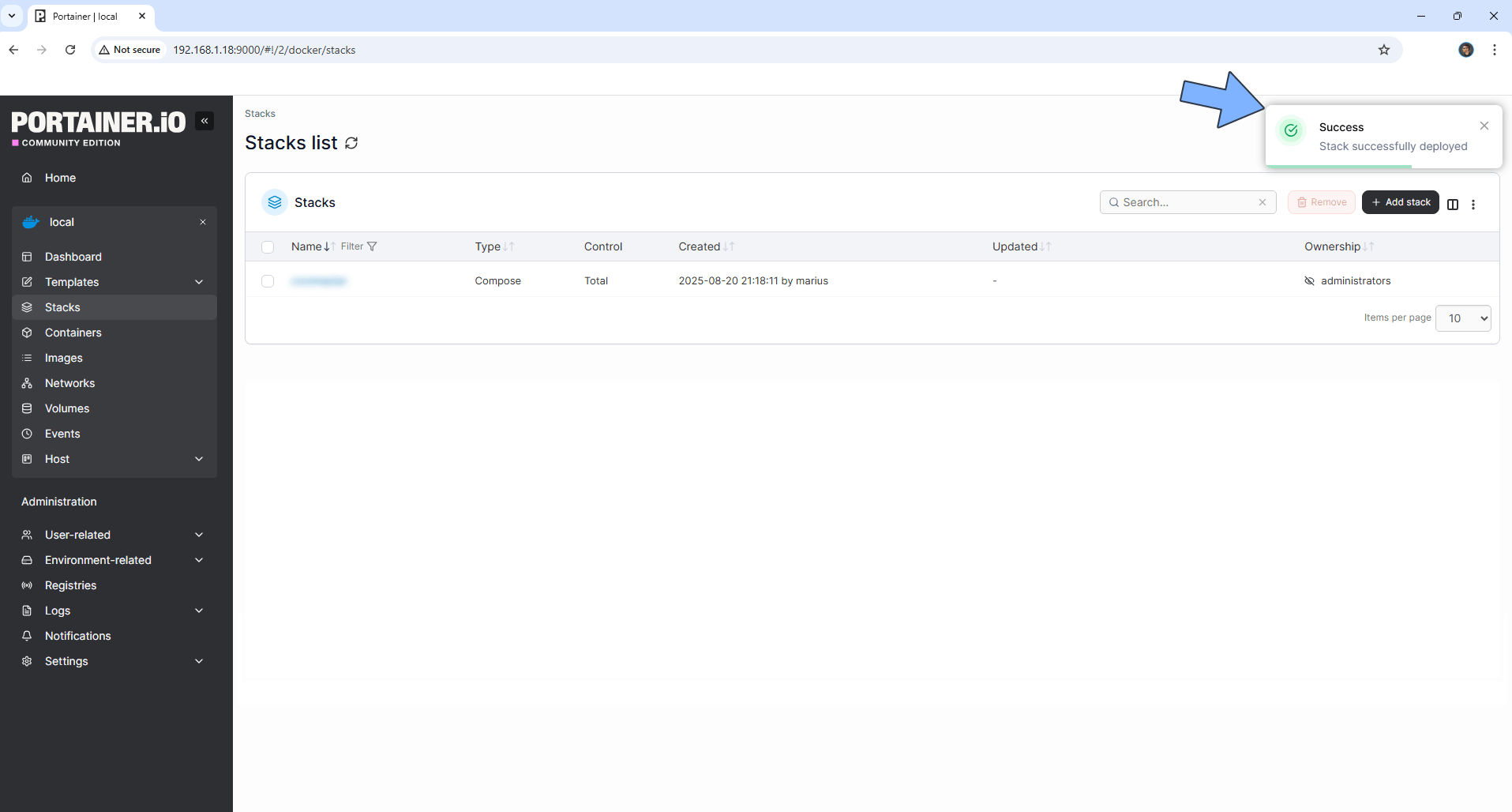
If everything goes right, you will see the following message at the top right of your screen: “Success Stack successfully deployed“.
STEP 8
🟢Please Support My work by Making a Donation. Almost 99,9% of the people that install something using my guides forget to support my work, or just ignore STEP 1. I’ve been very honest about this aspect of my work since the beginning: I don’t run any ADS, I don’t require subscriptions, paid or otherwise, I don’t collect IPs, emails, and I don’t have any referral links from Amazon or other merchants. I also don’t have any POP-UPs or COOKIES. I have repeatedly been told over the years how much I have contributed to the community. It’s something I love doing and have been honest about my passion since the beginning. But I also Need The Community to Support me Back to be able to continue doing this work.
STEP 9
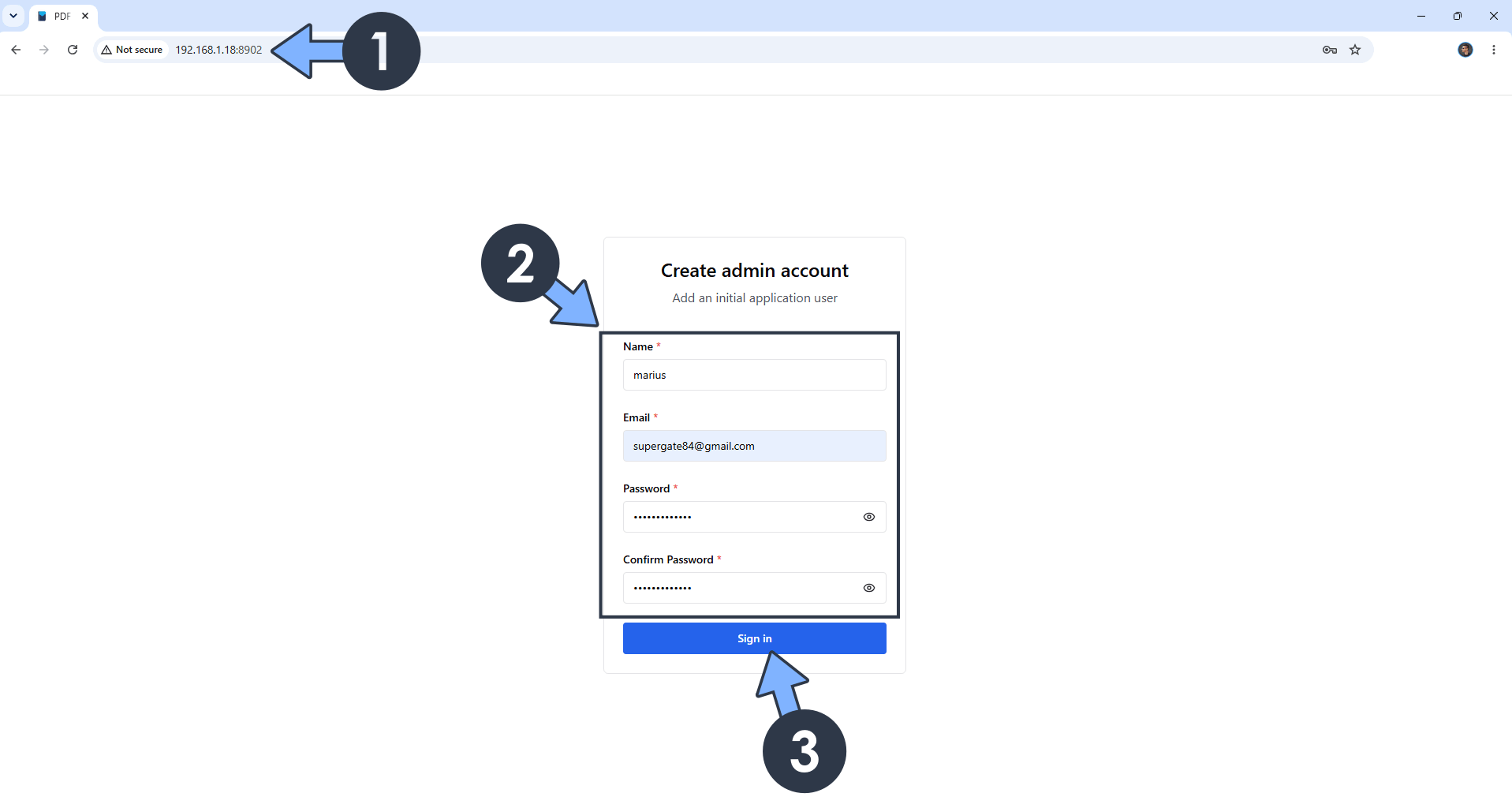
The installation process can take up to a few seconds/minutes. It will depend on your Internet speed connection. Now open your browser and type in http://Synology-ip-address:8902 Create your administrator account then click Sign in. Follow the instructions in the image below.
STEP 10
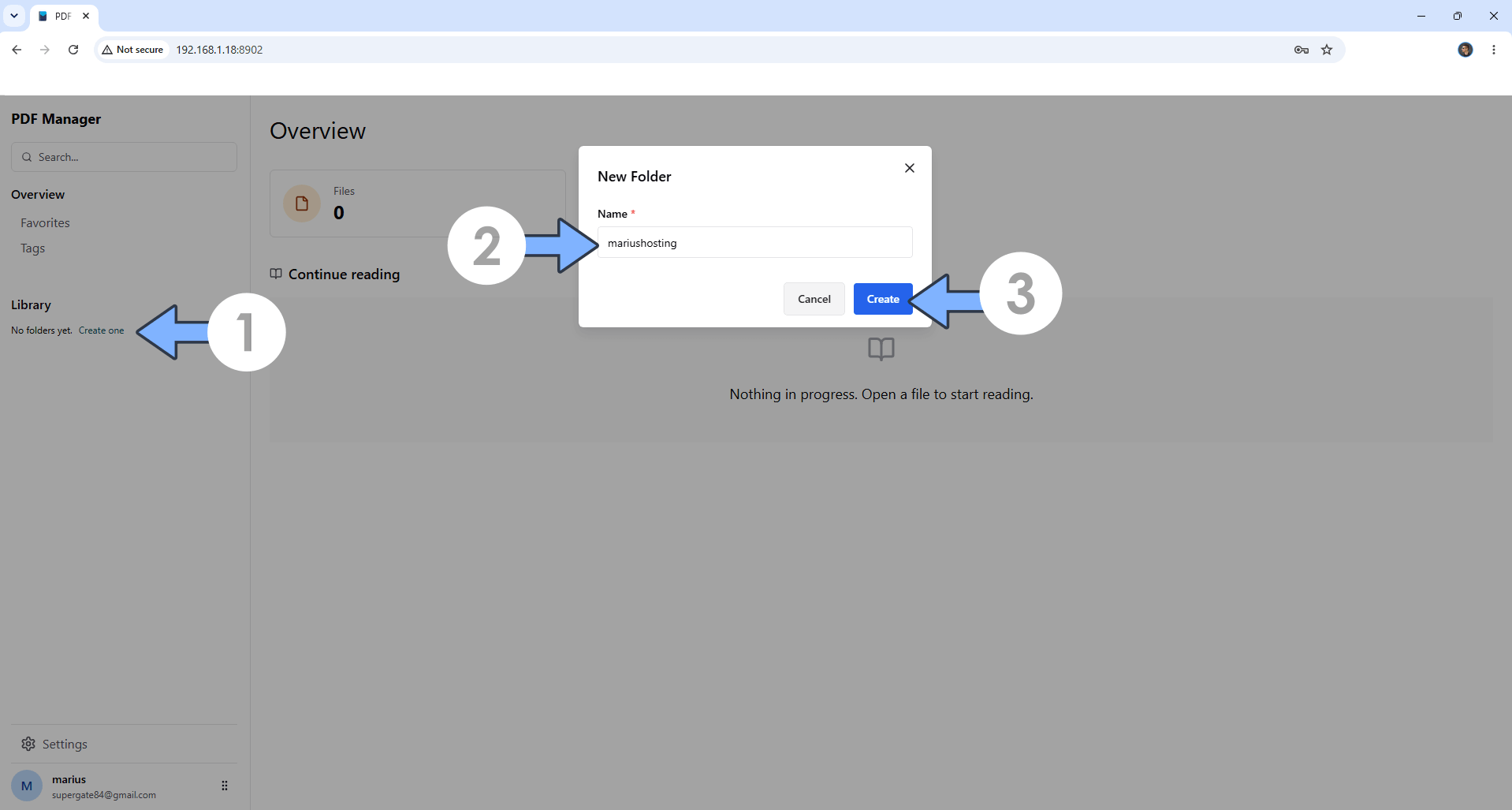
On the left sidebar, under Library, click Create one. Type in the name of the folder then click Create. Follow the instructions in the image below.
STEP 11
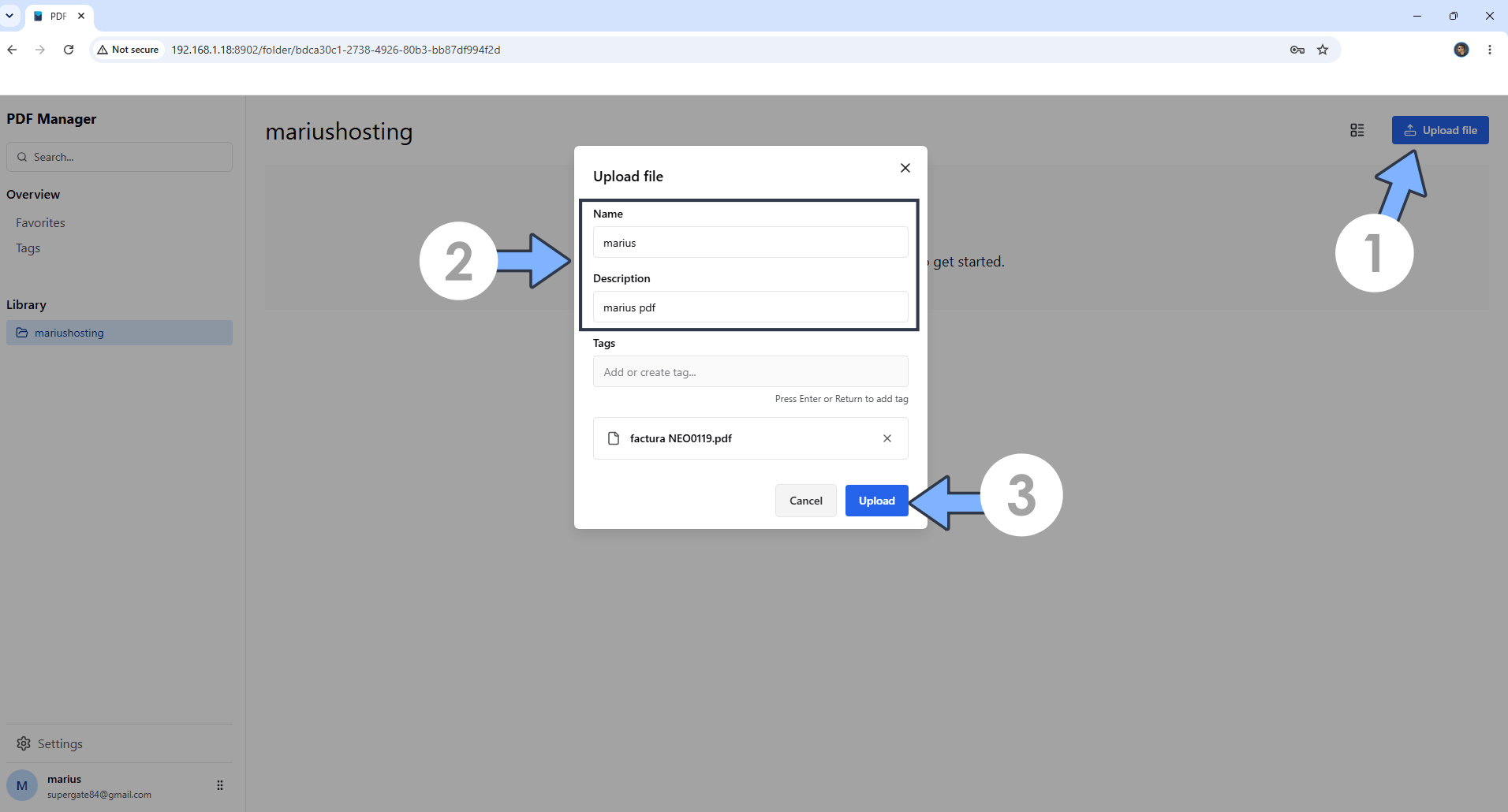
At the top right of the page, click Upload file. Give a name and description to the file. Click Upload. Follow the instructions in the image below.
STEP 12
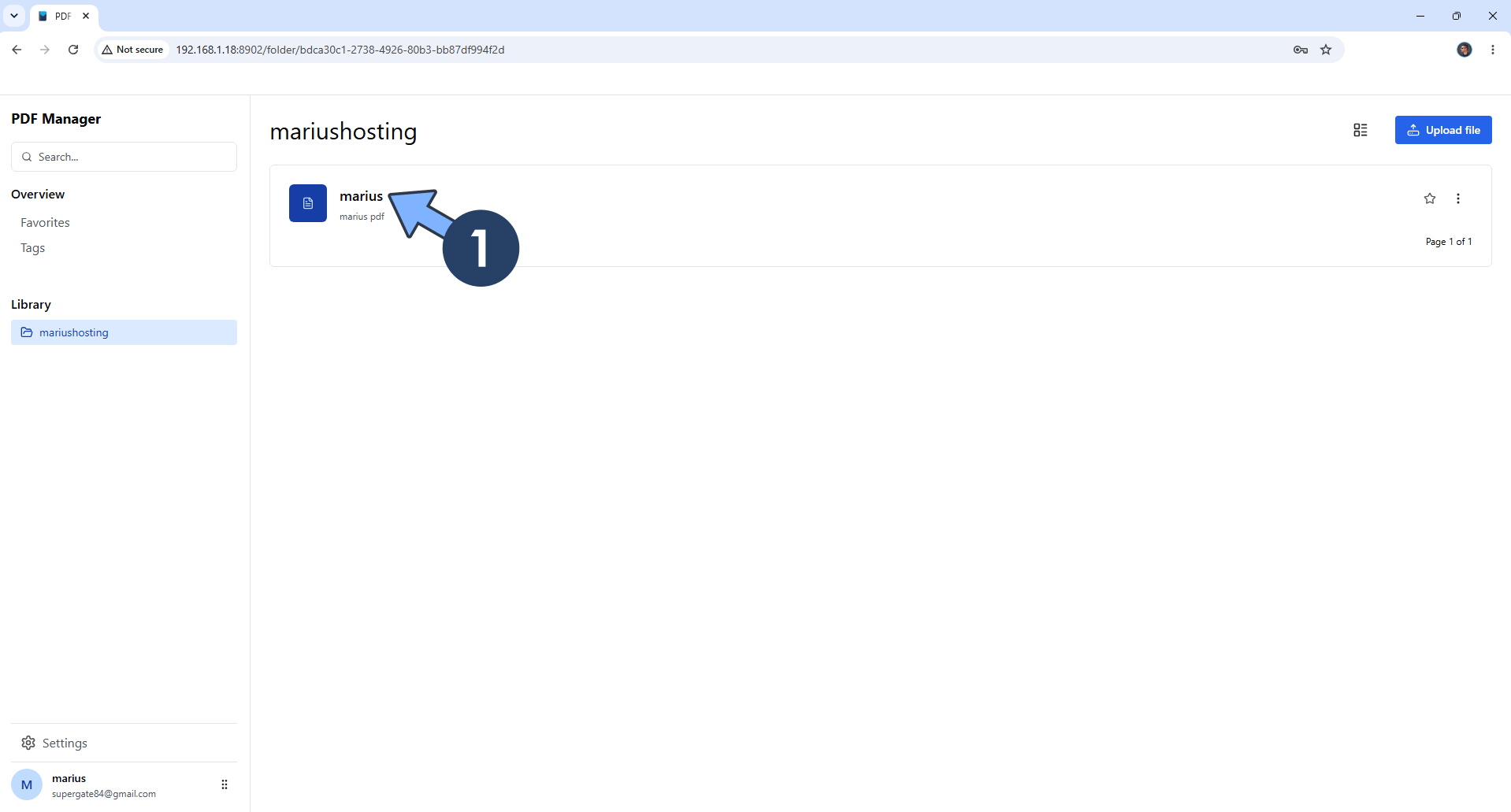
Click on your PDF. Follow the instructions in the image below.
STEP 13
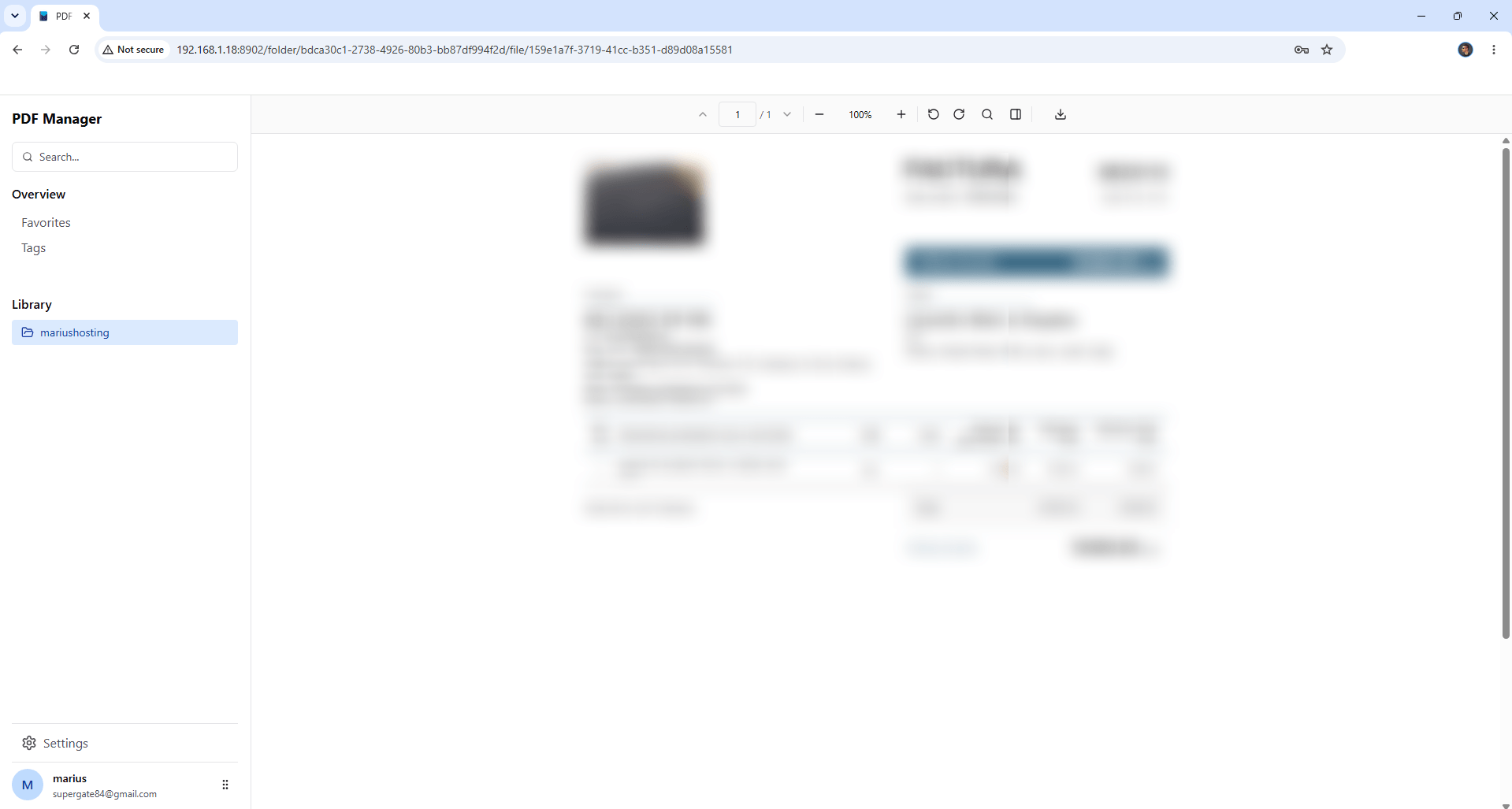
Your PDF at a glance!
STEP 14
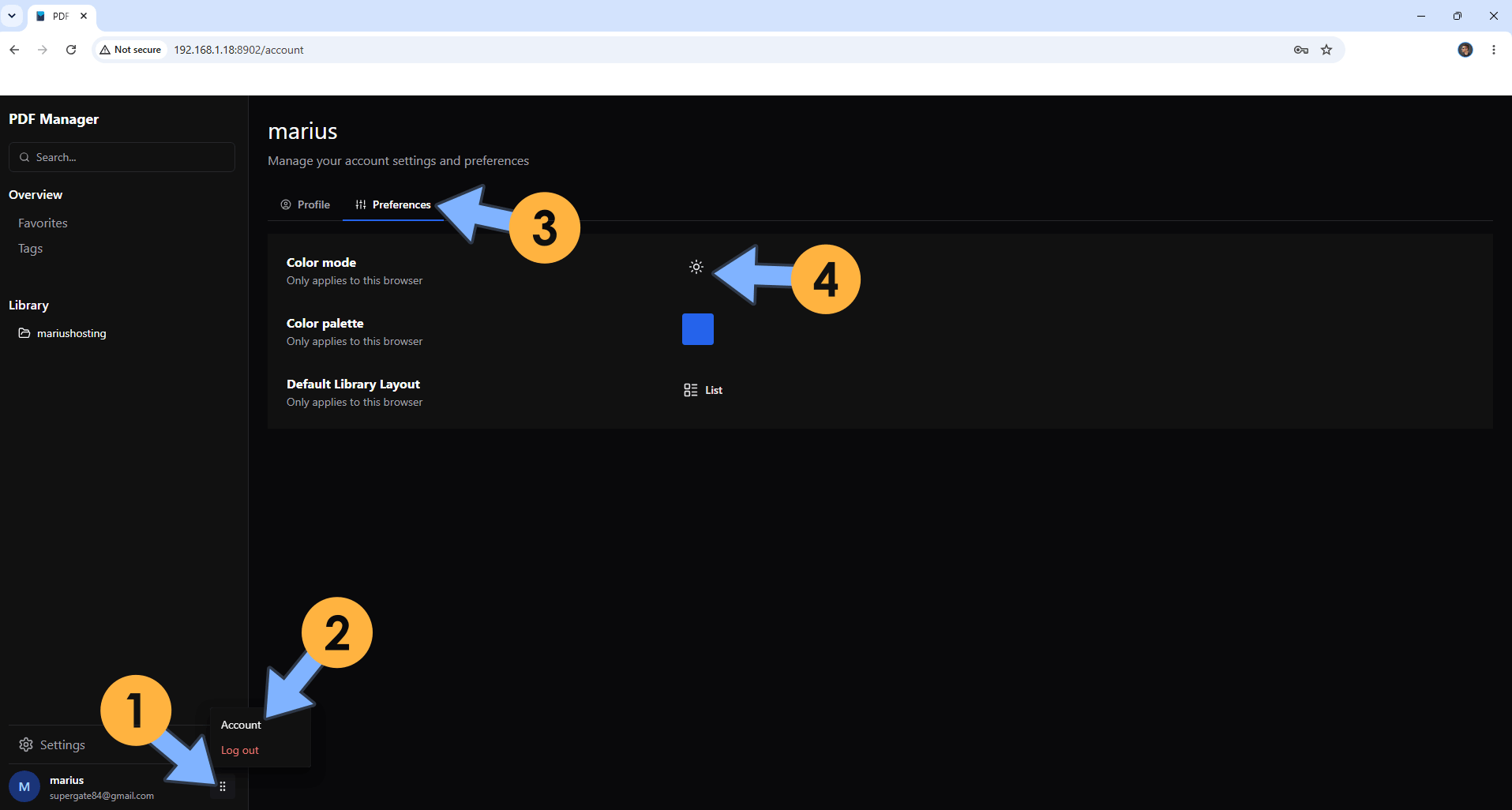
At the bottom of the page, click on the vertical dots. Click Account then the Preferences tab. Switch the theme to dark. Follow the instructions in the image below.
Enjoy PDF Manager!
🆘TROUBLESHOOTING
If you encounter issues by using this container, make sure to check out the Common Docker issues article.
Note: If you want to run the PDF Manager container over HTTPS, check How to Run Docker Containers Over HTTPS. In order to make PDF Manager work via HTTPS, it’s mandatory to activate WebSocket.
Note: Can I run Docker on my Synology NAS? See the supported models.
Note: How to Back Up Docker Containers on your Synology NAS.
Note: Find out how to update the PDF Manager container with the latest image.
Note: How to Free Disk Space on Your NAS if You Run Docker.
Note: How to Schedule Start & Stop For Docker Containers.
Note: How to Activate Email Notifications.
Note: How to Add Access Control Profile on Your NAS.
Note: How to Change Docker Containers Restart Policy.
Note: How to Use Docker Containers With VPN.
Note: Convert Docker Run Into Docker Compose.
Note: How to Clean Docker.
Note: How to Clean Docker Automatically.
Note: Best Practices When Using Docker and DDNS.
Note: Some Docker Containers Need WebSocket.
Note: Find out the Best NAS Models For Docker.
This post was updated on Sunday / October 11th, 2026 at 6:16 AM