
Layerling is a free, open-source browser-based 3D CAD tool aimed at 3D printing enthusiasts who want functional parts without learning complex software or creating an account. It works much like Tinkercad: drag shapes onto a virtual build plate, turn some into holes, group them, and export. Layerling adds practical features such as chamfers and fillets that remain editable, sketches, threads, gears, hole patterns, hollowing, STEP export for true CAD geometry, multicolour support, and printer-specific build plates with overhang warnings. Designs stay entirely local in the browser, require no sign-up, and can even be driven by an AI assistant via its MCP server. I recently designed a simple phone stand with rounded edges and a cable slot using Layerling. Within a few minutes I had dropped a couple of boxes, cut the slot, applied a fillet to the top edges, and exported a clean STL, something that would have been far more fiddly in Tinkercad and far heavier in a full CAD package. The interface felt immediately familiar, the lack of any account friction was refreshing, and the part printed perfectly the first time. In this step by step guide I will show you how to install Layerling on your Synology NAS using Docker & Dockhand.
💡Note:
This guide works perfectly with the latest Layerling v1.92.2 release.
STEP 1
Please Support My work by Making a Donation.
STEP 2
Install Dockhand using my step by step guide. If you already have Dockhand installed on your Synology NAS, skip this STEP. ⚠️Attention: Make sure you have installed the latest Dockhand version.
STEP 3
Make sure you have a synology.me Wildcard Certificate. Follow my guide to get a Wildcard Certificate. If you already have a synology.me Wildcard certificate, skip this STEP.
STEP 4
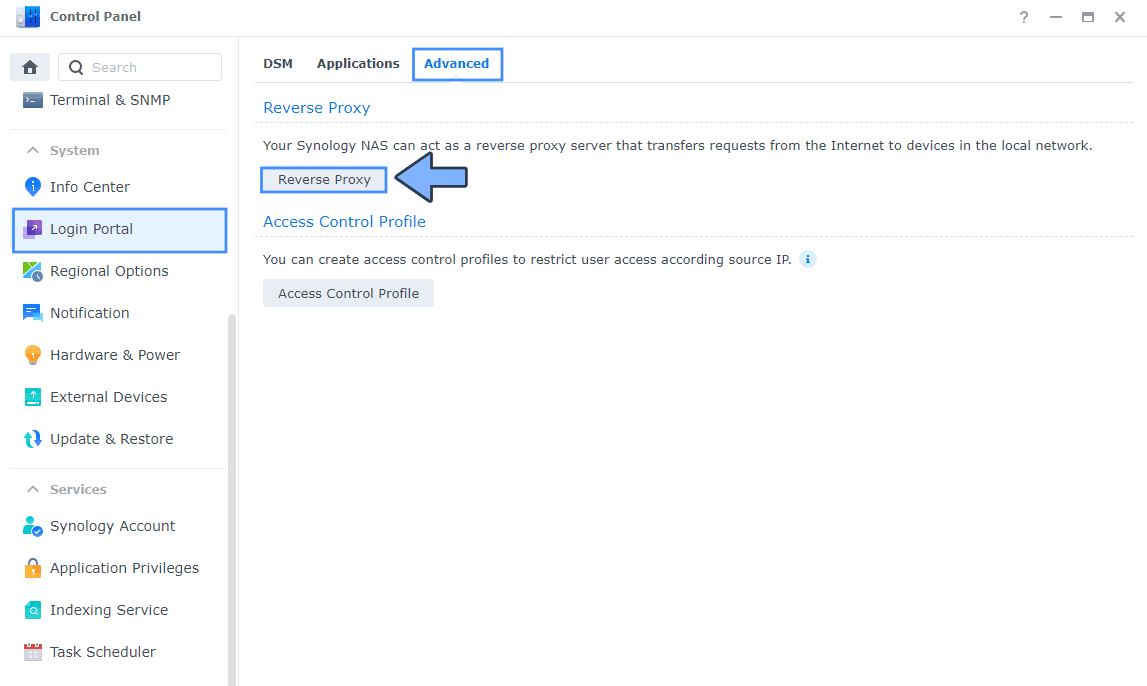
Go to Control Panel / Login Portal / Advanced Tab / click Reverse Proxy. Follow the instructions in the image below.
STEP 5
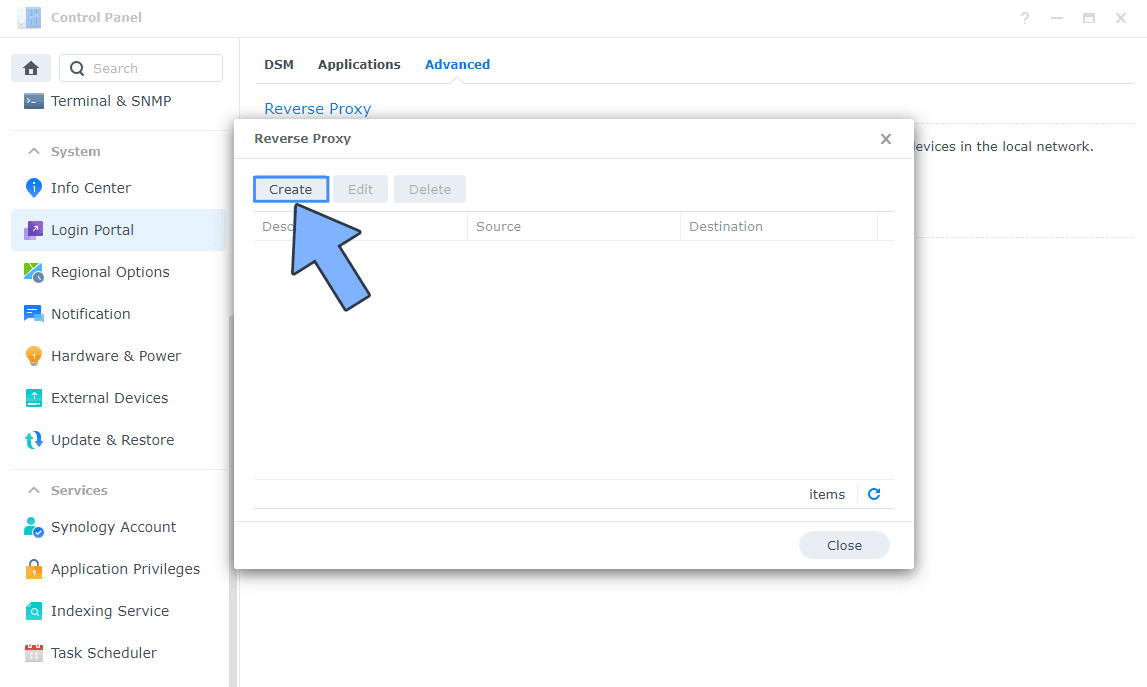
Now click the “Create” button. Follow the instructions in the image below.
STEP 6
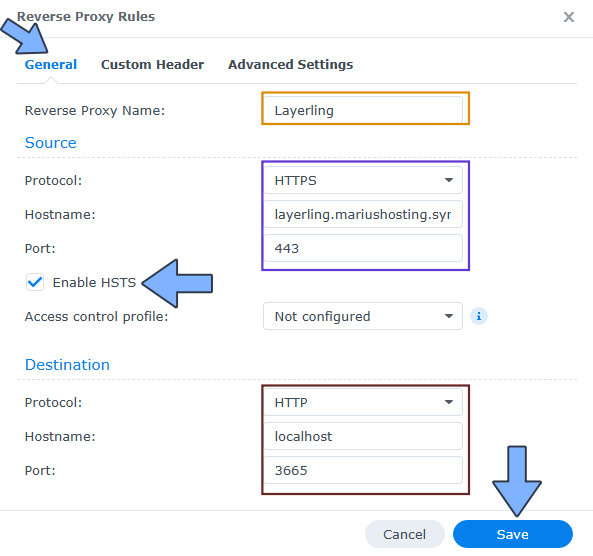
After you click the Create button, the window below will open. Follow the instructions in the image below.
On the General area, set the Reverse Proxy Name description: type in Layerling. After that, add the following instructions:
Source:
Protocol: HTTPS
Hostname: layerling.yourname.synology.me
Port: 443
Check Enable HSTS
Destination:
Protocol: HTTP
Hostname: localhost
Port: 3665
STEP 7
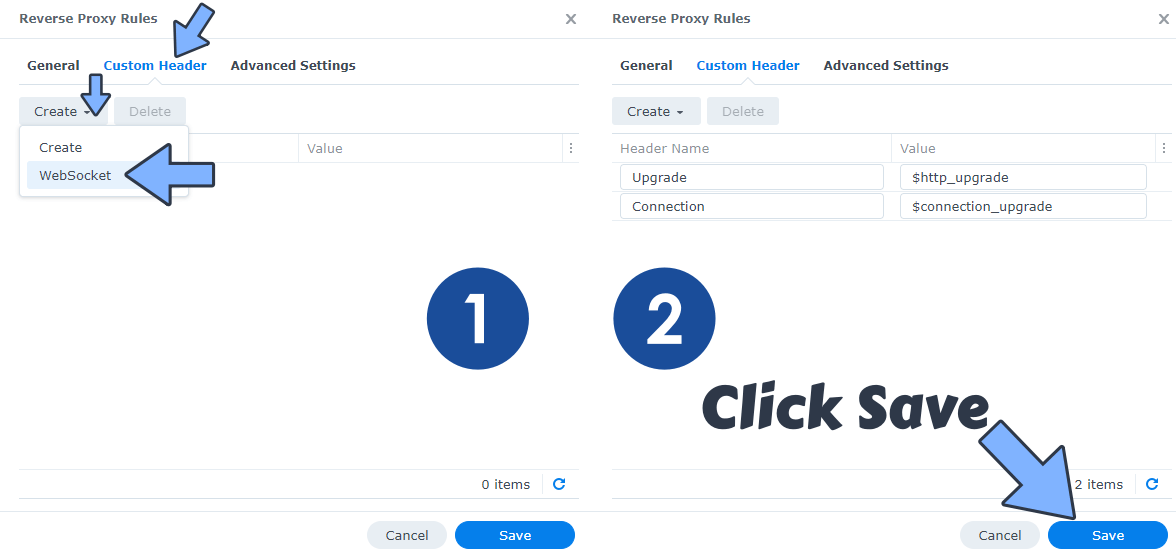
On the Reverse Proxy Rules, click the Custom Header tab. Click Create and then, from the drop-down menu, click WebSocket. After you click on WebSocket, two Header Names and two Values will be automatically added. Click Save. Follow the instructions in the image below.
STEP 8
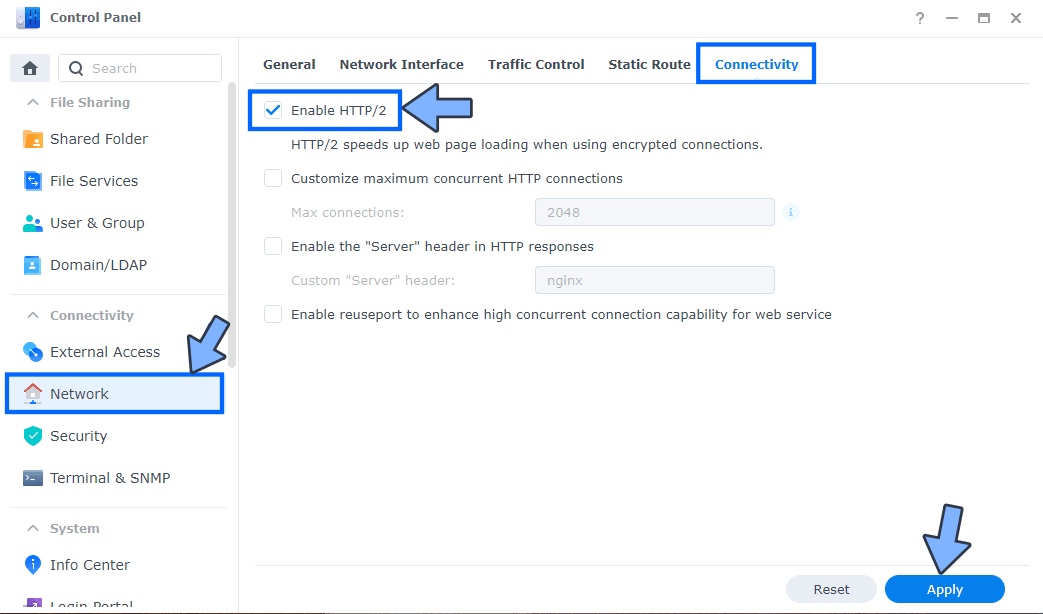
Go to Control Panel / Network / Connectivity tab/ Check Enable HTTP/2 then click Apply. Follow the instructions in the image below.
STEP 9
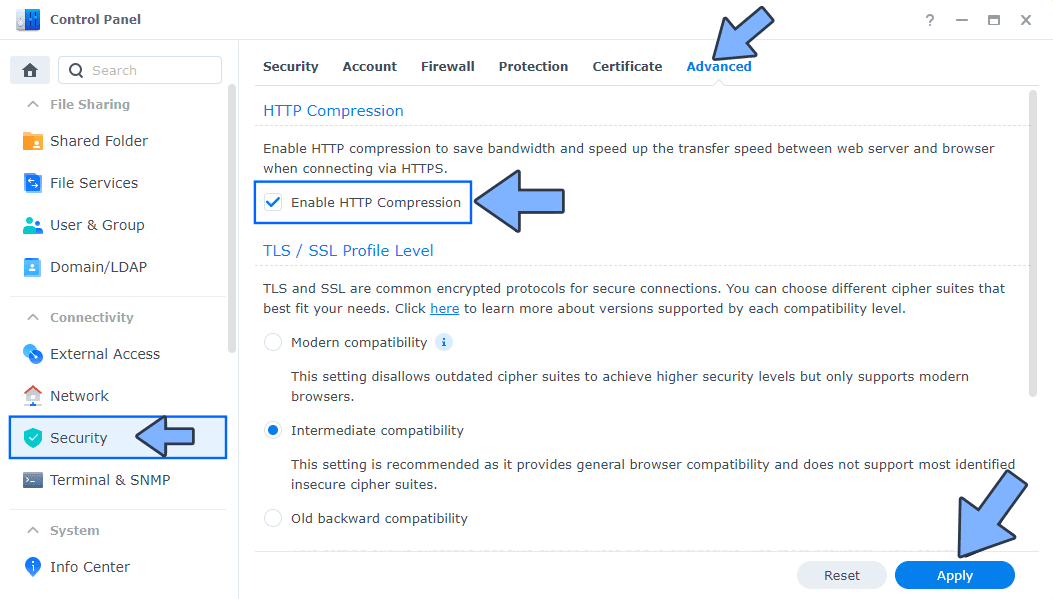
Go to Control Panel / Security / Advanced tab/ Check Enable HTTP Compression then click Apply. Follow the instructions in the image below.
STEP 10
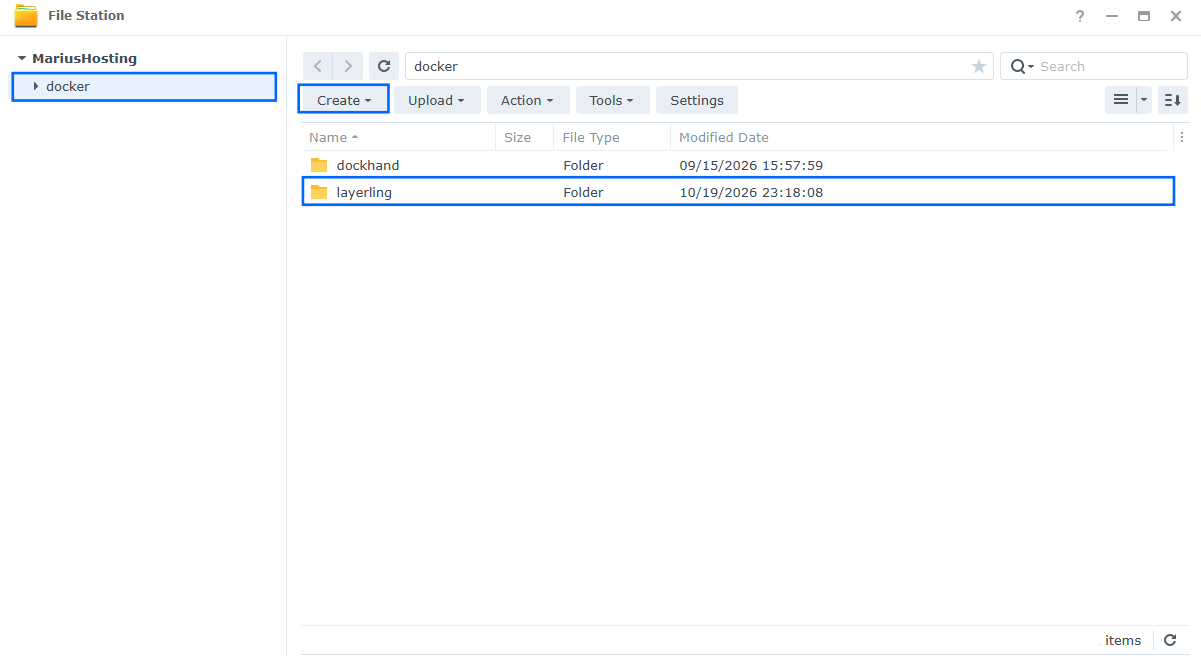
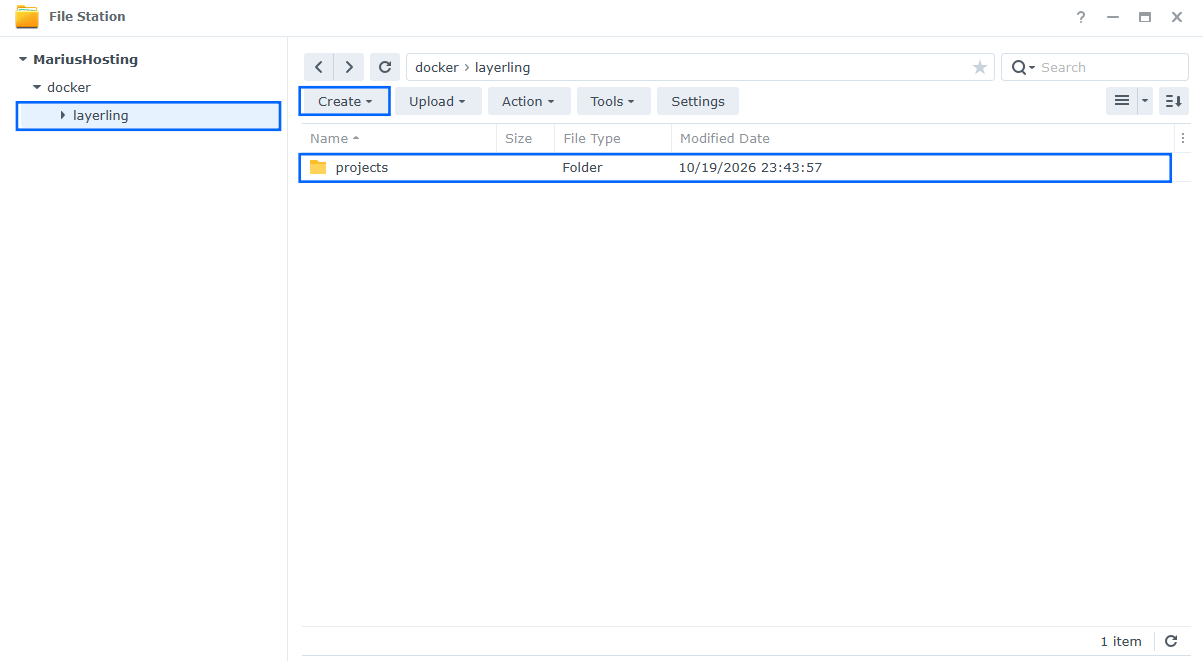
Go to File Station and open the docker folder. Inside the docker folder, create one new folder and name it layerling. Follow the instructions in the image below.
Note: Be careful to enter only lowercase, not uppercase letters.
STEP 11
Now create one new folder inside the layerling folder that you have previously created at STEP 10 and name it projects. Follow the instructions in the image below.
Note: Be careful to enter only lowercase, not uppercase letters.
STEP 12
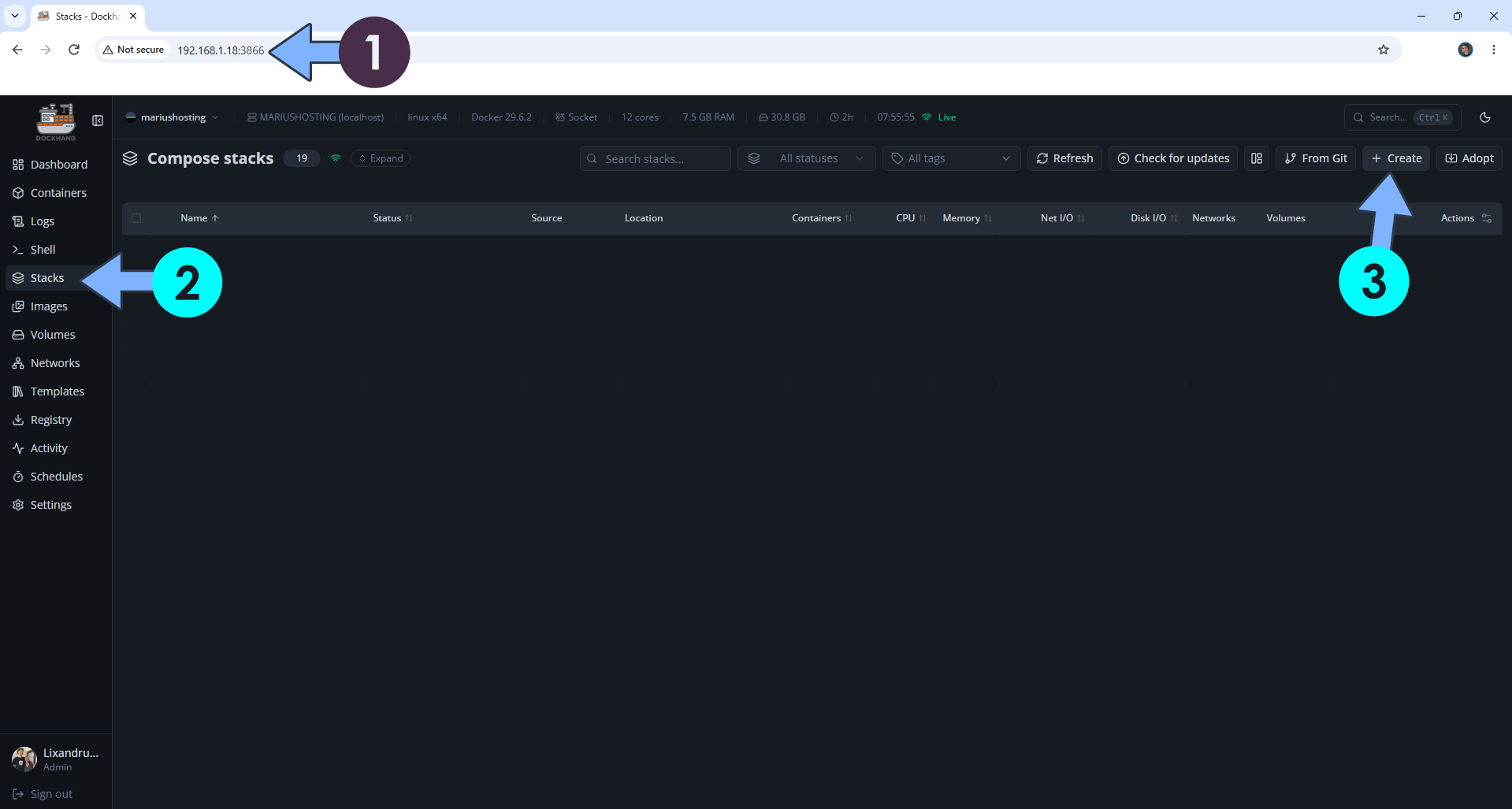
Open your browser and type in http://synology-ip-address:3866 to connect to your Dockhand container. On the left sidebar, click Stacks then + Create. Follow the instructions in the image below.
STEP 13
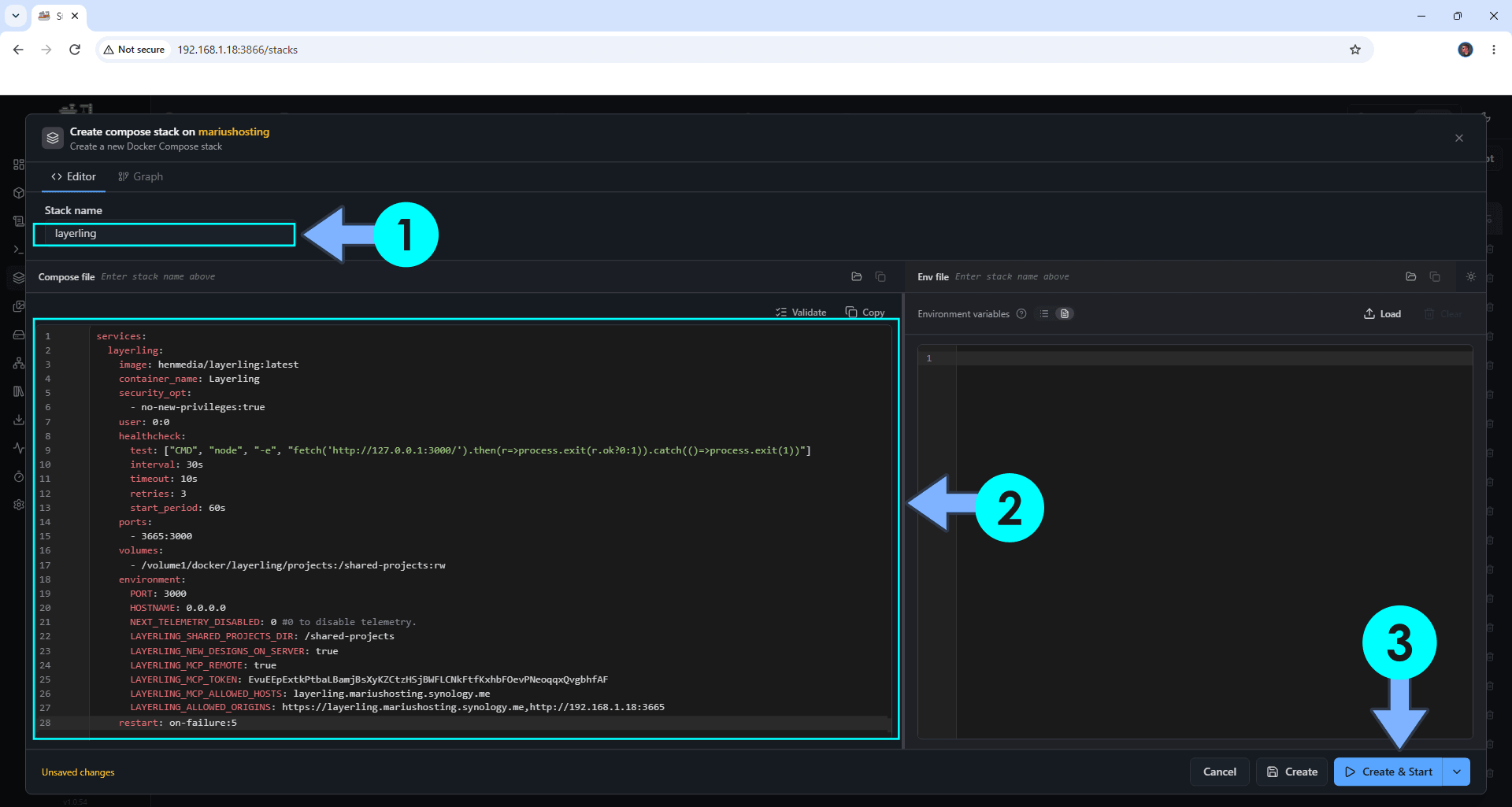
In the Stack name field, type in layerling. ⚠️Warning: Type in the name in lowercase letters. The installation process can take up to a few seconds/minutes. It will depend on your Internet speed connection. Follow the instructions in the image below.
Note: Copy Paste the code below in the Dockhand Compose Stack then click Create & Start.
services:
  layerling:
    image: henmedia/layerling:latest
    container_name: Layerling
    security_opt:
      - no-new-privileges:true
    user: 0:0
    healthcheck:
      test: ["CMD", "node", "-e", "fetch('http://127.0.0.1:3000/').then(r=>process.exit(r.ok?0:1)).catch(()=>process.exit(1))"]
      interval: 30s
      timeout: 10s
      retries: 3
      start_period: 60s
    ports:
      - 3665:3000
    volumes:
      - /volume1/docker/layerling/projects:/shared-projects:rw
    environment:
      PORT: 3000
      HOSTNAME: 0.0.0.0
      NEXT_TELEMETRY_DISABLED: 0 #0 to disable telemetry.
      LAYERLING_SHARED_PROJECTS_DIR: /shared-projects
      LAYERLING_NEW_DESIGNS_ON_SERVER: true
      LAYERLING_MCP_REMOTE: true
      LAYERLING_MCP_TOKEN: EvuEEpExtkPtbaLBamjBsXyKZCtzHSjBWFLCNkFtfKxhbFOevPNeoqqxQvgbhfAF
      LAYERLING_MCP_ALLOWED_HOSTS: layerling.yourname.synology.me
      LAYERLING_ALLOWED_ORIGINS: https://layerling.yourname.synology.me,http://192.168.1.18:3665
    restart: on-failure:5
Note: Before you paste the code above in the Web editor area below, change the value for LAYERLING_MCP_TOKEN. (Generate your own Random 64 length LAYERLING_MCP_TOKEN.)
Note: Before you paste the code above in the Web editor area below, change the value for LAYERLING_MCP_ALLOWED_HOSTS and type in your own synology.me DDNS without https:// at the beginning that you have previously created at STEP 6.
Note: Before you paste the code above in the Web editor area below, change the value for LAYERLING_ALLOWED_ORIGINS and type in your own synology.me DDNS with https:// at the beginning that you have previously created at STEP 6. Separated with a comma, type in your Local NAS IP with http:// at the beginning and :3665 at the end.
STEP 14
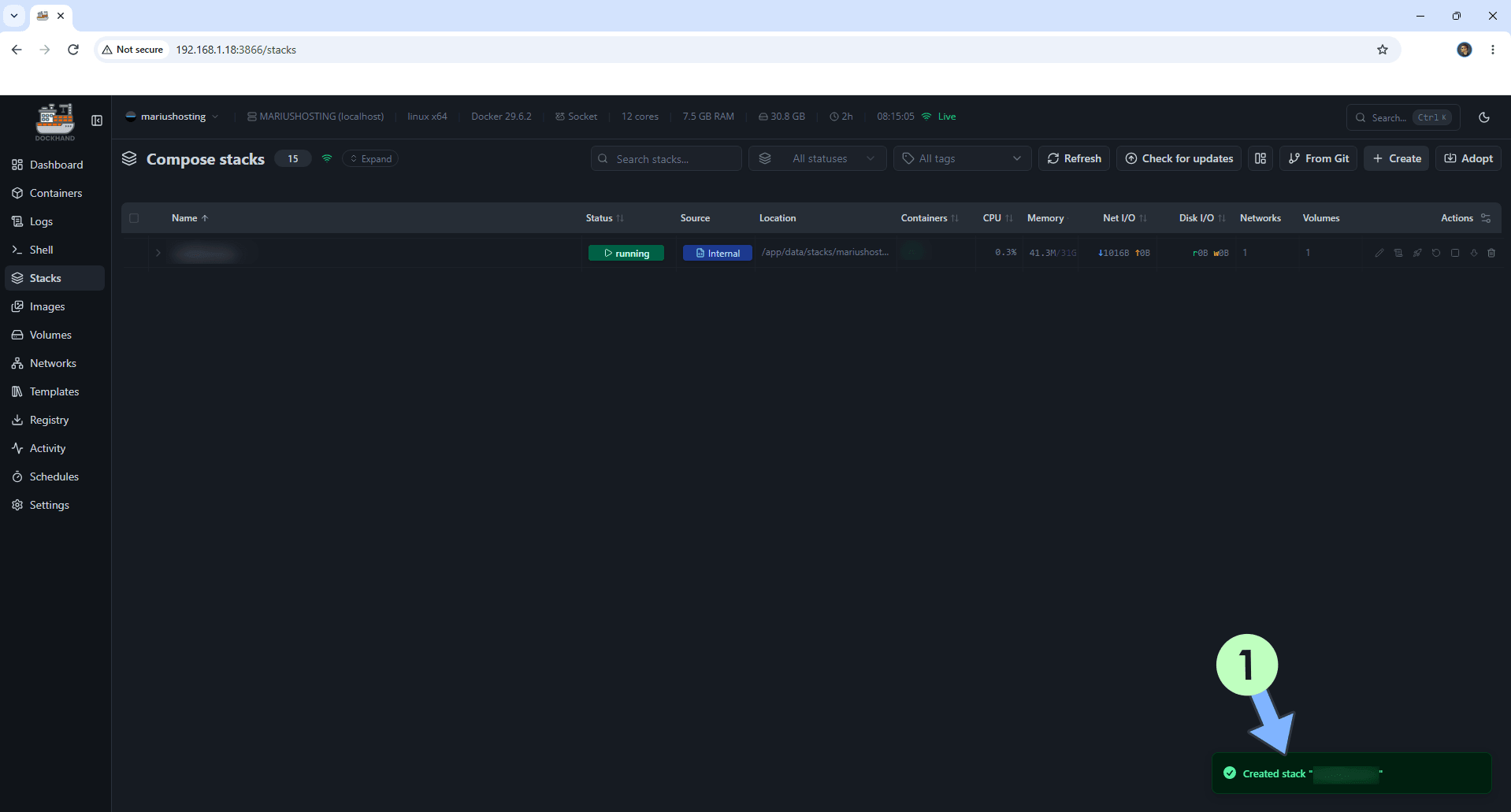
If everything goes right, you will see the following message at the bottom right of your screen: “Created stack “layerling”“.
STEP 15
🟢Please Support My work by Making a Donation. Almost 99,9% of the people that install something using my guides forget to support my work, or just ignore STEP 1. I’ve been very honest about this aspect of my work since the beginning: I don’t run any ADS, I don’t require subscriptions, paid or otherwise, I don’t collect IPs, emails, and I don’t have any referral links from Amazon or other merchants. I also don’t have any POP-UPs or COOKIES. I have repeatedly been told over the years how much I have contributed to the community. It’s something I love doing and have been honest about my passion since the beginning. But I also Need The Community to Support me Back to be able to continue doing this work.
STEP 16
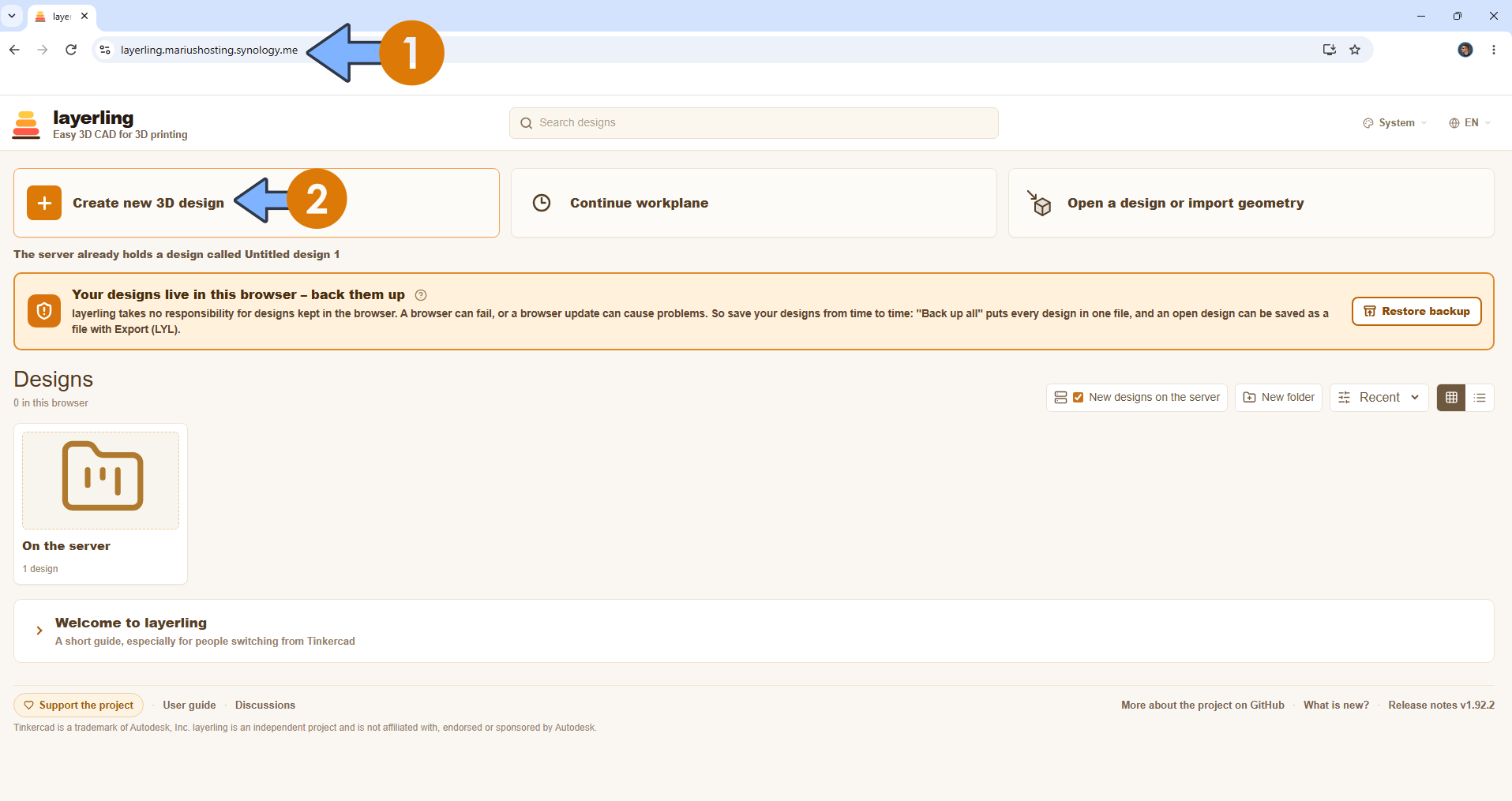
Now open your browser and type in your HTTPS/SSL certificate like this https://layerling.yourname.synology.me that you have previously created at STEP 6. In my case it’s https://layerling.mariushosting.synology.me Click Create new 3D design. Follow the instructions in the image below.
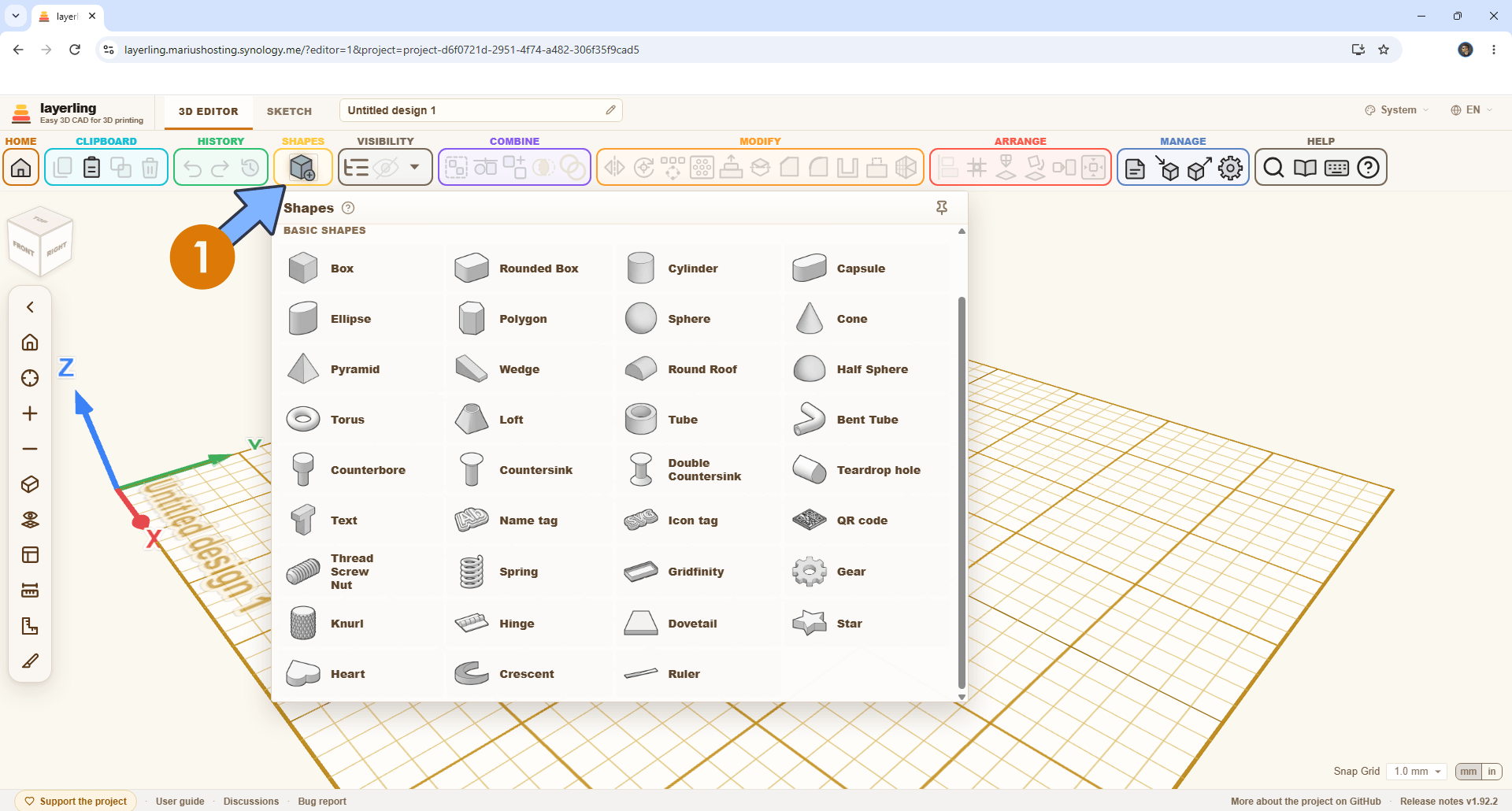
STEP 17
Your SHAPES at a glance!
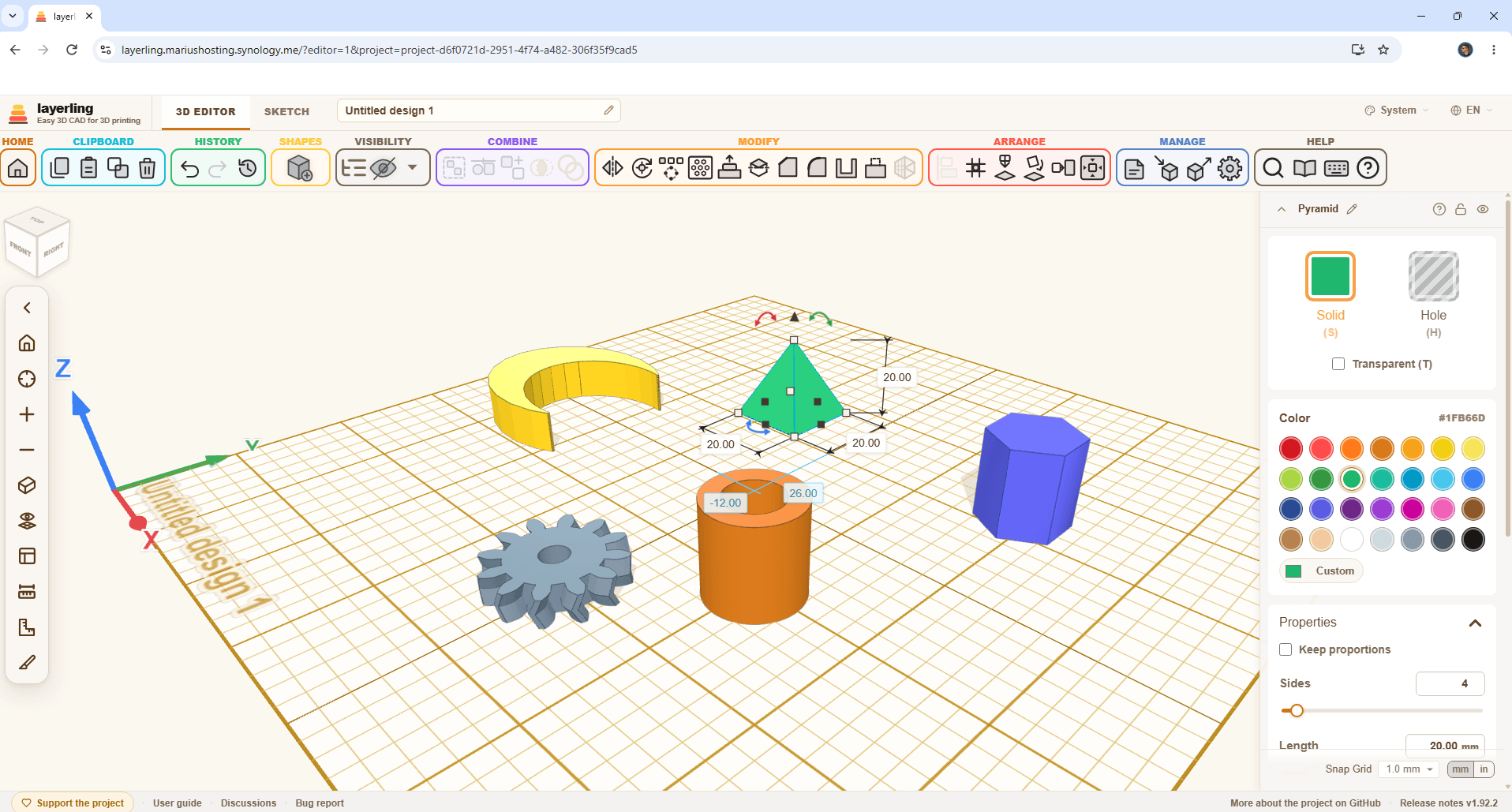
STEP 18
Your Layerling dashboard at a glance!
💡EXTRA SETTINGS
STEP A
Connect Claude (MCP) to the NAS copy: The MCP server itself runs on your own computer. Your AI client starts it, and it talks to the Layerling container over the network with the LAYERLING_MCP_TOKEN that you have previously added at STEP 13. So your computer needs a copy of the layerling repo and Node.js.
On your computer, install Node.js 20 or newer, then run:
git clone https://github.com/henmedia/layerling.git
cd layerling
npm install
Keep in mind to note the absolute path of the folder, for example /Users/mariushosting/layerling.
STEP B
Open an editor tab of the NAS copy and keep it open: http://192.168.1.18:3665/?editor=1
Note: Change 192.168.1.18 with your own Local NAS IP. So keep open the LOCAL NAS IP with http:// at the beginning and :3665/?editor=1 at the end.
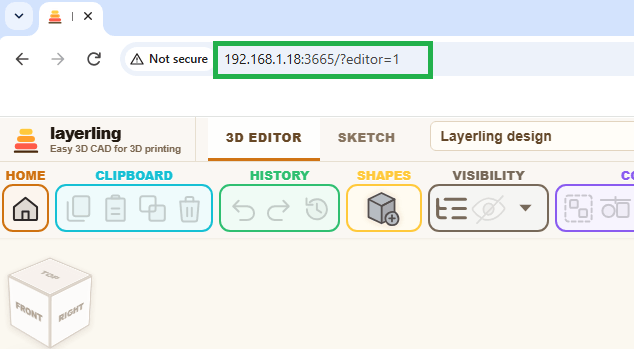
Note: The AI can only see editor tabs opened under an address that only your network can use: an IP address, a name without a dot, or a name ending in .local or .lan. A synology.me DDNS address only counts if it is in LAYERLING_MCP_ALLOWED_HOSTS at STEP 13. The NAS copy cannot open an editor for the AI, so you need to open it.
STEP C
Claude Desktop: go to Settings / Developer / Edit Config and add the layerling server. Replace the path, LOCAL NAS IP and LAYERLING_MCP_TOKEN that you have previously added at STEP 13 with your own:
{
  "mcpServers": {
    "layerling": {
      "command": "node",
      "args": ["/Users/mariushosting/layerling/scripts/layerling-mcp-server.mjs"],
      "env": {
        "LAYERLING_URL": "http://192.168.0.18:3665",
        "LAYERLING_MCP_TOKEN": "EvuEEpExtkPtbaLBamjBsXyKZCtzHSjBWFLCNkFtfKxhbFOevPNeoqqxQvgbhfAF"
      }
    }
  }
}
Save the file and restart Claude Desktop.
Claude Code: run this once instead:
claude mcp add layerling \
  -e LAYERLING_URL=http://192.168.1.18:3665 \
  -e LAYERLING_MCP_TOKEN=EvuEEpExtkPtbaLBamjBsXyKZCtzHSjBWFLCNkFtfKxhbFOevPNeoqqxQvgbhfAF \
  -- node /Users/mariushosting/layerling/scripts/layerling-mcp-server.mjs
Note: On Windows use a path like C:\\Users\\mariushosting\\layerling\\scripts\\layerling-mcp-server.mjs in the JSON, with double backslashes.
Note: in the LAYERLING URL= area, type in your own LOCAL NAS IP with http:// at the beginning and :3665 at the end.
Note: in the LAYERLING_MCP_TOKEN= area, type in your own LAYERLING_MCP_TOKEN that you have previously added at STEP 13.
STEP D
Ask Claude:
Use the layerling MCP tools to list my open editors and inspect the scene.
If it lists your NAS editor tab, the bridge works. Then describe a part with real dimensions, for example a round box 60 mm across, 40 mm high, 2.5 mm wall, open at the top. Watch it build it in the open tab.
Enjoy Layerling!
🆘TROUBLESHOOTING
If you encounter issues by using this container, make sure to check out the Common Docker issues article.
Note: Can I run Docker on my Synology NAS? See the supported models.
Note: How to Back Up Docker Containers on your Synology NAS.
Note: Find out how to update the Layerling container with the latest image.
Note: How to Free Disk Space on Your NAS if You Run Docker & Dockhand.
Note: How to Schedule Start & Stop For Docker Containers.
Note: How to Activate Email Notifications.
Note: How to Add Access Control Profile on Your NAS.
Note: How to Change Docker Containers Restart Policy.
Note: How to Use Docker Containers With VPN.
Note: Convert Docker Run Into Docker Compose.
Note: How to Clean Docker.
Note: How to Clean Docker Automatically.
Note: Best Practices When Using Docker and DDNS.
Note: Some Docker Containers Need WebSocket.
Note: Find out the Best NAS Models For Docker.
Note: Activate Gmail SMTP For Docker Containers.
This post was updated on Tuesday / October 20th, 2026 at 5:33 AM