
Pi-hole, the well-known software for network-wide ad blocking, also allows you to customize certain details, such as the color of its logo. By default, the logo is Red, but did you know you can change it to Gray/White directly from the settings? Just log into the web interface and select the theme or style you prefer. A small aesthetic tweak to make your Pi-hole experience even more tailored!
STEP 1
Please Support My work by Making a Donation.
STEP 2
Install Pi-hole V6 by following my step by step guide. If you already have Pi-hole V6 installed on your Synology NAS, skip this STEP.
STEP 3
🟢Please Support My work by Making a Donation. Almost 99,9% of the people that install something using my guides forget to support my work, or just ignore STEP 1. I’ve been very honest about this aspect of my work since the beginning: I don’t run any ADS, I don’t require subscriptions, paid or otherwise, I don’t collect IPs, emails, and I don’t have any referral links from Amazon or other merchants. I also don’t have any POP-UPs or COOKIES. I have repeatedly been told over the years how much I have contributed to the community. It’s something I love doing and have been honest about my passion since the beginning. But I also Need The Community to Support me Back to be able to continue doing this work.
STEP 4
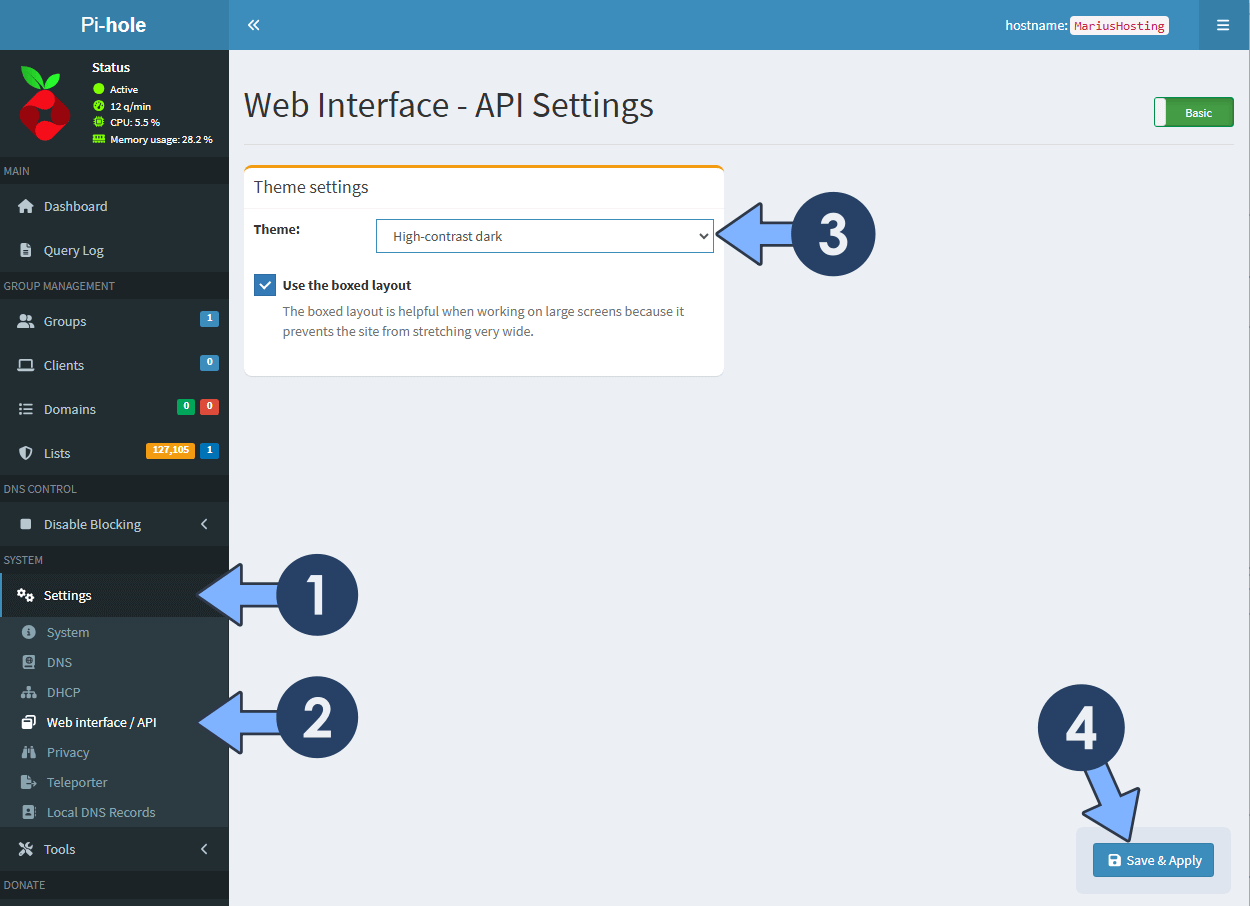
On the left sidebar in Pi-hole, click on Settings, then select the Web interface / API. After that, in the Theme settings area, select High-contrast dark, then click Save & Apply. Follow the instructions in the image below.
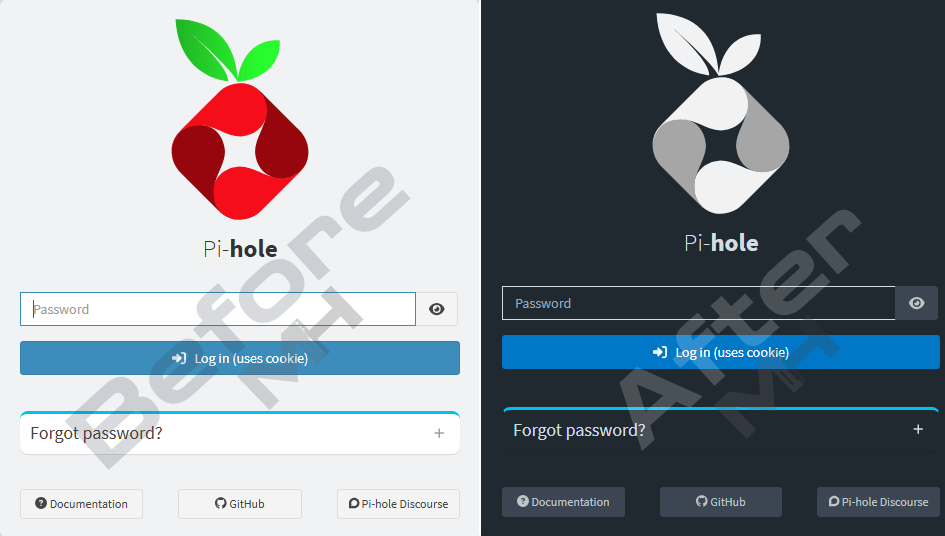
Pi-hole Login page. Before & After.
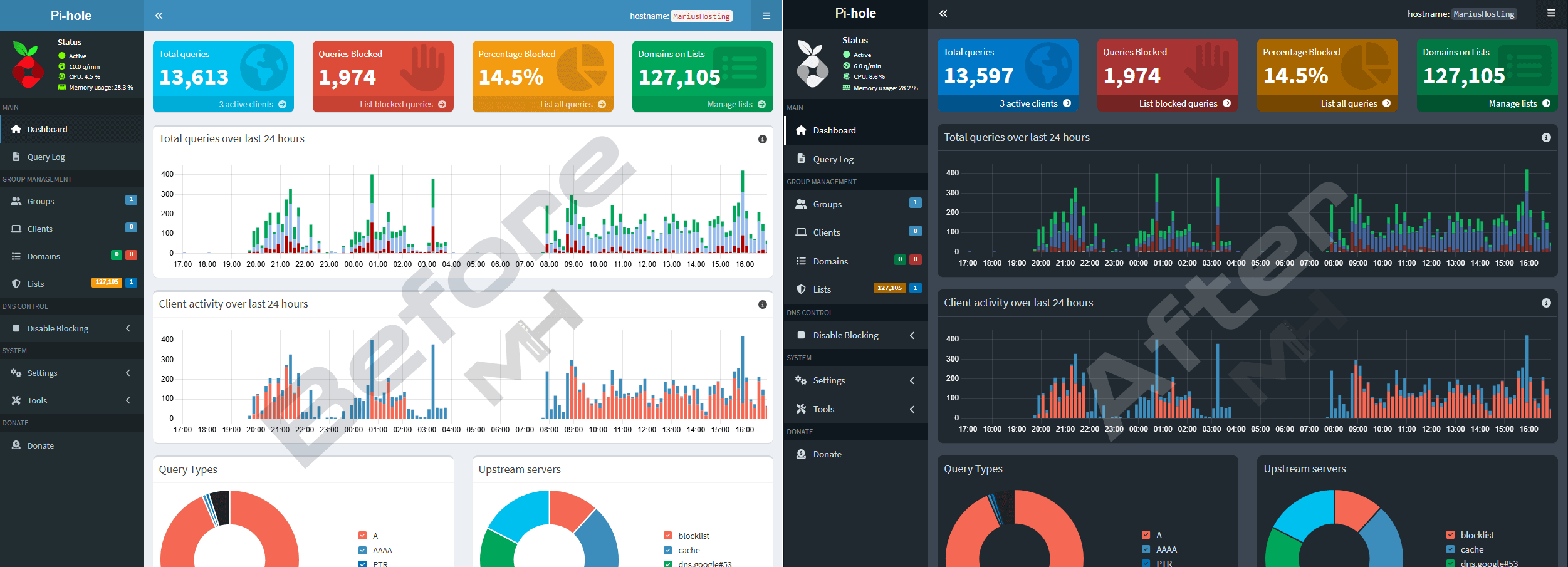
Pi-hole Dashboard. Before & After.
📋Pi-Hole V6 2025.11.0 Changelog
🚀Install Pi-Hole V6 2025.11.0 On Your Synology NAS Using Docker
🚀Install Pi-Hole V6 2025.11.0 With Portainer
🔃How to Update Pi-hole V6 to Version 2025.11.0
🔍How to Activate Dark Mode in Pi-hole V6 2025.11.0
🛑How to Update Pi-hole V6 Domain Blacklist
🪔Install PiHole V6 on Your UGREEN NAS
This post was updated on Wednesday / October 21st, 2026 at 12:20 AM