
Karakeep, previously known as Hoarder, is a self-hostable bookmark-everything app with a touch of AI for the data hoarders out there. Automatic fetching for link titles, descriptions and images. In this step by step guide I will show you how to install Karakeep on your UGREEN NAS using Docker and Dockhand.
This guide works perfectly with the latest Karakeep v0.33.2 release.
STEP 1
Please Support My work by Making a Donation.
STEP 2
Install Dockhand using my step by step guide. If you already have Dockhand installed on your UGREEN NAS, skip this STEP. Attention: Make sure you have installed the latest Dockhand version.
STEP 3
⚠️Mandatory: Add Read & Write Permissions to the Docker Folder.
STEP 4
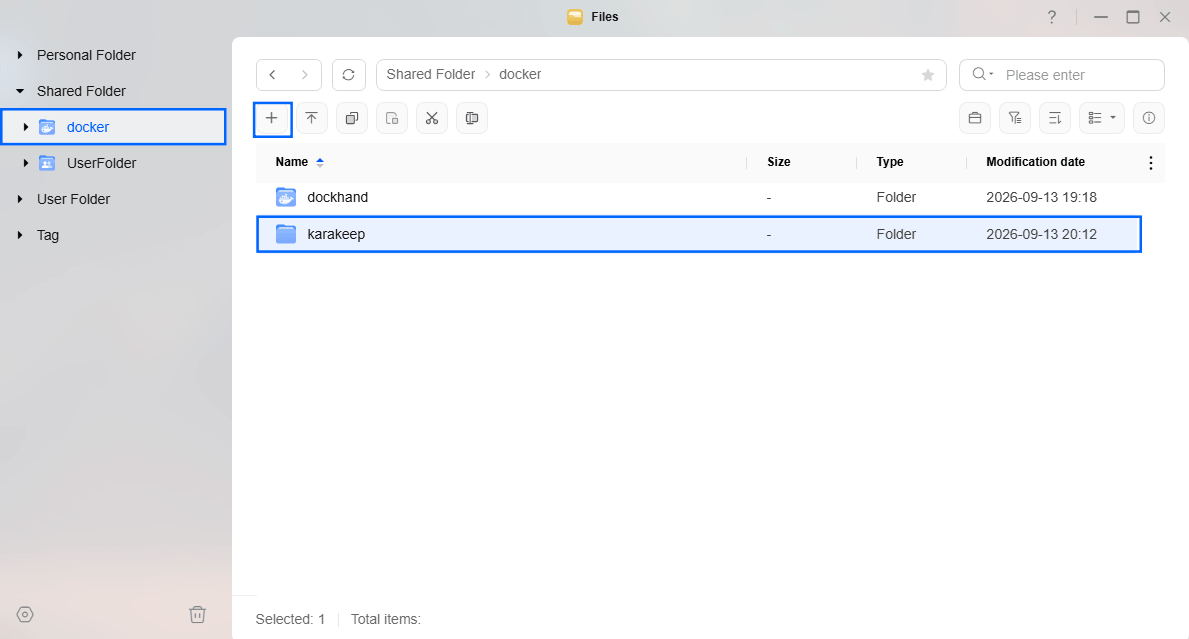
Go to Files and open the docker folder. Inside the docker folder, create one new folder and name it karakeep. Follow the instructions in the image below.
Note: Be careful to enter only lowercase, not uppercase letters.
STEP 5
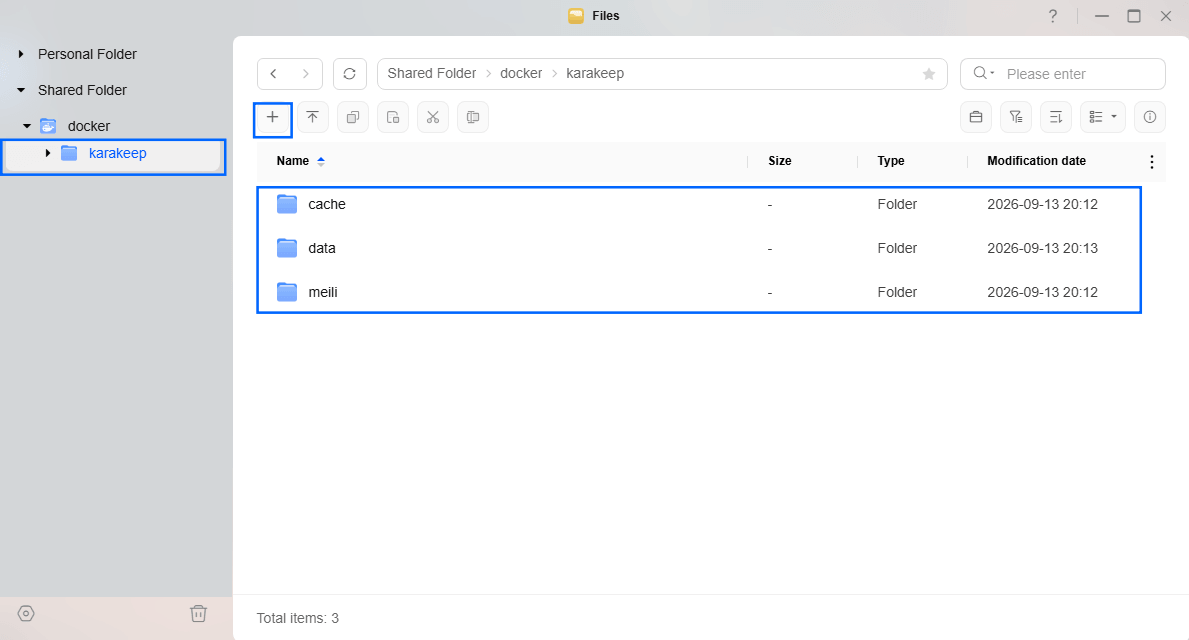
Now create three new folders inside the karakeep folder that you have previously created at STEP 4 and name them cache, data, meili. Follow the instructions in the image below.
Note: Be careful to enter only lowercase, not uppercase letters.
STEP 6
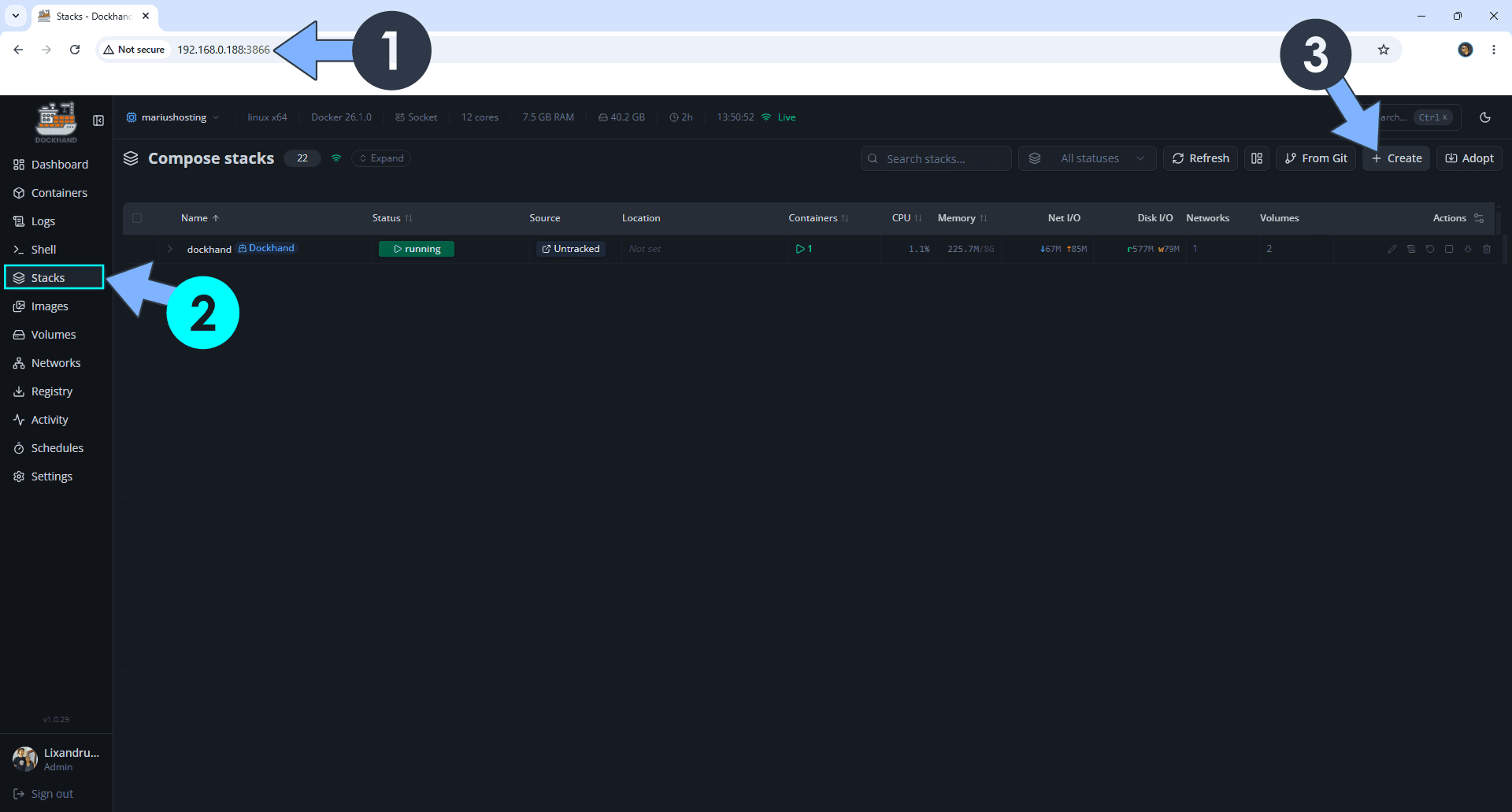
Open your browser and type in http://ugreen-ip-address:3866 to connect to your Dockhand container. On the left sidebar, click Stacks then + Create. Follow the instructions in the image below.
STEP 7
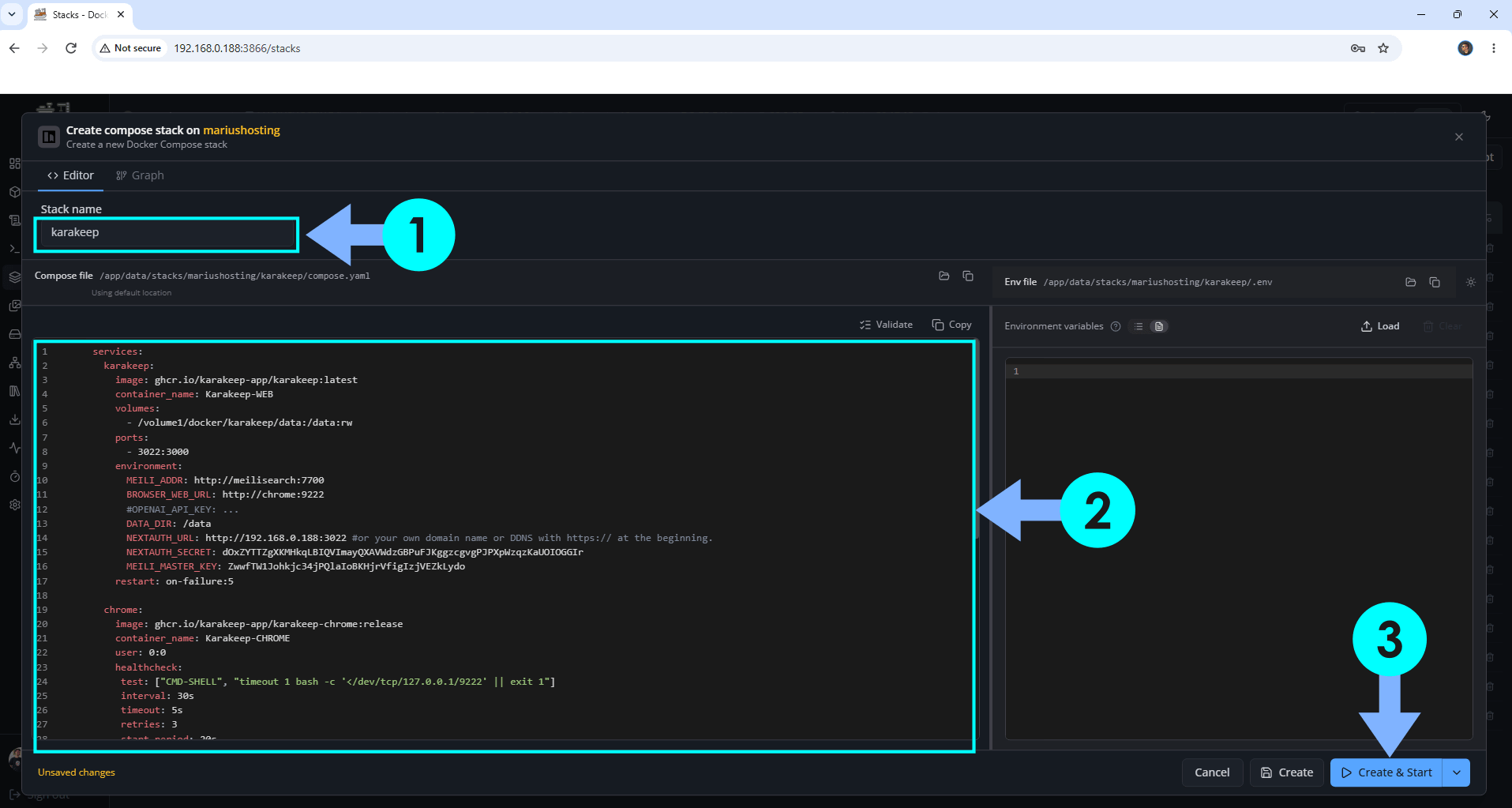
In the Stack name field, type in karakeep. ⚠️Warning: Type in the name in lowercase letters. The installation process can take up to a few seconds/minutes. It will depend on your Internet speed connection. Follow the instructions in the image below.
services:
  karakeep:
    image: ghcr.io/karakeep-app/karakeep:latest
    container_name: Karakeep-WEB
    volumes:
      - /volume1/docker/karakeep/data:/data:rw
    ports:
      - 3022:3000
    environment:
      MEILI_ADDR: http://meilisearch:7700
      BROWSER_WEB_URL: http://chrome:9222
      #OPENAI_API_KEY: ...
      DATA_DIR: /data
      NEXTAUTH_URL: http://192.168.0.188:3022 #or your own domain name or DDNS with https:// at the beginning.
      NEXTAUTH_SECRET: dOxZYTTZgXKMHkqLBIQVImayQXAVWdzGBPuFJKggzcgvgPJPXpWzqzKaUOIOGGIr
      MEILI_MASTER_KEY: ZwwfTW1Johkjc34jPQlaIoBKHjrVfigIzjVEZkLydo
    restart: on-failure:5

  chrome:
    image: ghcr.io/karakeep-app/karakeep-chrome:release
    container_name: Karakeep-CHROME
    user: 0:0
    healthcheck:
     test: ["CMD-SHELL", "timeout 1 bash -c '</dev/tcp/127.0.0.1/9222' || exit 1"]
     interval: 30s
     timeout: 5s
     retries: 3
     start_period: 20s
    init: true
    command:
      - --no-sandbox
      - --disable-gpu
      - --disable-dev-shm-usage
      - --hide-scrollbars
      - --disable-blink-features=AutomationControlled
      - --window-size=1440,900
    volumes:
      - /volume1/docker/karakeep/cache:/var/cache/fontconfig:rw
    restart: on-failure:5

  meilisearch:
    image: getmeili/meilisearch:v1.53
    container_name: Karakeep-MEILI
    healthcheck:
     test: ["CMD", "curl", "-f", "http://localhost:7700/health"]
     interval: 10s
     timeout: 5s
     retries: 5
     start_period: 20s
    volumes:
      - /volume1/docker/karakeep/meili:/meili_data:rw
    environment:
     MEILI_MASTER_KEY: ZwwfTW1Johkjc34jPQlaIoBKHjrVfigIzjVEZkLydo
     MEILI_NO_ANALYTICS: true
    restart: on-failure:5
Note: Before you paste the code above in the Stack editor area below, change the value for NEXTAUTH_URL. Type in your own local NAS IP with http:// at the beginning and :3022 at the end.
Note: Before you paste the code above in the Stack editor area below, change the value for NEXTAUTH_SECRET. (Generate your own Random 64 length SECRET_KEY.)
Note: Before you paste the code above in the Stack editor area below, change the value for MEILI_MASTER_KEY and add your own MEILI_MASTER_KEY. ZwwfTW1Johkjc34jPQlaIoBKHjrVfigIzjVEZkLydo is an example for a MEILI_MASTER_KEY. (Generate your own Random 42 length MEILI_SECRET_KEY.)
STEP 8
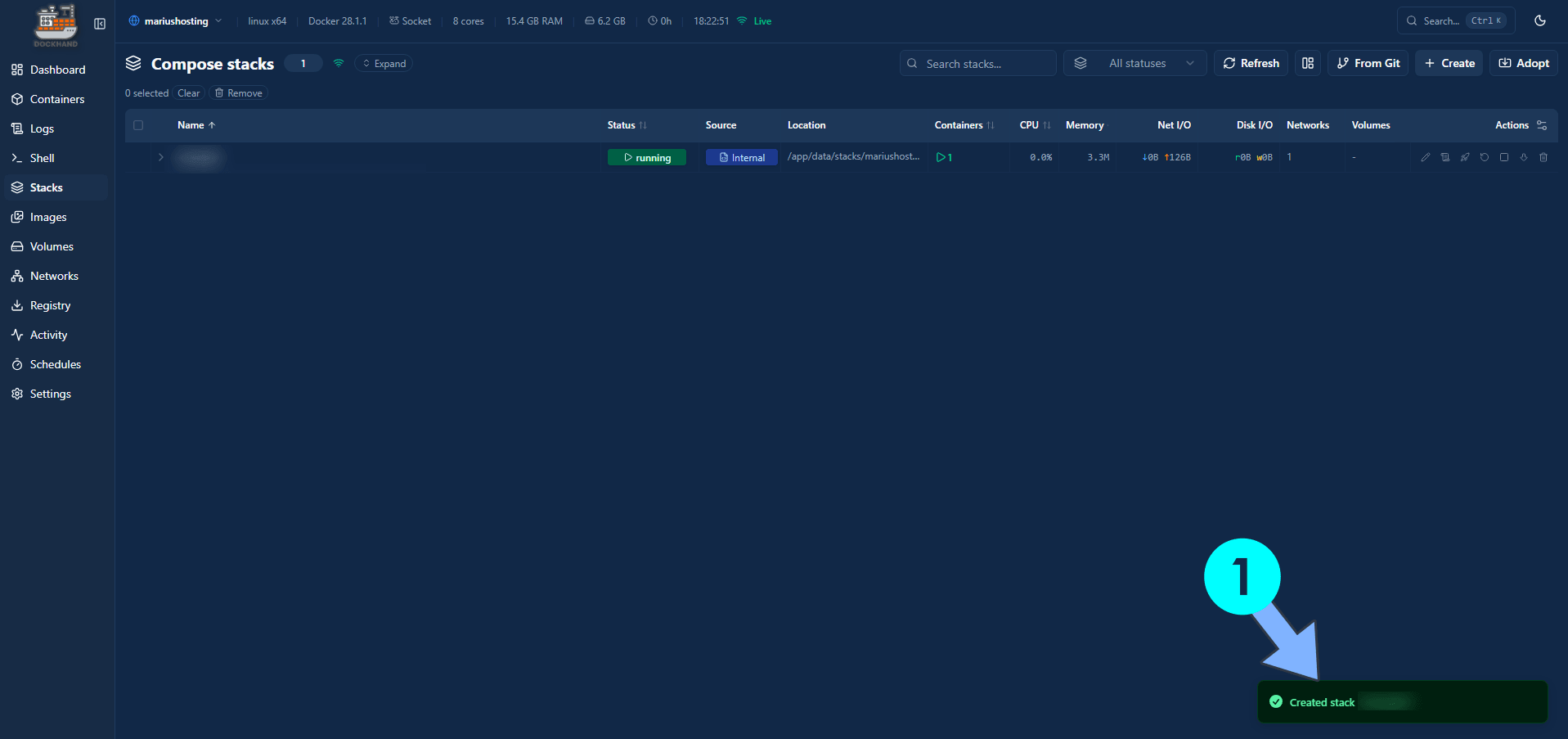
If everything goes right, you will see the following message at the bottom right of your screen: “Created stack “karakeep”“.
STEP 9
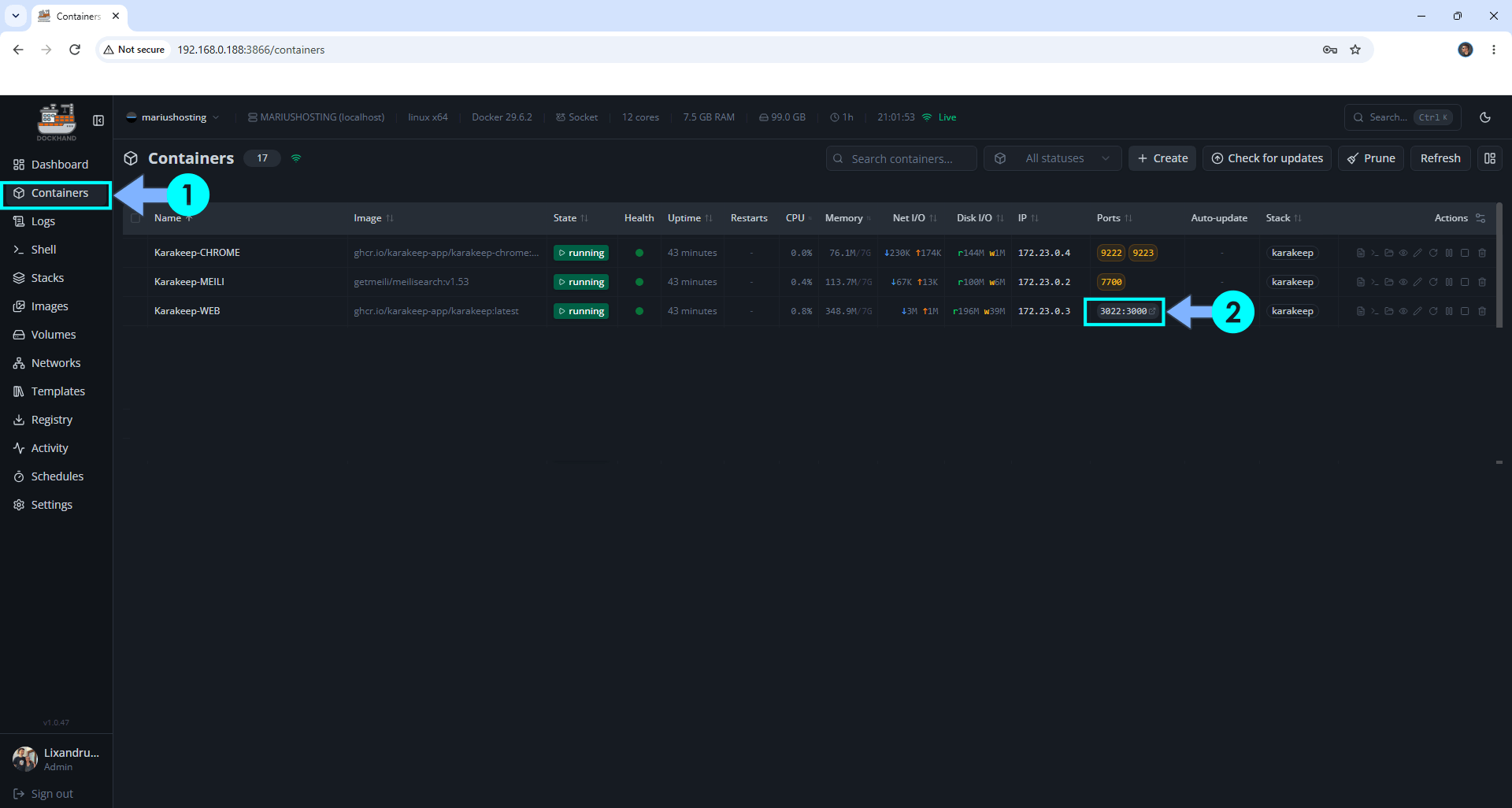
On the left sidebar, click Containers. Identify your Karakeep-WEB container then click on ports 3022:3000. Follow the instructions in the image below.
STEP 10
🟢Please Support My work by Making a Donation. Almost 99,9% of the people that install something using my guides forget to support my work, or just ignore STEP 1. I’ve been very honest about this aspect of my work since the beginning: I don’t run any ADS, I don’t require subscriptions, paid or otherwise, I don’t collect IPs, emails, and I don’t have any referral links from Amazon or other merchants. I also don’t have any POP-UPs or COOKIES. I have repeatedly been told over the years how much I have contributed to the community. It’s something I love doing and have been honest about my passion since the beginning. But I also Need The Community to Support me Back to be able to continue doing this work.
STEP 11
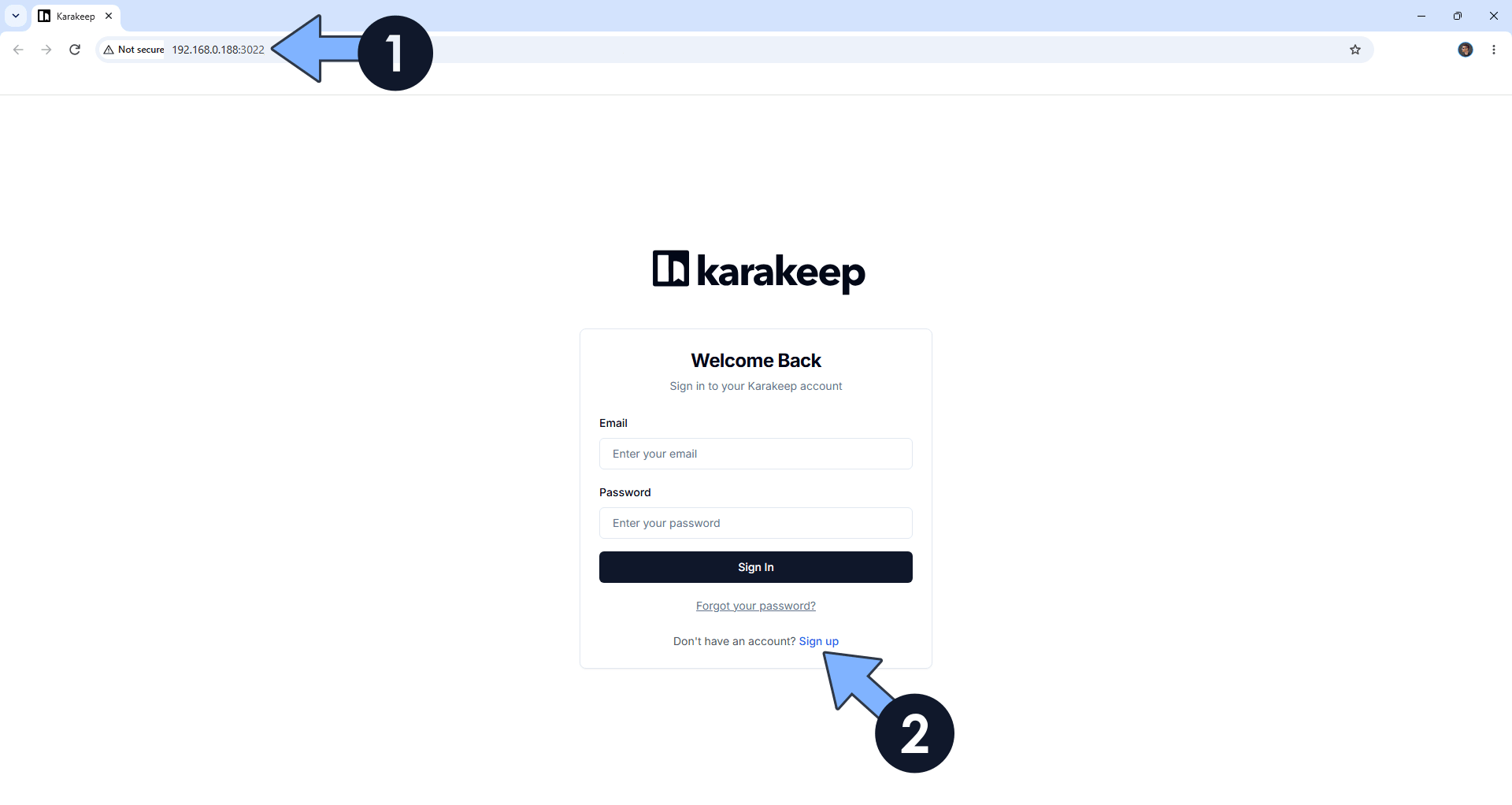
The installation process can take up to a few seconds/minutes. It will depend on your Internet speed connection. Now open your browser and type in http://ugreen-ip-address:3022 Click Sign Up. Follow the instructions in the image below.
STEP 12
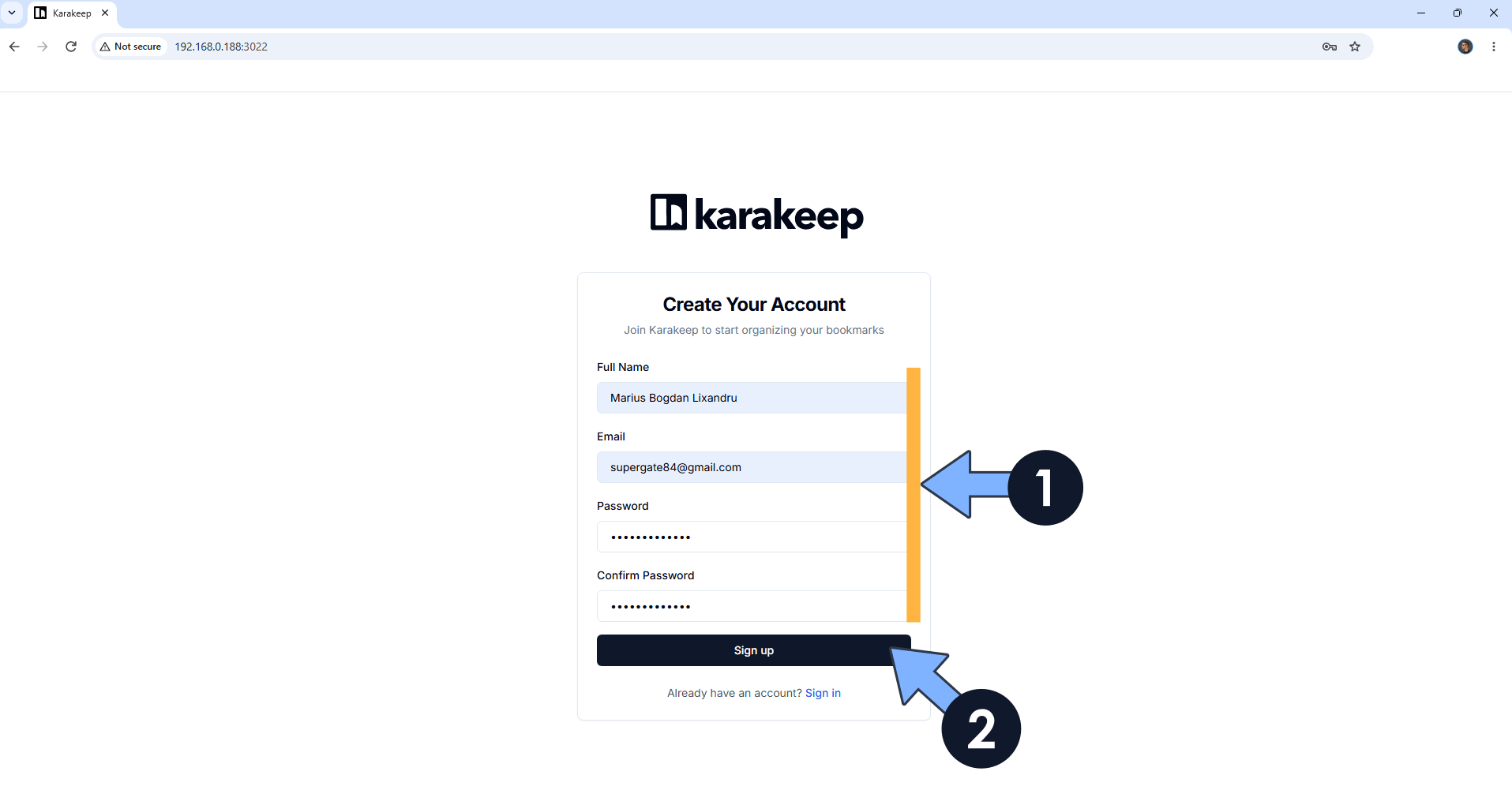
Type in your details (Full Name, Email, Password), then click Sign Up. Follow the instructions in the image below.
STEP 13
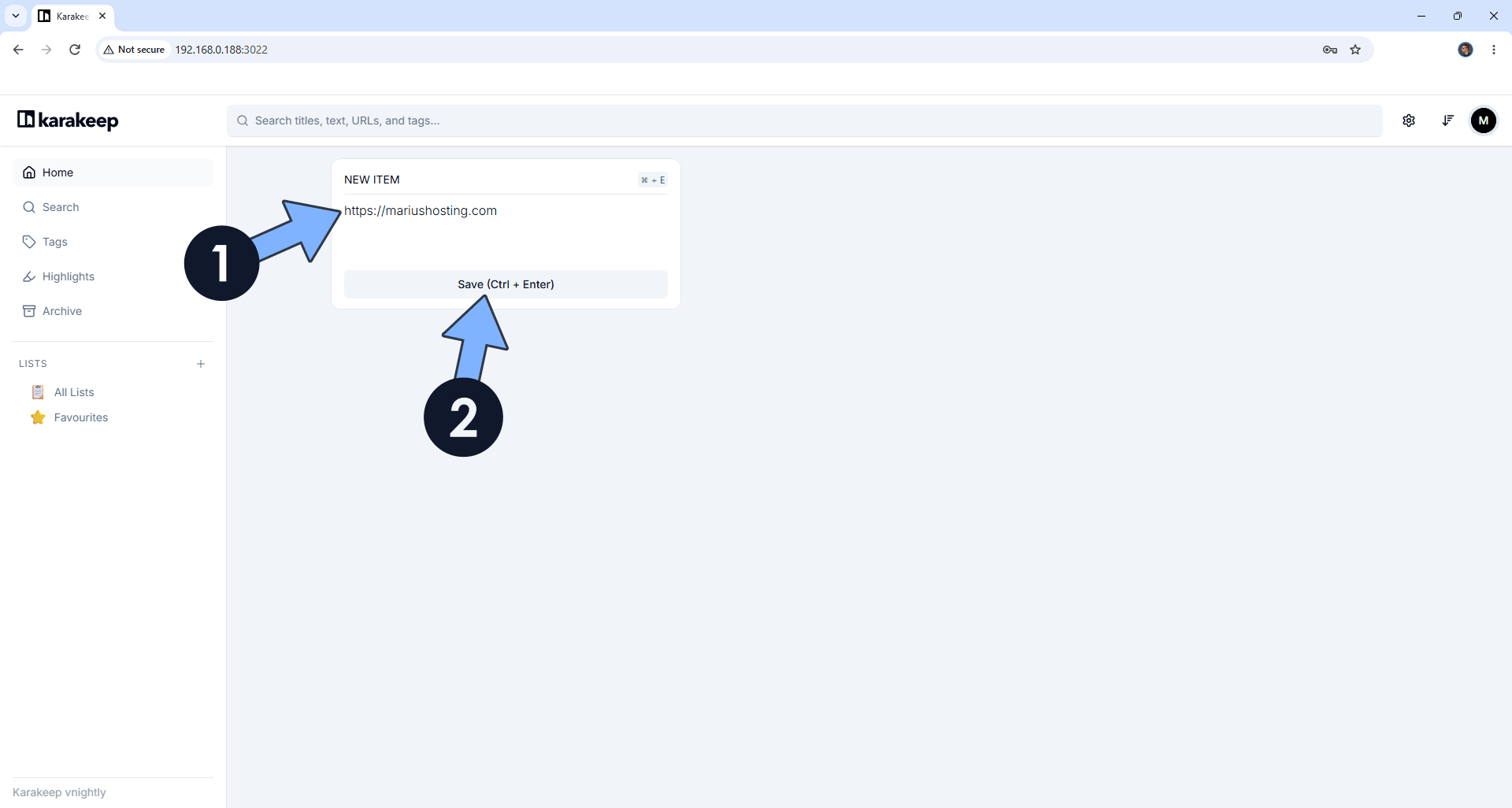
In the apposite area, type in your favorite domain (which is for sure mariushosting😊) with https:// at the beginning. Click Save. Follow the instructions in the image below.
STEP 14
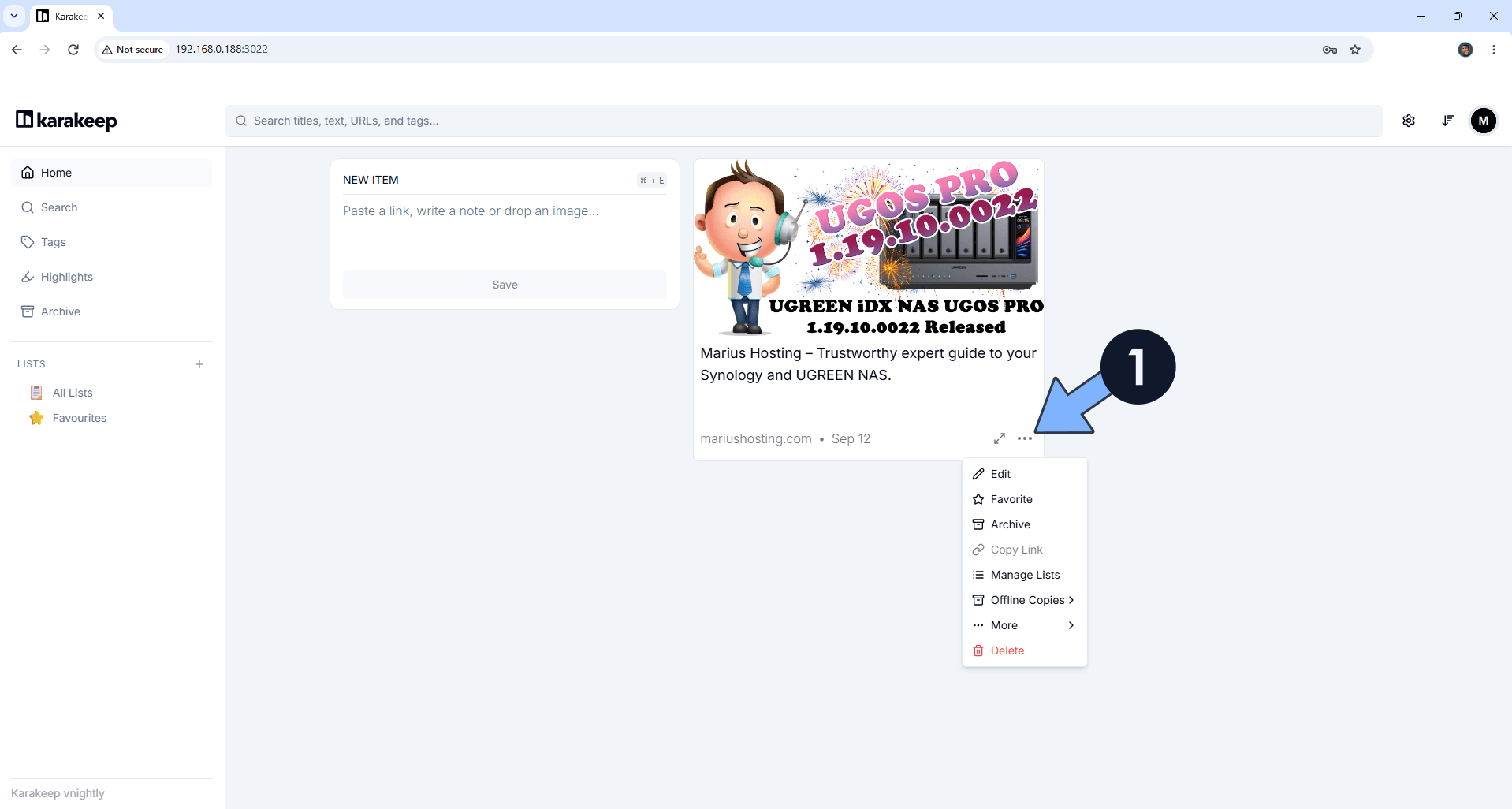
Your favorite bookmark will be added in a couple of seconds. Refresh the browser page to check the progress. Follow the instructions in the image below.
STEP 15
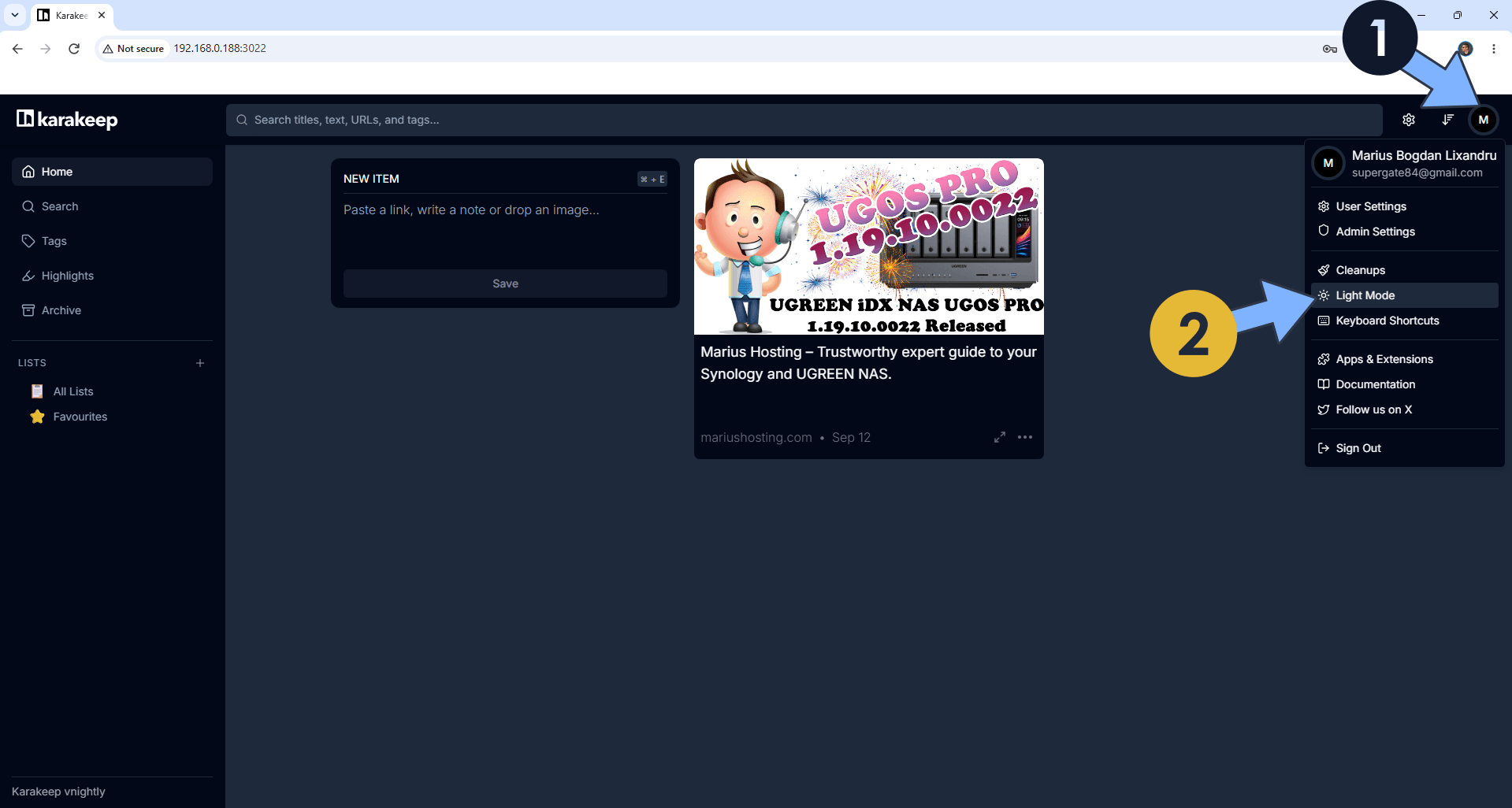
At the top right of the page, you can also switch the theme to Dark. Click on the user icon then Dark Mode. Follow the instructions in the image below.
STEP 16
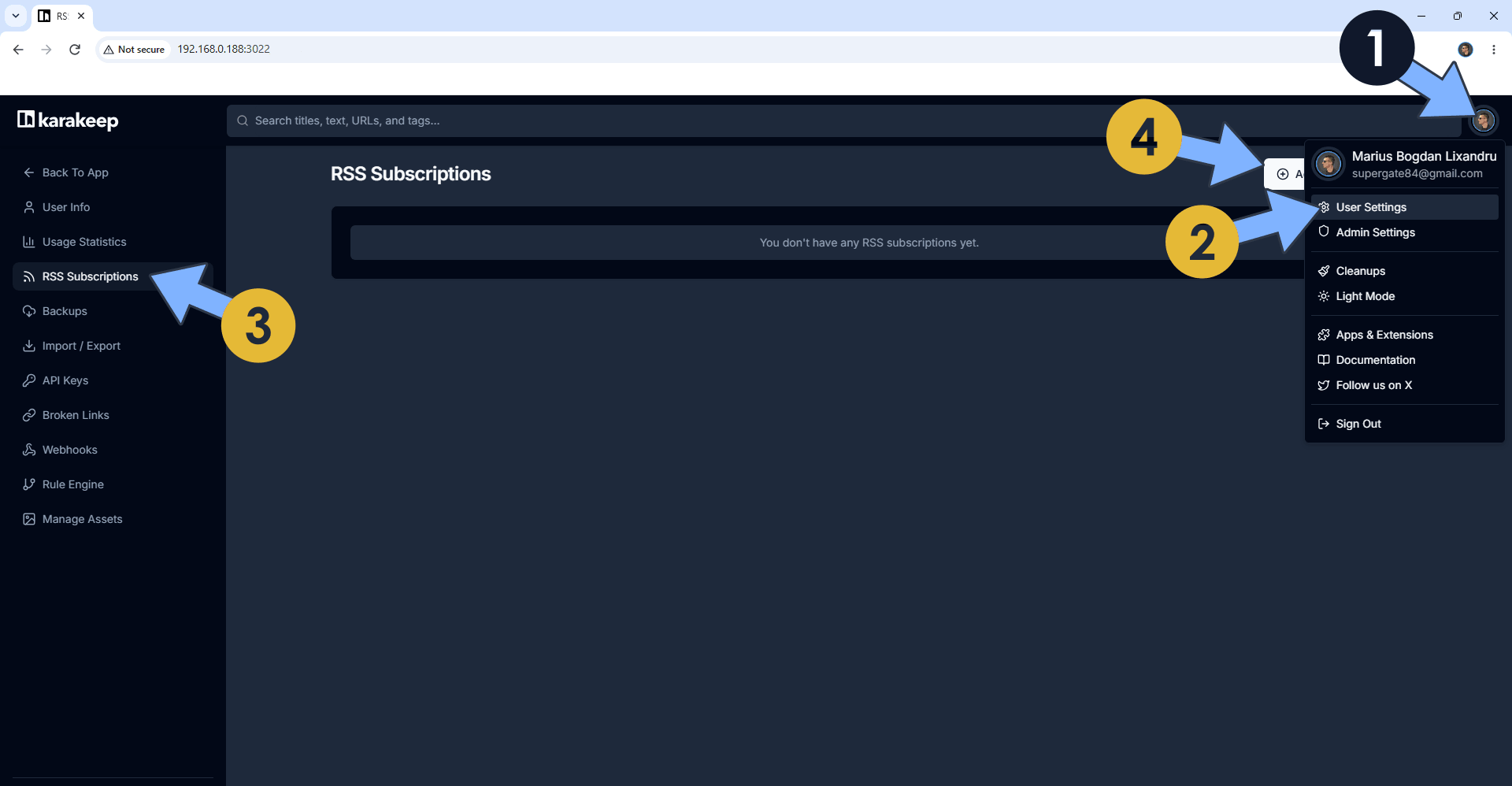
At the top right of the page, click on the user icon then User Settings. On the left sidebar, click RSS Subscriptions. Click + Add a Subscription. Follow the instructions in the image below.
STEP 17
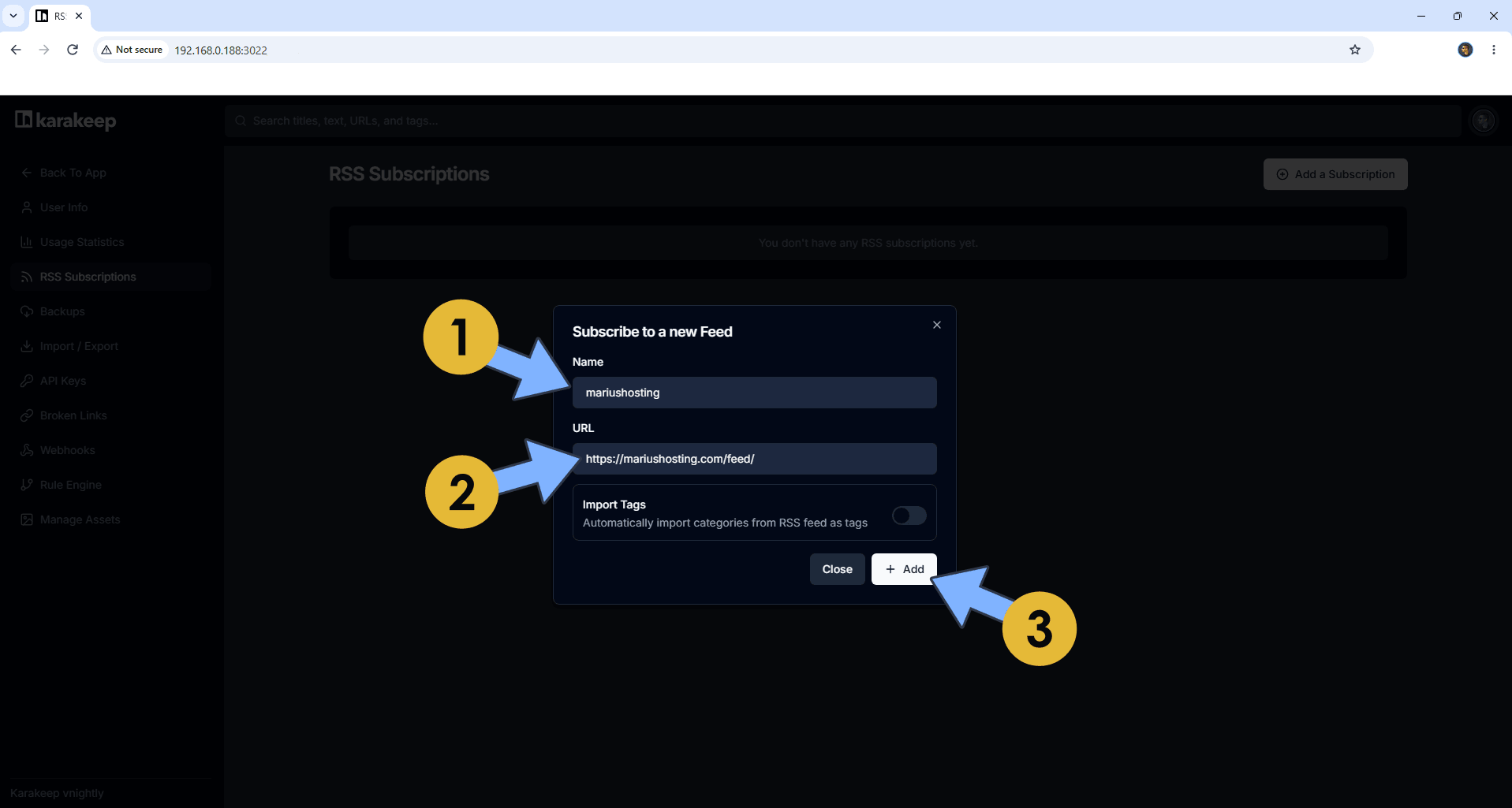
Type in a name for the feed. Type in an URL for the feed like https://mariushosting.com/feed/
Click + Add. Follow the instructions in the image below.
STEP 18
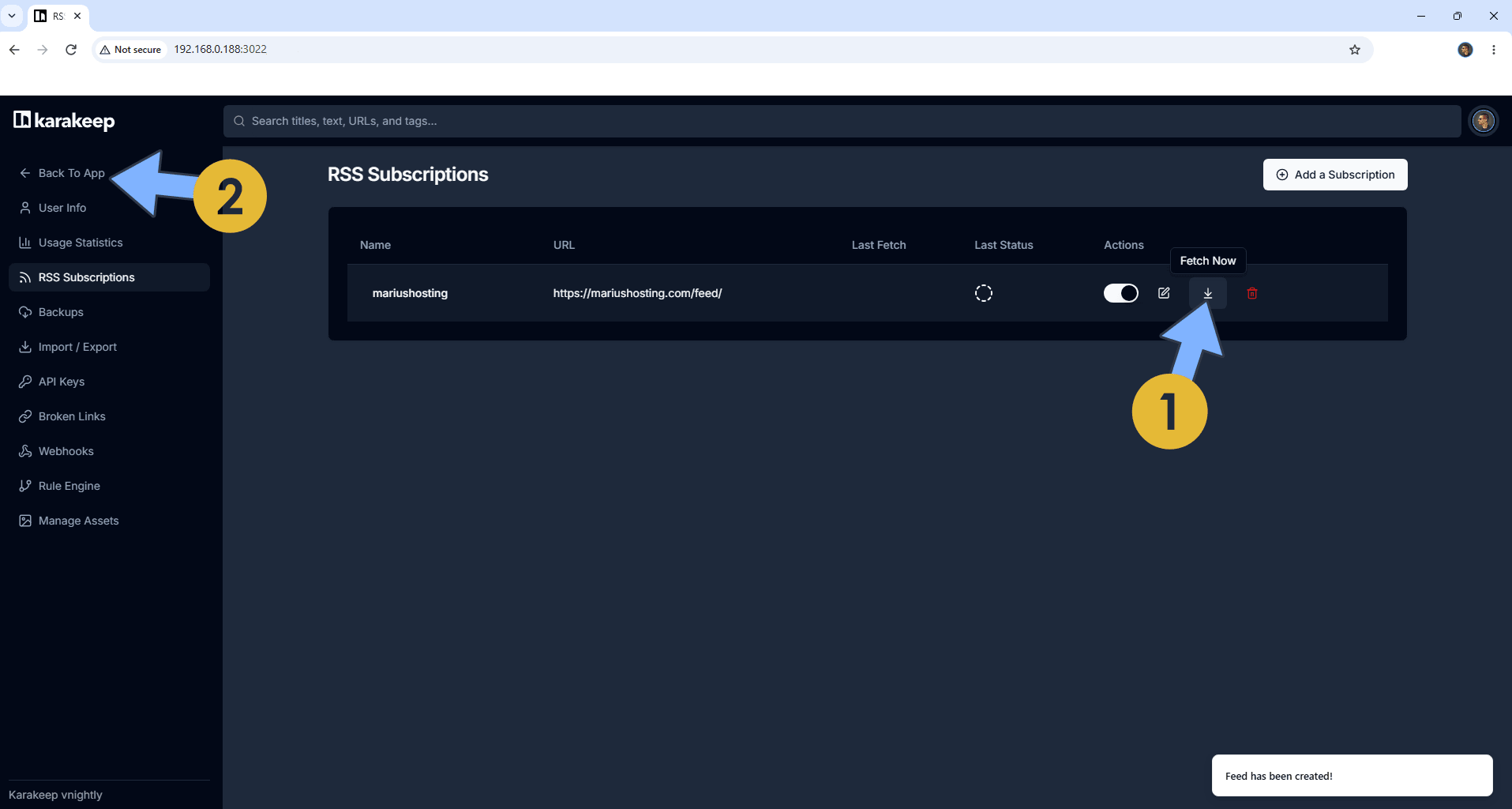
Click the Fetch Now icon. On the left sidebar, click Back to App. Follow the instructions in the image below.
STEP 19
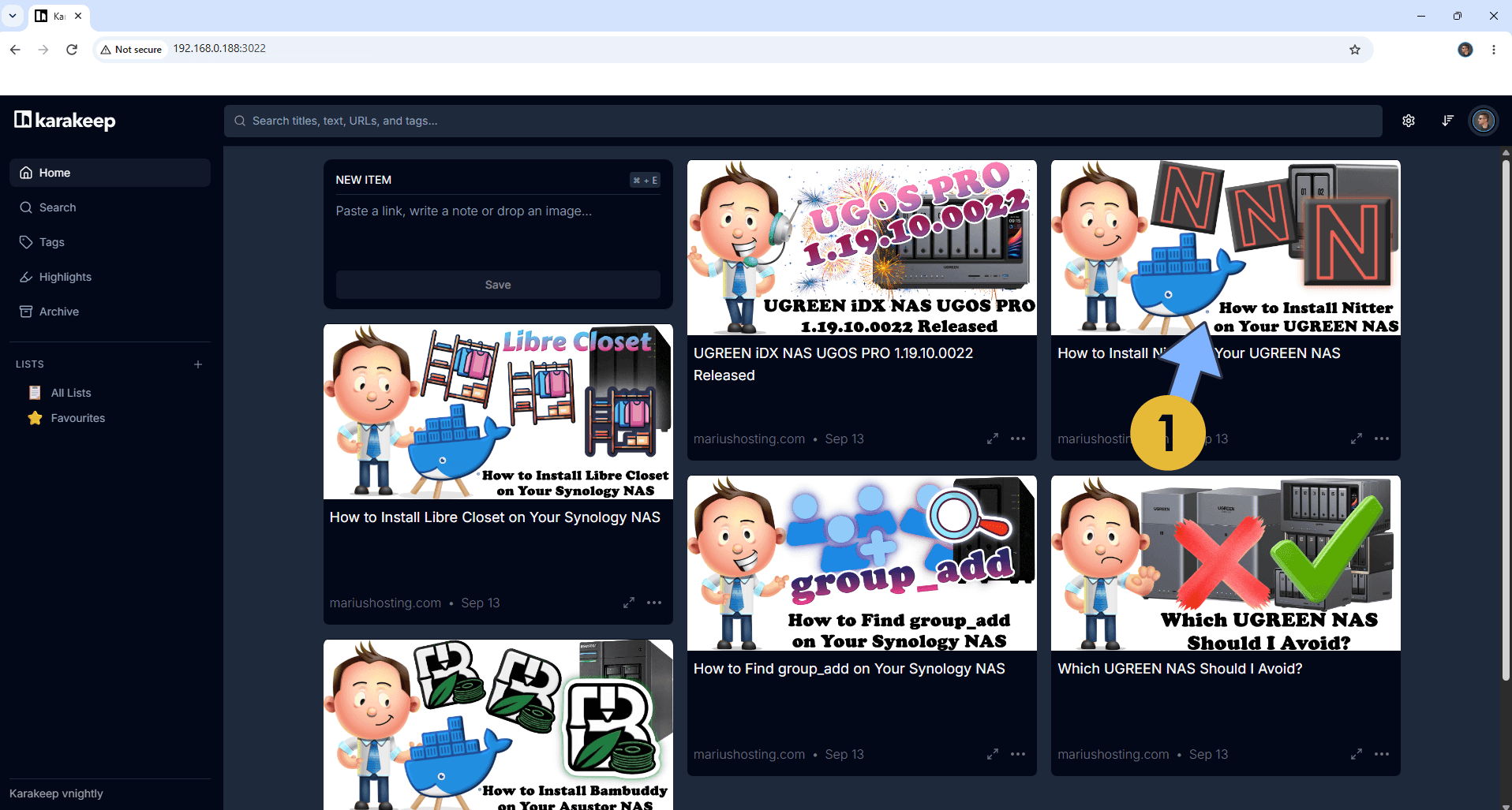
Your favorite RSS feed at a glance!
Enjoy Karakeep on your UGREEN NAS!
Note: If you want to run the Karakeep container over HTTPS, check out How to Run Docker Containers Over HTTPS on Your UGREEN NAS.
🆙Note/Update/Container: How to Update Your Docker Containers on UGREEN NAS Using Dockhand.
🐳Note: How to Create Docker Shortcuts on Desktop.
🆕Note: How to Update Dockhand to the latest version.
🆕Note: How to Clean Docker.
This post was updated on Monday / September 14th, 2026 at 12:03 AM