
Antimatter is a fully unrestricted, community-maintained fork of Mattermost that gives you a lightweight and reliable self-hosted team collaboration platform without commercial limits or paywalls. Once you have it running on your NAS device, enabling email notifications is one of the most useful next steps you can take. With email notifications properly configured, you’ll receive real-time alerts for mentions, direct messages, channel activity, and other important events even when you’re not logged into the web or mobile app. This guide walks you through the exact process of activating and fine-tuning email notifications in Antimatter so you never miss a message that matters.
STEP 1
Please Support My work by Making a Donation.
STEP 2
⚠️Mandatory: Install Antimatter using my Docker Guide for Synology NAS or my Docker Guide for UGREEN NAS. If you already have Antimatter installed on your Synology NAS or UGREEN NAS, skip this STEP.
STEP 3
Follow my step by step guide on how to activate SMTP for your Gmail account.
STEP 4
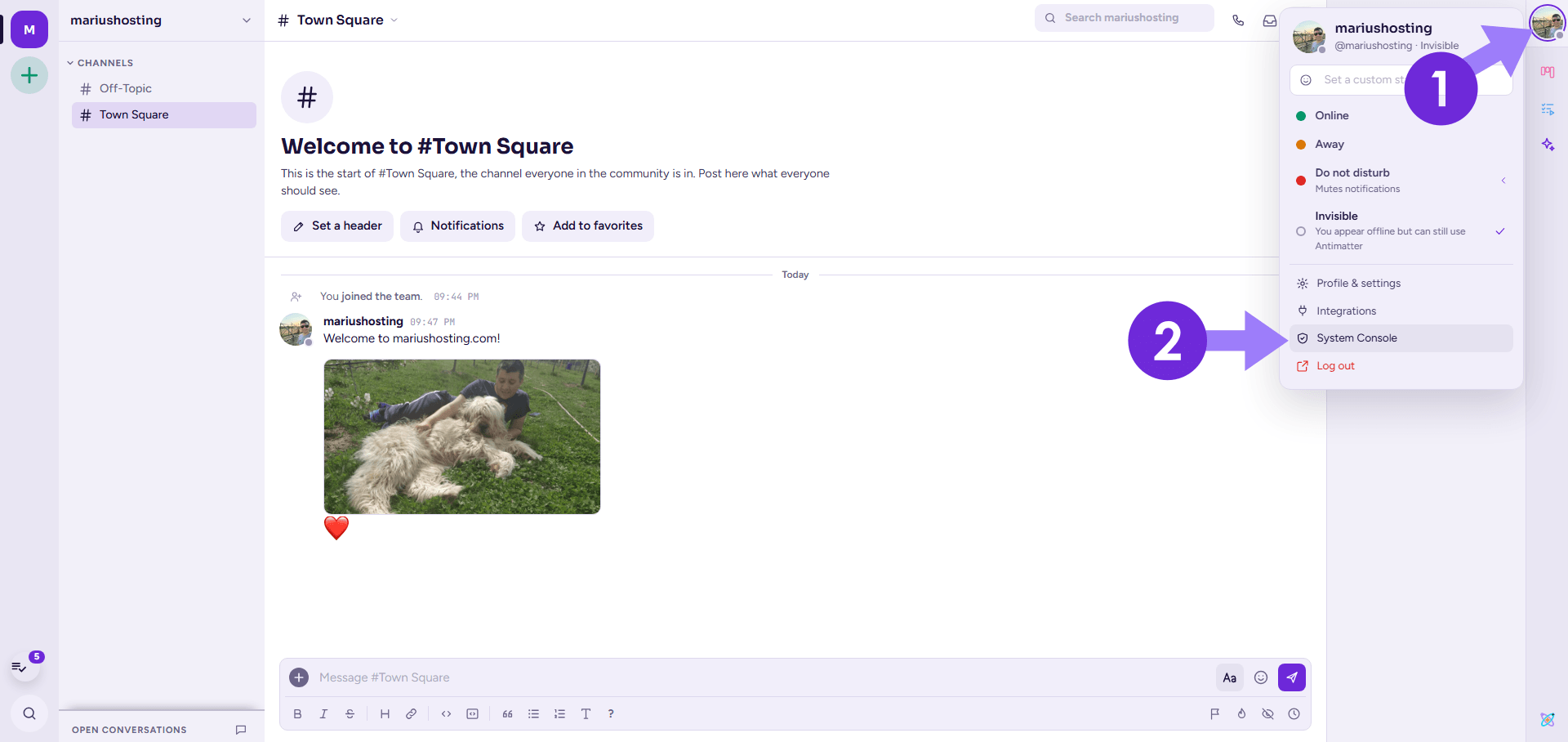
At the top of the page, click the user icon then System Console. Follow the instructions in the image below.
STEP 5
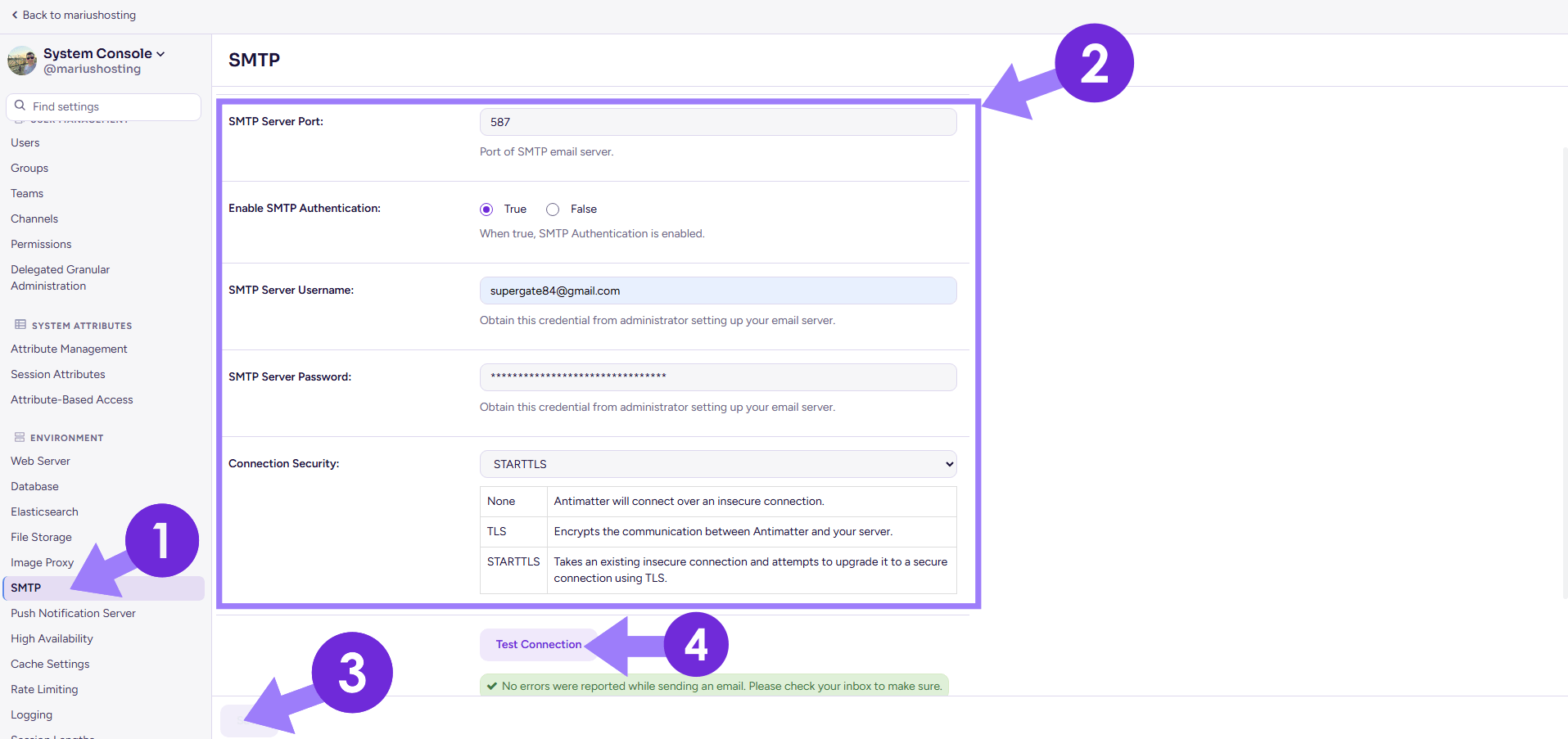
On the left sidebar, click SMTP. Add the details below. Click Save then Test Connection. Follow the instructions in the image below.
SMTP Server: smtp.gmail.com
SMTP Server Port: 587
Enable SMTP Authentication: true
SMTP Server Username: Type in your own Gmail address / STEP 3.
SMTP Server Password: Type in your own Gmail App Password / STEP 3. ⚠️Warning: Do NOT confuse with your own Gmail password. This is the Gmail APP password.
Connection Security: STARTTLS
Skip Server Certificate Verification: false
Enable Security Alerts: true
STEP 6
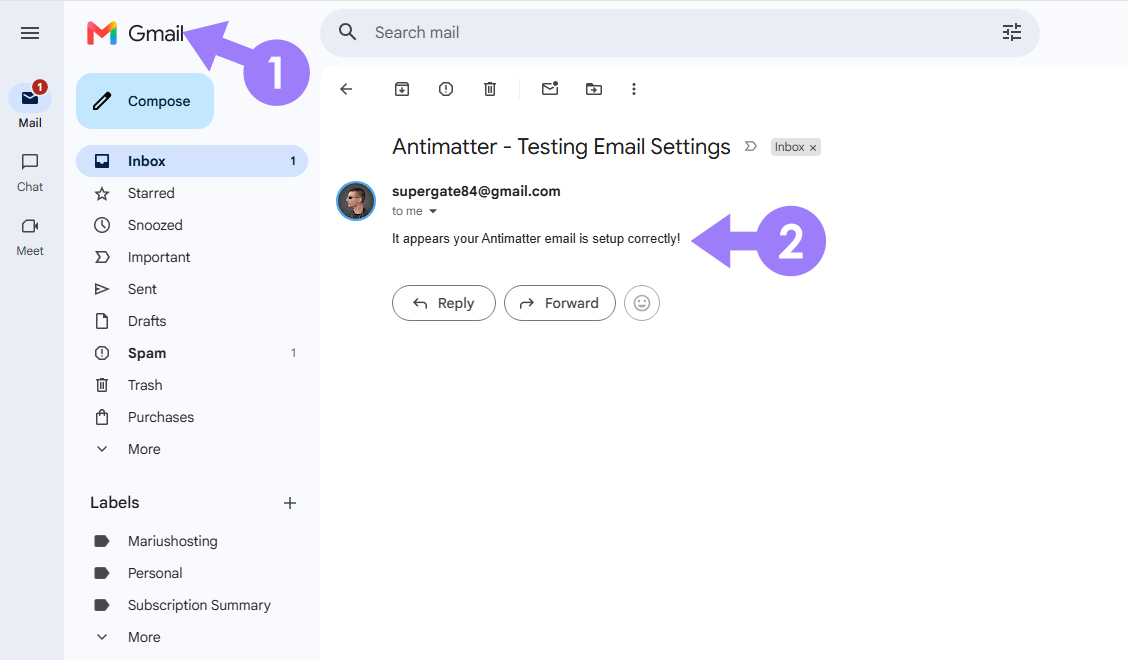
Done! Your Antimatter email notification at a glance!
Enjoy Antimatter with Email Notifications!
This post was updated on Friday / October 16th, 2026 at 11:40 PM