
NetAlertX (formerly known as Pi.Alert) is a lightweight, self-hosted, open-source network monitoring tool designed for centralized visibility and continuous asset discovery across local or distributed networks. It keeps a real-time inventory of all connected devices, automatically detects new or unknown hardware (including potential intruders or shadow IT), tracks presence changes, and delivers customizable notifications through more than 80 channels such as Telegram, Pushover, ntfy and many others. Positioned as a practical middle ground between simple scanners and heavy enterprise SIEM solutions, it excels at automation through workflows and plugins while offering strong integrations with Pi-hole, UniFi, Home Assistant, SNMP and similar systems. It suits both home users who want reliable new-device and intruder alerts and IT administrators who need to maintain compliance and oversight across multiple sites. In this step by step guide I will show you how to install NetAlertX on your UGREEN NAS using Docker & Portainer.
STEP 1
Please Support My work by Making a Donation.
STEP 2
Install Portainer using my step by step guide. If you already have Portainer installed on your UGREEN NAS, skip this STEP. Attention: Make sure you have installed the latest Portainer version.
STEP 3
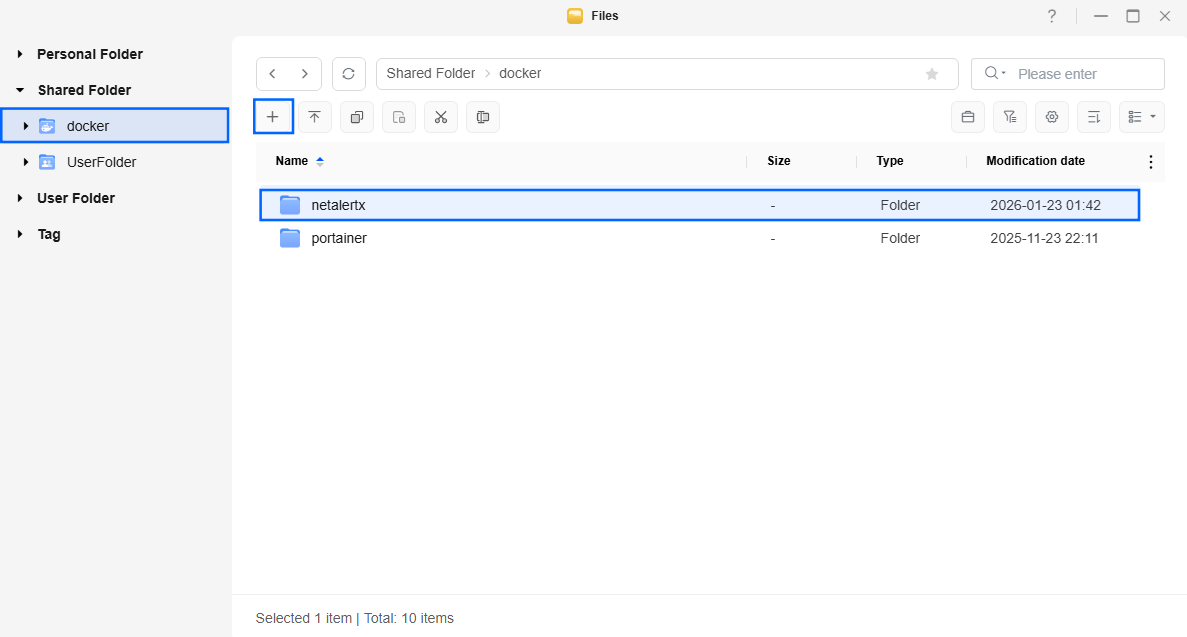
Go to Files and open the docker folder. Inside the docker folder, create one new folder and name it netalertx. Follow the instructions in the image below.
Note: Be careful to enter only lowercase, not uppercase letters.
STEP 4
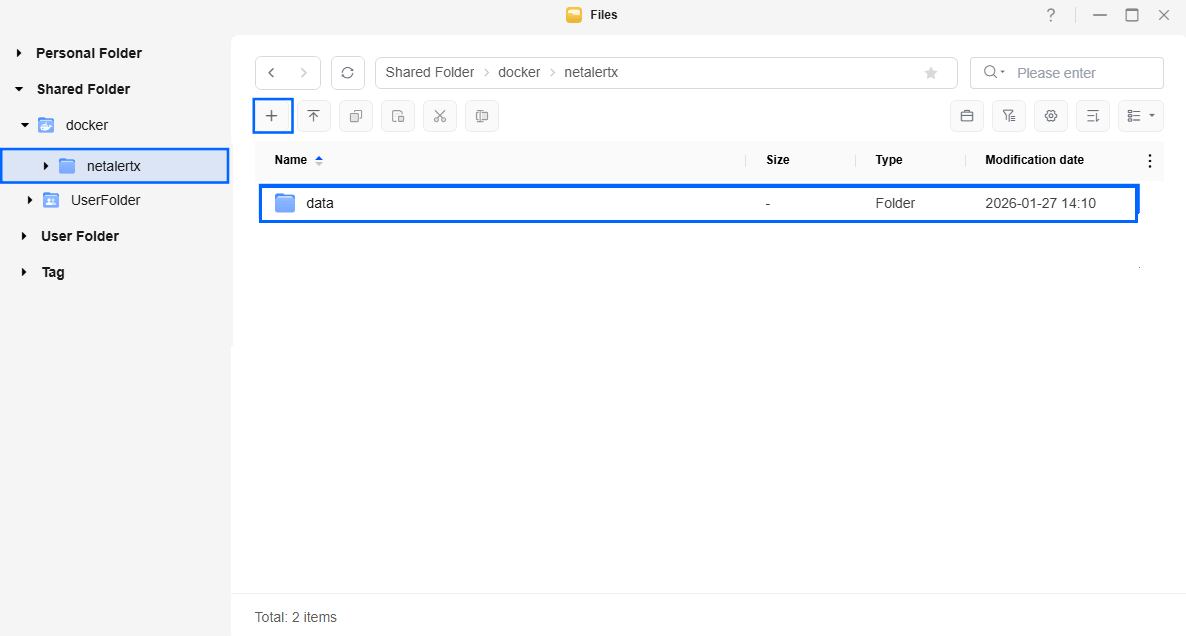
Now create one new folder inside the netalertx folder that you have previously created at STEP 3 and name it data. Follow the instructions in the image below.
Note: Be careful to enter only lowercase, not uppercase letters.
STEP 5
⚠️Mandatory: Add Read & Write Permissions to the Docker Folder.
STEP 6
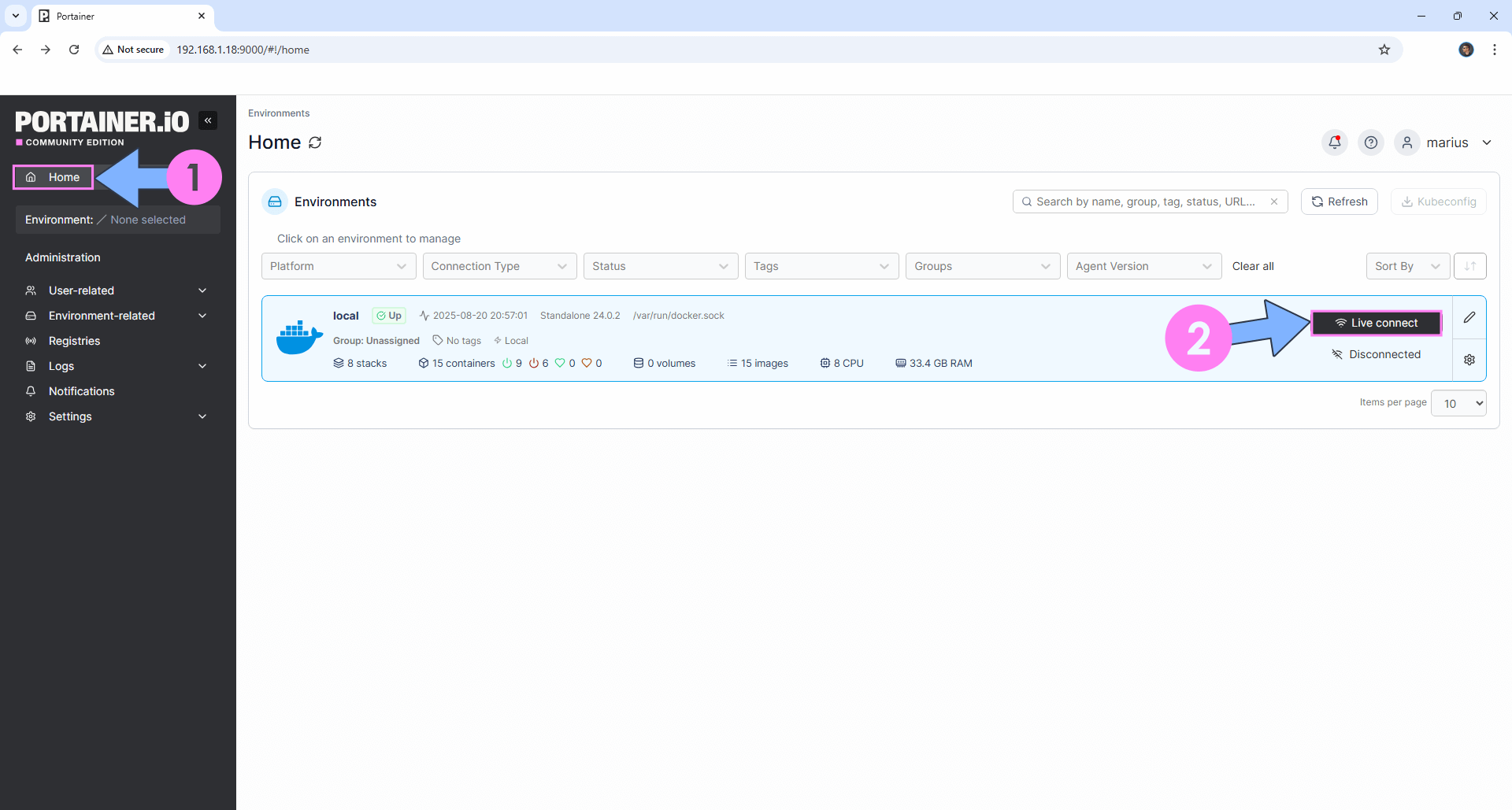
Log into Portainer using your username and password. On the left sidebar in Portainer, click on Home then Live connect. Follow the instructions in the image below.
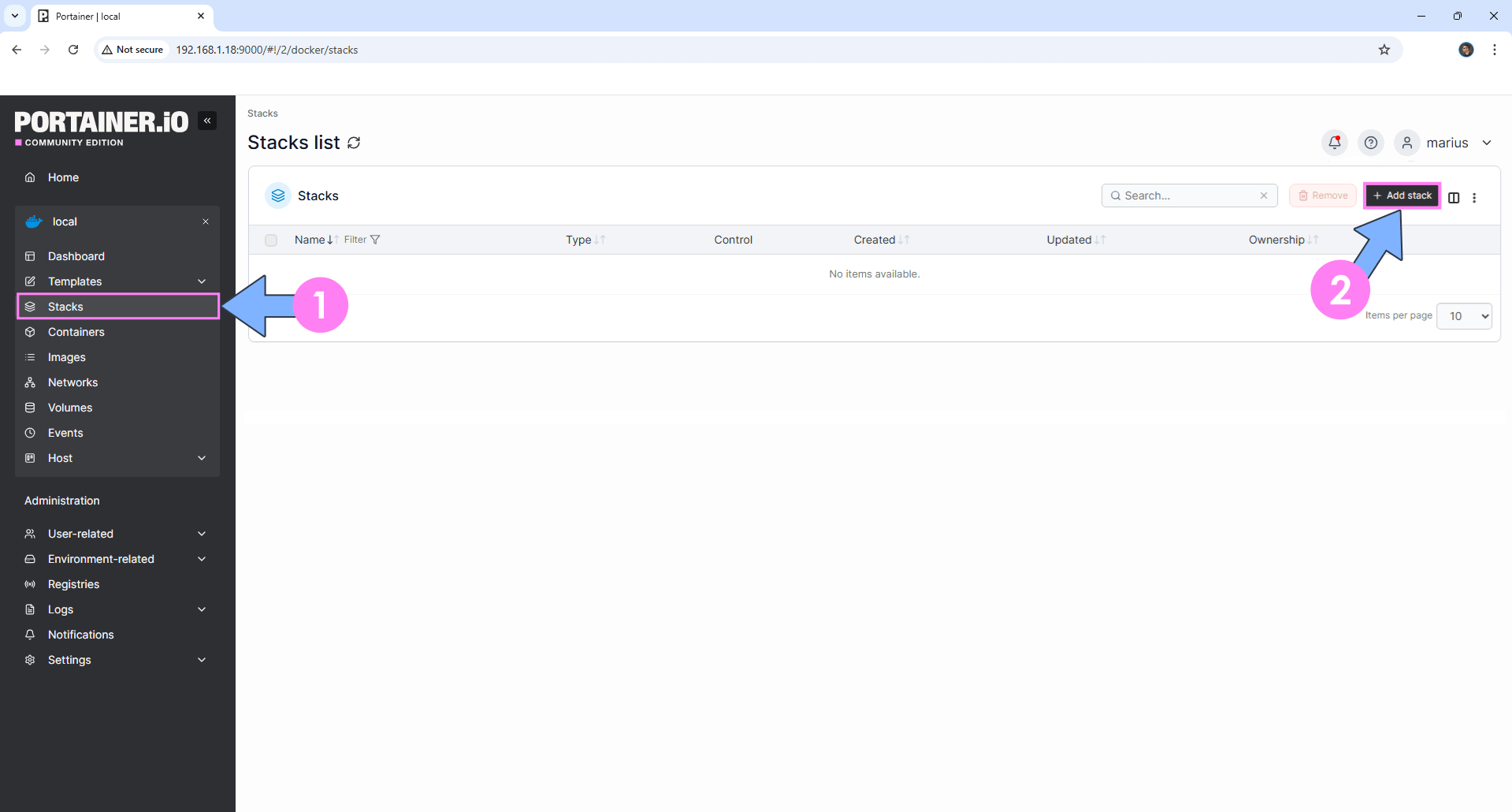
On the left sidebar in Portainer, click on Stacks then + Add stack. Follow the instructions in the image below.
STEP 7
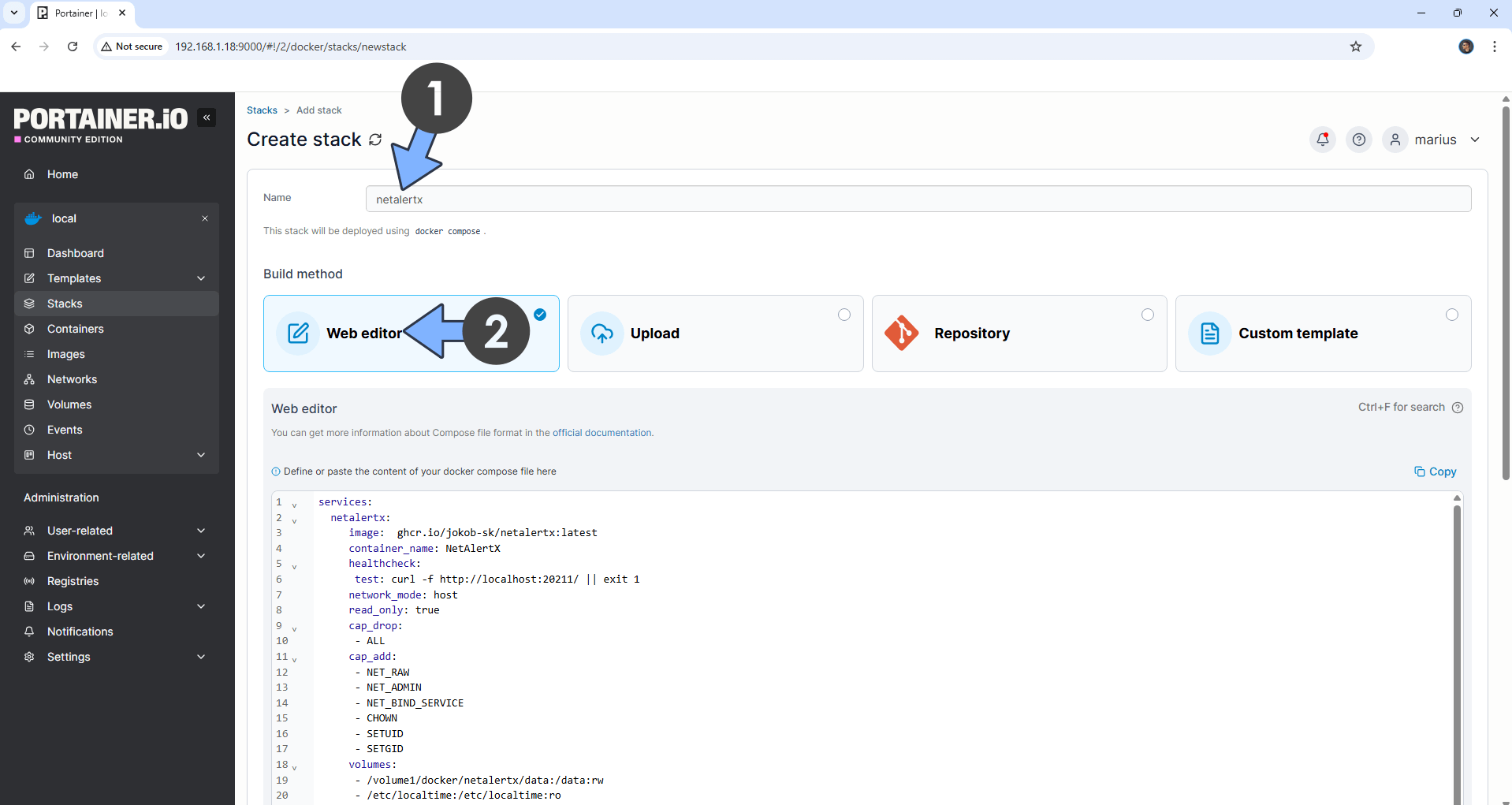
In the Name field type in netalertx. Follow the instructions in the image below.
services:
  netalertx:
     image:  ghcr.io/jokob-sk/netalertx:latest
     container_name: NetAlertX
     healthcheck:
      test: curl -f http://localhost:20211/ || exit 1
     network_mode: host
     read_only: true
     cap_drop:
      - ALL
     cap_add:
      - NET_RAW
      - NET_ADMIN
      - NET_BIND_SERVICE
      - CHOWN
      - SETUID
      - SETGID
     volumes:
      - /volume1/docker/netalertx/data:/data:rw
      - /etc/localtime:/etc/localtime:ro
     tmpfs:
      - /tmp:uid=${NETALERTX_UID:-20211},gid=${NETALERTX_GID:-20211},mode=1700,rw,noexec,nosuid,nodev,async,noatime,nodiratime
     environment:
      PORT: 20211
      LISTEN_ADDR: 0.0.0.0
      APP_CONF_OVERRIDE: '{"GRAPHQL_PORT":"20214"}'
     restart: on-failure:5
STEP 8
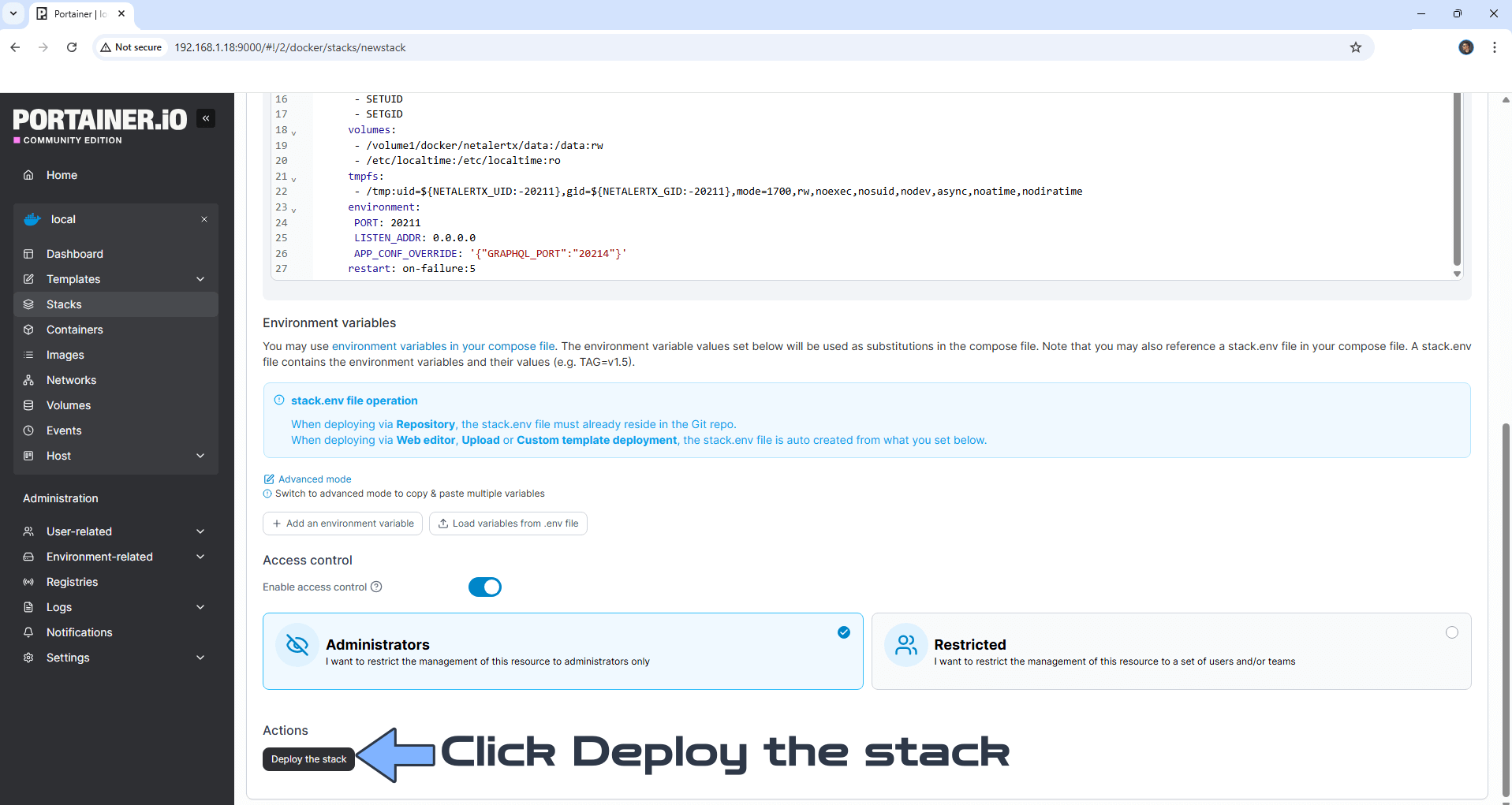
Scroll down on the page until you see a button named Deploy the stack. Click on it. Follow the instructions in the image below. The installation process can take up to a few minutes. It will depend on your Internet speed connection.
STEP 9
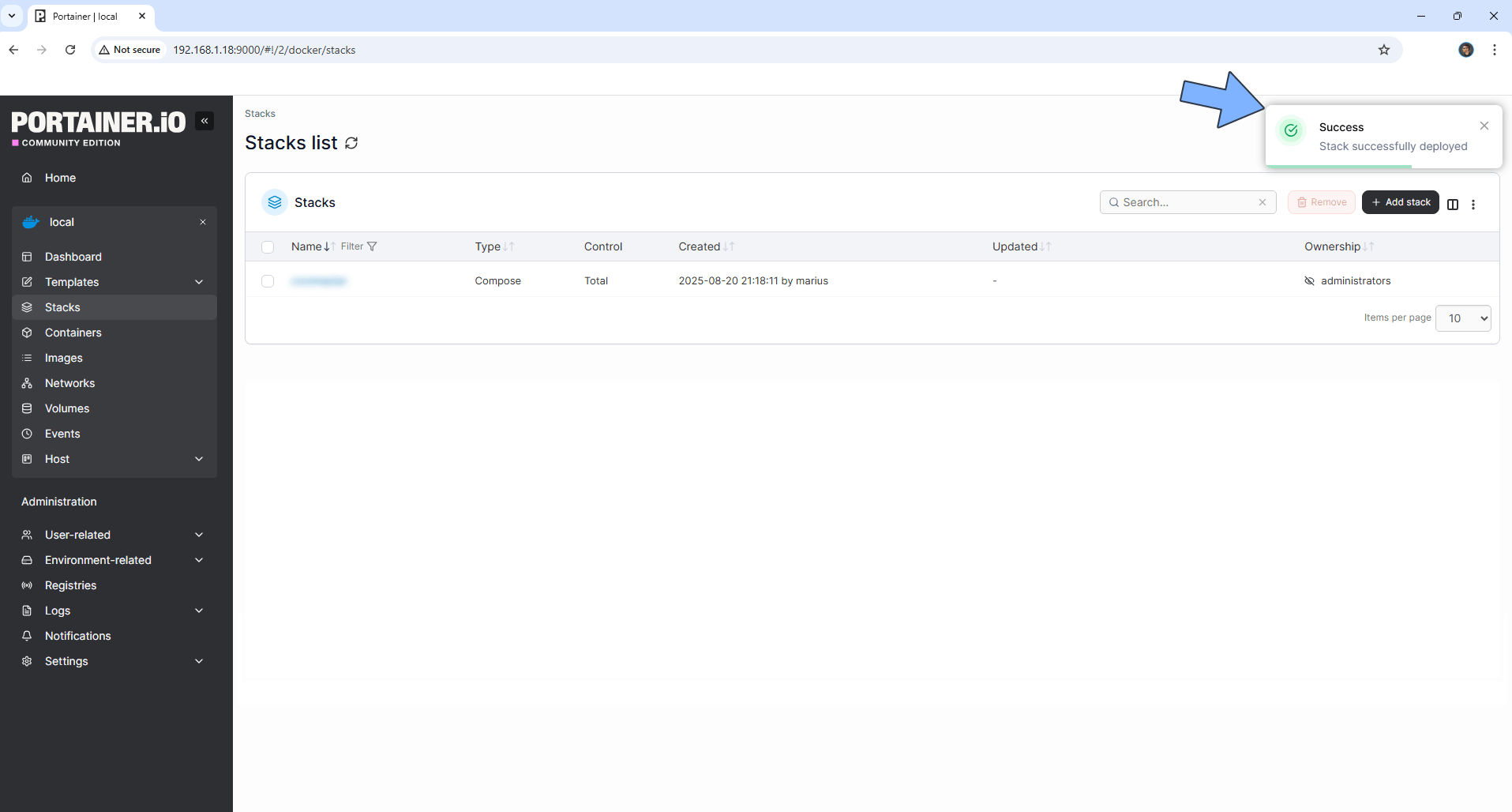
If everything goes right, you will see the following message at the top right of your screen: “Success Stack successfully deployed“.
STEP 10
🟢Please Support My work by Making a Donation. Almost 99,9% of the people that install something using my guides forget to support my work, or just ignore STEP 1. I’ve been very honest about this aspect of my work since the beginning: I don’t run any ADS, I don’t require subscriptions, paid or otherwise, I don’t collect IPs, emails, and I don’t have any referral links from Amazon or other merchants. I also don’t have any POP-UPs or COOKIES. I have repeatedly been told over the years how much I have contributed to the community. It’s something I love doing and have been honest about my passion since the beginning. But I also Need The Community to Support me Back to be able to continue doing this work.
STEP 11
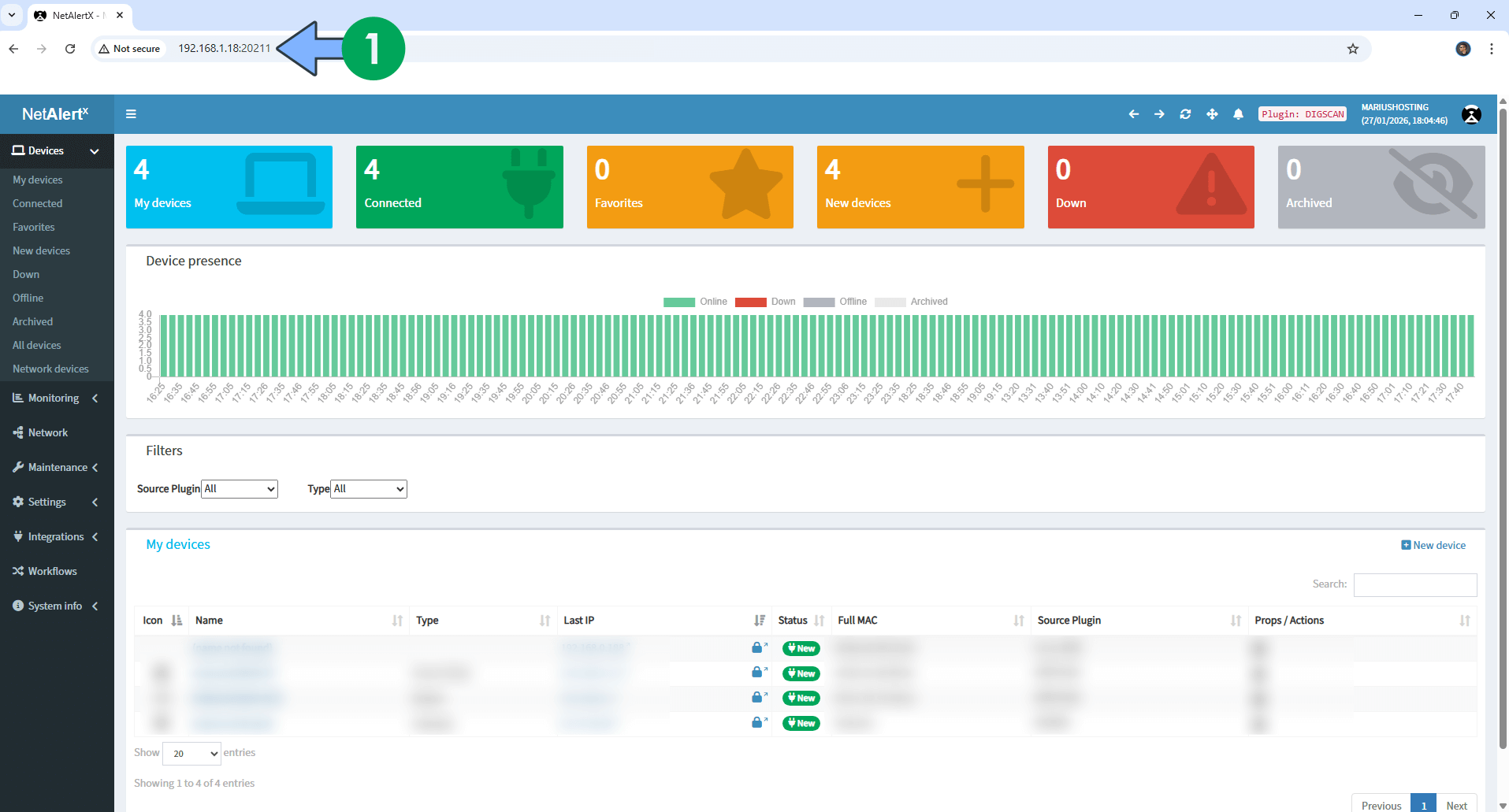
The installation process can take up to a few seconds/minutes. It will depend on your Internet speed connection. Now open your browser and type in http://ugreen-ip-address:20211 It will take a few minutes for NetAlertX to scan your entire network.💡Note: On the left sidebar, you can click on Settings and you can add a different Subnet to scan.
STEP 12
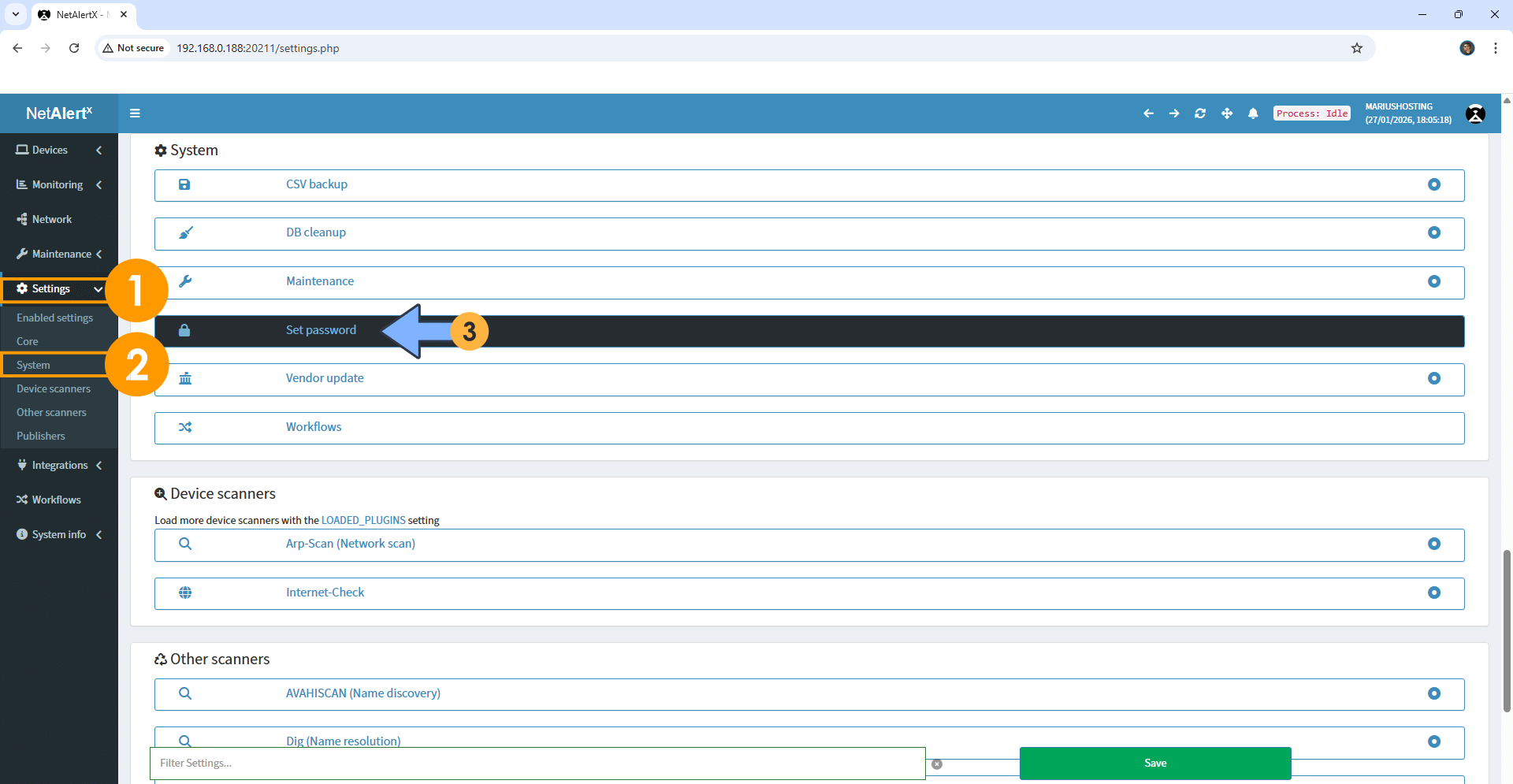
Protect your NetAlertX instance via password. On the left sidebar click on Settings then System. Click Set password. Follow the instructions in the image below.
STEP 13
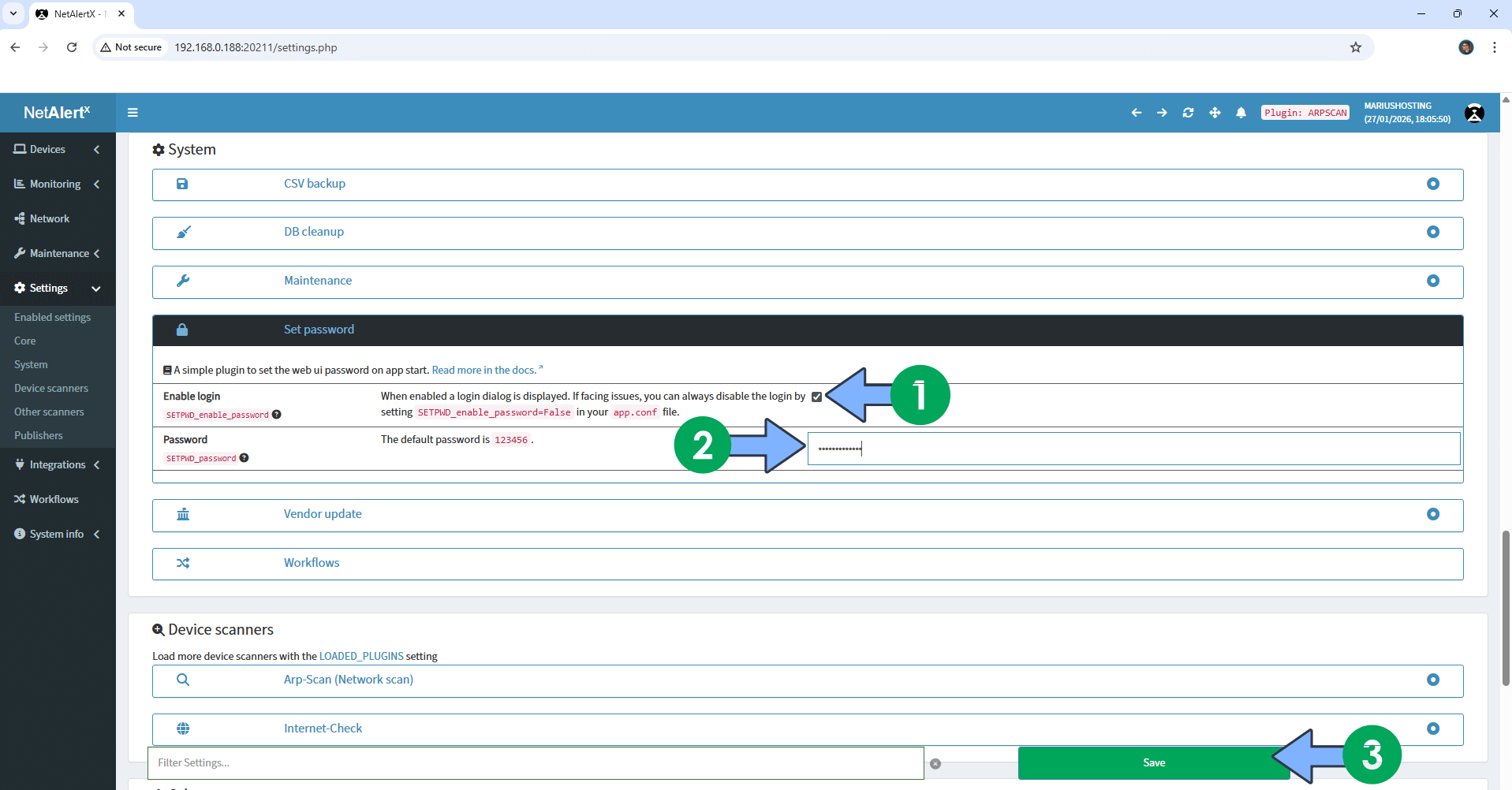
Check the Enable login option, then type in your own Password. Click Save. Follow the instructions in the image below.
STEP 14
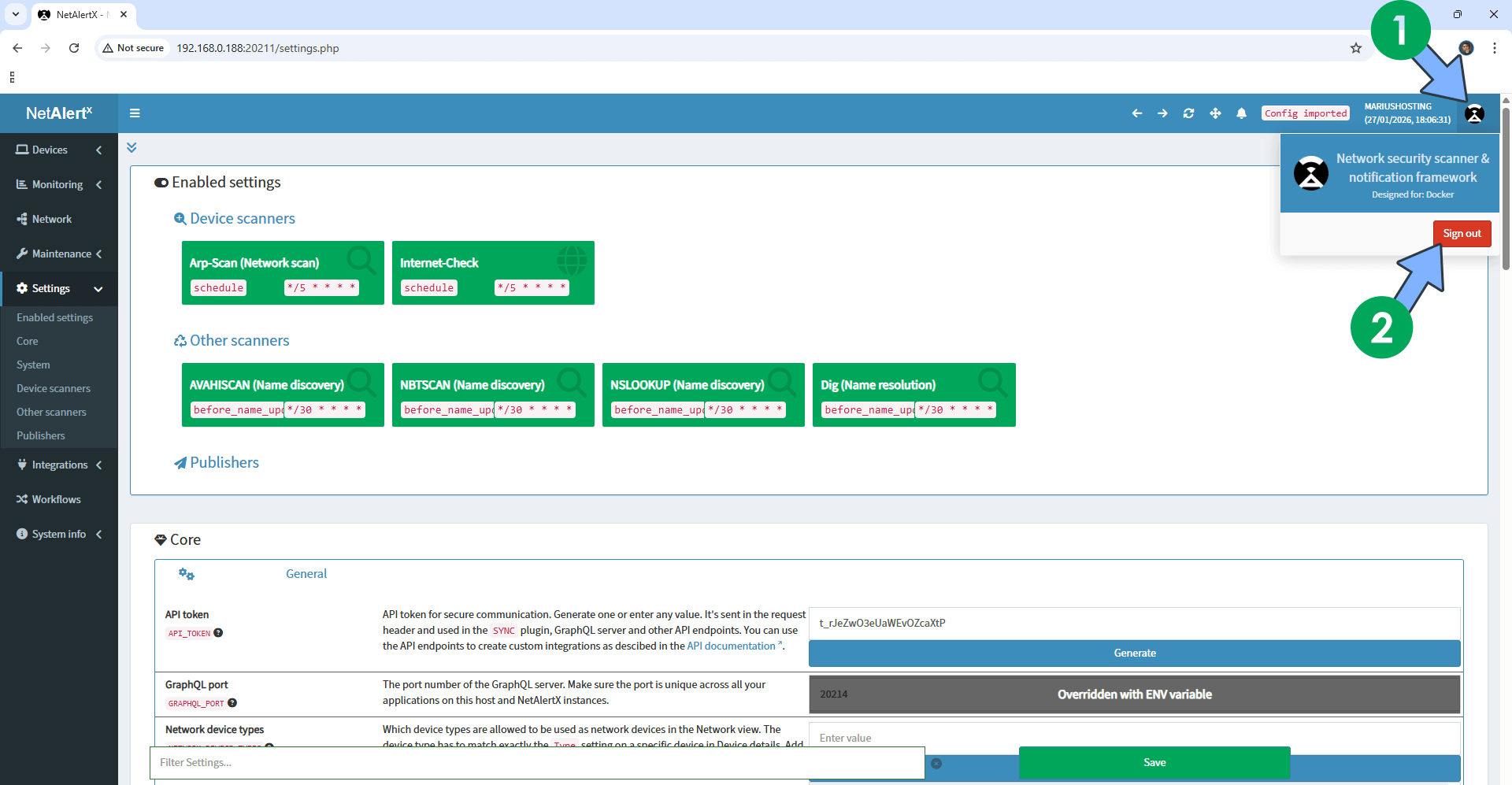
At the top right of the page, click the NetAlertX icon then Sign out. Follow the instructions in the image below.
STEP 15
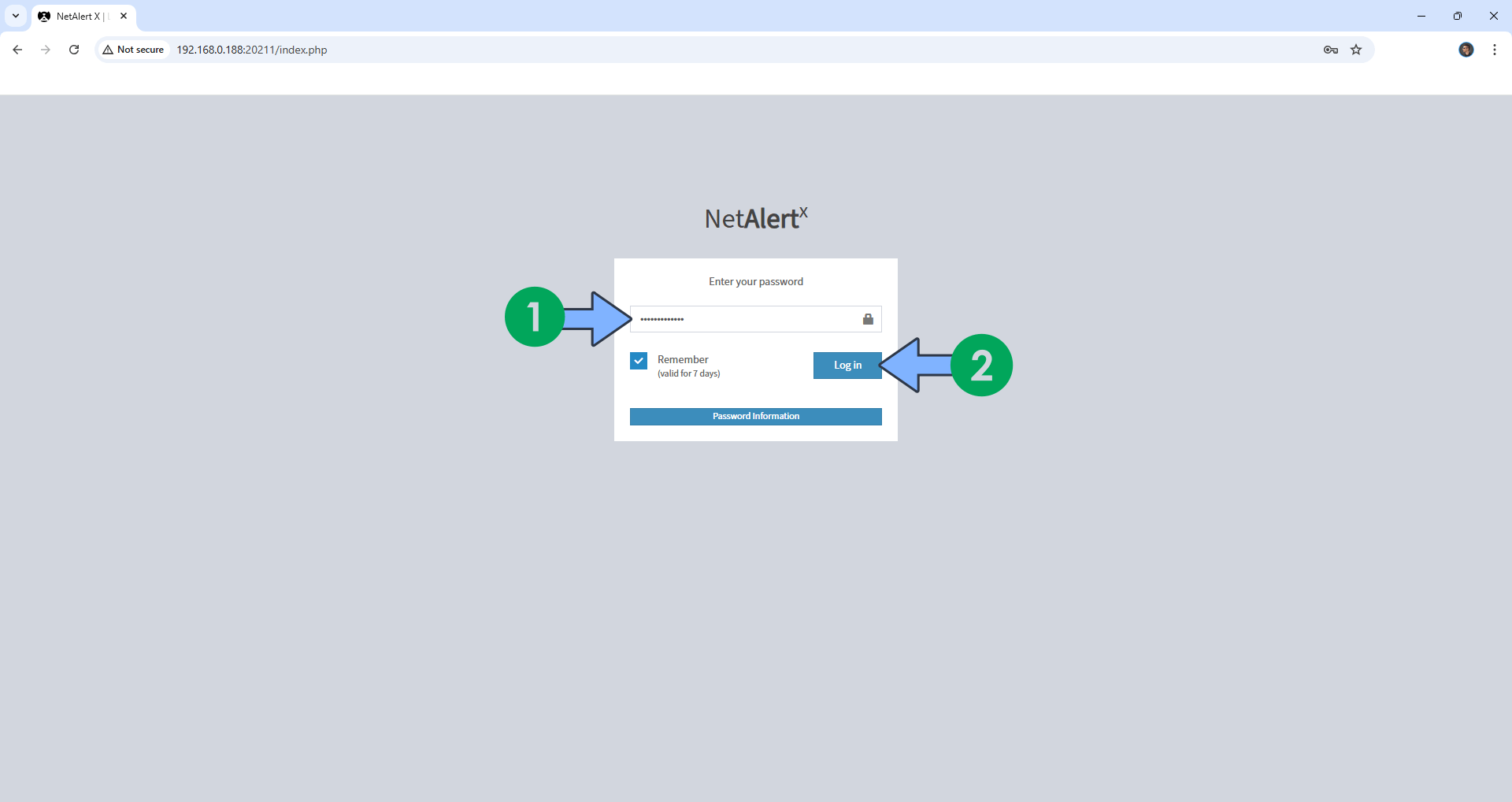
Now open your browser and type in http://ugreen-ip-address:20211 You will be asked to enter your password. Type in the password that you have previously created at STEP 12, then click Log in. Follow the instructions in the image below.
STEP 16
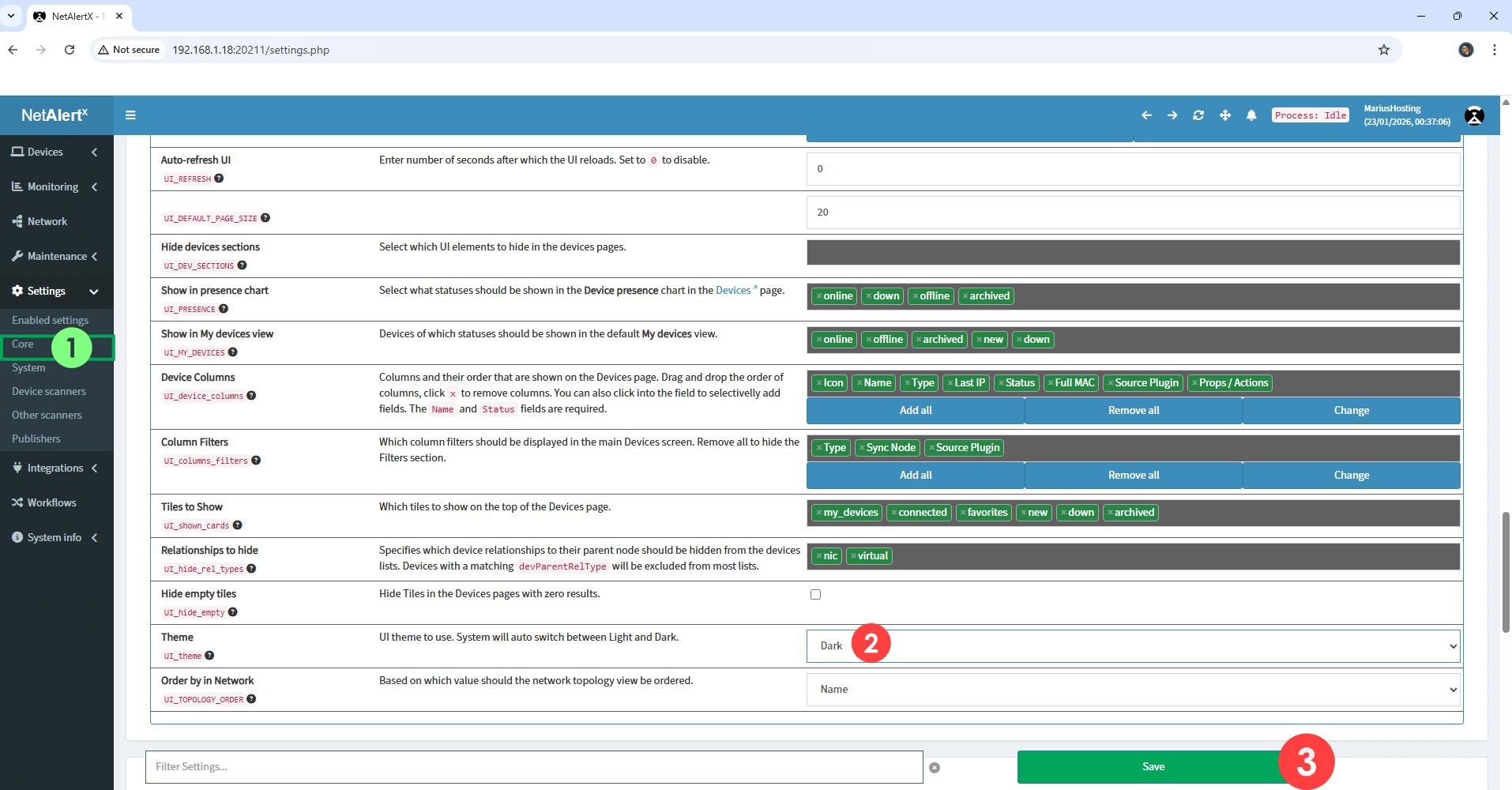
If you want to change the NetAlertX theme to Dark Mode, click Settings then Core. Scroll down the page until you find the UI Settings. Switch the theme from Light to Dark. Click Save. Follow the instructions in the image below.
STEP 17
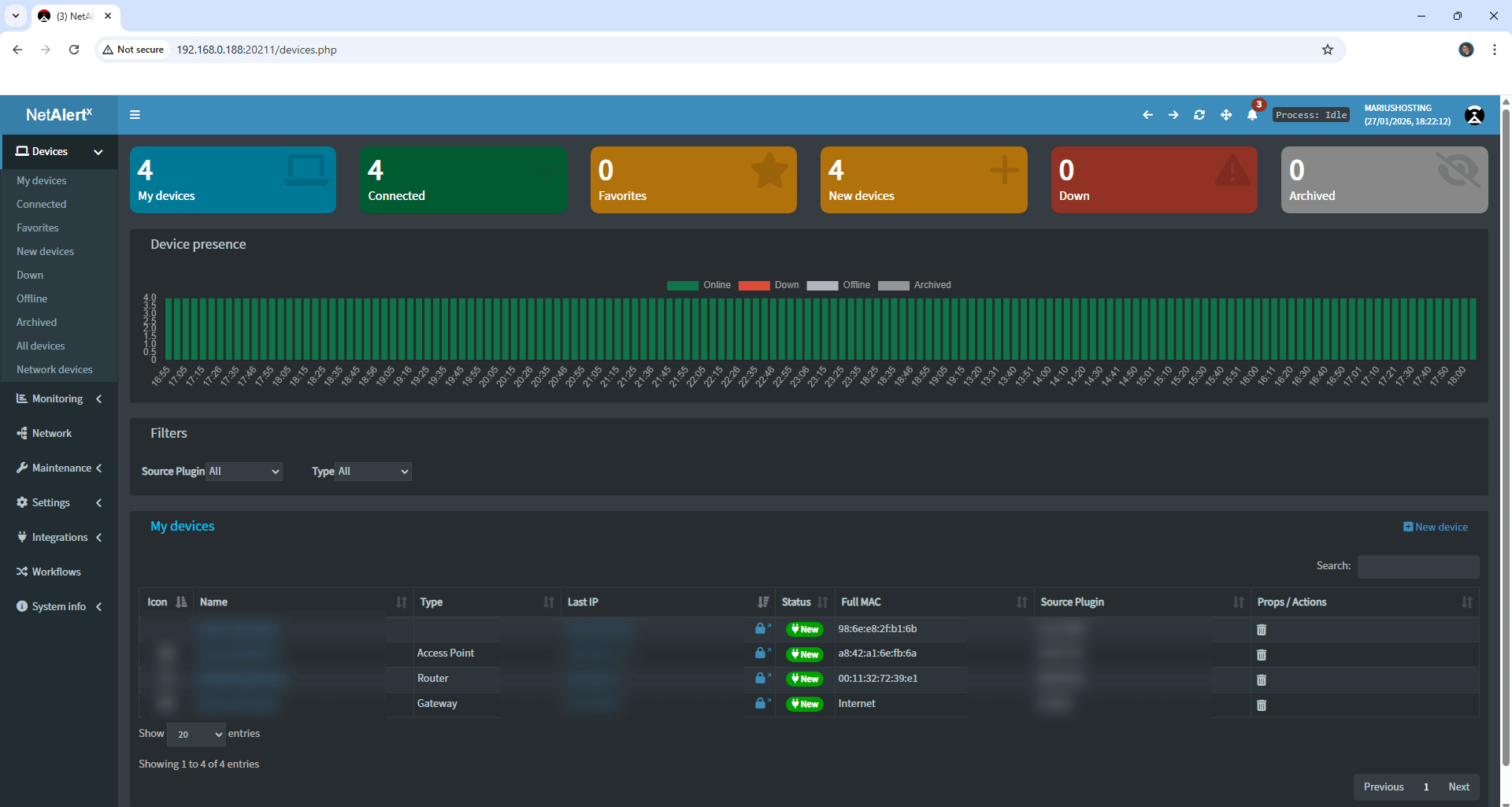
Your NetAlertX dashboard at a glance!
STEP 18
Enable email notifications on NetAlertX.
Enjoy NetAlertX on Your UGREEN NAS!
Note: If you want to run the NetAlertX container over HTTPS, check out How to Run Docker Containers Over HTTPS on Your UGREEN NAS.
⚠️Mandatory Add Read & Write Permissions to the Docker Folder. If you have already added the Read and Write Permissions to the Docker Folder, skip this STEP.
🆙Note/Update/Container: How to Update Your Docker Containers on UGREEN NAS Using Portainer.
🐳Note: How to Create Docker Shortcuts on Desktop.
🆕Note: How to Update Portainer to the latest version.
🆕Note: How to Clean Docker.
This post was updated on Friday / March 20th, 2026 at 7:19 PM