
Signing documents digitally should be fast and easy and should be the best practice for every document signed worldwide. This is technically quite easy today, but it also introduces a new party to every signature: the signing tool providers. While this is not a problem in itself, it should make us think about how we want these providers of trust to work. Documenso aims to be the world’s most trusted document-signing tool. This trust is built by empowering you to self-host Documenso and review how it works under the hood. You can also use Docuseal as an alternative to Documenso. In this step by step guide I will show you how to install Documenso on your UGREEN NAS using Docker & Portainer.
STEP 1
Please Support My work by Making a Donation.
STEP 2
Install Portainer using my step by step guide. If you already have Portainer installed on your UGREEN NAS, skip this STEP. Attention: Make sure you have installed the latest Portainer version.
STEP 3
⚠️Mandatory: Enable HTTPS on your UGREEN NAS.
STEP 4
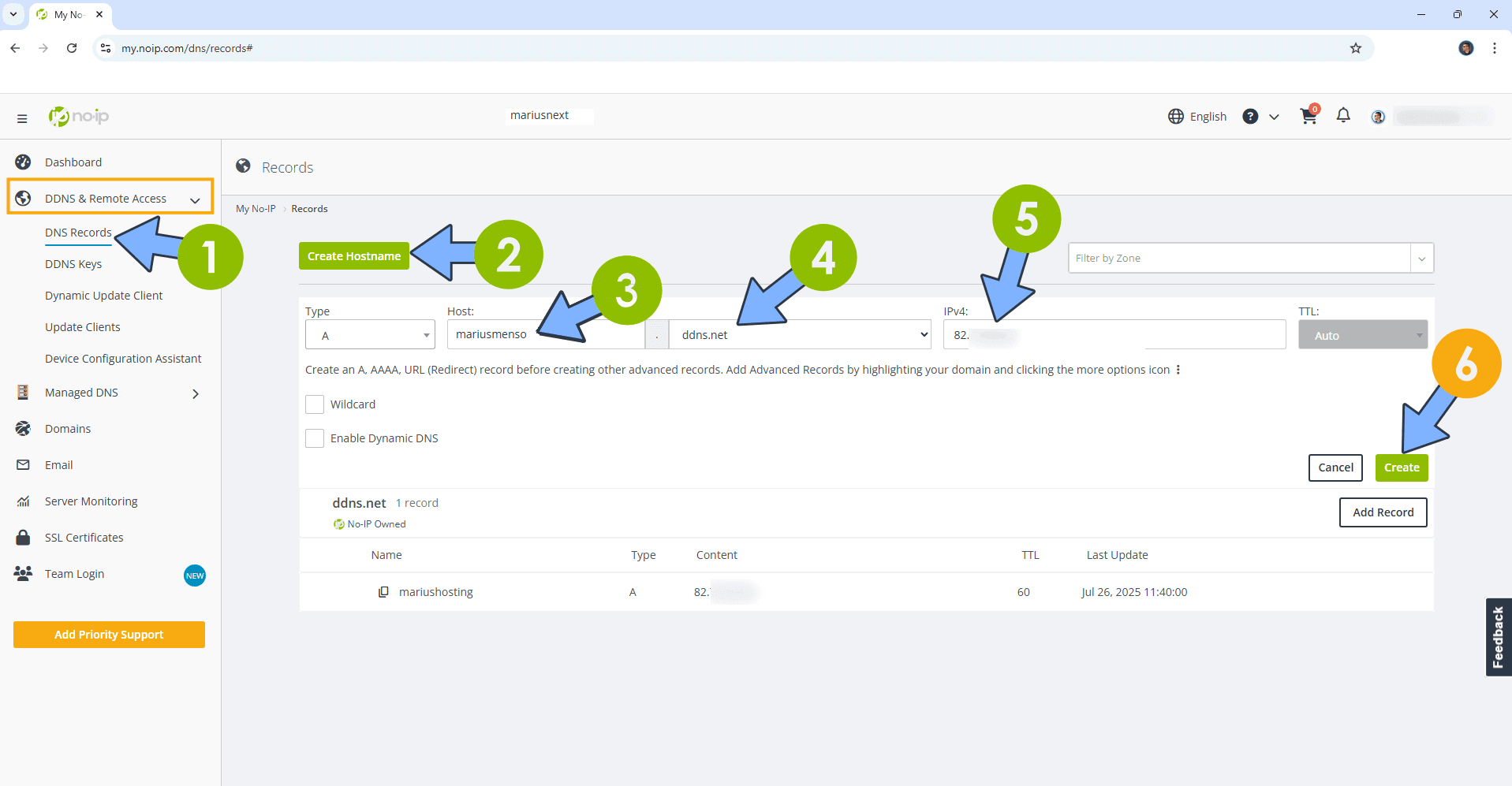
Create a new hostname on the noip website using your noip account. For example, I have created mariusmenso as Host and I use the free ddns.net domain. In the IP Address area, type in your own IPV4 IP address from your ISP, then click Create. Follow the instructions in the image below.
STEP 5
⚠️Mandatory: Add Read & Write Permissions to the Docker Folder.
STEP 6
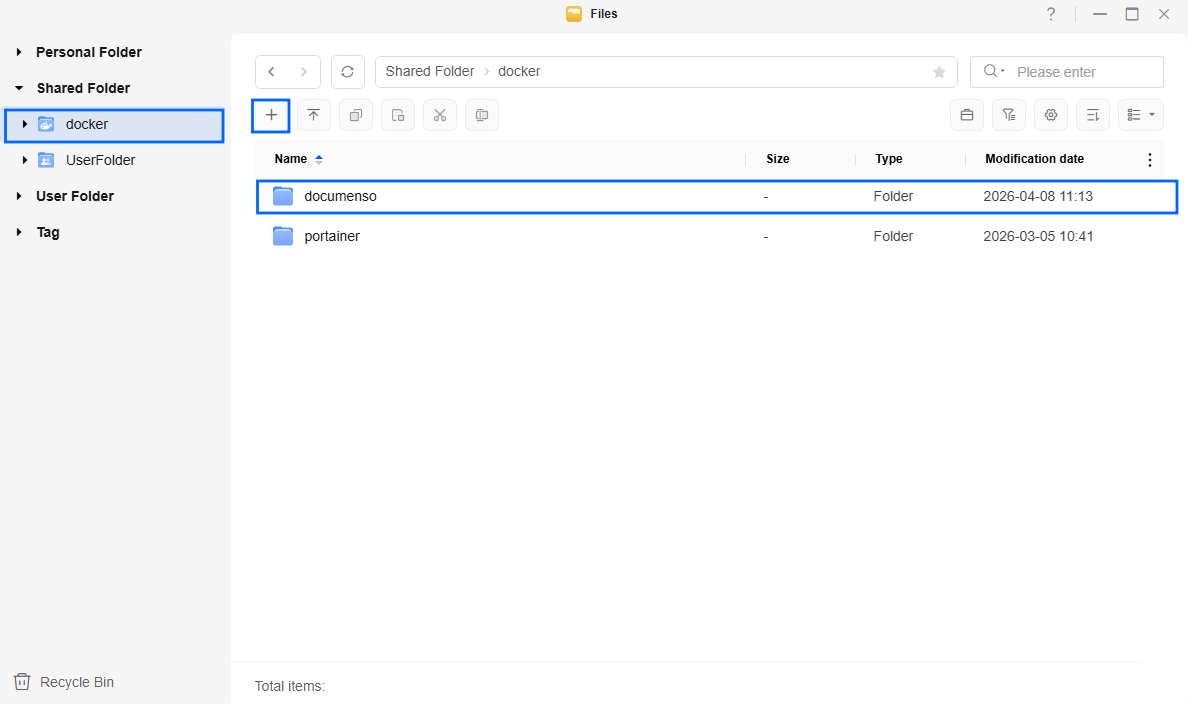
Go to Files and open the docker folder. Inside the docker folder, create one new folder and name it documenso. Follow the instructions in the image below.
Note: Be careful to enter only lowercase, not uppercase letters.
STEP 7
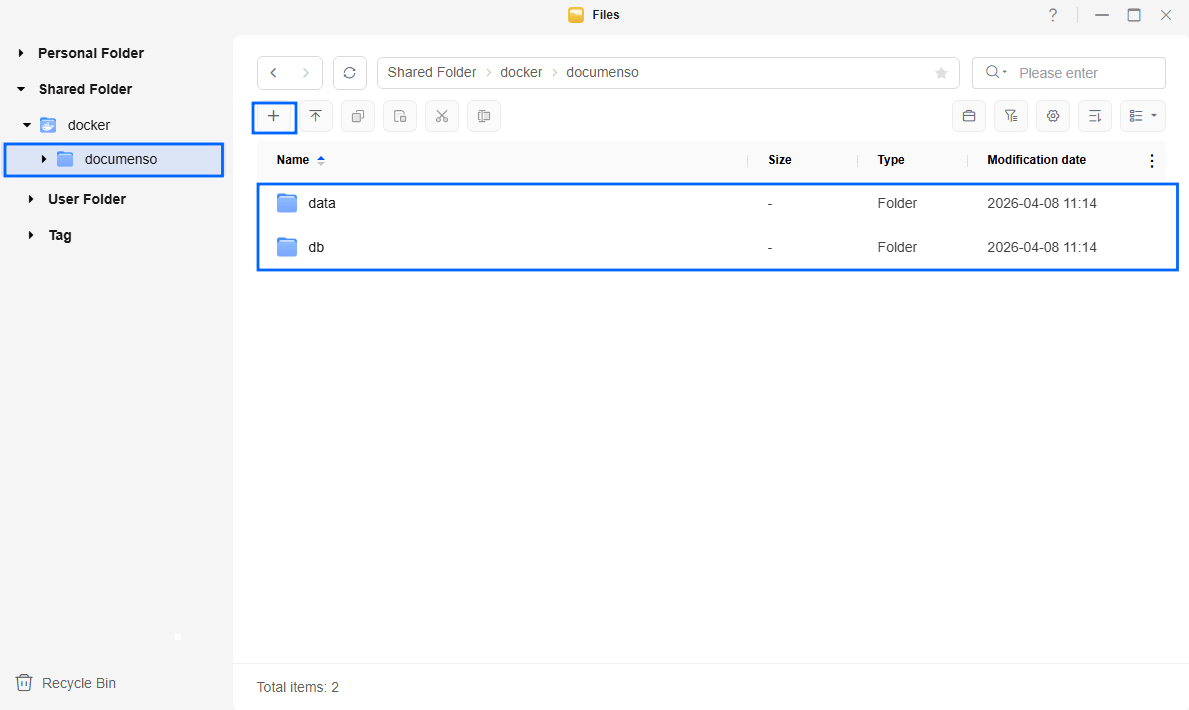
Now create two new folders inside the documenso folder that you have previously created at STEP 6 and name them data and db. Follow the instructions in the image below.
Note: Be careful to enter only lowercase, not uppercase letters.
STEP 8
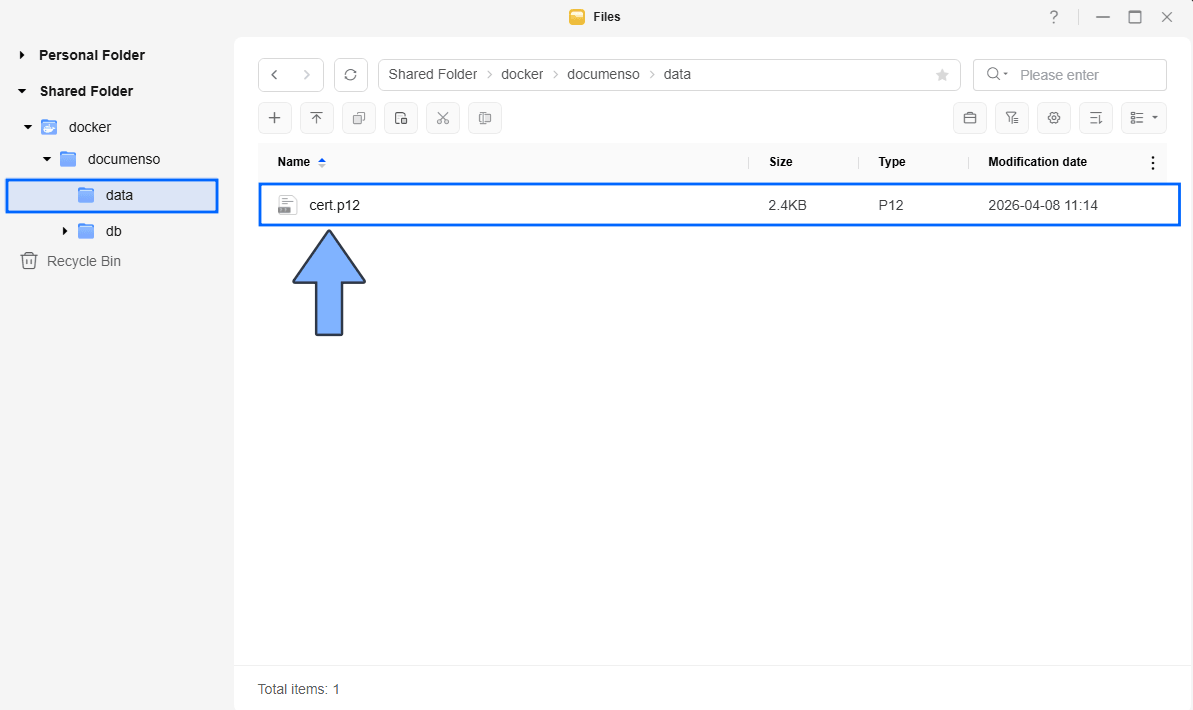
Download (click on the blue link below) and upload the cert.p12 file below in the data folder that you have previously created at STEP 11. Follow the instructions in the image below. 🔒Note: Support my work to unlock the password. You can use this password to download any file on mariushosting forever! cert.p12 is a 10-year self-signed certificate. If you don’t want to support my work and download the certificate that I created, you can create your own self-signed certificate using the documenso instructions.
STEP 9
Follow my step by step guide on how to activate SMTP for your Gmail account. This step is mandatory. Note: If you don’t want to use the easiest way for SMTP with Google and you already have SMTP details from your own Mail Server, you can just skip this STEP and use your personalized email SMTP details instead.
STEP 10
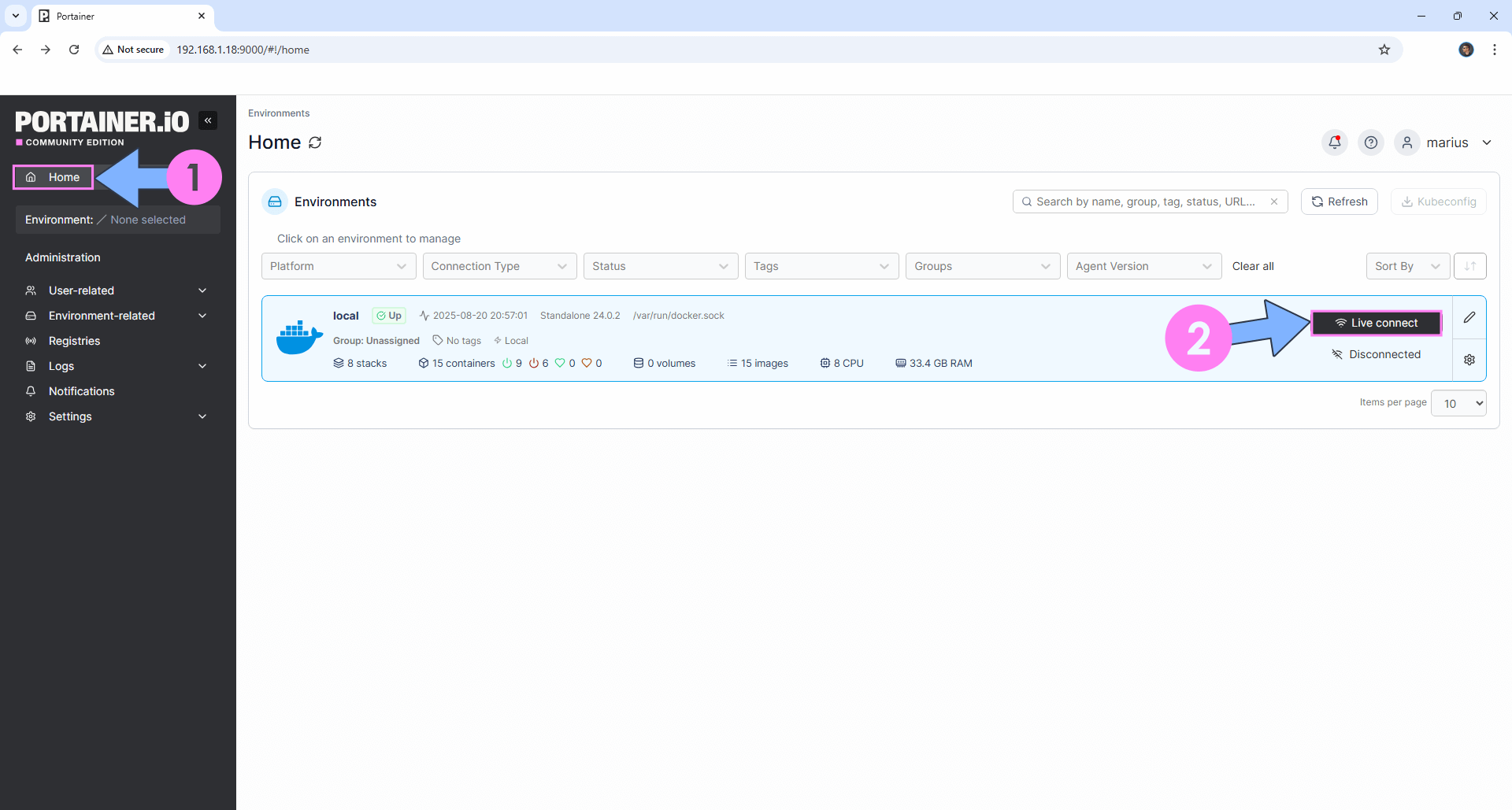
Log into Portainer using your username and password. On the left sidebar in Portainer, click on Home then Live connect. Follow the instructions in the image below.
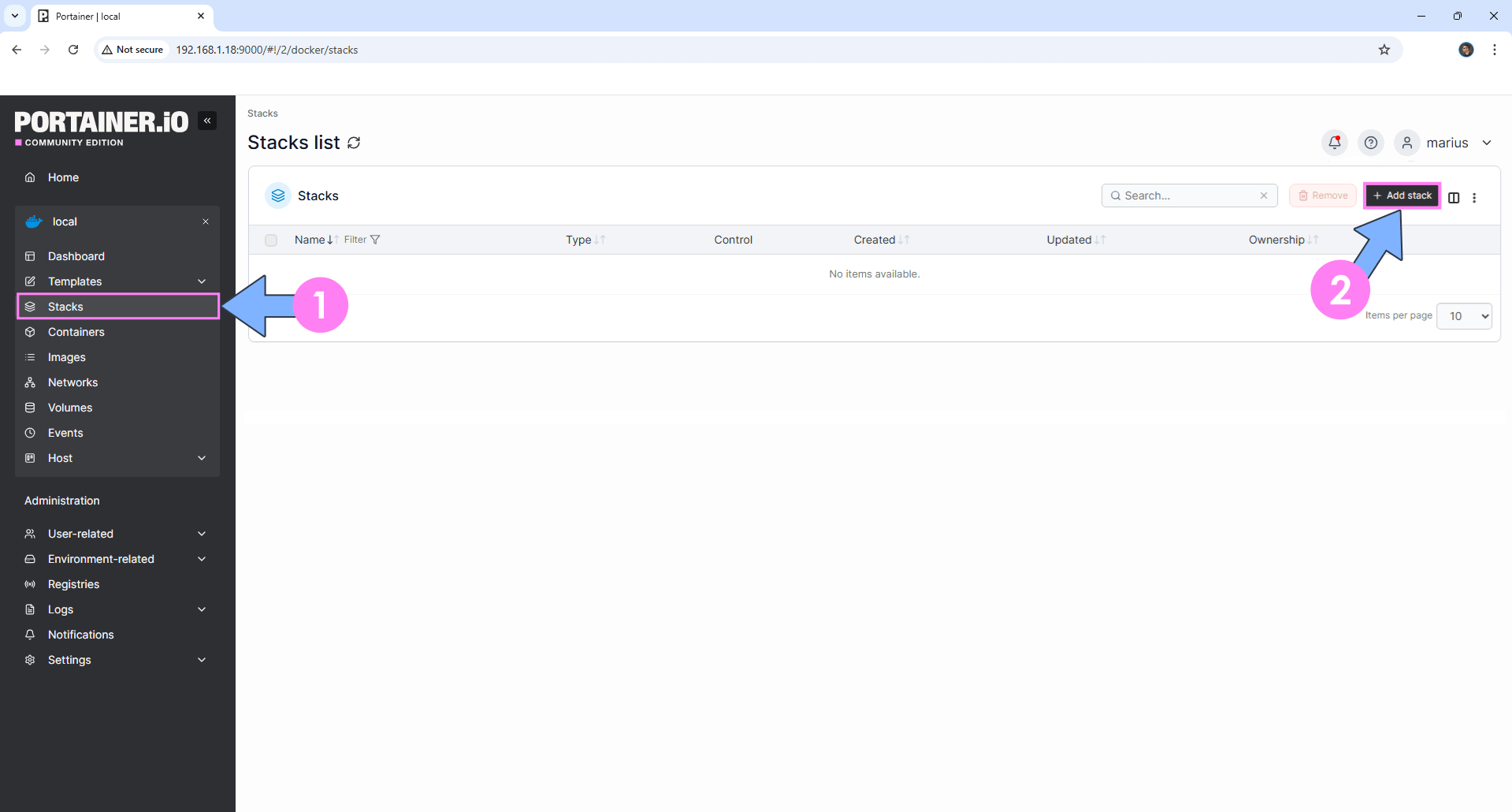
On the left sidebar in Portainer, click on Stacks then + Add stack. Follow the instructions in the image below.
STEP 11
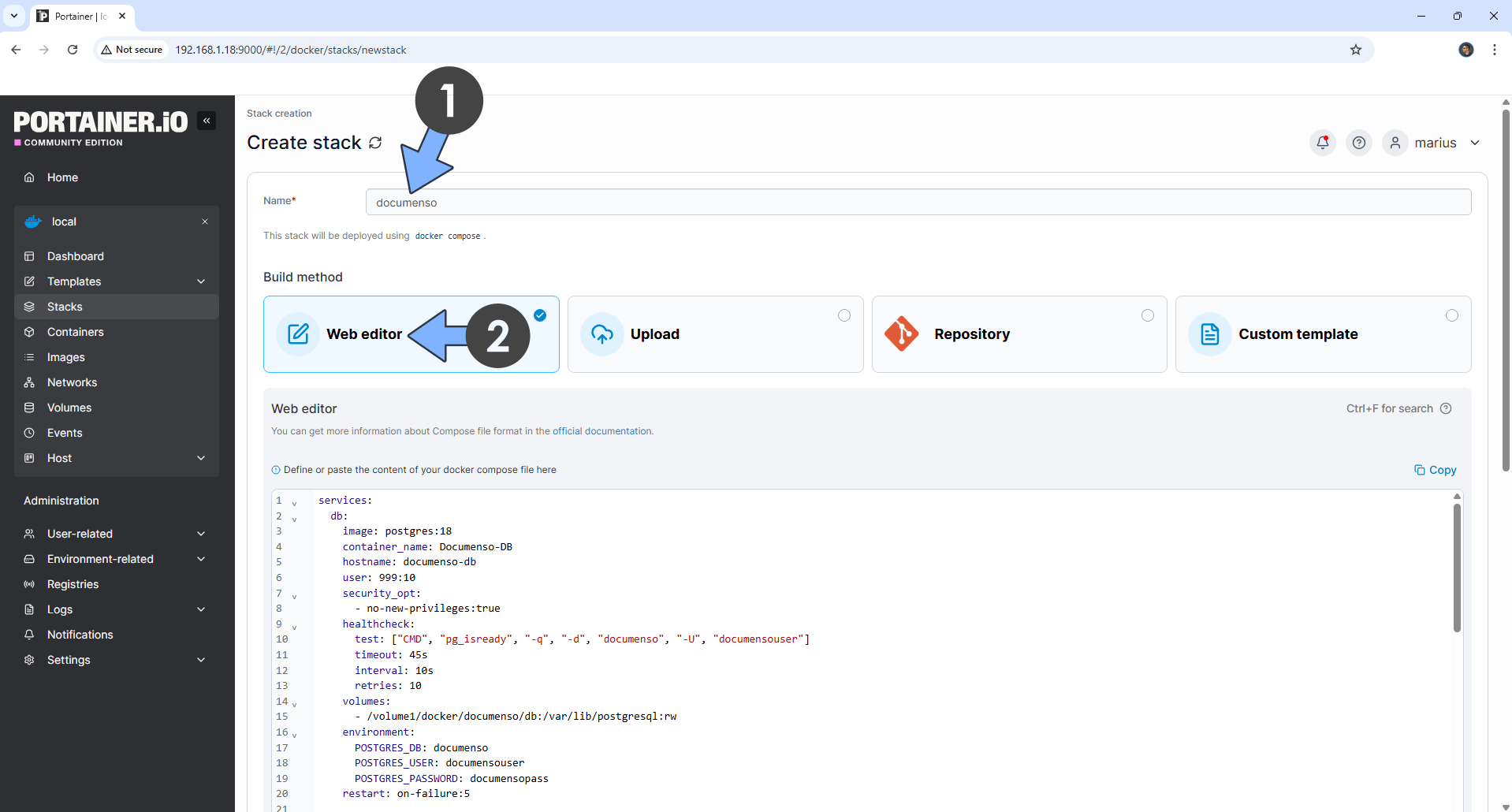
In the Name field type in documenso. Follow the instructions in the image below.
services:
  db:
    image: postgres:18
    container_name: Documenso-DB
    hostname: documenso-db
    user: 999:10
    security_opt:
      - no-new-privileges:true
    healthcheck:
      test: ["CMD", "pg_isready", "-q", "-d", "documenso", "-U", "documensouser"]
      timeout: 45s
      interval: 10s
      retries: 10
    volumes:
      - /volume1/docker/documenso/db:/var/lib/postgresql:rw
    environment:
      POSTGRES_DB: documenso
      POSTGRES_USER: documensouser
      POSTGRES_PASSWORD: documensopass
    restart: on-failure:5

  documenso:
    image: documenso/documenso:latest
    container_name: Documenso
    ports:
      - 3513:3000
    volumes:
      - /volume1/docker/documenso/data:/opt/documenso:rw
    depends_on:
      db:
        condition: service_healthy
    environment:
      - PORT=3000
      - NEXTAUTH_SECRET=iLE3qPl8jJZWSrmSJGERVQt6YKIQIoUT
      - NEXT_PRIVATE_ENCRYPTION_KEY=Lzav2o6C0HBsg75bo2dUPqpOZ5k4904E
      - NEXT_PRIVATE_ENCRYPTION_SECONDARY_KEY=Q6GigBFoGF62jhqzD4ebXEow5gLiSSs7
      - NEXTAUTH_URL=https://documenso.ddns.net
      - NEXT_PUBLIC_WEBAPP_URL=https://documenso.ddns.net
      - NEXT_PRIVATE_INTERNAL_WEBAPP_URL=http://documenso:3000
      - NEXT_PUBLIC_MARKETING_URL=https://documenso.ddns.net
      - NEXT_PRIVATE_DATABASE_URL=postgres://documensouser:documensopass@documenso-db:5432/documenso
      - NEXT_PRIVATE_DIRECT_DATABASE_URL=postgres://documensouser:documensopass@documenso-db:5432/documenso
      - NEXT_PUBLIC_UPLOAD_TRANSPORT=database
      - NEXT_PRIVATE_SMTP_TRANSPORT=smtp-auth
      - NEXT_PRIVATE_SMTP_HOST=smtp.gmail.com
      - NEXT_PRIVATE_SMTP_PORT=587
      - NEXT_PRIVATE_SMTP_USERNAME=Your-own-gmail-address
      - NEXT_PRIVATE_SMTP_PASSWORD=Your-own-app-password
      - NEXT_PRIVATE_SMTP_SECURE=false
      - NEXT_PRIVATE_SMTP_FROM_NAME=mariushosting
      - NEXT_PRIVATE_SMTP_FROM_ADDRESS=Your-own-gmail-address
      - NEXT_PRIVATE_SIGNING_LOCAL_FILE_PATH=/opt/documenso/cert.p12
      #NEXT_PRIVATE_SMTP_UNSAFE_IGNORE_TLS=true
      #NEXT_PRIVATE_SMTP_APIKEY_USER=${NEXT_PRIVATE_SMTP_APIKEY_USER}
      #NEXT_PRIVATE_SMTP_APIKEY=${NEXT_PRIVATE_SMTP_APIKEY}
      #NEXT_PRIVATE_RESEND_API_KEY=${NEXT_PRIVATE_RESEND_API_KEY}
      #NEXT_PRIVATE_MAILCHANNELS_API_KEY=${NEXT_PRIVATE_MAILCHANNELS_API_KEY}
      #NEXT_PRIVATE_MAILCHANNELS_ENDPOINT=${NEXT_PRIVATE_MAILCHANNELS_ENDPOINT}
      #NEXT_PRIVATE_MAILCHANNELS_DKIM_DOMAIN=${NEXT_PRIVATE_MAILCHANNELS_DKIM_DOMAIN}
      #NEXT_PRIVATE_MAILCHANNELS_DKIM_SELECTOR=${NEXT_PRIVATE_MAILCHANNELS_DKIM_SELECTOR}
      #NEXT_PRIVATE_MAILCHANNELS_DKIM_PRIVATE_KEY=${NEXT_PRIVATE_MAILCHANNELS_DKIM_PRIVATE_KEY}
      #NEXT_PUBLIC_DOCUMENT_SIZE_UPLOAD_LIMIT=${NEXT_PUBLIC_DOCUMENT_SIZE_UPLOAD_LIMIT}
      #NEXT_PUBLIC_POSTHOG_KEY=${NEXT_PUBLIC_POSTHOG_KEY}
      #NEXT_PUBLIC_DISABLE_SIGNUP=${NEXT_PUBLIC_DISABLE_SIGNUP}
      #NEXT_PRIVATE_UPLOAD_ENDPOINT=${NEXT_PRIVATE_UPLOAD_ENDPOINT}
      #NEXT_PRIVATE_UPLOAD_FORCE_PATH_STYLE=${NEXT_PRIVATE_UPLOAD_FORCE_PATH_STYLE}
      #NEXT_PRIVATE_UPLOAD_REGION=${NEXT_PRIVATE_UPLOAD_REGION}
      #NEXT_PRIVATE_UPLOAD_BUCKET=${NEXT_PRIVATE_UPLOAD_BUCKET}
      #NEXT_PRIVATE_UPLOAD_ACCESS_KEY_ID=${NEXT_PRIVATE_UPLOAD_ACCESS_KEY_ID}
      #NEXT_PRIVATE_UPLOAD_SECRET_ACCESS_KEY=${NEXT_PRIVATE_UPLOAD_SECRET_ACCESS_KEY}
      #NEXT_PRIVATE_GOOGLE_CLIENT_ID=${NEXT_PRIVATE_GOOGLE_CLIENT_ID}
      #NEXT_PRIVATE_GOOGLE_CLIENT_SECRET=${NEXT_PRIVATE_GOOGLE_CLIENT_SECRET}
Note: Before you paste the code above in the Web editor area below, change the value numbers for user with your own UID and GID values. (Follow my step by step guide on how to do this.) 999 is my personal UID value and 10 is my personal GID value. You have to type in your own values.
Note: Before you paste the code above in the Web editor area below, change the value for NEXTAUTH_SECRET. (Generate your own 32 length NEXTAUTH_SECRET.)
Note: Before you paste the code above in the Web editor area below, change the value for NEXT_PRIVATE_ENCRYPTION_KEY. (Generate your own 32 length NEXT_PRIVATE_ENCRYPTION_KEY.)
Note: Before you paste the code above in the Web editor area below, change the value for NEXT_PRIVATE_ENCRYPTION_SECONDARY_KEY. (Generate your own 32 length NEXT_PRIVATE_ENCRYPTION_SECONDARY_KEY.)
Note: Before you paste the code above in the Web editor area below, change the value for NEXTAUTH_URL and type in your own NO IP DDNS with https:// at the beginning that you have previously created at STEP 4.
Note: Before you paste the code above in the Web editor area below, change the value for NEXT_PUBLIC_WEBAPP_URL and type in your own NO IP DDNS with https:// at the beginning that you have previously created at STEP 4.
Note: Before you paste the code above in the Web editor area below, change the value for NEXT_PUBLIC_MARKETING_URL and type in your own NO IP DDNS with https:// at the beginning that you have previously created at STEP 4.
Note: Before you paste the code above in the Web editor area below, change the value for NEXT_PRIVATE_SMTP_USERNAME and type in your own Gmail address. STEP 9.
Note: Before you paste the code above in the Web editor area below, change the value for NEXT_PRIVATE_SMTP_PASSWORD and type in your own Gmail app password. STEP 9.
Note: Before you paste the code above in the Web editor area below, change the value for NEXT_PRIVATE_SMTP_FROM_NAME and type in your own name. mariushosting is an example for a name.
Note: Before you paste the code above in the Web editor area below, change the value for NEXT_PRIVATE_SMTP_FROM_ADDRESS and type in your own Gmail address. STEP 9.
STEP 12
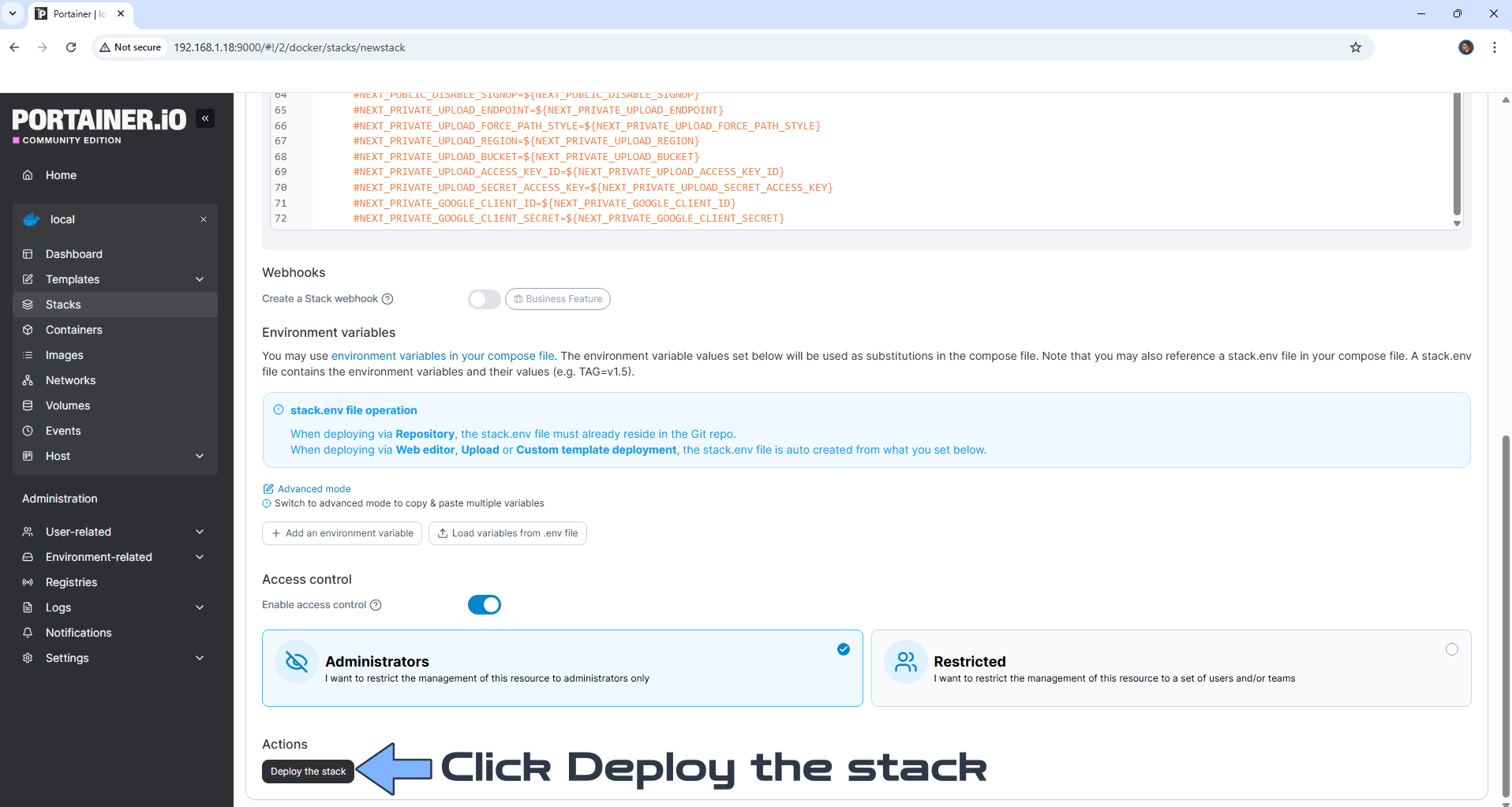
Scroll down on the page until you see a button named Deploy the stack. Click on it. Follow the instructions in the image below. The installation process can take up to a few minutes. It will depend on your Internet speed connection.
STEP 13
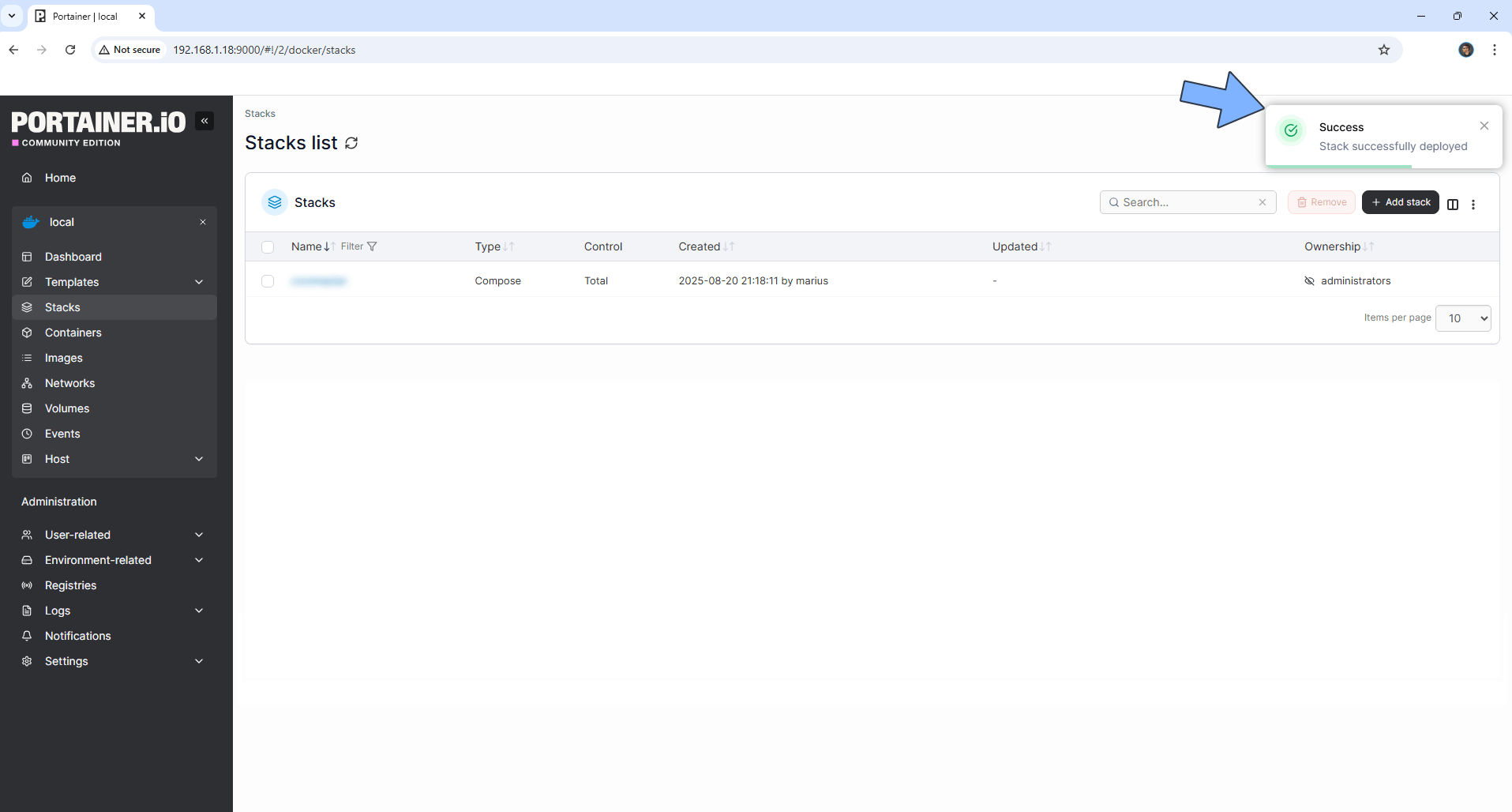
If everything goes right, you will see the following message at the top right of your screen: “Success Stack successfully deployed“.
STEP 14
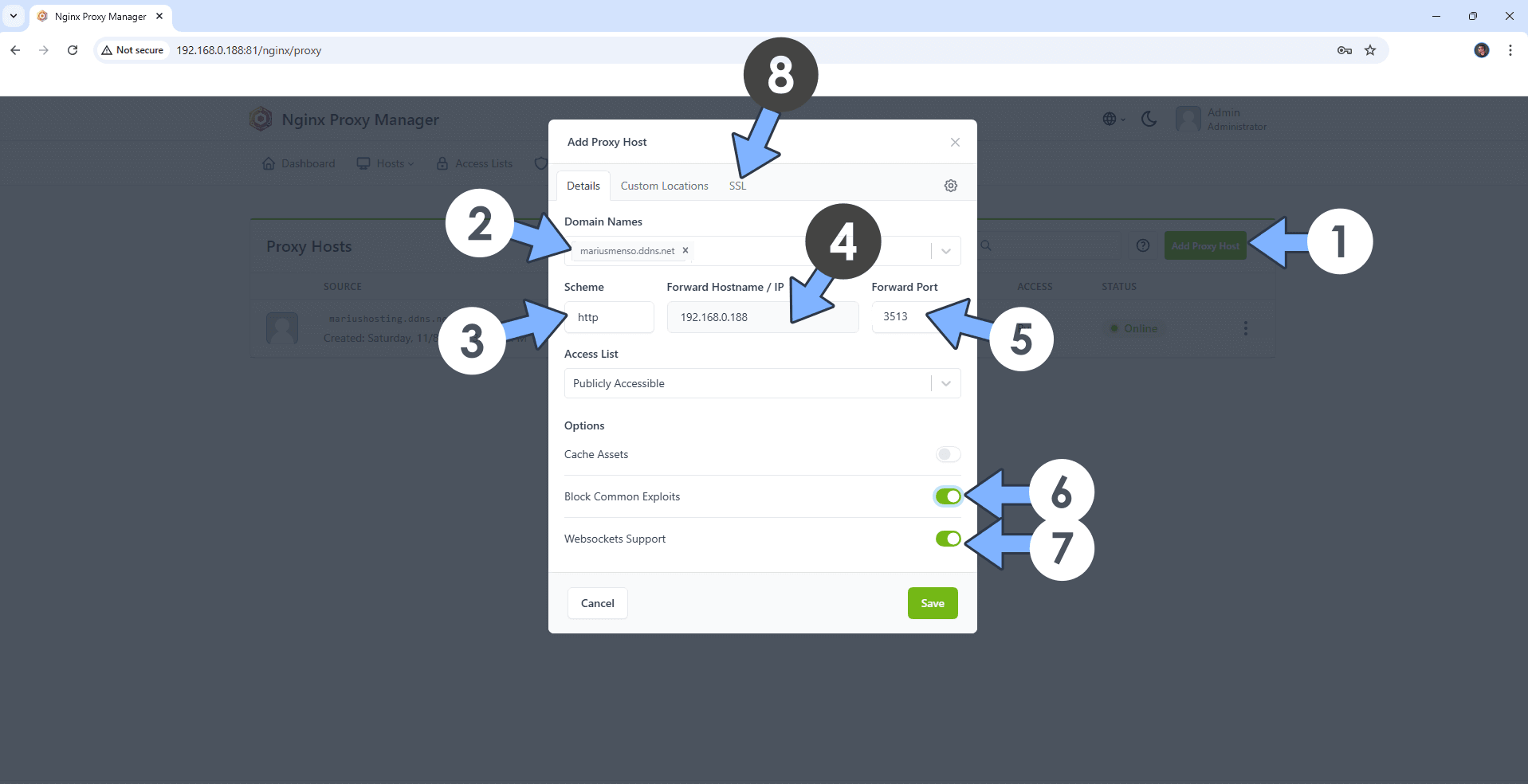
Open your Nginx Proxy Manager container that you have previously installed at STEP 3. Click Add Proxy Host. A new pop up window will open. Add the following details:
Domain Names: Type in your own noip domain name that you have previously created at STEP 4.
Scheme: http
Forward Hostname/IP: Type in the local NAS IP of your UGREEN NAS.
Forward Port: Type in the Documenso local Port that is 3513
Check Block Common Exploits
Check Websockets Support
Click the SSL tab. Follow the instructions in the image below.
STEP 15
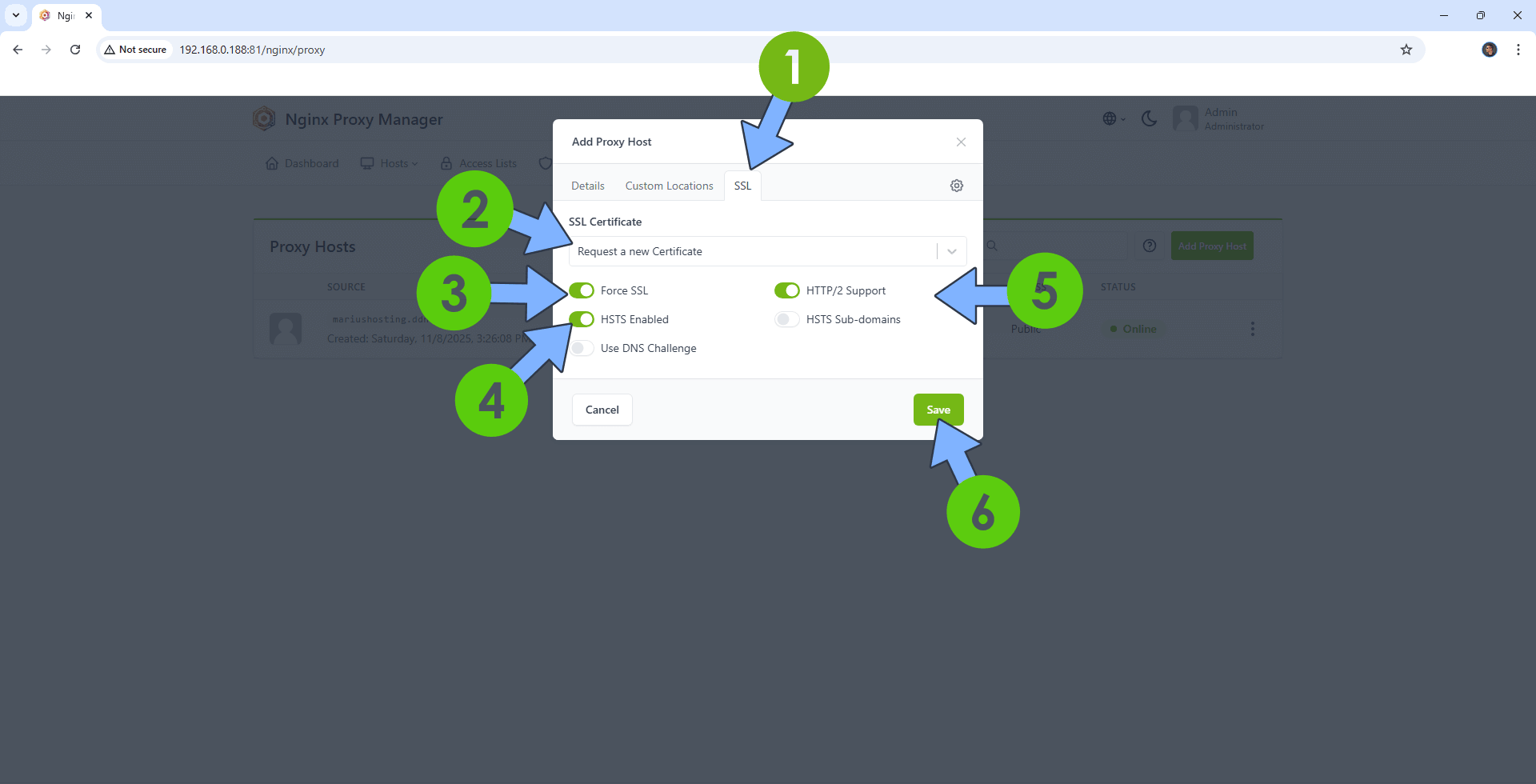
After you click the SSL tab, add the following details:
SSL Certificate: Request a new SSL Certificate
Check: Force SSL
Check: HSTS Enabled
Check: HTTP/2 Support
Click Save. Follow the instructions in the image below.
STEP 16
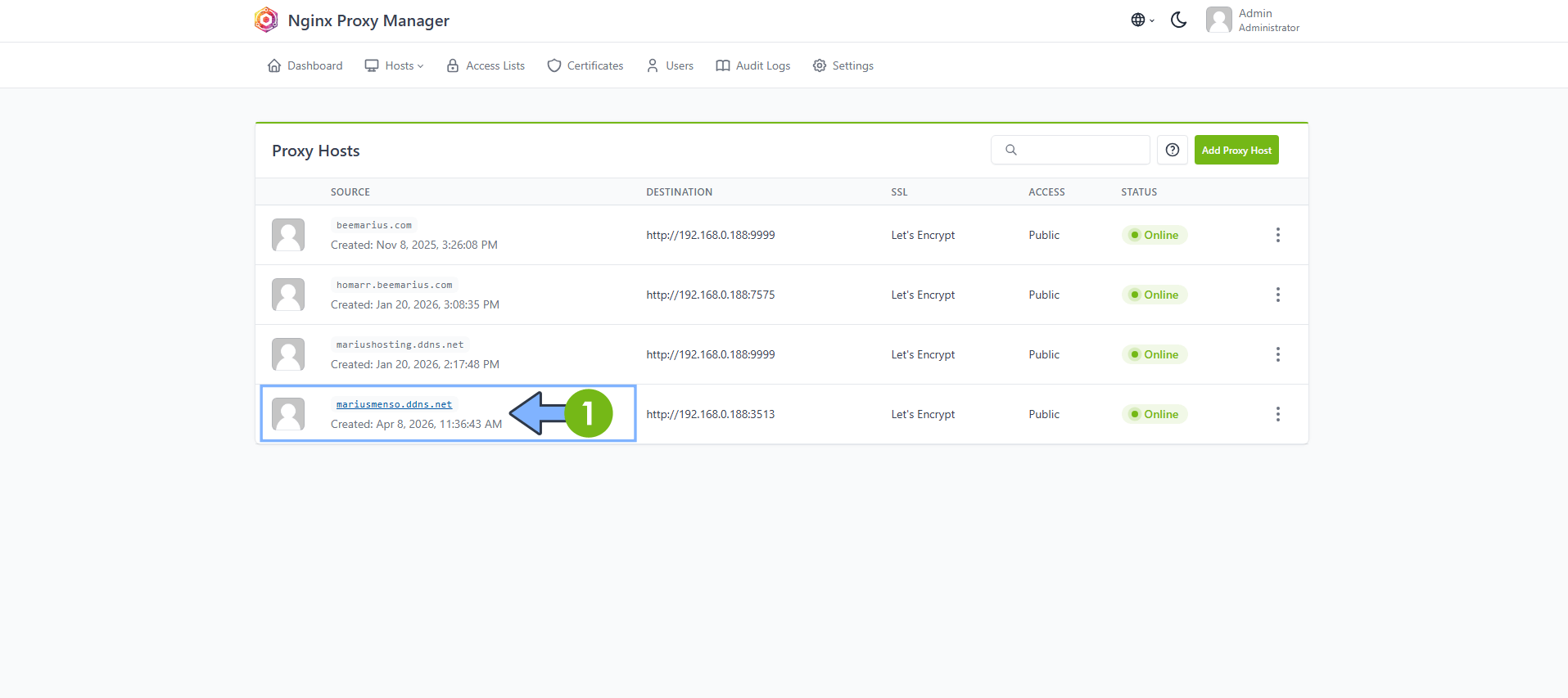
In the Proxy Hosts area, if everything goes right, you will see that your hostname has been generated. Click on it. Follow the instructions in the image below.
STEP 17
🟢Please Support My work by Making a Donation. Almost 99,9% of the people that install something using my guides forget to support my work, or just ignore STEP 1. I’ve been very honest about this aspect of my work since the beginning: I don’t run any ADS, I don’t require subscriptions, paid or otherwise, I don’t collect IPs, emails, and I don’t have any referral links from Amazon or other merchants. I also don’t have any POP-UPs or COOKIES. I have repeatedly been told over the years how much I have contributed to the community. It’s something I love doing and have been honest about my passion since the beginning. But I also Need The Community to Support me Back to be able to continue doing this work.
STEP 18
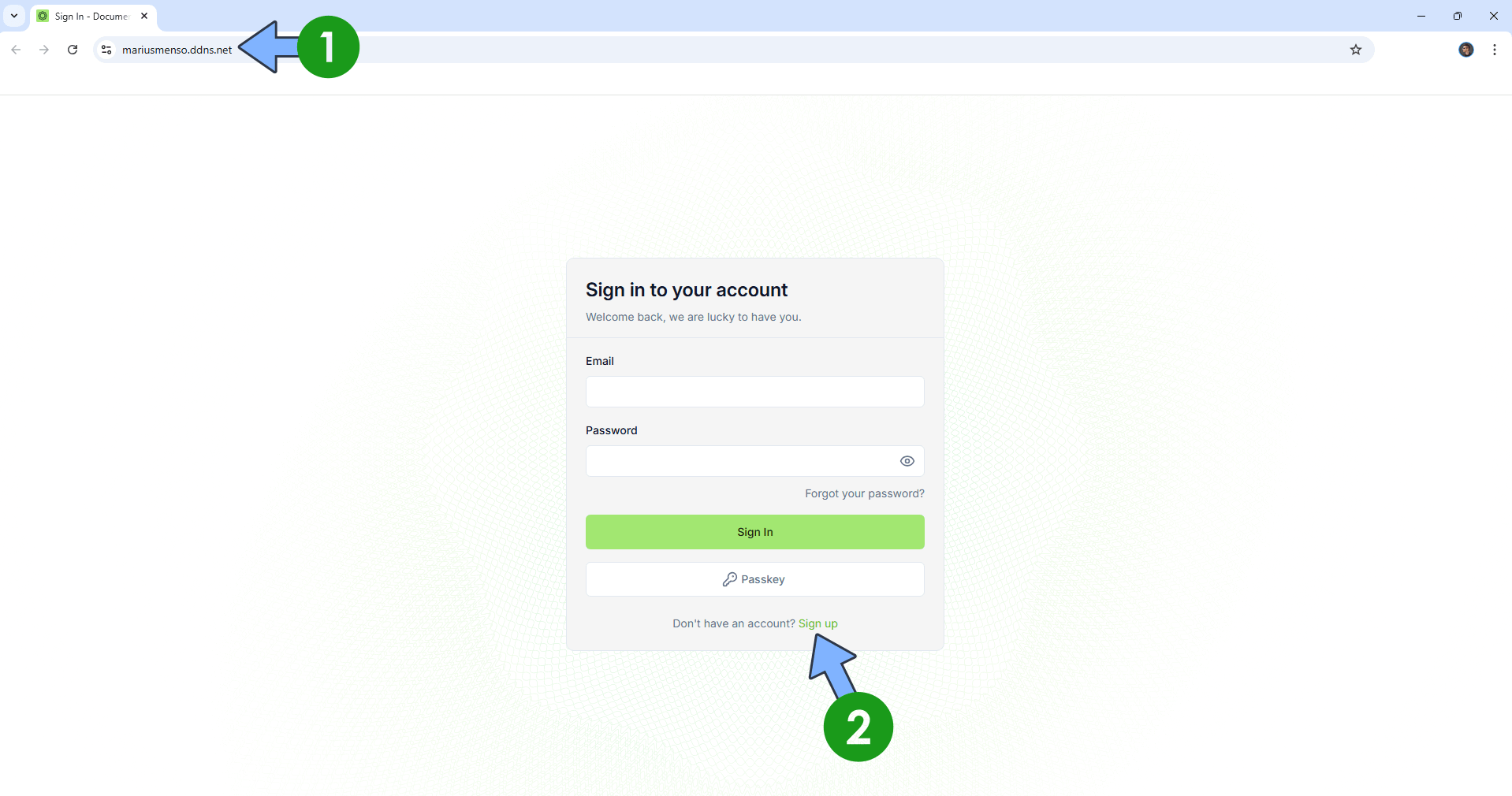
Now open your browser and type in your HTTPS/SSL certificate like this https://mariusmenso.ddns.net In my case it’s https://mariusmenso.ddns.net If everything goes right, you will see the Documenso Sign in page. Click Sign up. Follow the instructions in the image below.
STEP 19
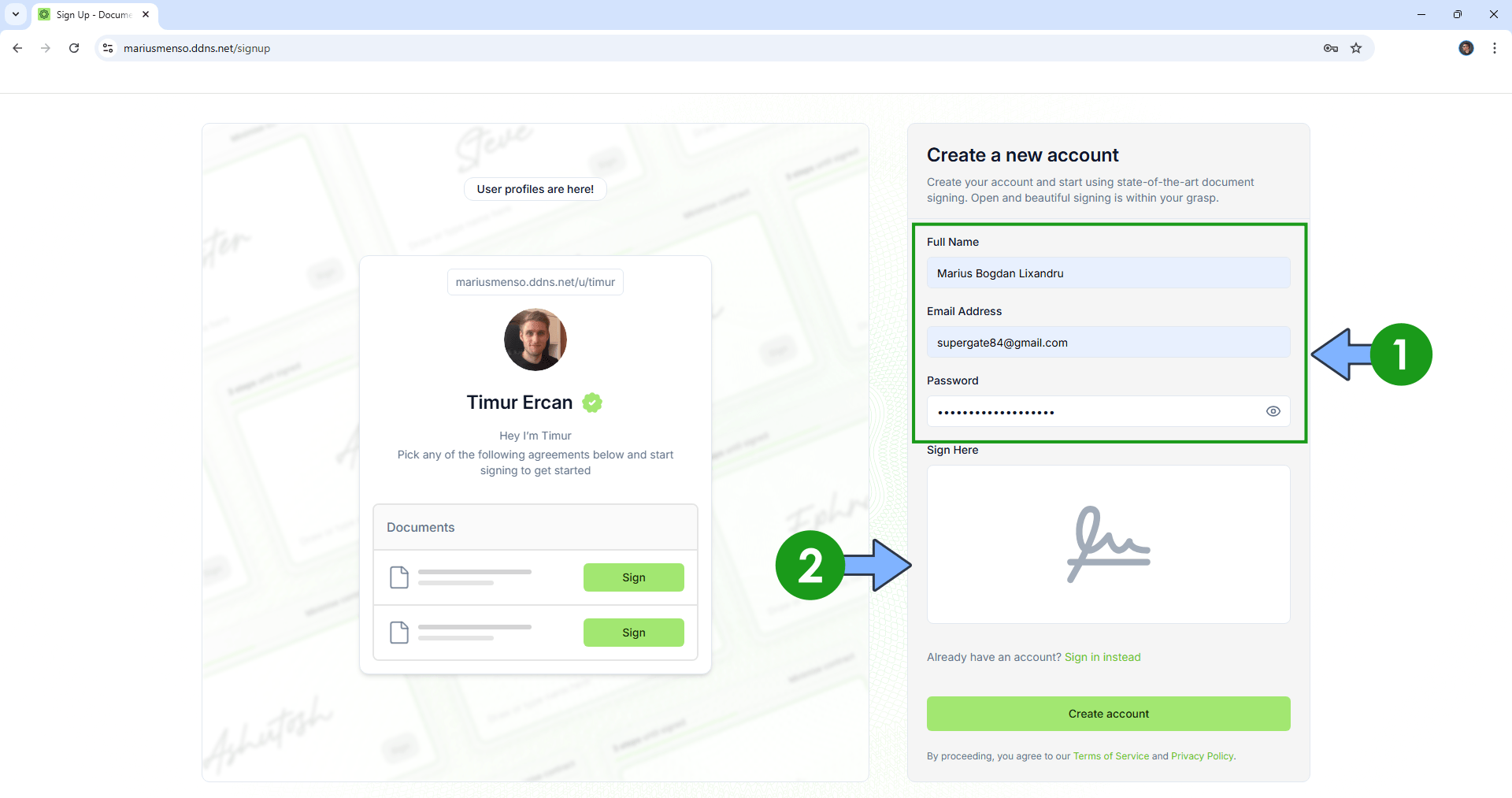
Type in your own details, then click the Sign Here square. Follow the instructions in the image below.
STEP 20
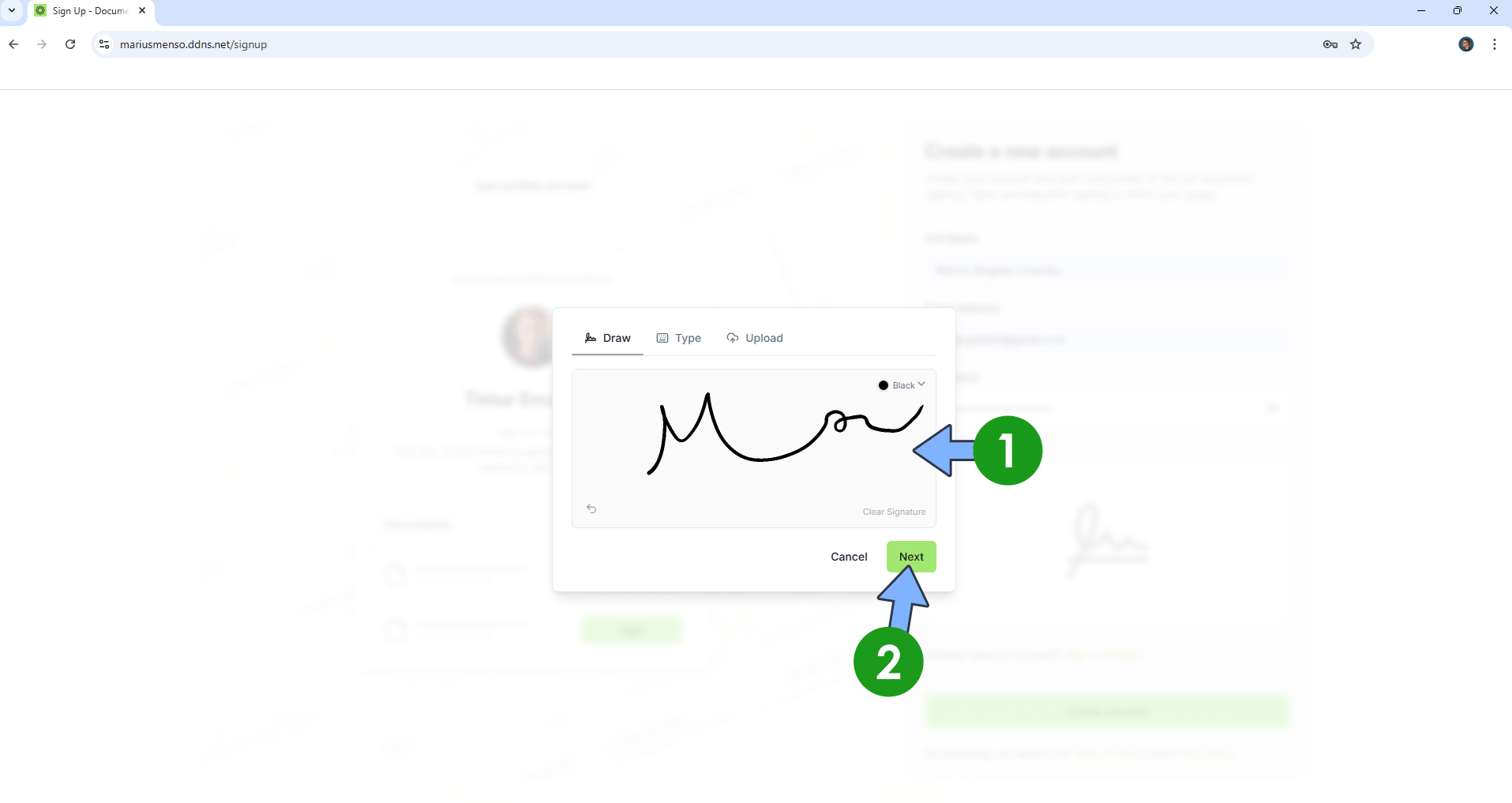
Add your own signature, then click Next. Follow the instructions in the image below.
STEP 21
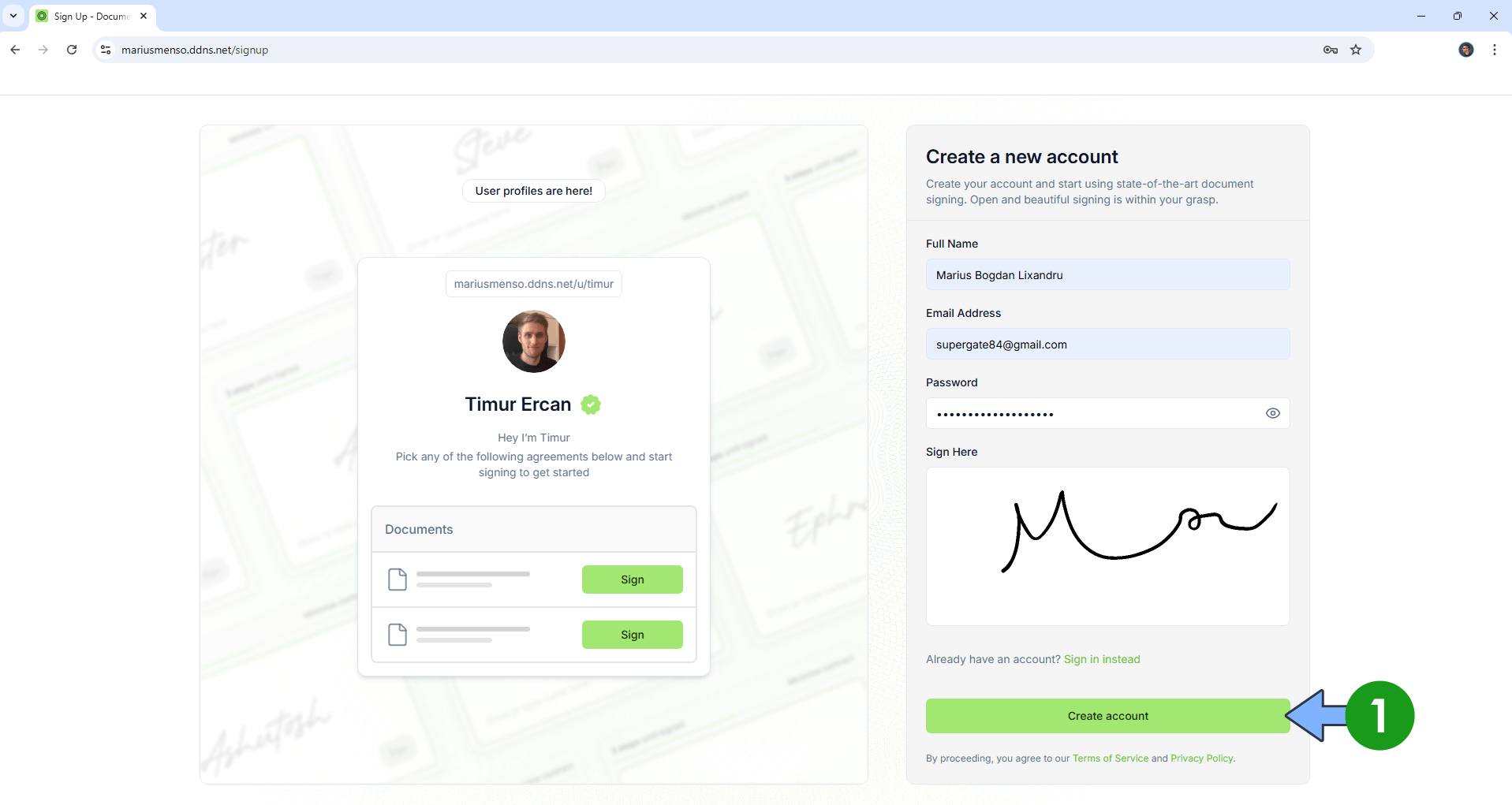
Click Create account. Follow the instructions in the image below.
STEP 22
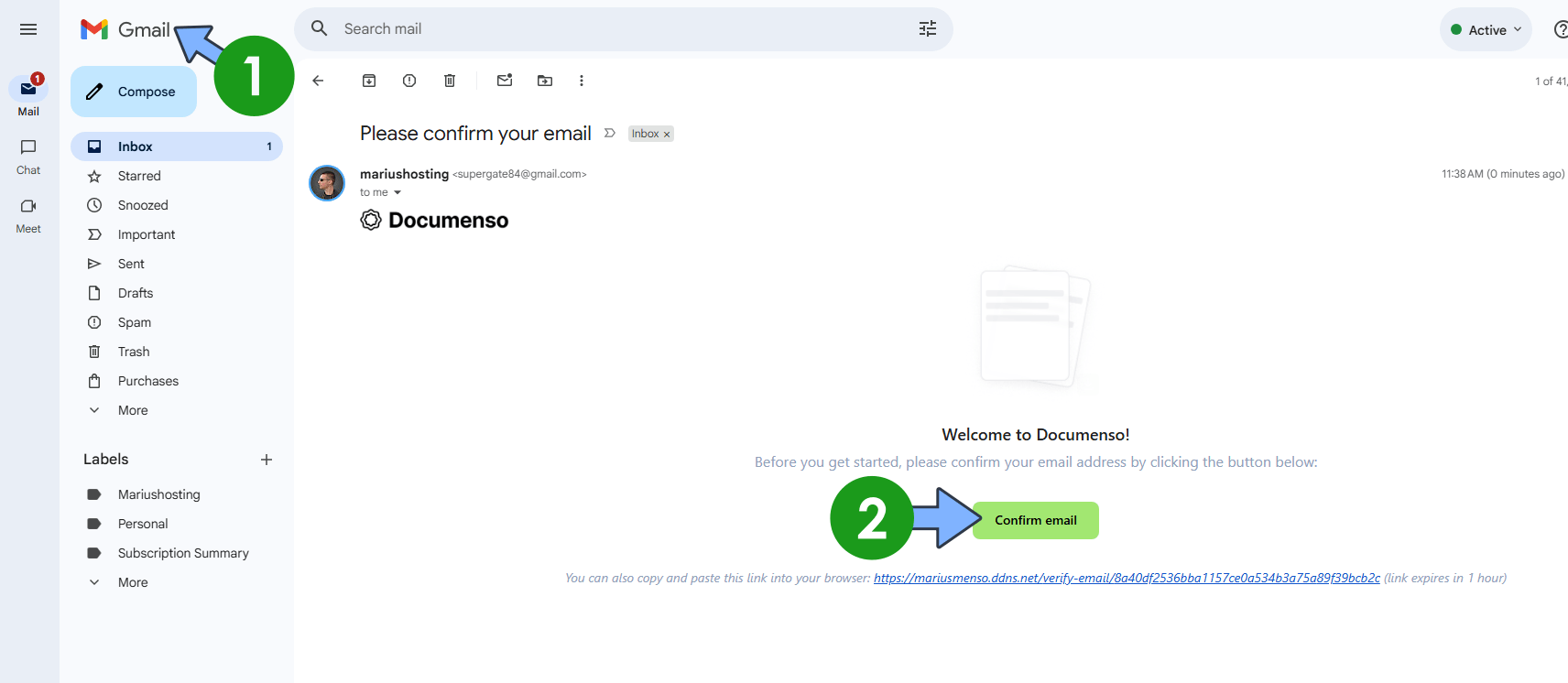
Check your email, then click Confirm email. Follow the instructions in the image below.
STEP 23
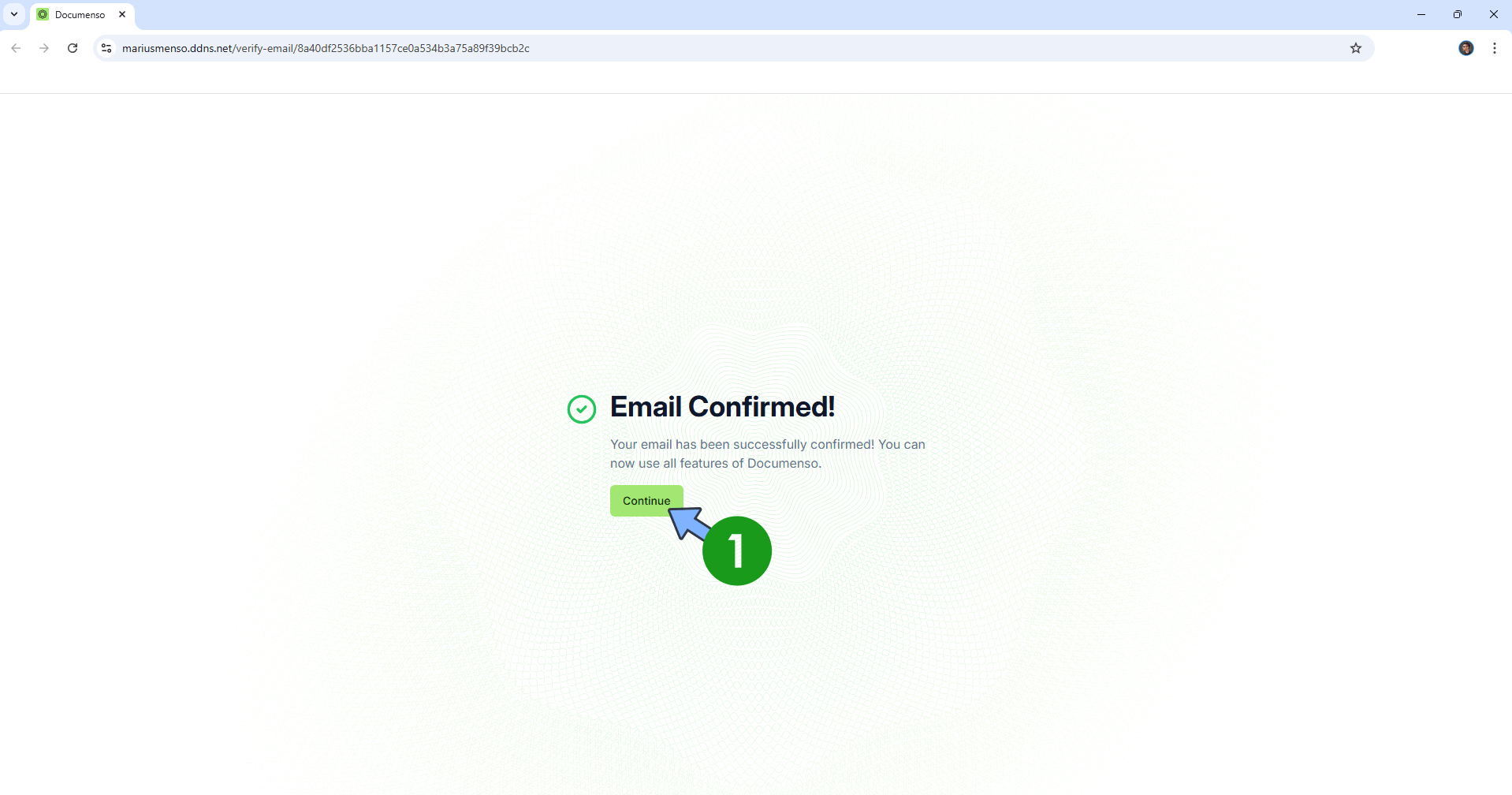
Click Continue. Follow the instructions in the image below.
STEP 24
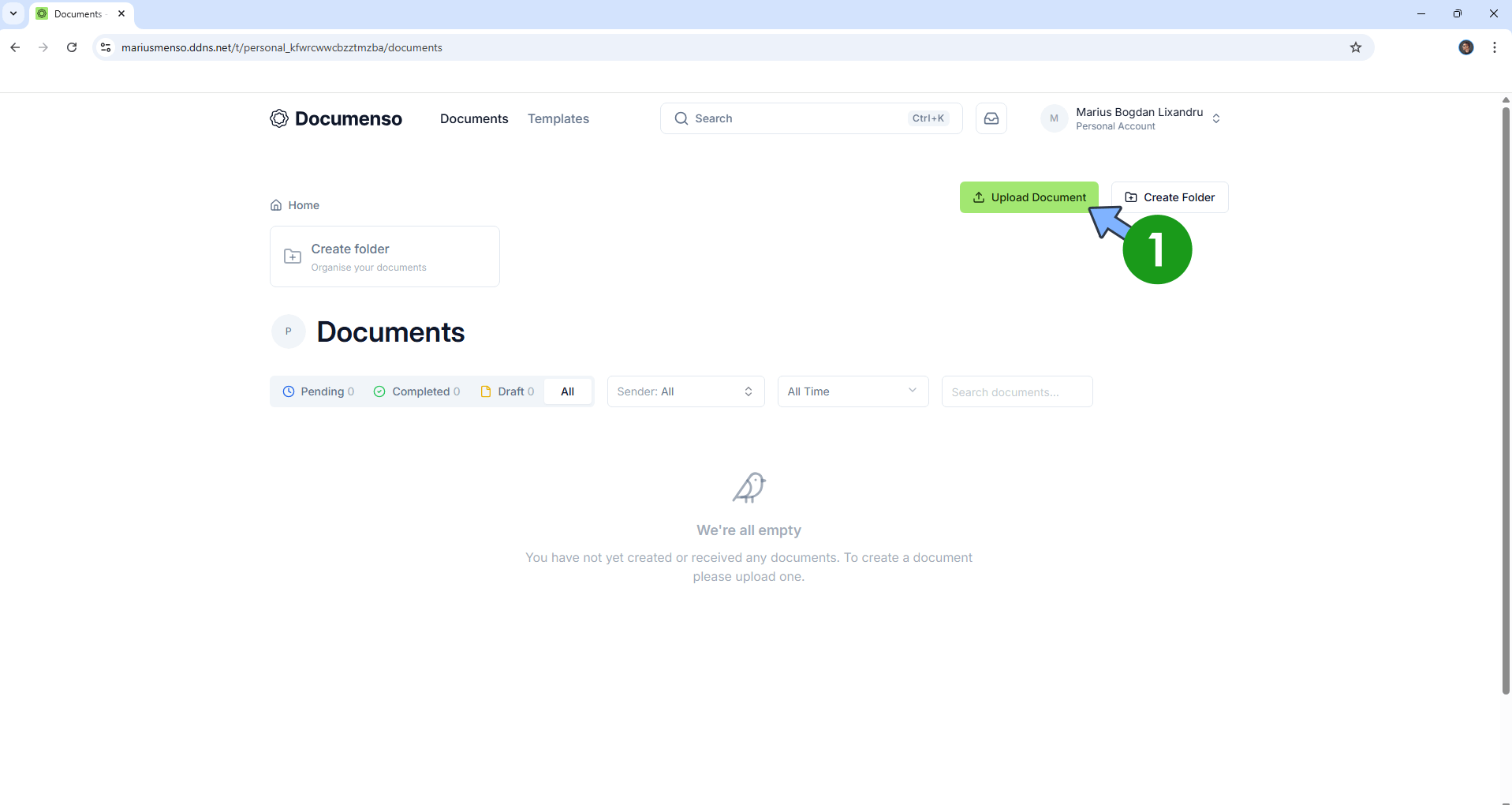
Upload your PDF documents!
Enjoy Documenso on Your UGREEN NAS!
If you want to disable public registration to your Documenso instance, just change the following line at STEP 14
#NEXT_PUBLIC_DISABLE_SIGNUP=${NEXT_PUBLIC_DISABLE_SIGNUP}with
NEXT_PUBLIC_DISABLE_SIGNUP=trueThen update the stack to apply the new settings.
⚠️Warning: If you run the Documenso instance on localhost instead of reverse proxy, the send email confirmation at STEP 22 will not work. Reverse Proxy is mandatory for Documenso to make SMTP work.
🆙Note/Update/Container: How to Update Your Docker Containers on UGREEN NAS Using Portainer.
🐳Note: How to Create Docker Shortcuts on Desktop.
🆕Note: How to Update Portainer to the latest version.
🆕Note: How to Clean Docker.
This post was updated on Wednesday / April 8th, 2026 at 10:56 PM