
WyrmRSS is a free and open-source self-hosted RSS and Atom feed reader and aggregator that works in the browser and on mobile (including as a PWA), with an optional native desktop app for Windows, macOS, and Linux. Built primarily in Rust with a React frontend, it lets you subscribe to feeds via discovery from a homepage or YouTube channel URL, watch supported videos inline, organize feeds into folders with different display modes, apply per-feed filters, save or archive posts, search full-text, import/export OPML, and receive webhook notifications, all while running against PostgreSQL (or SQLite in the desktop version) with straightforward Docker or Kubernetes deployment. I installed WyrmRSS on my UGREEN NAS last month after growing tired of scattered browser tabs and algorithm-driven recommendations. The setup took under ten minutes once I mapped the ports and volumes; I pointed it at a handful of tech blogs and a couple of YouTube channels, enabled a Discord webhook for new posts from my favorite creators, and now I open the clean web UI from my phone or laptop whenever I want a quiet, chronological reading list without leaving the local network. In this step by step guide I will show you how to install WyrmRSS on your UGREEN NAS using Docker & Dockhand.
💡Note:
This guide works perfectly with the latest WyrmRSS v0.35.1 release.
💡Note: Check out my guide on how to Install WyrmRSS on Your Synology NAS.
STEP 1
Please Support My work by Making a Donation.
STEP 2
Install Dockhand using my step by step guide. If you already have Dockhand installed on your UGREEN NAS, skip this STEP. ⚠️Attention: Make sure you have installed the latest Dockhand version.
STEP 3
⚠️Mandatory: Add Read & Write Permissions to the Docker Folder.
STEP 4
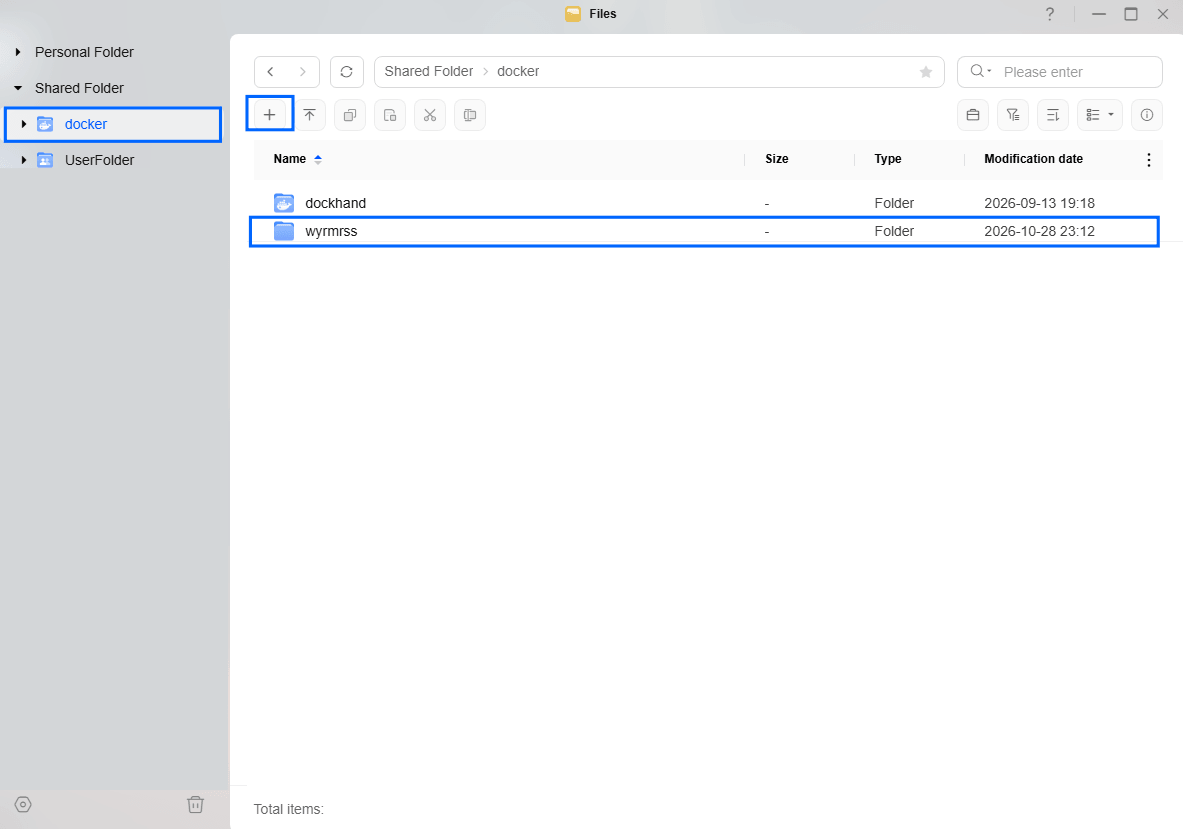
Go to Files and open the docker folder. Inside the docker folder, create one new folder and name it wyrmrss. Follow the instructions in the image below.
Note: Be careful to enter only lowercase, not uppercase letters.
STEP 5
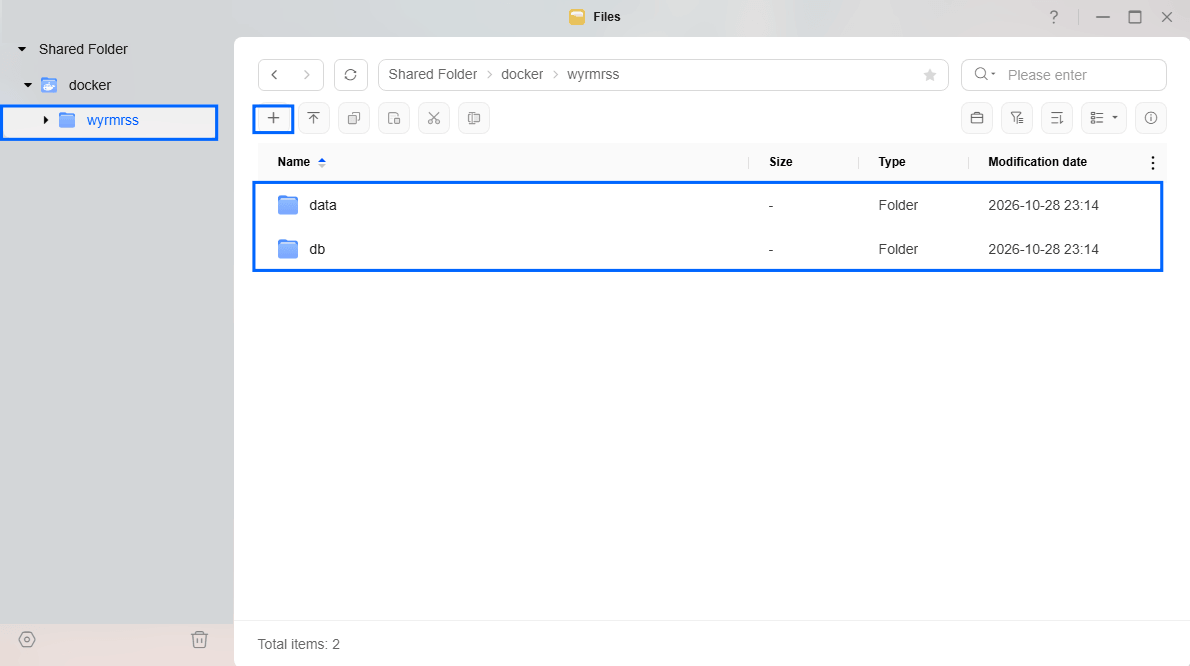
Now create two new folders inside the wyrmrss folder that you have previously created at STEP 4 and name them data and db. Follow the instructions in the image below.
Note: Be careful to enter only lowercase, not uppercase letters.
STEP 6
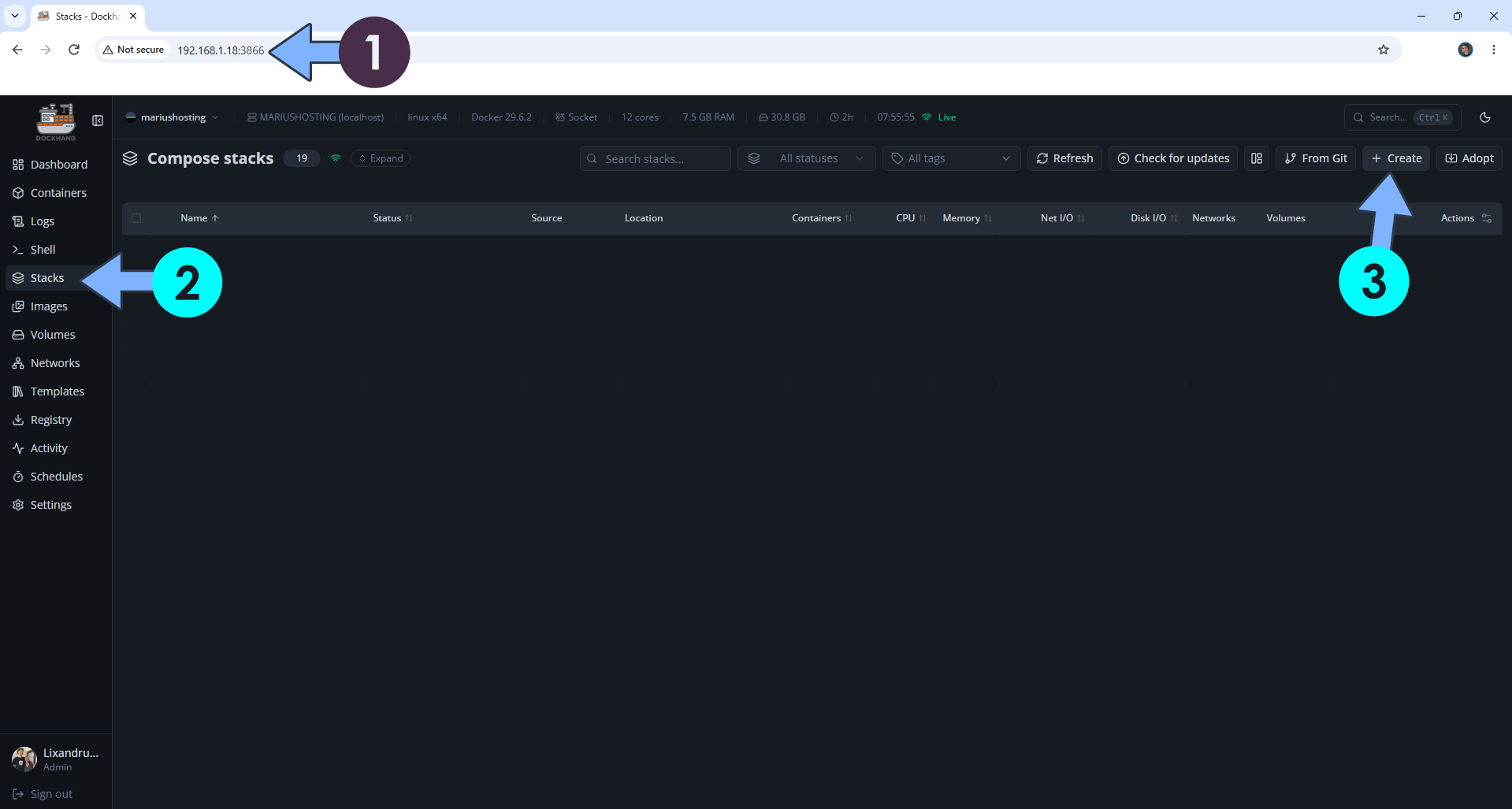
Open your browser and type in http://ugreen-ip-address:3866 to connect to your Dockhand container. On the left sidebar, click Stacks then + Create. Follow the instructions in the image below.
STEP 7
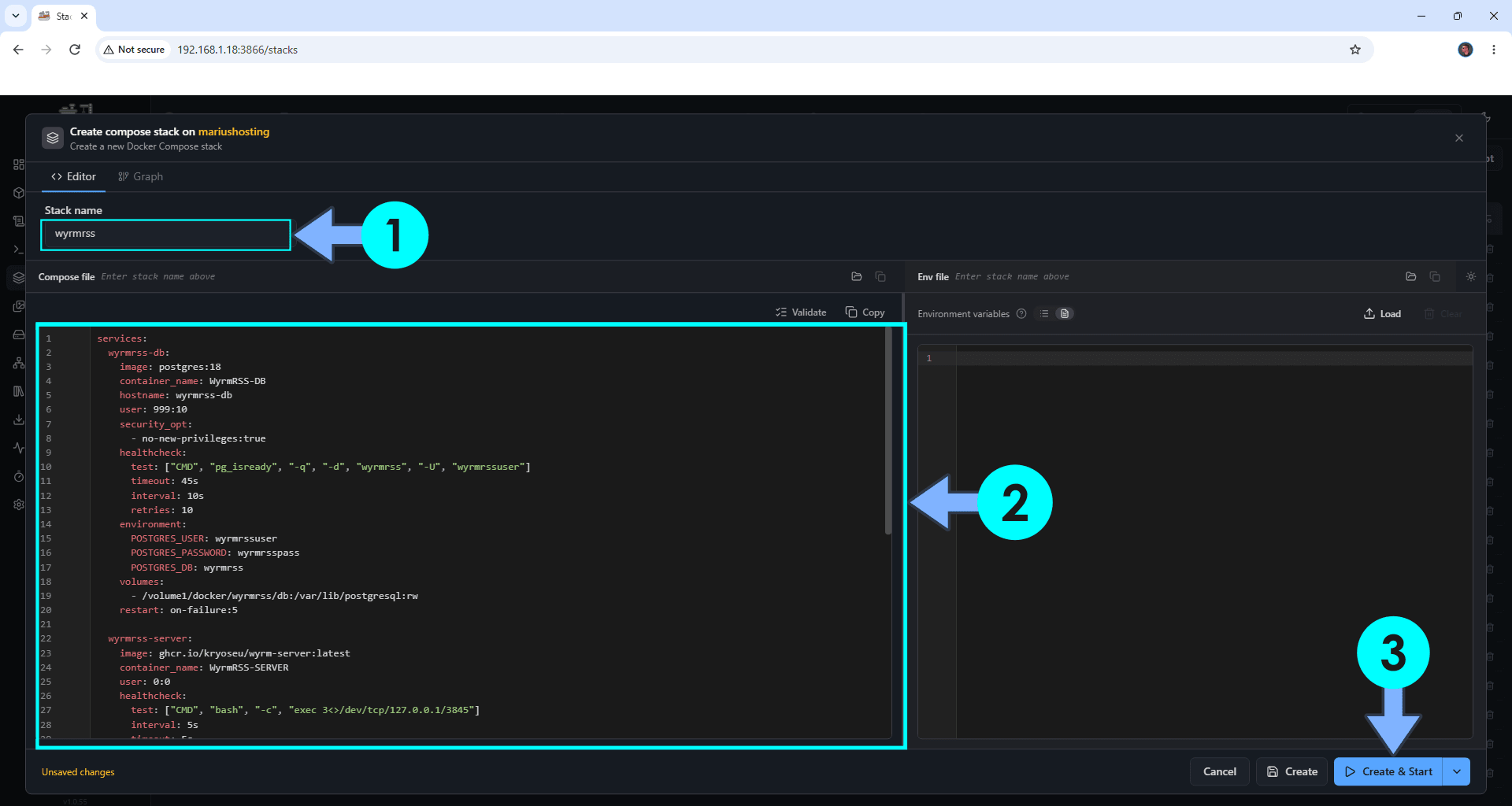
In the Stack name field, type in wyrmrss. ⚠️Warning: Type in the name in lowercase letters. The installation process can take up to a few seconds/minutes. It will depend on your Internet speed connection. Follow the instructions in the image below.
Note: Copy Paste the code below in the Dockhand Compose Stack then click Create & Start.
services:
  wyrmrss-db:
    image: postgres:18
    container_name: WyrmRSS-DB
    hostname: wyrmrss-db
    user: 999:10
    security_opt:
      - no-new-privileges:true
    healthcheck:
      test: ["CMD", "pg_isready", "-q", "-d", "wyrmrss", "-U", "wyrmrssuser"]
      timeout: 45s
      interval: 10s
      retries: 10
    environment:
      POSTGRES_USER: wyrmrssuser
      POSTGRES_PASSWORD: wyrmrsspass
      POSTGRES_DB: wyrmrss
    volumes:
      - /volume1/docker/wyrmrss/db:/var/lib/postgresql:rw
    restart: on-failure:5

  wyrmrss-server:
    image: ghcr.io/kryoseu/wyrm-server:latest
    container_name: WyrmRSS-SERVER
    user: 0:0
    healthcheck:
      test: ["CMD", "bash", "-c", "exec 3<>/dev/tcp/127.0.0.1/3845"]
      interval: 5s
      timeout: 5s
      retries: 10
    environment:
      WYRM_API_KEY: YpclBuhnxWKkyMCFJDOqsNynuENSSaZtBQZfWigolFPKjWbsCwHrteNODhtcxbBJ
      WYRM_PORT: 3845
      WYRM_DATABASE_CONNECTION: "postgres://wyrmrssuser:wyrmrsspass@wyrmrss-db/wyrmrss"
      WYRM_DATABASE_POOL_SIZE: 30
    ports:
      - 3845:3845
    volumes:
      - /volume1/docker/wyrmrss/data:/app/config:rw
    depends_on:
      wyrmrss-db:
        condition: service_healthy
    restart: on-failure:5

  wyrmrss-web:
    image: ghcr.io/kryoseu/wyrm-ui:latest
    container_name: WyrmRSS-WEB
    healthcheck:
      test: ["CMD-SHELL", "nc -z 127.0.0.1 3846 || exit 1"]
      interval: 10s
      timeout: 5s
      retries: 3
      start_period: 90s
    environment:
      WYRM_WEB_PORT: 3846
      WYRM_BACKEND_URL: "http://wyrmrss-server:3845"
      WYRM_API_KEY: YpclBuhnxWKkyMCFJDOqsNynuENSSaZtBQZfWigolFPKjWbsCwHrteNODhtcxbBJ
    ports:
      - 3846:3846
    depends_on:
      wyrmrss-server:
        condition: service_healthy
    restart: on-failure:5
Note: Before you paste the code above in the Web editor area below, change the value numbers for user with your own UID and GID values. (Follow my step by step guide on how to do this.) 999 is my personal UID value and 10 is my personal GID value. You have to type in your own values.
Note: Before you paste the code above in the Stack editor area below, change the value for WYRM_API_KEY. (Generate your own Random 64 length WYRM_API_KEY.) The WYRM_API_KEY should me the same on both lines.
STEP 8
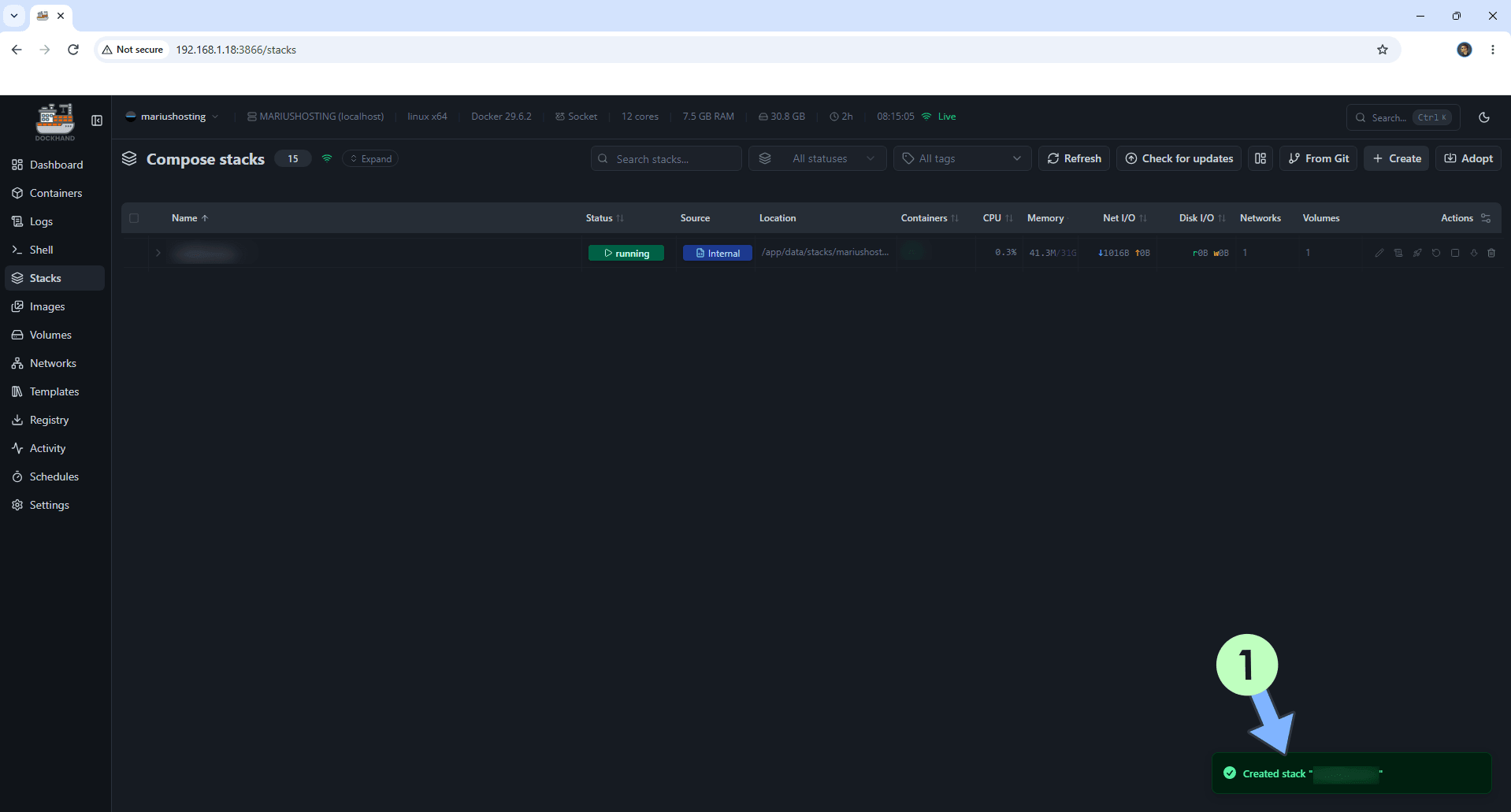
If everything goes right, you will see the following message at the bottom right of your screen: “Created stack “wyrmrss”“.
STEP 9
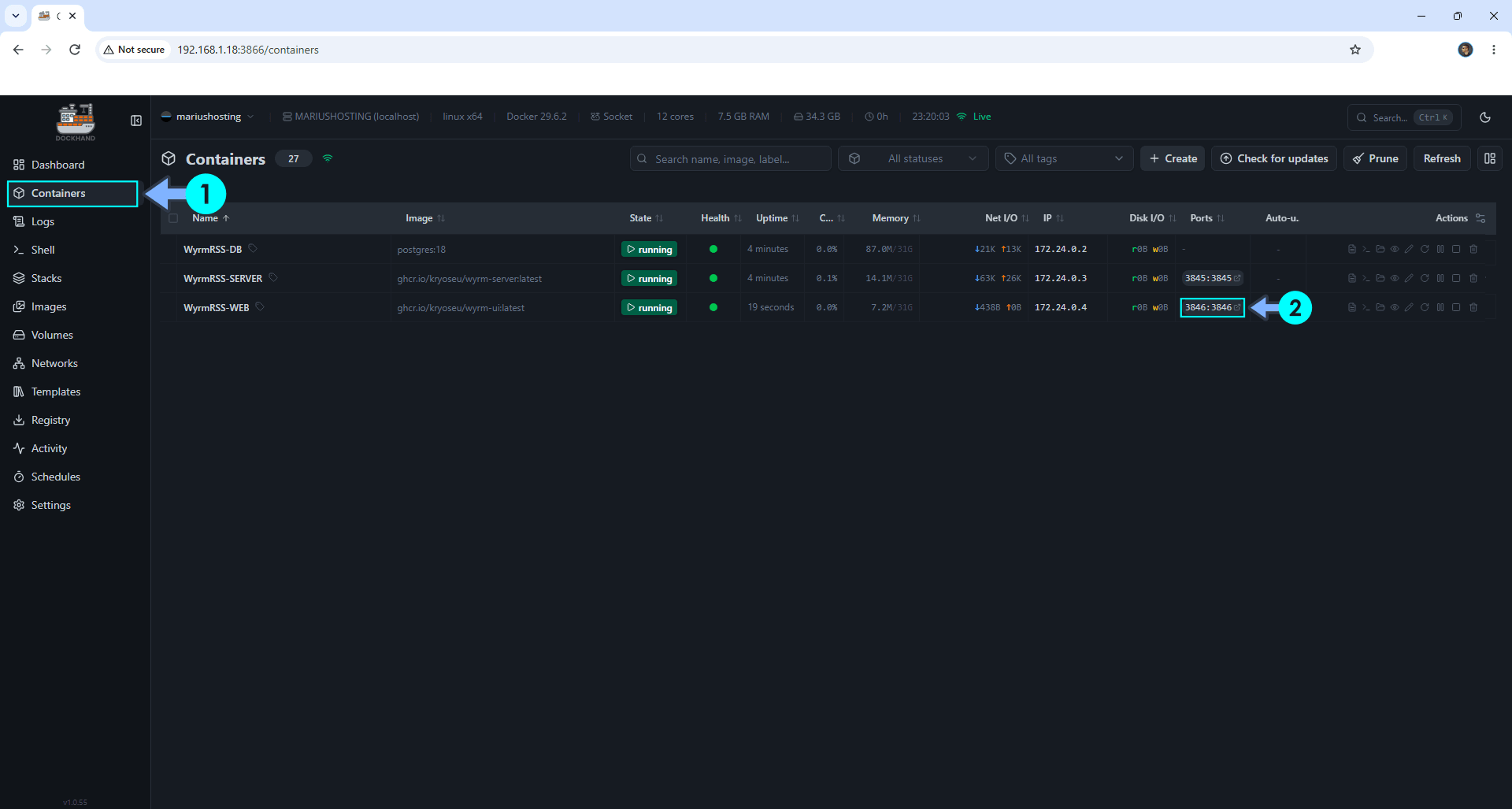
On the left sidebar, click Containers. Identify your WyrmRSS-WEB container then click on ports 3846:3846. Follow the instructions in the image below.
STEP 10
🟢Please Support My work by Making a Donation. Almost 99,9% of the people that install something using my guides forget to support my work, or just ignore STEP 1. I’ve been very honest about this aspect of my work since the beginning: I don’t run any ADS, I don’t require subscriptions, paid or otherwise, I don’t collect IPs, emails, and I don’t have any referral links from Amazon or other merchants. I also don’t have any POP-UPs or COOKIES. I have repeatedly been told over the years how much I have contributed to the community. It’s something I love doing and have been honest about my passion since the beginning. But I also Need The Community to Support me Back to be able to continue doing this work.
STEP 11
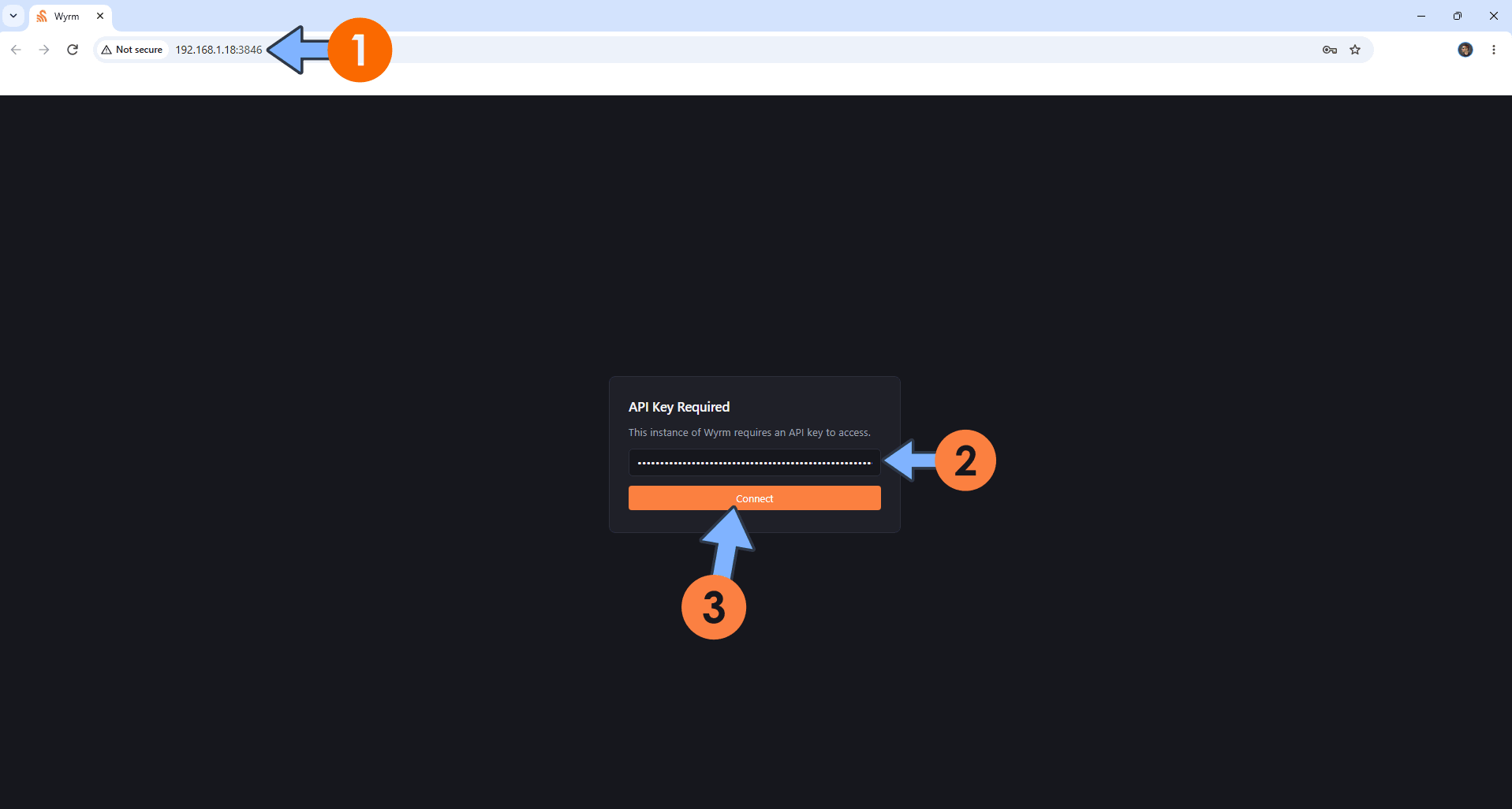
The installation process can take up to a few seconds/minutes. It will depend on your Internet speed connection. Now open your browser and type in http://ugreen-ip-address:3846 Type in your WYRM_API_KEY that you have previously added at STEP 7. Click Connect. Follow the instructions in the image below.
STEP 12
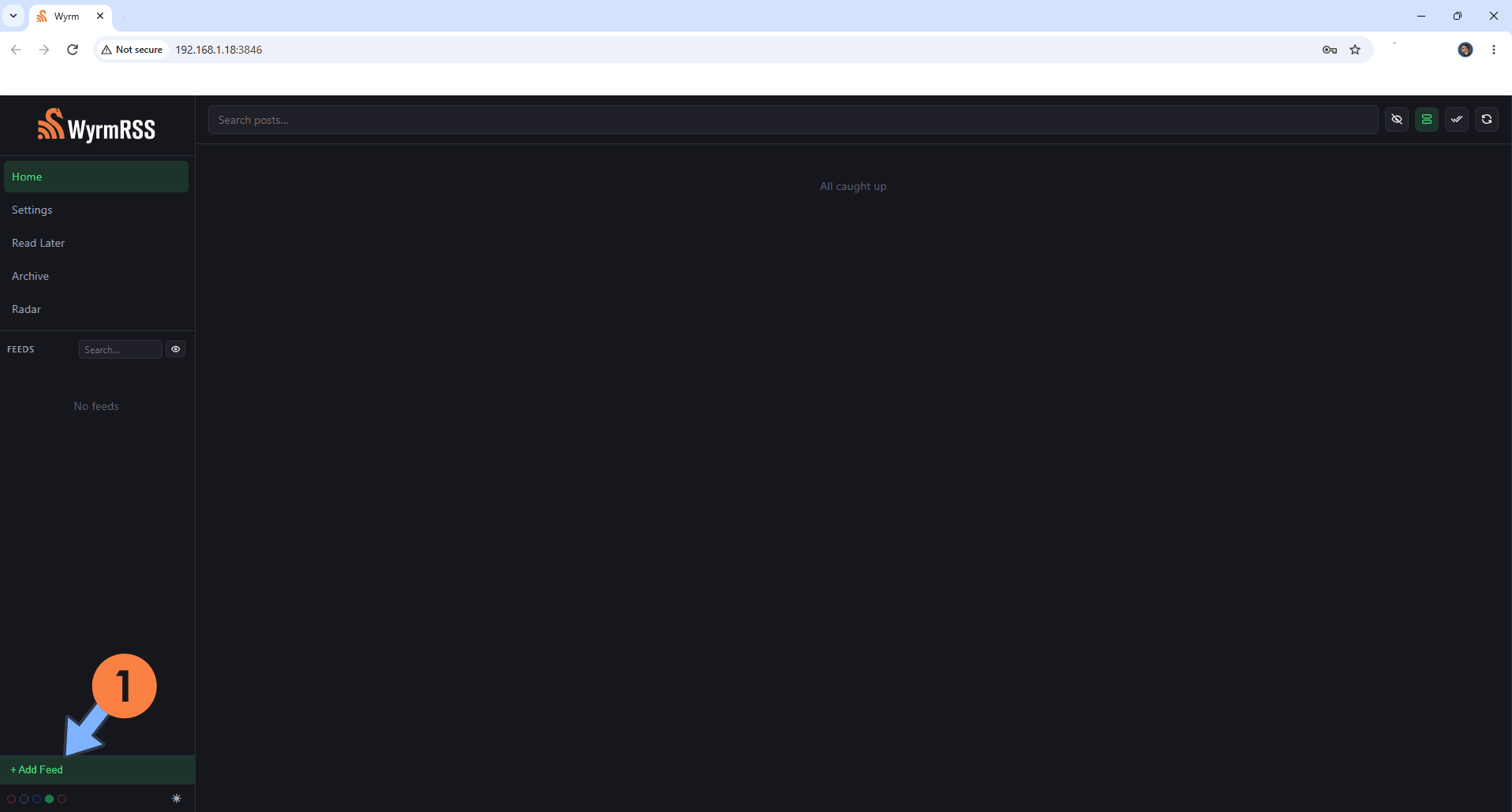
On the left sidebar, click +Add Feed. Follow the instructions in the image below.
STEP 13
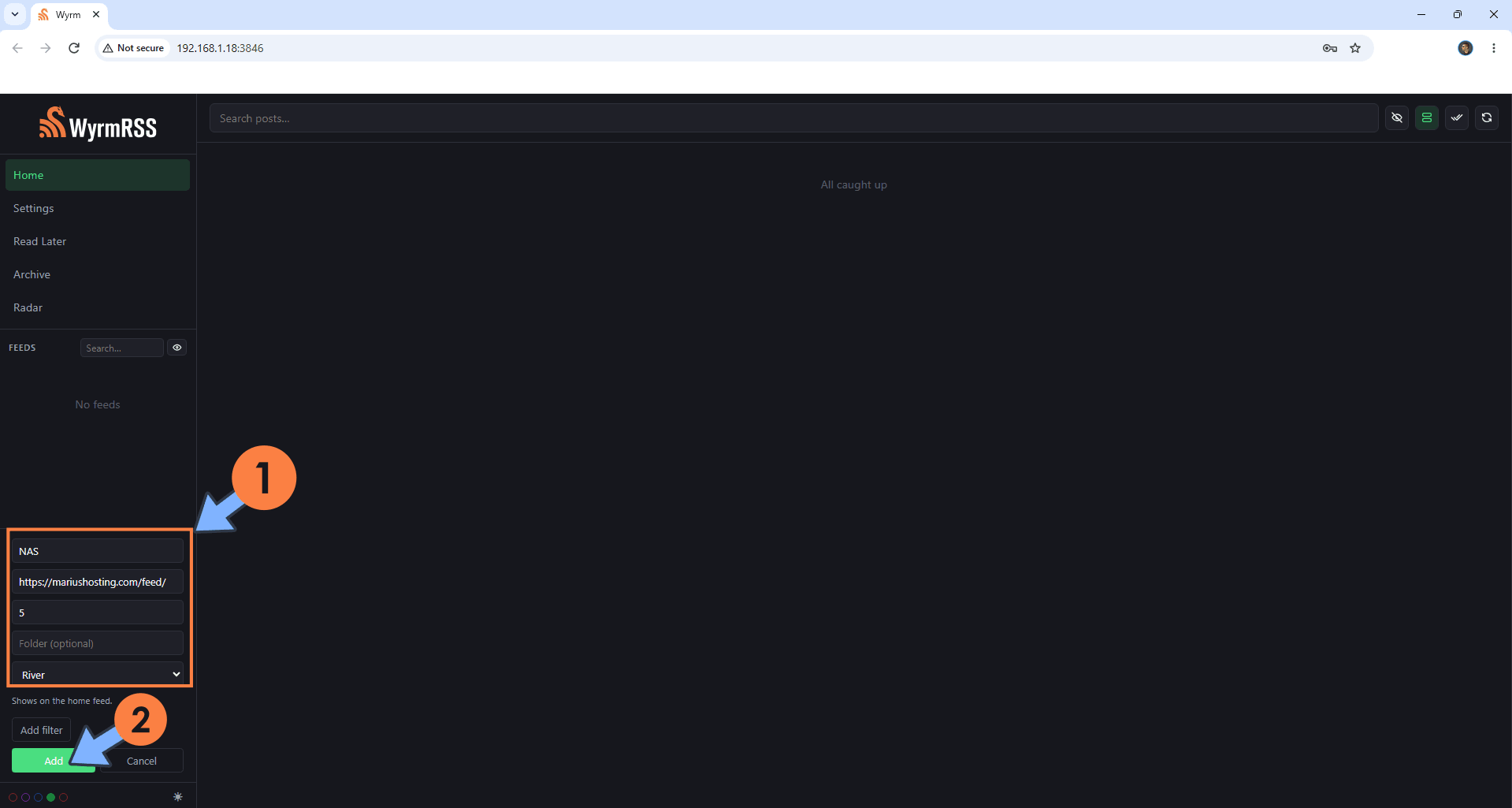
Add your favorite Feed. For sure it’s https://mariushosting.com/feed/ right? Click Add. Follow the instructions in the image below.
STEP 14
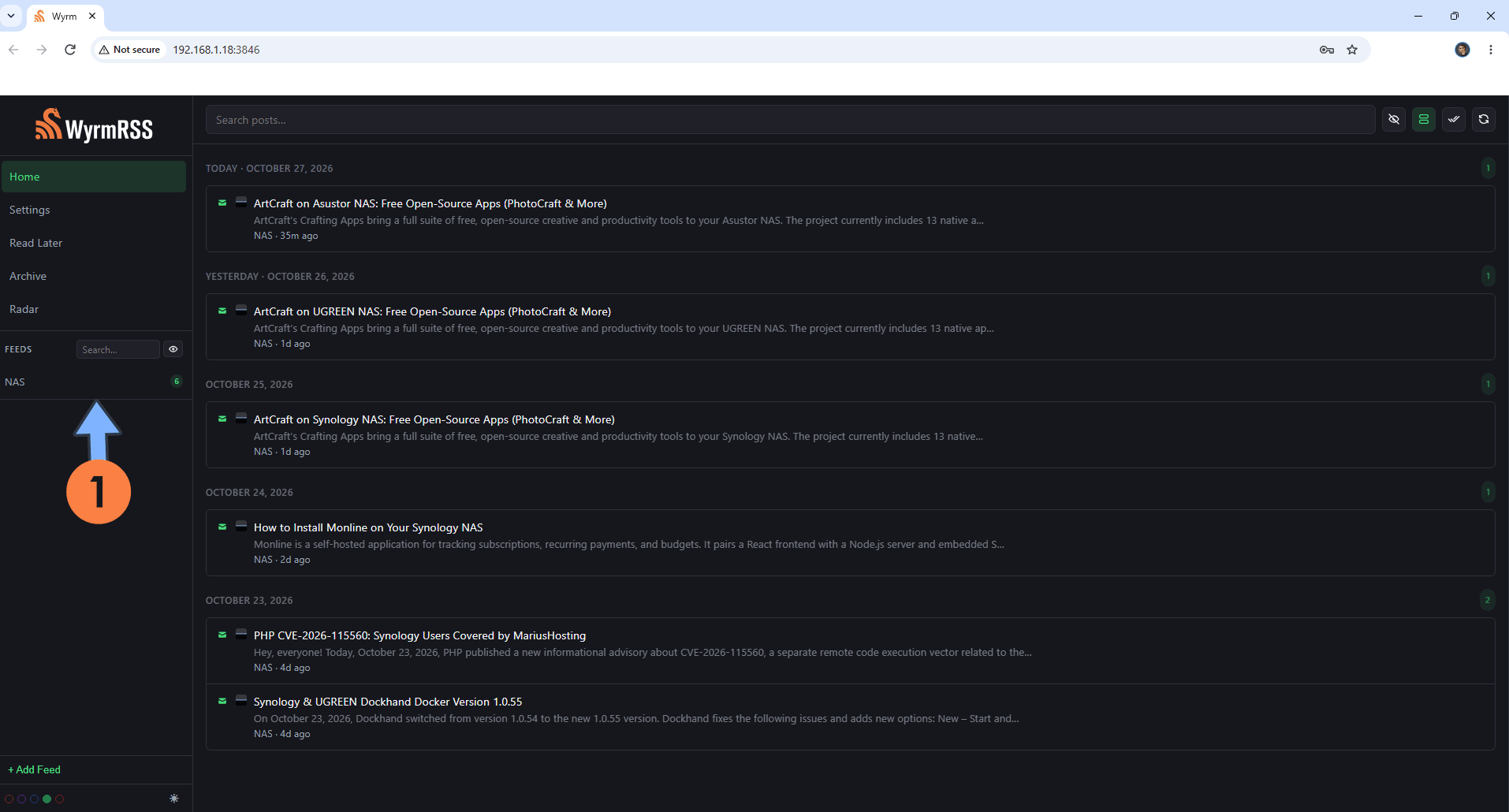
Your Feed News at a glance!
STEP 15
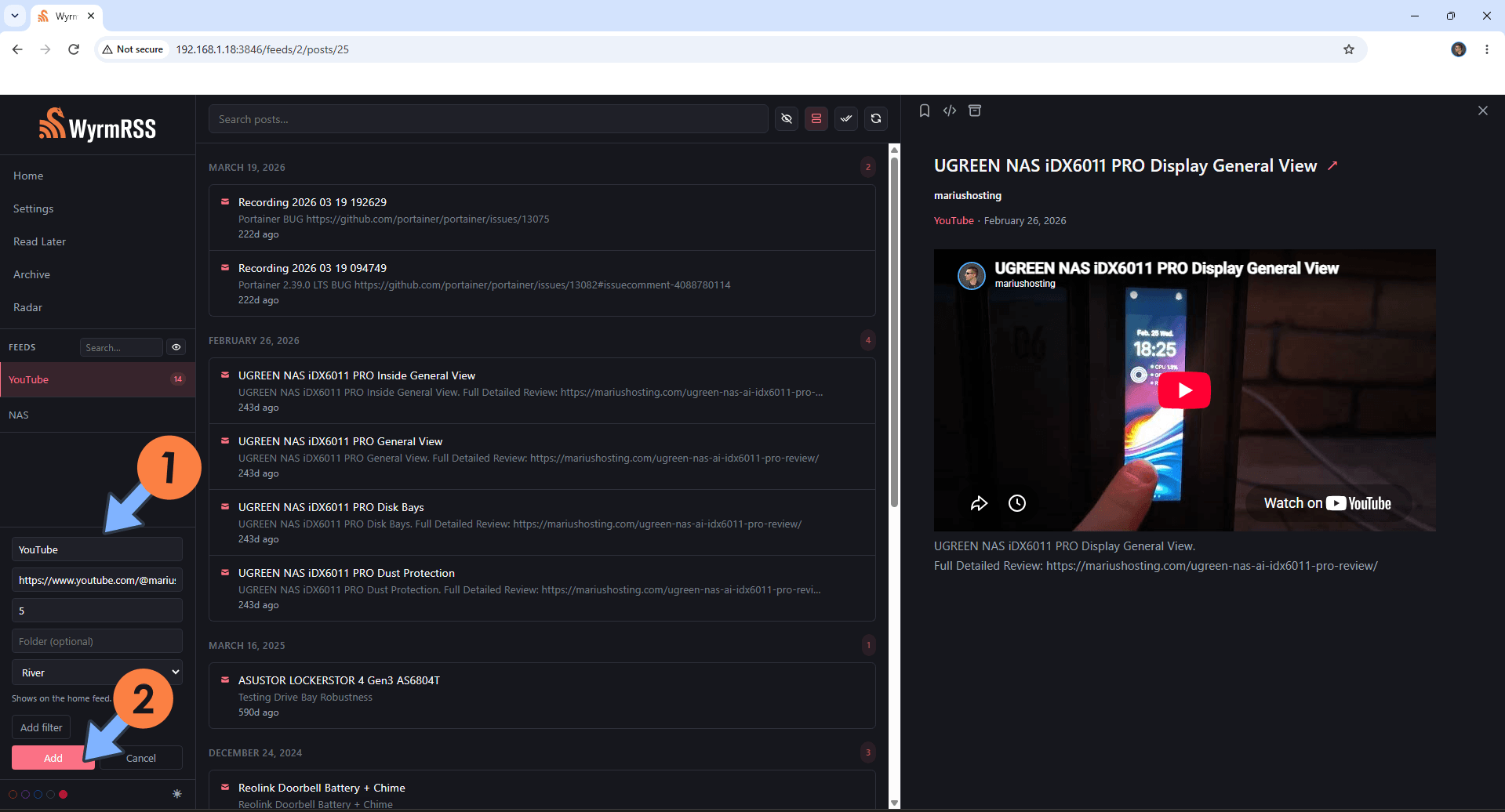
You can also add your favorite YouTube channel as a feed and watch YouTube through WyrmRSS. Follow the instructions in the image below.
Enjoy WyrmRSS on your UGREEN NAS!
🆘TROUBLESHOOTING
Note: If you want to run the WyrmRSS container over HTTPS, check out How to Run Docker Containers Over HTTPS on Your UGREEN NAS.
🆙Note/Update/Container: How to Update Your Docker Containers on UGREEN NAS Using Dockhand.
🐳Note: How to Create Docker Shortcuts on Desktop.
🆕Note: How to Update Dockhand to the latest version.
🆕Note: How to Clean Docker with Dockhand.
This post was updated on Thursday / October 29th, 2026 at 12:04 AM