
Transmute is a free, open-source, self-hosted file converter and compressor that runs entirely on your own hardware via Docker. It converts and compresses images, video, audio, documents, spreadsheets, data files, 3D models, subtitles, fonts, and more across thousands of format combinations, with no file size limits, no watermarks, and complete privacy since nothing leaves your server. I personally use it every day on my NAS in my homelab for routine conversions and compressions. In this step by step guide I will show you how to install Transmute on your UGREEN NAS using Docker & Dockhand.
STEP 1
Please Support My work by Making a Donation.
STEP 2
Install Dockhand using my step by step guide. If you already have Dockhand installed on your UGREEN NAS, skip this STEP. ⚠️Attention: Make sure you have installed the latest Dockhand version.
STEP 3
⚠️Mandatory: Add Read & Write Permissions to the Docker Folder.
STEP 4
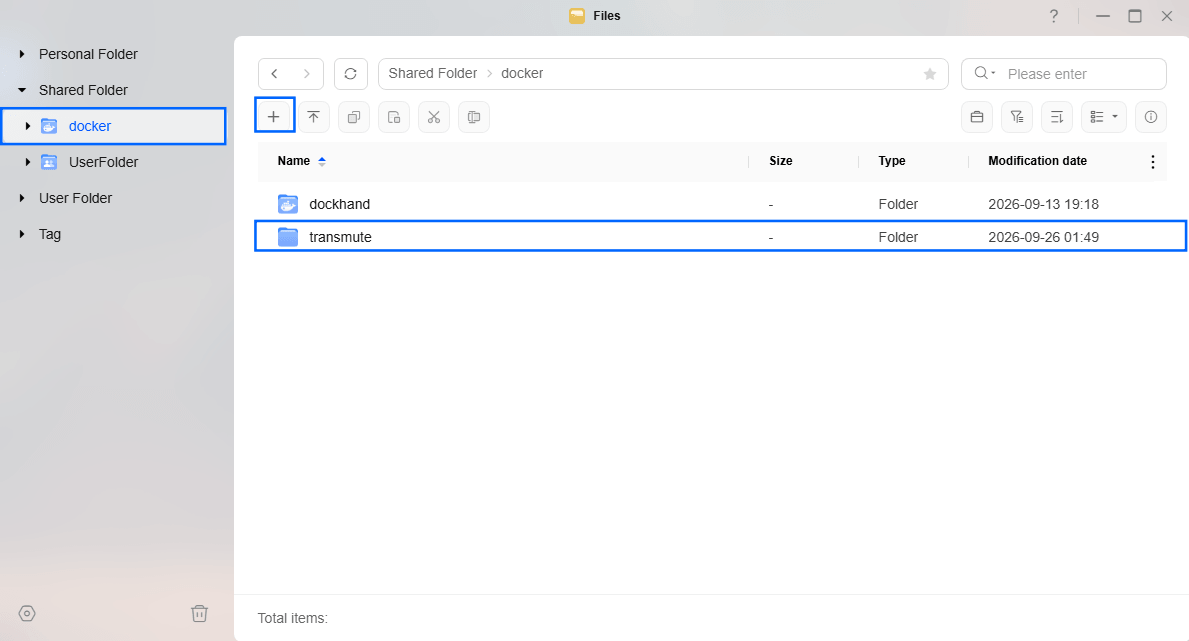
Go to Files and open the docker folder. Inside the docker folder, create one new folder and name it transmute. Follow the instructions in the image below.
Note: Be careful to enter only lowercase, not uppercase letters.
STEP 5
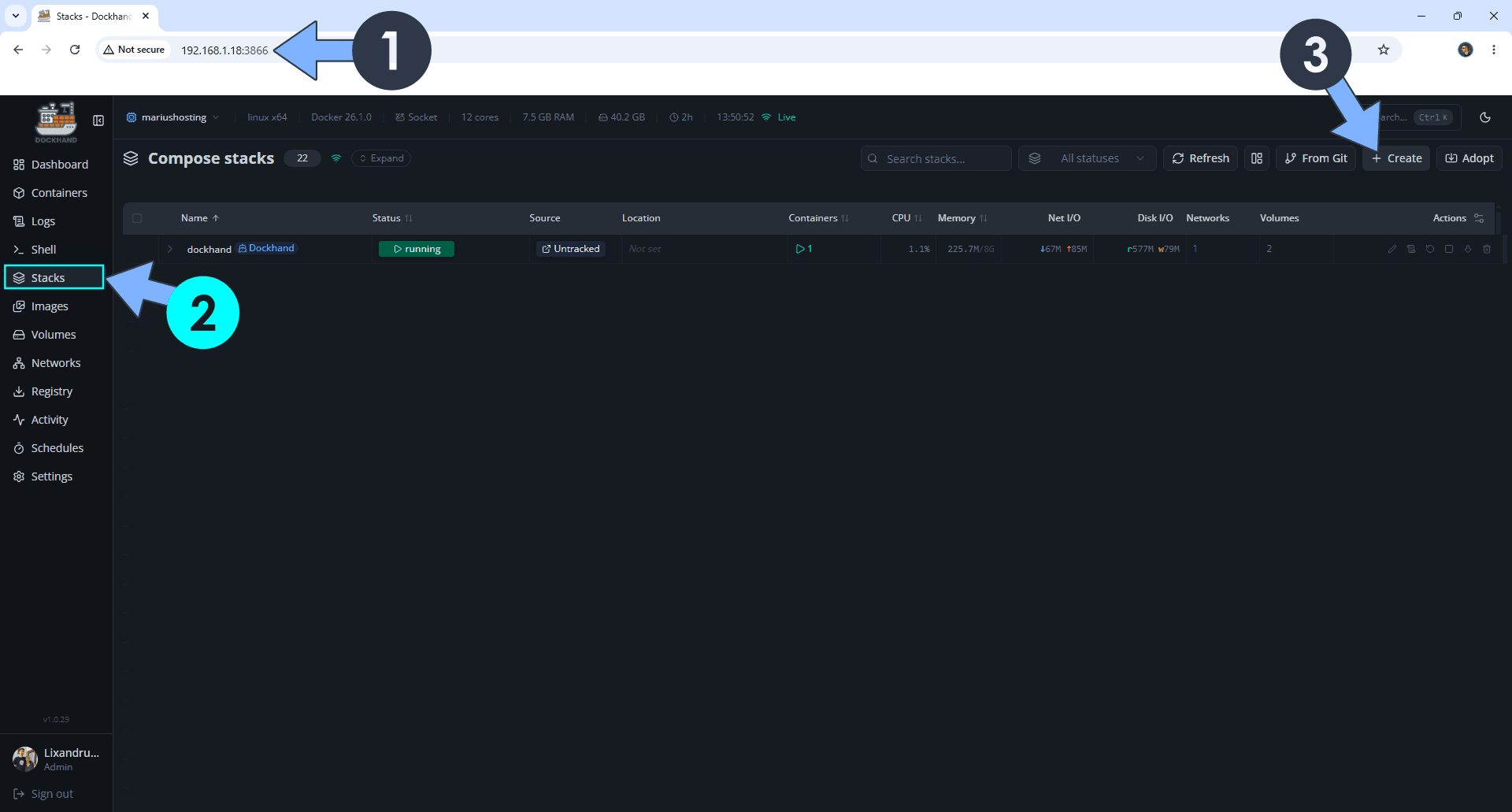
Open your browser and type in http://ugreen-ip-address:3866 to connect to your Dockhand container. On the left sidebar, click Stacks then + Create. Follow the instructions in the image below.
STEP 6
In the Stack name field, type transmute. ⚠️Warning: Type in the name in lowercase letters. The installation process can take up to a few seconds/minutes. It will depend on your Internet speed connection. Follow the instructions in the image below.
services:
  transmute:
    image: ghcr.io/transmute-app/transmute:latest
    container_name: Transmute
    healthcheck:
      test:
        - "CMD"
        - "wget"
        - "-q"
        - "-O"
        - "/dev/null"
        - "--tries=1"
        - "http://localhost:3313/api/health/ready"
      interval: 30s
      timeout: 10s
      retries: 3
      start_period: 40s
    ports:
        - 3313:3313
    volumes:
      - /volume1/docker/transmute:/app/data:rw
    restart: on-failure:5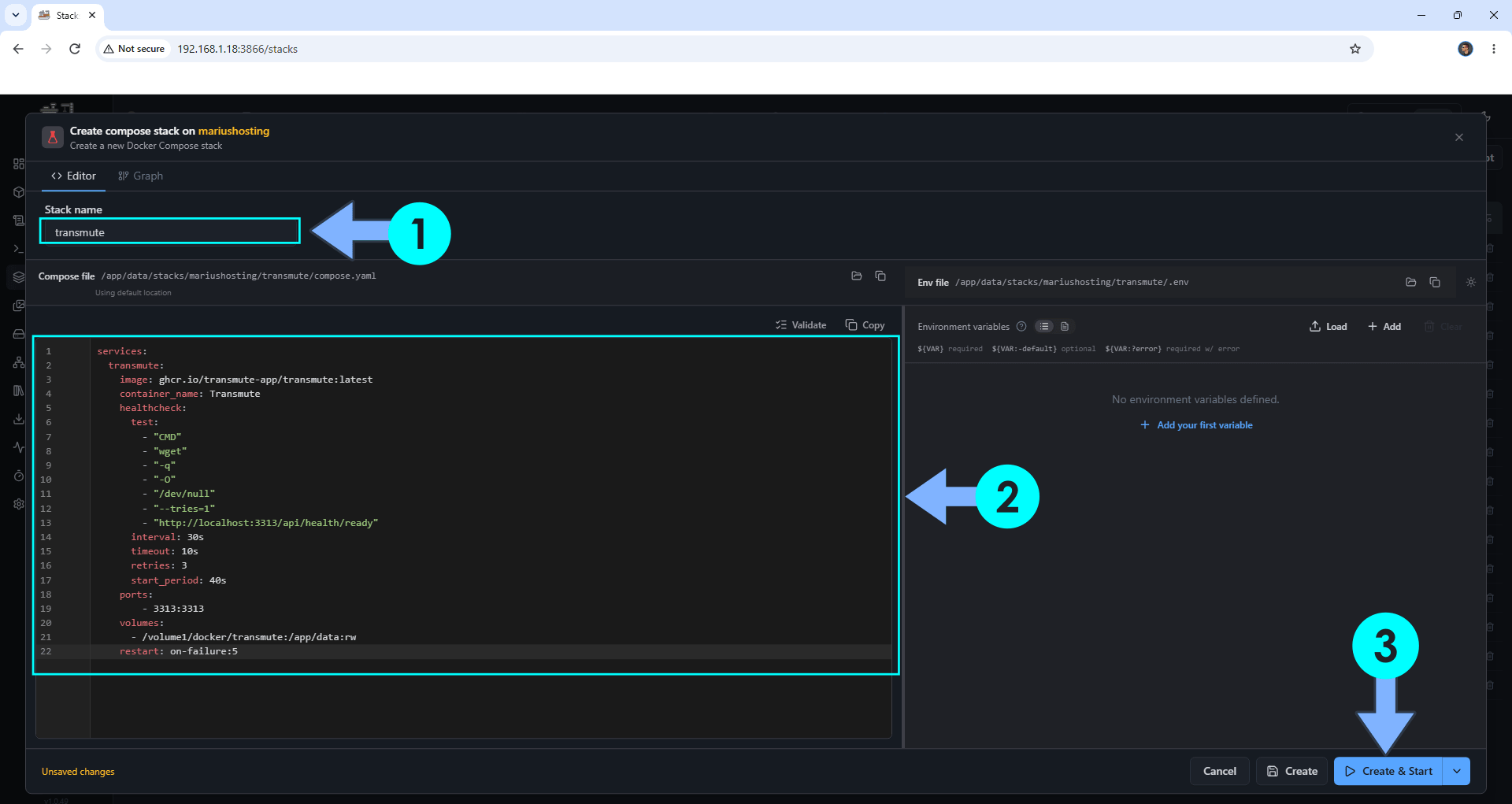
STEP 7
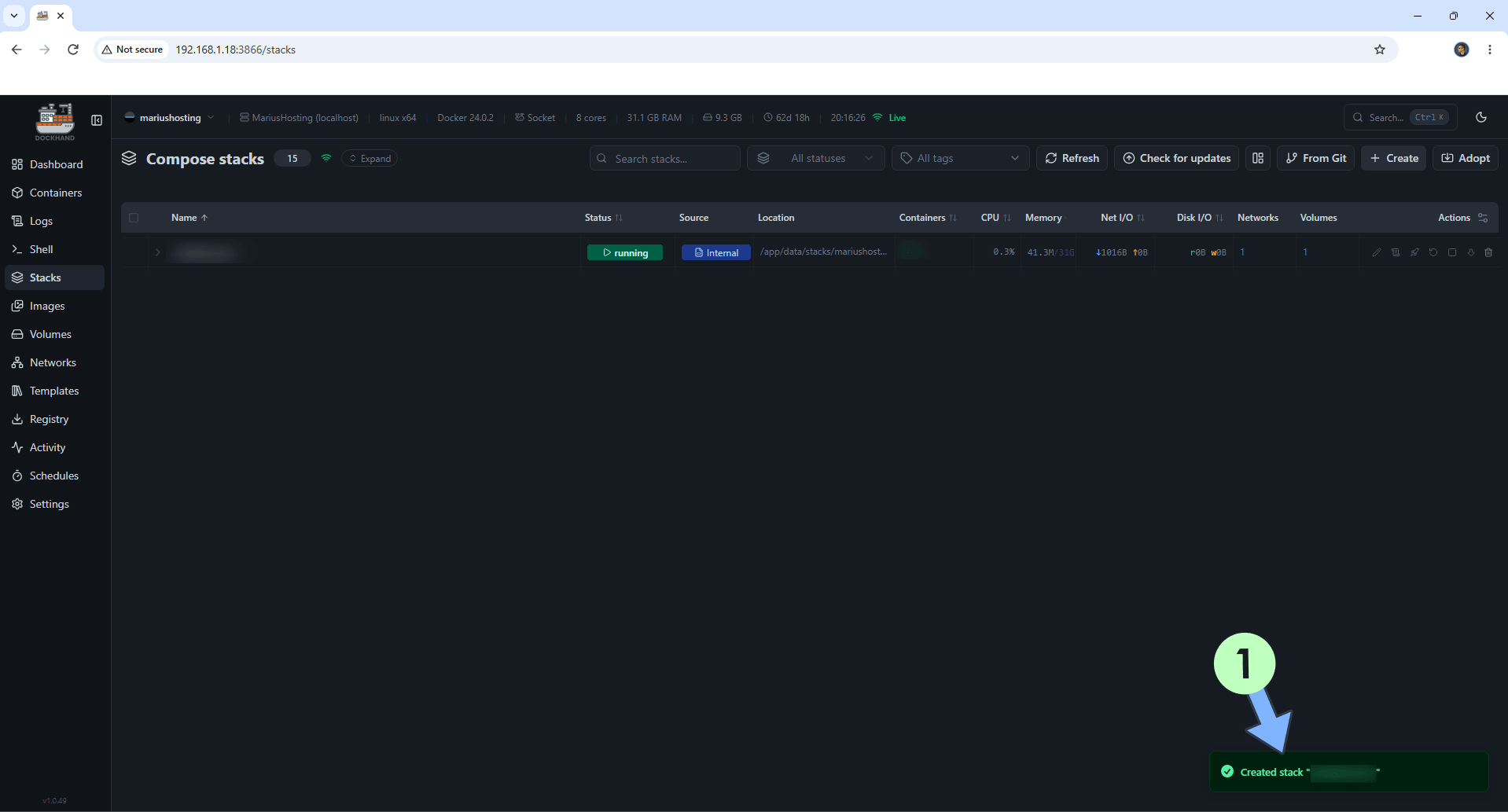
If everything goes right, you will see the following message at the bottom right of your screen: “Created stack “transmute”“.
STEP 8
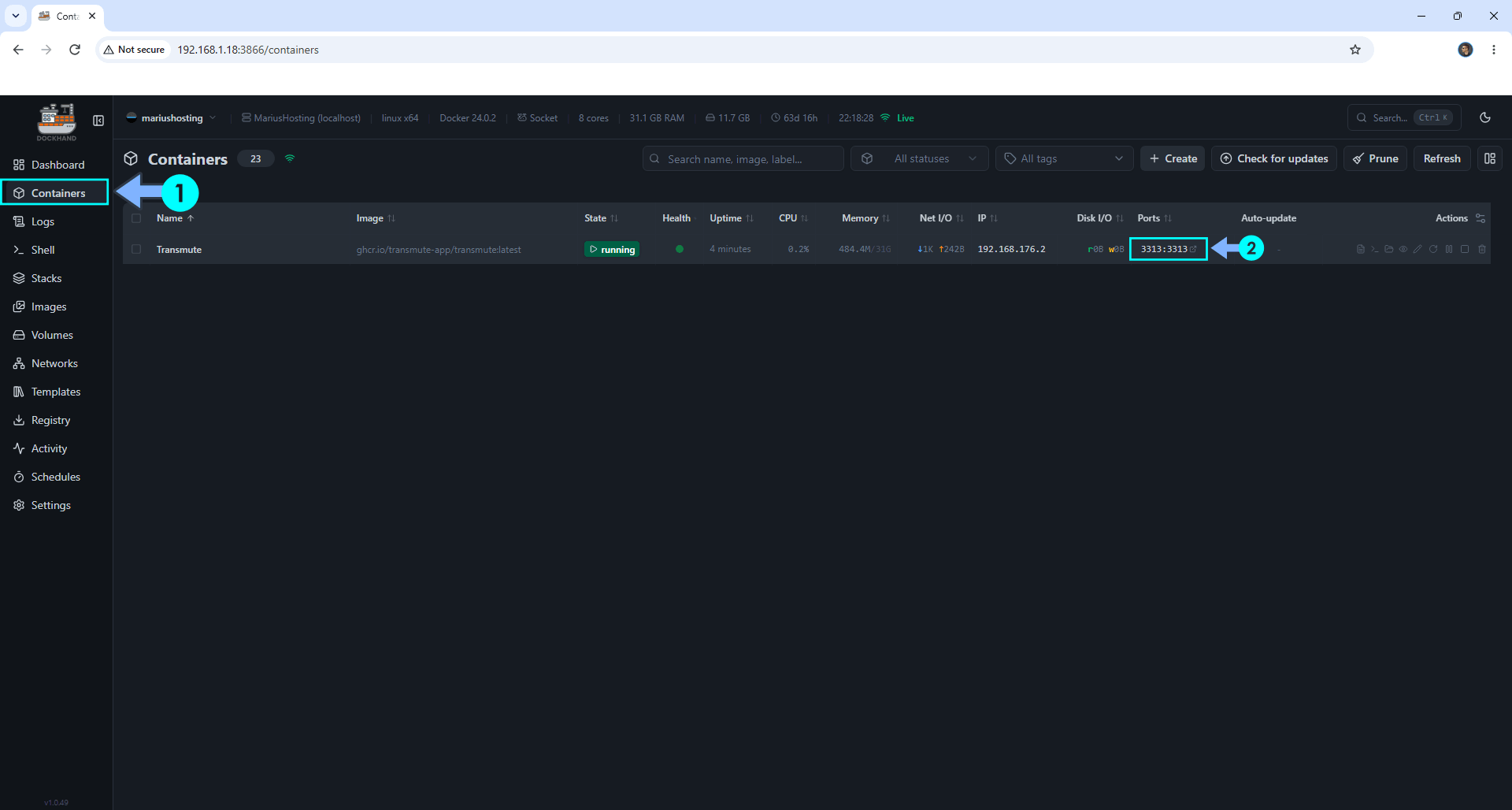
On the left sidebar, click Containers. Identify your Transmute container then click on ports 3313:3313. Follow the instructions in the image below.
STEP 9
🟢Please Support My work by Making a Donation. Almost 99,9% of the people that install something using my guides forget to support my work, or just ignore STEP 1. I’ve been very honest about this aspect of my work since the beginning: I don’t run any ADS, I don’t require subscriptions, paid or otherwise, I don’t collect IPs, emails, and I don’t have any referral links from Amazon or other merchants. I also don’t have any POP-UPs or COOKIES. I have repeatedly been told over the years how much I have contributed to the community. It’s something I love doing and have been honest about my passion since the beginning. But I also Need The Community to Support me Back to be able to continue doing this work.
STEP 10
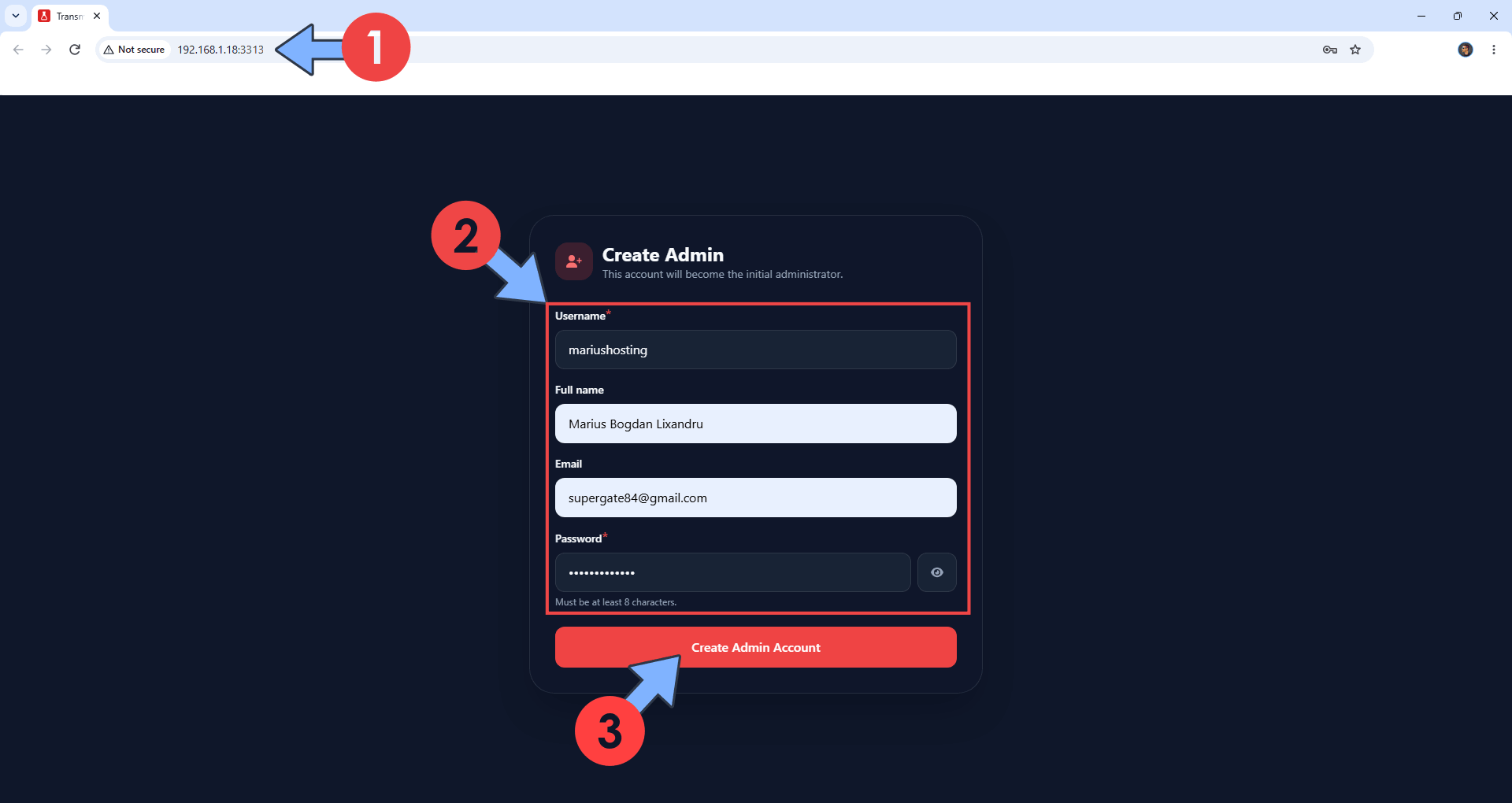
The installation process can take up to a few seconds/minutes. It will depend on your Internet speed connection. Now open your browser and type in http://ugreen-ip-address:3313 Create your administrator account. Click Create Admin Account. Follow the instructions in the image below.
STEP 11
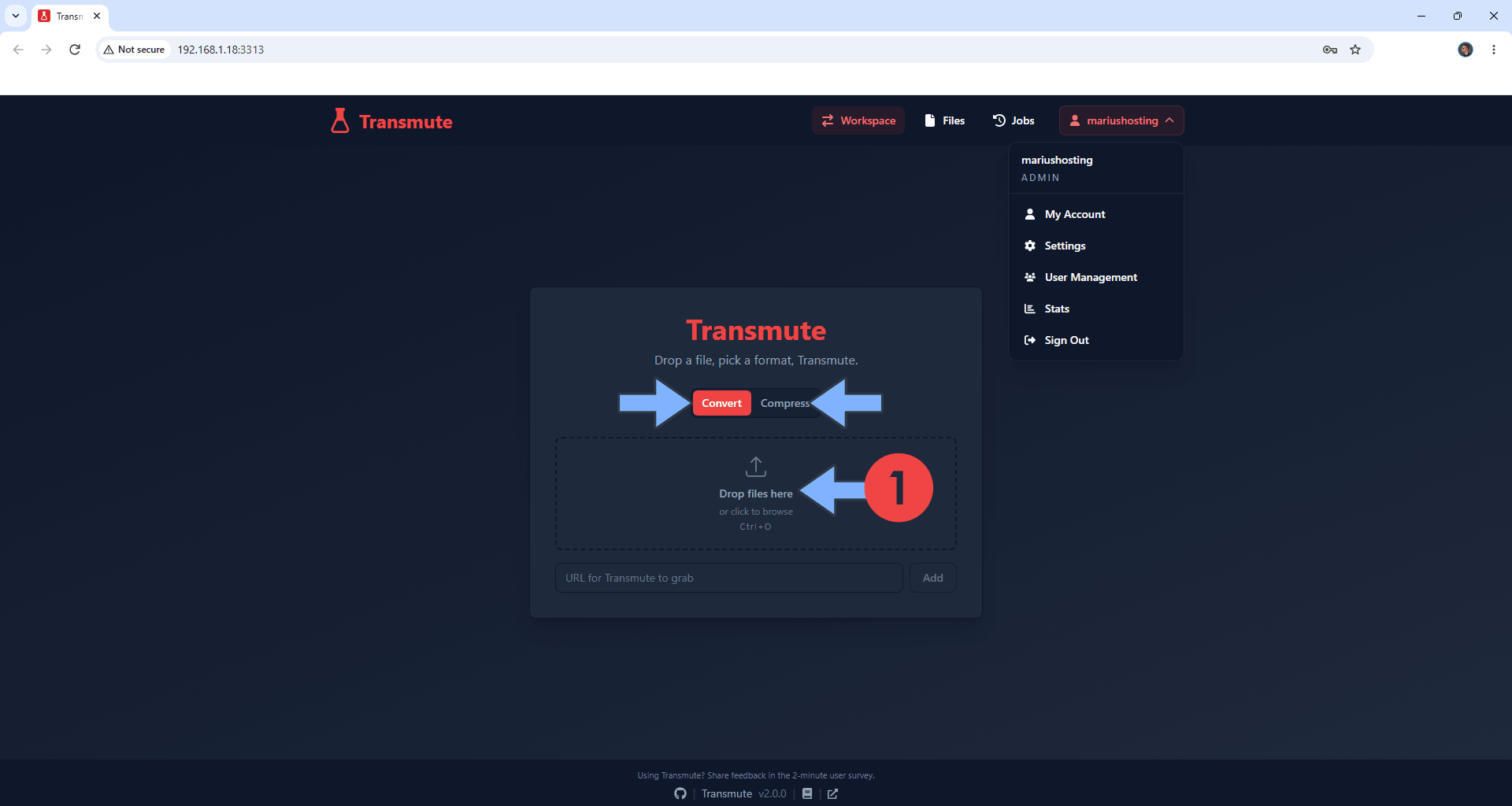
Upload your file and select between Convert or Compress. Follow the instructions in the image below.
STEP 12
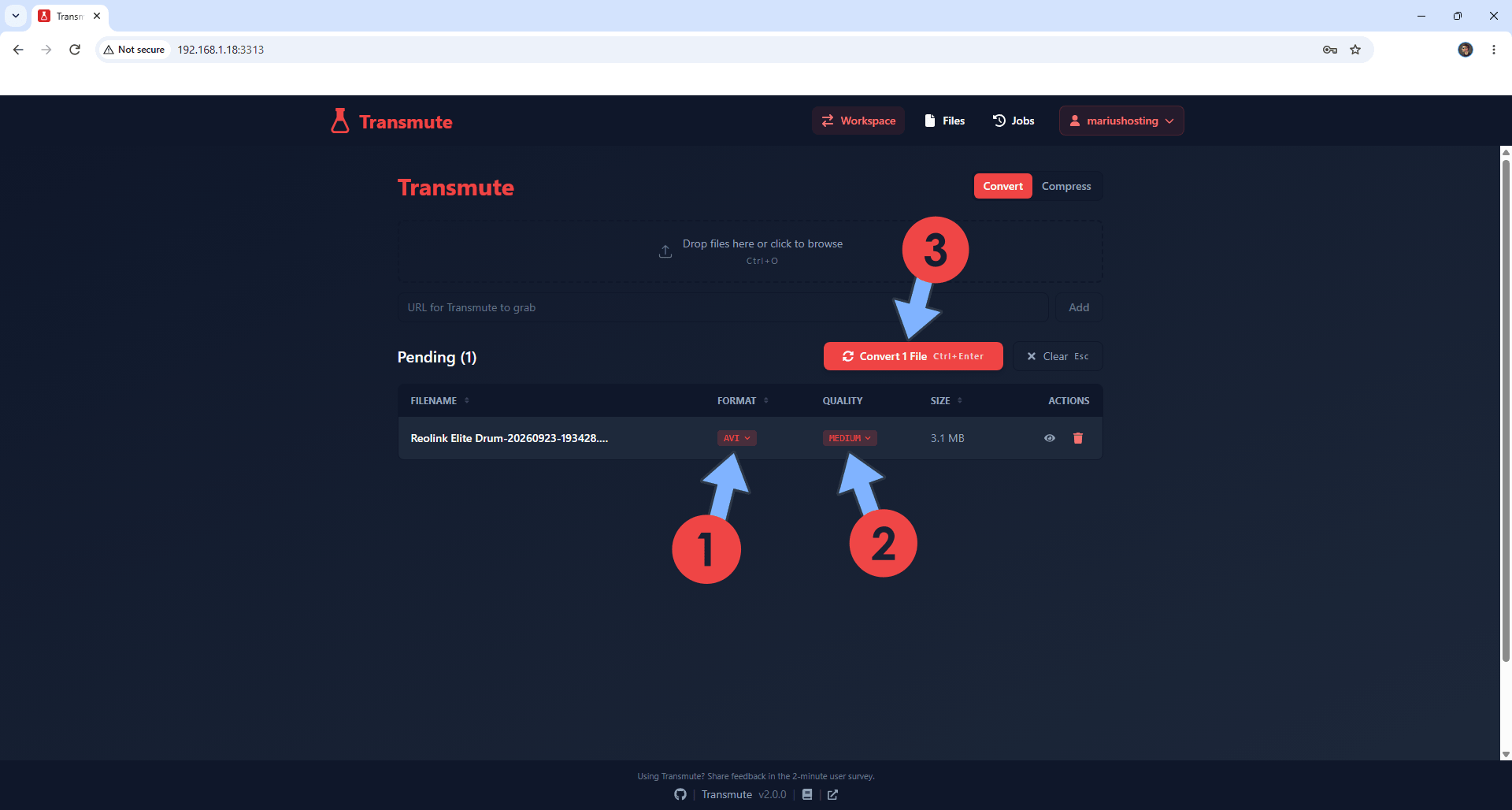
In my example below, I will convert my video file. Select the Format and the Quality. Click Convert File. Follow the instructions in the image below.
STEP 13
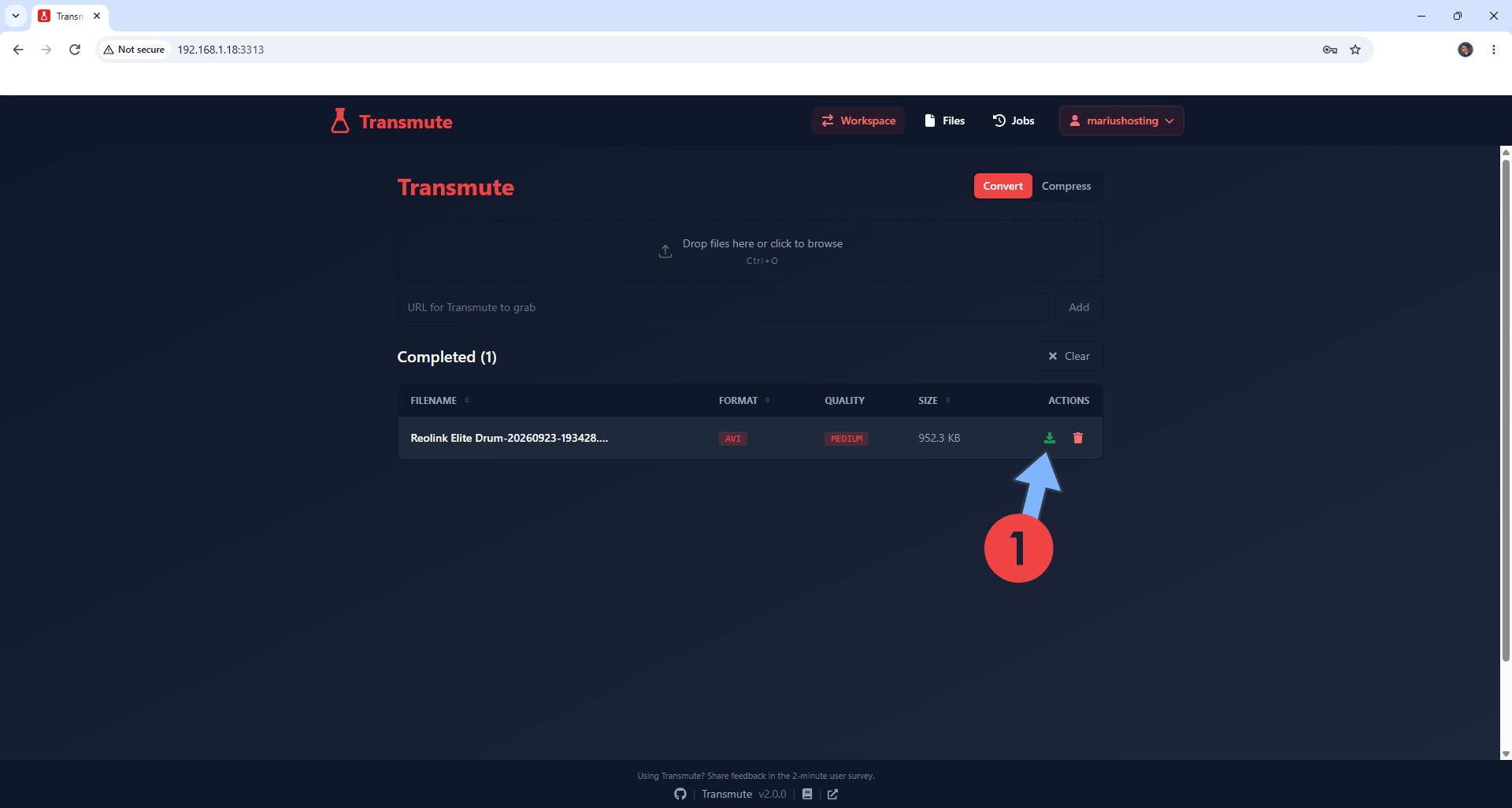
After the processing is done, click the download icon to download your file. Follow the instructions in the image below.
STEP 14
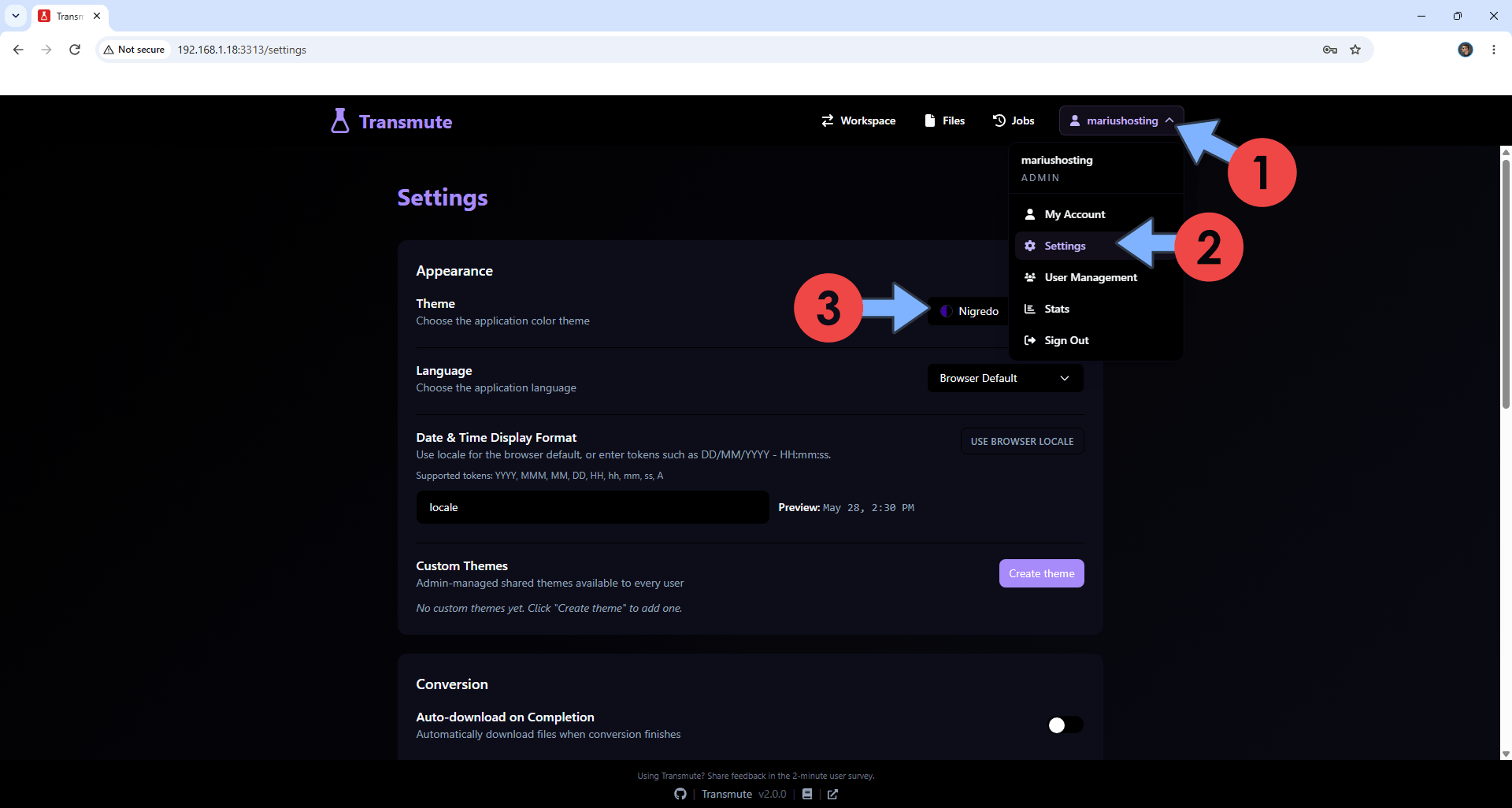
At the top right of the page, click on your username then Settings. Switch your Transmute theme from the standard one to the one that you like most. Follow the instructions in the image below.
Enjoy Transmute on your UGREEN NAS!
Note: If you want to run the Transmute container over HTTPS, check out How to Run Docker Containers Over HTTPS on Your UGREEN NAS.
🆙Note/Update/Container: How to Update Your Docker Containers on UGREEN NAS Using Dockhand.
🐳Note: How to Create Docker Shortcuts on Desktop.
🆕Note: How to Update Dockhand to the latest version.
🆕Note: How to Clean Docker.
This post was updated on Saturday / September 26th, 2026 at 3:31 AM