
Degoog is a modern, self-hosted search engine aggregator that lets you search multiple engines at once and view all results in a single clean, unified interface. It acts as your personal meta-search engine, forwarding queries to your chosen providers, combining the results, and delivering them without tracking or ads for full privacy. What sets it apart is its extremely powerful and flexible plugin system: you can add custom search engines, bang commands, dynamic slot plugins that insert panels based on your query, custom transports to bypass anti-bot protections, themes, aliases, user settings, and a full store for official and community extensions. It’s built as a lighter, more modular alternative to SearXNG. It is actively developed in beta, fully open source under AGPL-3.0 license. In this step by step guide I will show you how to install Degoog on your UGREEN NAS using Docker & Dockhand.
This guide works perfectly with the latest Degoog v1.0.0 release.
STEP 1
Please Support My work by Making a Donation.
STEP 2
Install Dockhand using my step by step guide. If you already have Dockhand installed on your UGREEN NAS, skip this STEP. ⚠️Attention: Make sure you have installed the latest Dockhand version.
STEP 3
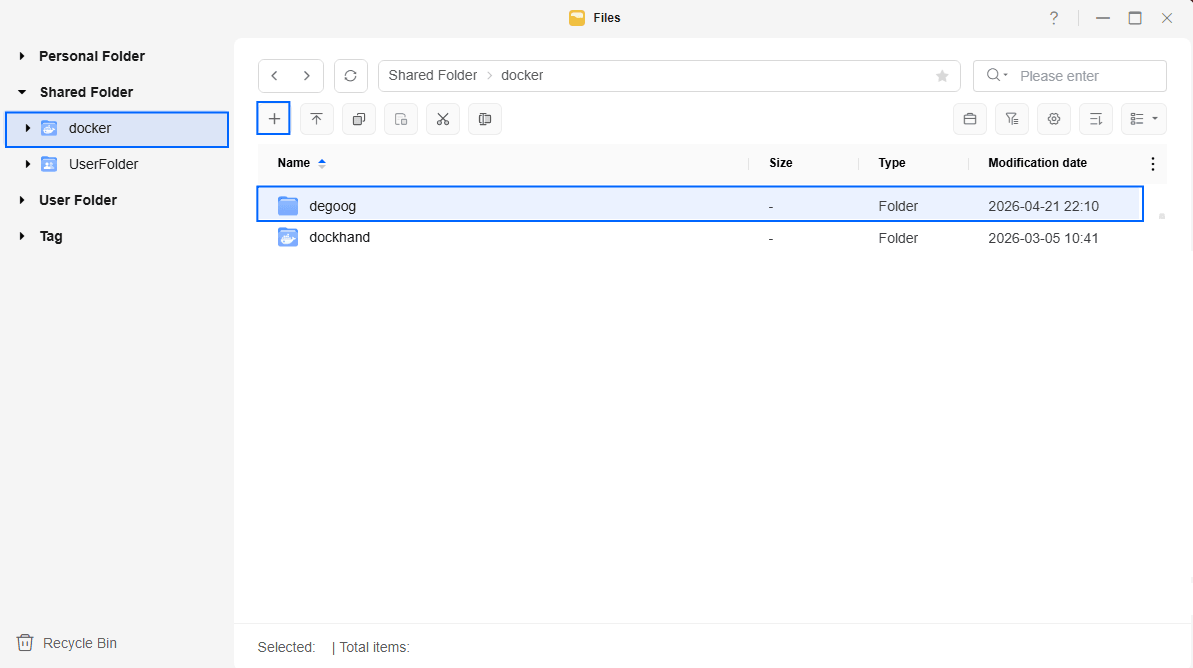
Go to Files and open the docker folder. Inside the docker folder, create one new folder and name it degoog. Follow the instructions in the image below.
Note: Be careful to enter only lowercase, not uppercase letters.
STEP 4
⚠️Mandatory: Add Read & Write Permissions to the Docker Folder.
STEP 5
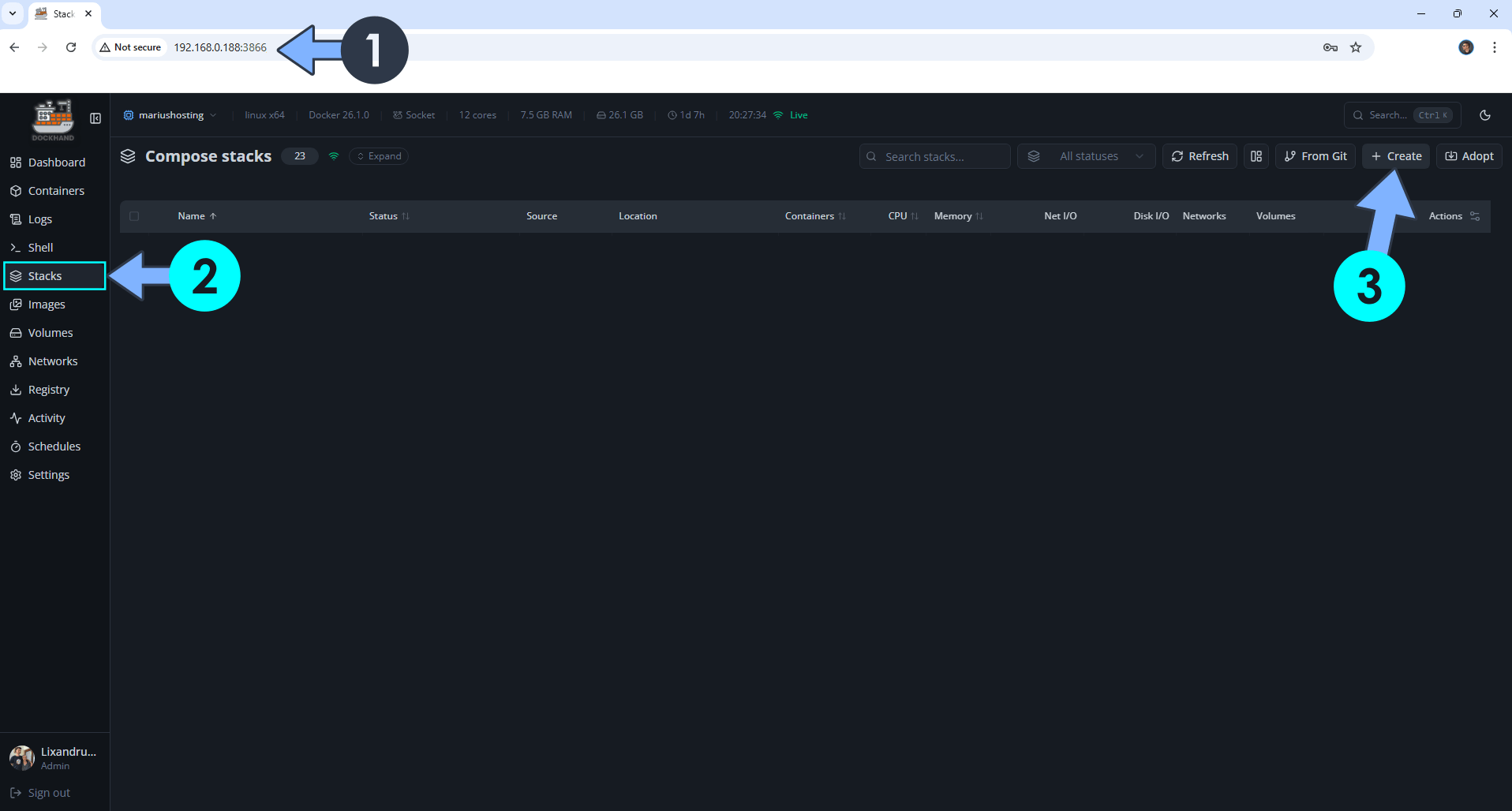
Open your browser and type in http://ugreen-ip-address:3866 to connect to your Dockhand container. On the left sidebar, click Stacks then + Create. Follow the instructions in the image below.
STEP 6
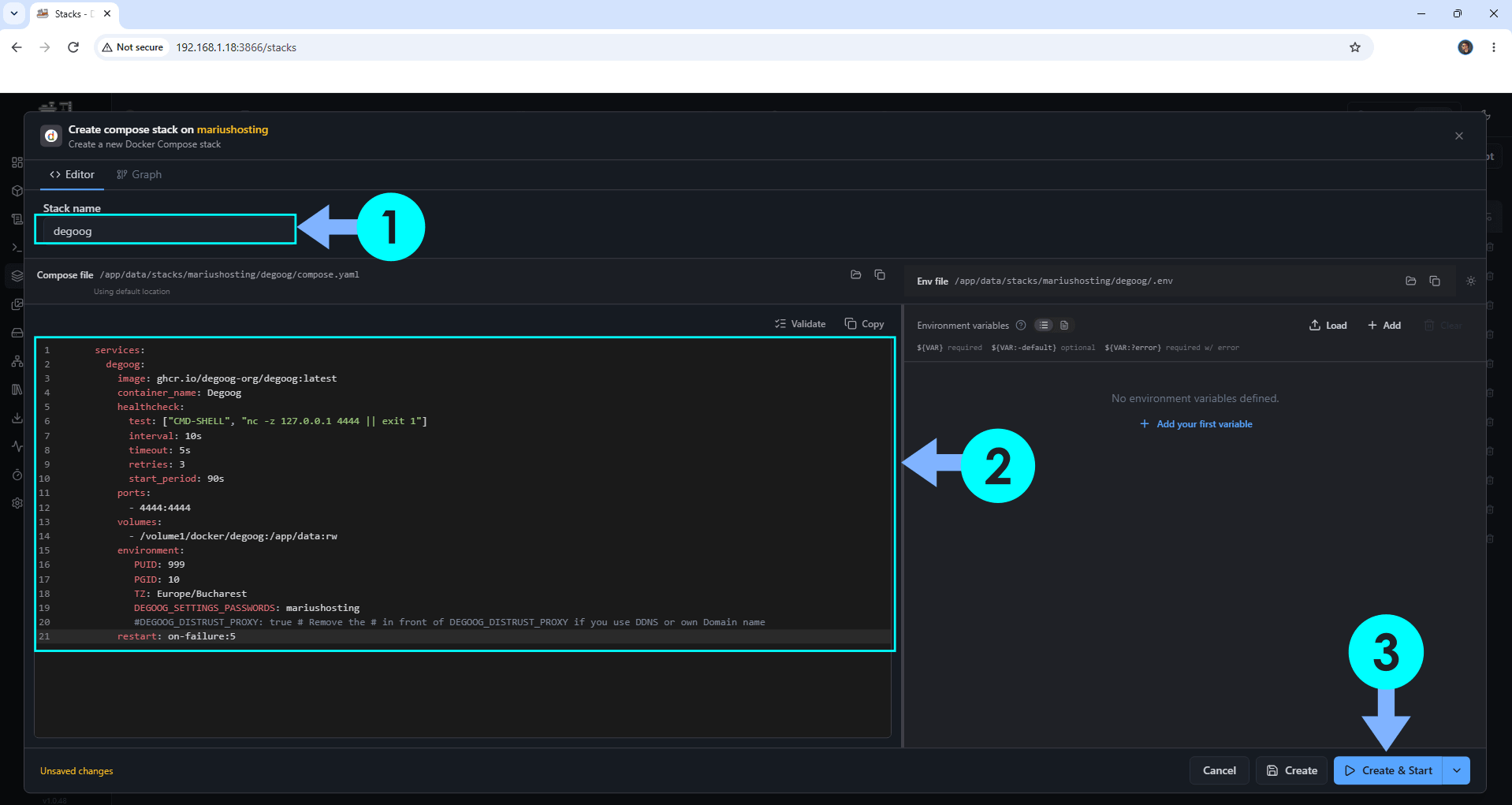
In the Stack name field, type in degoog. ⚠️Warning: Type in the name in lowercase letters. The installation process can take up to a few seconds/minutes. It will depend on your Internet speed connection. Follow the instructions in the image below.
services:
  degoog:
    image: ghcr.io/degoog-org/degoog:latest
    container_name: Degoog
    healthcheck:
      test: ["CMD-SHELL", "nc -z 127.0.0.1 4444 || exit 1"]
      interval: 10s
      timeout: 5s
      retries: 3
      start_period: 90s
    ports:
      - 4444:4444
    volumes:
      - /volume1/docker/degoog:/app/data:rw
    environment:
       PUID: 999
       PGID: 10
       TZ: Europe/Bucharest
       DEGOOG_SETTINGS_PASSWORDS: mariushosting
       #DEGOOG_DISTRUST_PROXY: true # Remove the # in front of DEGOOG_DISTRUST_PROXY if you use DDNS or own Domain name
    restart: on-failure:5
Note: Before you paste the code above in the Stack editor area below, change the value numbers for PUID and PGID with your own values. (Follow my step by step guide on how to do this.)
Note: Before you paste the code above in the Stack editor area below, change the value for TZ. (Select your current Time Zone from this list.)
Note: Before you paste the code above in the Stack editor area below, change the value for DEGOOG_SETTINGS_PASSWORDS. mariushosting is an example for a password. You should add your own password. You will need this password later at STEP 11.
STEP 7
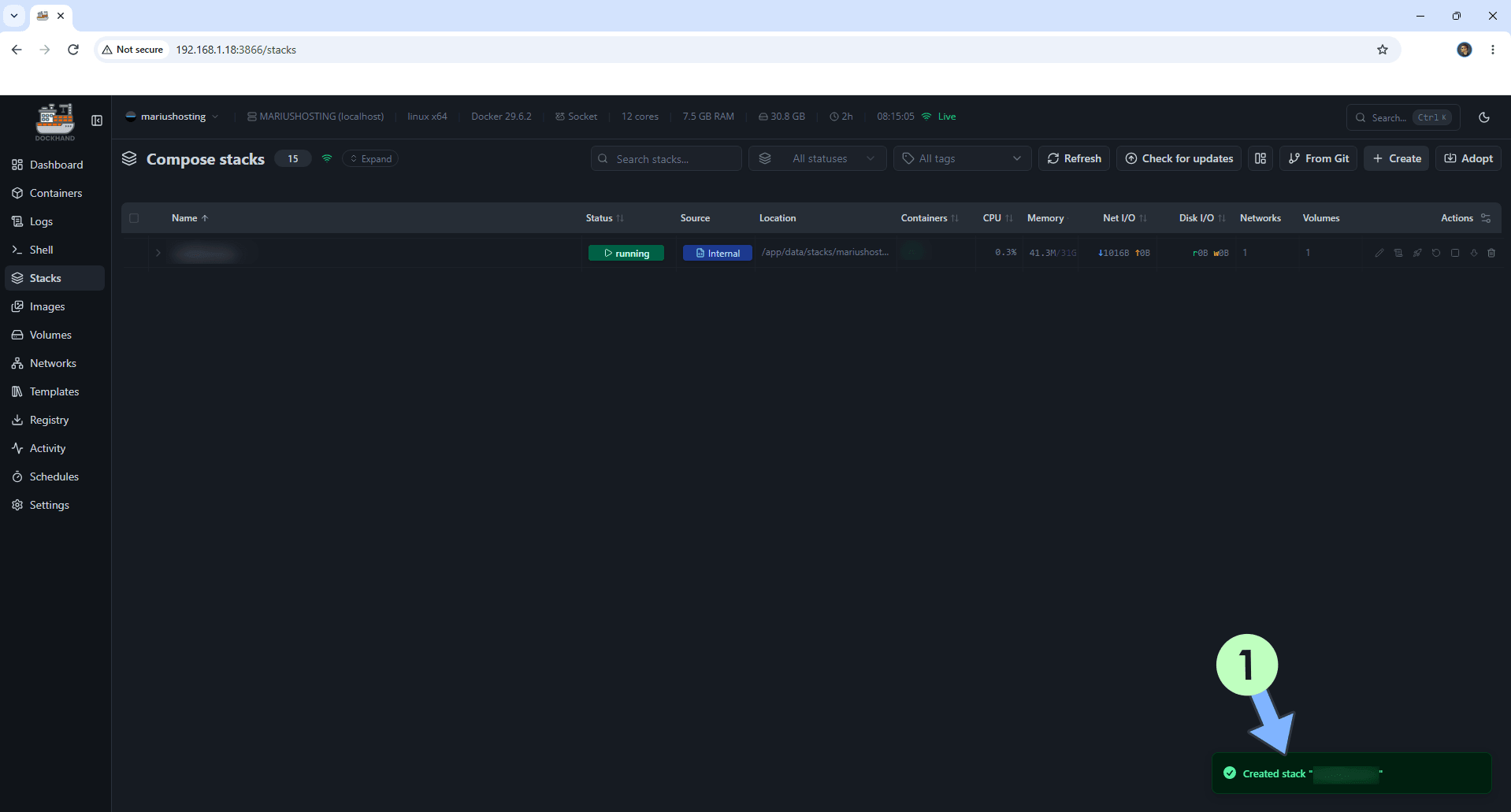
If everything goes right, you will see the following message at the bottom right of your screen: “Created stack “degoog”“.
STEP 8
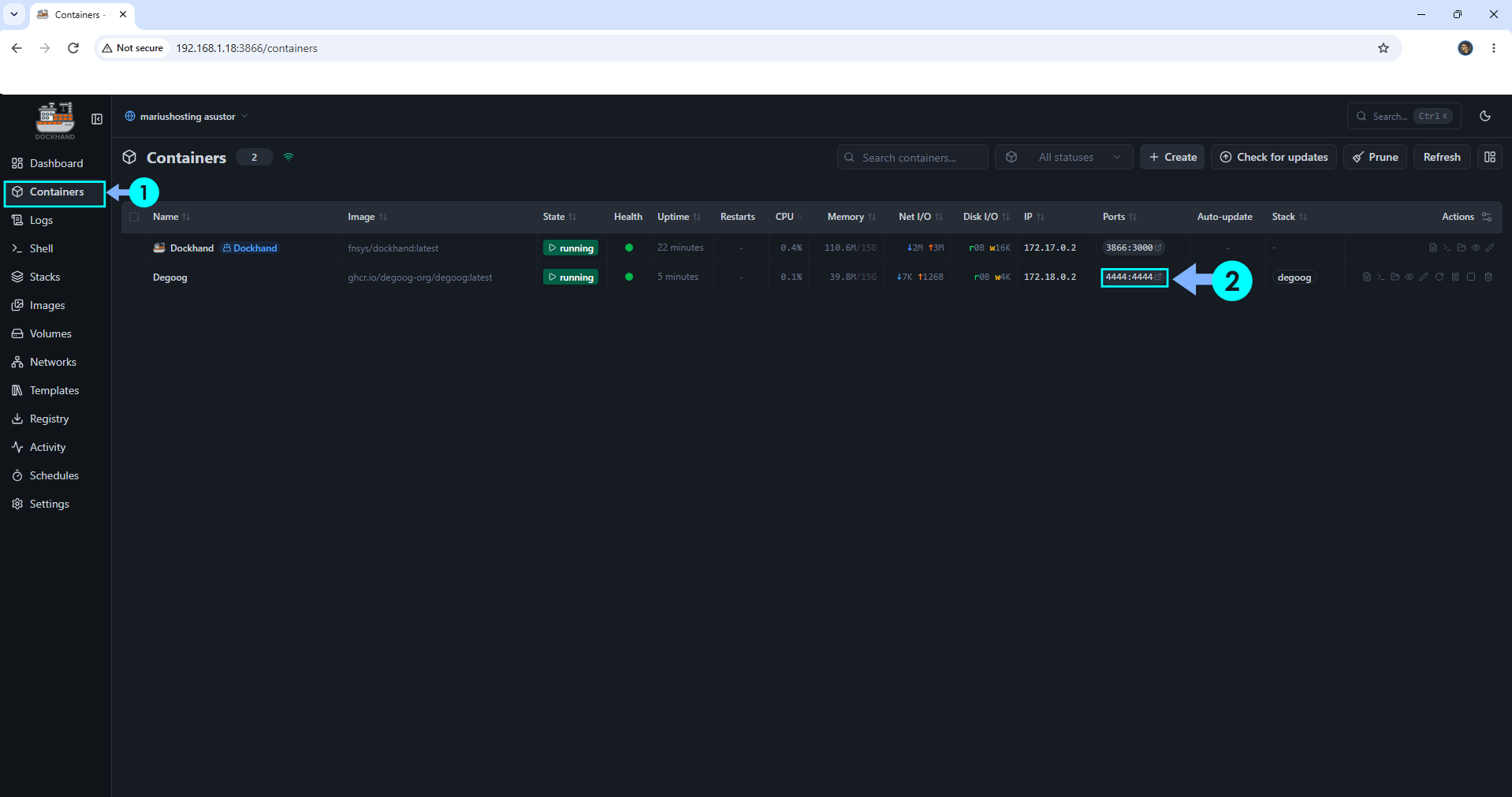
On the left sidebar, click Containers. Identify your Degoog container then click on ports 4444:4444. Follow the instructions in the image below.
STEP 9
🟢Please Support My work by Making a Donation. Almost 99,9% of the people that install something using my guides forget to support my work, or just ignore STEP 1. I’ve been very honest about this aspect of my work since the beginning: I don’t run any ADS, I don’t require subscriptions, paid or otherwise, I don’t collect IPs, emails, and I don’t have any referral links from Amazon or other merchants. I also don’t have any POP-UPs or COOKIES. I have repeatedly been told over the years how much I have contributed to the community. It’s something I love doing and have been honest about my passion since the beginning. But I also Need The Community to Support me Back to be able to continue doing this work.
STEP 10
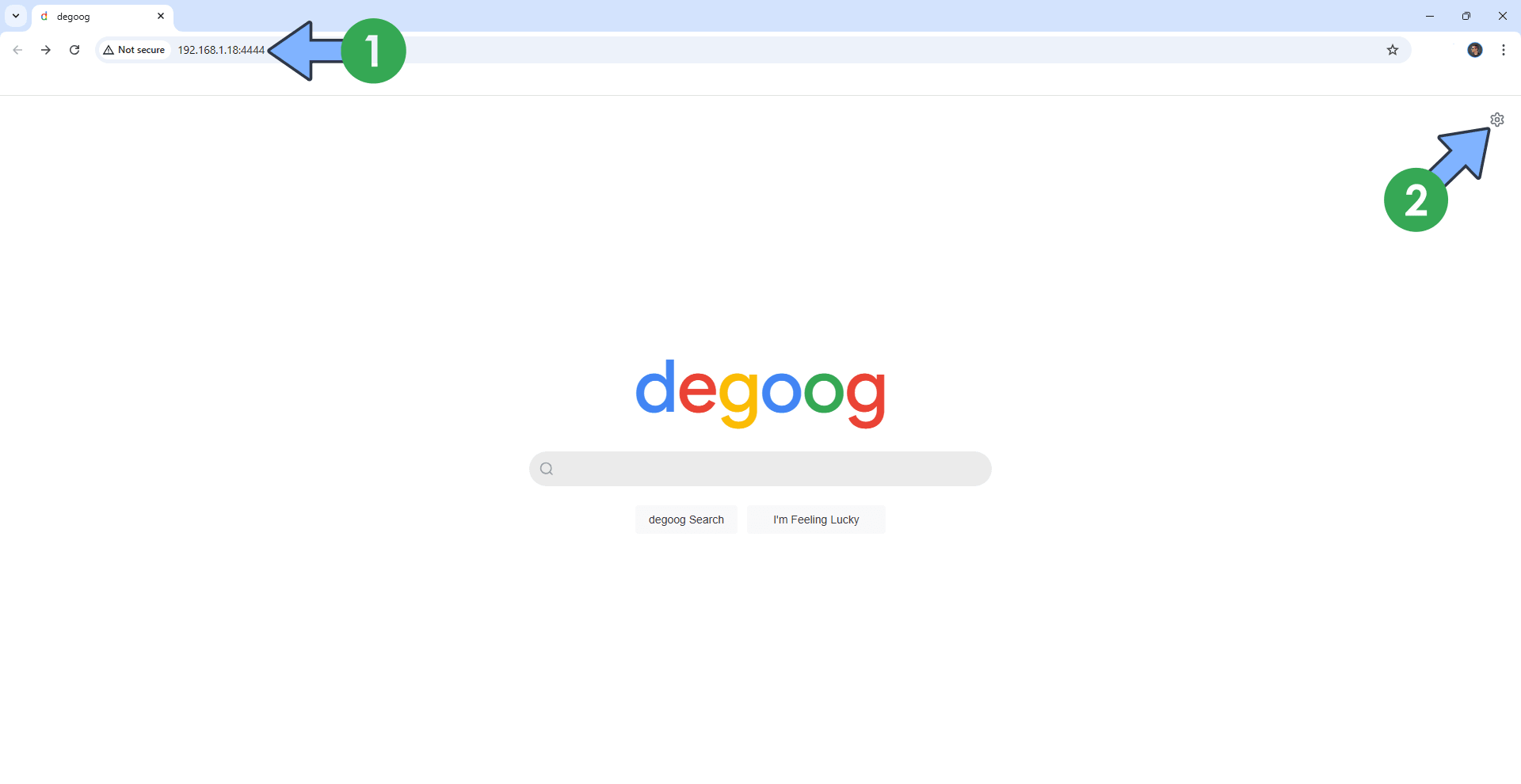
The installation process can take up to a few seconds/minutes. It will depend on your Internet speed connection. Now open your browser and type in http://ugreen-ip-address:4444 At the top right of the page, click the Settings icon. Follow the instructions in the image below.
STEP 11
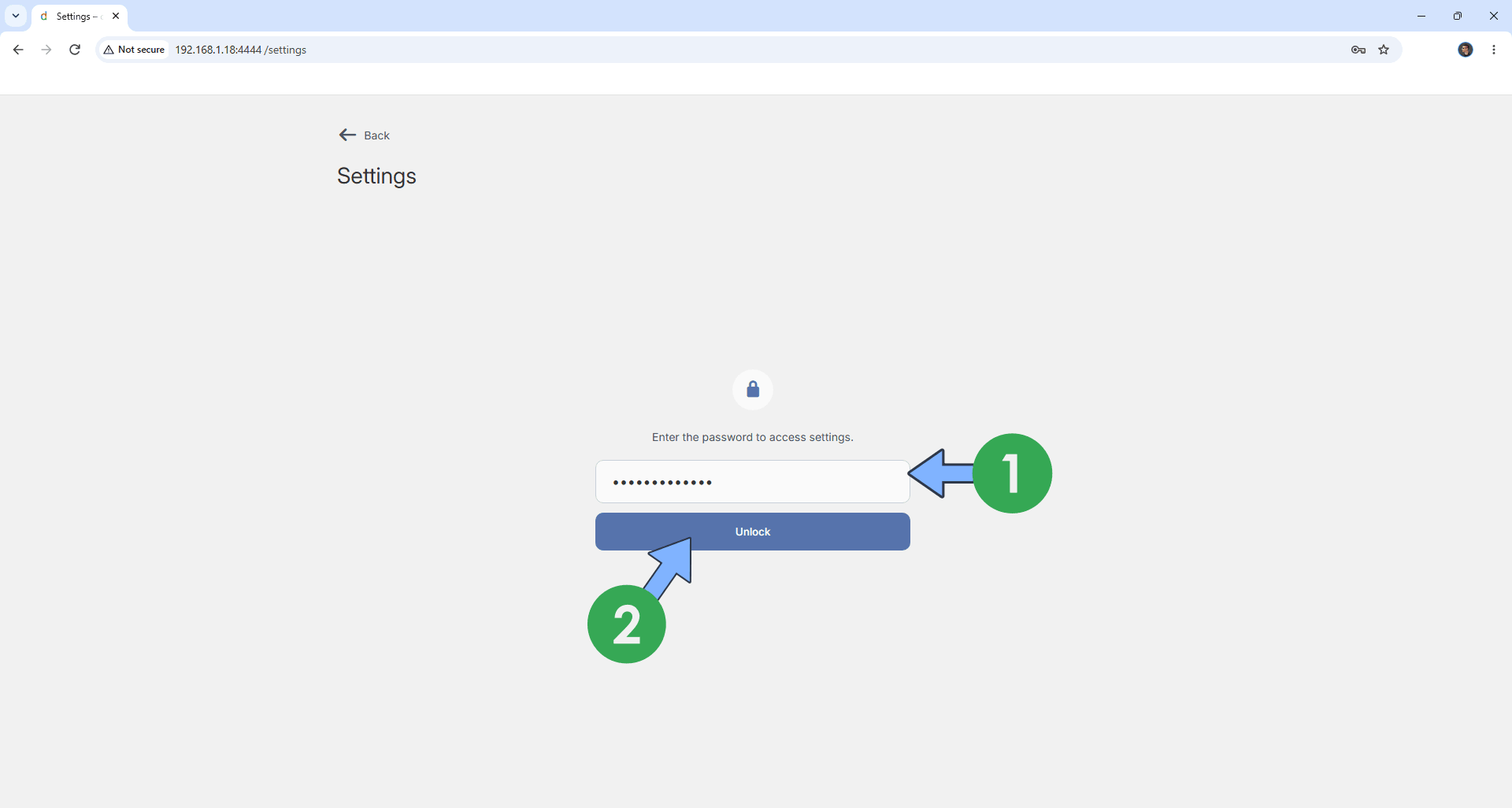
Type in your own Password (DEGOOG_SETTINGS_PASSWORDS) that you have previously added at STEP 6. Click Unlock. Follow the instructions in the image below.
STEP 12
On the left sidebar, click General. Switch the theme from Light to Dark. Follow the instructions in the image below.
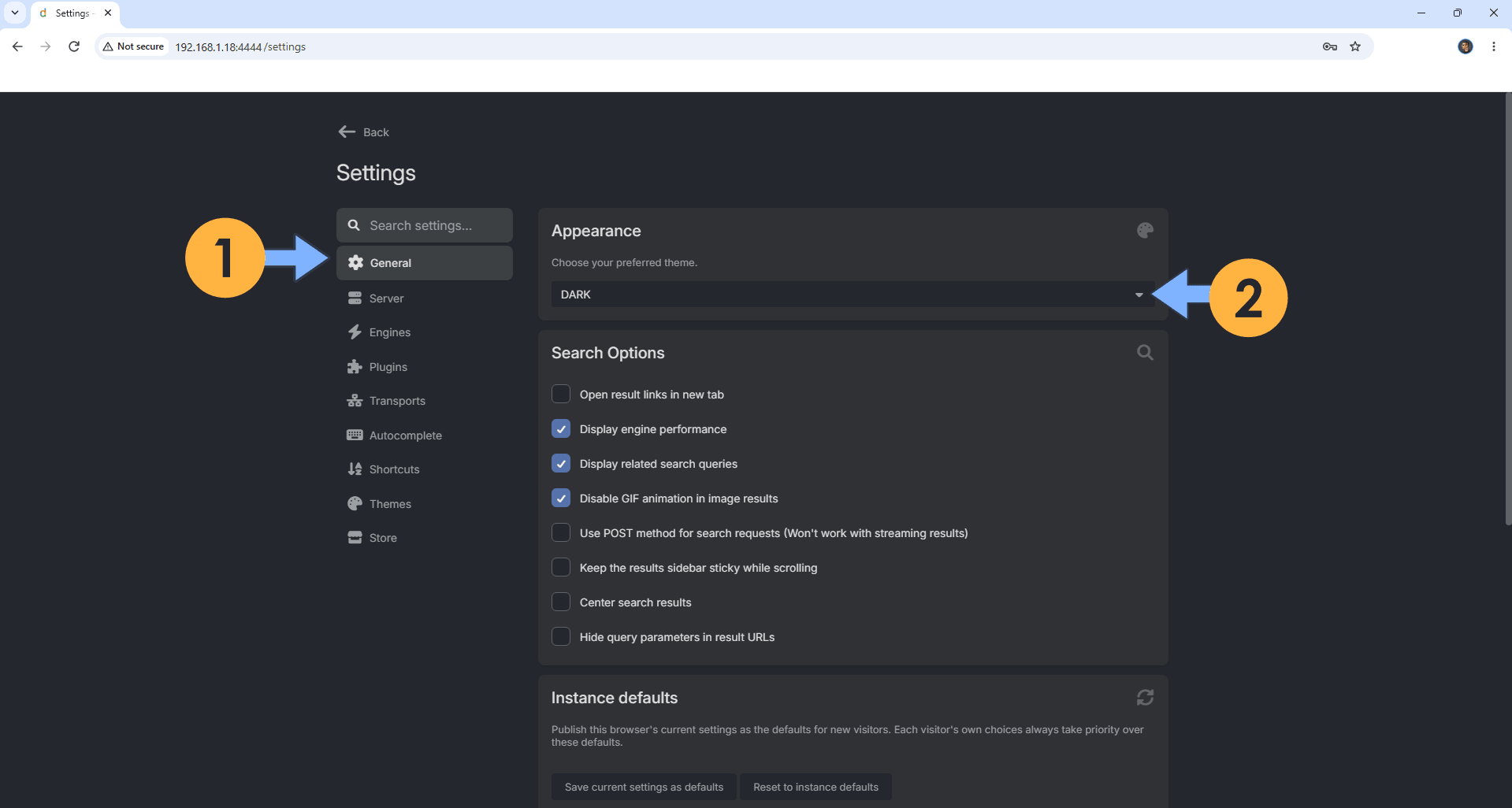
STEP 13
On the left sidebar, click Store. In this area you can install multiple plugins. For example, I installed Google CSE and Google Images. Follow the instructions in the image below.
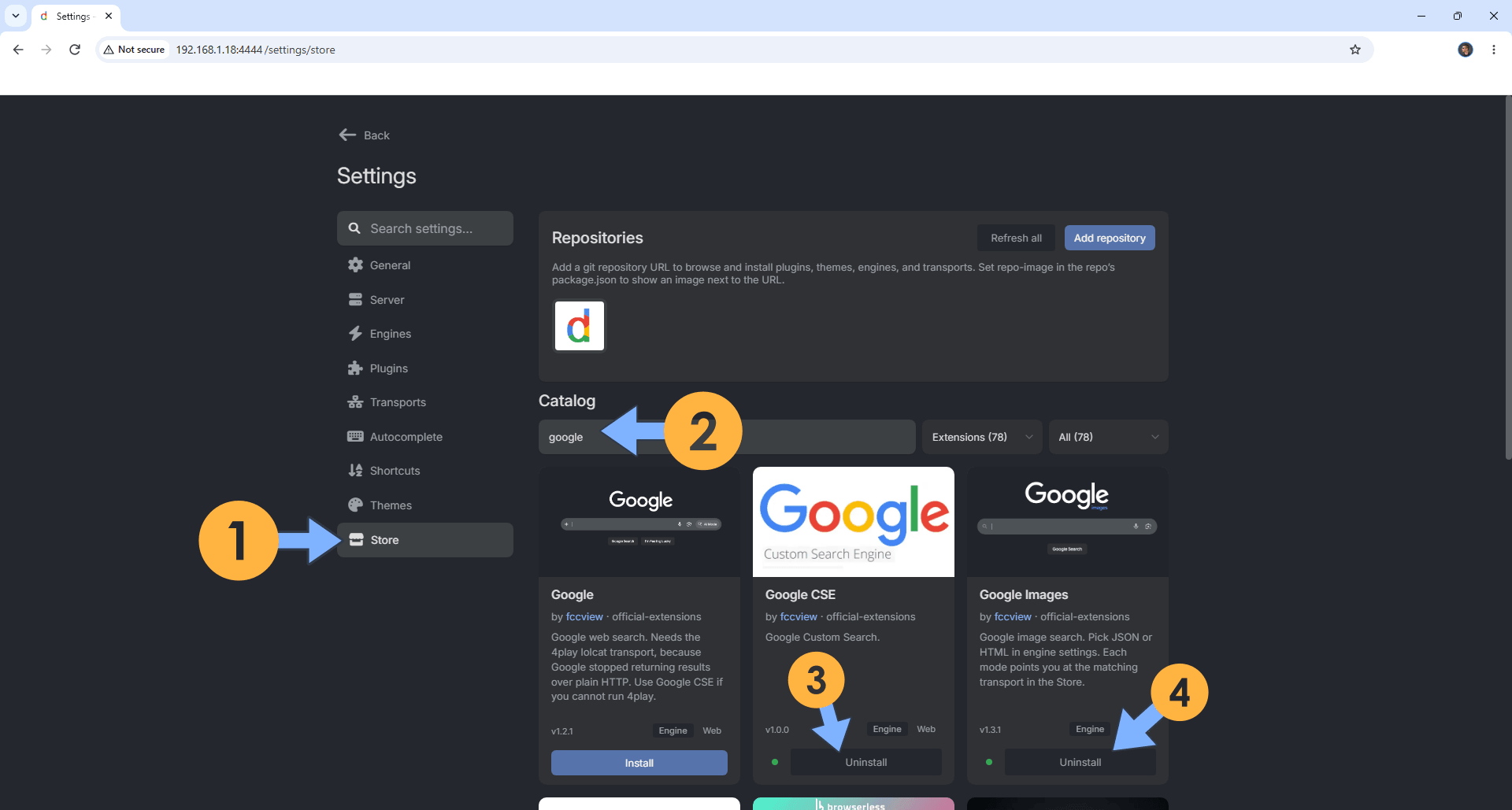
STEP 14
On the left sidebar, click Engines to choose your favorite search engine. Click Configure to configure each search engine with your favorite settings. Follow the instructions in the image below.
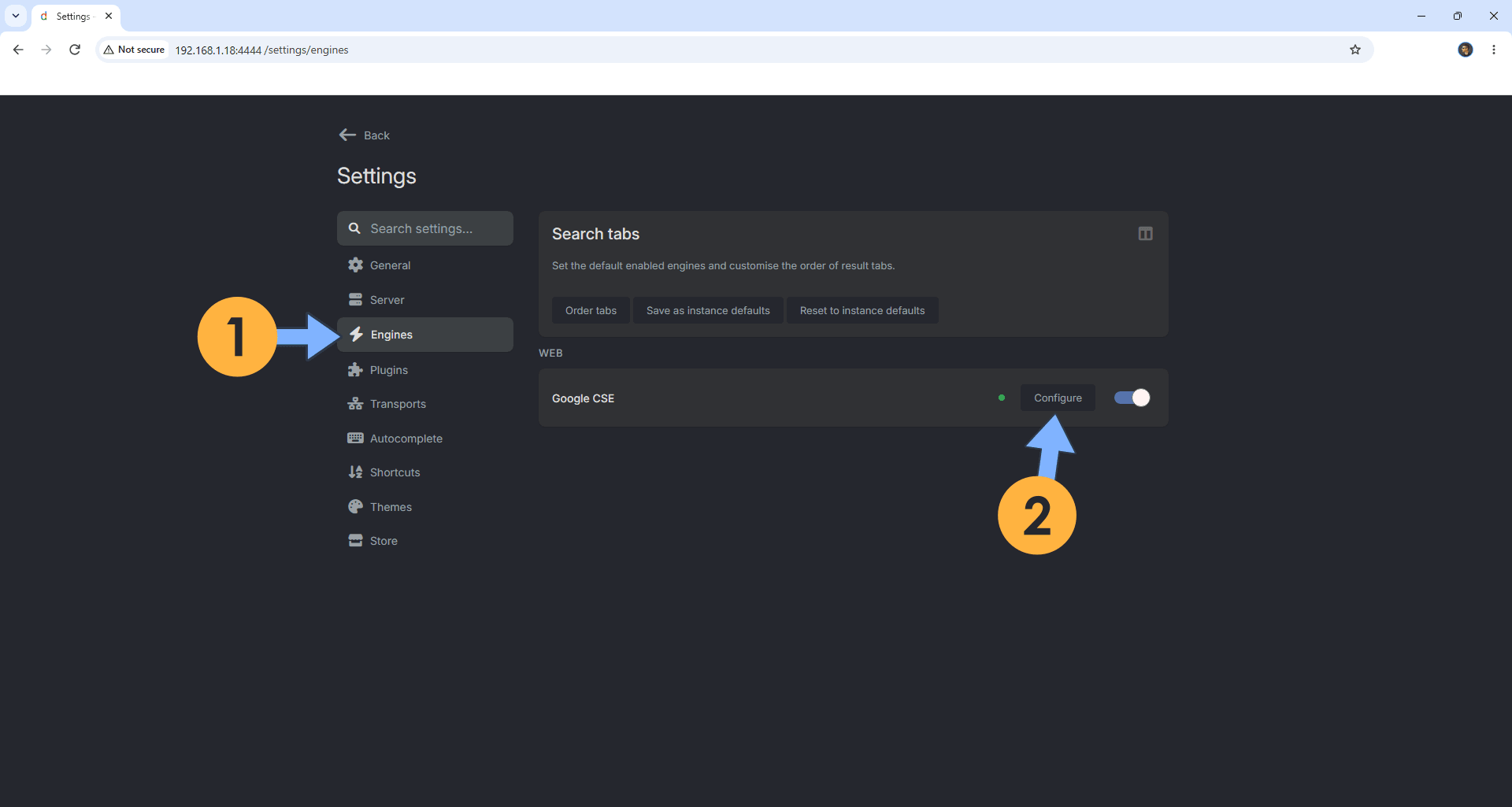
STEP 15
Choose your favorite settings for every search engine. Click Save to save the settings. At the top left of the page, click Back. Follow the instructions in the image below.
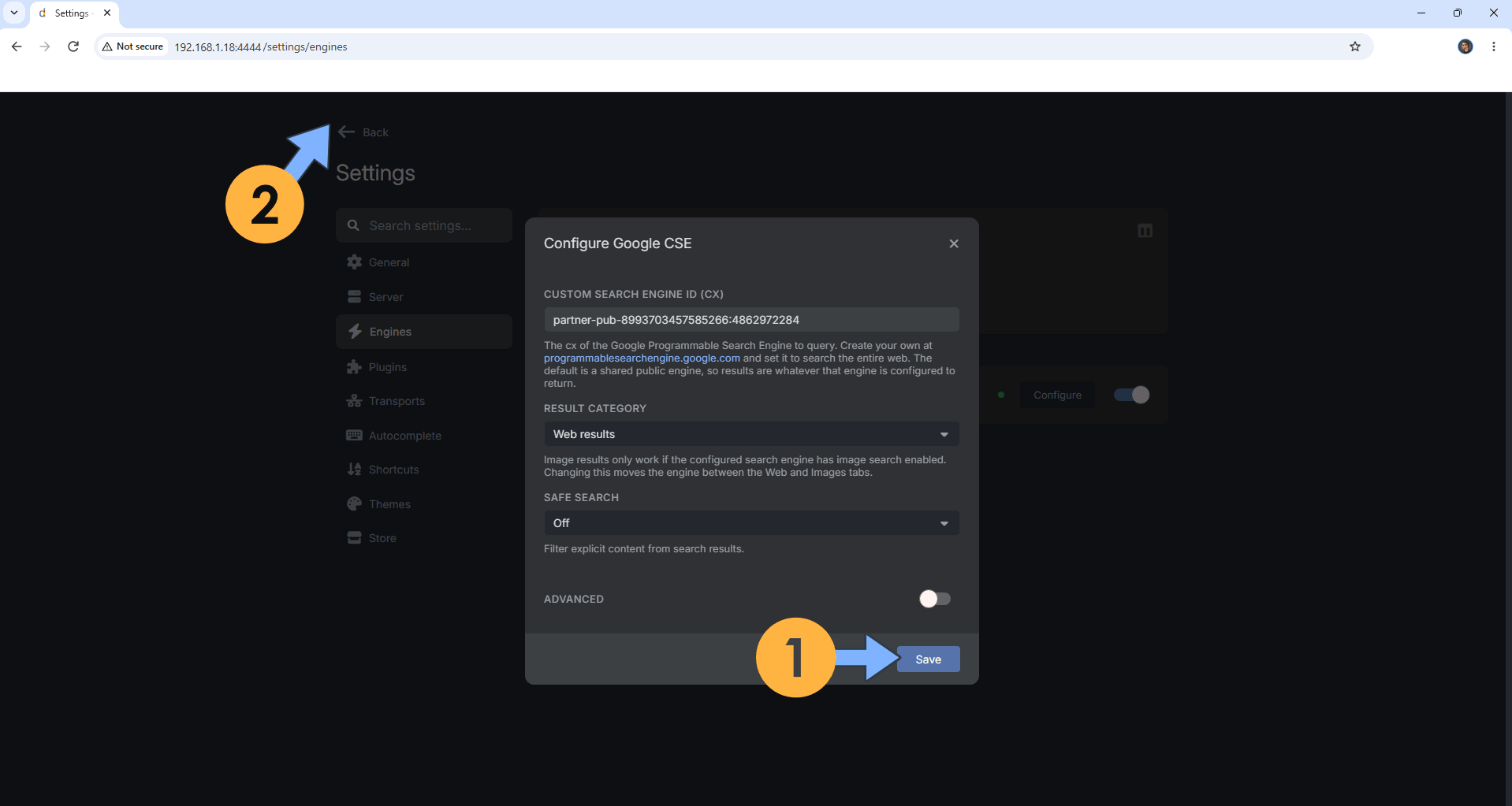
STEP 16
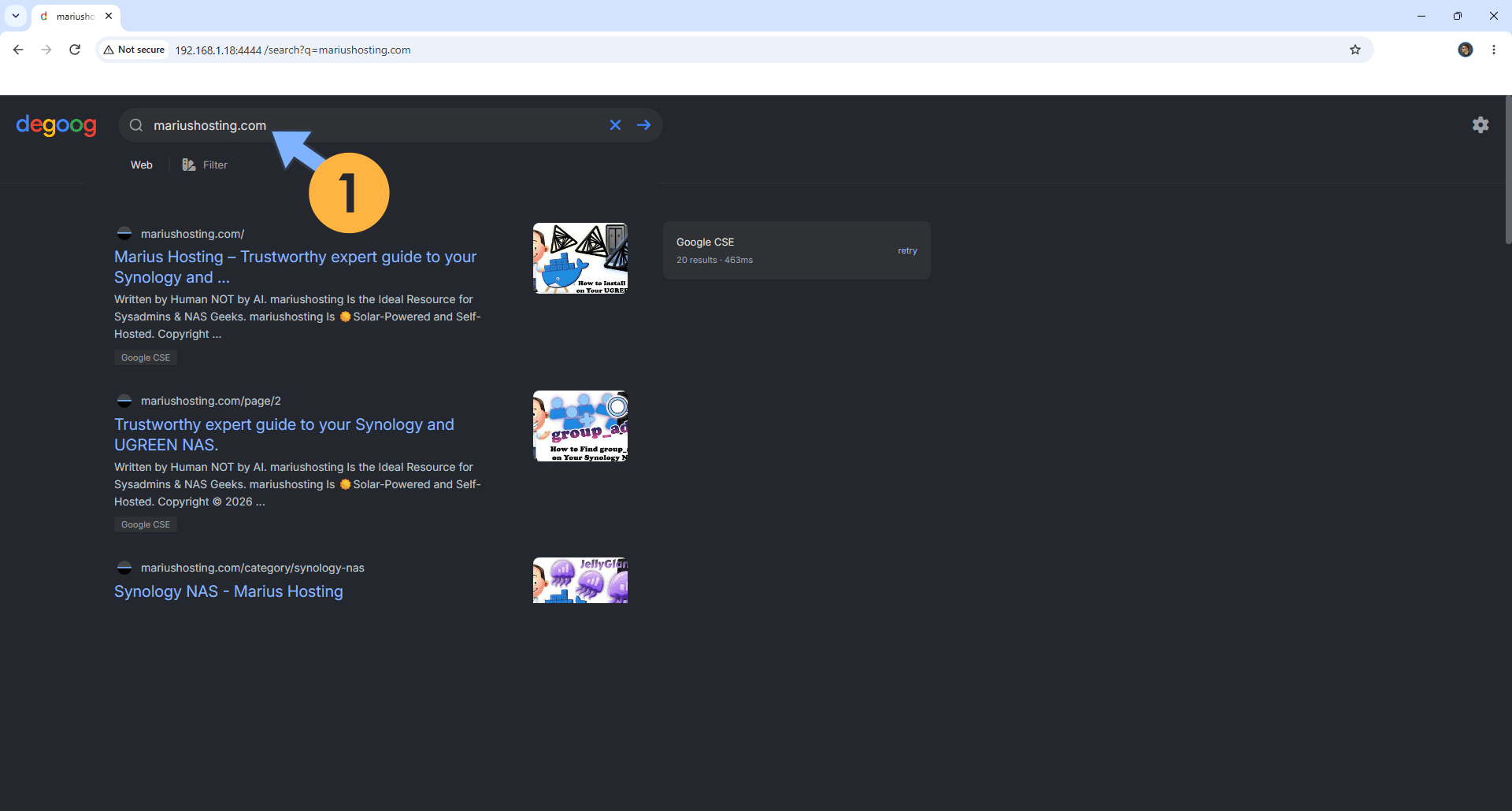
Search for something. Follow the instructions in the image below.
STEP 17
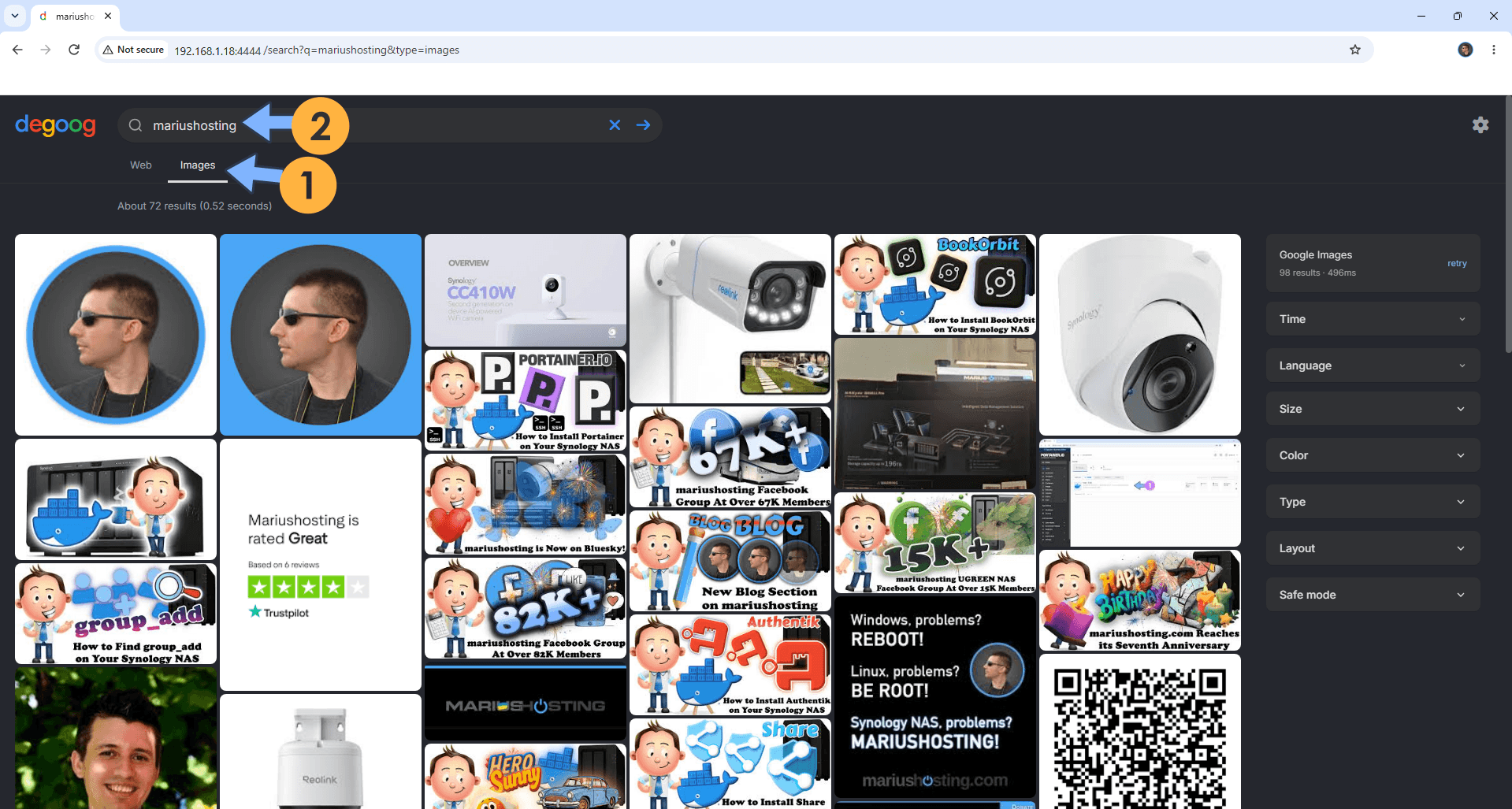
Search for Images. Follow the instructions in the image below.
Enjoy Degoog on your UGREEN NAS!
Note: If you want to run the Degoog container over HTTPS, check out How to Run Docker Containers Over HTTPS on Your UGREEN NAS.
🆙Note/Update/Container: How to Update Your Docker Containers on UGREEN NAS Using Dockhand.
🐳Note: How to Create Docker Shortcuts on Desktop.
🆕Note: How to Update Dockhand to the latest version.
🆕Note: How to Clean Docker.
This post was updated on Monday / October 5th, 2026 at 11:09 PM