
Have you already installed WishList on your Synology NAS? If yes, I have finally come about to writing an article on how to set up Gmail notifications on WishList so you can now enjoy it to its full potential. See the details below.
STEP 1
Please Support My work by Making a Donation.
STEP 2
Install WishList using my Docker Guide. If you already have WishList installed on your Synology NAS, skip this STEP.
STEP 3
Follow my step by step guide on how to activate SMTP for your Gmail account.
STEP 4
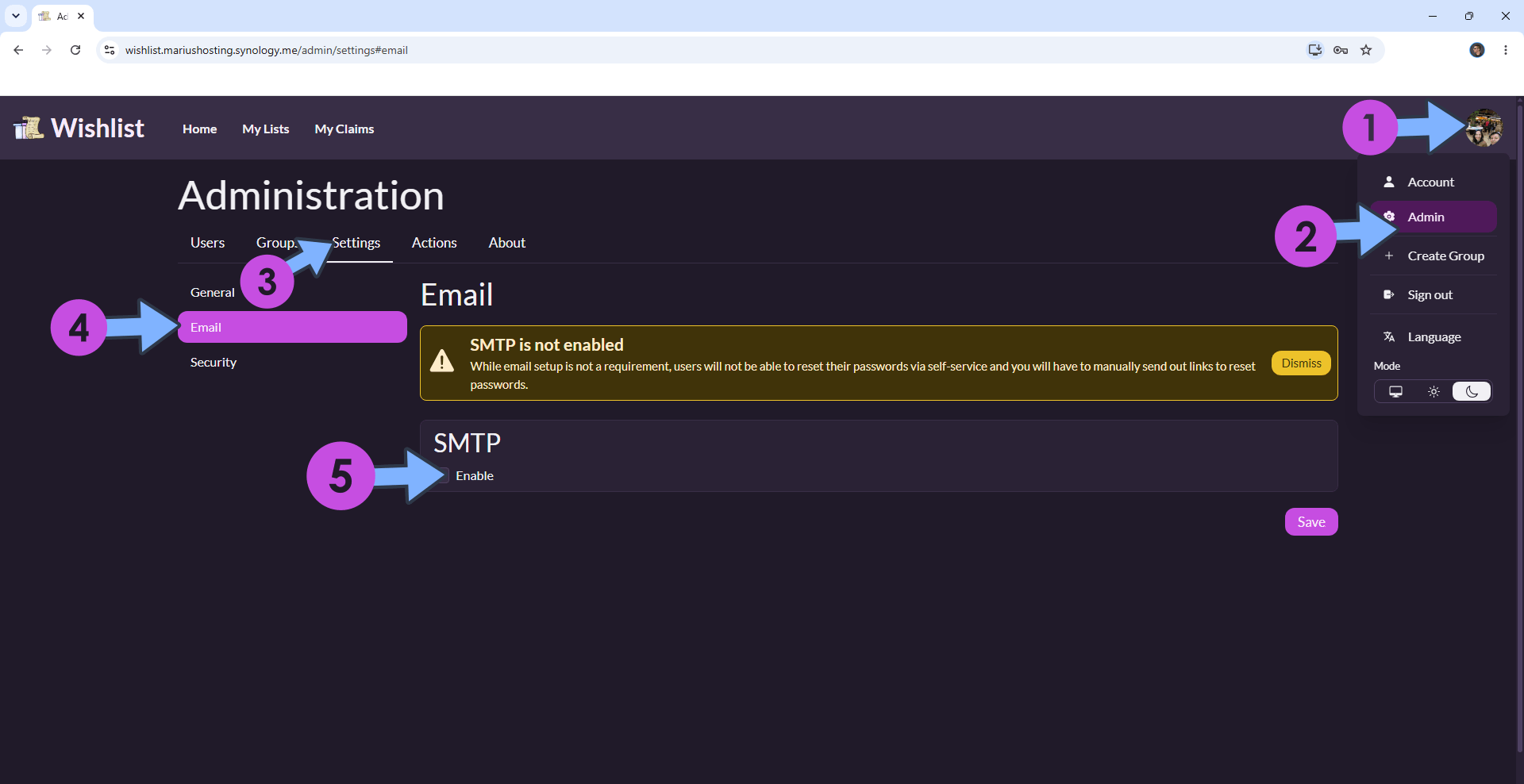
Log in to your WishList instance. Click the user icon in the top-right corner, then select Admin. Click the Settings tab. In the left sidebar, click Email. Check SMTP. Follow the instructions in the image below.
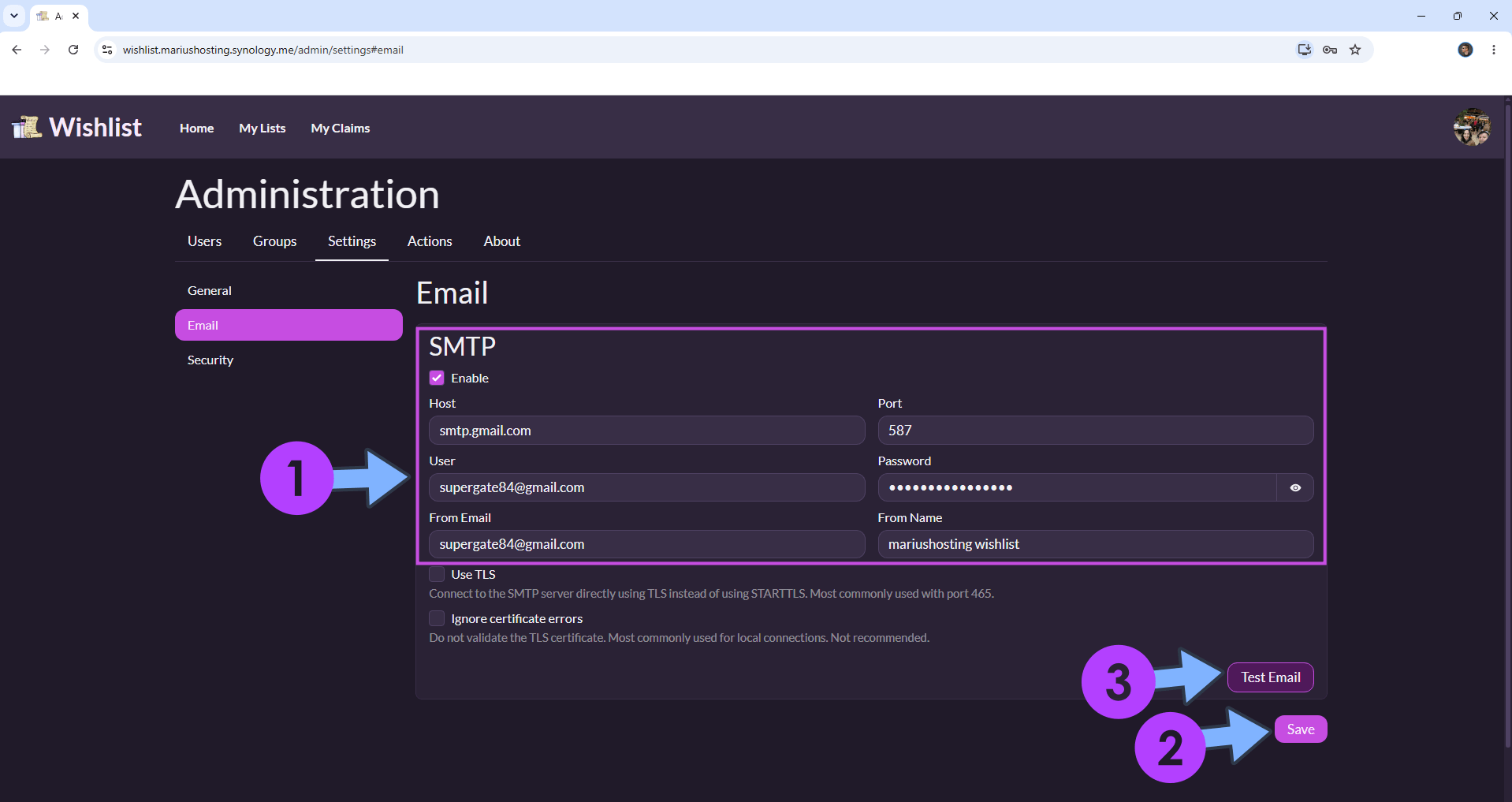
Add the details below:
Host: smtp.gmail.com
Port: 587
User: Type in your own Gmail address. / STEP 3.
Password: Type in your own Gmail App Password / STEP 3. ⚠️Warning: Do NOT confuse with your own Gmail password. This is the Gmail APP password.
From Email: Type in your own Gmail address. / STEP 3.
From Name: Type in your nickname.
Click SAVE then Test Email.
STEP 5
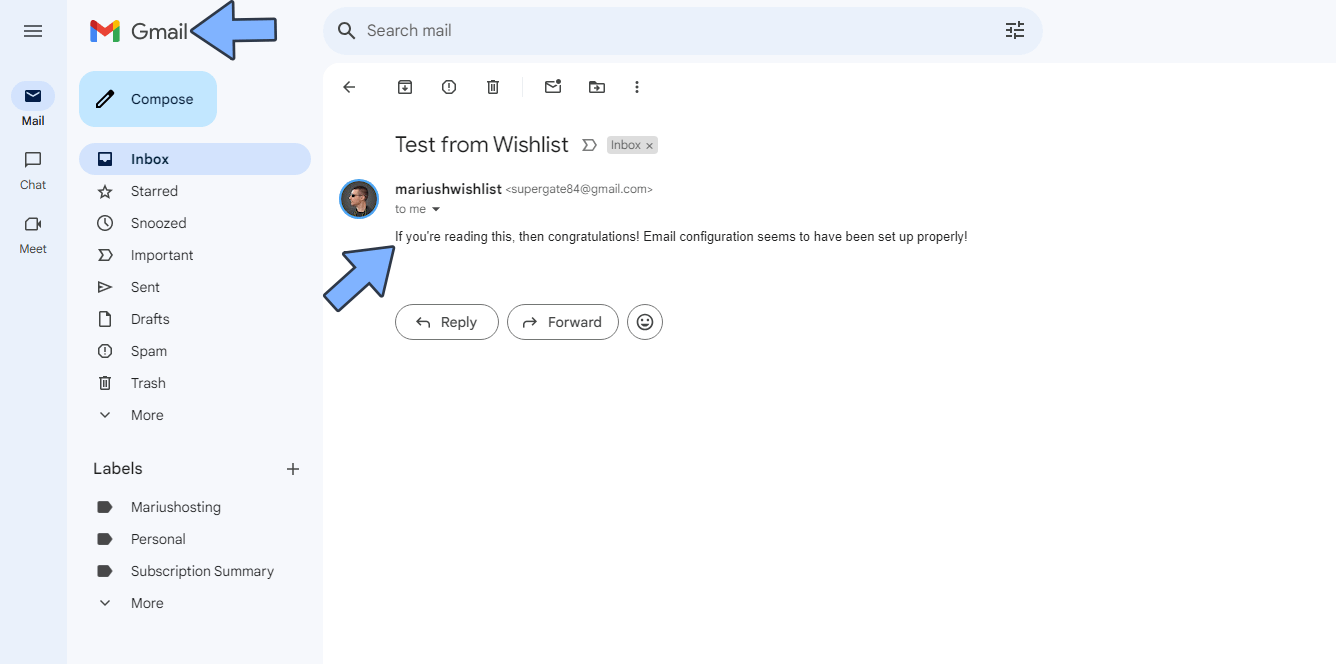
Check your email!
This post was updated on Saturday / October 17th, 2026 at 1:05 PM