
Have you already installed Akaunting on your Synology NAS? If yes, you’re only one step away from unlocking its full potential. In this guide I’ll show you exactly how to set up reliable email notifications using Gmail so Akaunting can send invoices reminders, and system alerts without any extra hassle.
STEP 1
Please Support My work by Making a Donation.
STEP 2
⚠️Mandatory: Install Akaunting using my Docker Guide for Synology NAS. If you already have Akaunting installed on your Synology NAS, skip this STEP.
STEP 3
Follow my step by step guide on how to activate SMTP for your Gmail account.
STEP 4
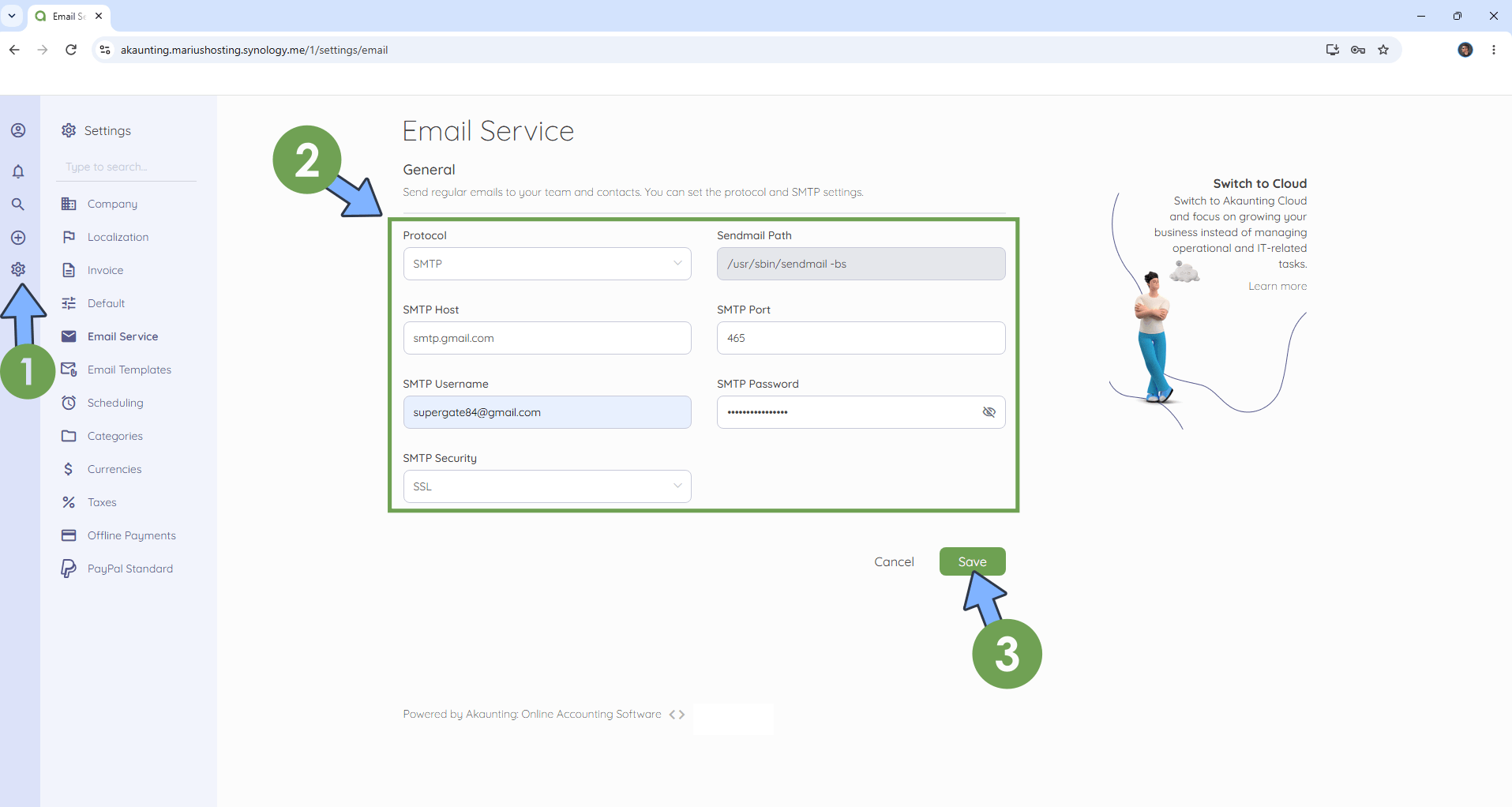
On the left sidebar, click on the Settings icon then Email Service. Follow the instructions in the image below.
Add the details below.
Protocol: SMTP
SMTP Host: smtp.gmail.com
SMTP Port: 465
SMTP Username: Type in your own Gmail address.
SMTP Password: Type in your own Gmail App Password / STEP 3
SMTP Security: SSL
Click Save.
STEP 5
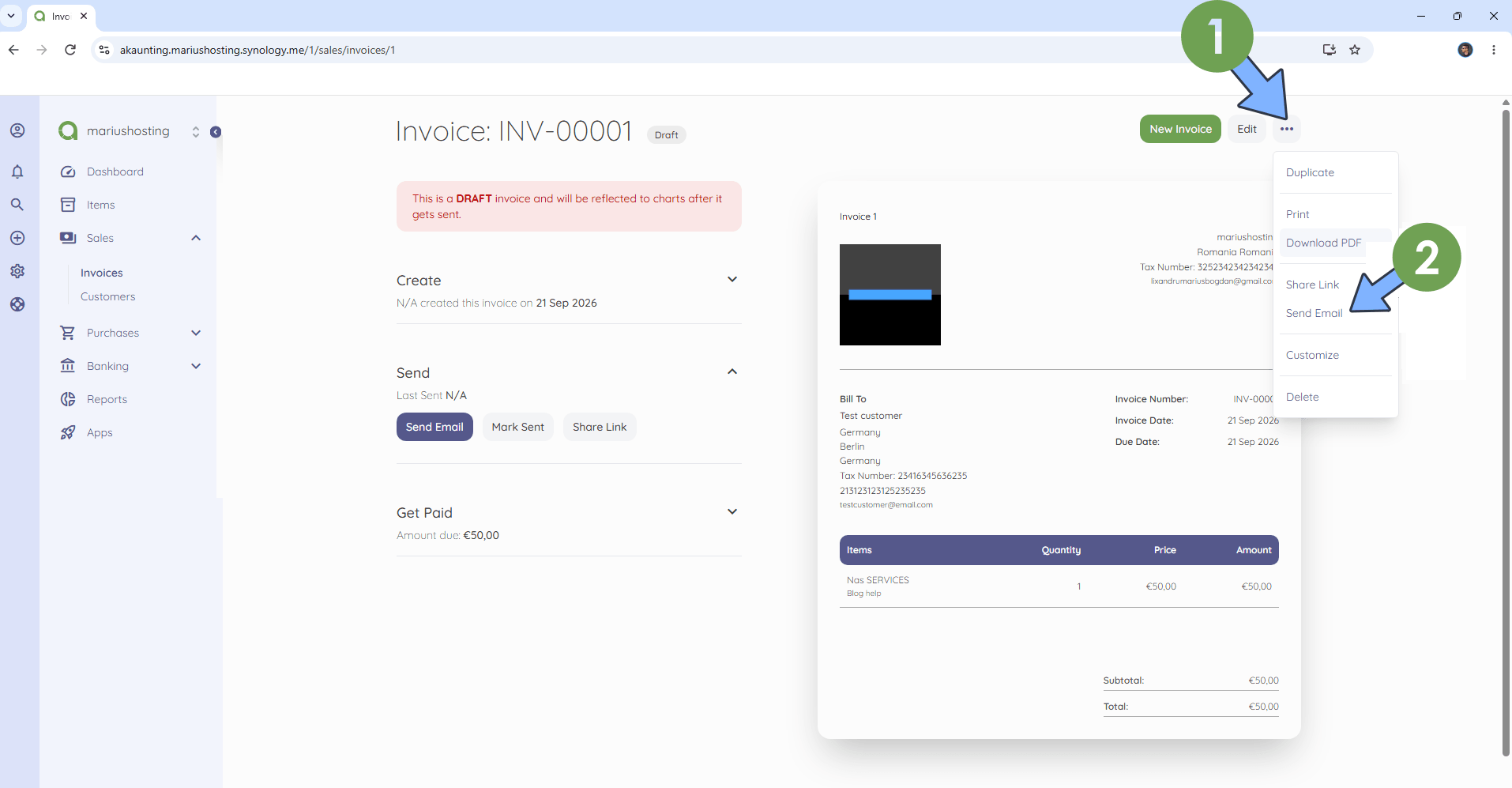
You can now send invoice emails to your client. Follow the instructions in the image below.
Enjoy Akaunting with Email Notifications!
This post was updated on Tuesday / September 29th, 2026 at 9:47 PM