
File Browser offers a user-friendly interface for managing files within a designated directory. It supports uploading, deleting, previewing, renaming, and editing files. The app allows the creation of multiple user accounts, each with its own dedicated directory. File Browser can function as a standalone application or as middleware for seamless integration. In this step by step guide I will show you how to install File Browser on your UGREEN NAS using Docker & Portainer.
💡Note: This guide works perfectly with the latest File Browser v2.63.23 release.
💡Note: Check out my guide on how to Install File Browser on Your Synology NAS.
💡Note: Check out my guide on how to Install FileBrowser Quantum on Your UGREEN NAS.
STEP 1
Please Support My work by Making a Donation.
STEP 2
Install Portainer using my step by step guide. If you already have Portainer installed on your UGREEN NAS, skip this STEP. Attention: Make sure you have installed the latest Portainer version.
STEP 3
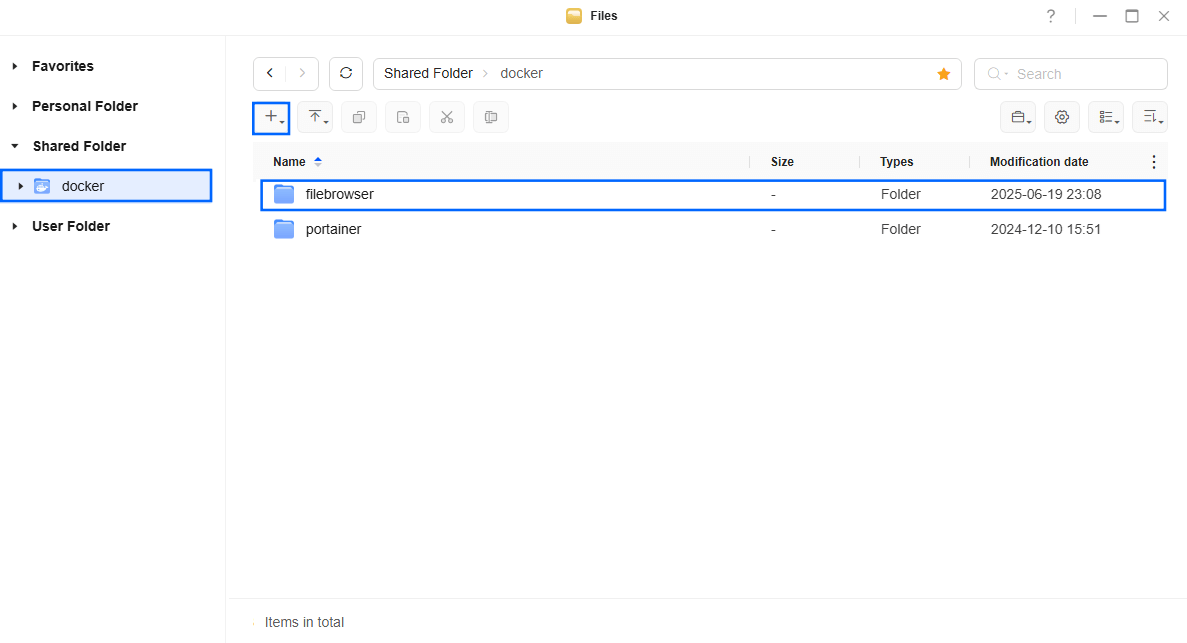
Go to Files and open the docker folder. Inside the docker folder, create one new folder and name it filebrowser. Follow the instructions in the image below.
Note: Be careful to enter only lowercase, not uppercase letters.
STEP 4
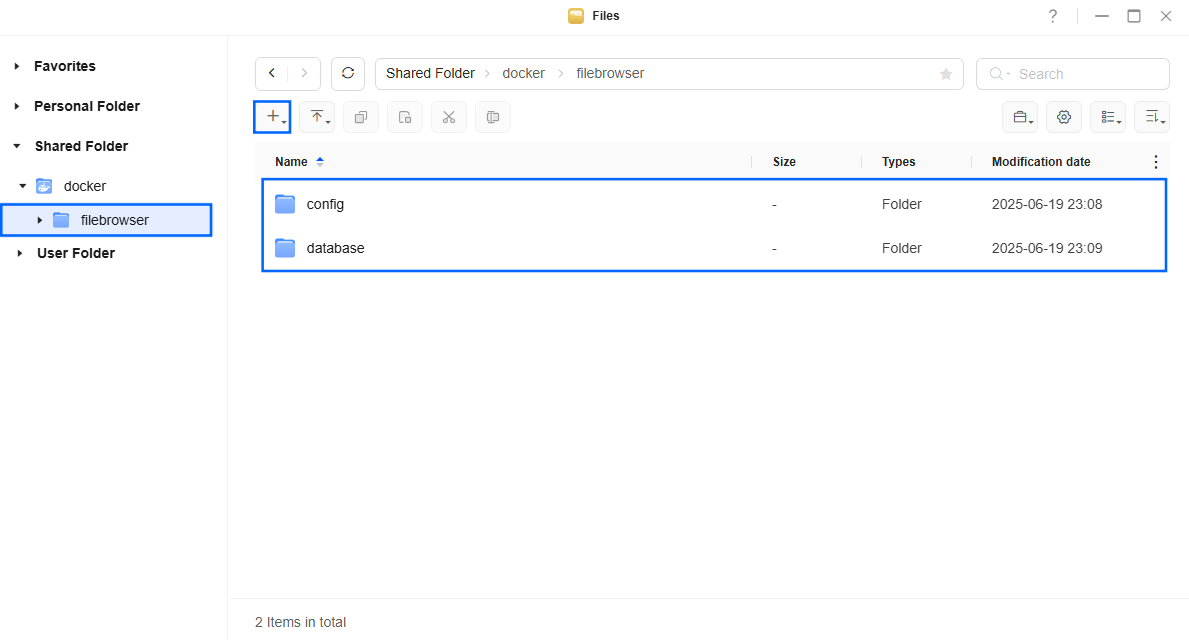
Now create two new folders inside the filebrowser folder that you have previously created at STEP 4, and name them config and database. Follow the instructions in the image below.
Note: Be careful to enter only lowercase, not uppercase letters.
STEP 5
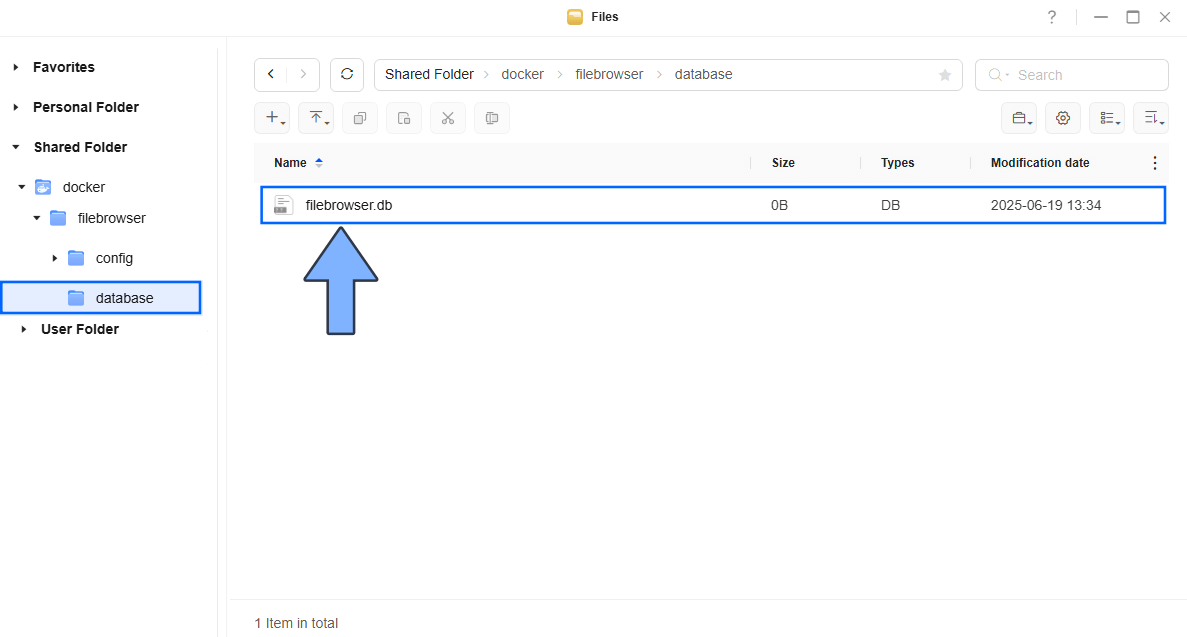
Inside the database folder that you have previously created at STEP 4, upload the filebrowser.db file below. Download it from the blue button below then upload it into your database folder. Follow the instructions in the image below. 🔒Note: Support my work to unlock the password. You can use this password to download any file on mariushosting forever!
STEP 6
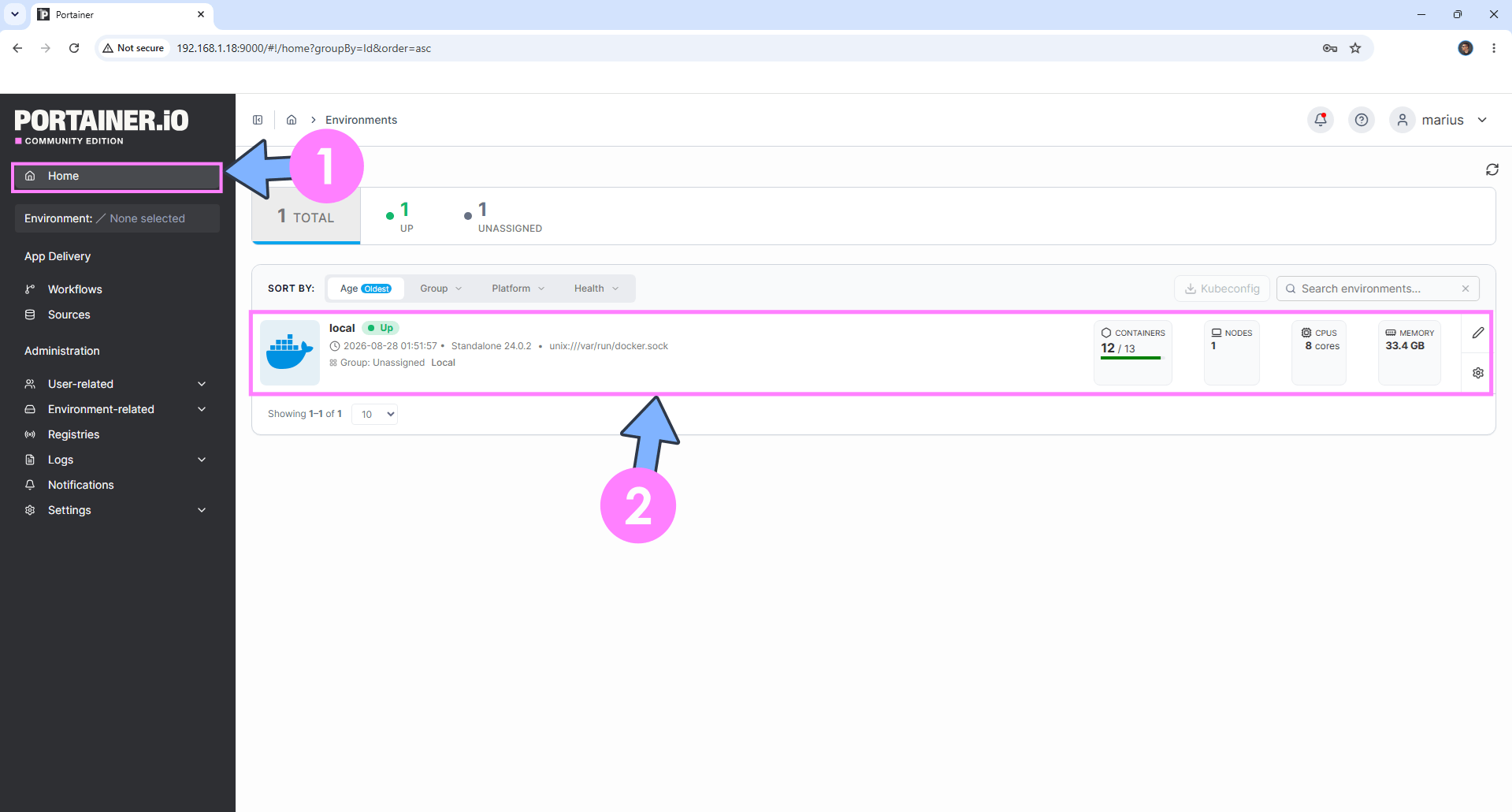
Log into Portainer using your username and password. On the left sidebar in Portainer, click on Home then click inside the local rectangle. Follow the instructions in the image below.
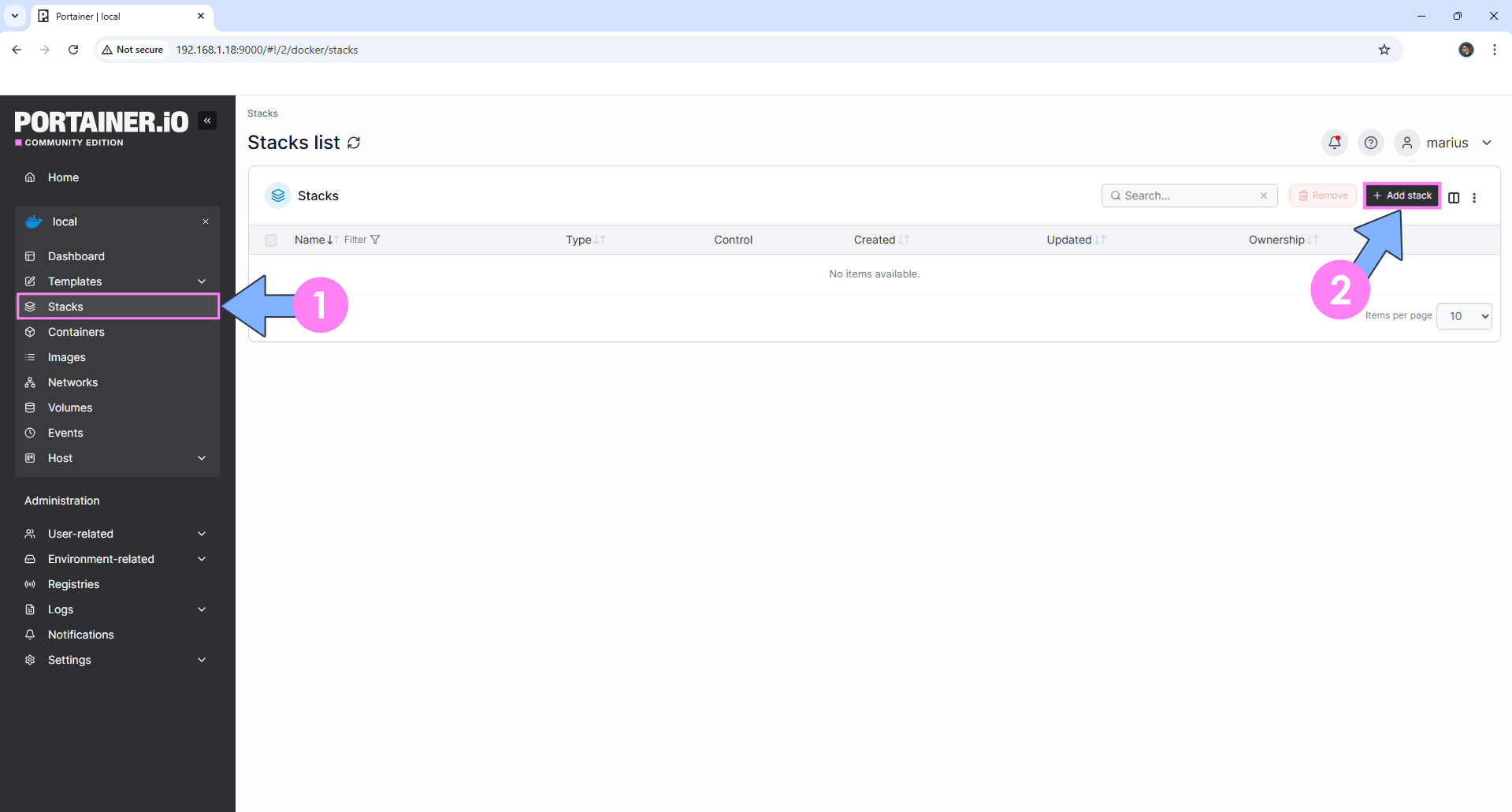
On the left sidebar in Portainer, click on Stacks then + Add stack. Follow the instructions in the image below.
STEP 7
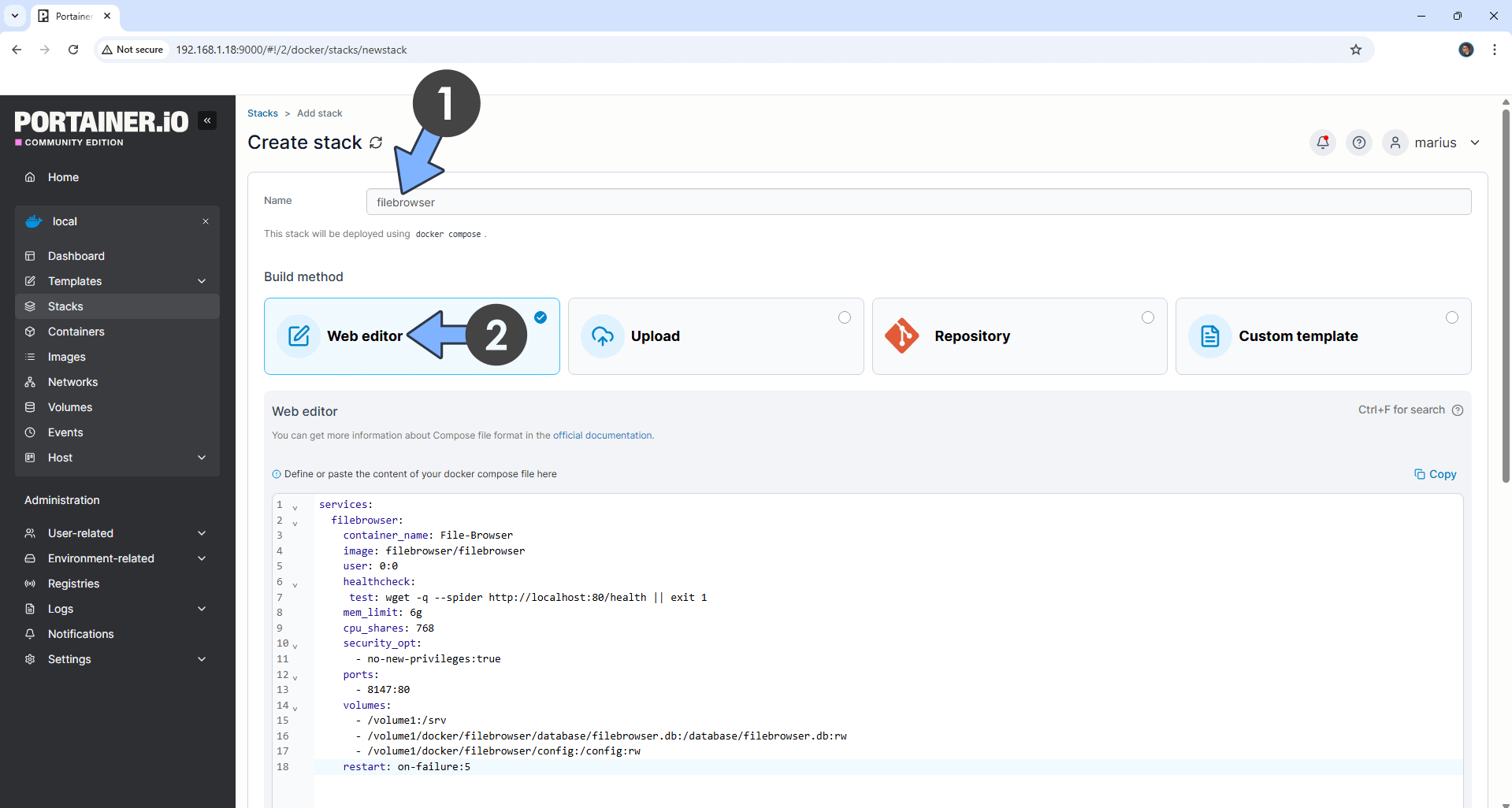
In the Name field, type in filebrowser. Follow the instructions in the image below.
Note: Copy Paste the code below in the Portainer Stacks Web editor.
services:
  filebrowser:
    container_name: File-Browser
    image: filebrowser/filebrowser
    user: 0:0
    healthcheck:
     test: wget -q --spider http://localhost:80/health || exit 1
    mem_limit: 6g
    cpu_shares: 768
    security_opt:
      - no-new-privileges:true
    ports:
      - 8147:80
    volumes:
      - /volume1:/srv
      - /volume1/docker/filebrowser/database/filebrowser.db:/database/filebrowser.db:rw
      - /volume1/docker/filebrowser/config:/config:rw
    restart: on-failure:5
STEP 8
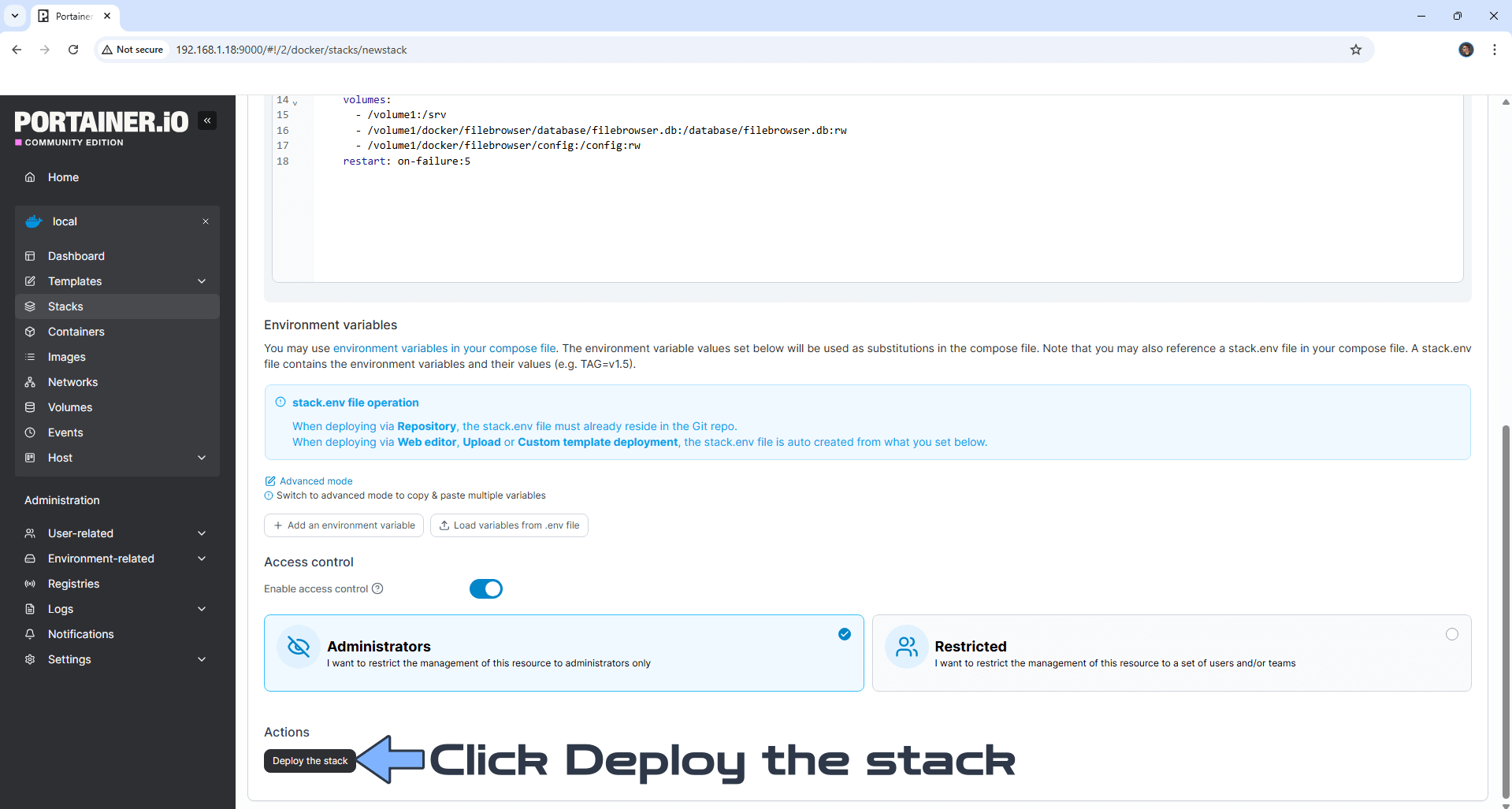
Scroll down on the page until you see a button called Deploy the stack. Click on it. Follow the instructions in the image below. The installation process can take up to a few minutes. It will depend on your Internet speed connection.
STEP 9
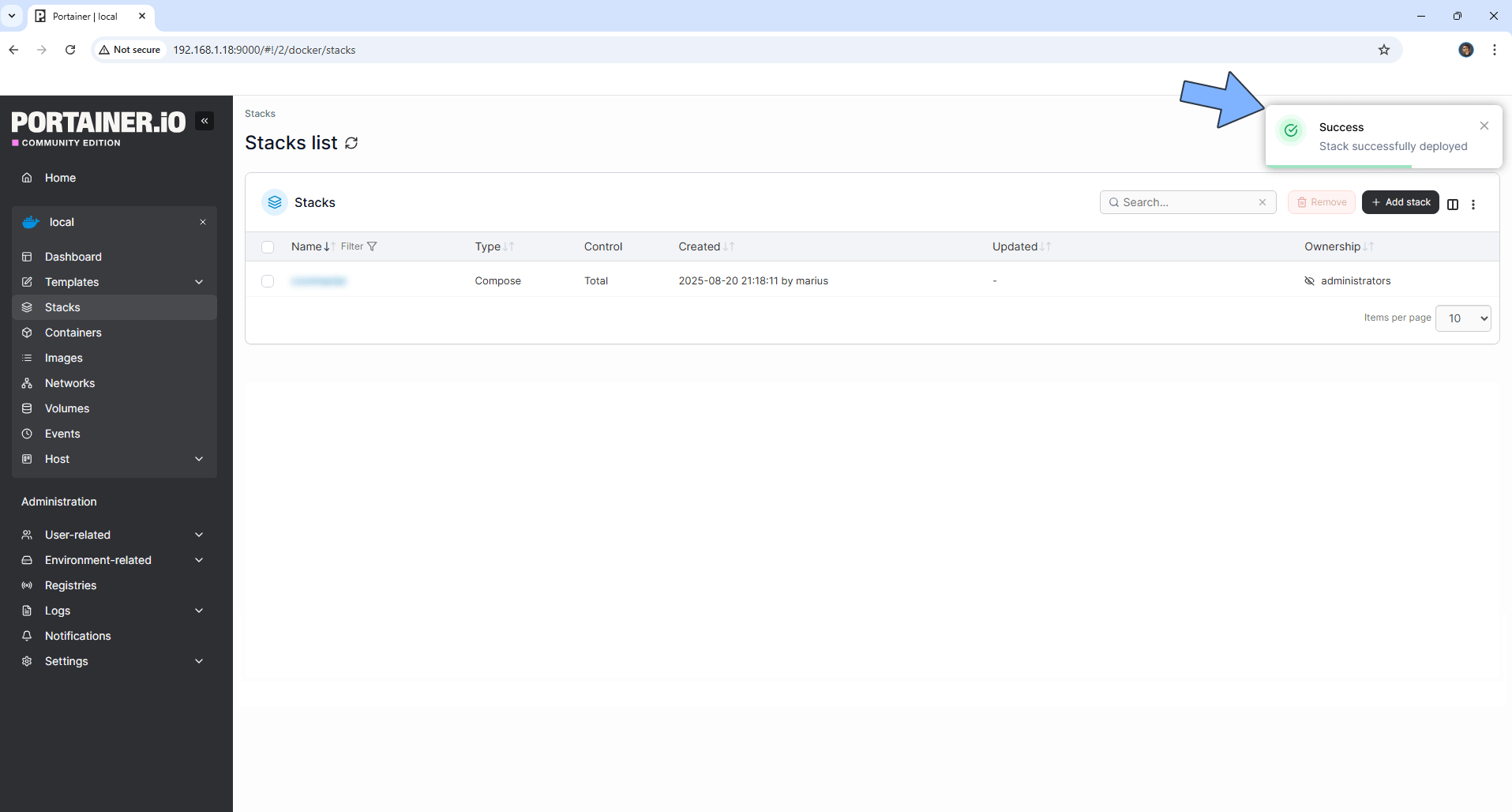
If everything goes right, you will see the following message at the top right of your screen: “Success Stack successfully deployed“.
STEP 10
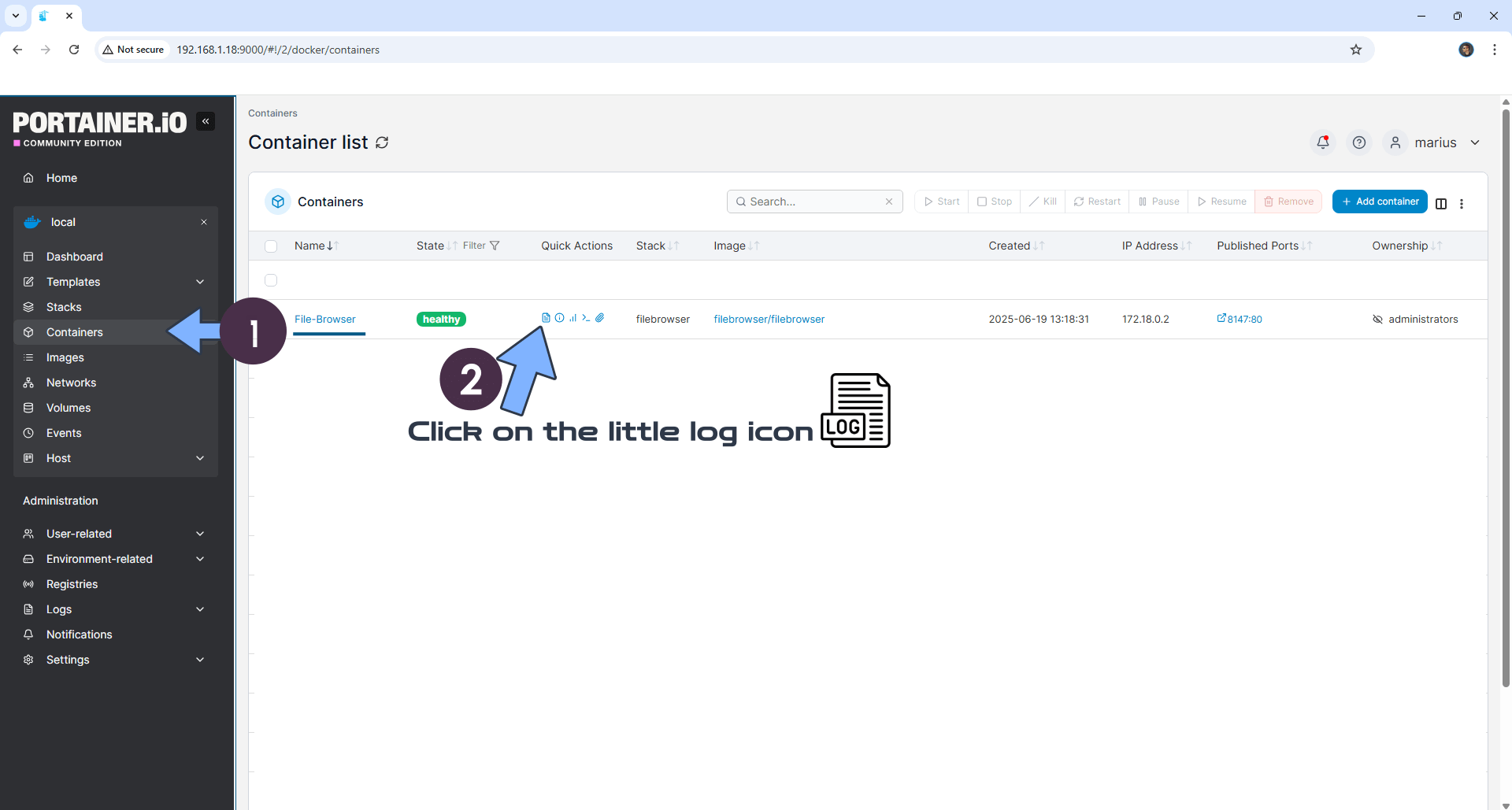
On the left sidebar in Portainer, click Containers. Identify your File-Browser instance, then click on the little log icon. Follow the instructions in the image below.
STEP 11
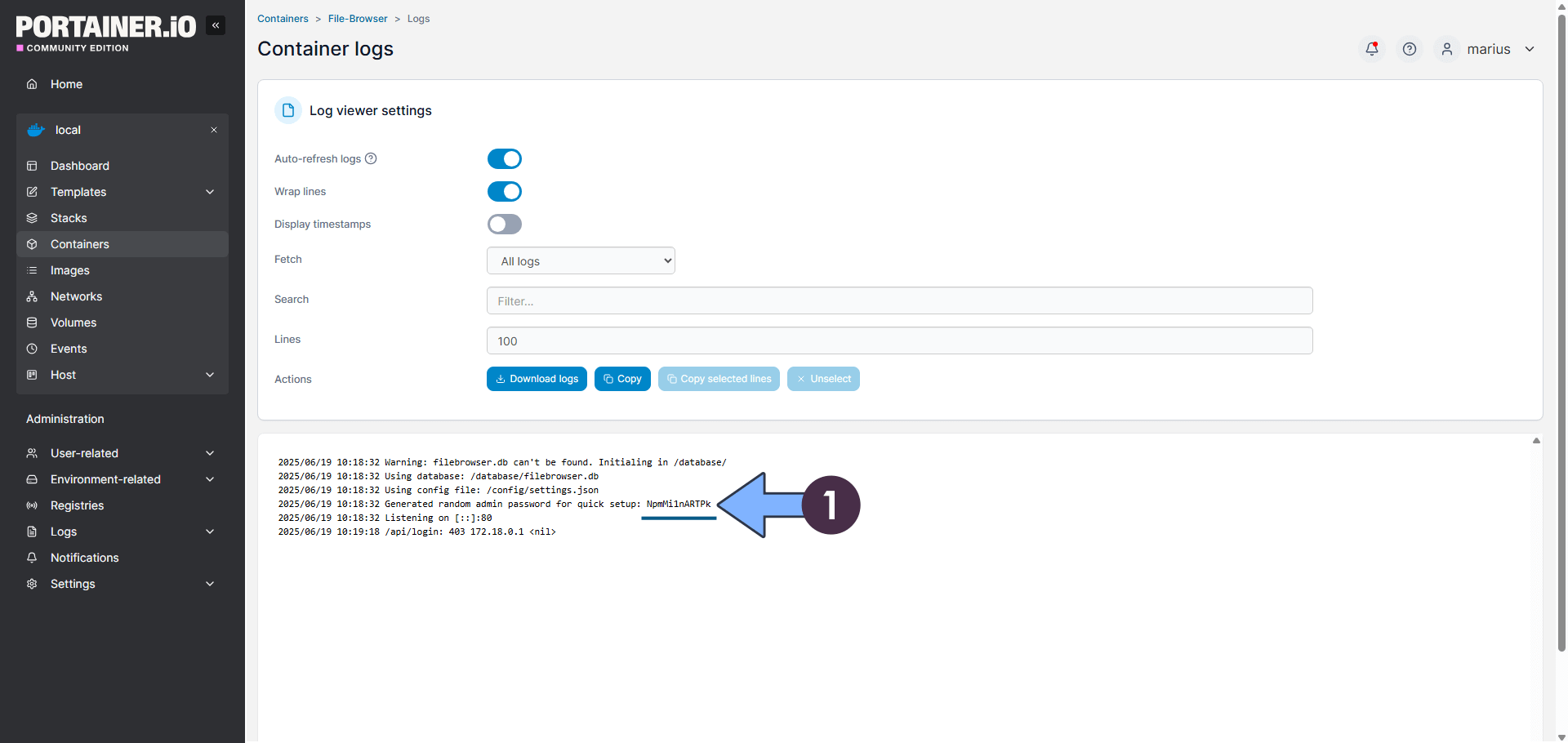
Copy your own random admin password. You will need this password later at STEP 12. Follow the instructions in the image below.
STEP 12
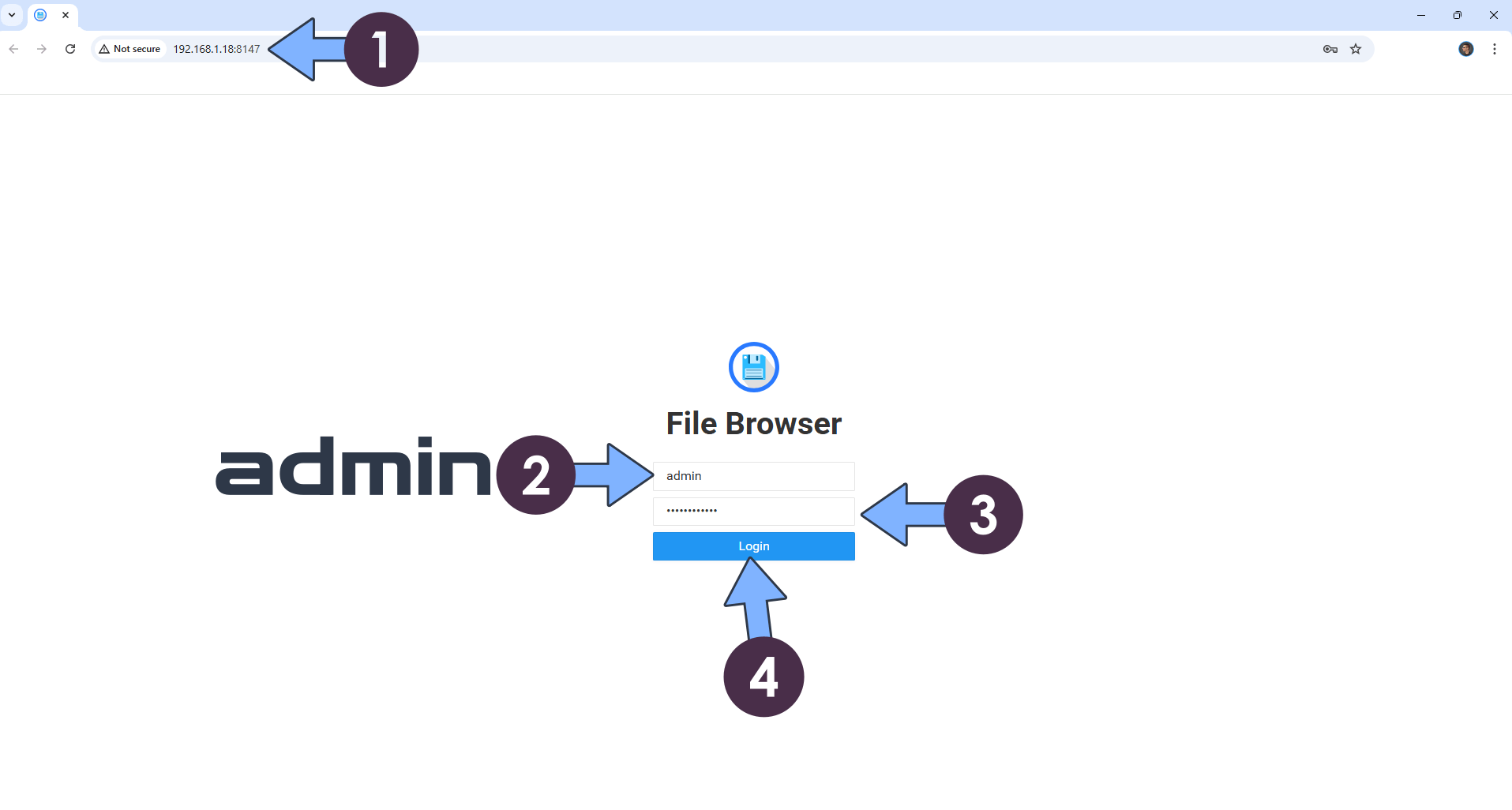
The installation process can take up to a few seconds/minutes. It will depend on your Internet speed connection. Now open your browser and type in http://ugreen-ip-address:8147 Type in the default username and password, then click Login. Follow the instructions in the image below.
⚠️Warning: the default username is admin and the default password is the auto-generated password that you have previously copied at STEP 11
STEP 13
Your File Browser dashboard at a glance!
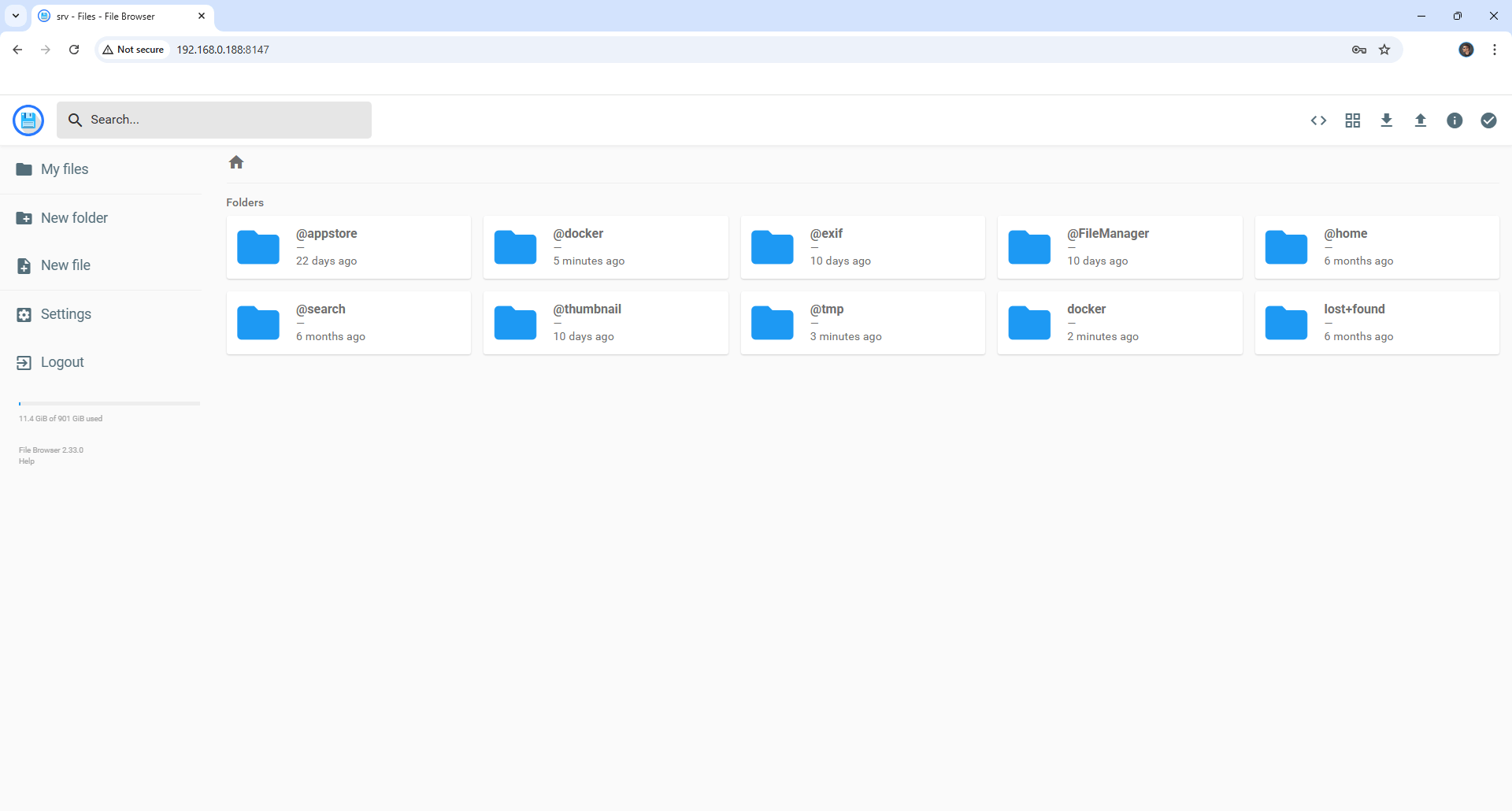
Enjoy File Browser on your UGREEN NAS!
🆘TROUBLESHOOTING
Note: If you want to run the File Browser container over HTTPS, check out How to Run Docker Containers Over HTTPS on Your UGREEN NAS.
🆙Note/Update/Container: How to Update Your Docker Containers on UGREEN NAS Using Portainer.
🐳Note: How to Create Docker Shortcuts on Desktop.
🆕Note: How to Update Portainer to the latest version.
🆕Note: How to Clean Docker.
This post was updated on Monday / October 12th, 2026 at 2:07 AM