
DayGLANCE is a privacy-first day planner app that delivers a beautiful at-a-glance visual overview of your daily schedule through intuitive drag-and-drop time-blocking on a responsive 24-hour timeline. It features a smart inbox for quick task capture, Pomodoro-style focus mode, habit and routine tracking, recurring tasks, and a hierarchy of goals and projects, all while running completely offline with no account required. Fully self-hostable via Docker and available as an installable progressive web app (or native Android/desktop versions), it offers optional end-to-end encrypted sync through WebDAV/Nextcloud or CalDAV, plus seamless integrations with tools like Obsidian. In this step by step guide I will show you how to install DayGLANCE on your Asustor NAS using Docker & Dockhand.
💡Note: This guide works perfectly with the latest DayGLANCE v5.11.0 release.
💡Note: Check out my guide on how to Install DayGLANCE on Your Synology NAS.
💡Note: Check out my new guide on how to Install DayGLANCE on Your UGREEN NAS.
STEP 1
Please Support My work by Making a Donation.
STEP 2
Install Dockhand using my step by step guide. If you already have Dockhand installed on your Asustor NAS, skip this STEP. ⚠️Attention: Make sure you have installed the latest Dockhand version.
STEP 3
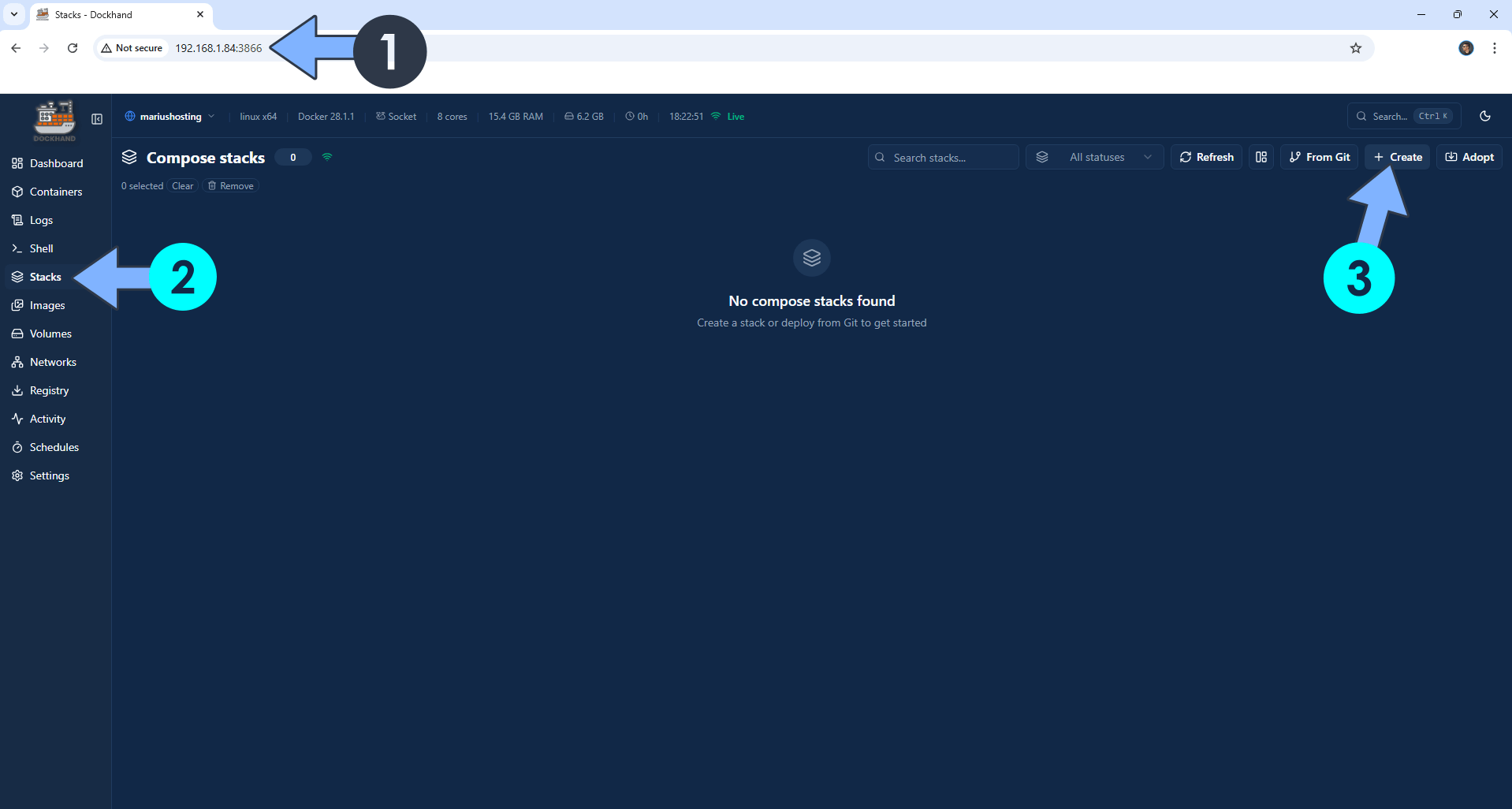
Open your browser and type in http://asustor-ip-address:3866 to connect to your Dockhand container. On the left sidebar, click Stacks then + Create. Follow the instructions in the image below.
STEP 4
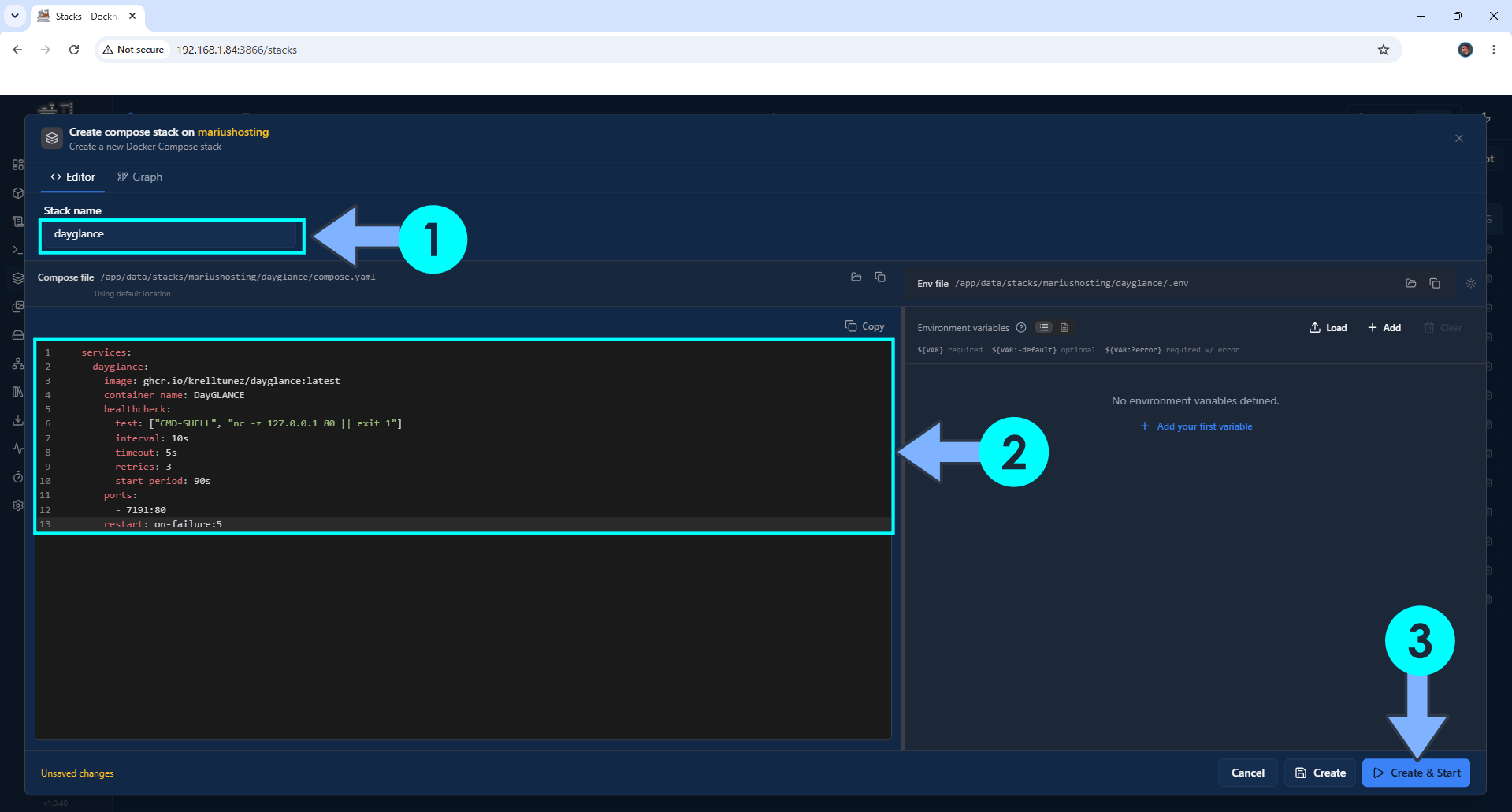
In the Stack name field, type in dayglance. ⚠️Warning: Type in the name in lowercase letters. The installation process can take up to a few seconds/minutes. It will depend on your Internet speed connection. Follow the instructions in the image below.
Note: Copy Paste the code below in the Dockhand Compose Stack then click Create & Start.
services:
  dayglance:
    image: ghcr.io/krelltunez/dayglance:latest
    container_name: DayGLANCE
    healthcheck:
      test: ["CMD-SHELL", "nc -z 127.0.0.1 80 || exit 1"]
      interval: 10s
      timeout: 5s
      retries: 3
      start_period: 90s
    ports:
      - 7191:80
    restart: on-failure:5
STEP 5
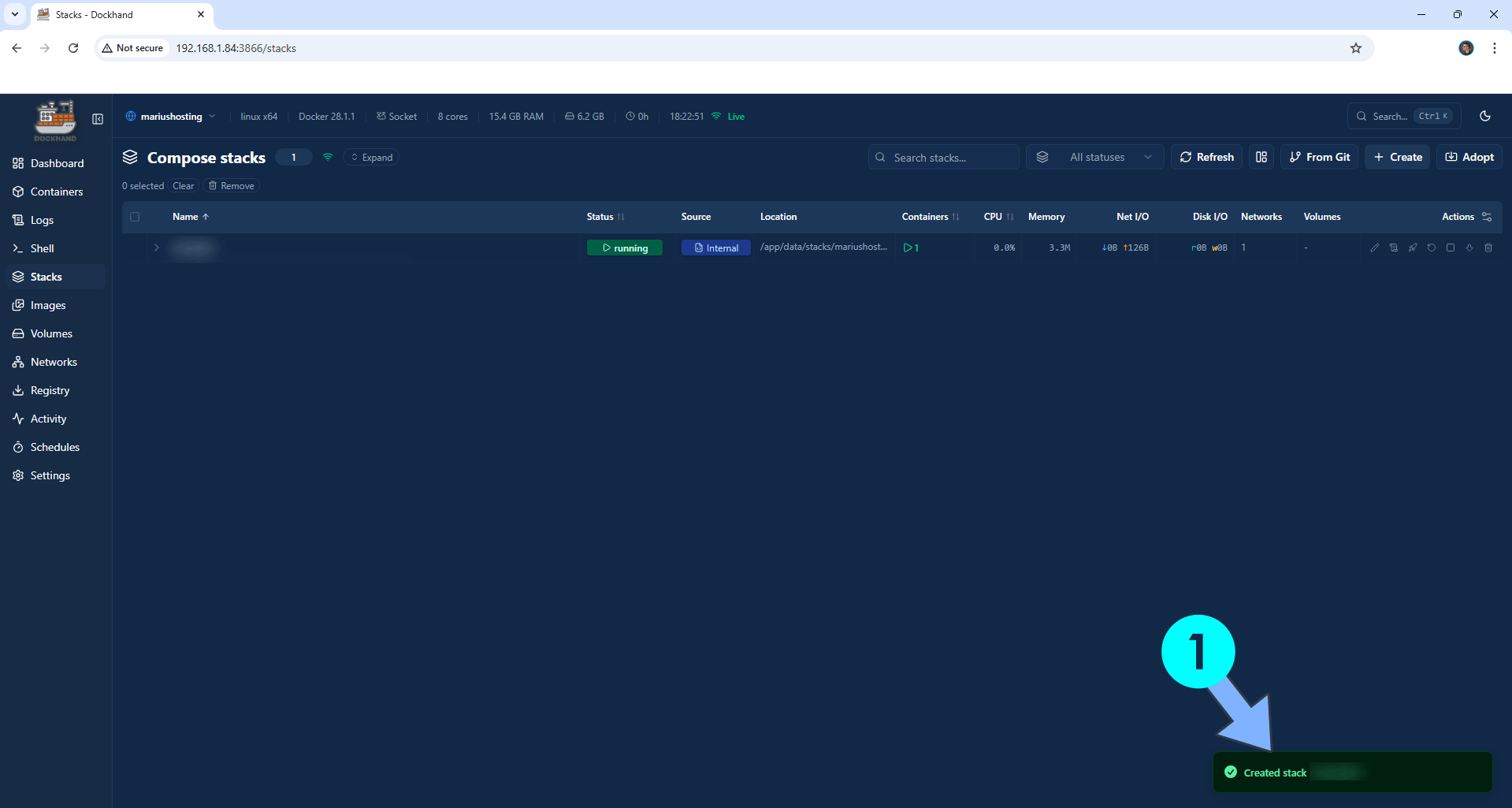
If everything goes right, you will see the following message at the bottom right of your screen: “Created stack “dayglance”“.
STEP 6
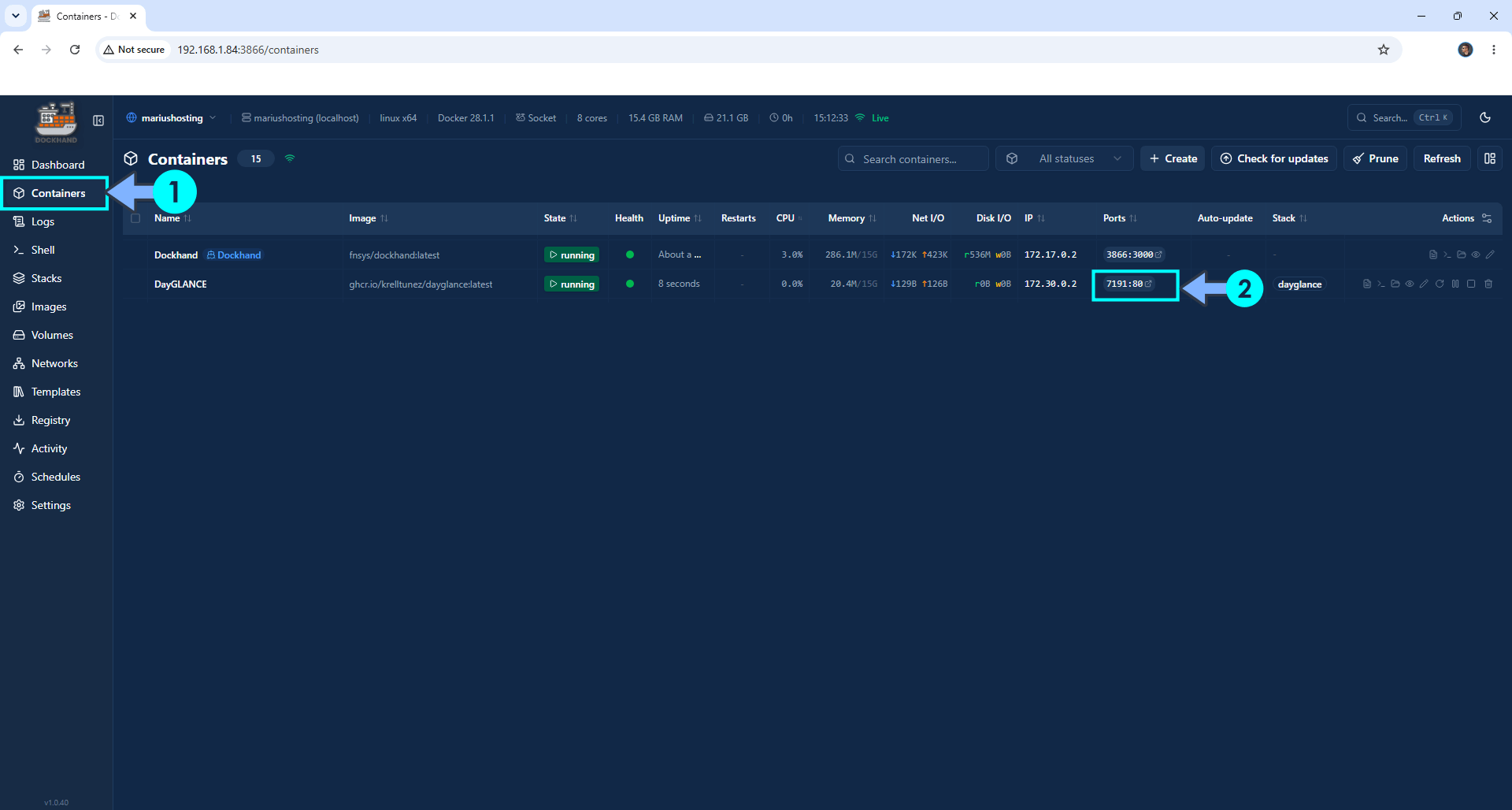
On the left sidebar, click Containers. Identify your Lunarr container then click on ports 7191:80. Follow the instructions in the image below.
STEP 7
🟢Please Support My work by Making a Donation. Almost 99,9% of the people that install something using my guides forget to support my work, or just ignore STEP 1. I’ve been very honest about this aspect of my work since the beginning: I don’t run any ADS, I don’t require subscriptions, paid or otherwise, I don’t collect IPs, emails, and I don’t have any referral links from Amazon or other merchants. I also don’t have any POP-UPs or COOKIES. I have repeatedly been told over the years how much I have contributed to the community. It’s something I love doing and have been honest about my passion since the beginning. But I also Need The Community to Support me Back to be able to continue doing this work.
STEP 8
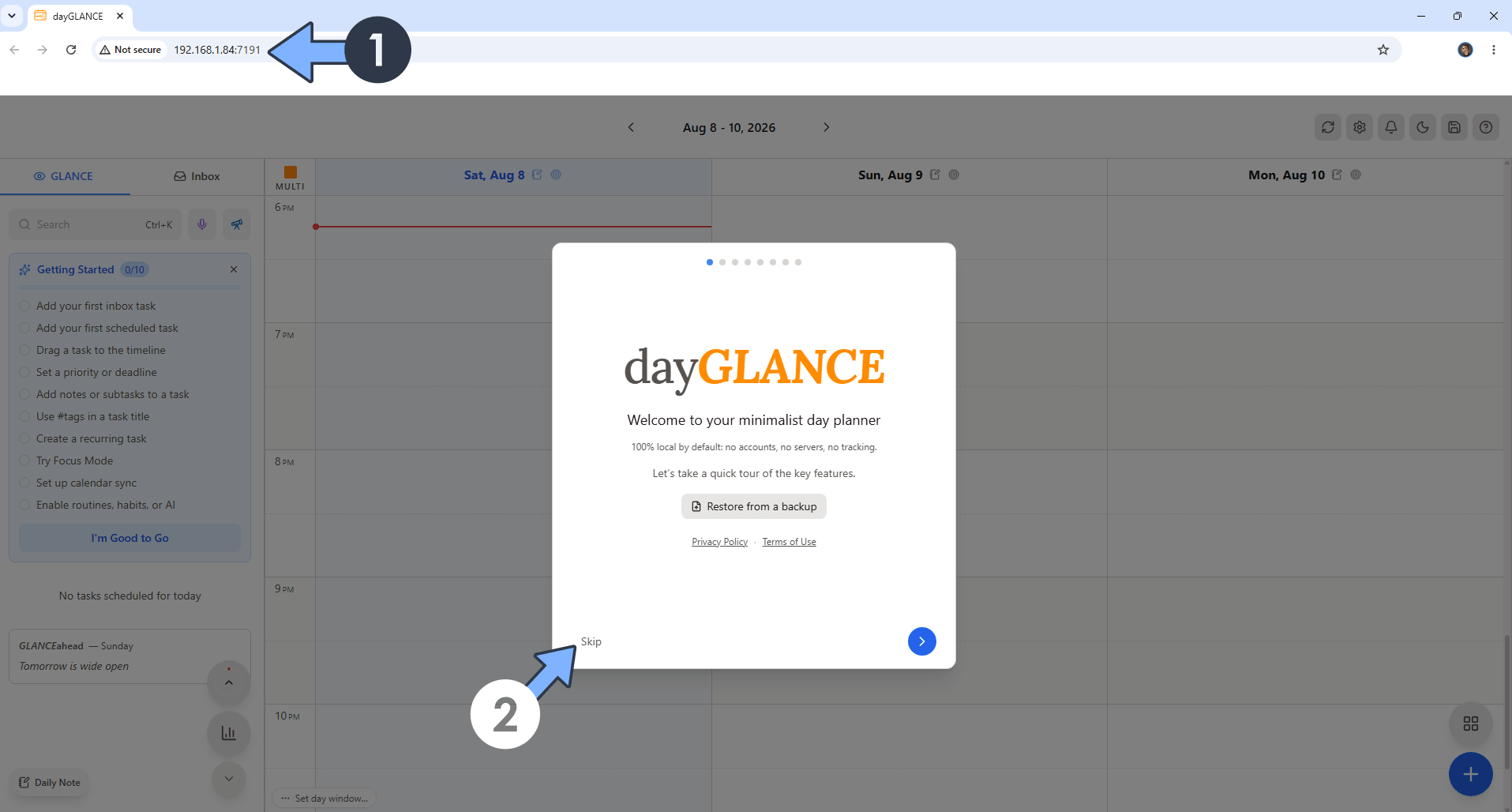
The installation process can take up to a few seconds/minutes. It will depend on your Internet speed connection. Now open your browser and type in http://asustor-ip-address:7191 Click Skip. Follow the instructions in the image below.
STEP 9
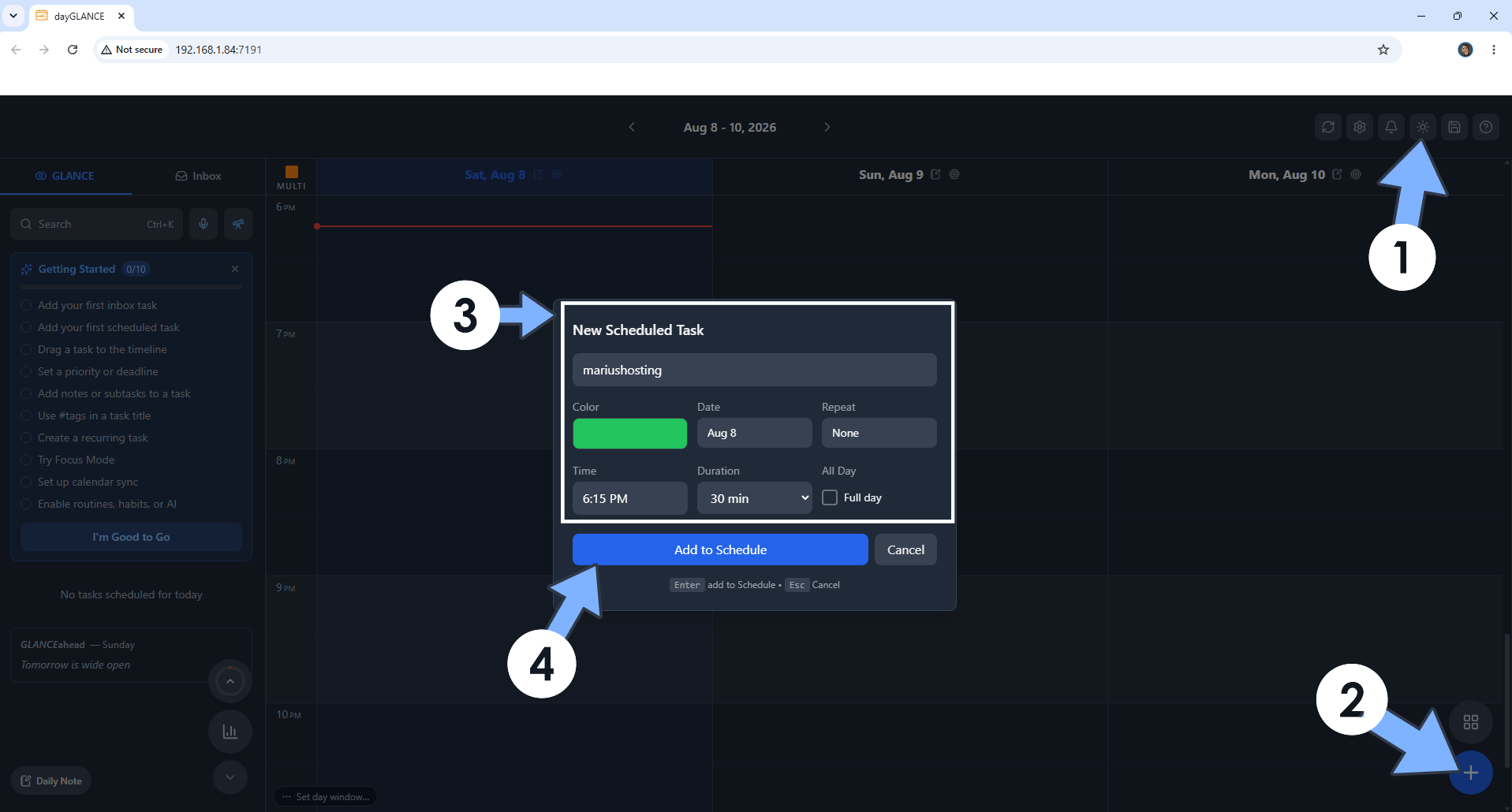
Switch the theme to Dark. Click the + button to add your first schedule. Click Add to Schedule. Follow the instructions in the image below.
STEP 10
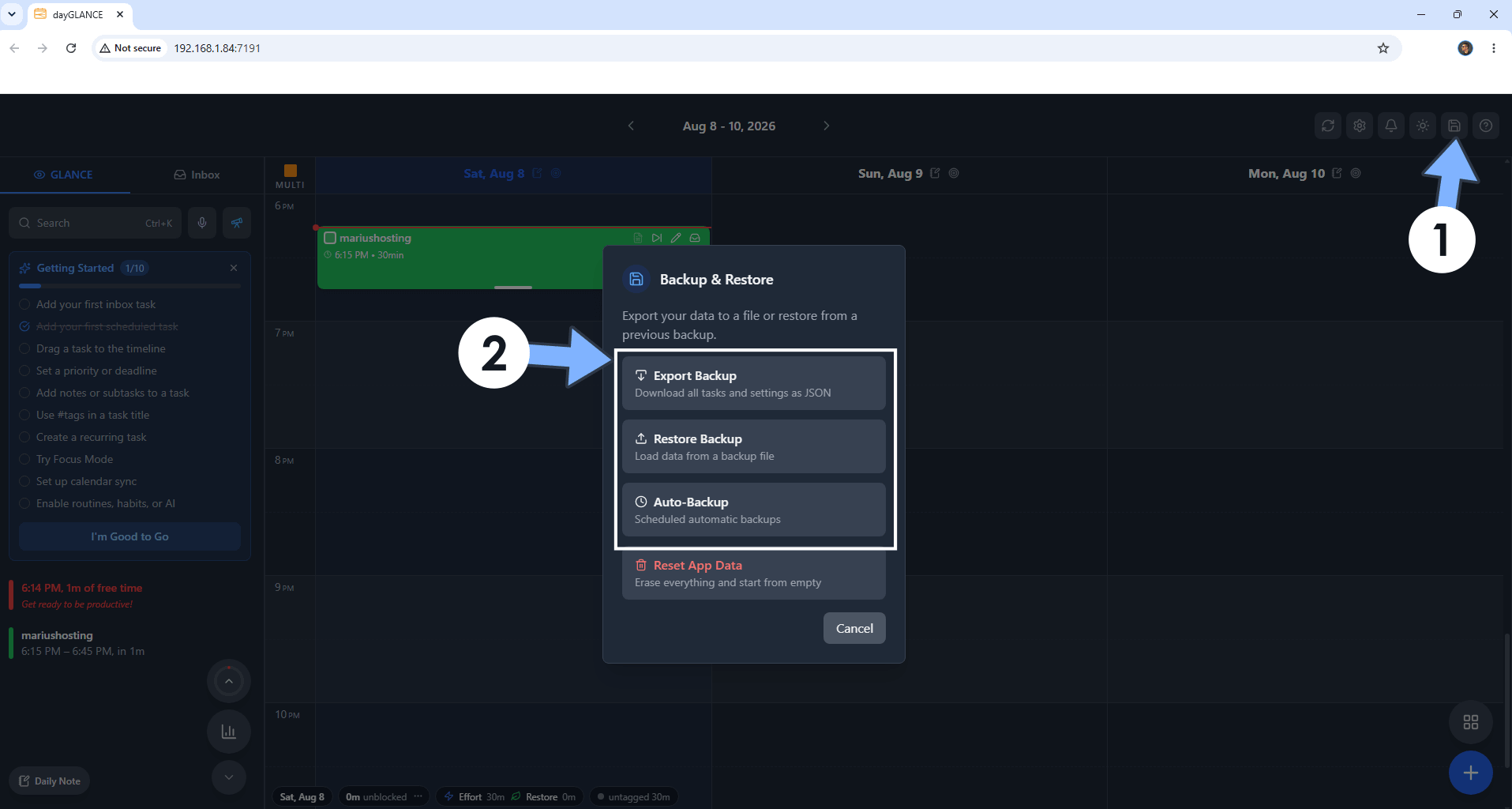
At the top right of the page, click the Backup & Restore icon. You can easily back up your tasks and restore them with one click. Follow the instructions in the image below.
Enjoy dayGLANCE on your Asustor NAS!
This post was updated on Sunday / November 1st, 2026 at 11:13 PM