

Ever spun up 20 or 30 Docker stacks and suddenly hit a wall when trying to deploy just one more? You’re not alone. After a while, both Dockhand and Portainer can throw the same frustrating network error:
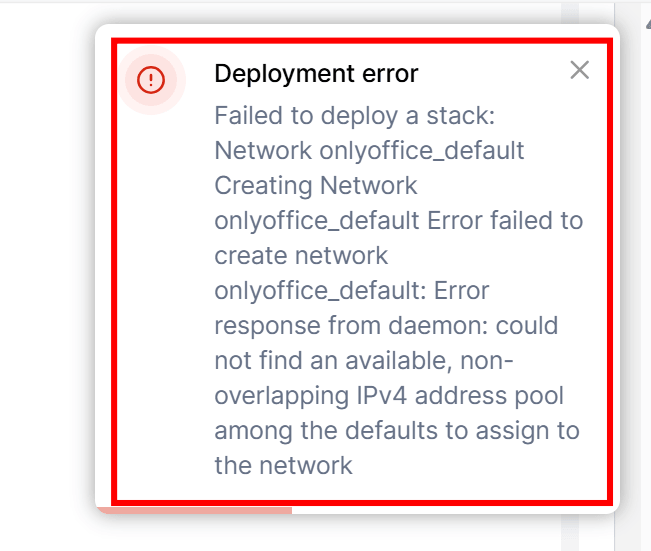
In Portainer:
failed to deploy a stack: … could not find an available, non-overlapping IPv4 address pool among the defaults
In Dockhand:
network:default failed to create network … : all predefined address pools have been fully subnetted
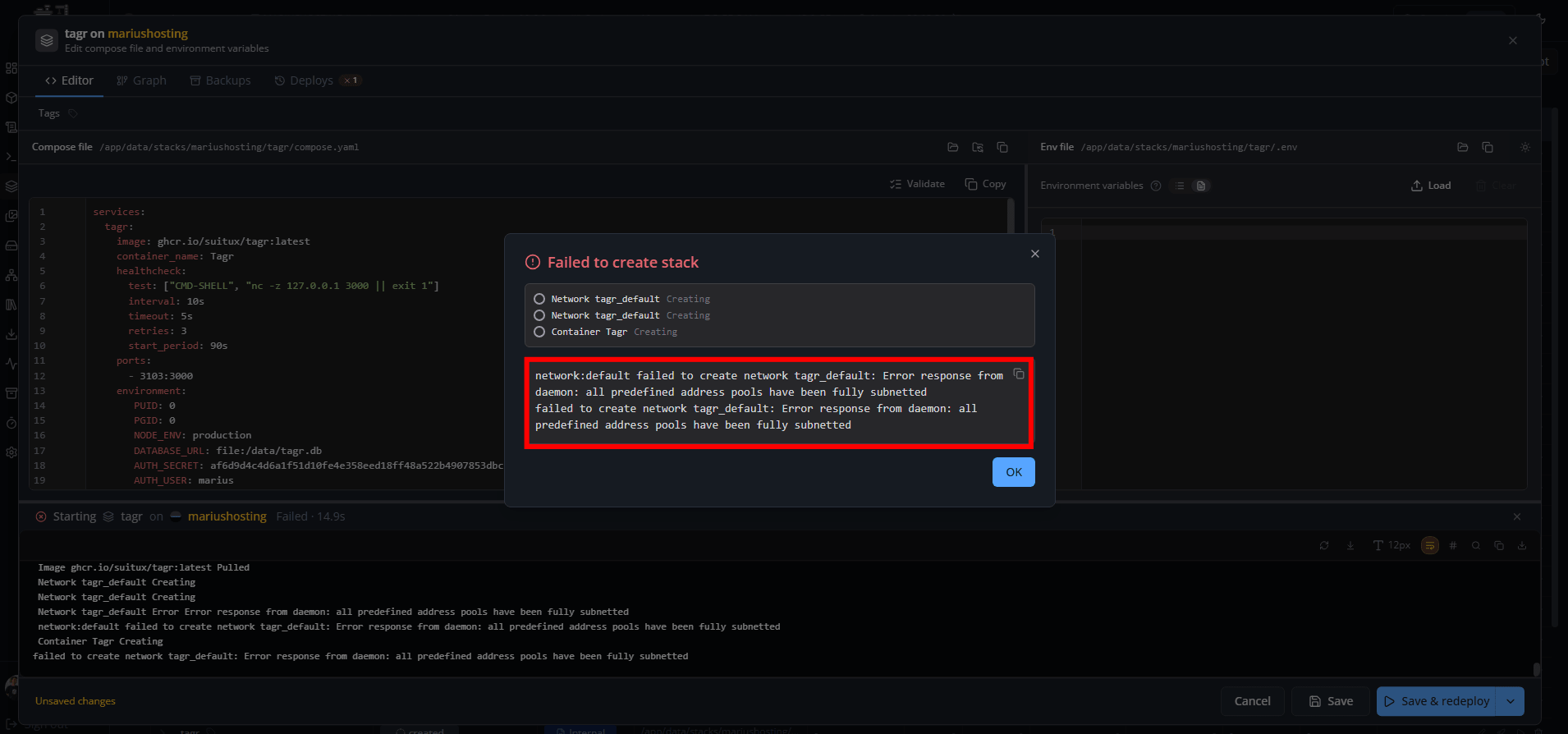
Why this error? Docker has run out of the default IP address ranges it uses for container networks. It can no longer find a free, non-overlapping IPv4 pool, so the new network (and the whole stack) fails to start.
Here’s a very simple, elementary explanation of what to change in your Docker Compose file to fix the error. Docker is trying to create a new network for your stack, but it has no free IP address ranges left. That’s why both Dockhand and Portainer fail.
🛠️The Easy Fix
You will tell Docker: “Don’t use the default (already full) address pool. Use this specific free range instead.” Just add a small networks section at the bottom of your compose stack file, and tell the service to use it.
Let’s take a real example from one of my guides, the Tagr stack at STEP 12:
services:
  tagr:
    image: ghcr.io/suitux/tagr:latest
    container_name: Tagr
    healthcheck:
      test: ["CMD-SHELL", "nc -z 127.0.0.1 3000 || exit 1"]
      interval: 10s
      timeout: 5s
      retries: 3
      start_period: 90s
    ports:
      - 3103:3000
    environment:
       PUID: 0
       PGID: 0
       NODE_ENV: production
       DATABASE_URL: file:/data/tagr.db
       AUTH_SECRET: af6d9d4c4d6a1f51d10fe4e358eed18ff48a522b4907853dbcd14c0185527cb4
       AUTH_USER: marius
       AUTH_PASSWORD: mariushosting
       AUTH_URL: https://tagr.yourname.synology.me
       TAGR_INSIGHTS: false
    volumes:
      - /volume1/docker/tagr:/data:rw
      - /volume1/music:/music:rw #Your folder path - /volume1/etc or - /volume2/etc followed by :/music:rw
    restart: on-failure:5
Here’s the tagr compose stack with the small changes to fix the issue:
services:
  tagr:
    image: ghcr.io/suitux/tagr:latest
    container_name: Tagr
    healthcheck:
      test: ["CMD-SHELL", "nc -z 127.0.0.1 3000 || exit 1"]
      interval: 10s
      timeout: 5s
      retries: 3
      start_period: 90s
    ports:
      - 3103:3000
    environment:
      PUID: 0
      PGID: 0
      NODE_ENV: production
      DATABASE_URL: file:/data/tagr.db
      AUTH_SECRET: af6d9d4c4d6a1f51d10fe4e358eed18ff48a522b4907853dbcd14c0185527cb4
      AUTH_USER: marius
      AUTH_PASSWORD: mariushosting
      AUTH_URL: https://tagr.yourname.synology.me
      TAGR_INSIGHTS: false
    volumes:
      - /volume1/docker/tagr:/data:rw
      - /volume1/music:/music:rw
    restart: on-failure:5
    networks:
      - tagr

networks:
  tagr:
    driver: bridge
    ipam:
      config:
        - subnet: 172.50.0.0/16
networks: – tagr tells the container to use your custom created network. You can change tagr to any name you like (usually matching your container/stack name).
The networks: section at the bottom creates a new network that uses the IP range 172.50.0.0/16 instead of the exhausted default ones. If 172.50.0.0/16 is already in use, simply try another free range such as 172.40.0.0/16, 172.60.0.0/16, 172.70.0.0/16, etc. Just change the number in the middle (50, 40, 60, 70) of the address. Important: The structure of the networks section (the lines you see highlighted in pink) must stay exactly the same for every container. Do not change the format. Change only the network name and the subnet number if needed.
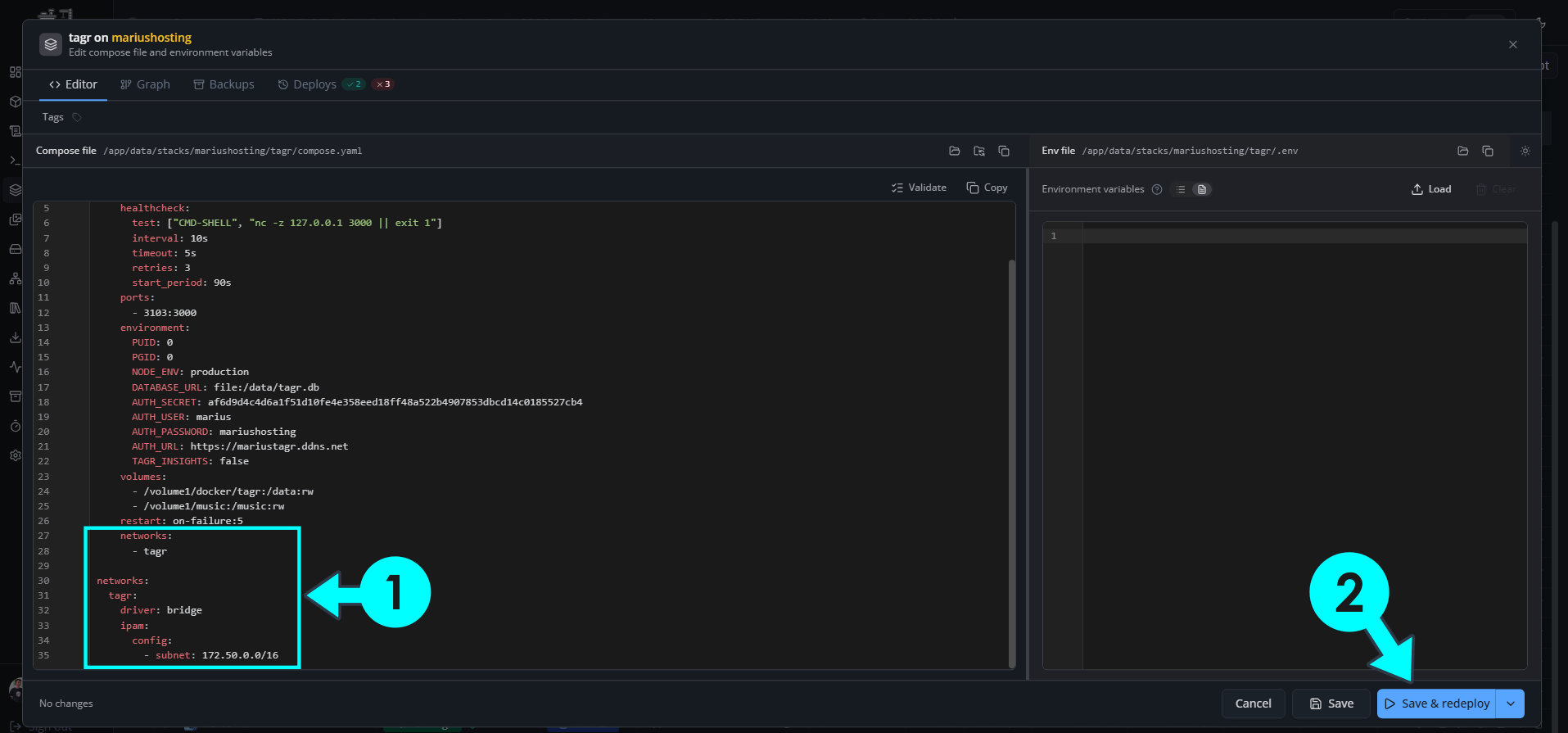
Note: That’s all you need. Deploy the stack again. The error should disappear and the container will start, no matter how many stacks you already have running.
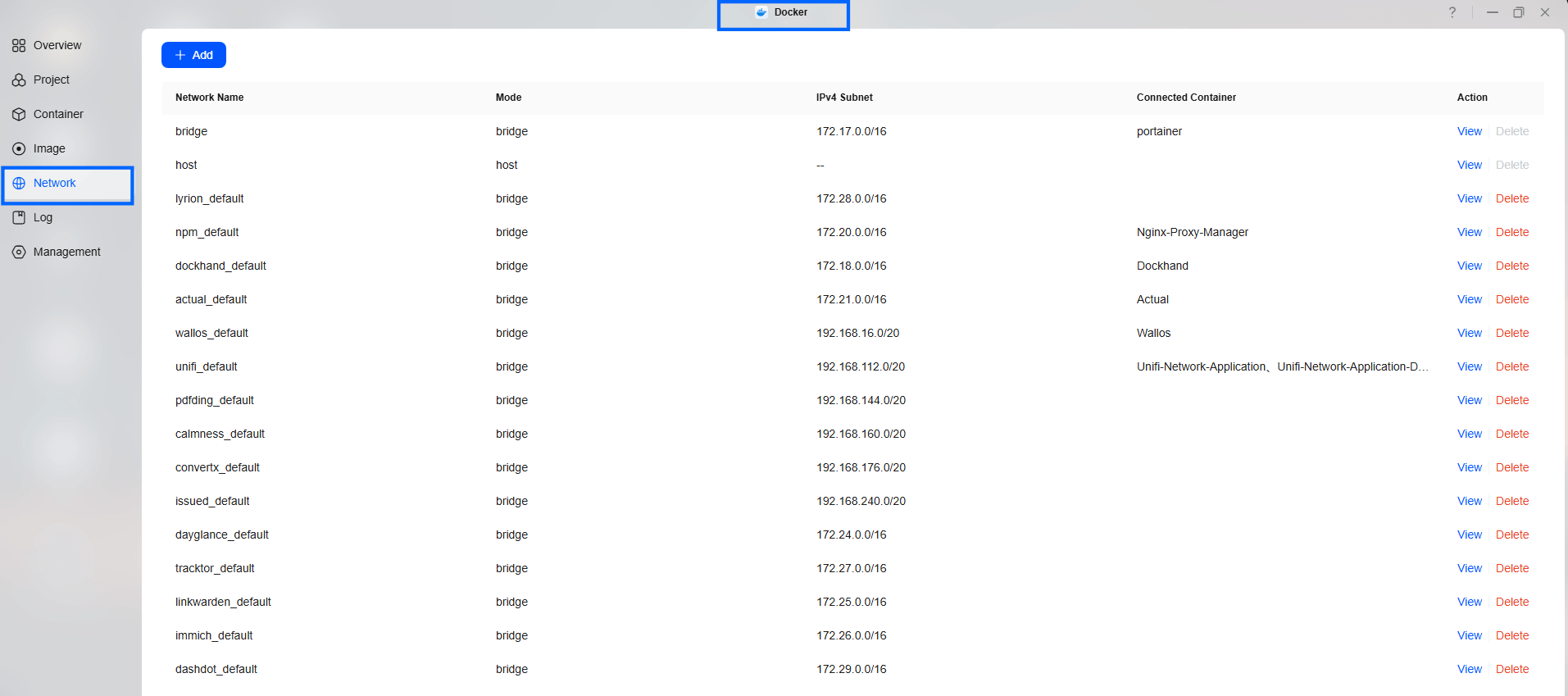
To check a free network in Synology, open the Docker app, aka Container manager / left sidebar / Network.
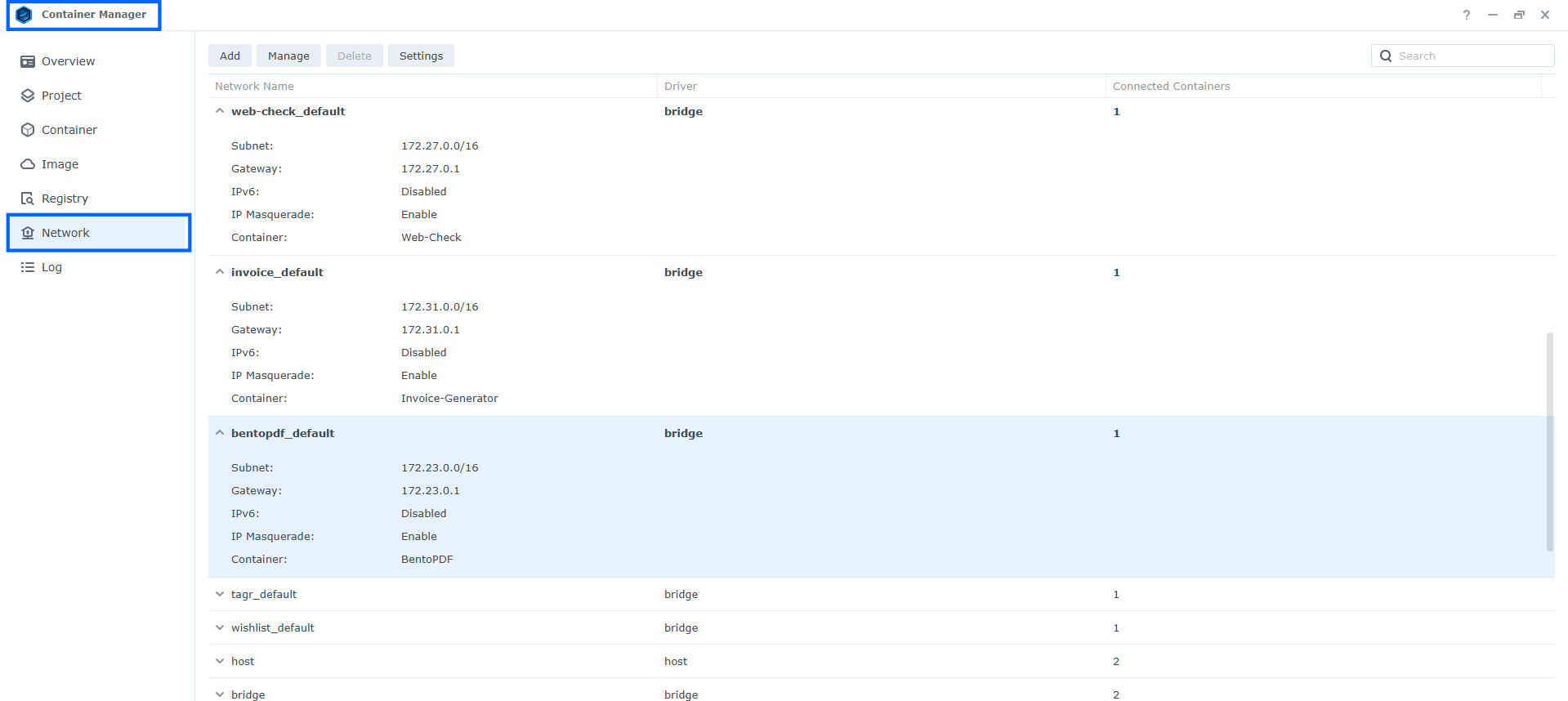
To check a free network in UGREEN, open the Docker app / left sidebar / Network.
💡Compose Stack has More Than One Container
If the stack has more than one container (example: Paperless-NGX at STEP 13), you must add the same custom network under every service, otherwise the containers will not be able to talk to each other. In the example above I added
networks:
 - paperlessngx
under all 5 services (redis, db, gotenberg, tika and paperless). Then I defined the network only once at the bottom of the file. This way Docker creates one free network and all containers join it, so they can still communicate using their hostnames (paper-redis, paper-db, gotenberg, tika).
services:
  redis:
    image: redis:8
    command:
      - /bin/sh
      - -c
      - redis-server --requirepass redispass
    container_name: PaperlessNGX-REDIS
    hostname: paper-redis
    security_opt:
      - no-new-privileges:true
    read_only: true
    user: 1026:100
    healthcheck:
      test: ["CMD-SHELL", "redis-cli ping || exit 1"]
    volumes:
      - /volume1/docker/paperlessngx/redis:/data:rw
    environment:
      TZ: Europe/Bucharest
    restart: on-failure:5
    networks:
      - paperlessngx

  db:
    image: postgres:18
    container_name: PaperlessNGX-DB
    hostname: paper-db
    security_opt:
      - no-new-privileges:true
    healthcheck:
      test: ["CMD", "pg_isready", "-q", "-d", "paperless", "-U", "paperlessuser"]
      timeout: 45s
      interval: 10s
      retries: 10
    volumes:
      - /volume1/docker/paperlessngx/db:/var/lib/postgresql:rw
    environment:
      POSTGRES_DB: paperless
      POSTGRES_USER: paperlessuser
      POSTGRES_PASSWORD: paperlesspass
    restart: on-failure:5
    networks:
      - paperlessngx

  gotenberg:
    image: gotenberg/gotenberg:latest
    container_name: PaperlessNGX-GOTENBERG
    hostname: gotenberg
    security_opt:
      - no-new-privileges:true
    user: 1026:100
    command:
      - "gotenberg"
      - "--chromium-disable-javascript=true"
      - "--chromium-allow-list=file:///tmp/.*"
    restart: on-failure:5
    networks:
      - paperlessngx

  tika:
    image: docker.io/apache/tika:3.3.1.0 #or docker.io/apache/tika:3.3.1.0-full if you get tika errors in the logs.
    container_name: PaperlessNGX-TIKA
    hostname: tika
    security_opt:
      - no-new-privileges:true
    user: 1026:100
    restart: on-failure:5
    networks:
      - paperlessngx

  paperless:
    image: ghcr.io/paperless-ngx/paperless-ngx:latest
    container_name: PaperlessNGX
    hostname: paperless-ngx
    security_opt:
      - no-new-privileges:true
    healthcheck:
      test: ["CMD", "curl", "-fs", "-S", "--max-time", "2", "http://localhost:8000"]
      interval: 30s
      timeout: 10s
      retries: 5
    ports:
      - 8777:8000
    volumes:
      - /volume1/docker/paperlessngx/data:/usr/src/paperless/data:rw
      - /volume1/docker/paperlessngx/media:/usr/src/paperless/media:rw
      - /volume1/docker/paperlessngx/export:/usr/src/paperless/export:rw
      - /volume1/docker/paperlessngx/consume:/usr/src/paperless/consume:rw
      - /volume1/docker/paperlessngx/trash:/usr/src/paperless/trash:rw
    environment:
      PAPERLESS_REDIS: redis://:redispass@paper-redis:6379
      PAPERLESS_DBENGINE: postgresql
      PAPERLESS_DBHOST: paper-db
      PAPERLESS_DBNAME: paperless
      PAPERLESS_DBUSER: paperlessuser
      PAPERLESS_DBPASS: paperlesspass
      PAPERLESS_EMPTY_TRASH_DIR: ../trash
      PAPERLESS_FILENAME_FORMAT: '{{ created_year }}/{{ correspondent }}/{{ document_type }}/{{ title }}'
      PAPERLESS_OCR_ROTATE_PAGES_THRESHOLD: 6
      PAPERLESS_TASK_WORKERS: 1
      PAPERLESS_CONSUMER_POLLING_INTERVAL: 10
      USERMAP_UID: 1026
      USERMAP_GID: 100
      PAPERLESS_SECRET_KEY: dOxZYTTZgXKMHkqLBIQVImayQXAVWdzGBPuFJKggzcgvgPJPXpWzqzKaUOIOGGIr
      PAPERLESS_TIME_ZONE: Europe/Bucharest
      PAPERLESS_ADMIN_USER: marius
      PAPERLESS_ADMIN_PASSWORD: mariushosting
      PAPERLESS_URL: https://paperlessngx.yourname.synology.me
      PAPERLESS_CSRF_TRUSTED_ORIGINS: https://paperlessngx.yourname.synology.me
      PAPERLESS_OCR_LANGUAGE: deu+eng
      PAPERLESS_TIKA_ENABLED: 1
      PAPERLESS_TIKA_GOTENBERG_ENDPOINT: http://gotenberg:3000
      PAPERLESS_TIKA_ENDPOINT: http://tika:9998
    restart: on-failure:5
    depends_on:
      db:
        condition: service_healthy
      redis:
        condition: service_healthy
      tika:
        condition: service_started
      gotenberg:
        condition: service_started
     networks:
      - paperlessngx

networks:
  paperlessngx:
    driver: bridge
    ipam:
      config:
        - subnet: 172.50.0.0/16
You can change paperlessngx to any name you like (usually the same as the stack name) and change the middle number of the subnet (172.50.0.0/16) to another free range such as 172.40.0.0/16, 172.60.0.0/16, 172.70.0.0/16, etc. Just change the number in the middle (50, 40, 60, 70) of the address. Important: The structure of the networks section (the lines you see highlighted in pink) must stay exactly the same for every container. Do not change the format. Change only the network name and the subnet number if needed.
This post was updated on Saturday / October 17th, 2026 at 10:56 AM