

Running Docker on a Synology, UGREEN and Asustor NAS is incredibly useful: you can host media servers, databases, dashboards, and dozens of other services with ease. Over time, however, Docker accumulates a large number of unused images, intermediate layers, and dangling tags. These leftovers quietly eat away at your precious storage on your NAS device. Dockhand makes cleaning them up simple and safe. I run several Docker containers on my NAS (media servers, cms with wordpress, databases, monitoring tools, etc.) and I make it a habit to clean up unused images every couple of weeks. After testing new stacks or updating containers, the Images list quickly fills with old and unused layers. The last time I clicked Prune unused I reclaimed 1.7 GB in just a few seconds and the process was completely painless. No containers were affected, nothing broke, and my storage usage dropped immediately. Since I started doing this regularly, I’ve never had to worry about running out of space during a big image pull or stack update. It’s one of those small maintenance tasks that takes almost no time but makes a real difference in the long run. I highly recommend adding it to your routine.
STEP 1
Please Support My work by Making a Donation.
STEP 2
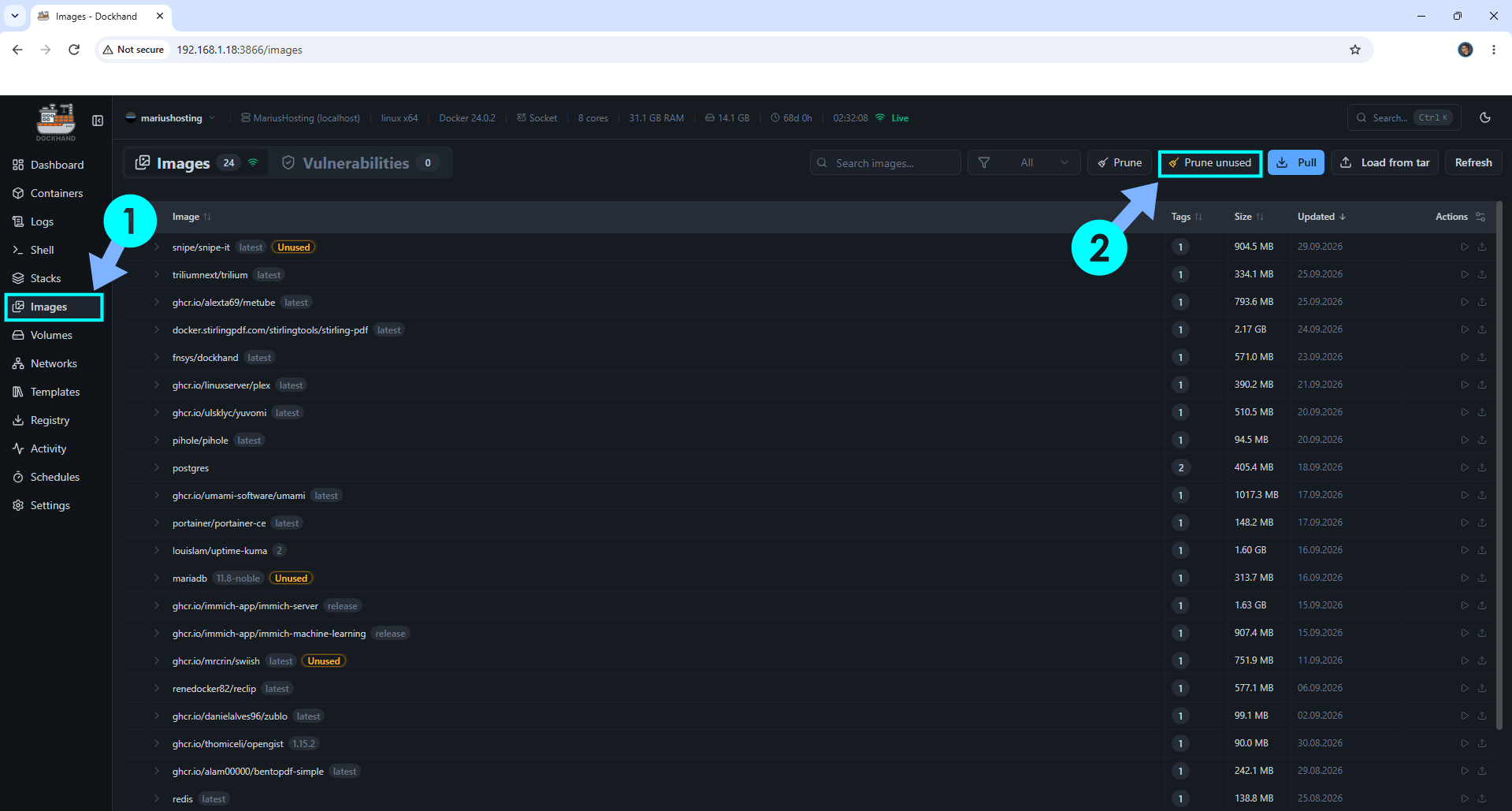
Open Dockhand and go to the Images section in the left sidebar. You will see a list of all Docker images currently stored on your NAS. Some of them may already be marked as Unused. Click the Prune unused button located in the top-right toolbar. Follow the instructions in the image below.
STEP 3
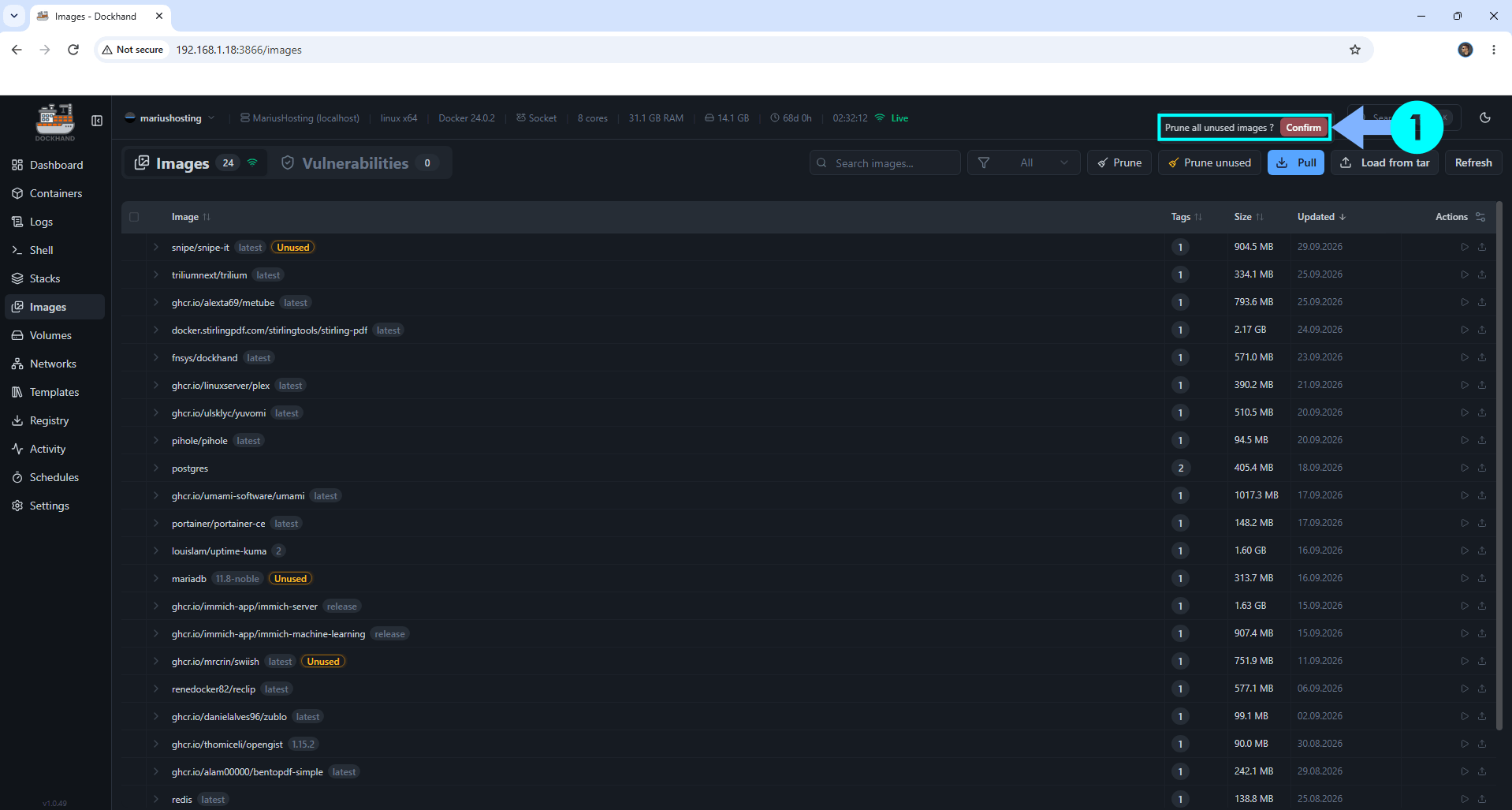
A confirmation dialog appears asking “Prune all unused images?”. Click the red Confirm button. Follow the instructions in the image below.
STEP 4
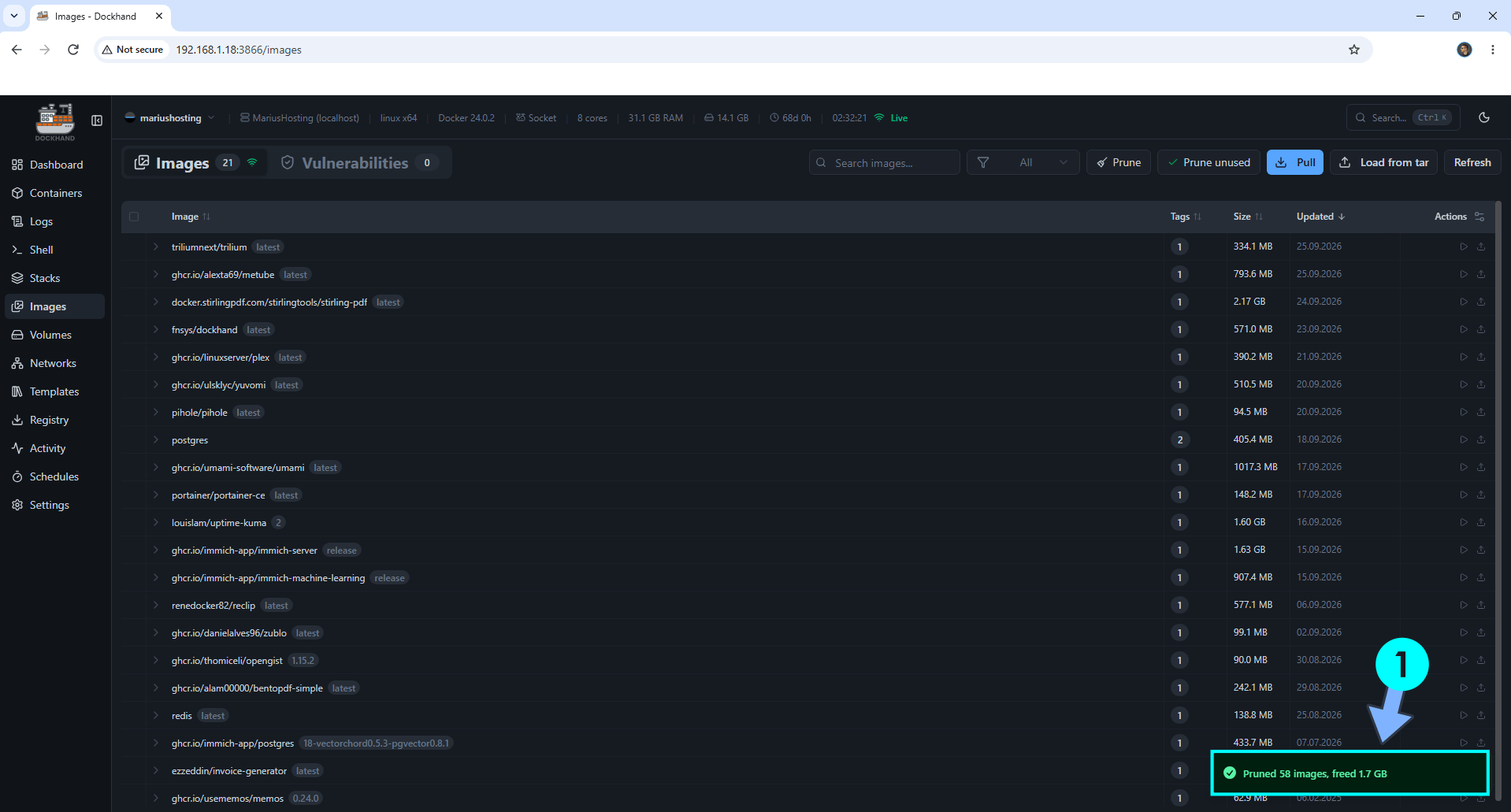
Dockhand removes every image that is not currently used by any container. When the process finishes, you will see a green success message, for example, in my case: “Pruned 58 images, freed 1.7 GB”.
This post was updated on Thursday / October 1st, 2026 at 11:46 AM