
LastGLANCE is a progressive web app that tracks the recency of completed chores and recurring tasks, answering the simple question “when did I last do this?” without rigid schedules or guilt. It displays tasks in a freeform masonry layout with color-coded indicators (green-to-red gradient) based on how long it’s been since completion, optional target intervals for overdue sorting, collapsible categories, GitHub-style activity heatmaps, per-item history and stats, backdating, seasonal support, optional browser notifications, and privacy-focused end-to-end encrypted cloud sync via WebDAV or Nextcloud, all with full offline PWA capabilities. In this step by step guide I will show you how to install LastGLANCE on your UGREEN NAS using Docker & Portainer.
STEP 1
Please Support My work by Making a Donation.
STEP 2
Install Portainer using my step by step guide. If you already have Portainer installed on your UGREEN NAS, skip this STEP. Attention: Make sure you have installed the latest Portainer version.
STEP 3
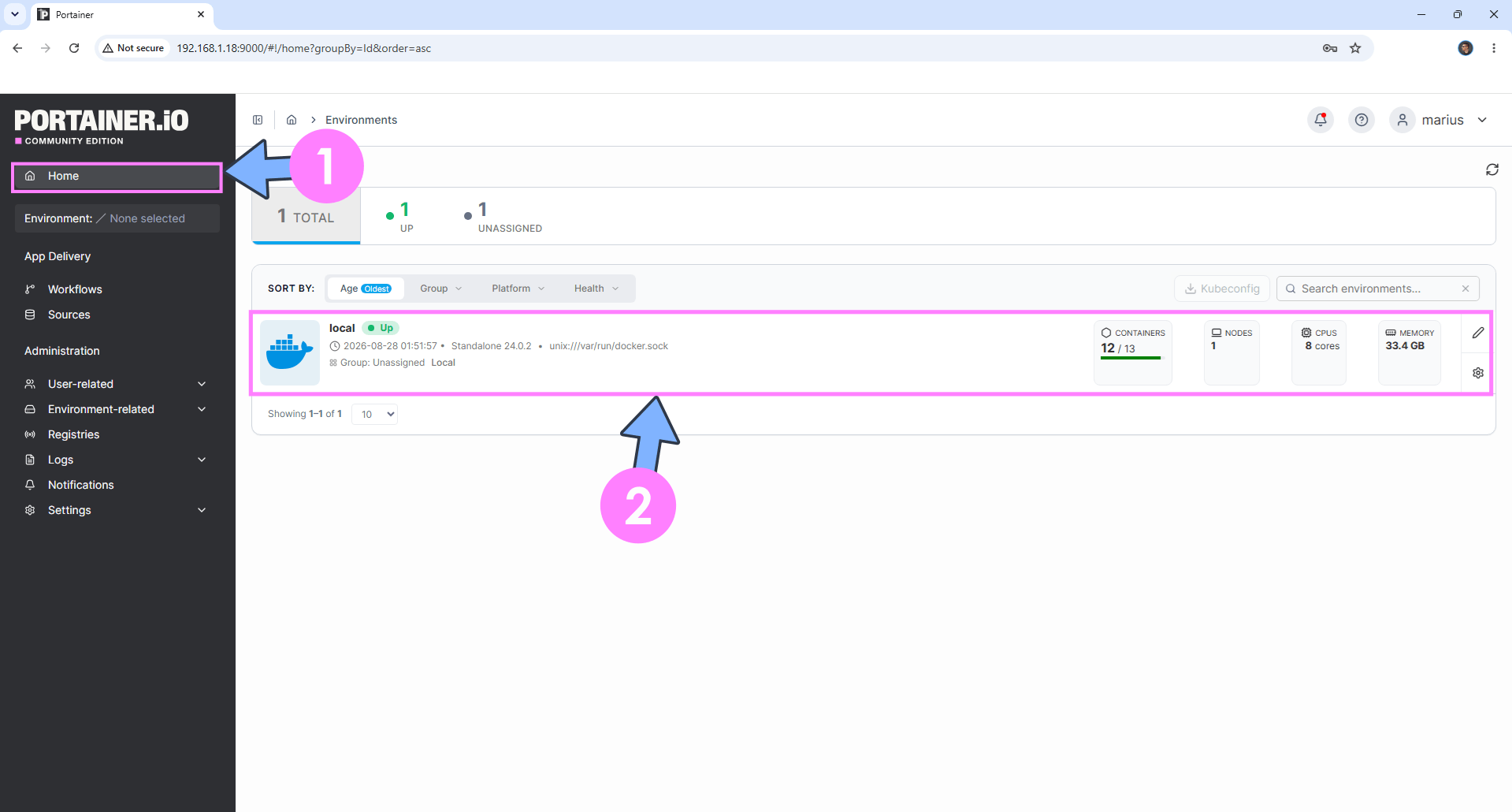
Log into Portainer using your username and password. On the left sidebar in Portainer, click on Home then click inside the local rectangle. Follow the instructions in the image below.
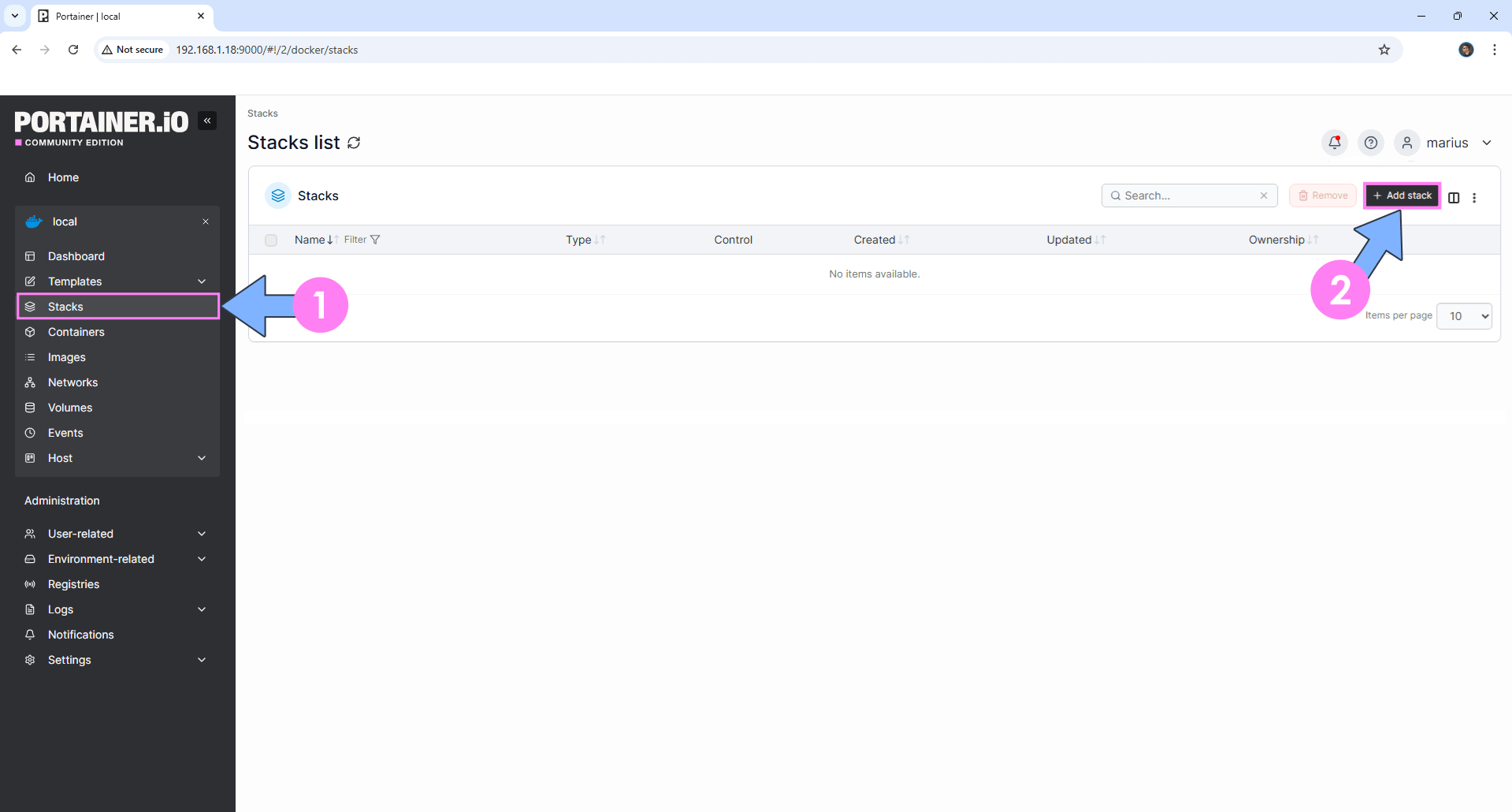
On the left sidebar in Portainer, click on Stacks then + Add stack. Follow the instructions in the image below.
STEP 4
In the Name field type in lastglance. Follow the instructions in the image below.
services:
  lastglance:
    image:  ghcr.io/krelltunez/lastglance:latest
    container_name: LastGLANCE
    healthcheck:
      test: ["CMD-SHELL", "nc -z 127.0.0.1 80 || exit 1"]
      interval: 10s
      timeout: 5s
      retries: 3
      start_period: 90s
    ports:
      - 7192:80
    restart: on-failure:5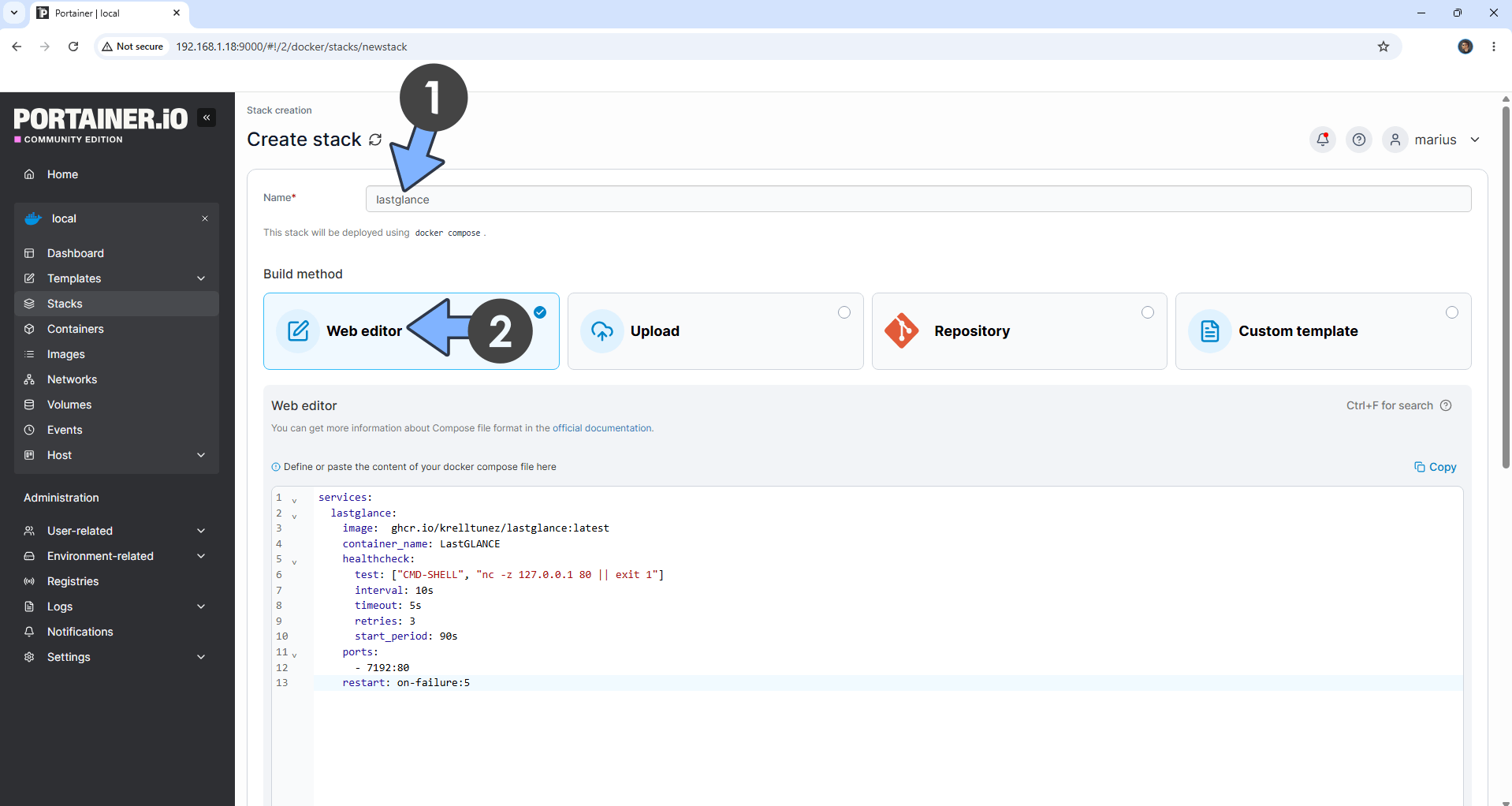
STEP 5
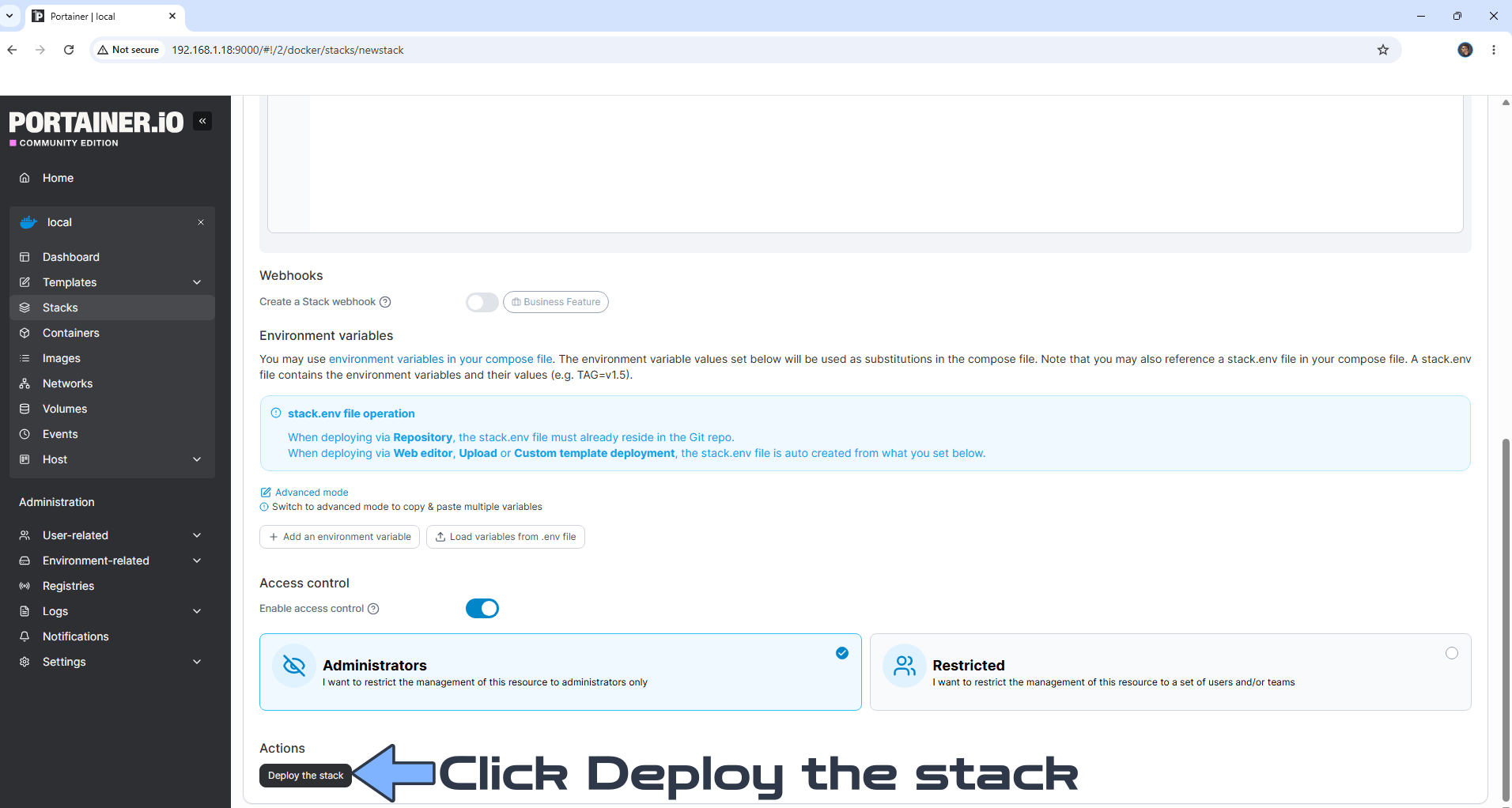
Scroll down on the page until you see a button called Deploy the stack. Click on it. Follow the instructions in the image below. The installation process can take up to a few minutes. It will depend on your Internet speed connection.
STEP 6
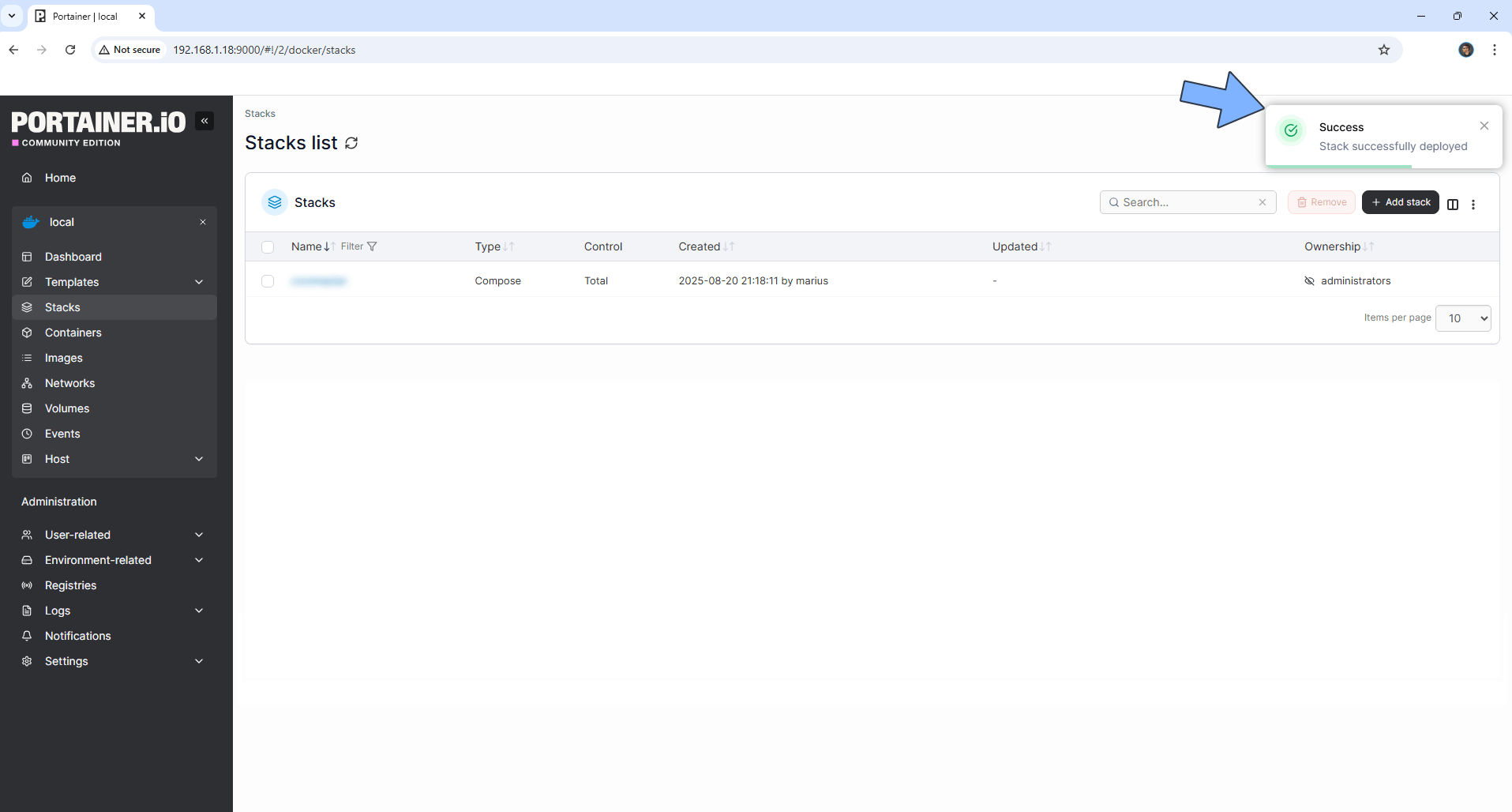
If everything goes right, you will see this message at the top right of your screen: “Success Stack successfully deployed“.
STEP 7
🟢Please Support My work by Making a Donation. Almost 99,9% of the people that install something using my guides forget to support my work, or just ignore STEP 1. I’ve been very honest about this aspect of my work since the beginning: I don’t run any ADS, I don’t require subscriptions, paid or otherwise, I don’t collect IPs, emails, and I don’t have any referral links from Amazon or other merchants. I also don’t have any POP-UPs or COOKIES. I have repeatedly been told over the years how much I have contributed to the community. It’s something I love doing and have been honest about my passion since the beginning. But I also Need The Community to Support me Back to be able to continue doing this work.
STEP 8
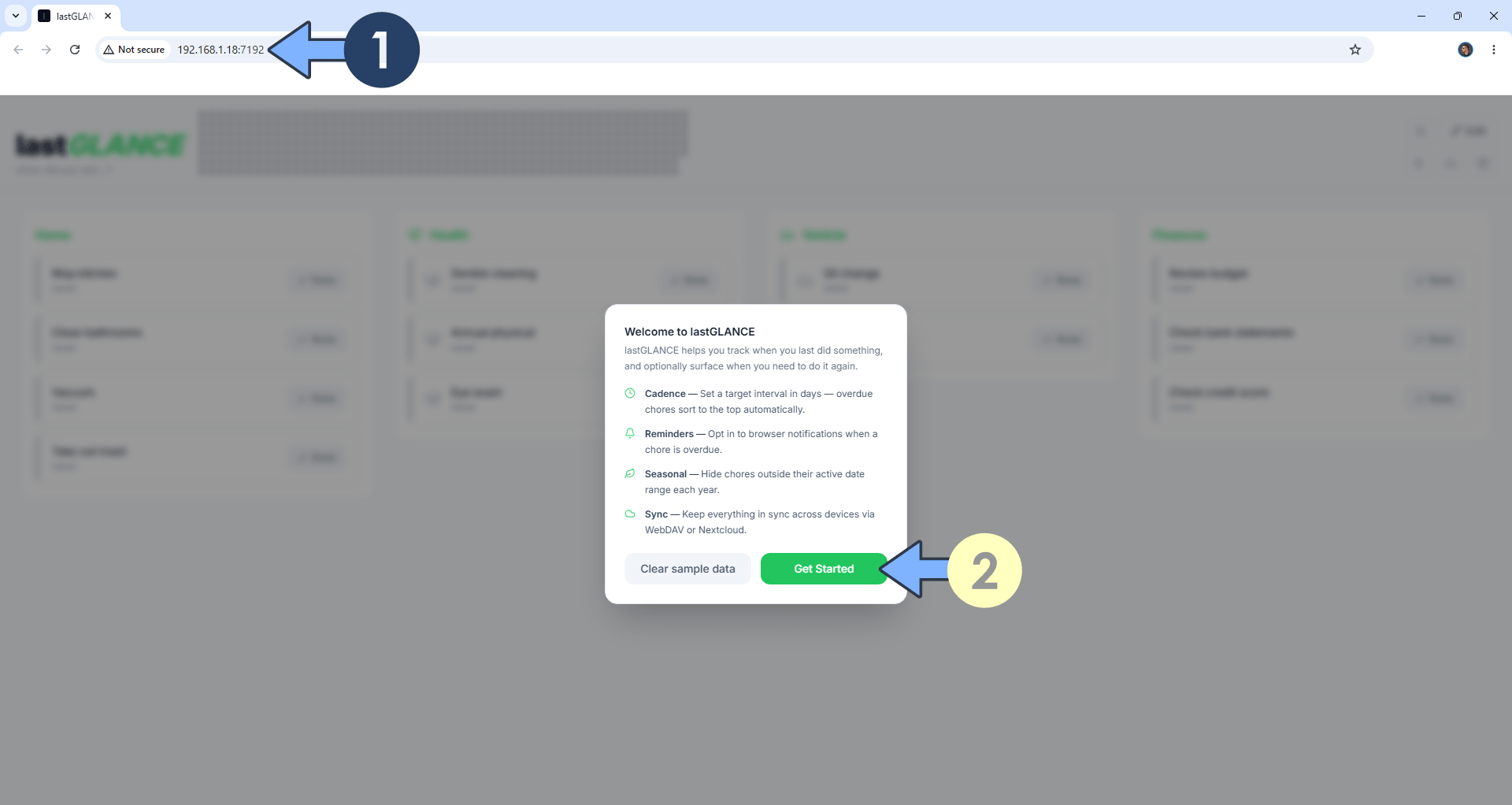
The installation process can take up to a few seconds/minutes. It will depend on your Internet speed connection. Now open your browser and type in http://ugreen-ip-address:7192 Click Get Started. Follow the instructions in the image below.
STEP 9
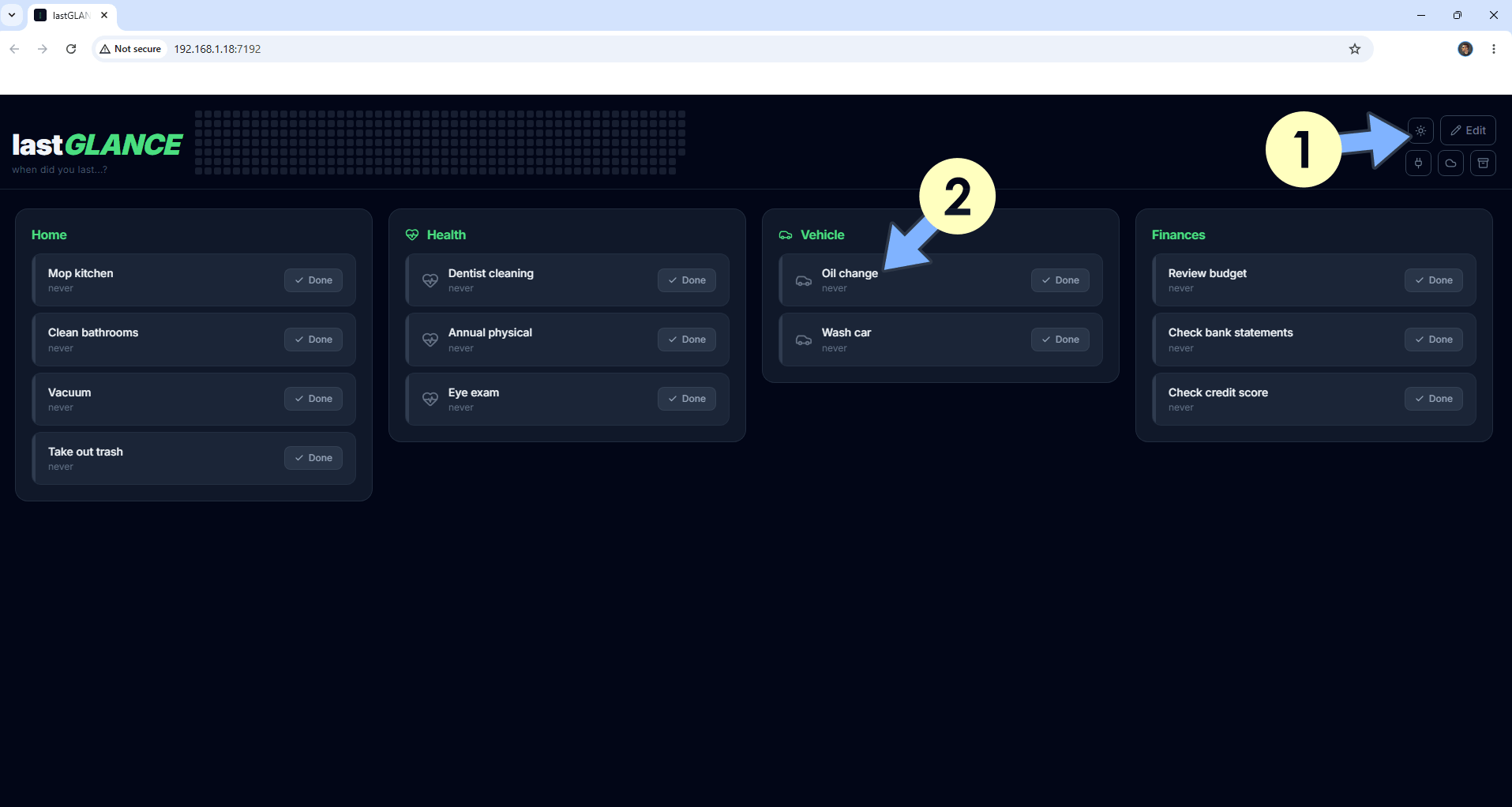
At the top right of the page, change the theme to Dark. Click on your favorite recurring task. Follow the instructions in the image below.
STEP 10
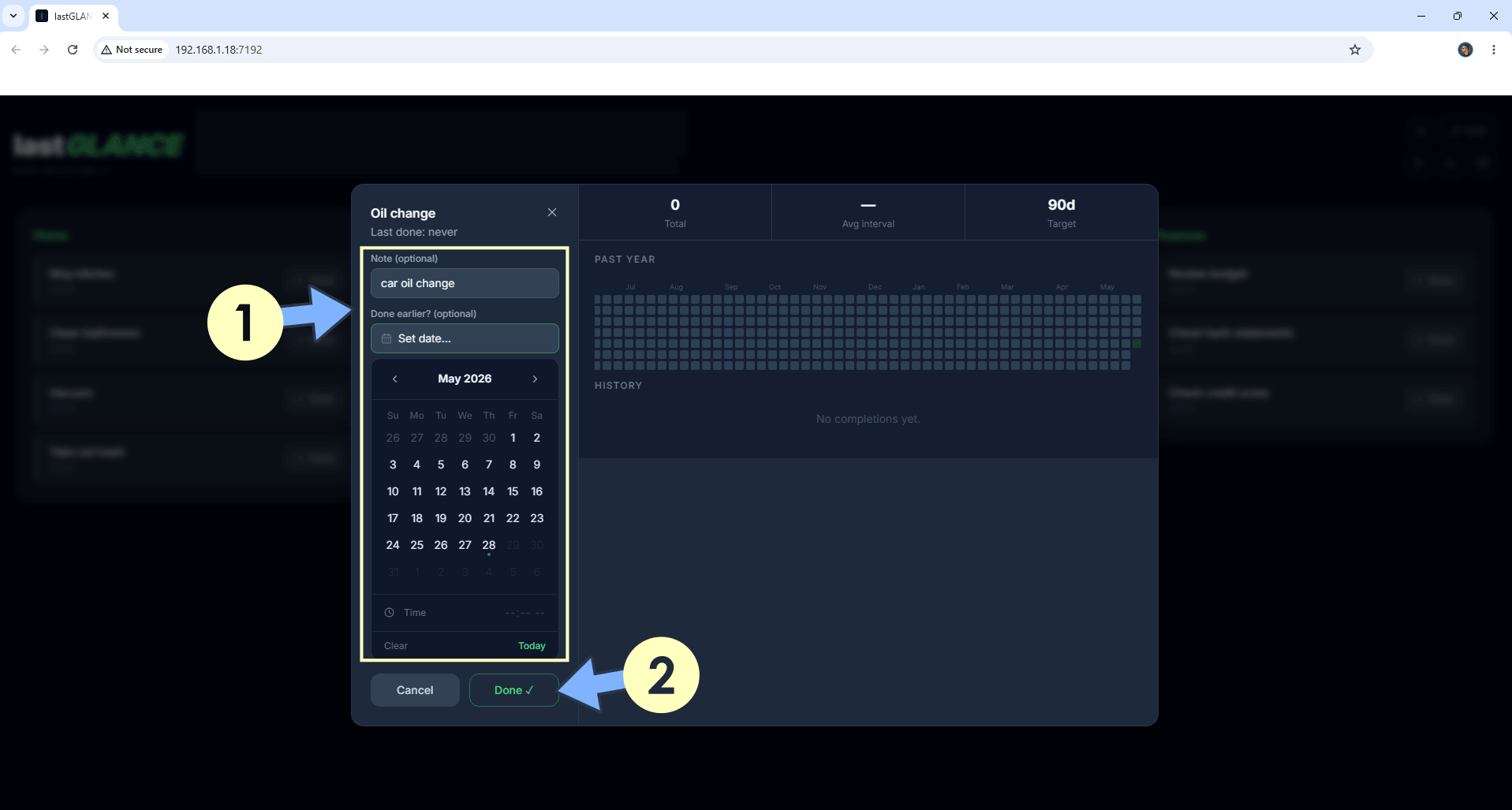
Add your task. Click Done. Follow the instructions in the image below.
STEP 11
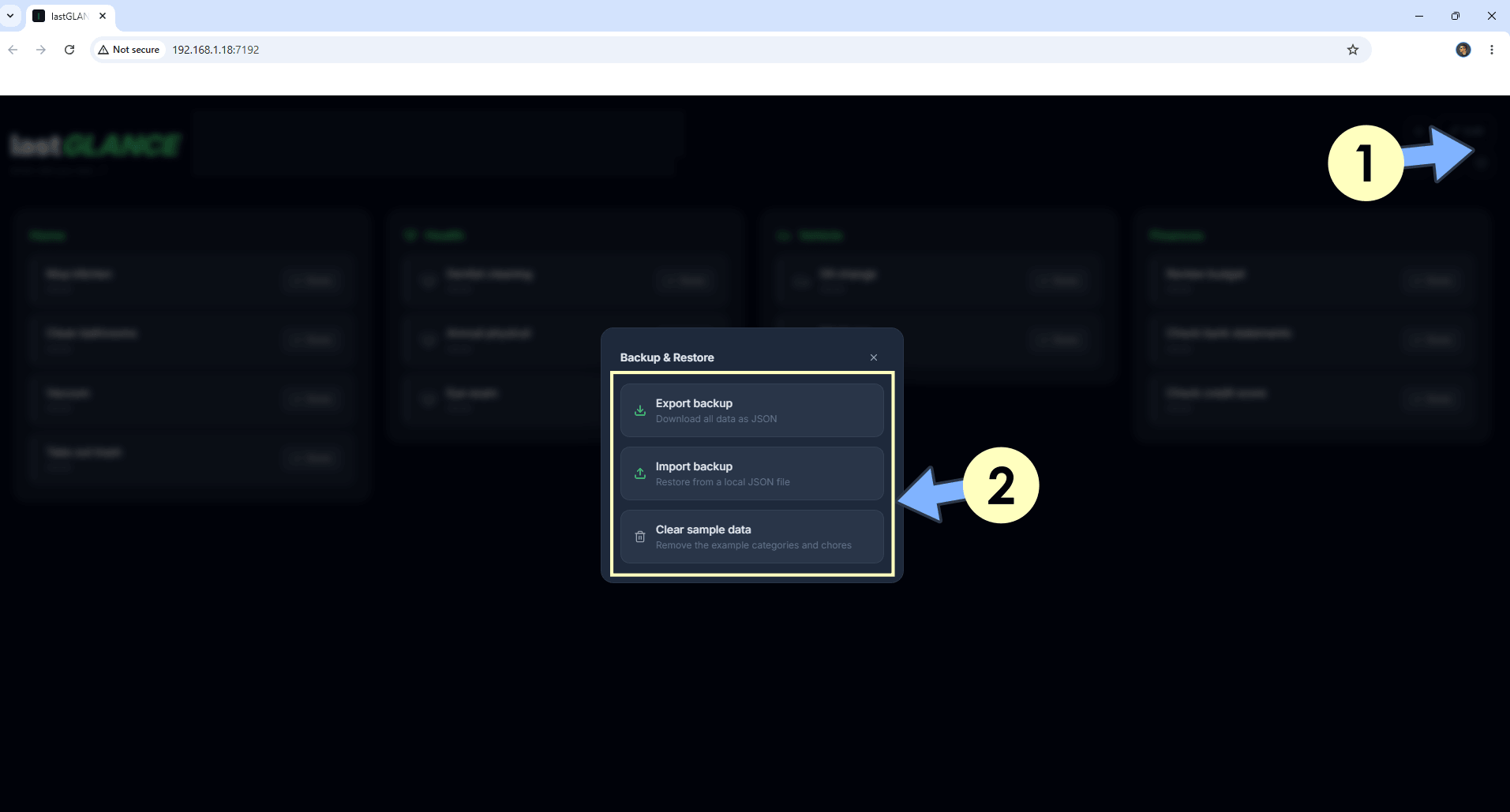
At the top right of the page, click the Backup & Import icon. You can easily back up your tasks and restore them with one click. Follow the instructions in the image below.
STEP 12
Your LastGLANCE dashboard at a glance!
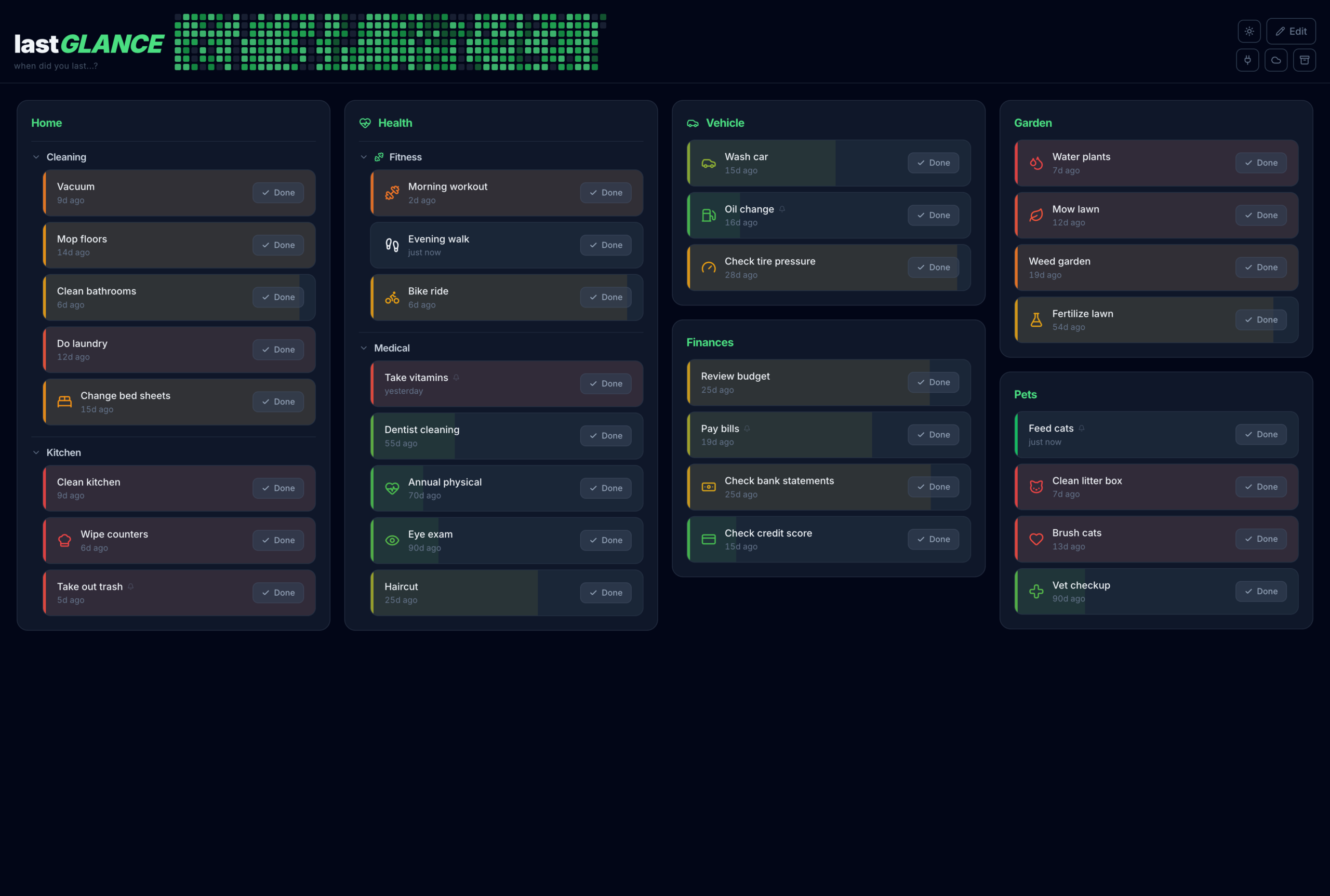
Enjoy LastGLANCE on your UGREEN NAS!
Note: If you want to run the LastGLANCE container over HTTPS, check out How to Run Docker Containers Over HTTPS on Your UGREEN NAS.
🆙Note/Update/Container: How to Update Your Docker Containers on UGREEN NAS Using Portainer.
🐳Note: How to Create Docker Shortcuts on Desktop.
🆕Note: How to Update Portainer to the latest version.
🆕Note: How to Clean Docker.
This post was updated on Monday / September 28th, 2026 at 10:47 PM