
OpenCloud is a modern, open-source, self-hosted platform for file management, secure sharing, and team collaboration. It prioritizes simplicity and data sovereignty, giving users full control without unnecessary complexity. In this step by step guide I will show you how to install OpenCloud on your UGREEN NAS using Docker and Portainer.
This guide works perfectly with the latest OpenCloud v8.1.0 release.
STEP 1
Please Support My work by Making a Donation.
STEP 2
Install Portainer using my step by step guide. If you already have Portainer installed on your UGREEN NAS, skip this STEP. Attention: Make sure you have installed the latest Portainer version.
STEP 3
⚠️Mandatory: Enable HTTPS on your UGREEN NAS.
STEP 4
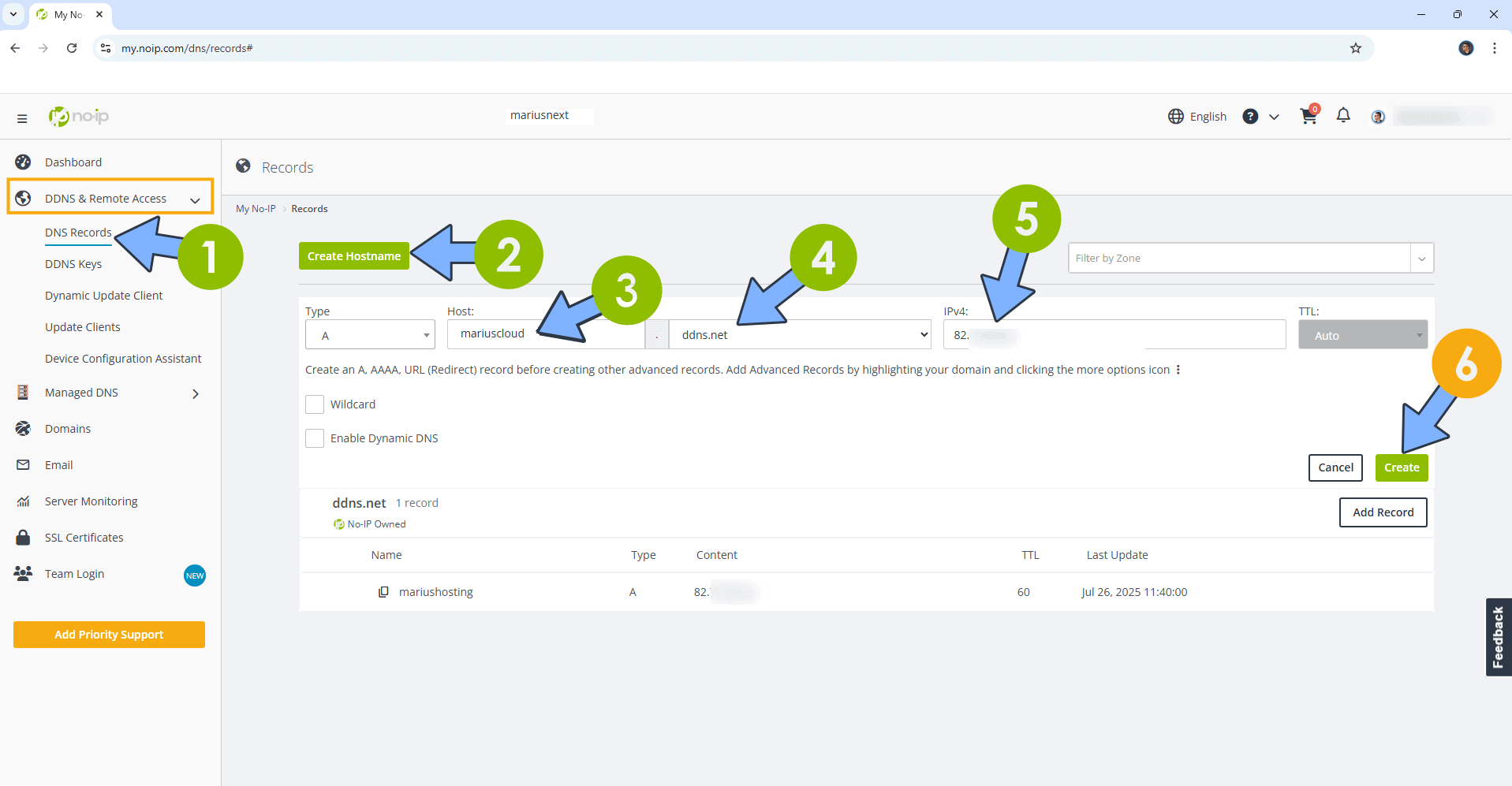
Create a new hostname on the noip website using your noip account. For example, I have created mariuscloud as Host and I use the free ddns.net domain. In the IP Address area, type in your own IPV4 IP address from your ISP, then click Create. Follow the instructions in the image below.
STEP 5
⚠️Mandatory: Add Read & Write Permissions to the Docker Folder.
STEP 6
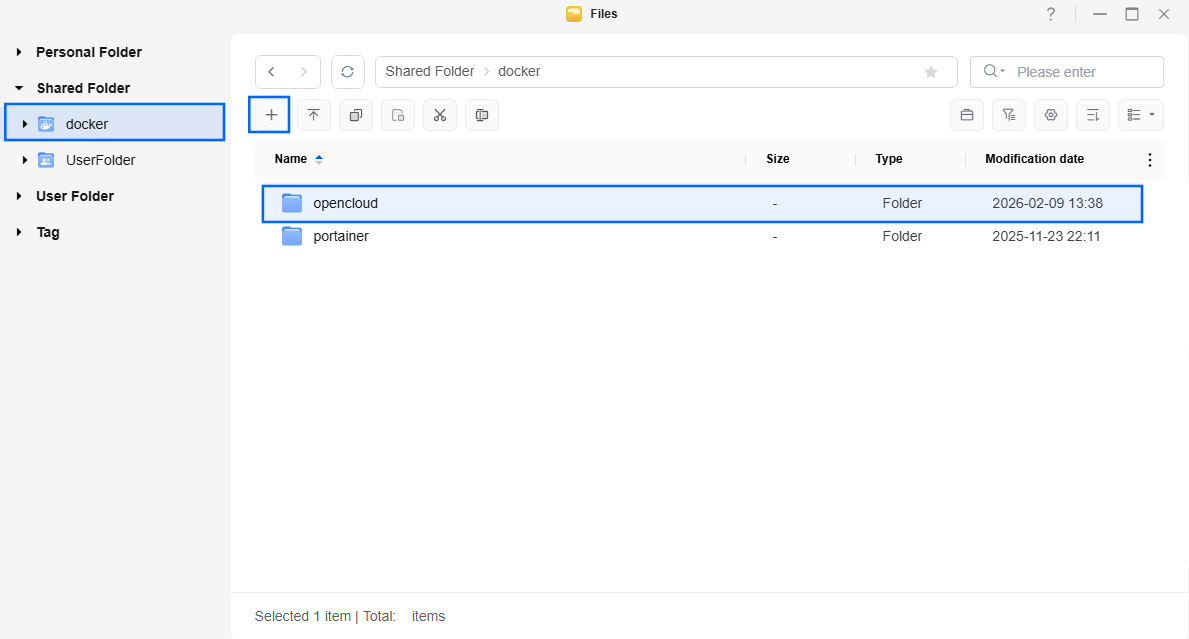
Go to Files and open the docker folder. Inside the docker folder, create one new folder and name it opencloud. Follow the instructions in the image below.
Note: Be careful to enter only lowercase, not uppercase letters.
STEP 7
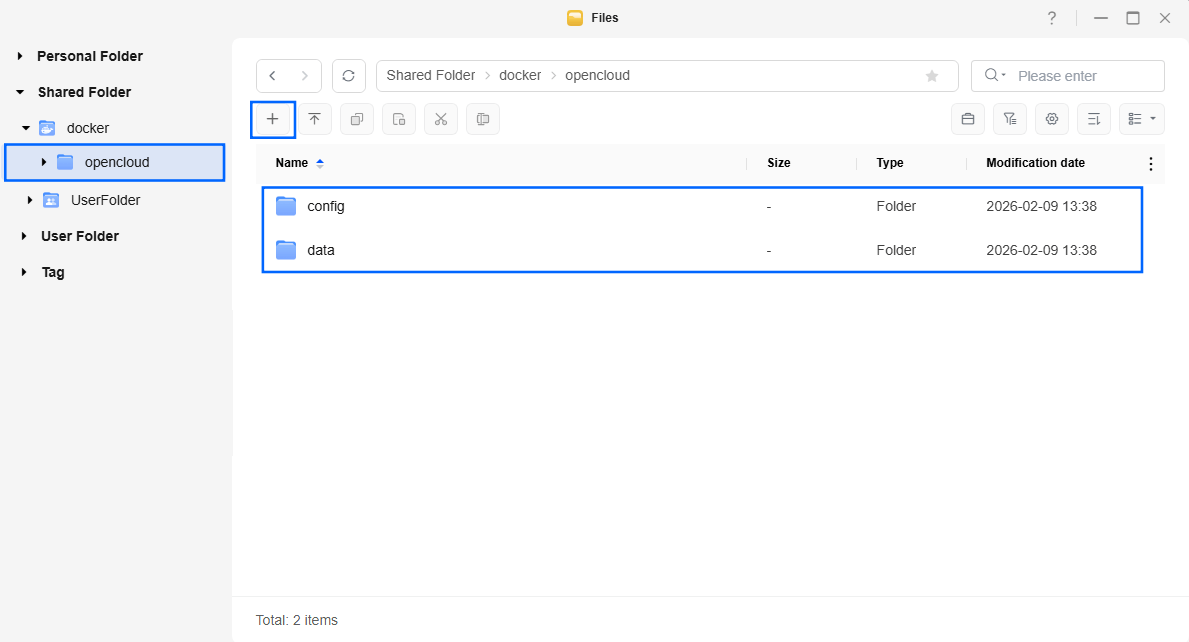
Now create two new folders inside the opencloud folder that you have previously created at STEP 6 and name them config and data. Follow the instructions in the image below.
Note: Be careful to enter only lowercase, not uppercase letters.
STEP 8
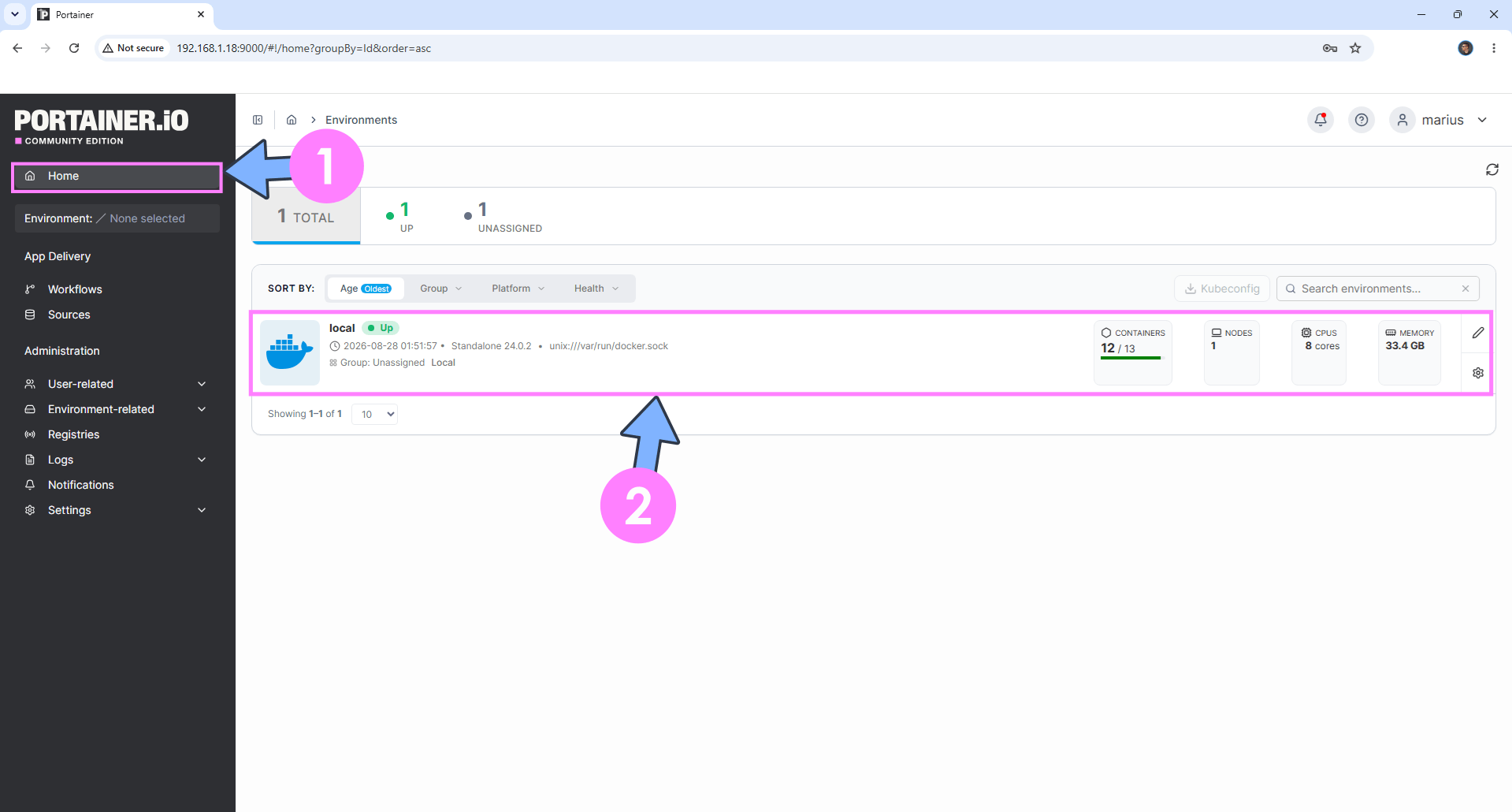
Log into Portainer using your username and password. On the left sidebar in Portainer, click on Home then click inside the local rectangle. Follow the instructions in the image below.
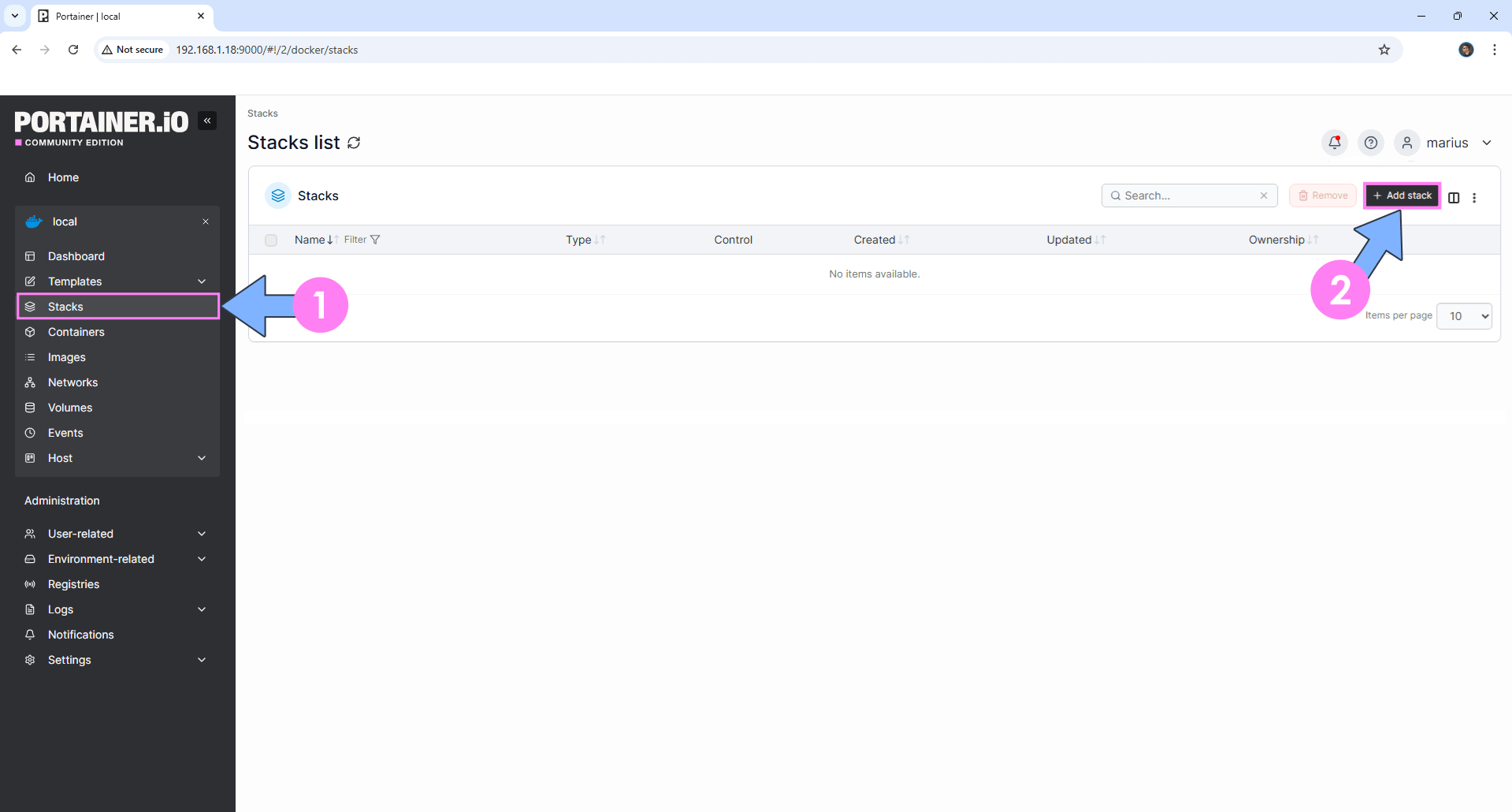
On the left sidebar in Portainer, click on Stacks then + Add stack. Follow the instructions in the image below.
STEP 9
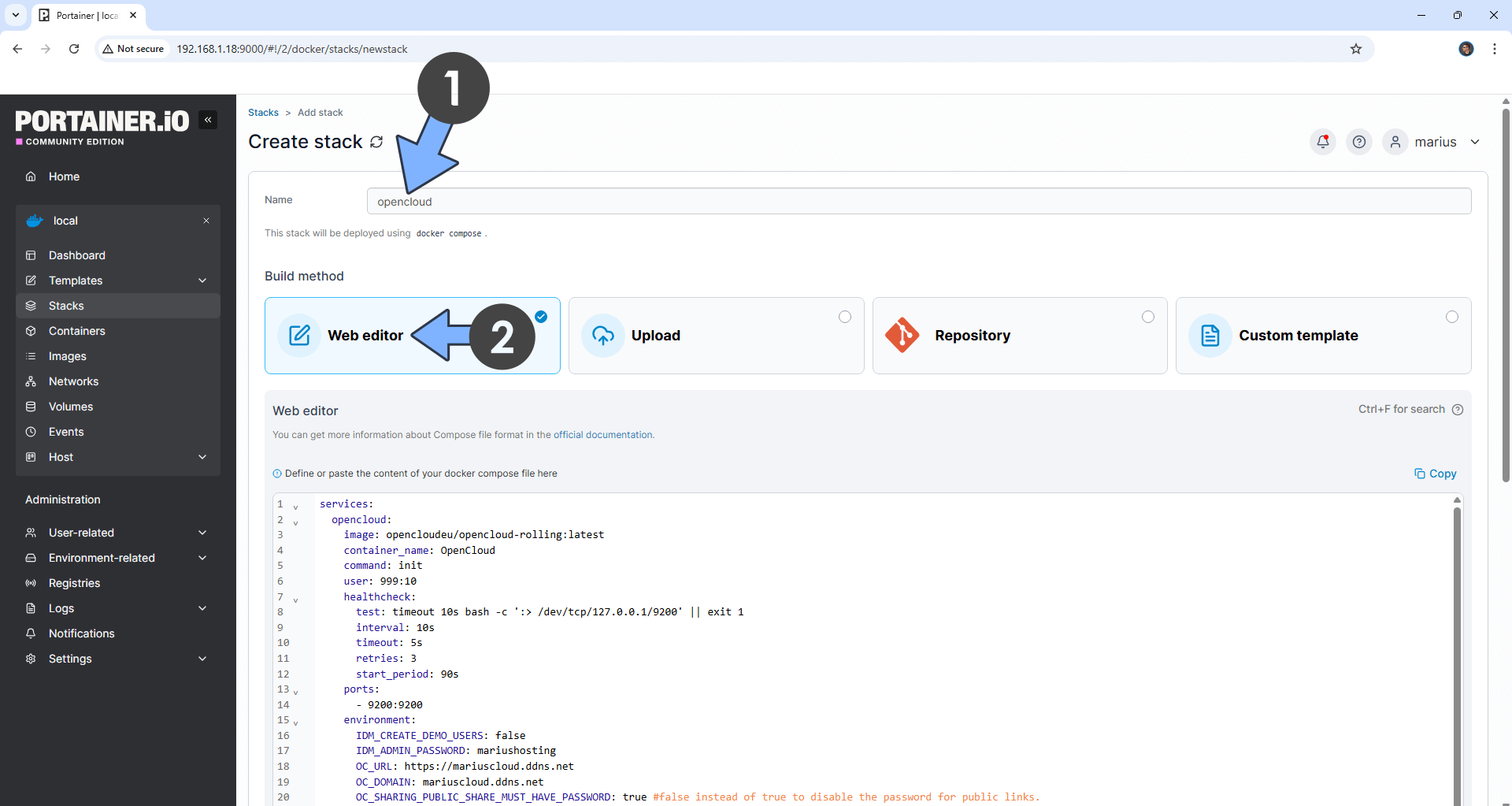
In the Name field type in opencloud. Follow the instructions in the image below.
services:
  opencloud:
    image: opencloudeu/opencloud-rolling:latest
    container_name: OpenCloud
    command: init
    user: 999:10
    healthcheck:
      test: timeout 10s bash -c ':> /dev/tcp/127.0.0.1/9200' || exit 1
      interval: 10s
      timeout: 5s
      retries: 3
      start_period: 90s
    ports:
      - 9200:9200
    environment:
      IDM_CREATE_DEMO_USERS: false
      IDM_ADMIN_PASSWORD: mariushosting
      OC_URL: https://mariuscloud.ddns.net
      OC_DOMAIN: opencloud.ddns.net
      OC_SHARING_PUBLIC_SHARE_MUST_HAVE_PASSWORD: true #false instead of true to disable the password for public links.
      OC_LOG_LEVEL: info
      OC_INSECURE: false
      PROXY_HTTP_ADDR: 0.0.0.0:9200
      PROXY_TLS: true
    volumes:
      - /etc/localtime:/etc/localtime:ro
      - /volume1/docker/opencloud/data:/var/lib/opencloud:rw
      - /volume1/docker/opencloud/config:/etc/opencloud:rw
    restart: on-failure:5
Note: Before you paste the code above in the Web editor area below, change the value numbers for user with your own values. (Follow my step by step guide on how to do this.) 1026 is my personal UID value and 100 is my personal GID value. You have to type in your own values.
Note: Before you paste the code above in the Web editor area below, change the value for IDM_ADMIN_PASSWORD. mariushosting is my own password. You should insert your own password. You will need this password later at STEP 20.
Note: Before you paste the code above in the Web editor area below, change the value for OC_URL and type in your own NO IP DDNS with https:// at the beginning that you have previously created at STEP 4.
Note: Before you paste the code above in the Web editor area below, change the value for OC_DOMAIN and type in your own NO IP DDNS without https:// at the beginning that you have previously created at STEP 4.
STEP 10
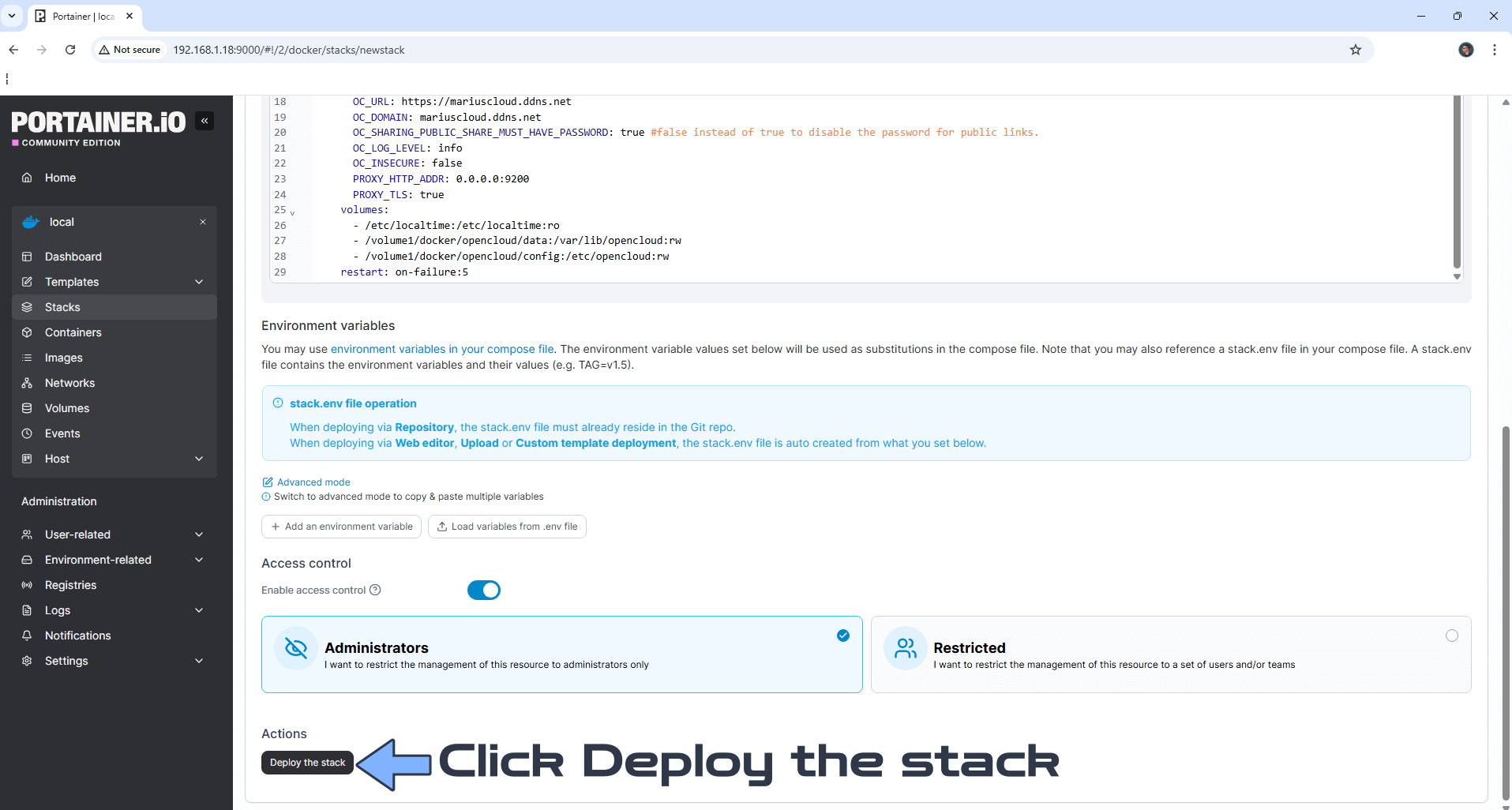
Scroll down on the page until you see a button called Deploy the stack. Click on it. Follow the instructions in the image below. The installation process can take up to a few minutes. It will depend on your Internet speed connection.
STEP 11
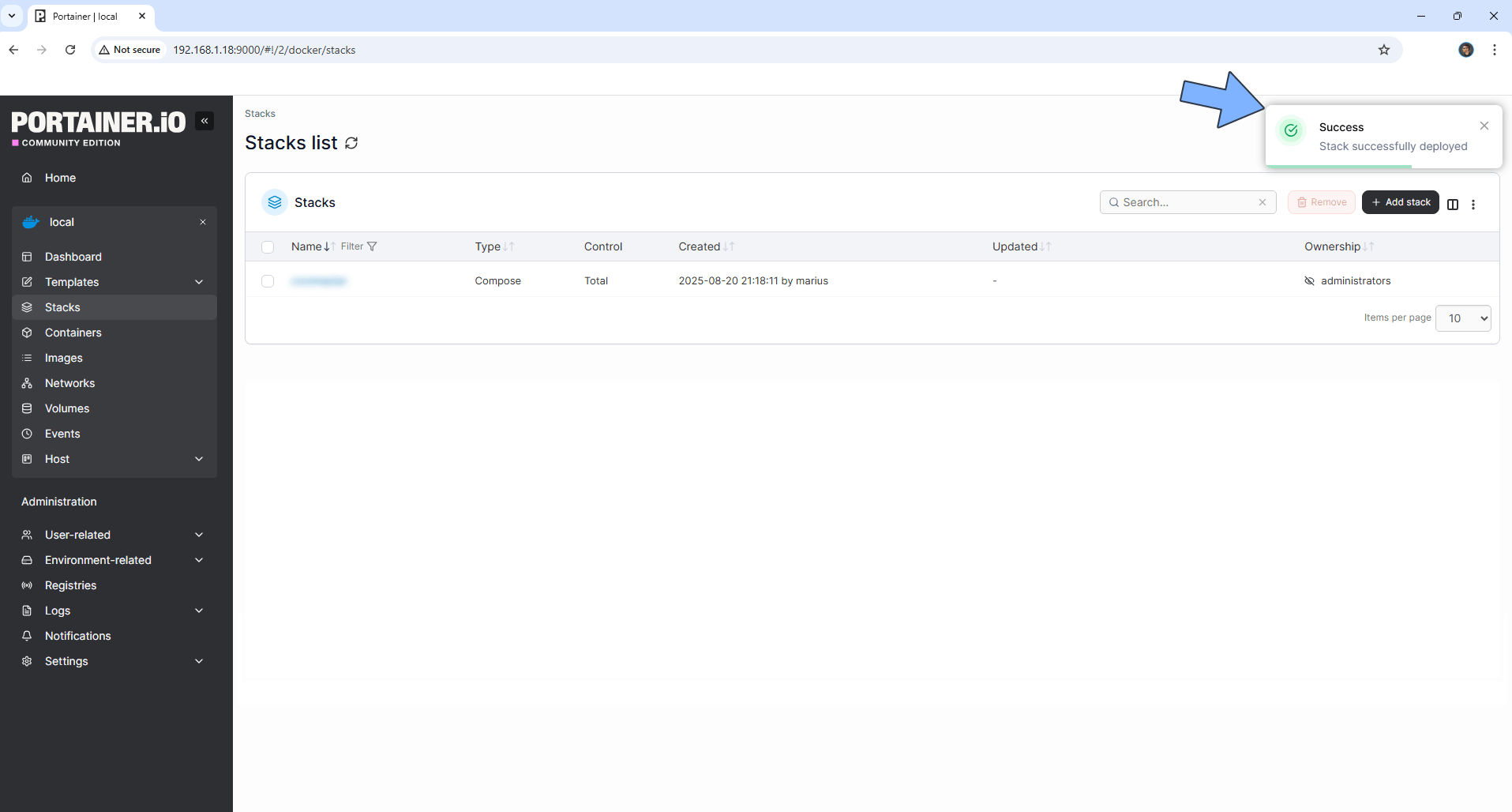
If everything goes right, you will see this message at the top right of your screen: “Success Stack successfully deployed“.
STEP 12
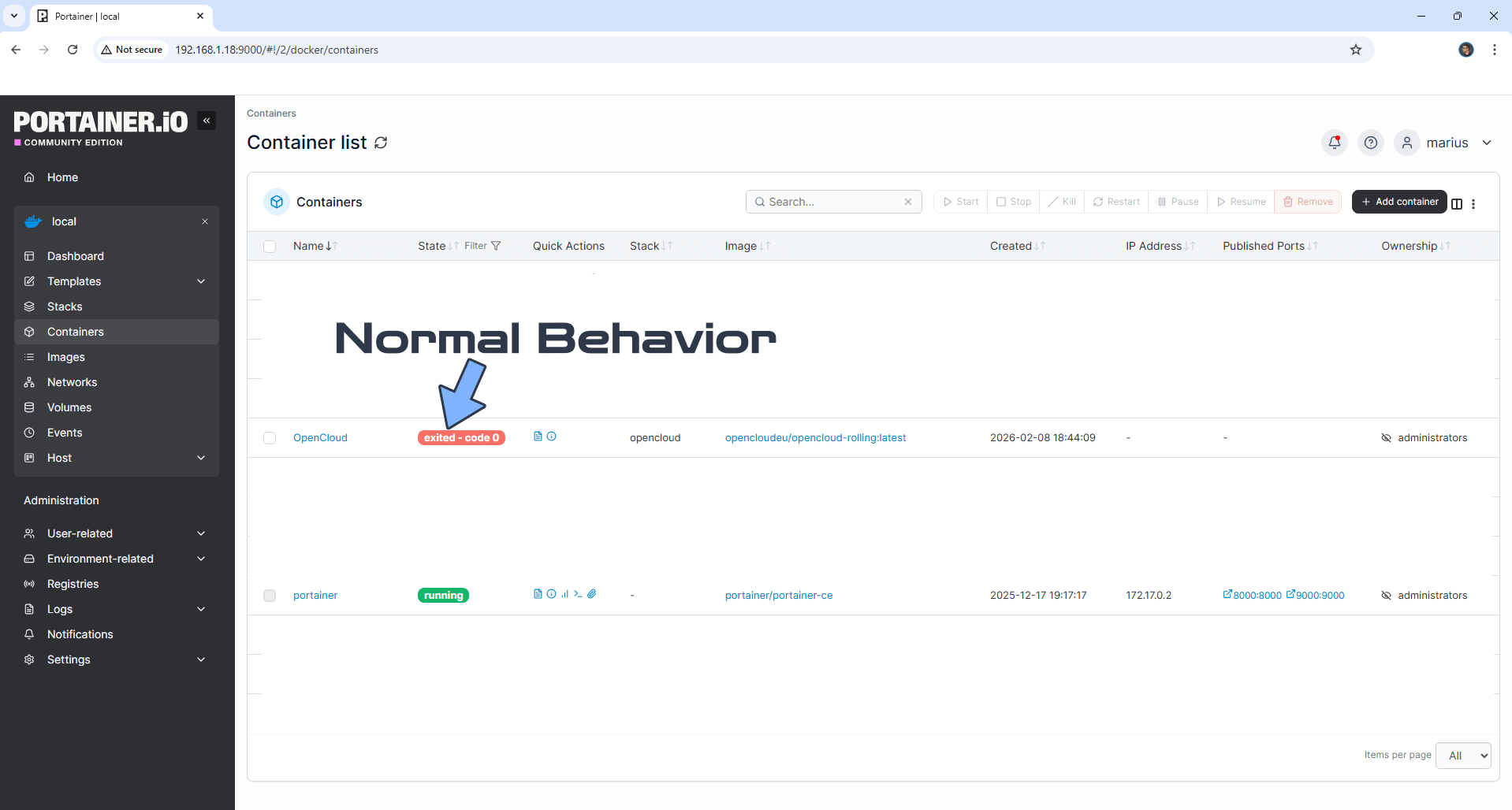
On the left sidebar in Portainer, click Containers. Your OpenCloud container will be marked as exited. This is a normal behavior. Go straight to the next STEP.
STEP 13
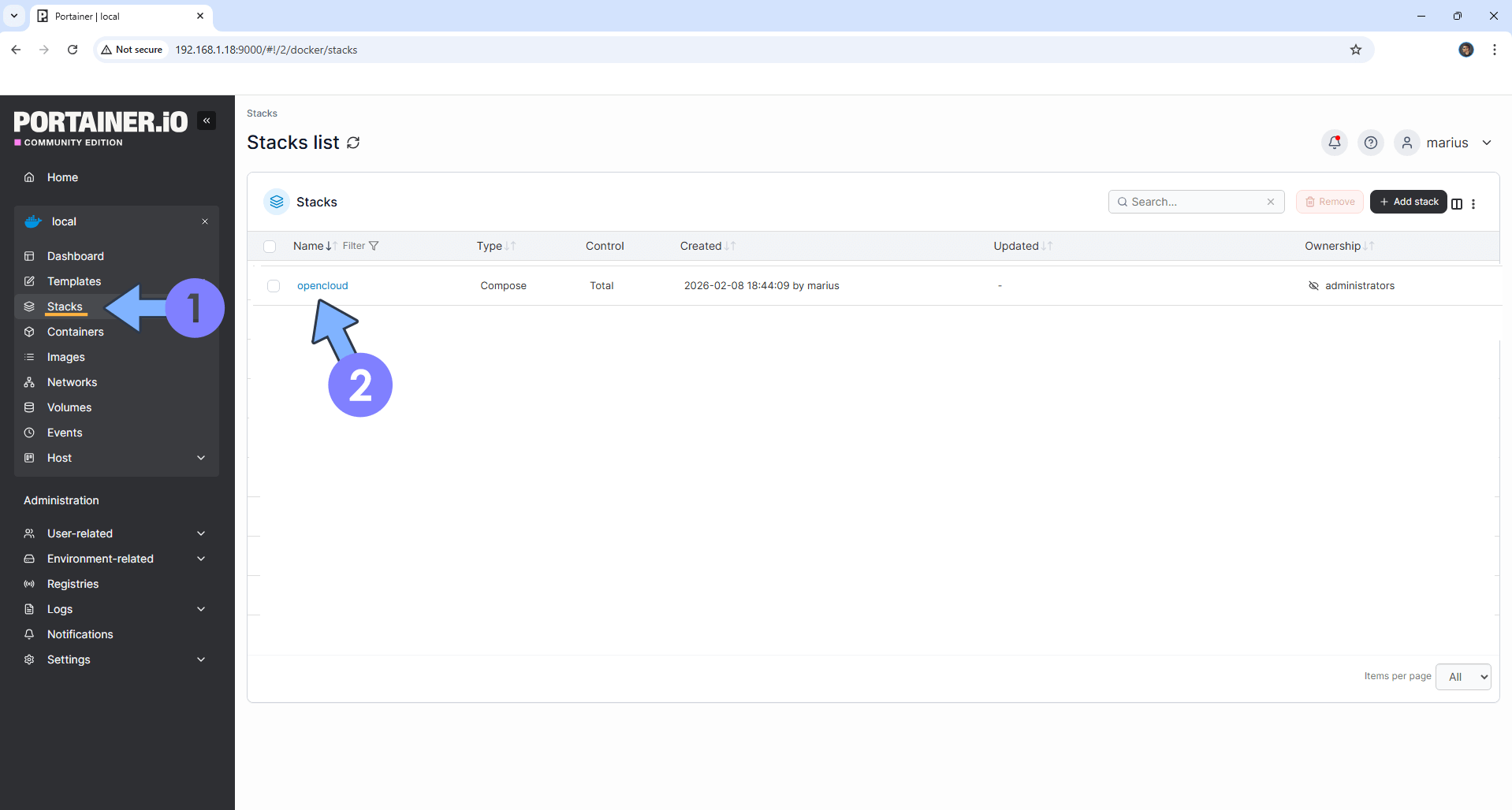
On the left sidebar in Portainer, click Stacks. Click opencloud. Follow the instructions in the image below.
STEP 14
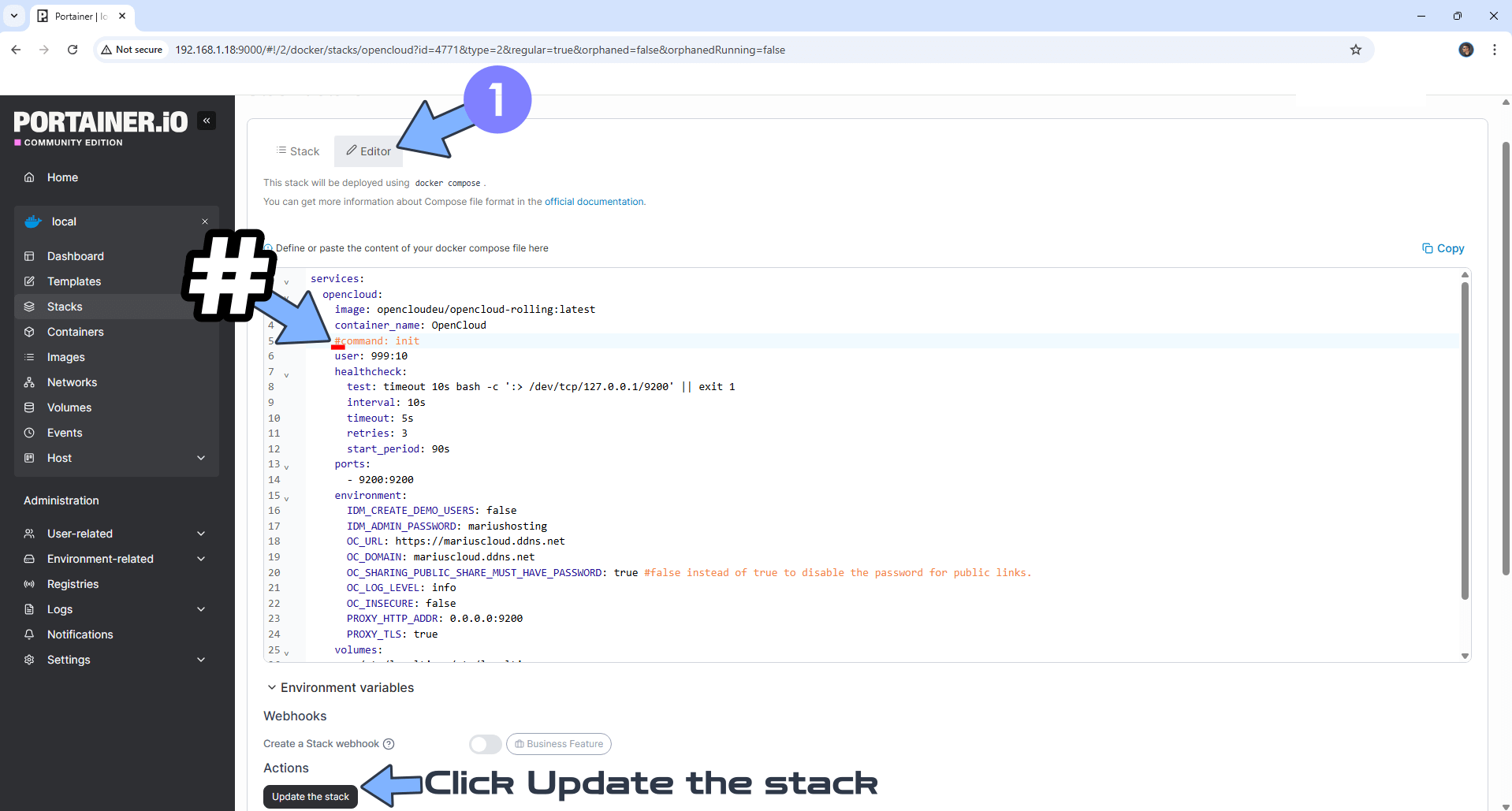
Click the Editor tab. In front of command, add the hashtag symbol #. Click Update the stack. Follow the instructions in the image below.
STEP 15
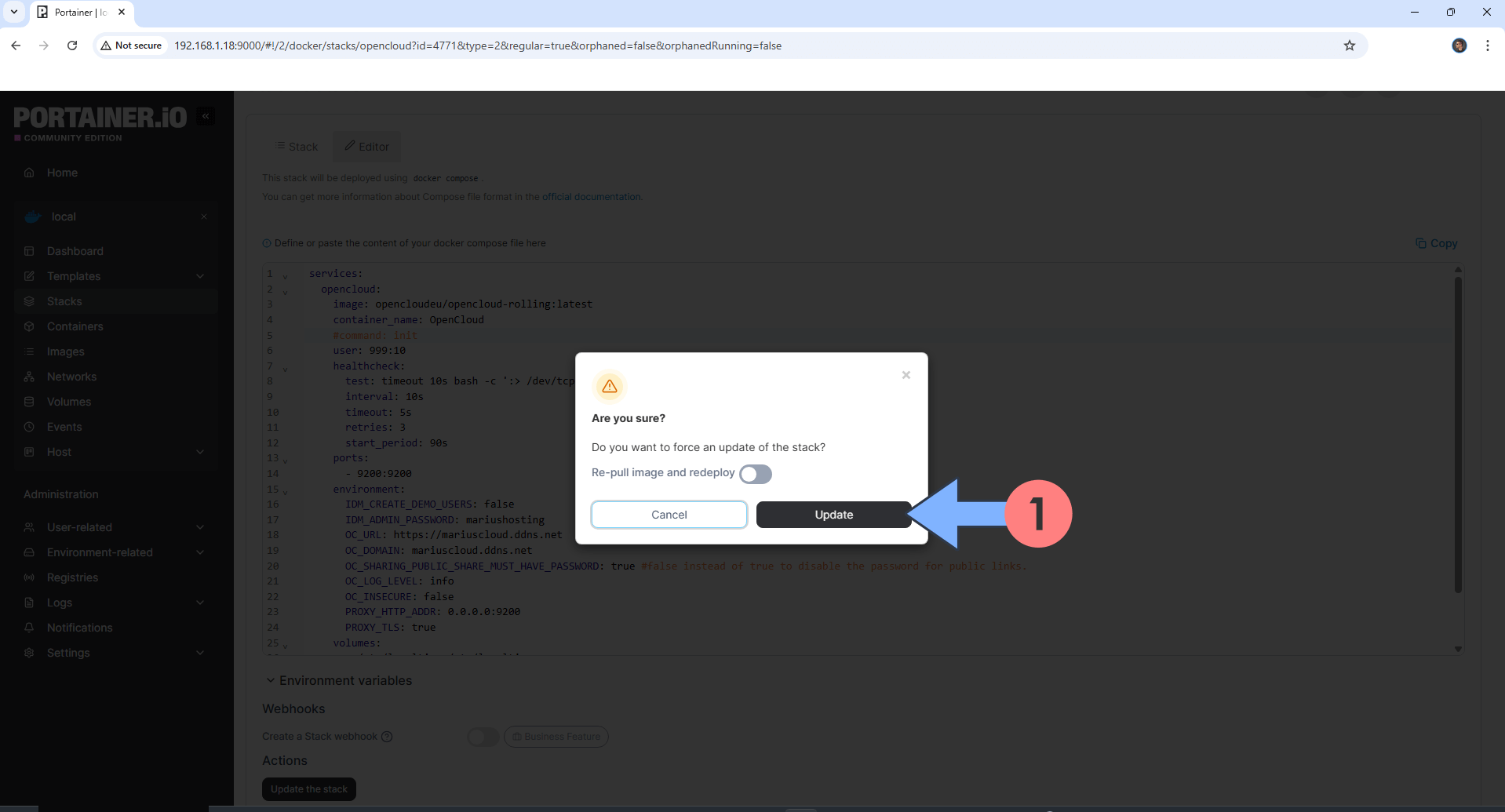
A new pop up window will open. Click Update. Follow the instructions in the image below.
STEP 16
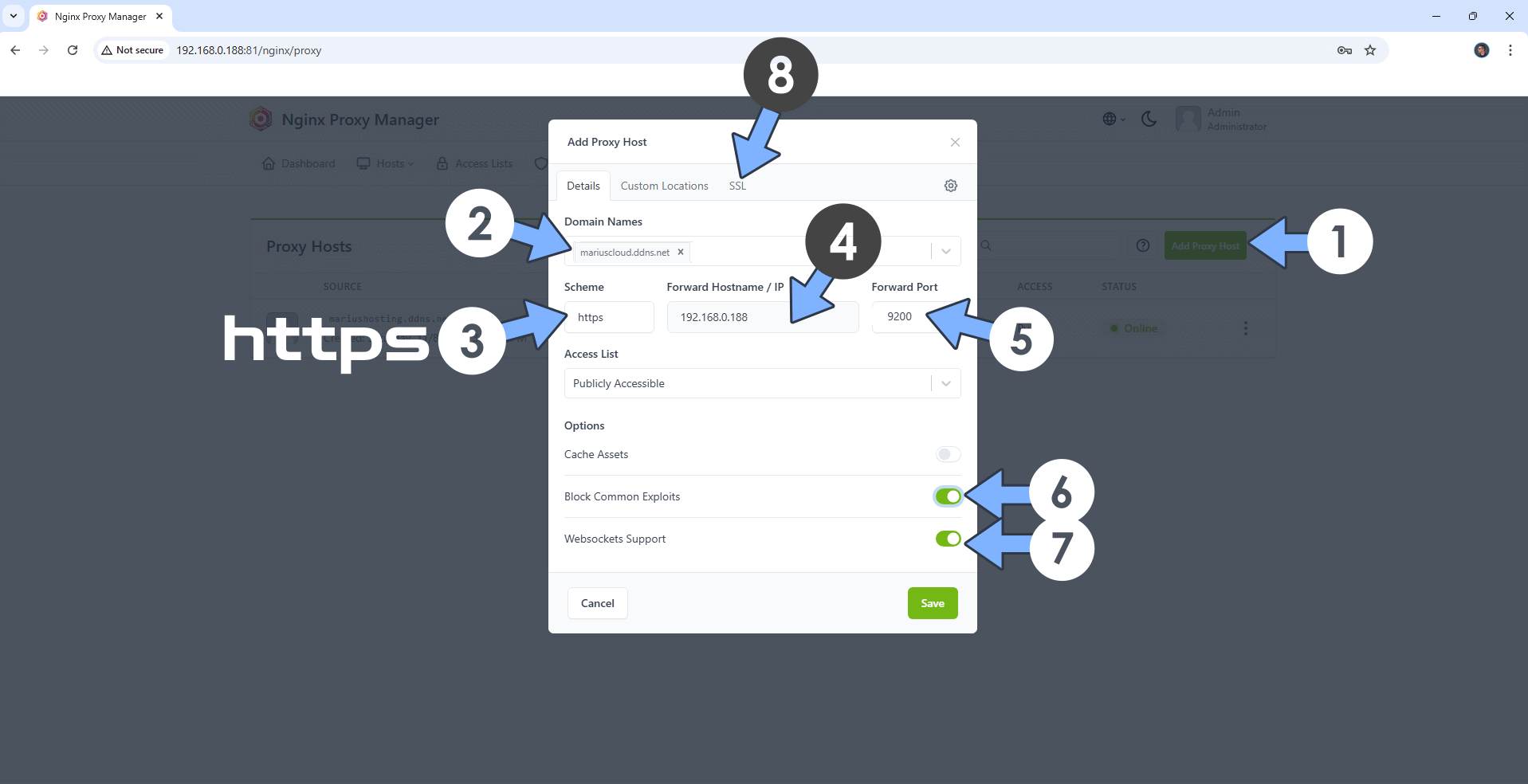
Open your Nginx Proxy Manager container that you have previously installed at STEP 3. Click Add Proxy Host. A new pop up window will open. Add the following details:
Domain Names: Type in your own noip domain name that you have previously created at STEP 4.
Scheme: https ⚠️#Very Important to use https instead of http
Forward Hostname/IP: Type in the local NAS IP of your UGREEN NAS.
Forward Port: Type in the OpenCloud local Port that is 9200
Check Block Common Exploits
Check Websockets Support
Click the SSL tab. Follow the instructions in the image below.
STEP 17
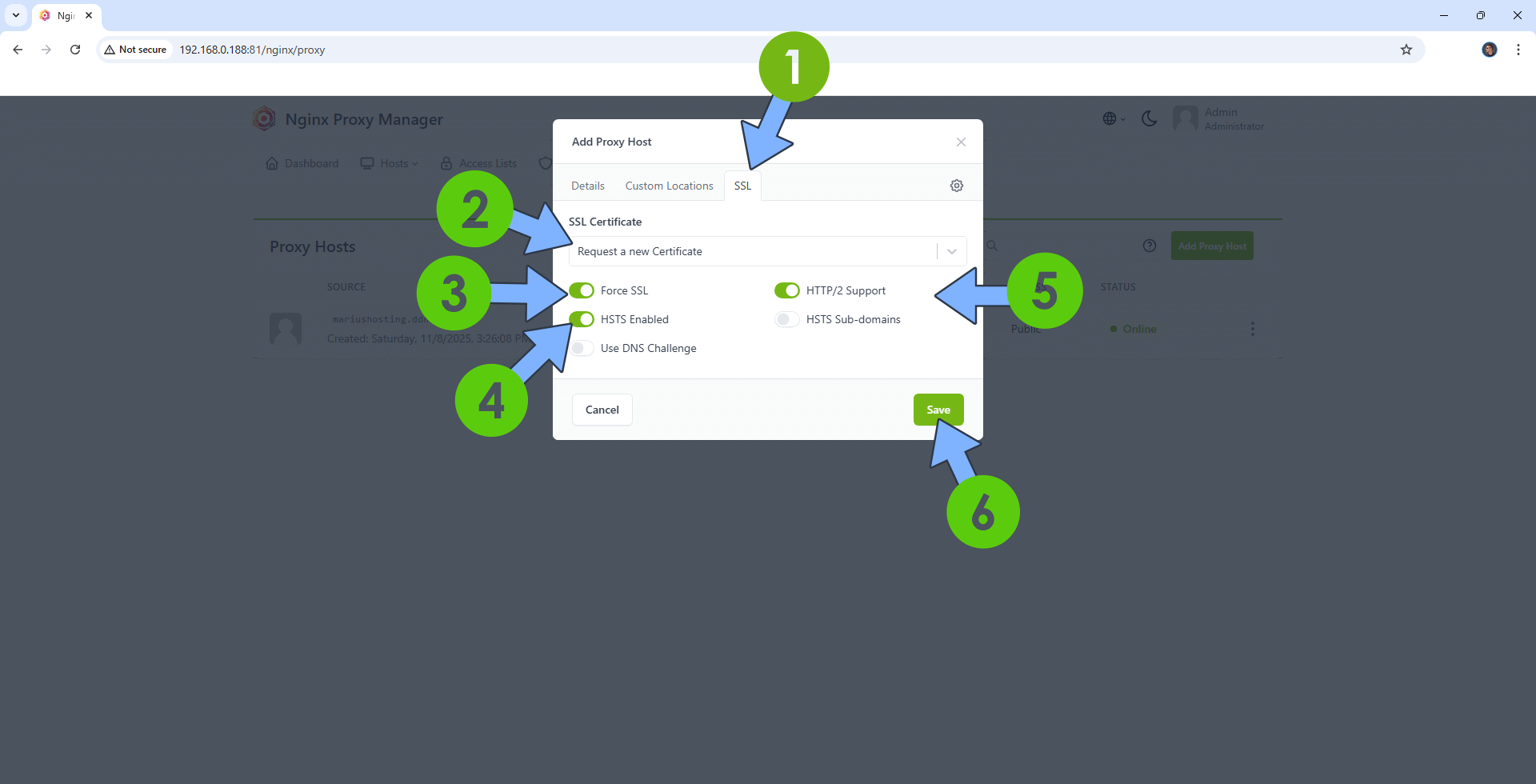
After you click the SSL tab, add the following details:
SSL Certificate: Request a new SSL Certificate
Check: Force SSL
Check: HSTS Enabled
Check: HTTP/2 Support
Click Save. Follow the instructions in the image below.
STEP 18
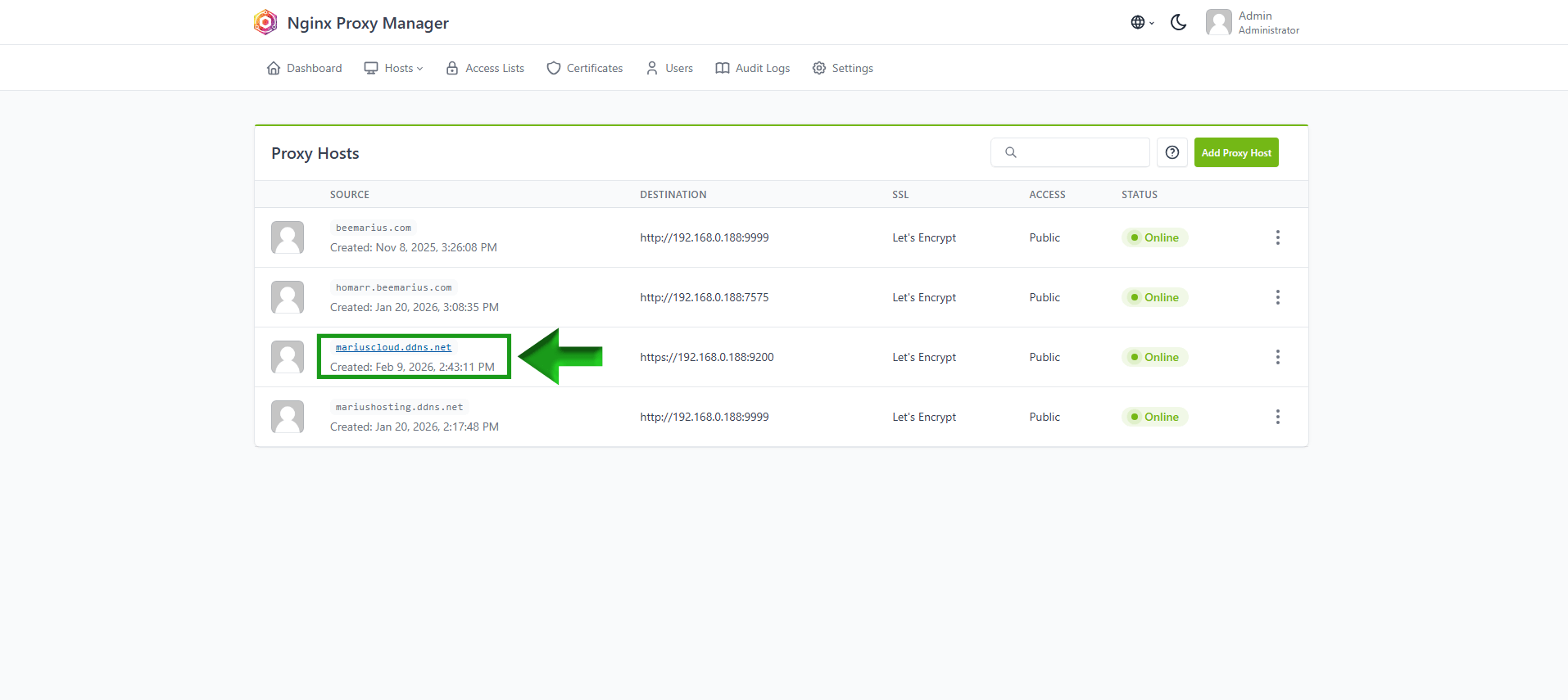
In the Proxy Hosts area, if everything goes right, you will see that your OpenCloud hostname has been generated. Click on it. Follow the instructions in the image below.
STEP 19
🟢Please Support My work by Making a Donation. Almost 99,9% of the people that install something using my guides forget to support my work, or just ignore STEP 1. I’ve been very honest about this aspect of my work since the beginning: I don’t run any ADS, I don’t require subscriptions, paid or otherwise, I don’t collect IPs, emails, and I don’t have any referral links from Amazon or other merchants. I also don’t have any POP-UPs or COOKIES. I have repeatedly been told over the years how much I have contributed to the community. It’s something I love doing and have been honest about my passion since the beginning. But I also Need The Community to Support me Back to be able to continue doing this work.
STEP 20
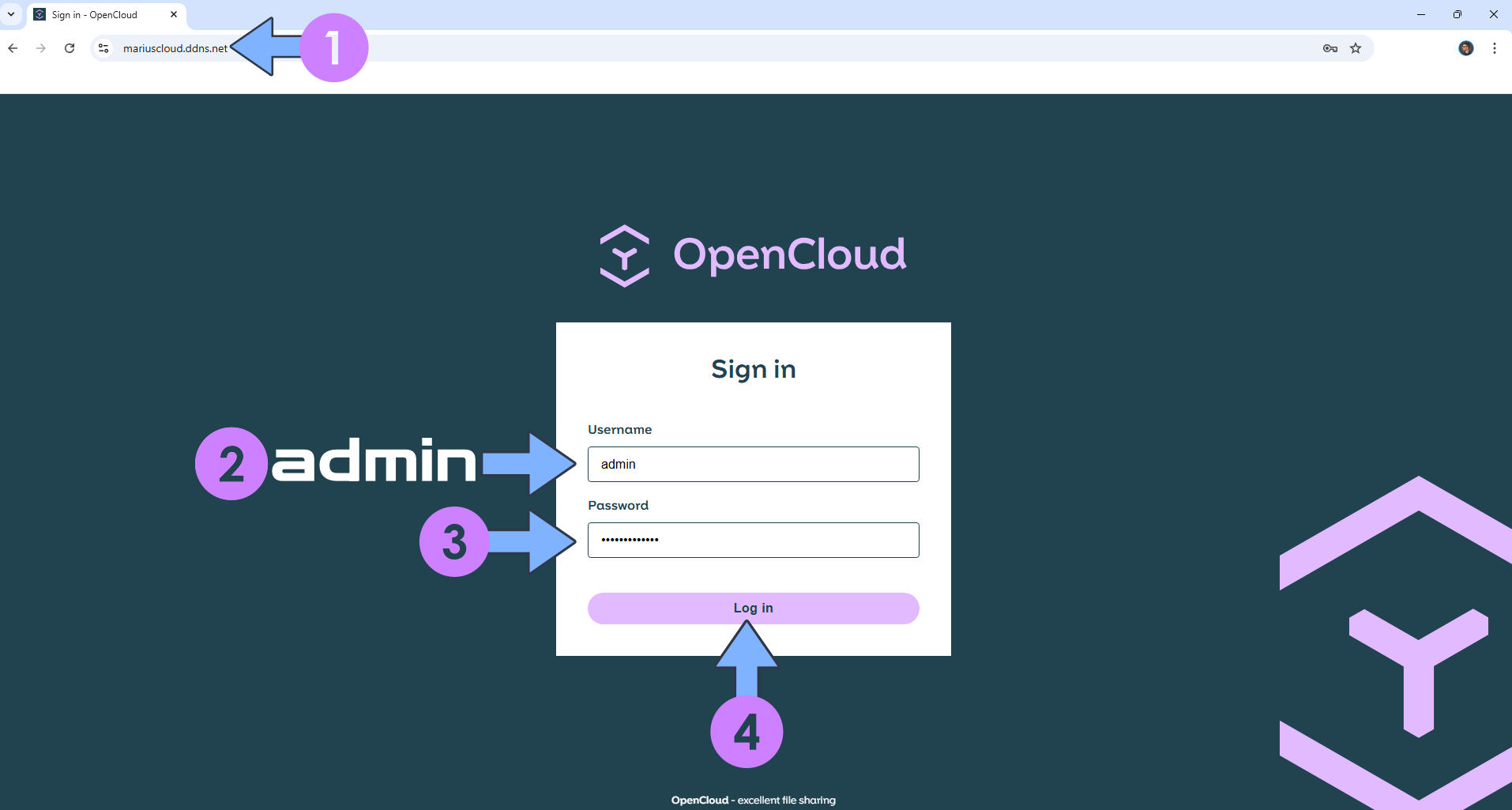
Now open your browser and type in your HTTPS/SSL certificate like this https://opencloud.ddns.net In my case it’s https://mariuscloud.ddns.net Type in admin as Username. Type in your own Password (IDM_ADMIN_PASSWORD) that you have previously added at STEP 9. Click Log in. Follow the instructions in the image below. ⚠️Warning: If you get the error “Client sent an HTTP request to an HTTPS server“, this means you didn’t select https in the Scheme field at STEP 16 (as previously explained).
STEP 21
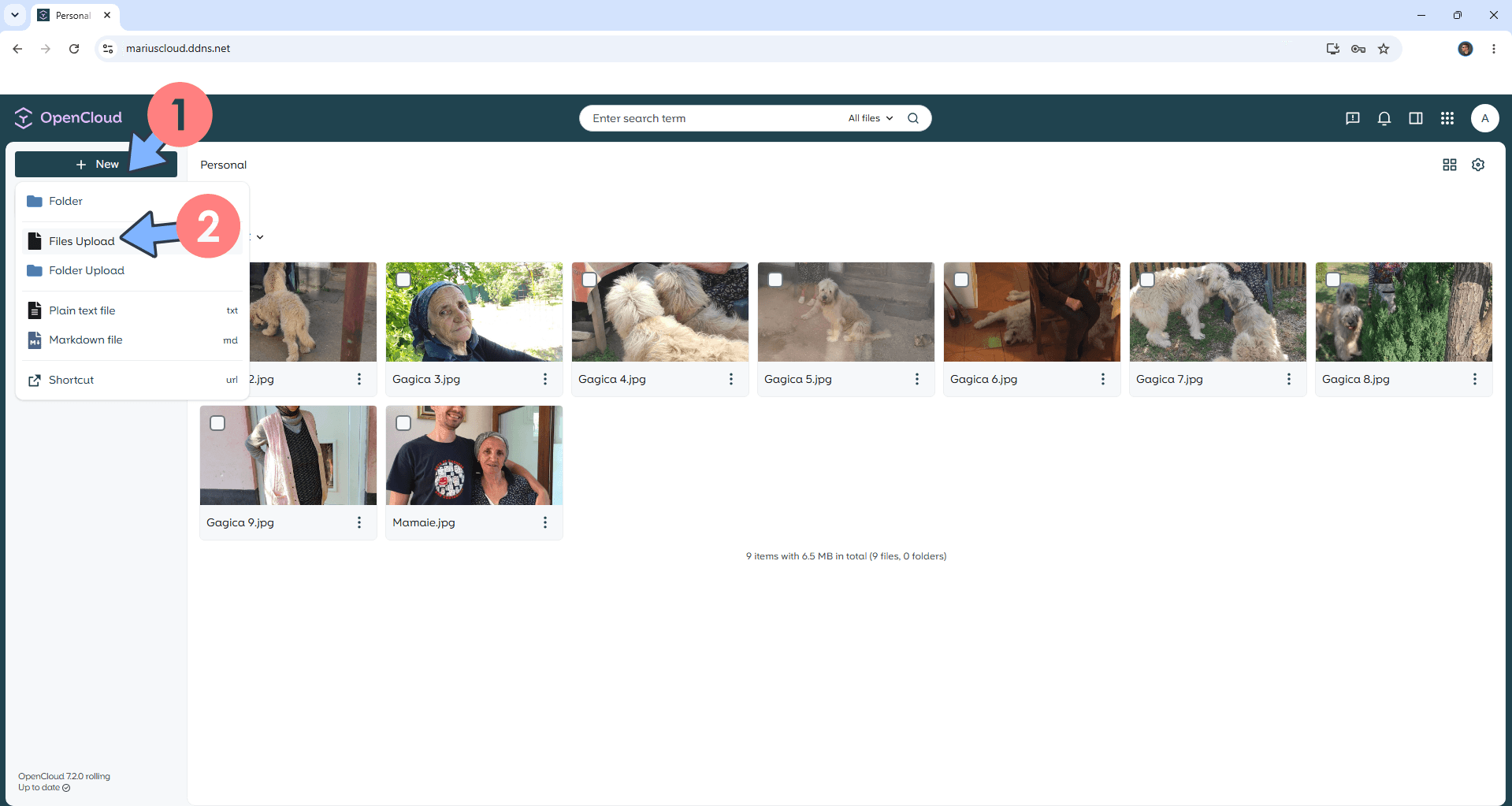
On the left sidebar, click + New then Files Upload to upload your files. Follow the instructions in the image below.
STEP 22
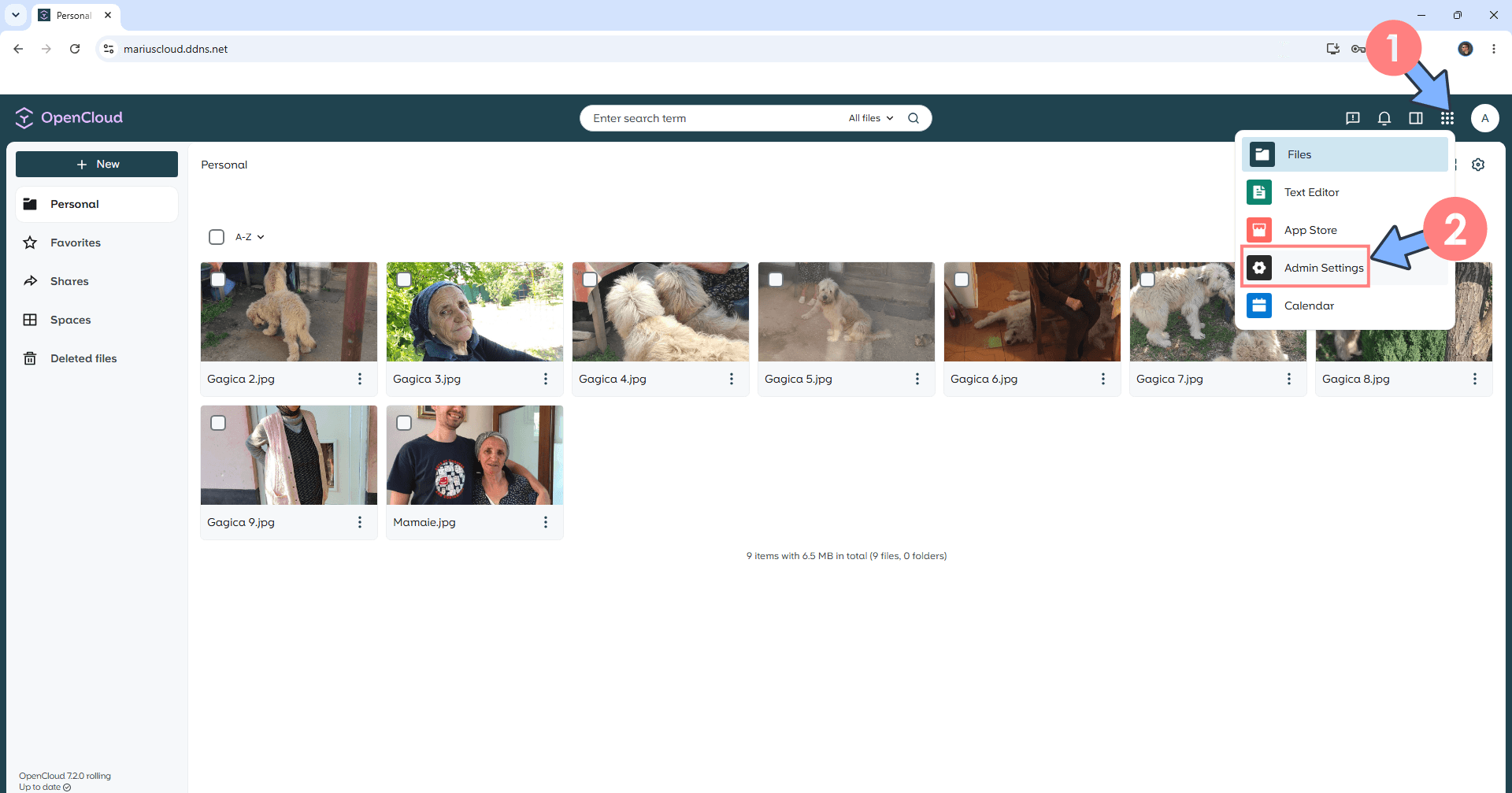
At the top right of the page, click the cube icon then Admin Settings. Follow the instructions in the image below.
STEP 23
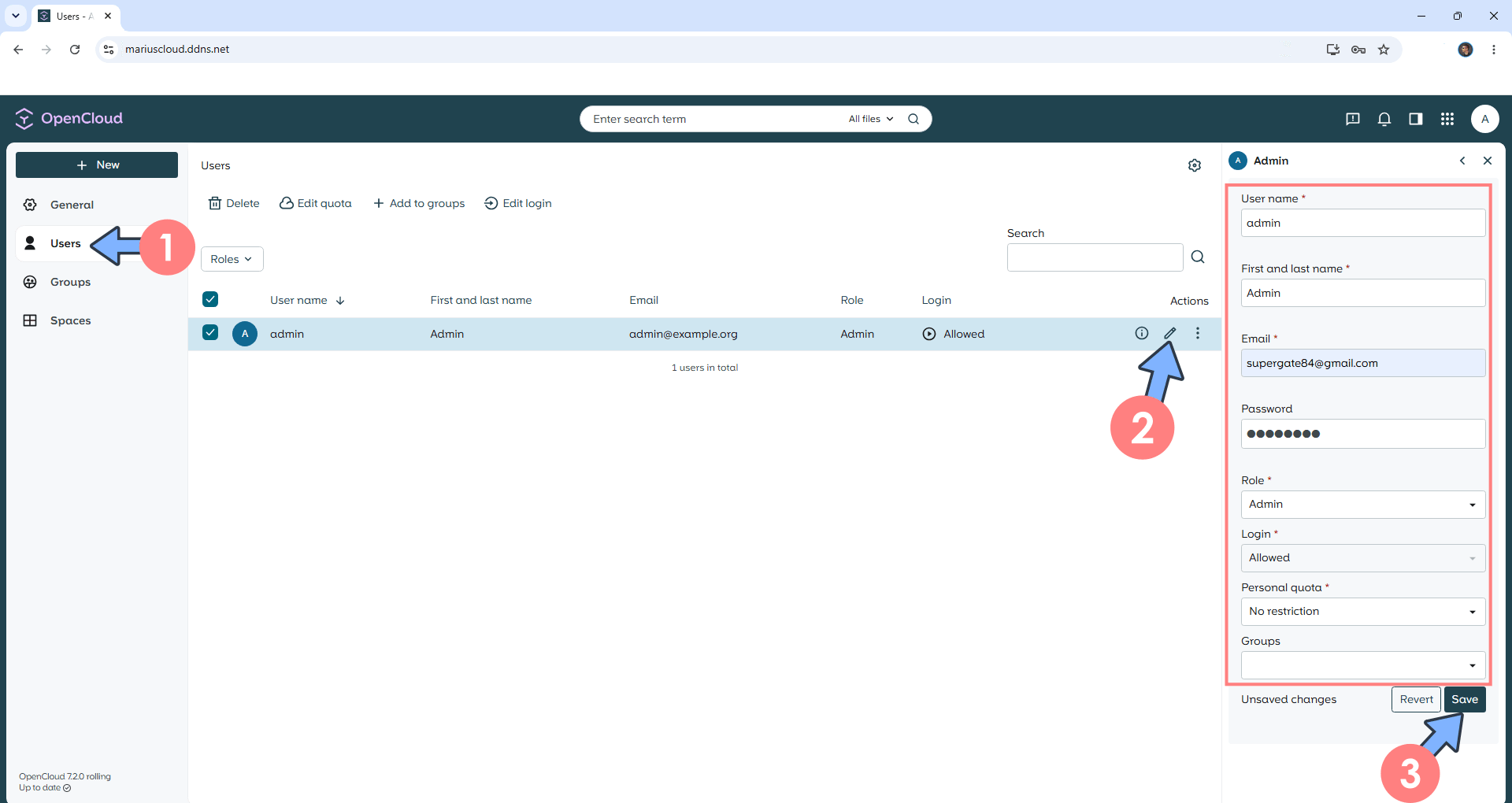
Click Users. Click the Edit icon to change your Username, Email etc. Follow the instructions in the image below.
STEP 24
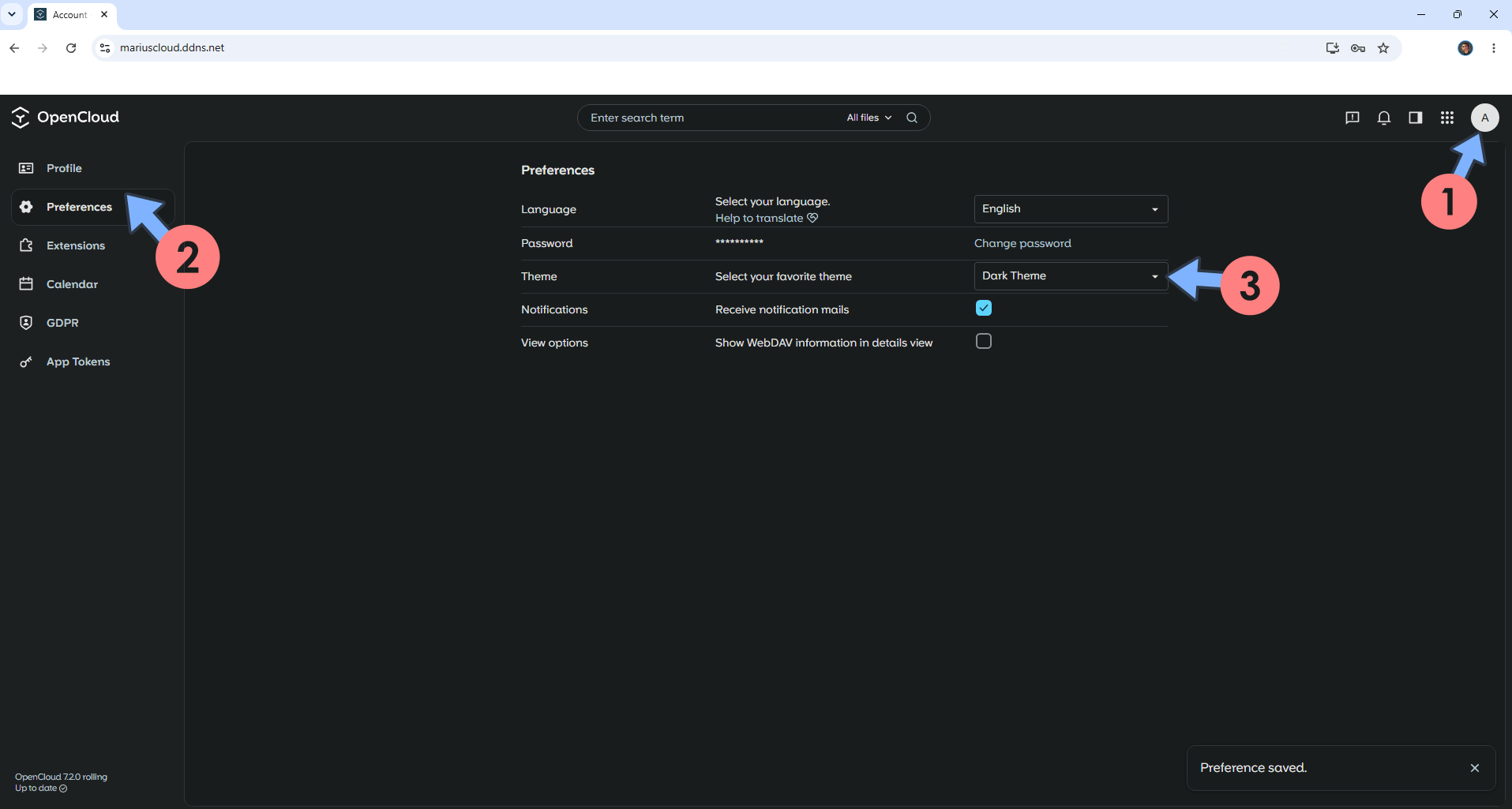
At the top right of the page, click on your user icon then Preferences. Switch your OpenCloud theme from Light to Dark. Follow the instructions in the image below.
STEP 25
Your OpenCloud dashboard at a glance!
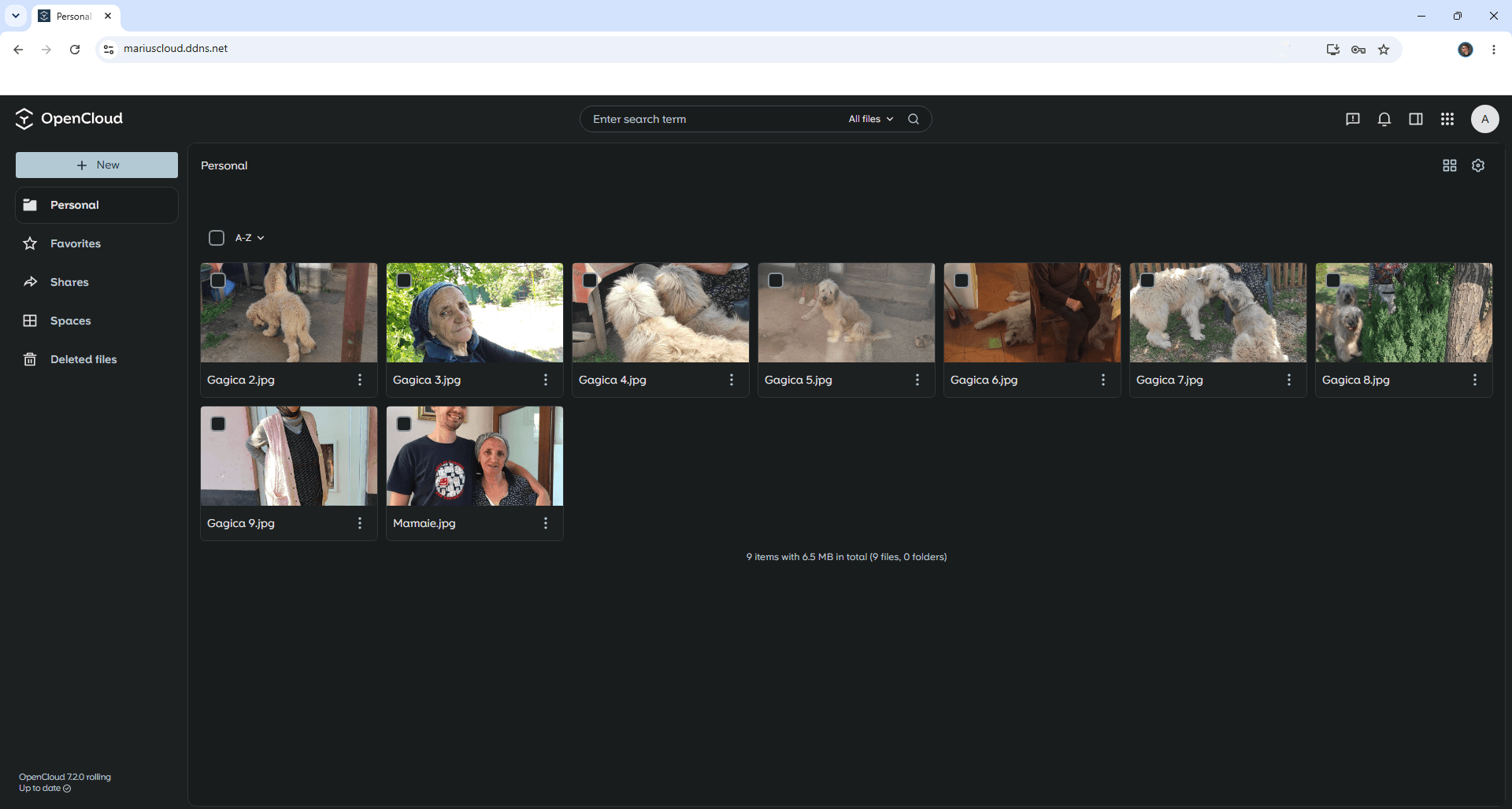
Enjoy OpenCloud on Your UGREEN NAS!
🆙Note/Update/Container: How to Update Your Docker Containers on UGREEN NAS Using Portainer.
🐳Note: How to Create Docker Shortcuts on Desktop.
🆕Note: How to Update Portainer to the latest version.
🆕Note: How to Clean Docker.
This post was updated on Saturday / October 10th, 2026 at 2:32 AM