
For years on my blog I have always recommended and used Portainer as my go-to Docker manager on Synology NAS and UGREEN NAS (and beyond). It was love at first sight: clean interface (for its time), full control over containers, stacks, volumes, networks… basically everything a homelabber or small business could want from a self-hosted tool. Then came 2025/2026… and along with it, Dockhand. This isn’t just another alternative. Dockhand is currently one of the best choices (often preferred over Portainer, Dockge, Dockman, Komodo, etc.). Give it a spin. It’s literally a one-command install, same as Portainer.
💡Note: Check out my guide on how to Install Dockhand on Your Synology NAS.
💡Note: Check out my guide on how to Install Dockhand on Your UGREEN NAS.
🚀Farewell to 7 Docker Tools: Dockhand Just Killed Them All in One Go
Dockhand is bursting onto the scene with impressive force, bringing a breath of truly fresh air to a world that, let’s be honest, had started to feel a bit stagnant with Portainer. Between increasingly pushy “Enterprise only” features, an aging UI, and some accumulated small frustrations, things were getting old. Dockhand isn’t here to play the shy underdog. Whether it’s actually “better” depends on your priorities, but here are the main reasons why a lot of people (especially in the homelab/self-hosted community) consider Dockhand superior right now.
Dockhand, in my opinion, is simpler & more direct, very clean, compact, fast, intuitive, modern and less overwhelming. You have so many options to choose from and the UI is mind-blowing. Quick prune, better navigation, container file browser, GPU, CPU, RAM monitoring, schedules/workflows. Forever free & generous for homelabs. Below you will find the best Tips and Tricks for Dockhand.
STEP 1
🟢Please Support My work by Making a Donation. Almost 99,9% of the people that install something using my guides forget to support my work, or just ignore STEP 1. I’ve been very honest about this aspect of my work since the beginning: I don’t run any ADS, I don’t require subscriptions, paid or otherwise, I don’t collect IPs, emails, and I don’t have any referral links from Amazon or other merchants. I also don’t have any POP-UPs or COOKIES. I have repeatedly been told over the years how much I have contributed to the community. It’s something I love doing and have been honest about my passion since the beginning. But I also Need The Community to Support me Back to be able to continue doing this work.
Tips & Tricks 1
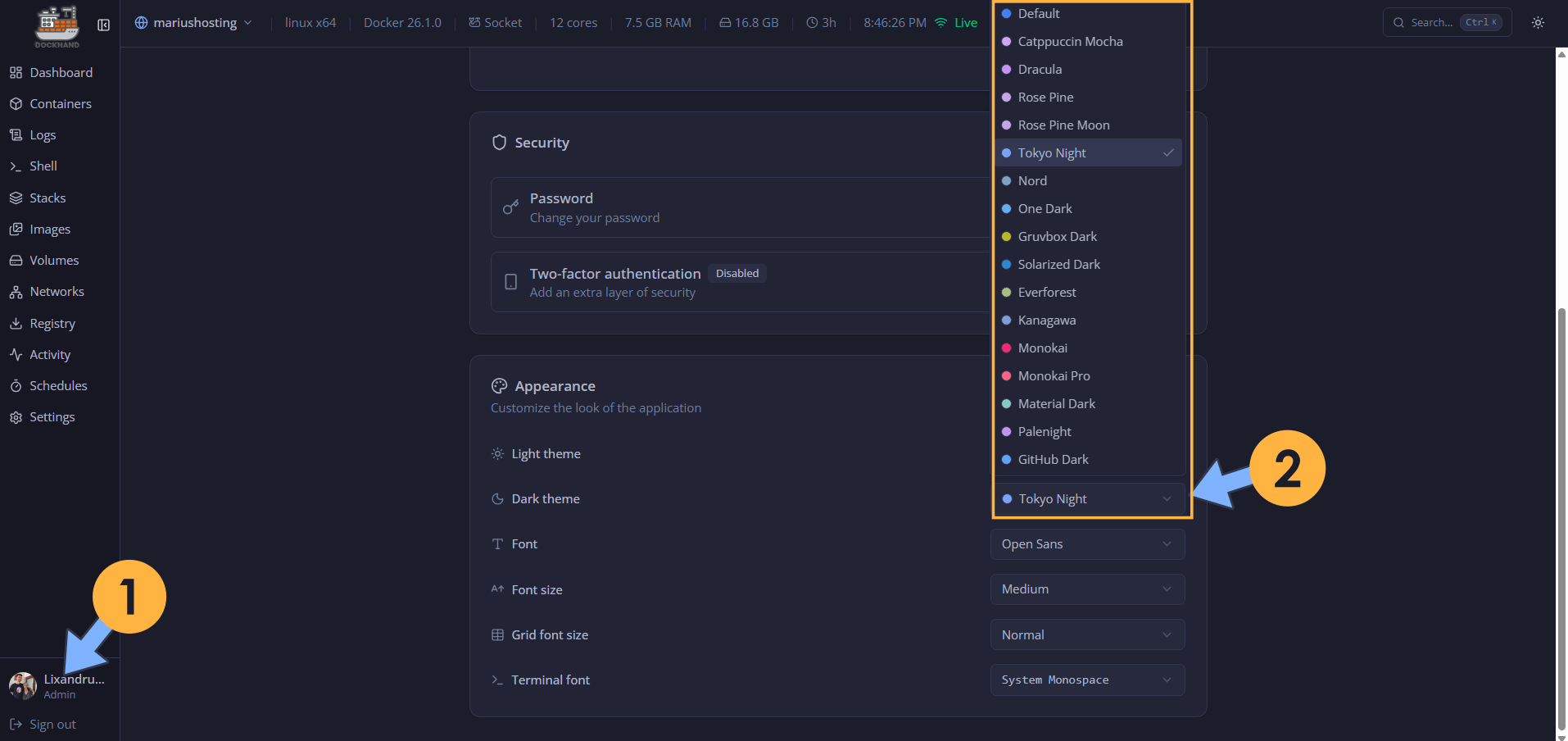
Left sidebar, Admin, change the theme of the whole Dockhand app with one click. Follow the instructions in the image below.
Tips & Tricks 2
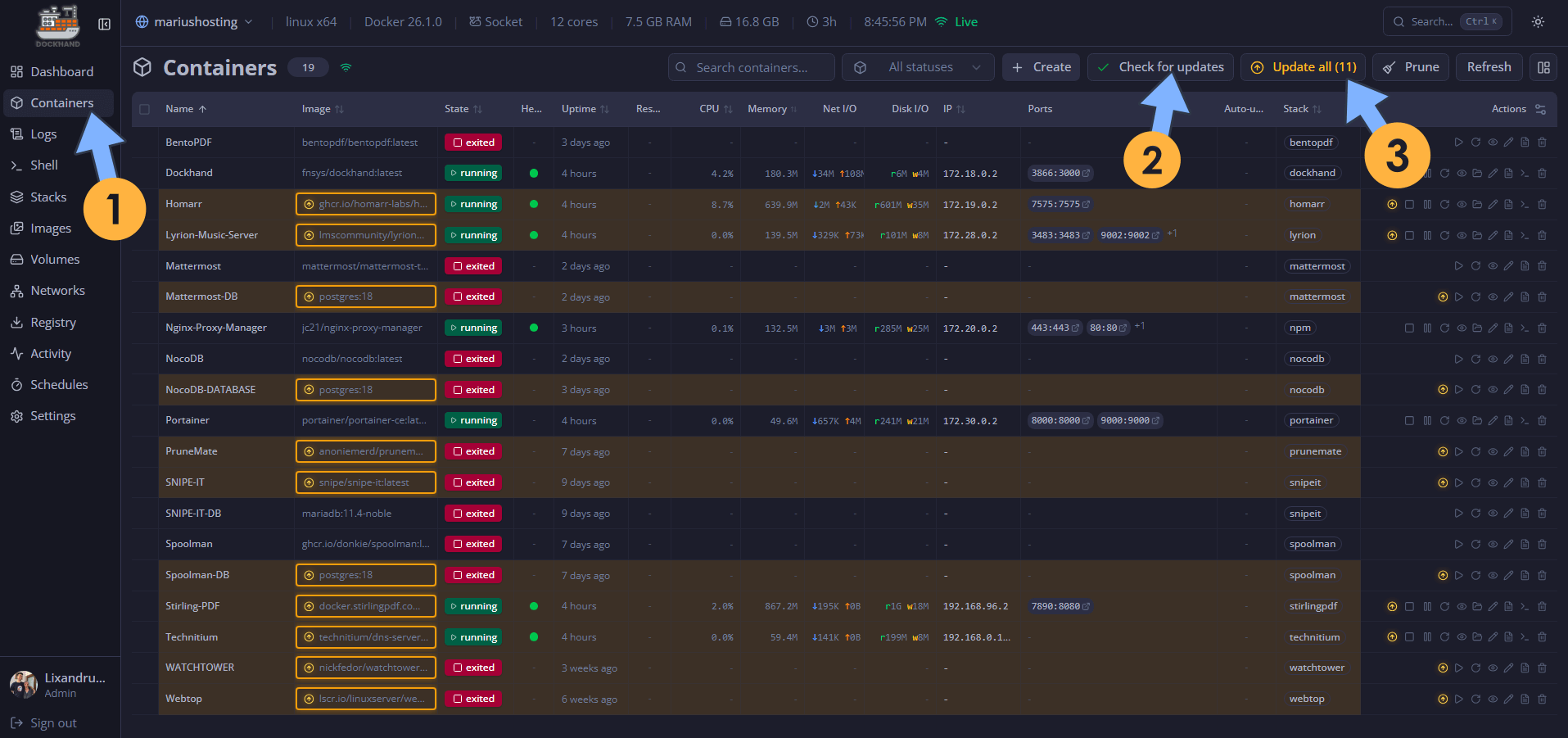
Left sidebar, Containers. Click Check for updates then Update all to update all the containers with just one click or you can update them individually. Follow the instructions in the image below.
Tips & Tricks 3
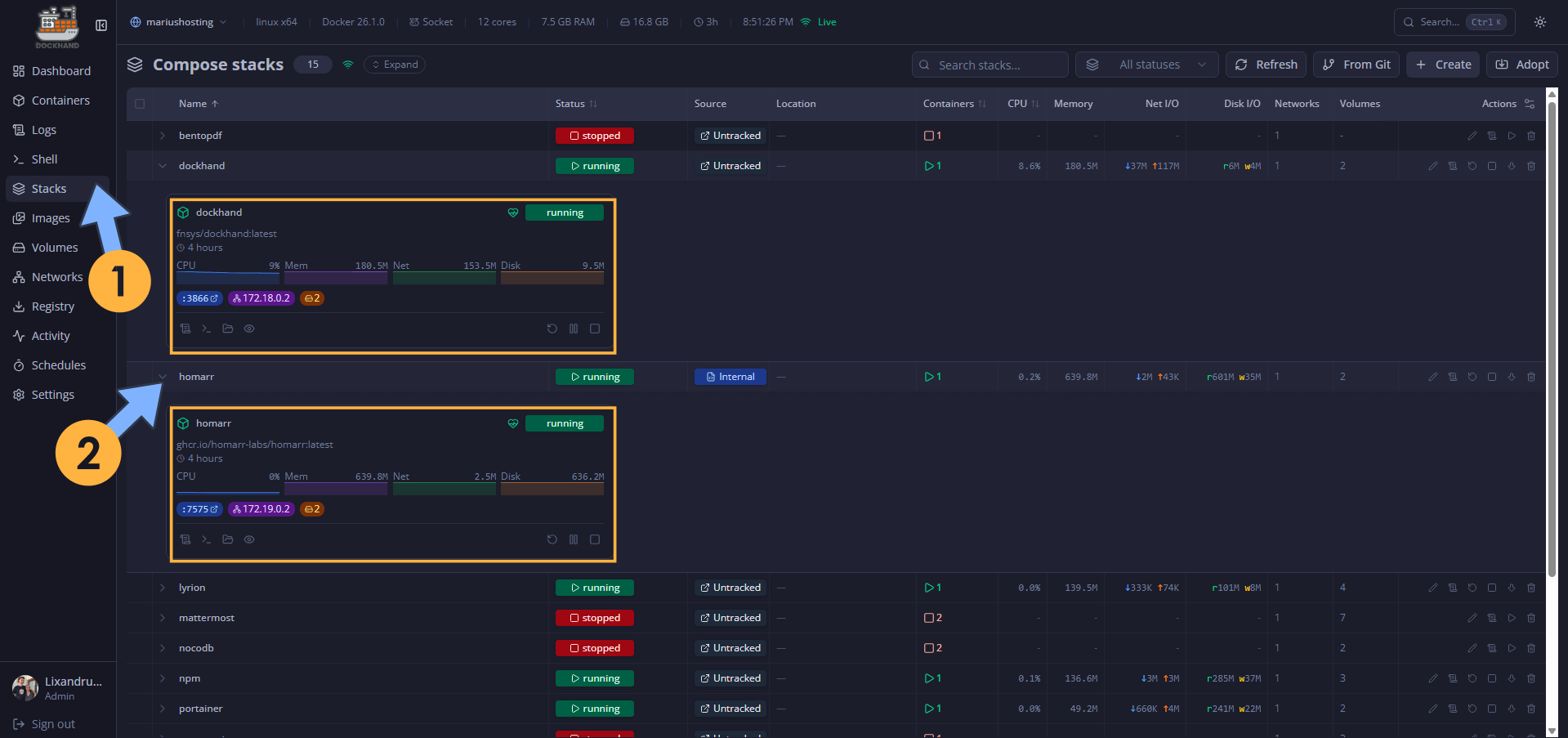
Monitor containers and stacks performance individually. Left sidebar, Stacks, click on the stack whose window you want to expand and look at the real time performance stats. Follow the instructions in the image below.
Tips & Tricks 4
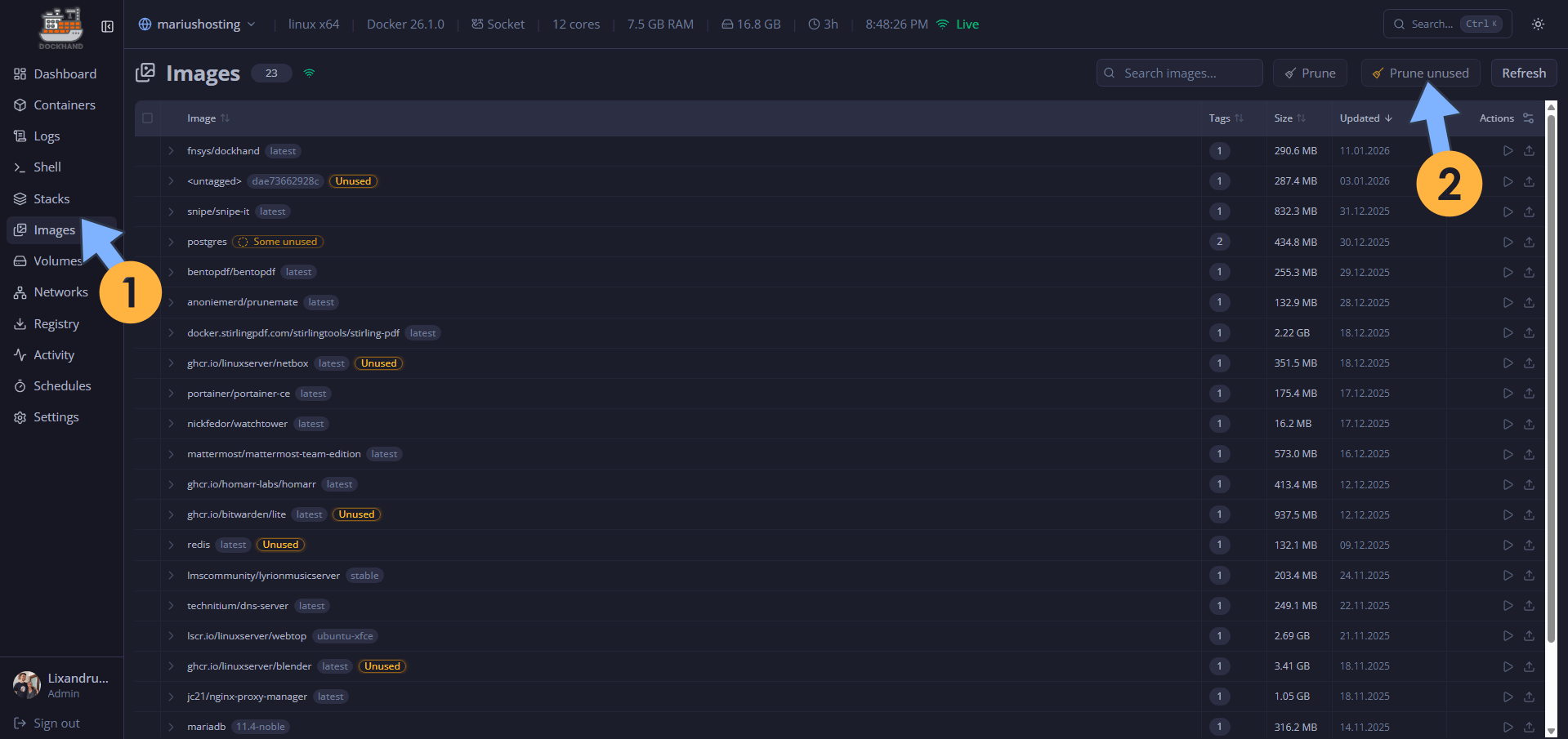
Prune/delete unused images. Left sidebar, Images. Check and select the unused image then click Prune unused to delete all unused images that take up space on your NAS. Follow the instructions in the image below.
Tips & Tricks 5
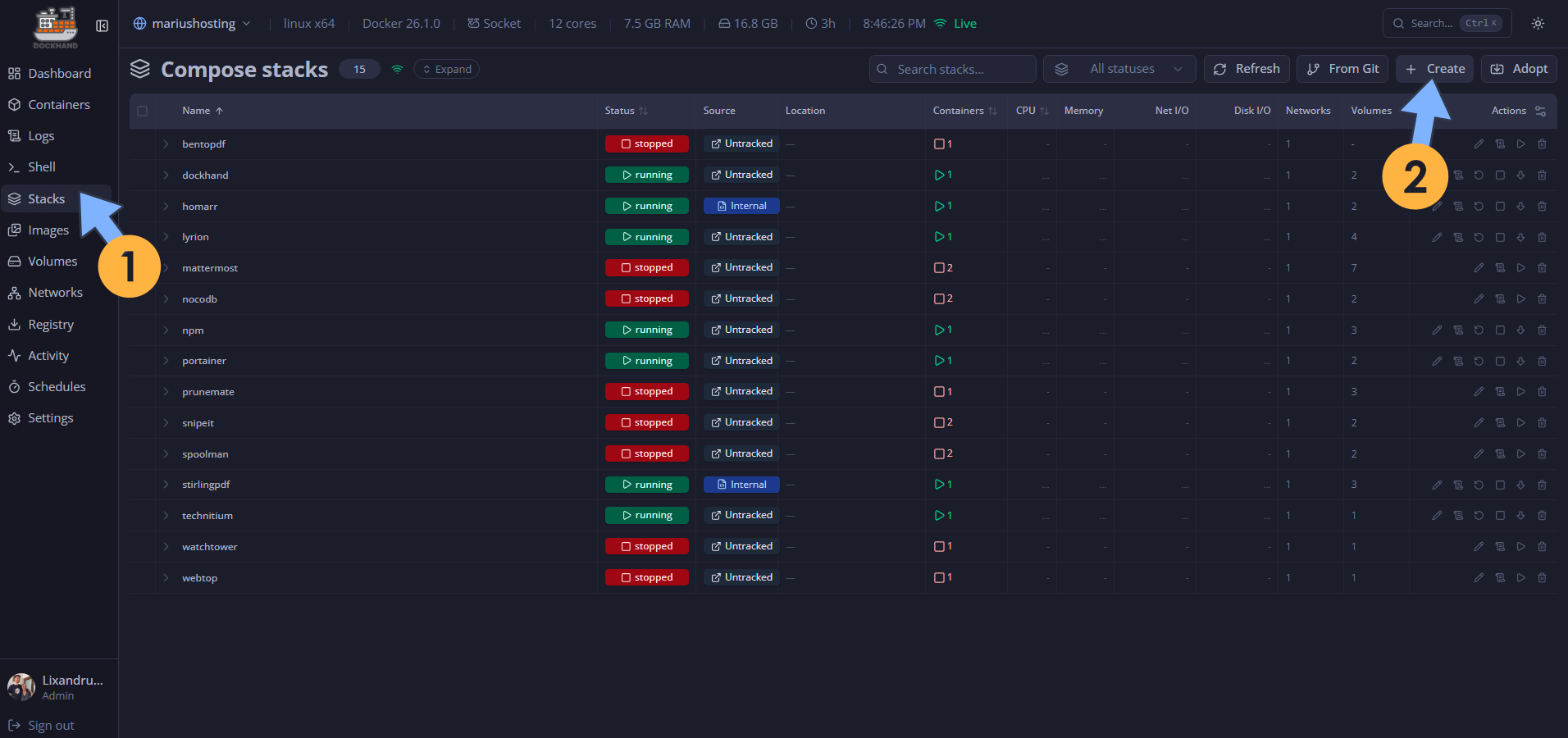
Create Compose Stack. Left sidebar, Stacks, click + Create. Follow the instructions in the image below.
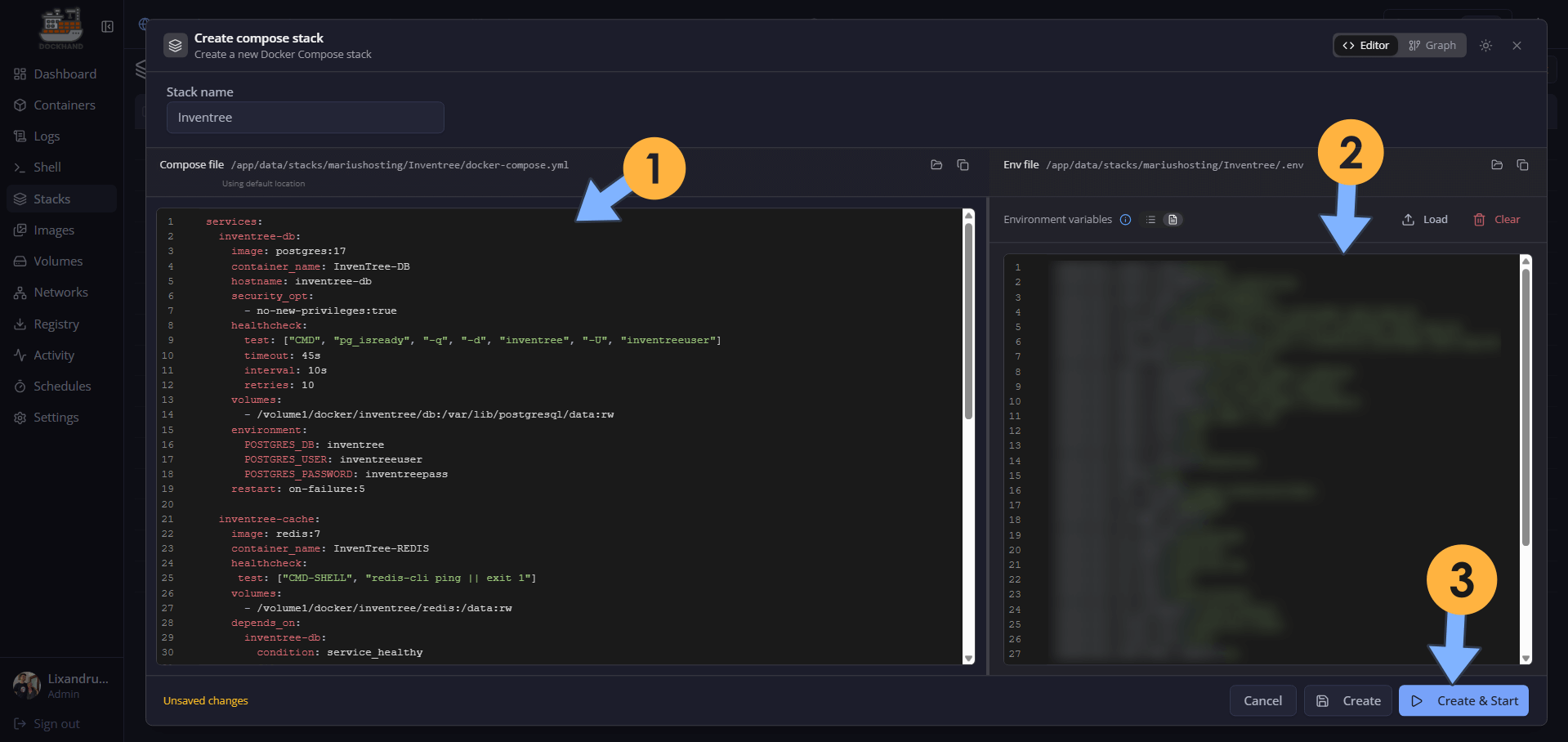
You can paste the compose stack in the apposite left area and you can also upload a .env file if the stack is accompanied by a .env file on the right.
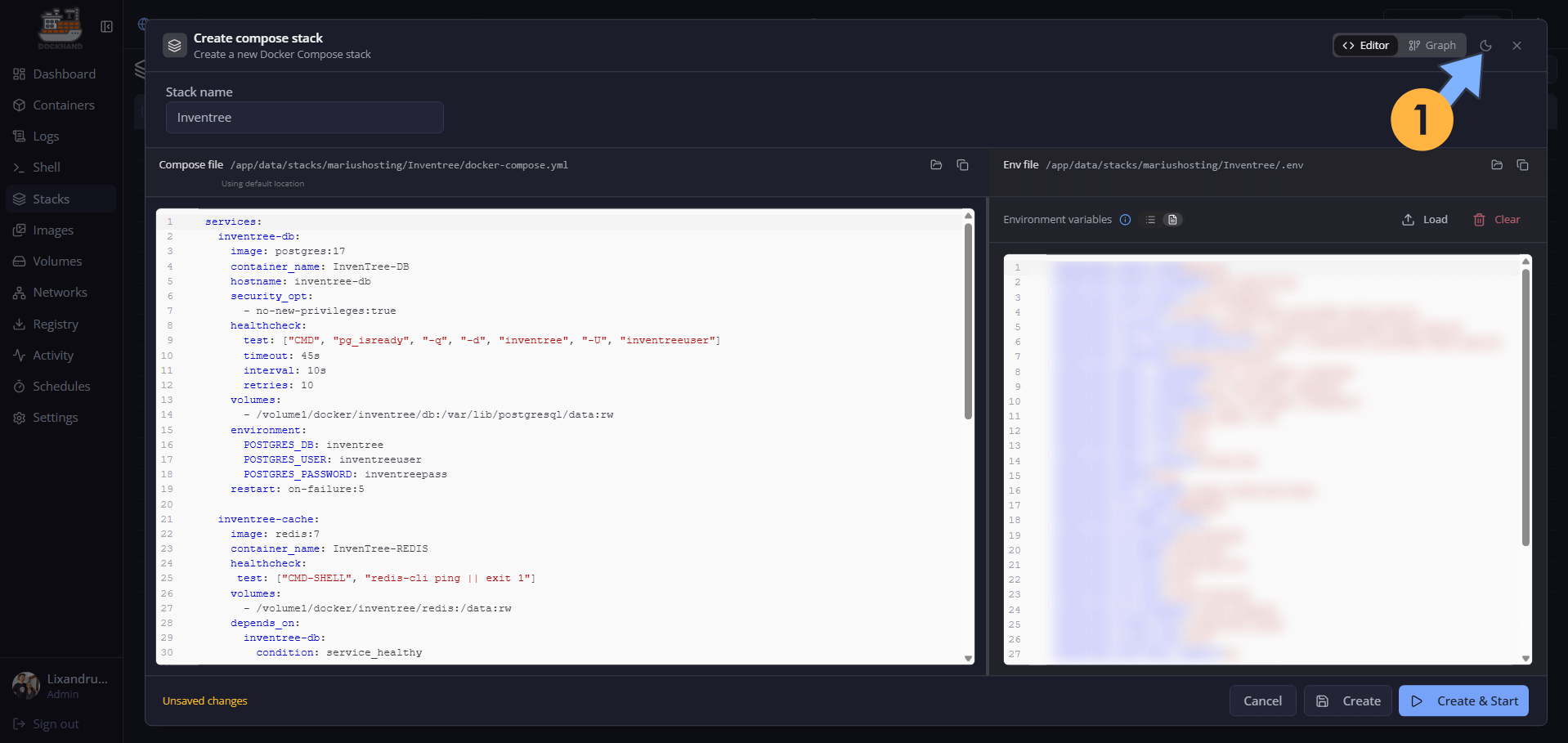
One thing that I like so much about Dockhand is the option to change the background from dark to light inside the compose stack area and .env file area without affecting the whole Dockhand theme that you have previously changed in the Tips & Tricks 1. Follow the instructions in the image below.
Tips & Tricks 6
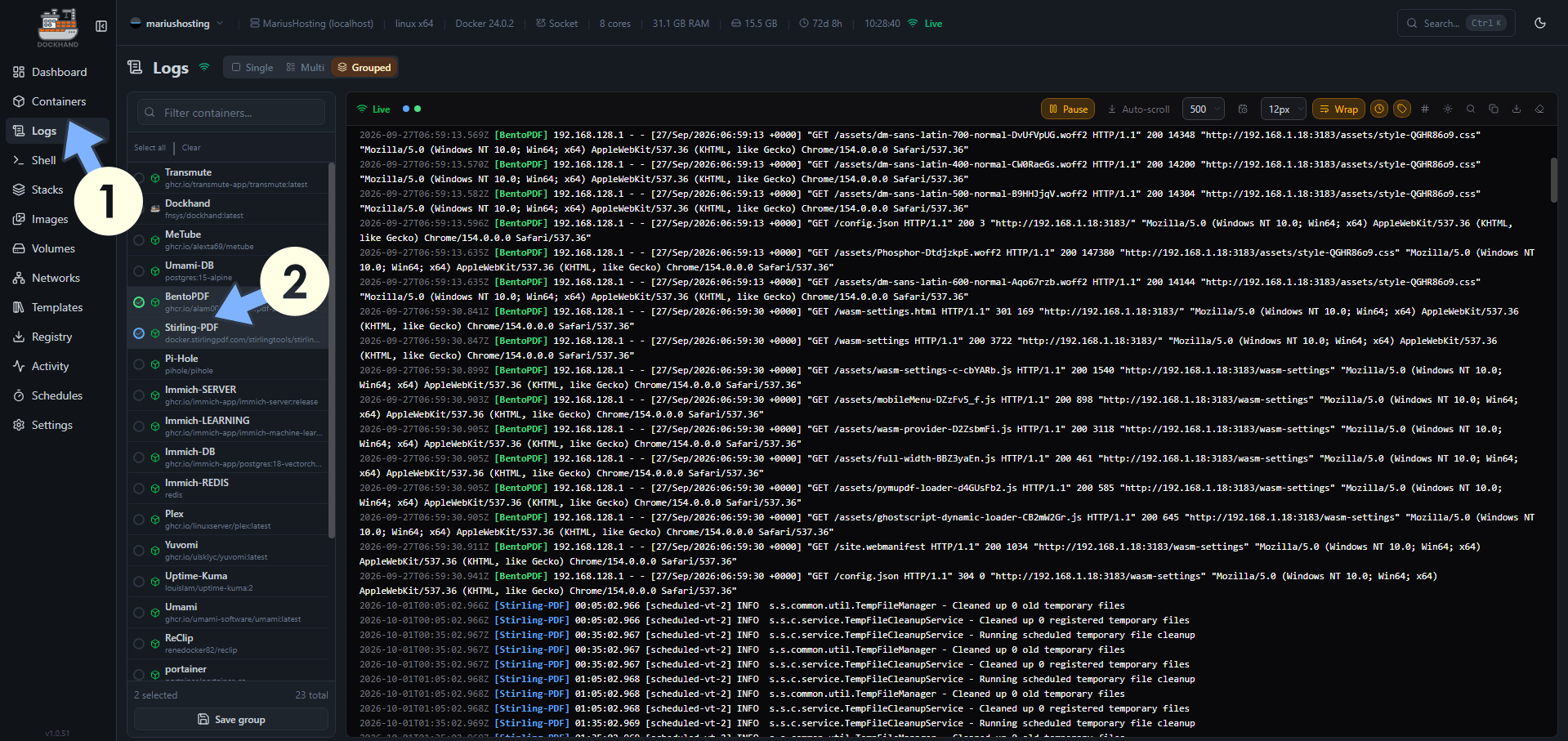
Logs at a glance. Container logs are always at a glance. You can inspect every container log in an easy way. Left sidebar, Logs, click on the container whose logs you want to check. You can refresh the logs, download the logs, in short, everything at a glance to have full control over the logs and help you to troubleshoot issues in real time like an expert. Follow the instructions in the image below.
Tips & Tricks 7
Font, Font size and Grid font size. You have total control on how Dockhand looks. If you need the text to be bigger, you have the perfect product for your homelab.
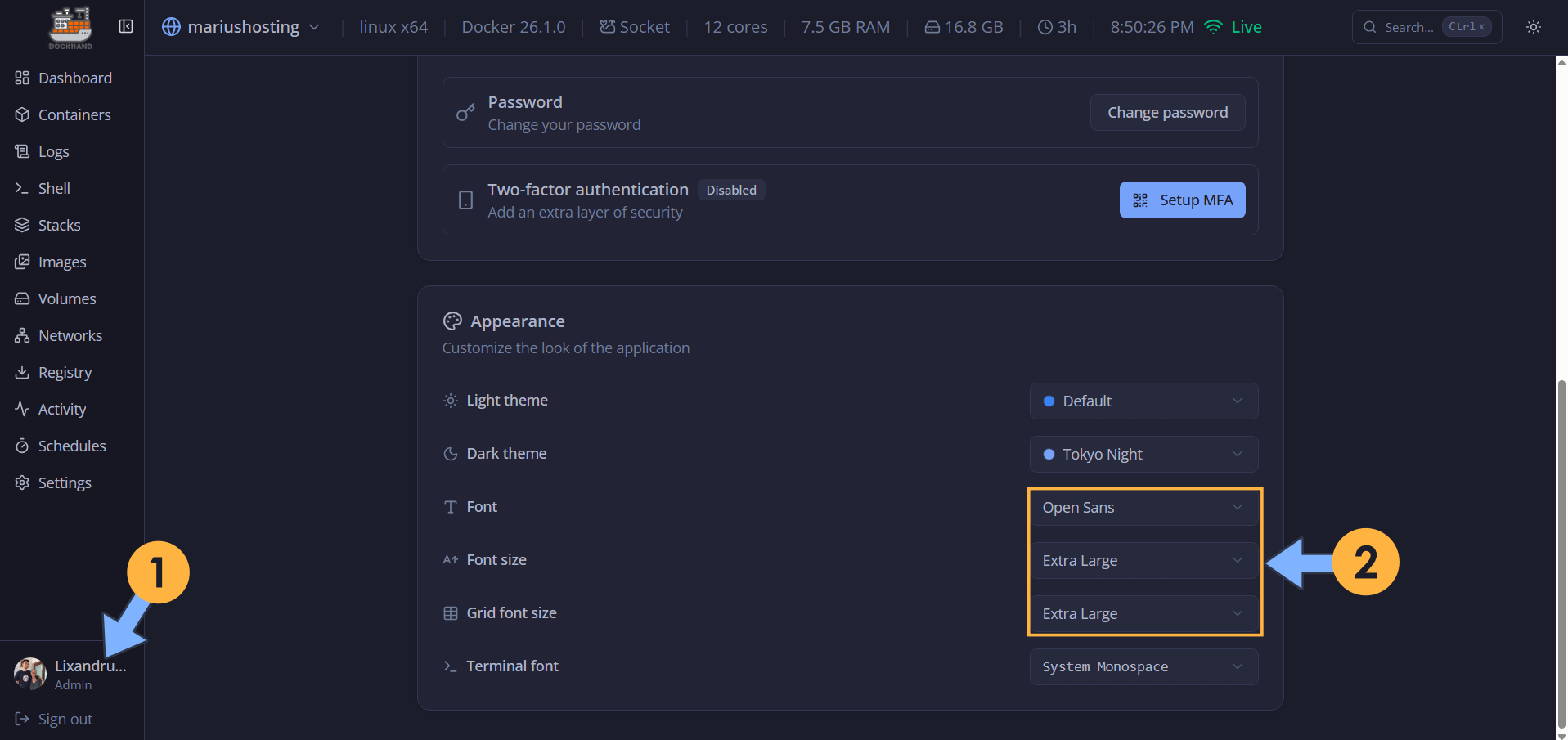
Your Extra Large font at a glance!
Tips & Tricks 8
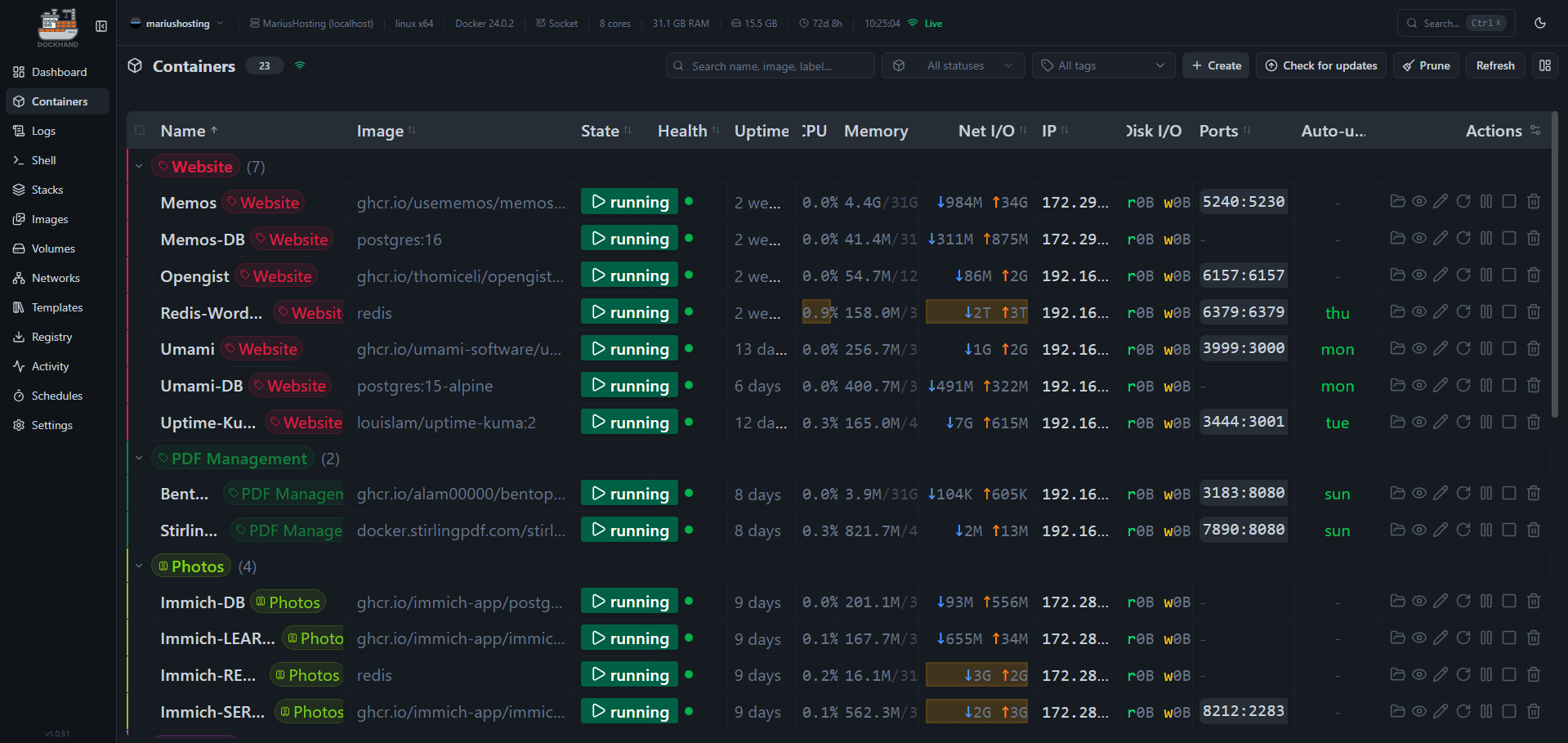
Check out my Mid October 2026 Roundup article to learn how to add tags and icons in Dockhand.
In the world of self-hosting and homelabs, few tools have captured the community so quickly like Dockhand. A clean, modern, fast interface, zero telemetry, zero phoning home, native Compose management, Hawser Edge to work behind NAT without opening ports… basically, everything Portainer should have been in 2026. And all of this was made possible thanks to just one person: Jarek Krochmalski.
This post was updated on Saturday / October 17th, 2026 at 11:19 AM