

Homebridge is a lightweight NodeJS server you can run on your home network that emulates the iOS HomeKit API. Homebridge allows you to integrate with smart home devices that do not support the HomeKit protocol. After installing Homebridge, it remains running and connected to your network, ready to service requests from Siri. In this step by step guide I will show you how to install Homebridge on your Asustor NAS using Docker & Dockhand.
💡Note: This guide works perfectly with the latest Homebridge v2.4.0 release.
💡Note: Check out my guide on how to Install Homebridge on Your Synology NAS.
💡Note: Check out my guide on how to Install Homebridge on Your UGREEN NAS.
STEP 1
Please Support My work by Making a Donation.
STEP 2
Install Dockhand using my step by step guide. If you already have Dockhand installed on your Asustor NAS, skip this STEP. ⚠️Attention: Make sure you have installed the latest Dockhand version.
STEP 3
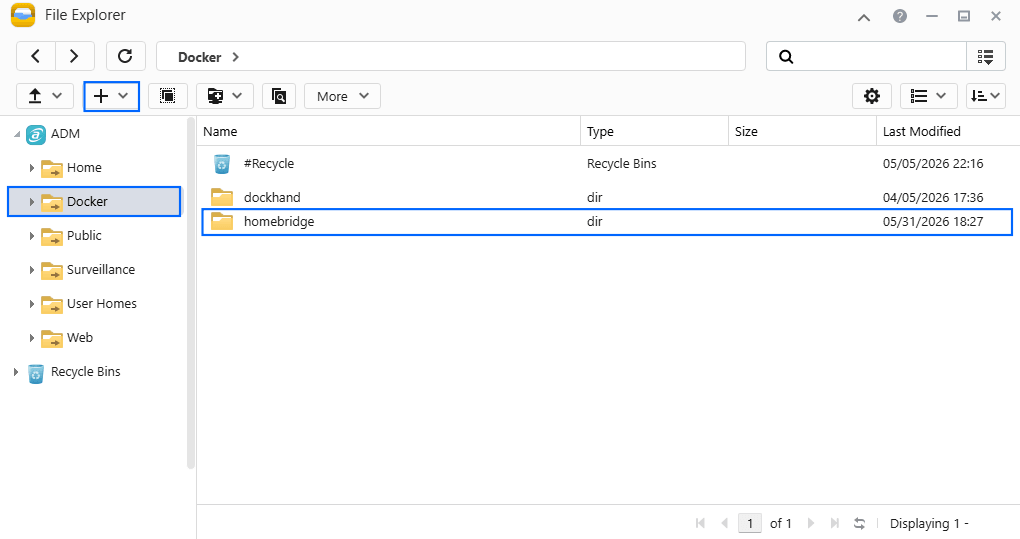
Go to File Explorer and open the Docker folder. Inside the Docker folder, create one new folder and name it homebridge. Follow the instructions in the image below.
Note: Be careful to enter only lowercase, not uppercase letters.
STEP 4
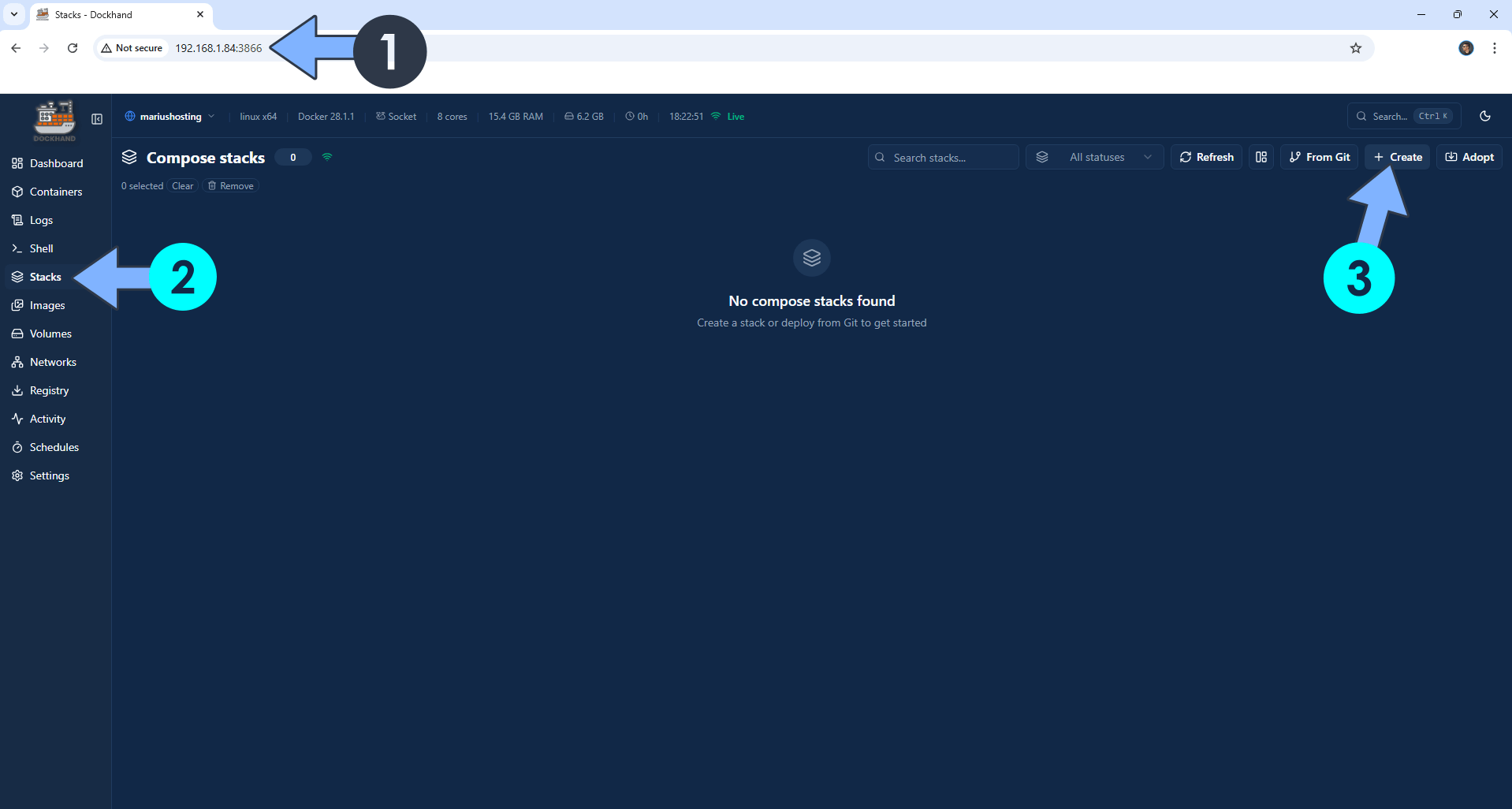
Open your browser and type in http://asustor-ip-address:3866 to connect to your Dockhand container. On the left sidebar, click Stacks then + Create. Follow the instructions in the image below.
STEP 5
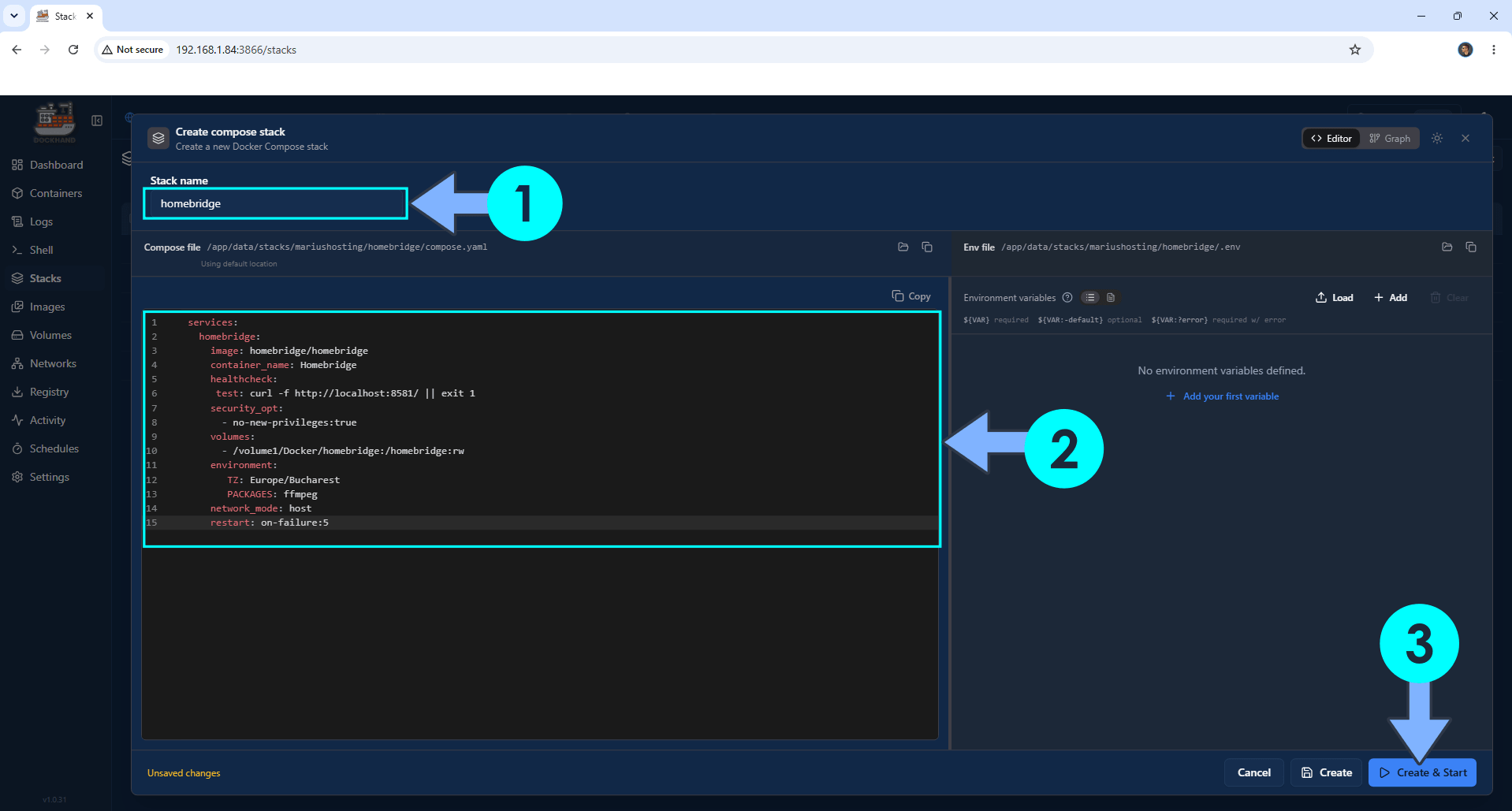
In the Stack name field, type in homebridge. ⚠️Warning: Type in the name in lowercase letters. The installation process can take up to a few seconds/minutes. It will depend on your Internet speed connection. Follow the instructions in the image below.
Note: Copy Paste the code below in the Dockhand Compose Stack then click Create & Start.
services:
  homebridge:
    image: homebridge/homebridge
    container_name: Homebridge
    healthcheck:
     test: curl -f http://localhost:8581/ || exit 1
    security_opt:
      - no-new-privileges:true
    volumes:
      - /volume1/Docker/homebridge:/homebridge:rw
    environment:
       TZ: Europe/Bucharest
       PACKAGES: ffmpeg
    network_mode: host
    restart: on-failure:5
Note: Before you paste the code above in the Stack editor area below, change the value for TZ. (Select your current Time Zone from this list.)
STEP 6
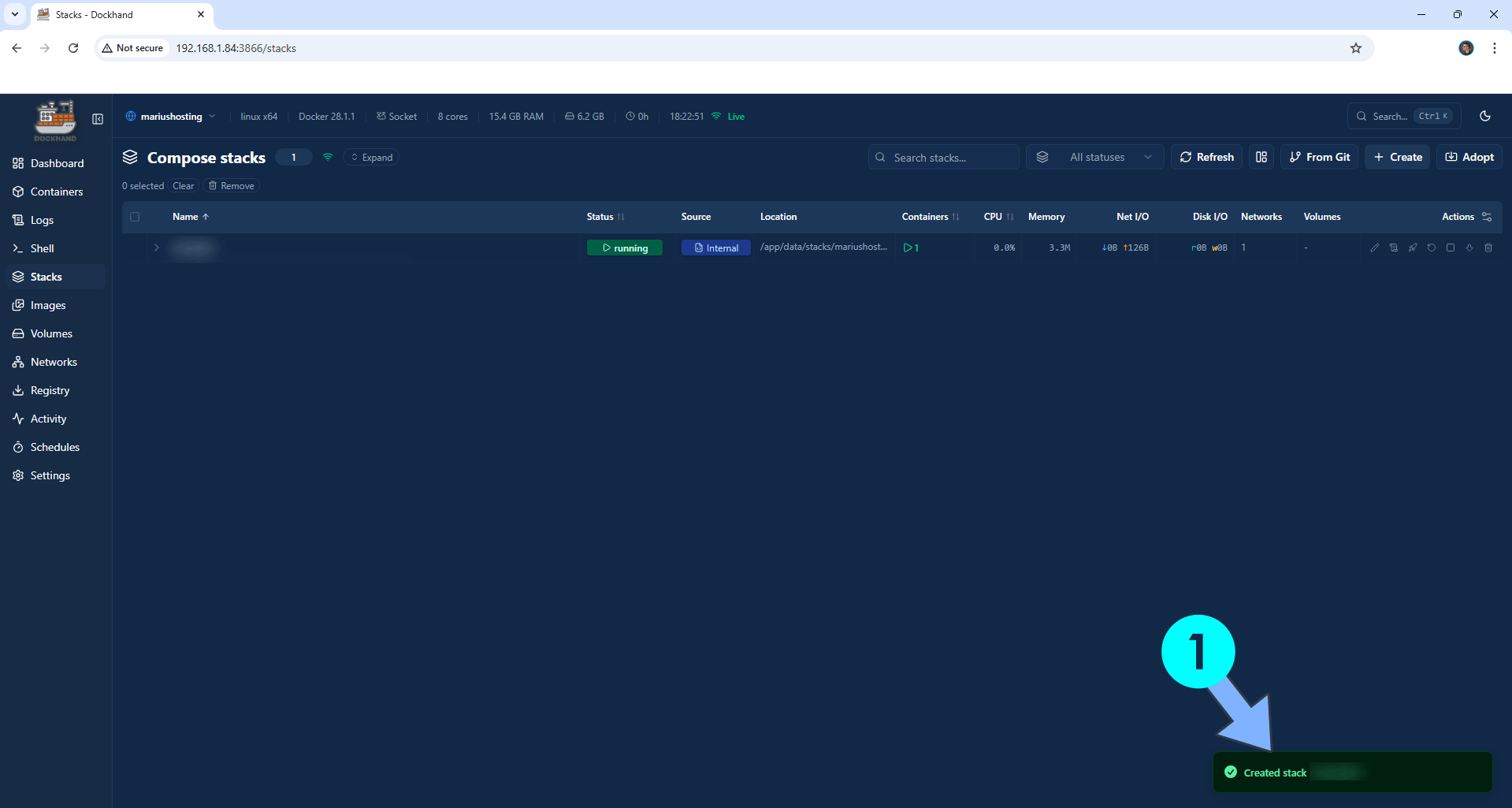
If everything goes right, you will see the following message at the bottom right of your screen: “Created stack “homebridge”“.
STEP 7
🟢Please Support My work by Making a Donation. Almost 99,9% of the people that install something using my guides forget to support my work, or just ignore STEP 1. I’ve been very honest about this aspect of my work since the beginning: I don’t run any ADS, I don’t require subscriptions, paid or otherwise, I don’t collect IPs, emails, and I don’t have any referral links from Amazon or other merchants. I also don’t have any POP-UPs or COOKIES. I have repeatedly been told over the years how much I have contributed to the community. It’s something I love doing and have been honest about my passion since the beginning. But I also Need The Community to Support me Back to be able to continue doing this work.
STEP 8
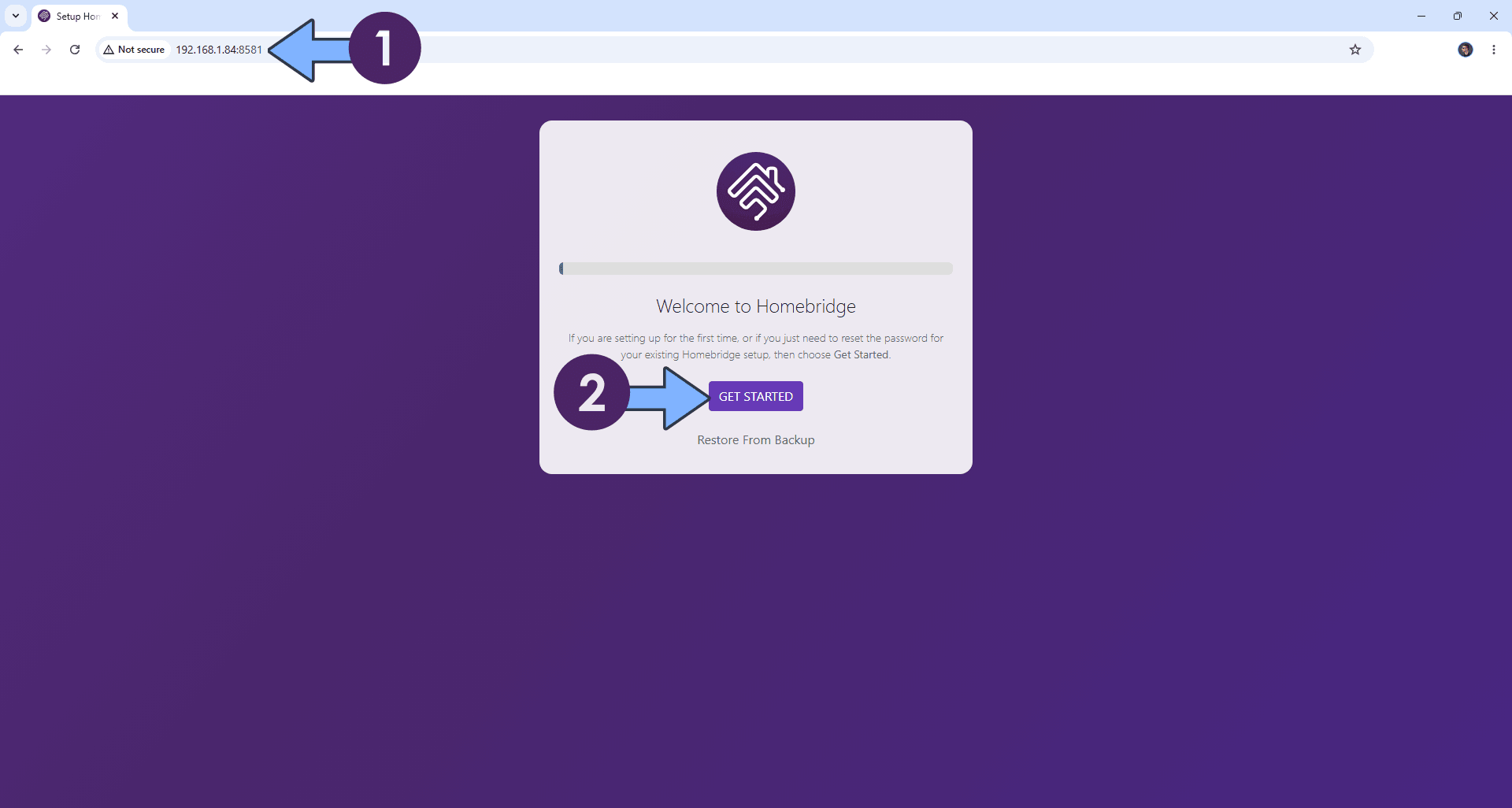
The installation process can take up to a few seconds/minutes. It will depend on your Internet speed connection. Now open your browser and type in http://asustor-ip-address:8581 Click GET STARTED. Follow the instructions in the image below.
STEP 9
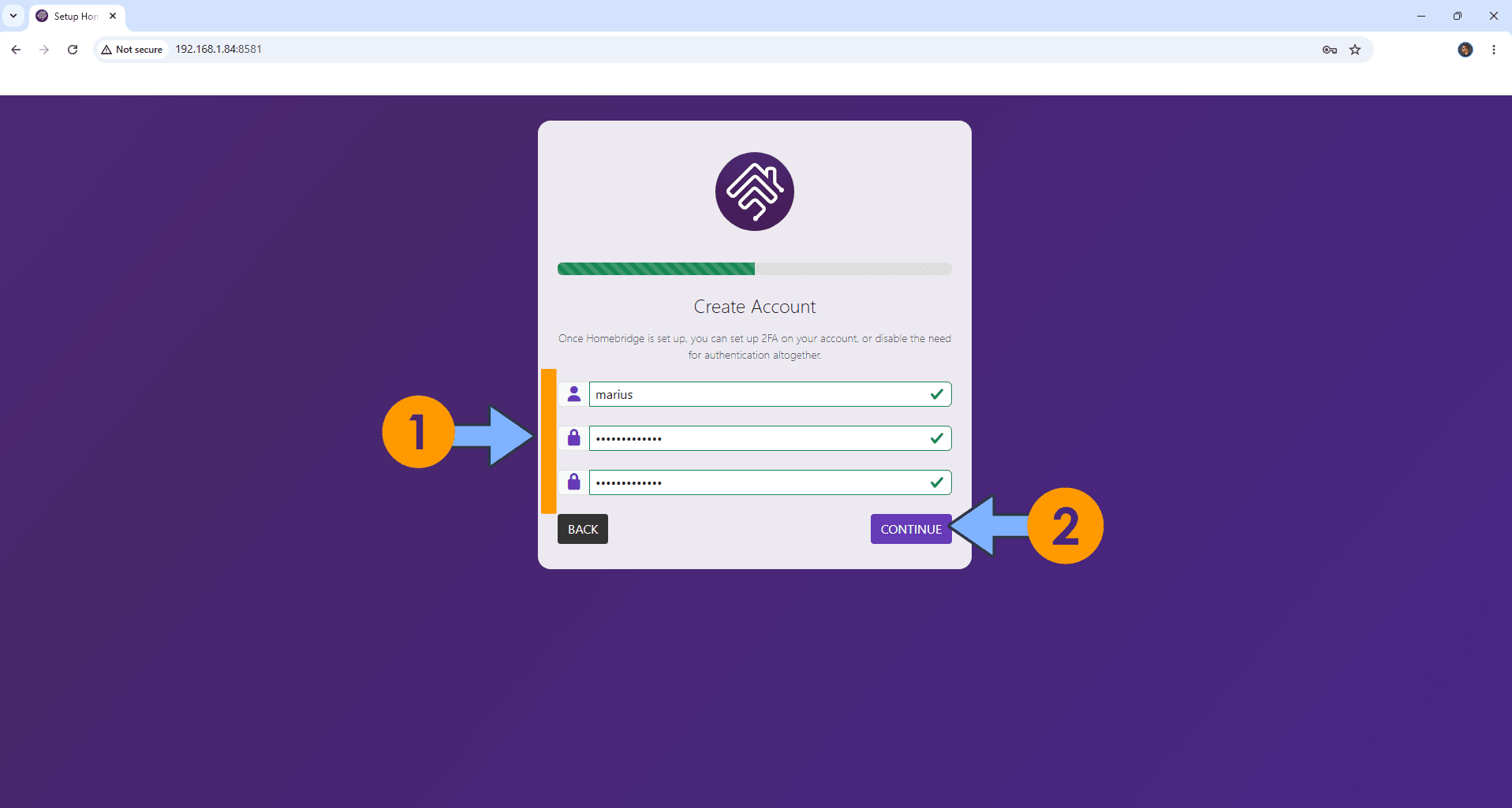
Type in your own credentials (Username and Password) then click CONTINUE. Follow the instructions in the image below.
STEP 10
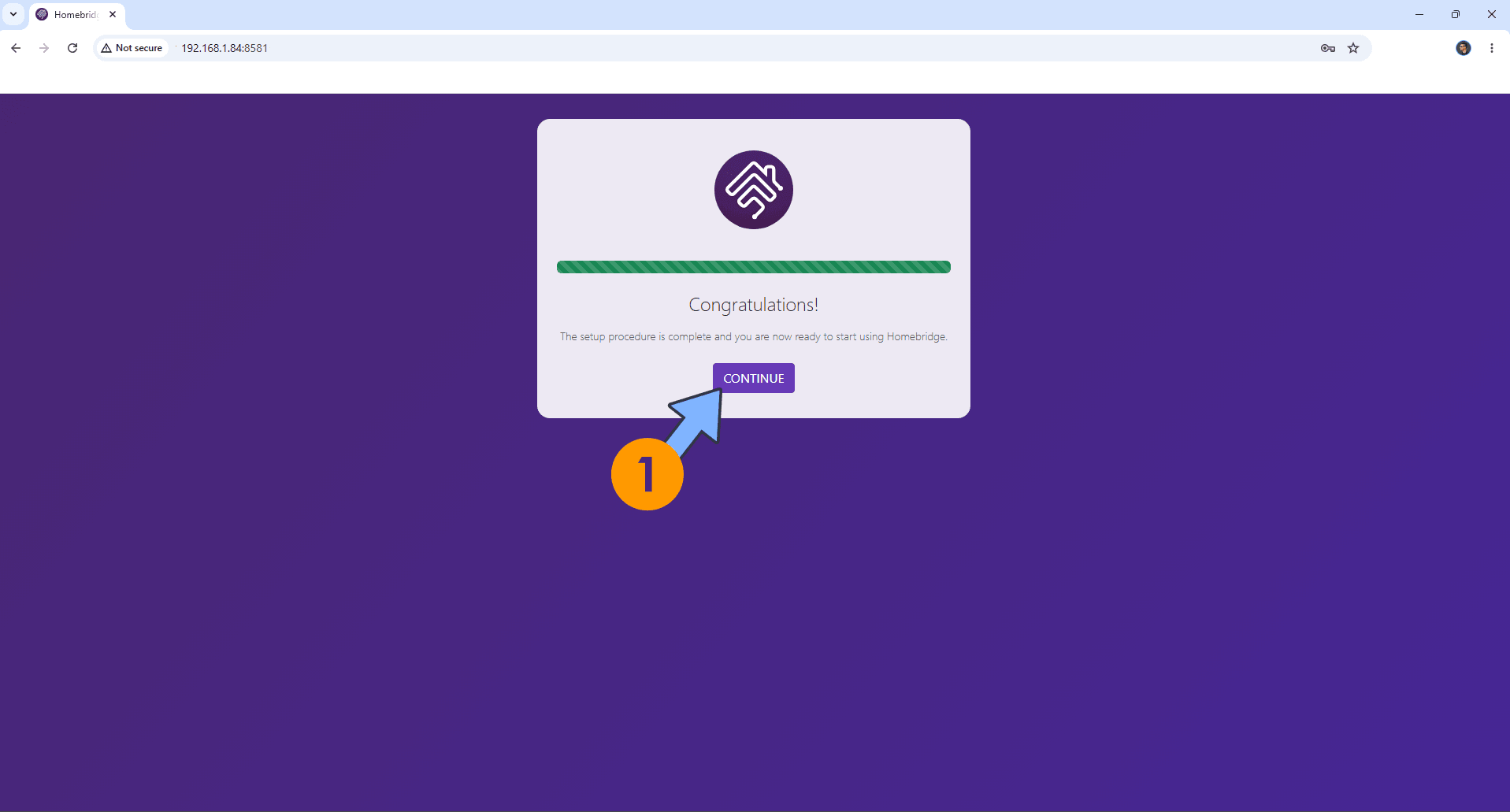
Click CONTINUE. Follow the instructions in the image below.
STEP 11
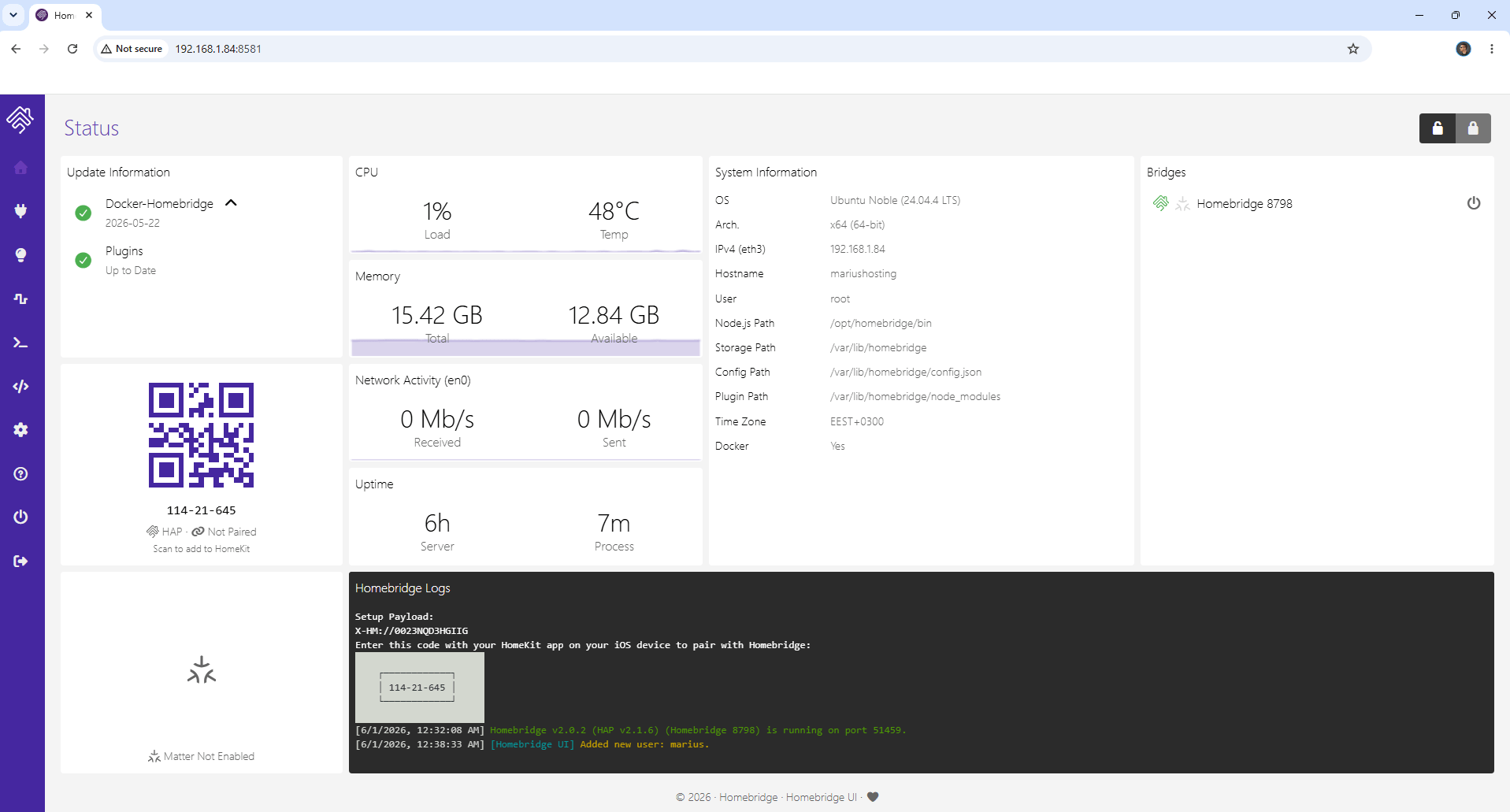
Your Homebridge dashboard at a glance! Enjoy HomeBridge and start adding Plugins. Go straight to the next STEP.
STEP 12
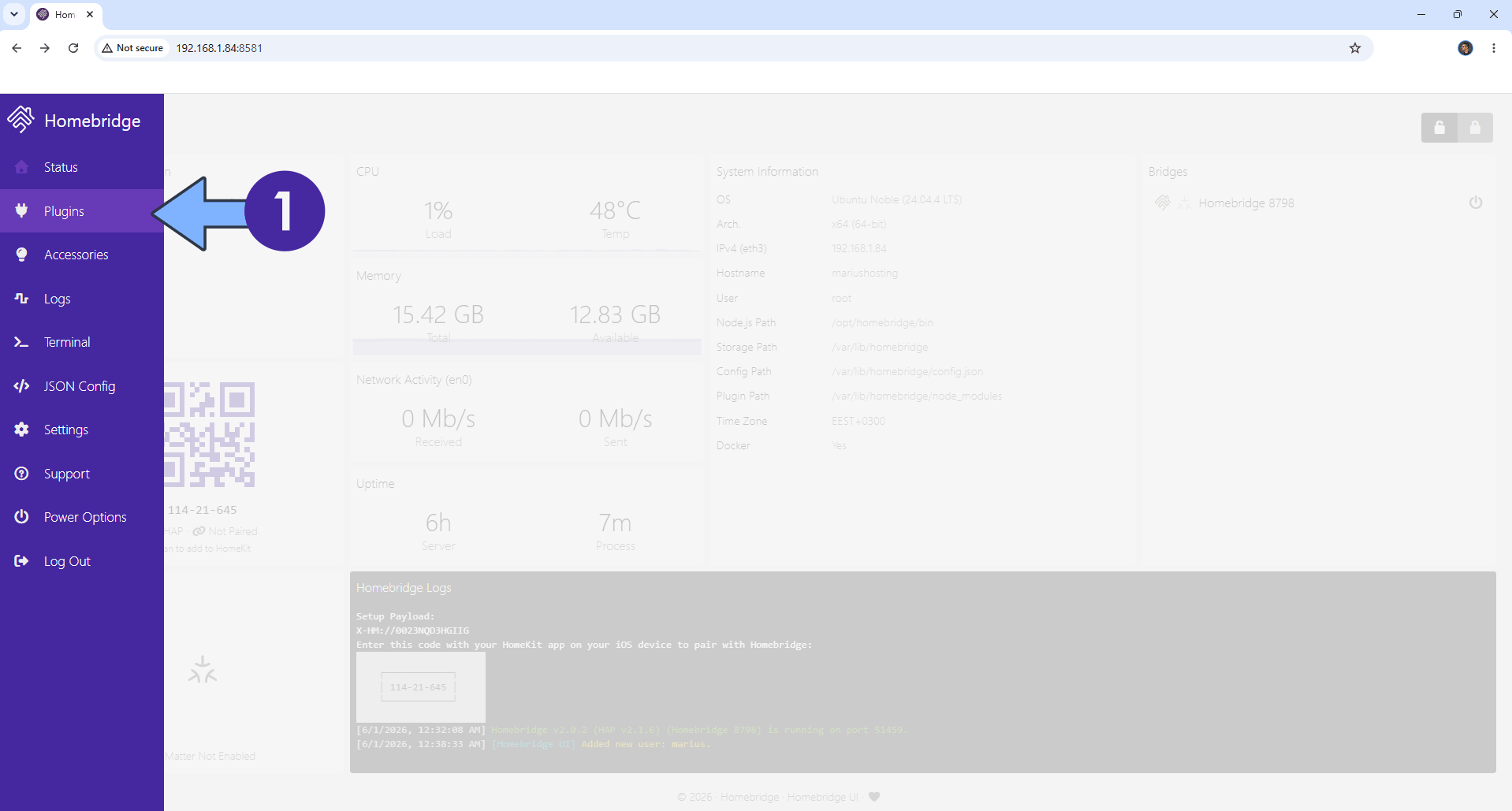
On the left sidebar, click Plugins. Follow the instructions in the image below.
STEP 13
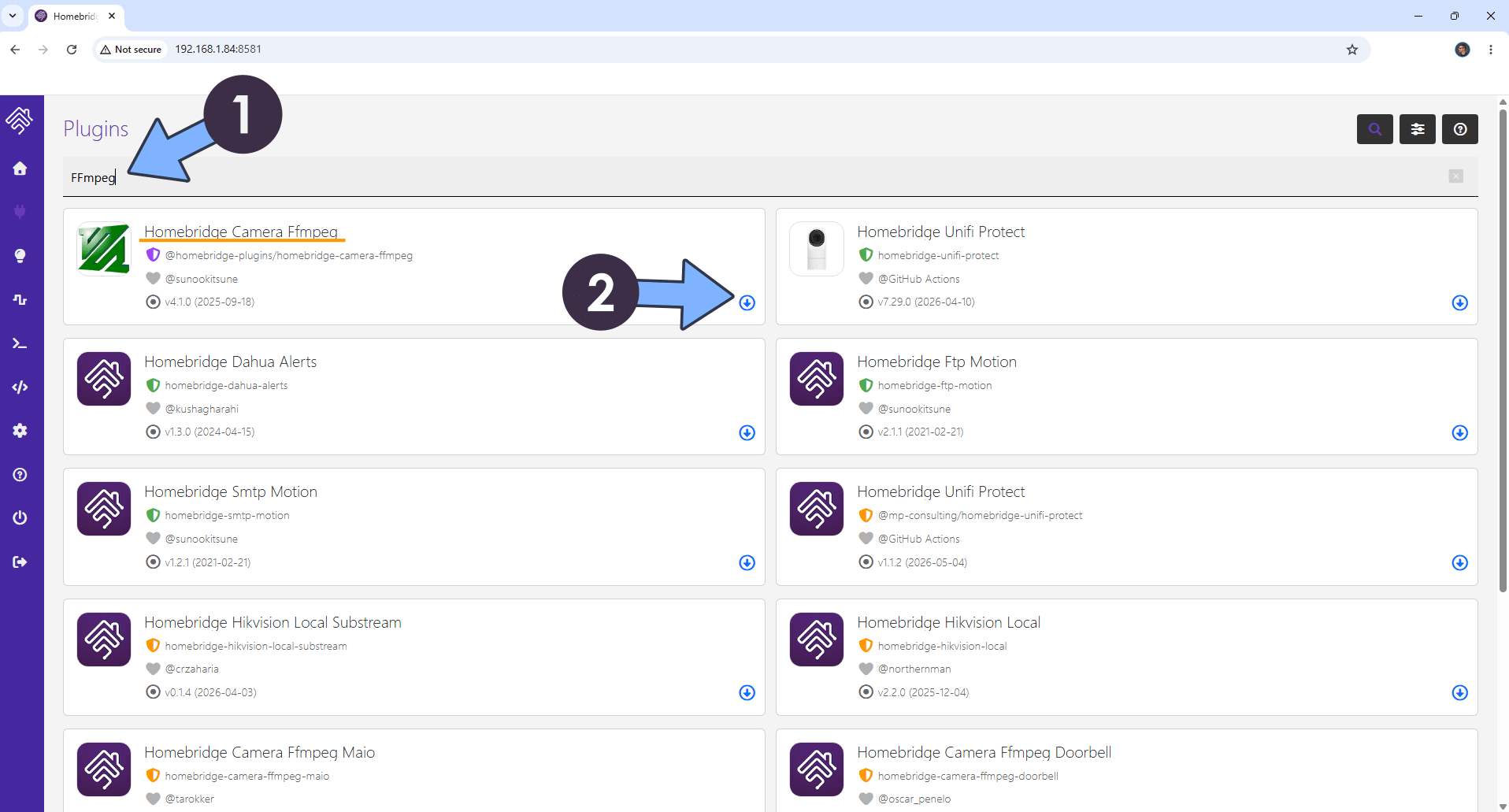
Search for FFmpeg. Click the Install icon to Install Homebridge Camera Ffmpeg. Follow the instructions in the image below.
STEP 14
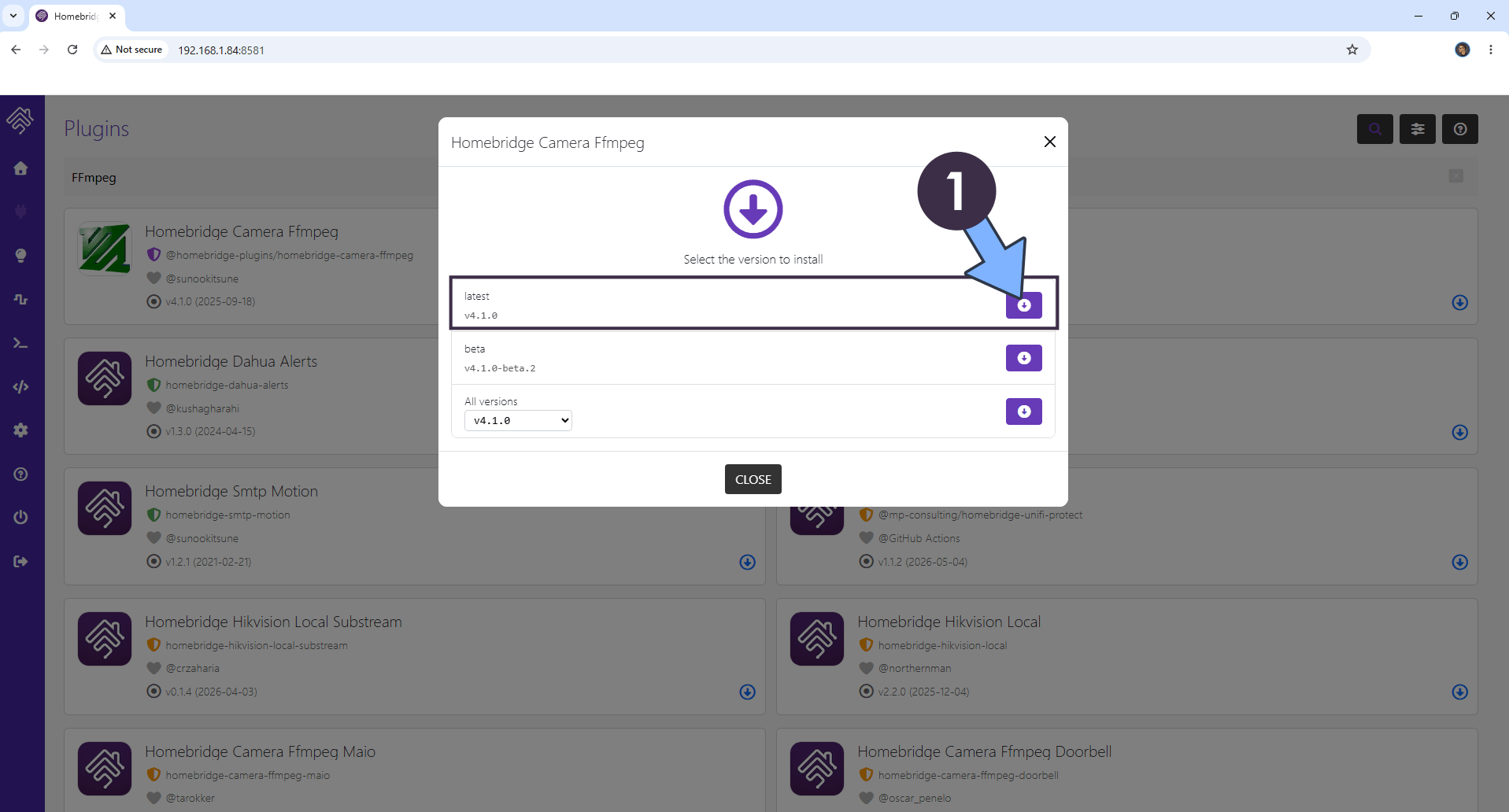
Select the latest version, then click the INSTALL icon. Follow the instructions in the image below.
STEP 15
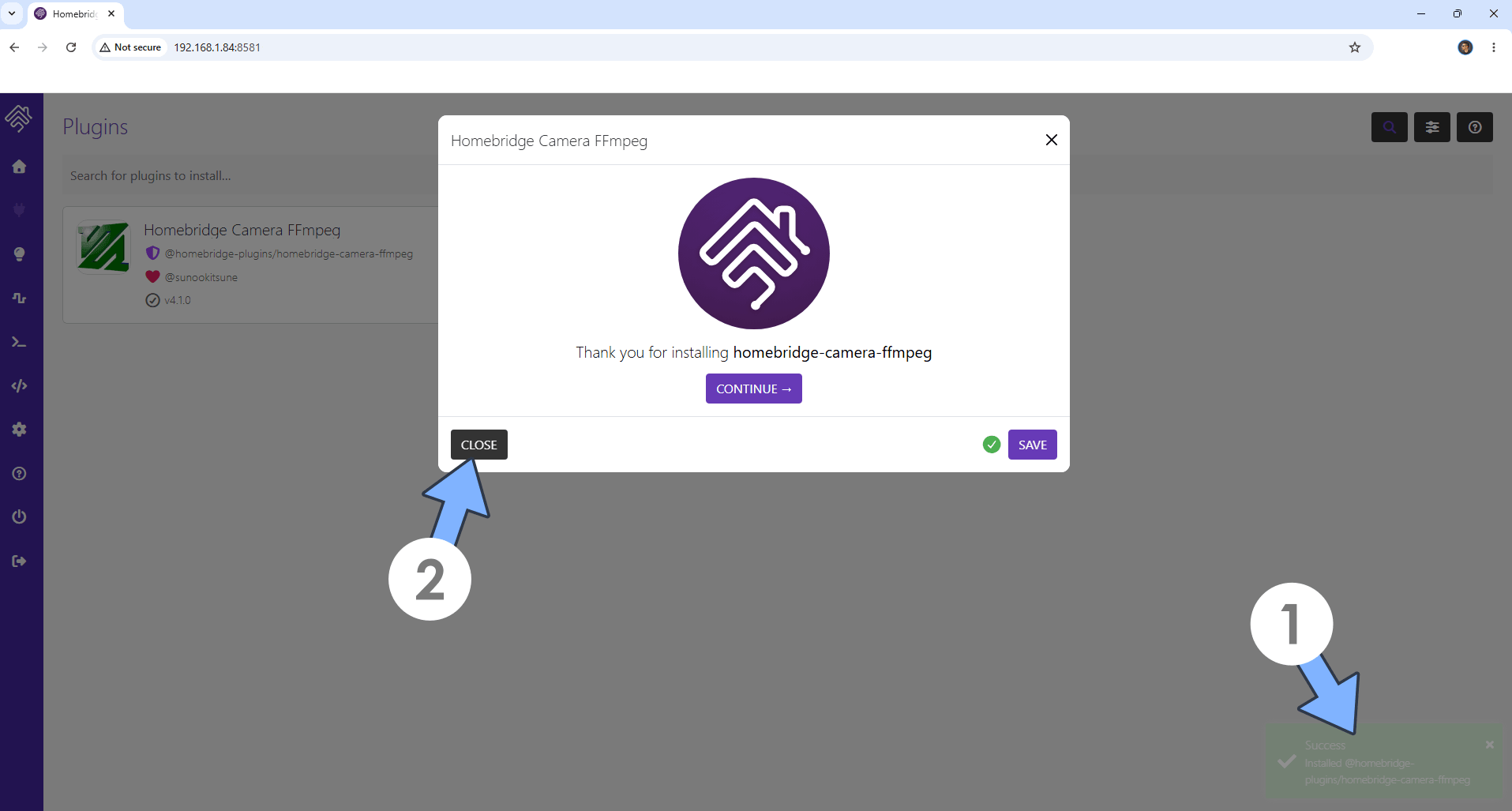
The plugin is now successfully installed. Click CLOSE. Follow the instructions in the image below.
STEP 16
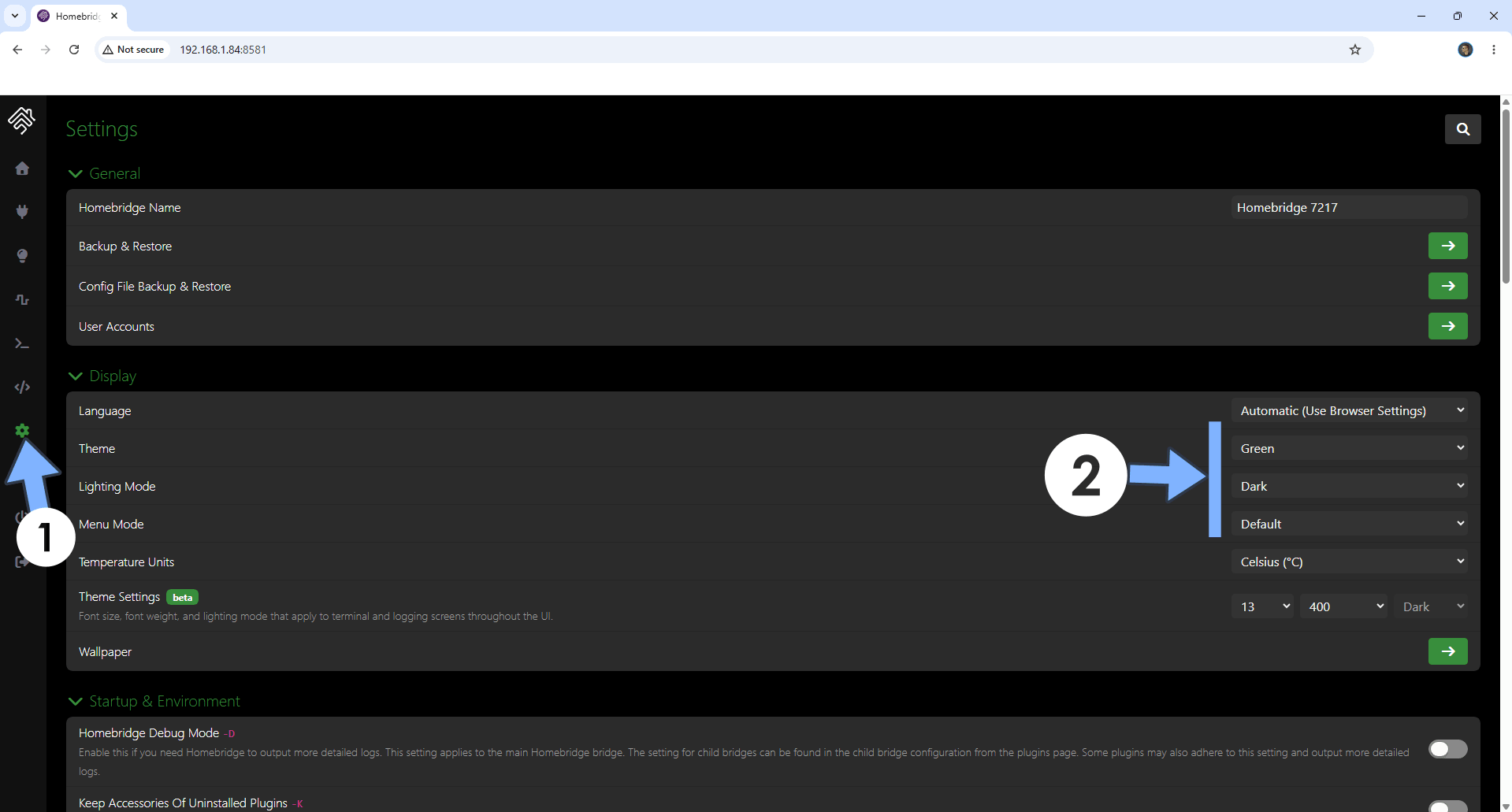
On the left sidebar, click the Settings icon. Select your favorite Homebridge theme. Follow the instructions in the image below.
Enjoy Homebridge on your Asustor NAS!
This post was updated on Friday / August 28th, 2026 at 11:59 AM