
Nginx Proxy Manager makes it very easy to manage reverse proxies and SSL certificates with Let’s Encrypt. Over time, however, you often end up with many certificates that are no longer used, leftover from tests, old domains, or services you removed. At the same time, active certificates eventually need renewal to stay valid. Keeping your certificate list clean and renewing SSL certificates regularly is a simple but important maintenance task. It prevents clutter, avoids expired certificates that can break your sites, and keeps everything secure and organized.
I manage domains and subdomains through Nginx Proxy Manager on my UGREEN NAS device, and over months, the Certificates page can get quite messy with old test certificates and unused entries. I make it a habit to clean up the unused ones every few weeks and renew the active certificates before they get close to expiration. The process is extremely fast: deleting unused certificates takes just a couple of clicks, and renewing usually finishes in under 30 seconds. Since I started doing this regularly, I’ve never had a site go down because of an expired certificate, and the Certificates page stays clean and easy to manage. It’s one of those small maintenance tasks that takes almost no time but gives real peace of mind.
STEP 1
Please Support My work by Making a Donation.
STEP 2
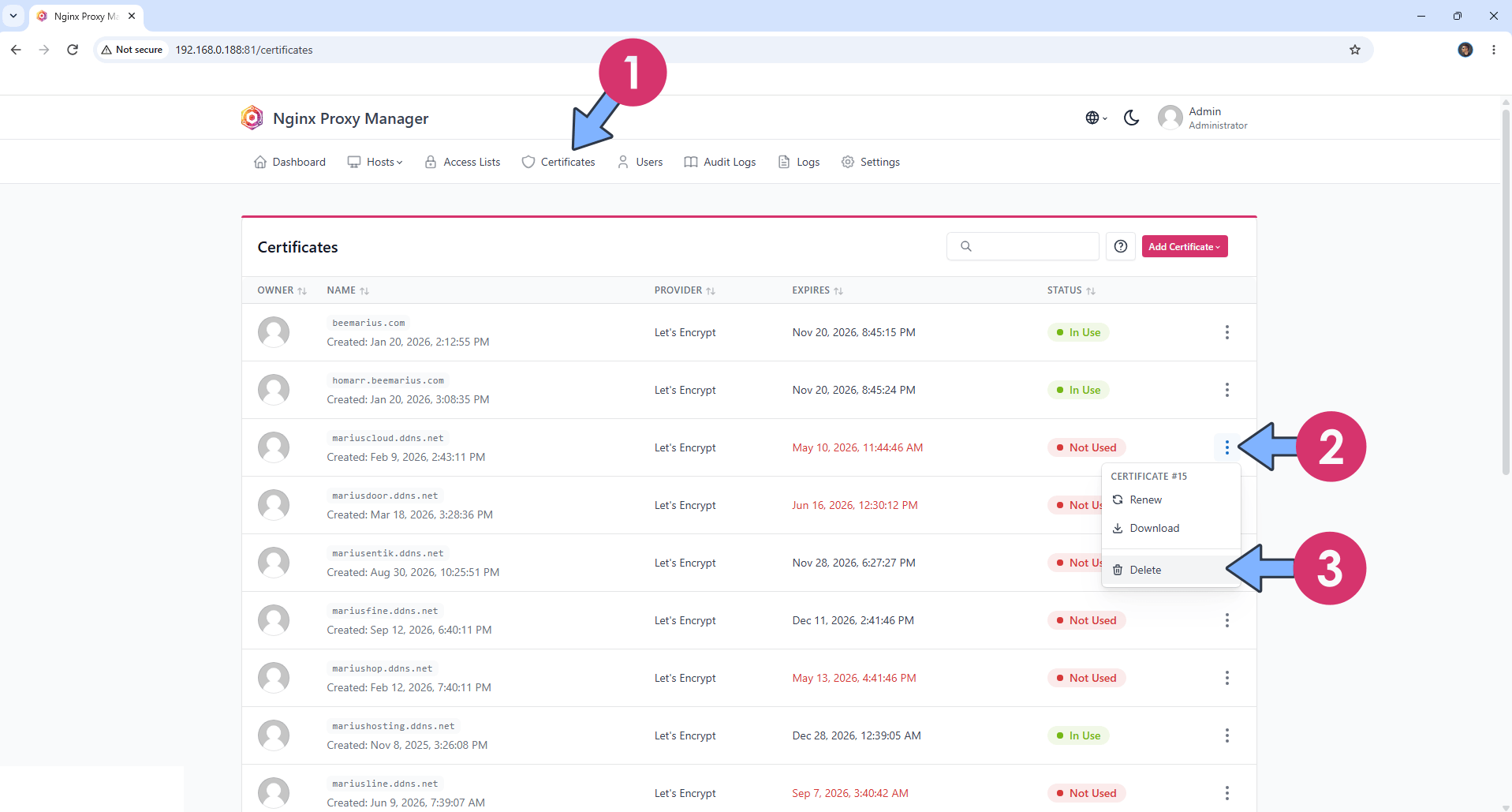
Open Nginx Proxy Manager and click on the Certificates tab in the top menu. Look for certificates marked as Not Used (they appear with a red status). Click the three-dot menu (⋮) on the right side of the unused certificate. Click Delete from the dropdown menu. Follow the instructions in the image below.
STEP 3
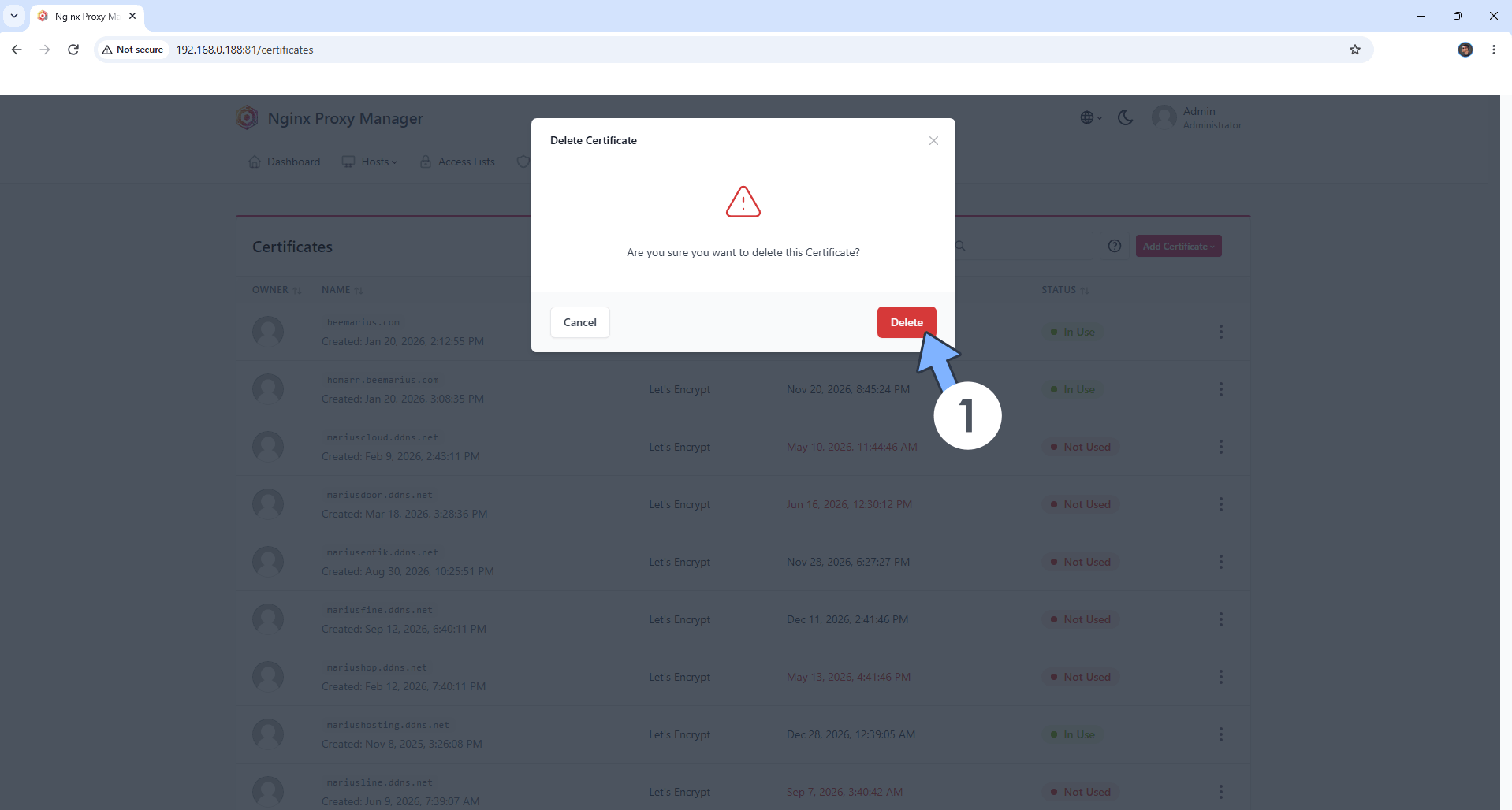
A new pop up confirmation window will appear asking “Are you sure you want to delete this Certificate?”. Click the red Delete button to confirm. The certificate is immediately removed from the list. Follow the instructions in the image below.
STEP 4
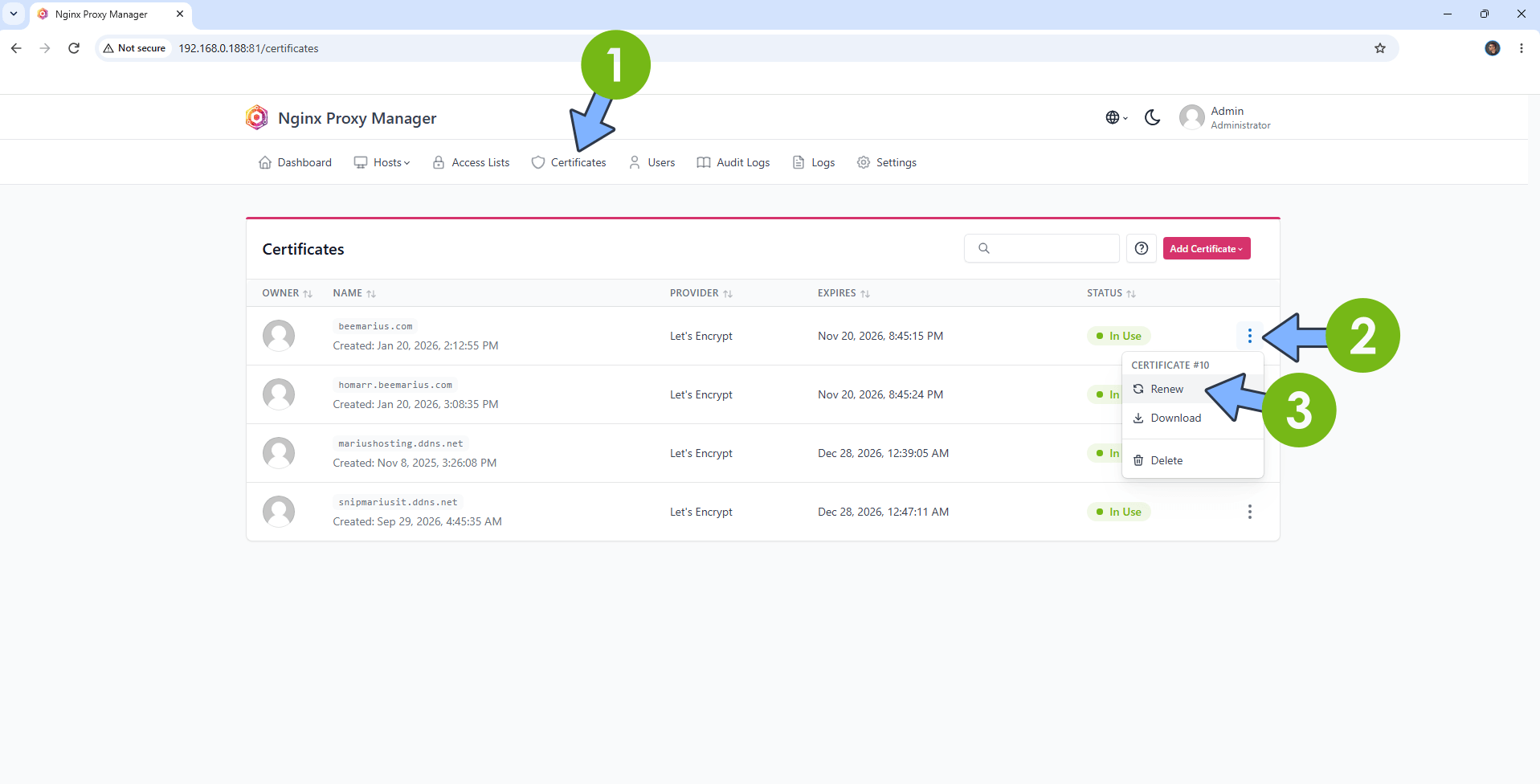
Still in the Certificates tab, find the certificate you want to renew (usually those that are In Use). Click the three-dot menu (⋮) next to it. Click Renew. Follow the instructions in the image below.
STEP 5
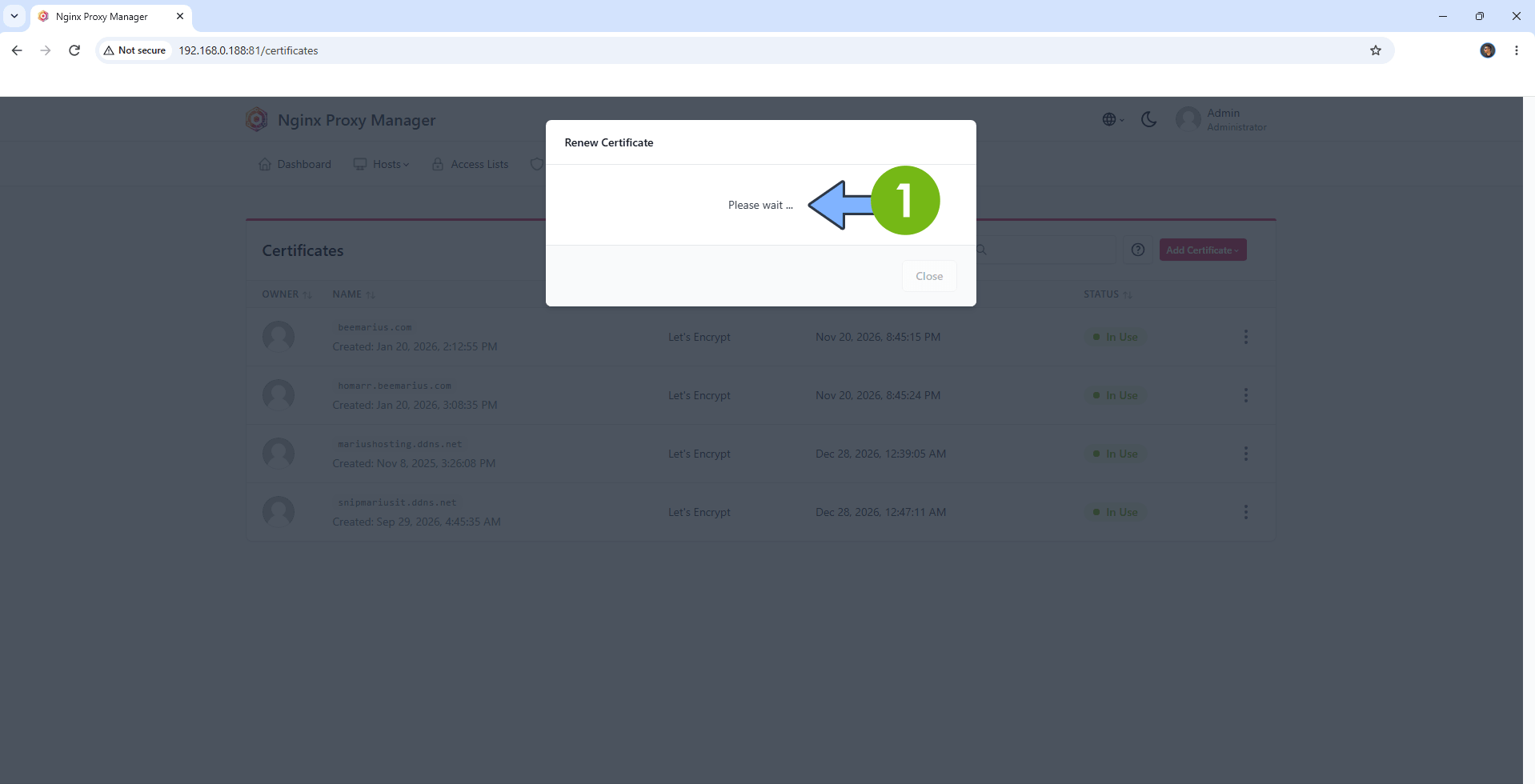
A new popup window will appear showing “Please wait…”. Wait a few seconds while Nginx Proxy Manager contacts Let’s Encrypt servers. Make sure your ports 80 and 443 are correctly port forwarded from your router pointing to your NAS. Go straight to the next STEP.
STEP 6
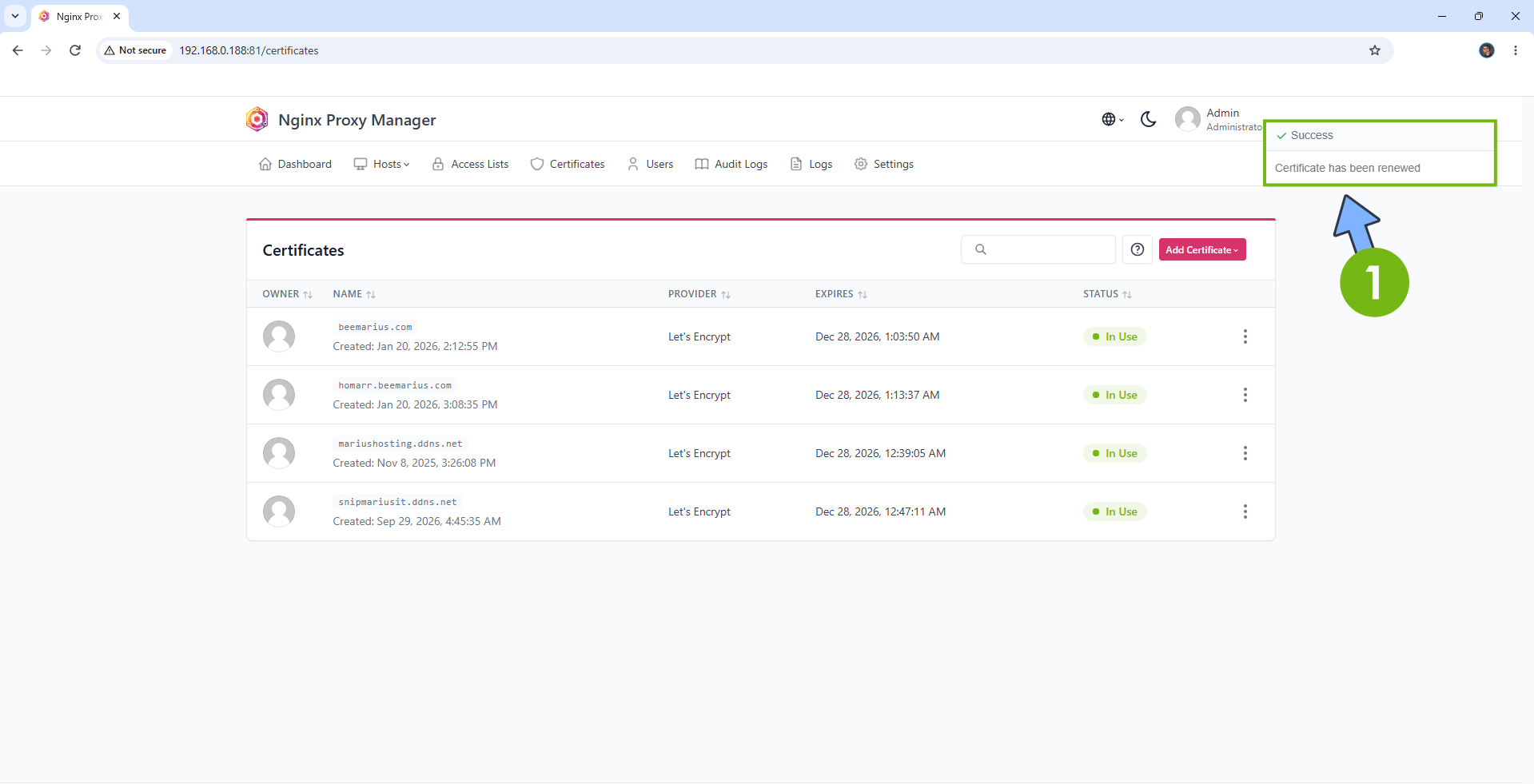
Once finished, you will see a green success notification: “Certificate has been renewed”. The expiration date will be updated automatically. Follow the instructions in the image below.
This post was updated on Thursday / October 1st, 2026 at 11:55 AM