

BentoPDF is a powerful, privacy-first, client-side PDF toolkit that allows you to manipulate, edit, merge, and process PDF files directly in your browser. No server-side processing is required, ensuring your files remain secure and private. In this step by step guide I will show you how to install BentoPDF on your Asustor NAS using Docker and Dockhand.
💡Note:
This guide works perfectly with the latest BentoPDF v2.8.8 release.
💡Note: Check out my guide on how to Install BentoPDF on Your UGREEN NAS.
💡Note: Check out my guide on how to Install BentoPDF on Your Synology NAS.
STEP 1
Please Support My work by Making a Donation.
STEP 2
Install Dockhand using my step by step guide. If you already have Dockhand installed on your Asustor NAS, skip this STEP. ⚠️Attention: Make sure you have installed the latest Dockhand version.
STEP 3
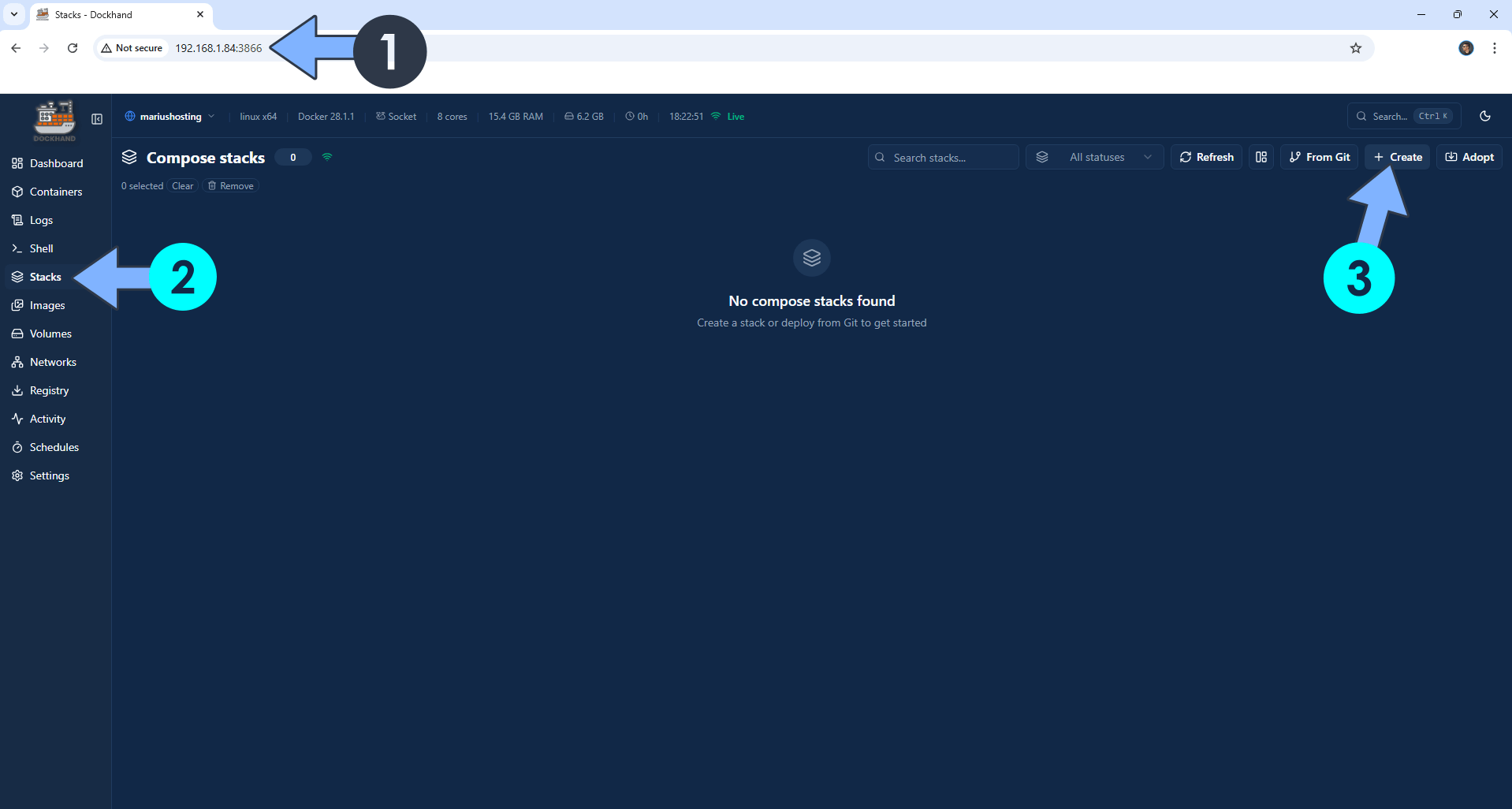
Open your browser and type in http://asustor-ip-address:3866 to connect to your Dockhand container. On the left sidebar, click Stacks then + Create. Follow the instructions in the image below.
STEP 4
In the Stack name field, type in bentopdf. ⚠️Warning: Type in the name in lowercase letters. The installation process can take up to a few seconds/minutes. It will depend on your Internet speed connection. Follow the instructions in the image below.
Note: Copy Paste the code below in the Dockhand Compose Stack then click Create & Start.
services:
  bentopdf:
    image: ghcr.io/alam00000/bentopdf-simple:latest
    container_name: BentoPDF
    healthcheck:
      test: ["CMD-SHELL", "nc -z 127.0.0.1 8080 || exit 1"]
      interval: 10s
      timeout: 5s
      retries: 3
      start_period: 90s
    ports:
      - 3183:8080
    restart: on-failure:5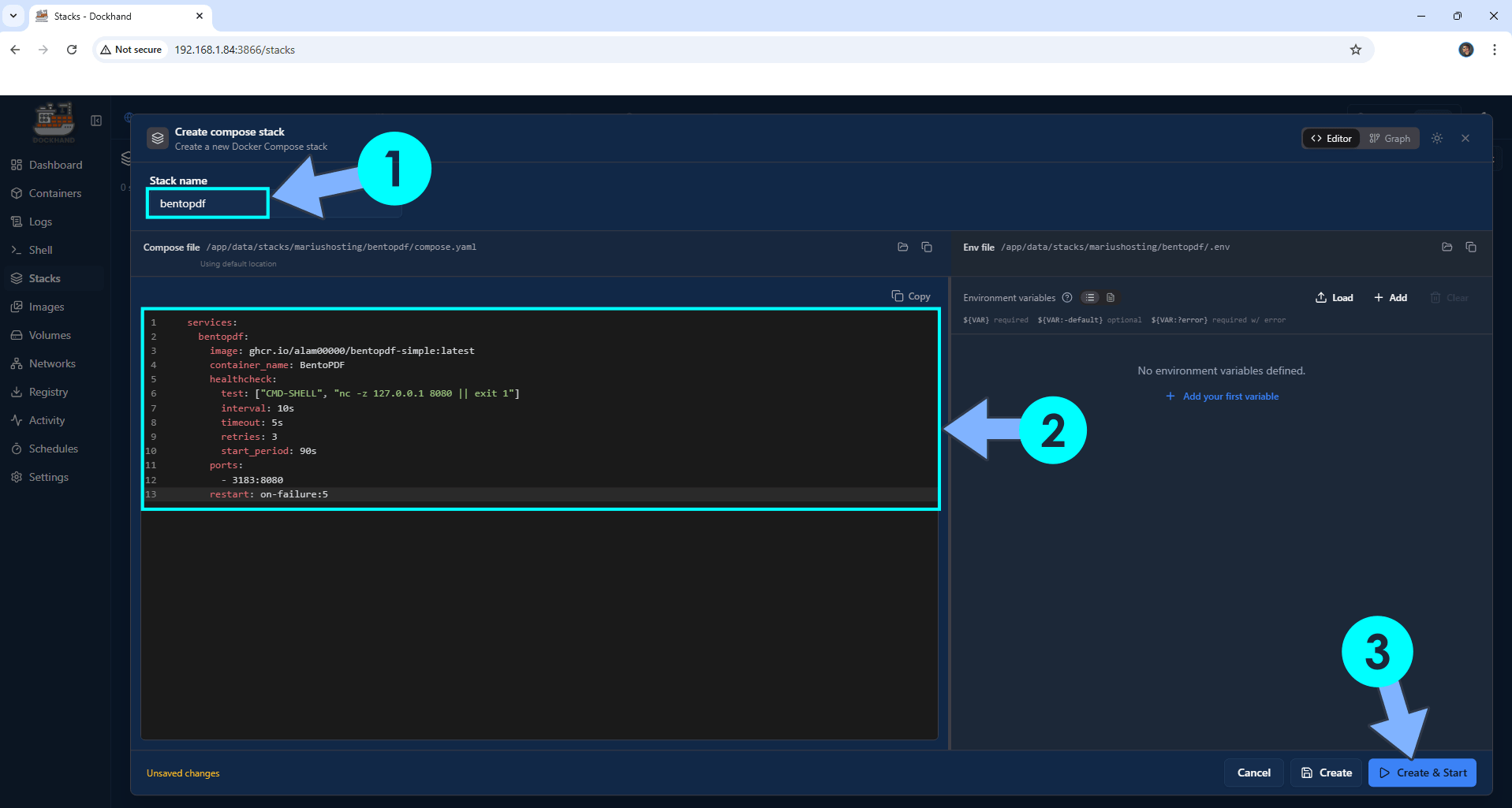
STEP 5
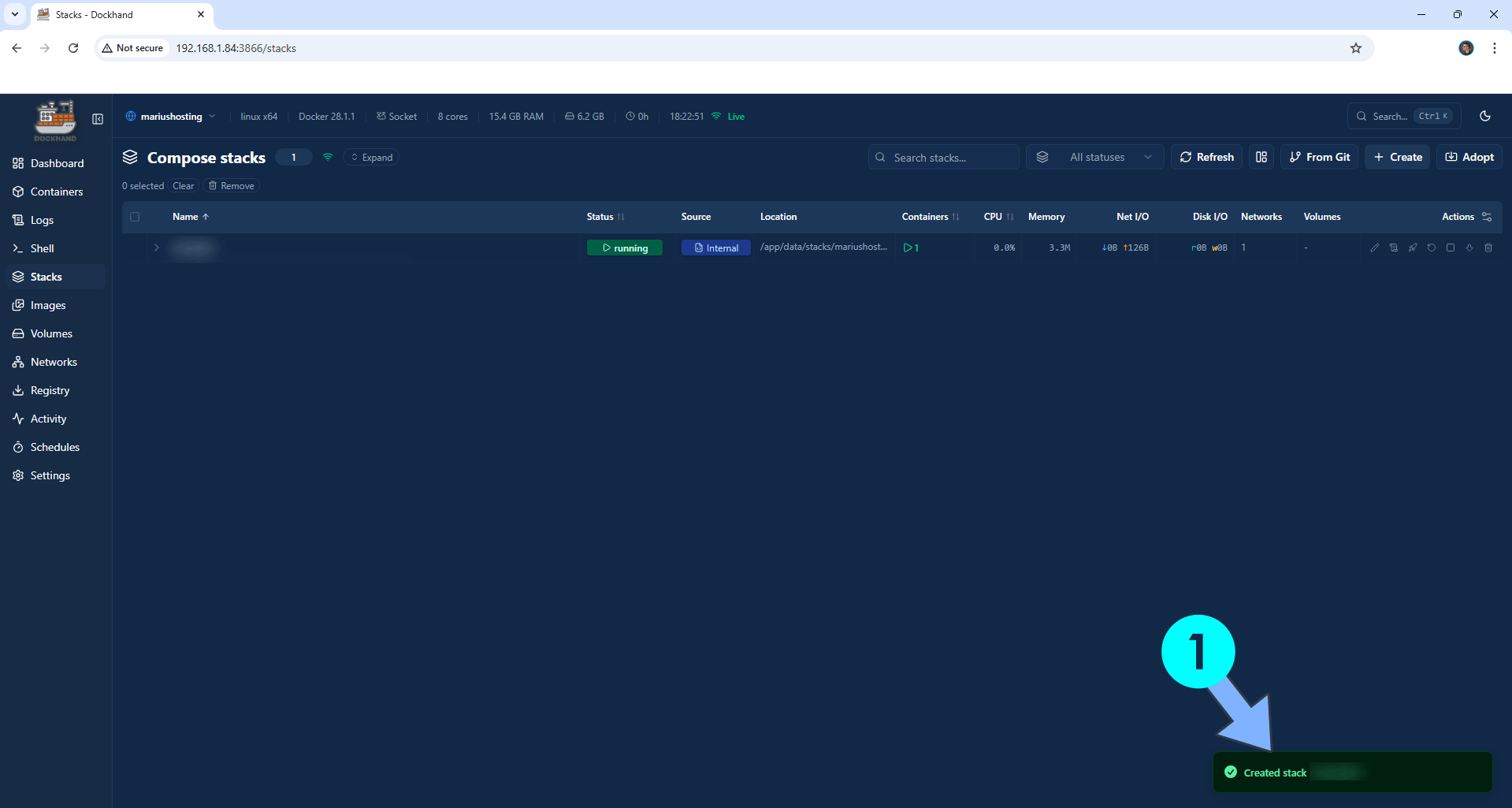
If everything goes right, you will see the following message at the bottom right of your screen: “Created stack “bentopdf”“.
STEP 6
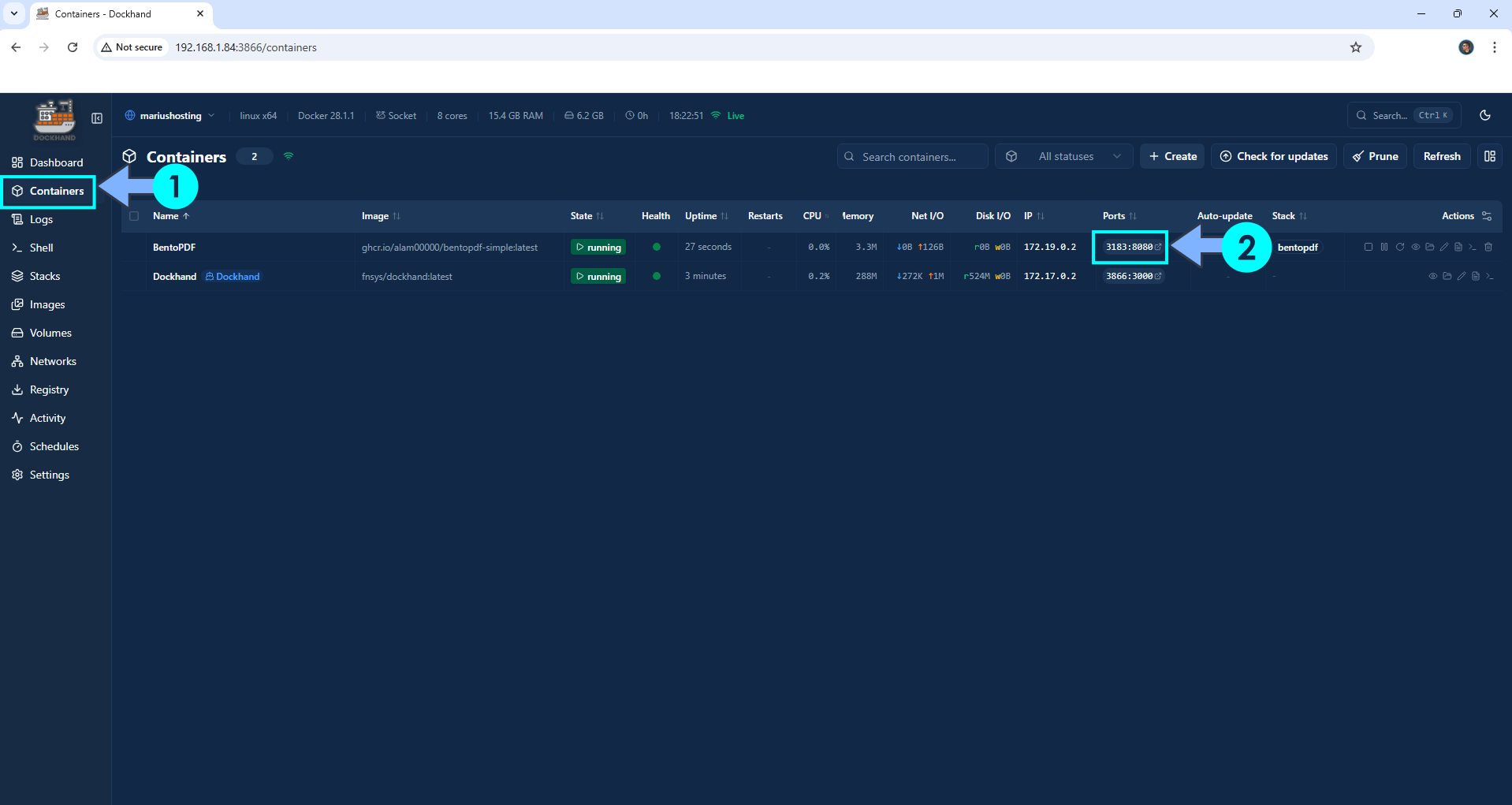
On the left sidebar, click Containers. Identify your BentoPDF container then click on ports 3183:8080. Follow the instructions in the image below.
STEP 7
Please Support My work by Making a Donation. Almost 99,9% of the people that install something using my guides forget to support my work, or just ignore STEP 1. I’ve been very honest about this aspect of my work since the beginning: I don’t run any ADS, I don’t require subscriptions, paid or otherwise, I don’t collect IPs, emails, and I don’t have any referral links from Amazon or other merchants. I also don’t have any POP-UPs or COOKIES. I have repeatedly been told over the years how much I have contributed to the community. It’s something I love doing and have been honest about my passion since the beginning. But I also Need The Community to Support me Back to be able to continue doing this work.
STEP 8
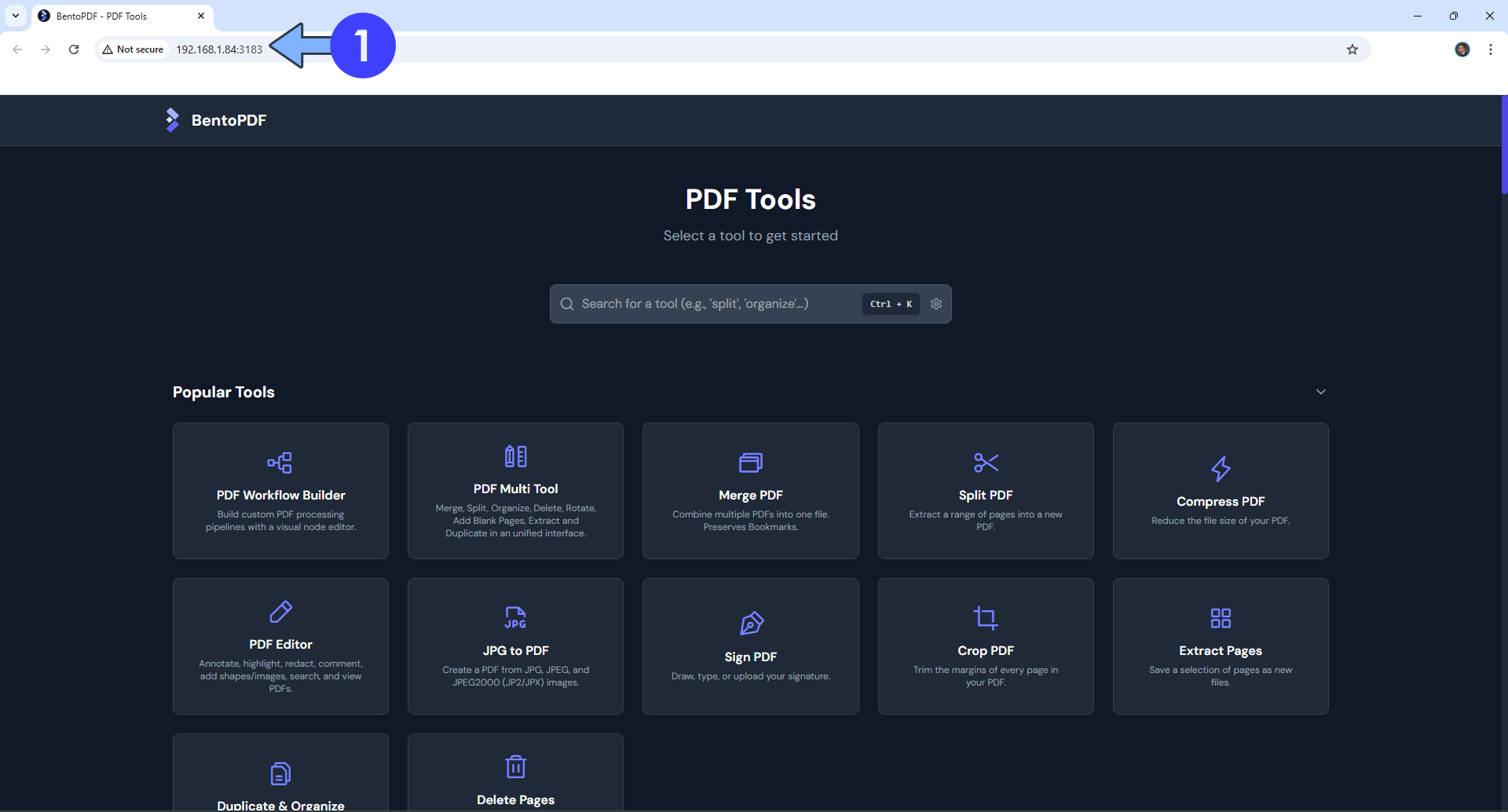
Click on your favorite PDF tool. Follow the instructions in the image below.
STEP 9
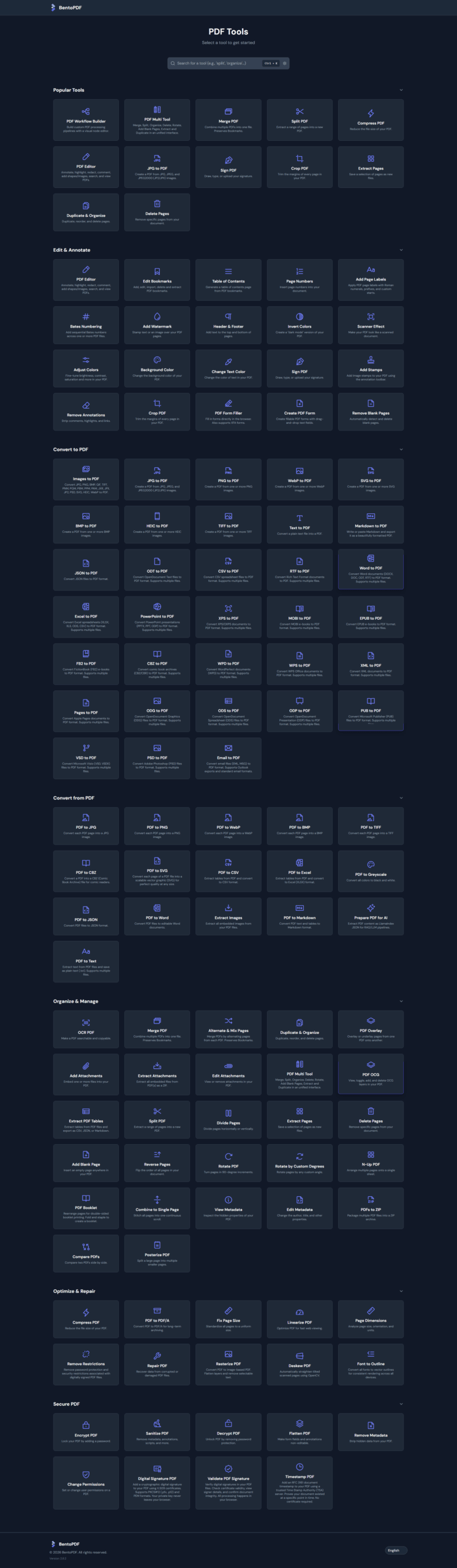
Your BentoPDF dashboard with the full PDF Toolkit options at a glance!
🆘TROUBLESHOOTING
⚠️Warning: BentoPDF now requires a secure context starting from version 2.8.3. While basic features usually still work over plain HTTP, advanced features such as Office-to-PDF conversion may fail or be limited without HTTPS due to browser security restrictions. For the full experience, it is recommended to run BentoPDF behind Reverse Proxy with an Let’s Encrypt SSL certificate.
This post was updated on Wednesday / September 30th, 2026 at 1:40 AM